
Welcome to our comprehensive guide on creating a new project on Engage. This tutorial will guide you through the step-by-step process of designing a project with various question types to best suit your research needs.
Login to Engage
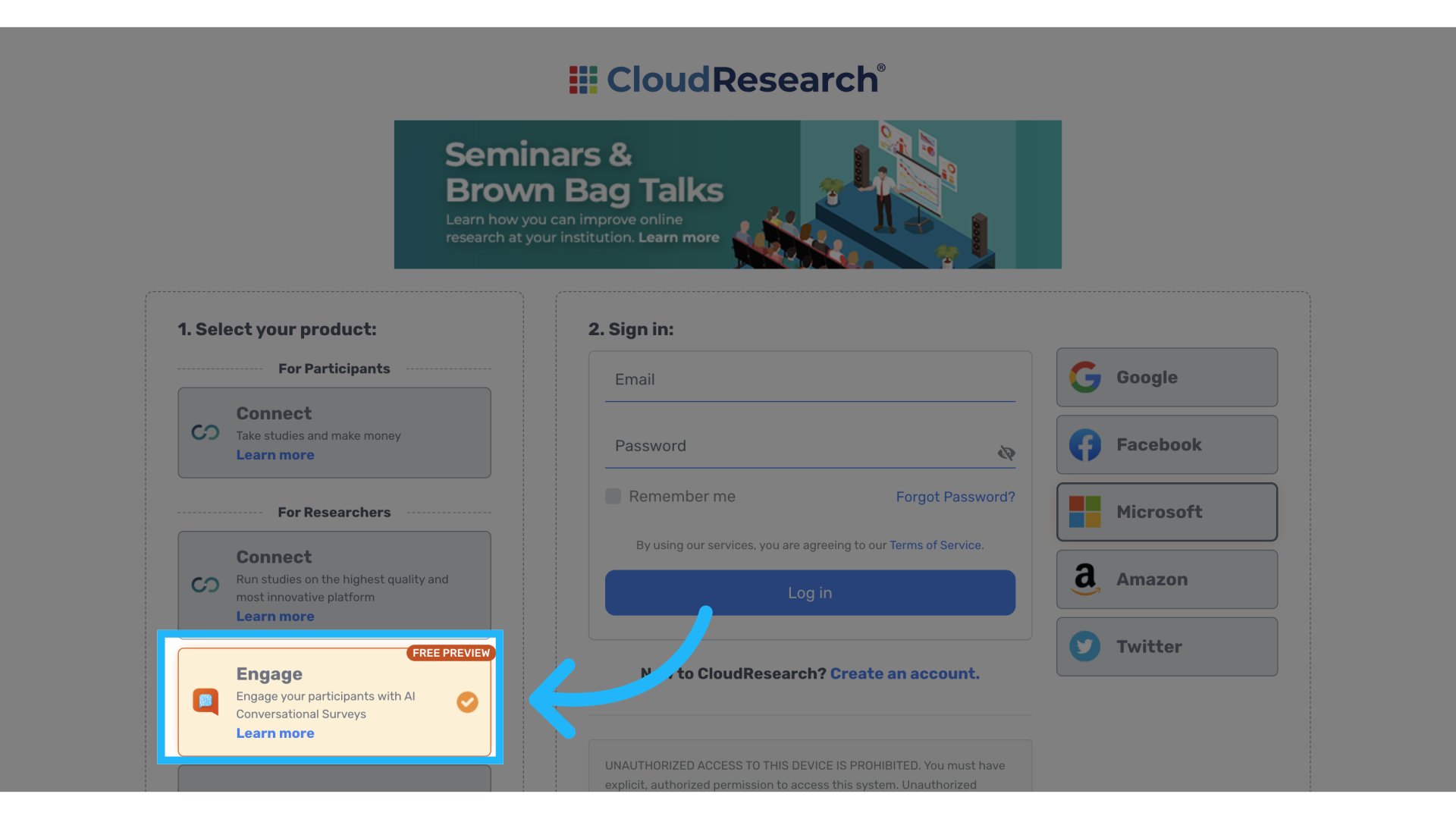
1. Sign In
Sign into your Engage account using the appropriate credentials.
2. Create Project
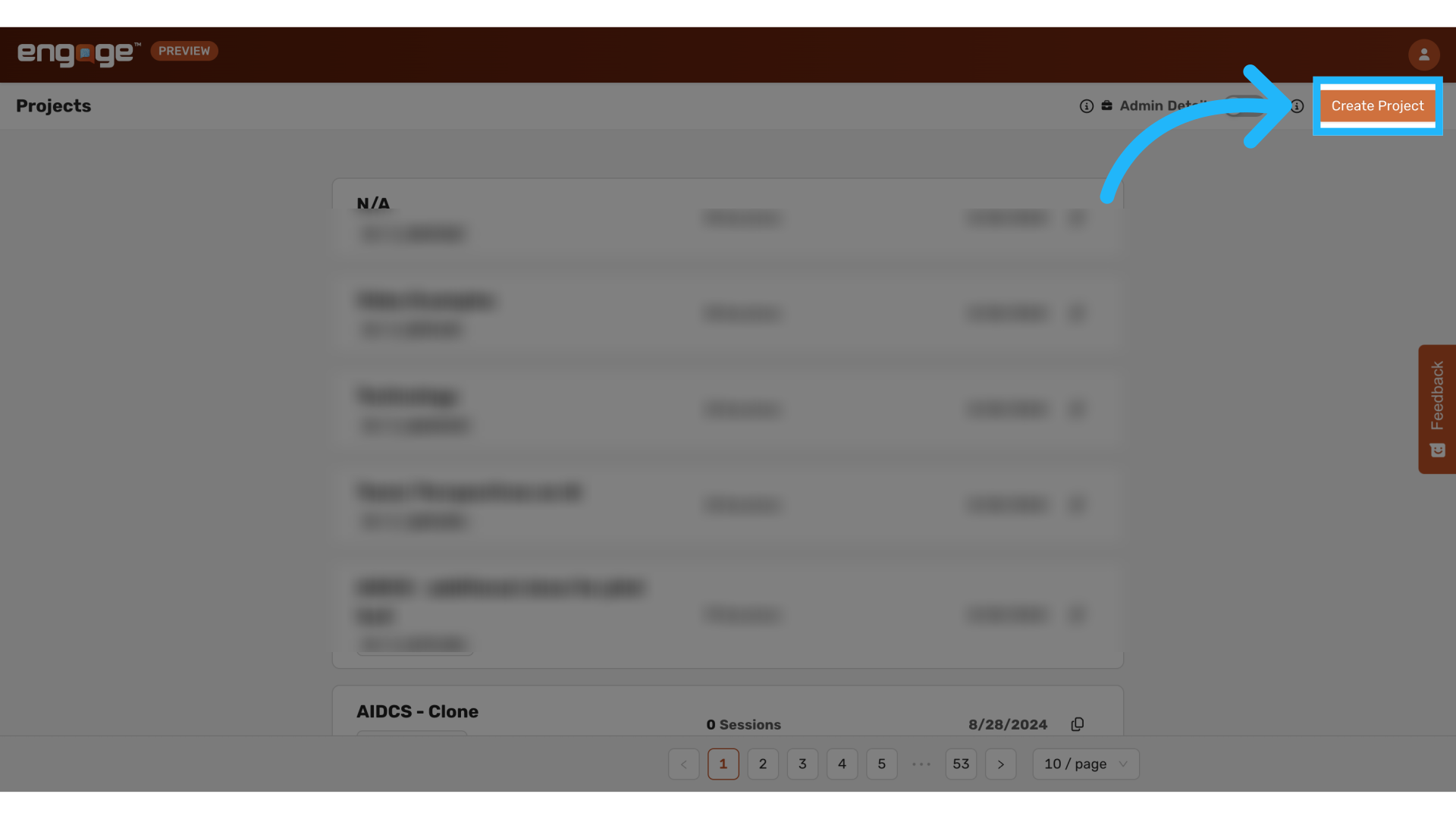
After logging in, you'll be taken to your project homepage. To start a new survey, select "Create Project".
3. Design from Scratch
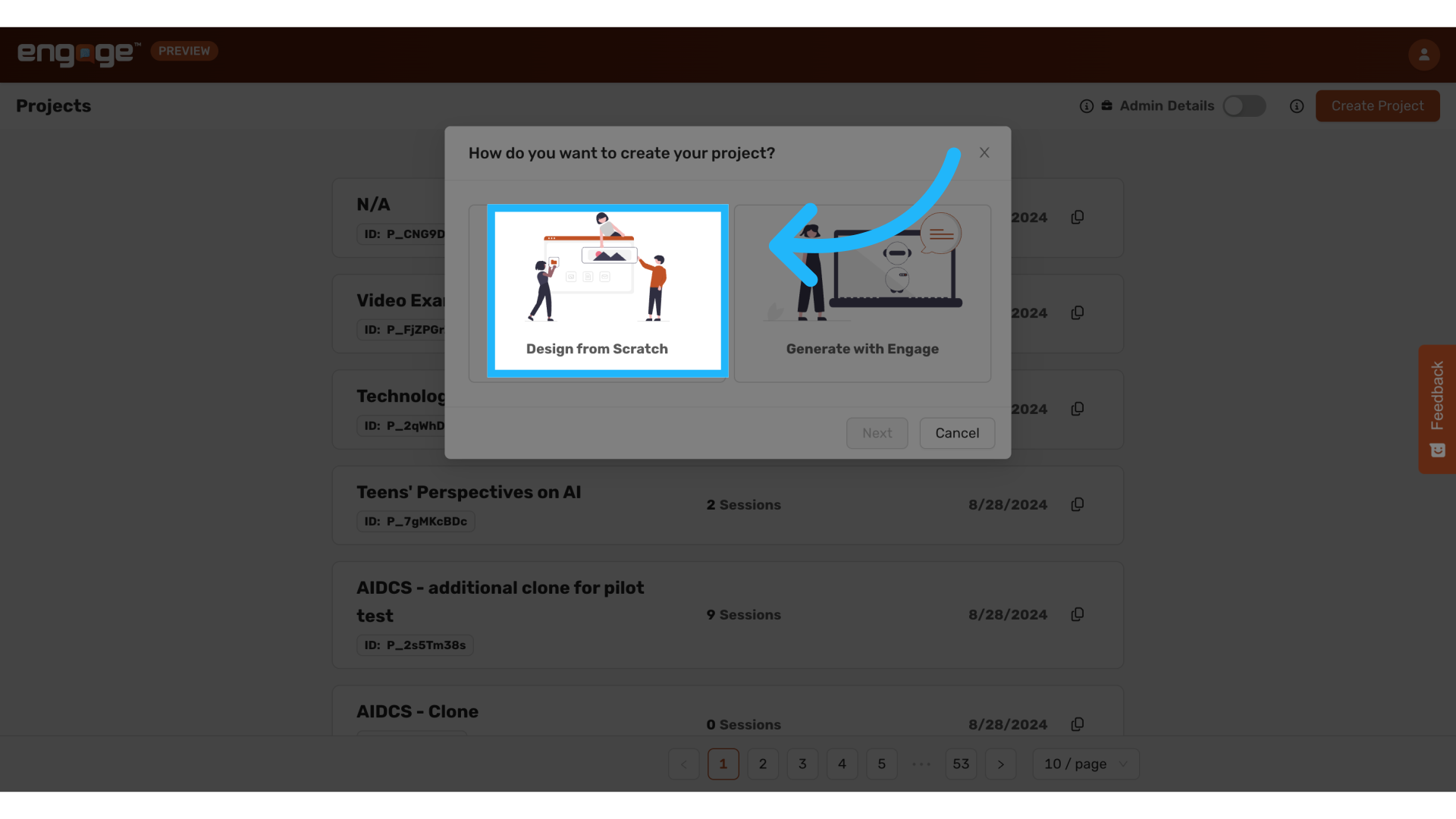
Select the "Design from Scratch" option, which allows you to construct your survey from the ground up. Click 'Next' to proceed.
4. Enter Project Name
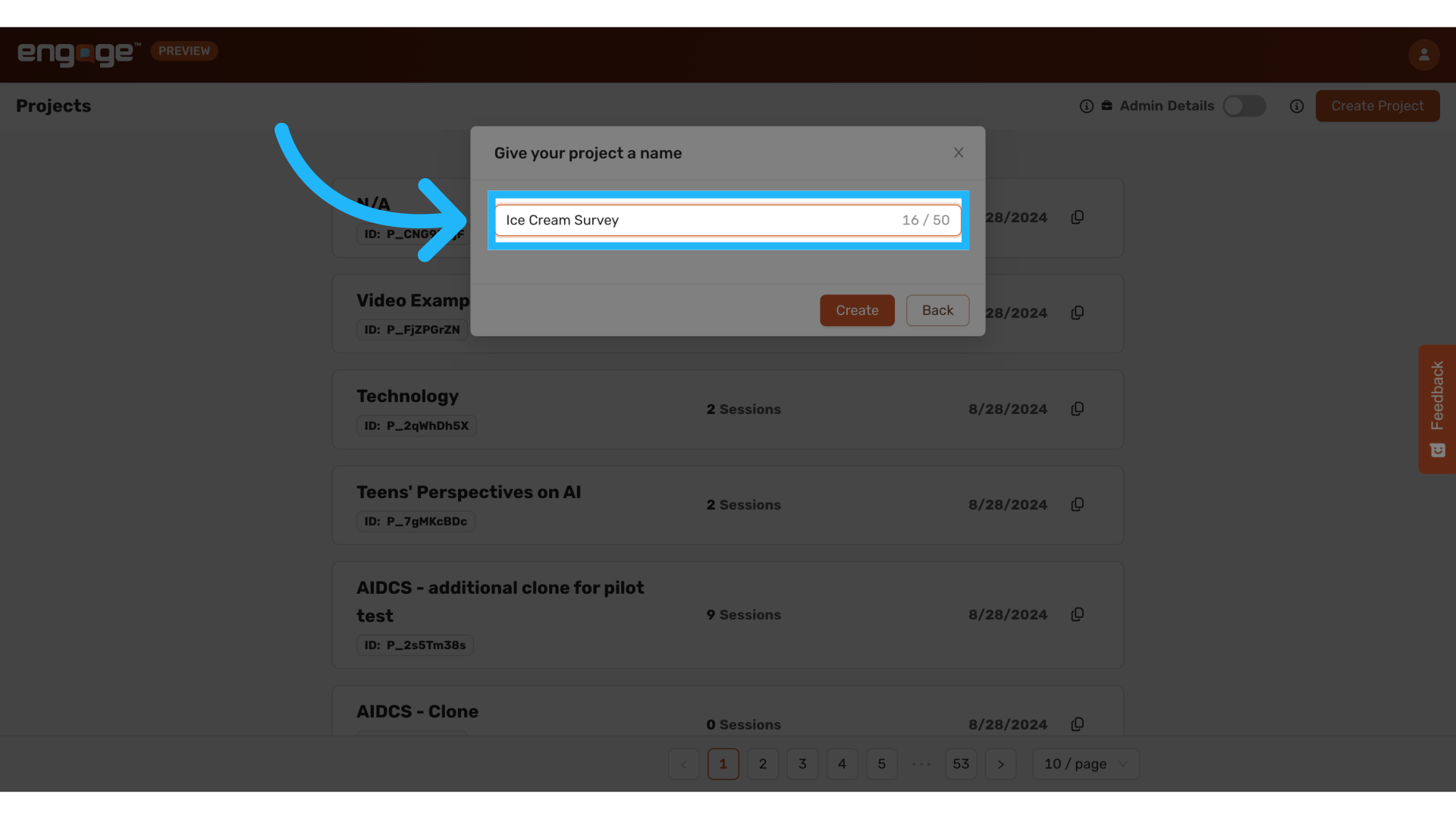
Enter a name for your project to distinguish it among your various initiatives from the homepage.
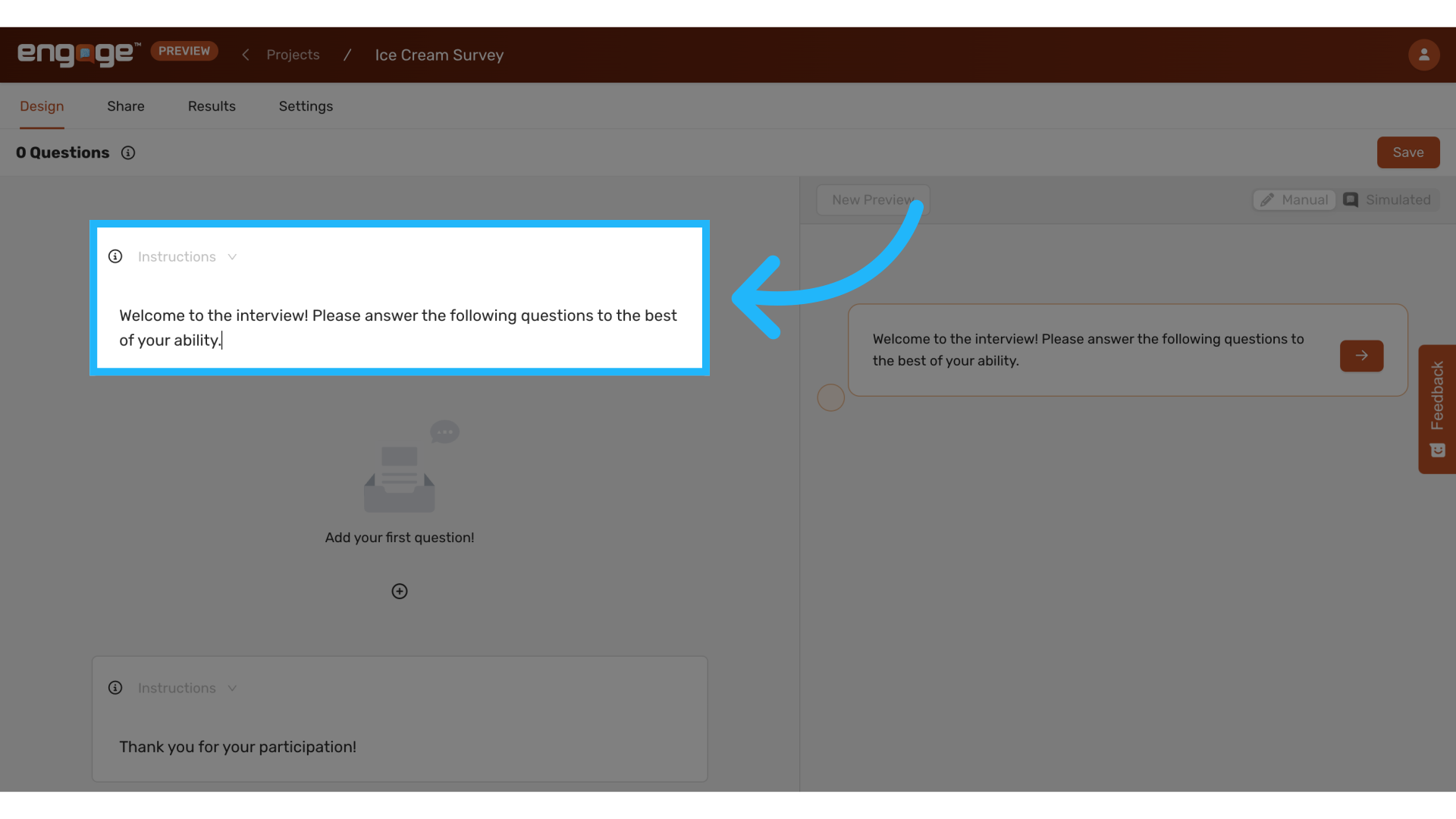
5. Edit Introduction
Every project will begin with an automatically produced set of instructions in order to provide clear instructions for your participants. You can edit these to ensure participants know what to expect. This is also a good place to put study consent information. If you needed how long the study might take and any other basic information you want participants to have.
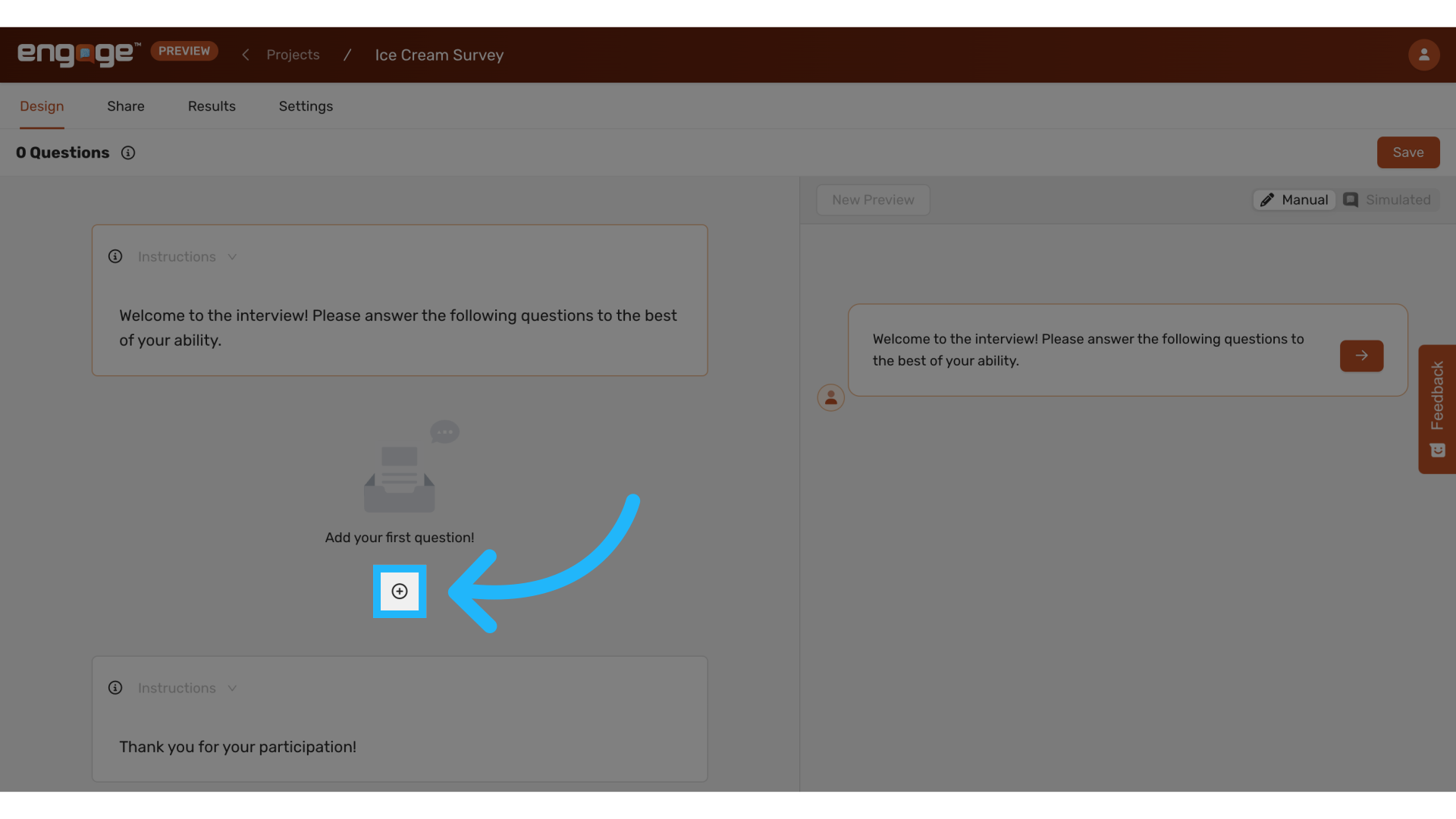
6. Add Question Types
Begin adding new questions to your survey from the variety of question types available.
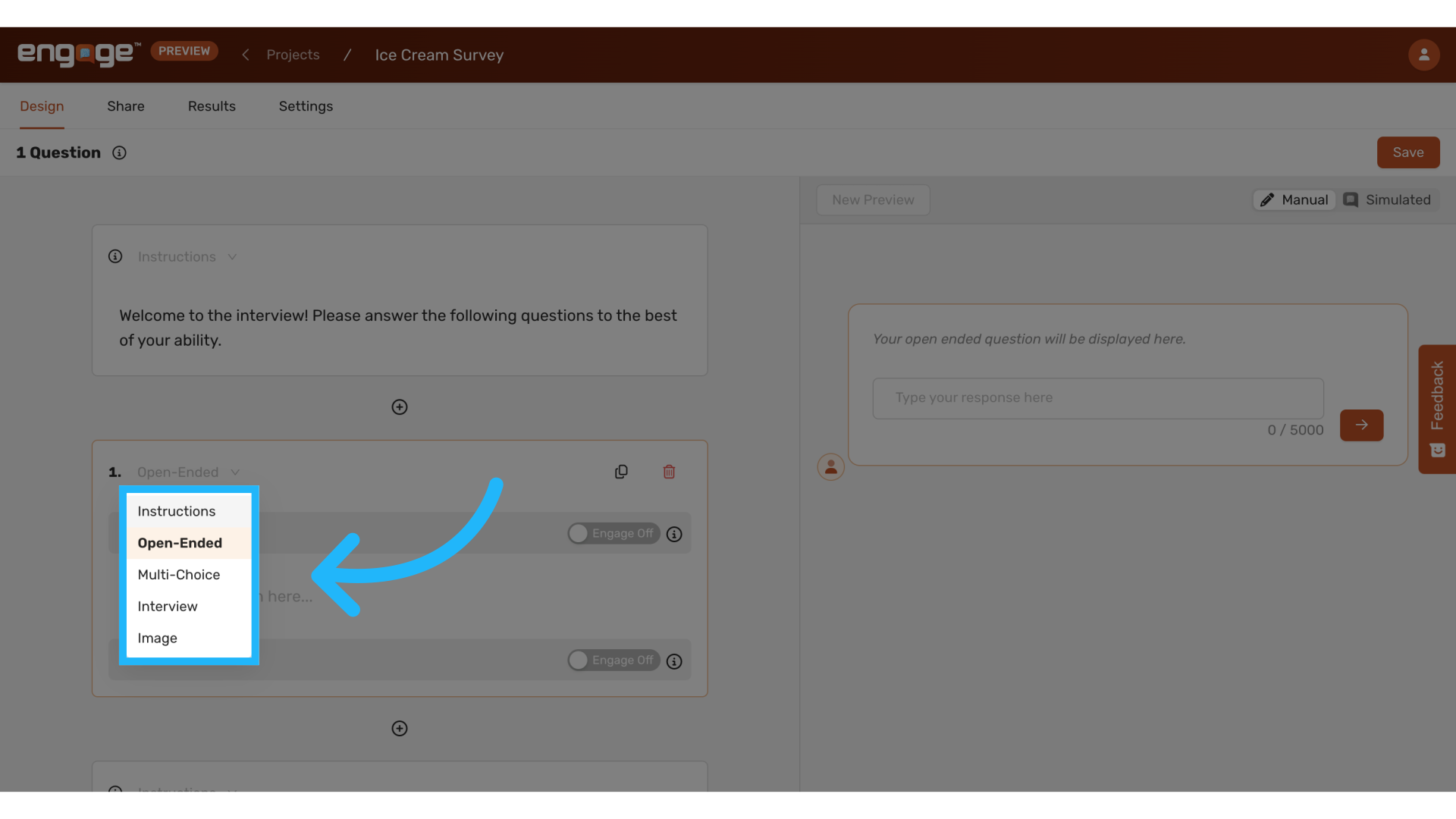
7. Select Question Type
Selecting the desired question type from the dropdown menu. Below are the various question types to choose from.
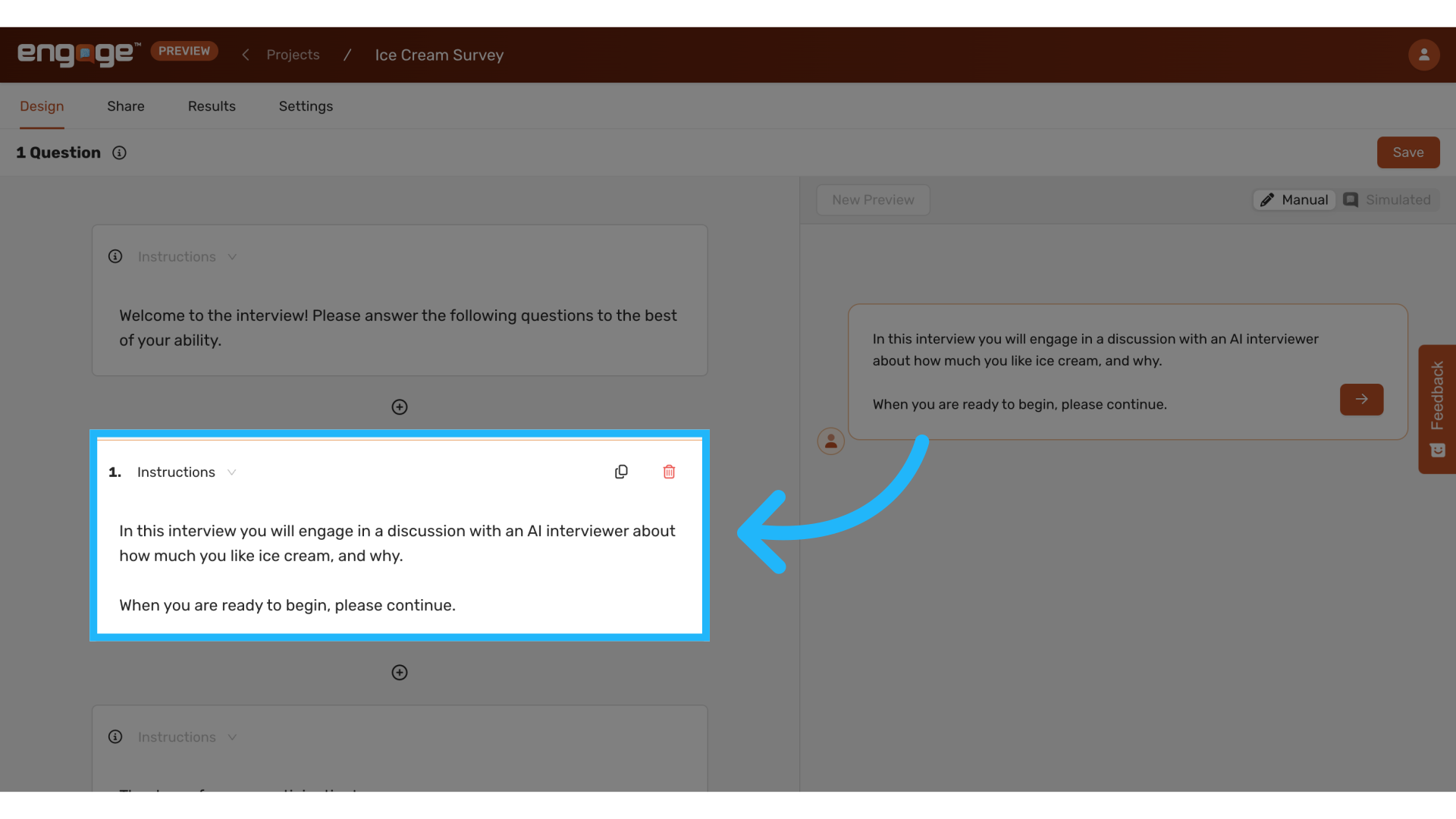
8. Instructions
Insert additional instructions throughout the survey to ensure clarity and guide participants through the process.
9. Open-Ended Questions
Utilize open-ended questions to collect qualitative data, providing participants the freedom to express detailed and personal responses.
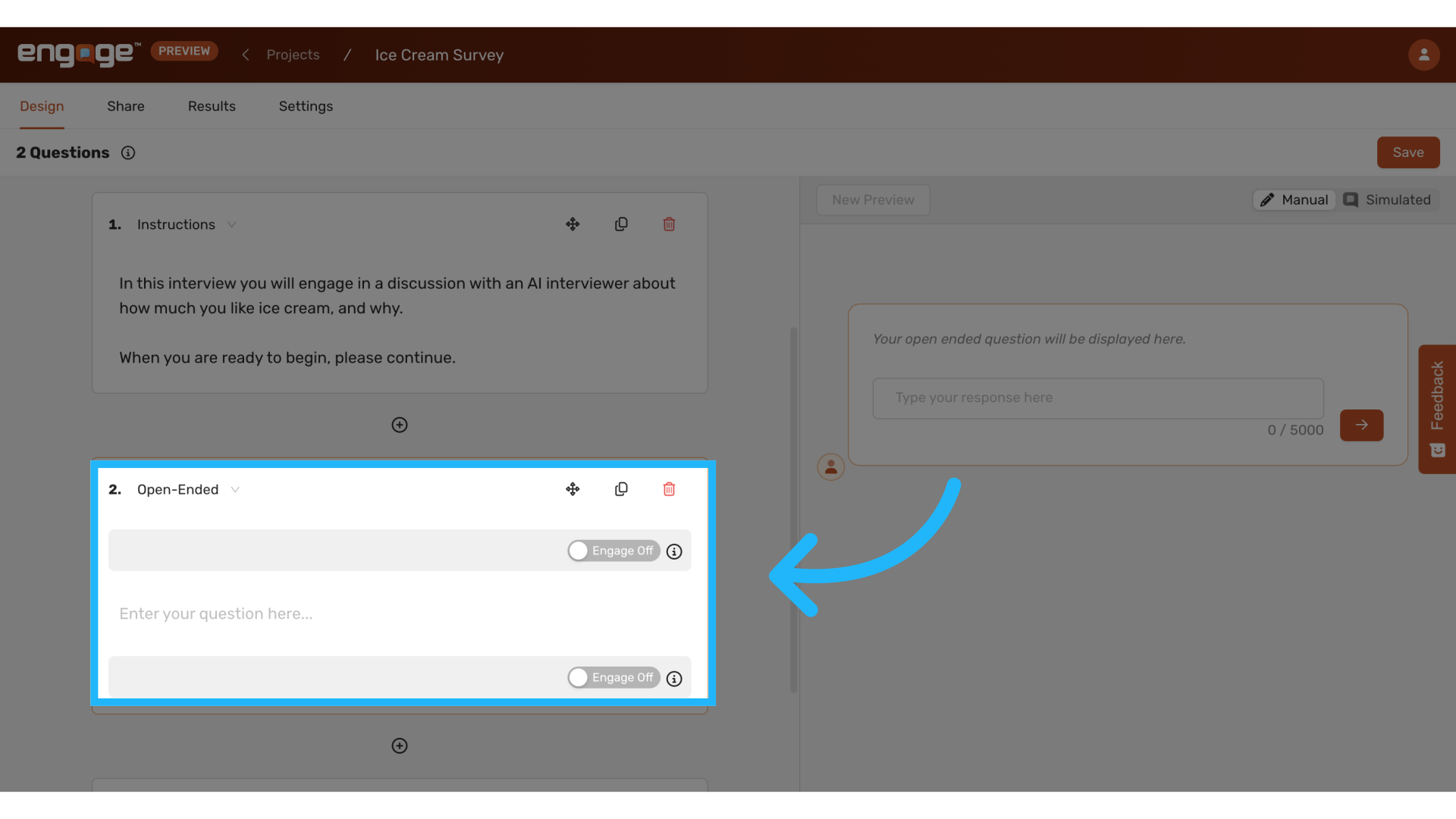
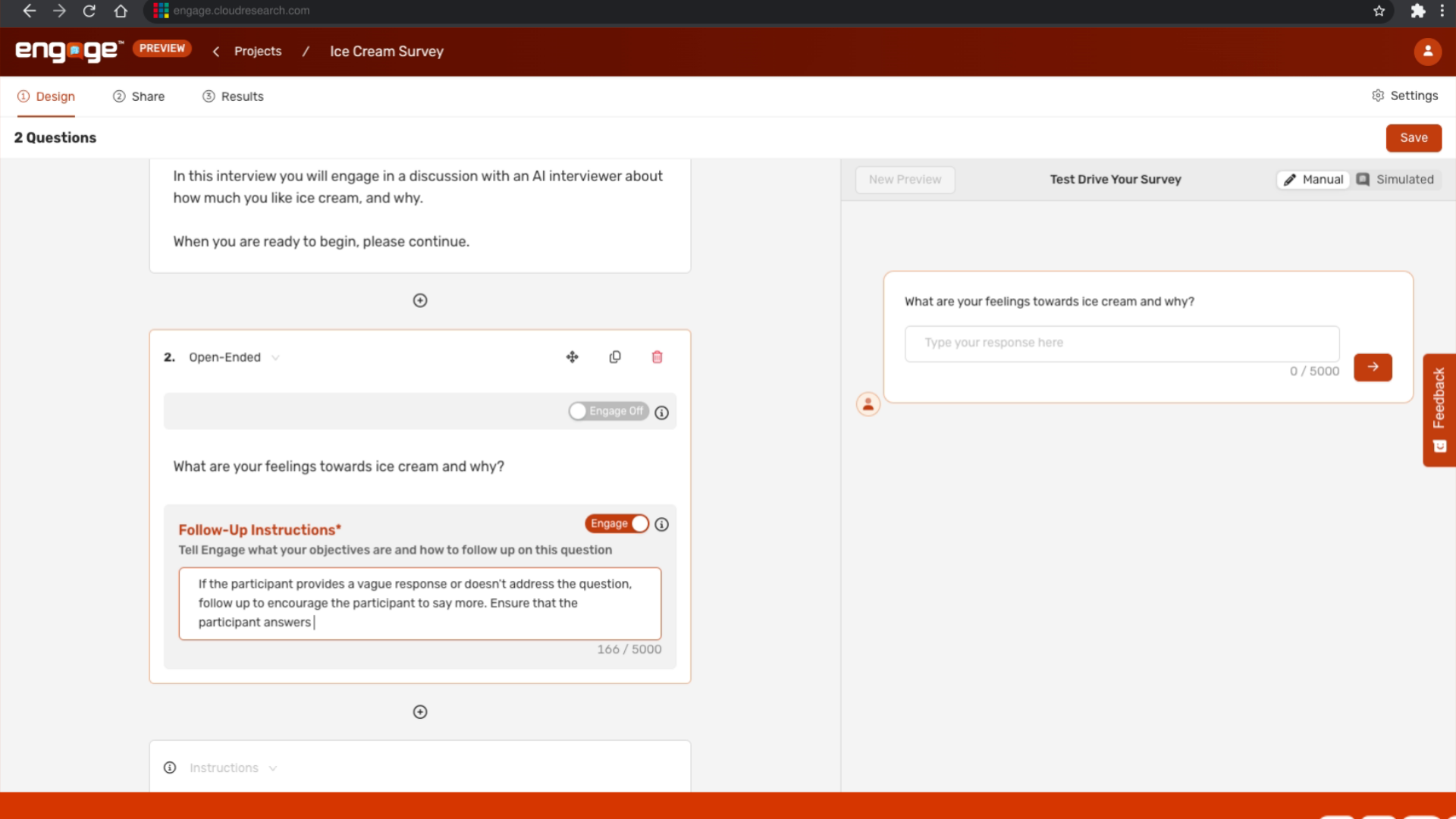
10. Example of Open-Ended Question
For example, in a survey about ice cream preferences, you could ask, "What are your feelings toward ice cream and why?" to gather nuanced insights.
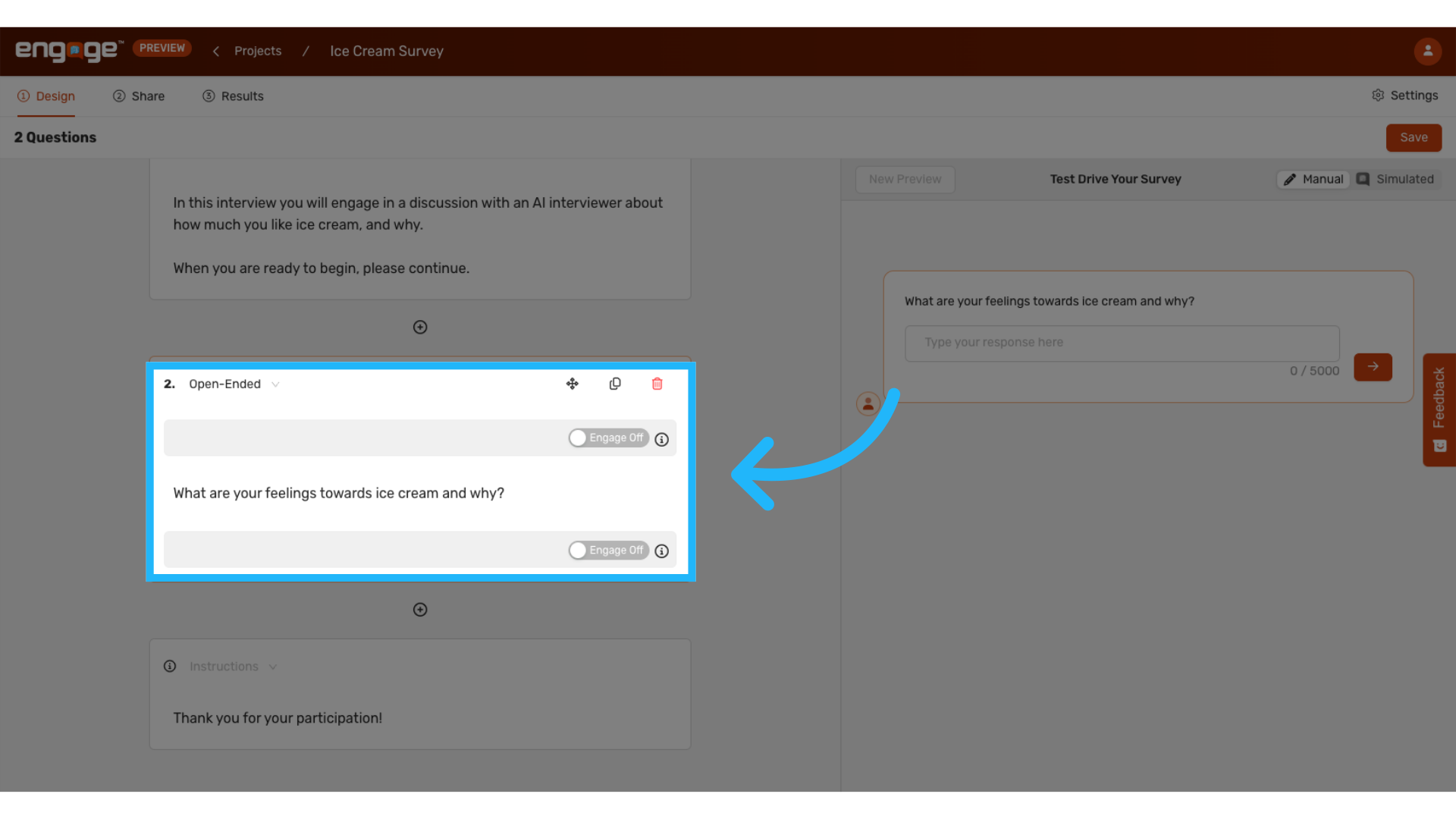
11. Follow-Up Instructions
Enable follow-up instructions to generate AI-driven questions based on participants' initial responses, facilitating deeper engagement and insight.
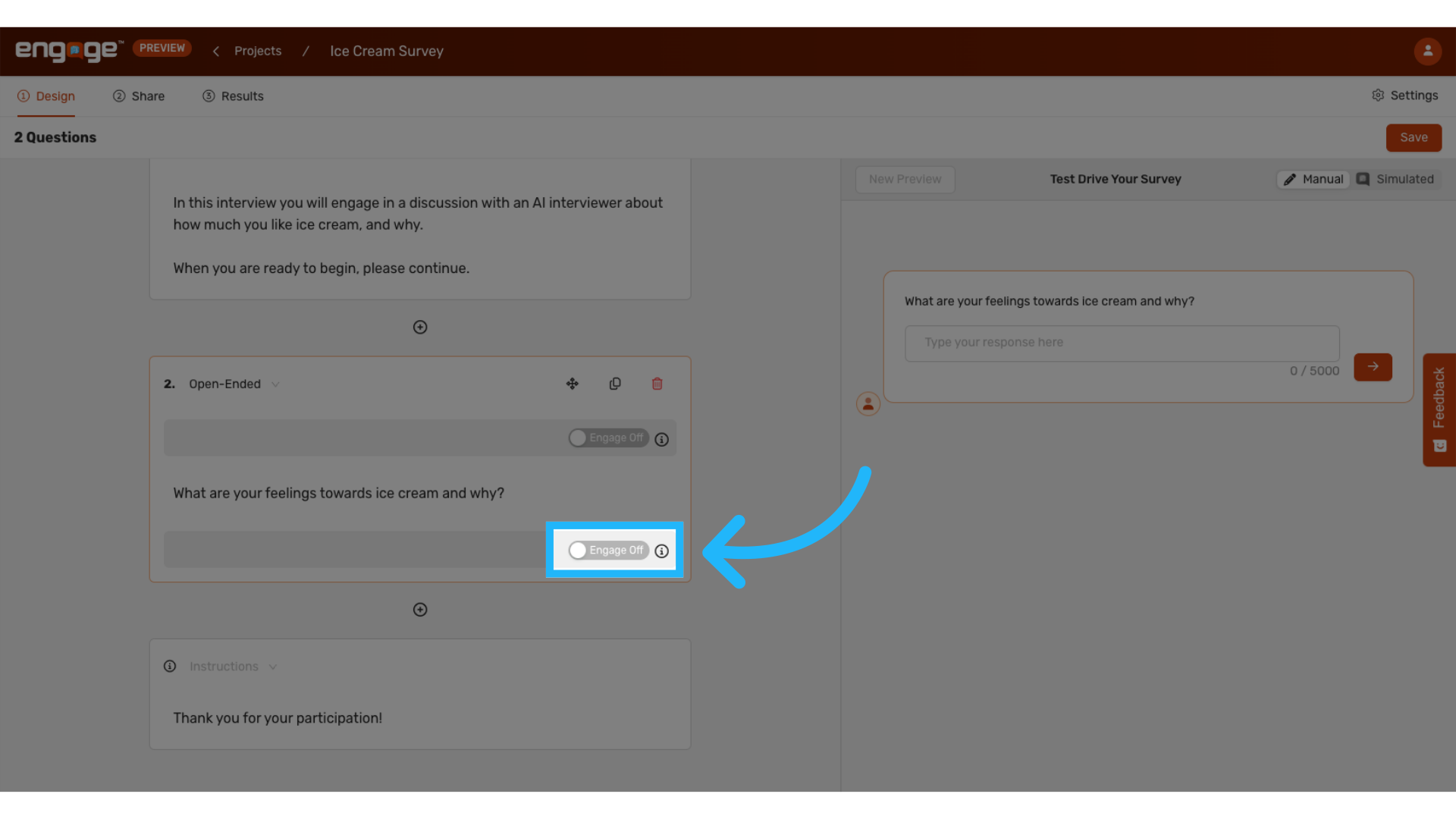
12. Detailed Follow-Up Instructions
Provide specific follow-up instructions to explore further or clarify responses. Engage can prompt for more details or explore specific topics of interest.
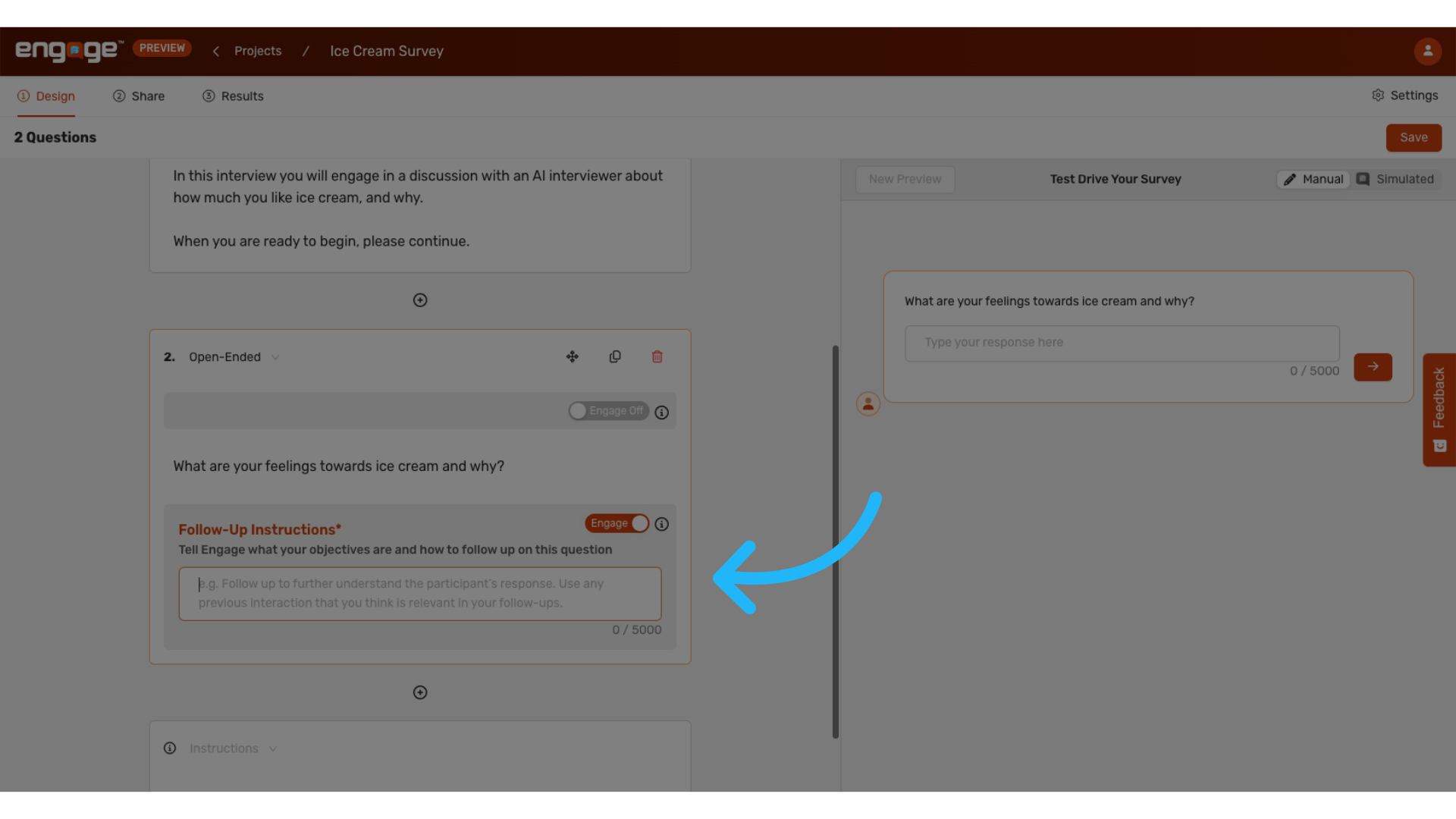
13. Example of Follow-Up Instructions
For example, if a participant provides a confusing or incomplete response, Engage can automatically generate follow-up questions to clarify or expand upon their answer. For more details, see our guide on Follow-Up Instructions.
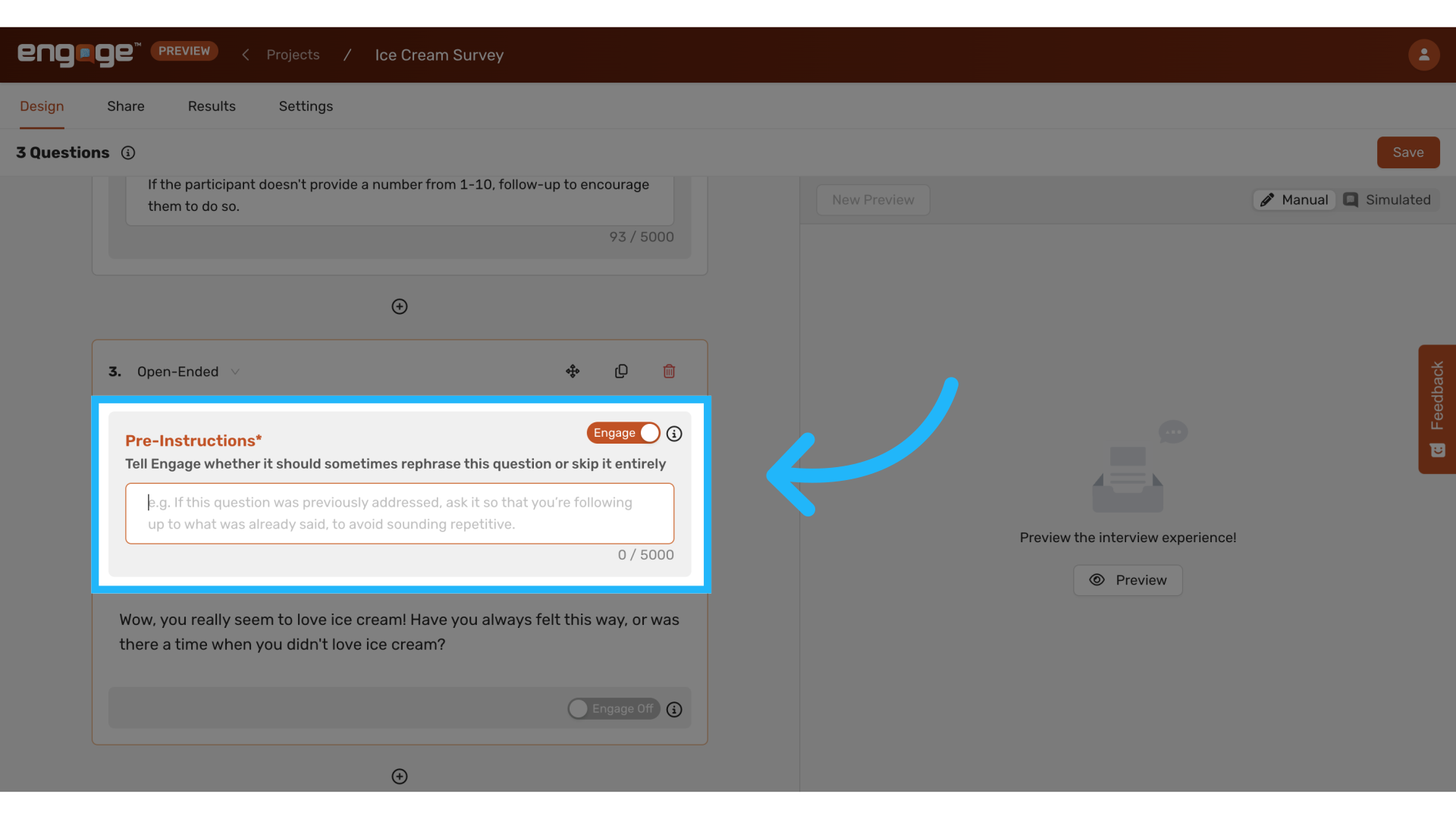
14. Pre-Instructions
Toggle on pre-instructions if desired. Pre-instructions help avoid survey repetition and guide participants through complex sections. These can also conditionally skip questions based on previous responses. For more details, see our guide on Pre-Instructions.
15. Multiple Choice Questions and Responses
This question type is versatile for collecting quantitative data, which can be enriched with follow-up questions to gain deeper insights.
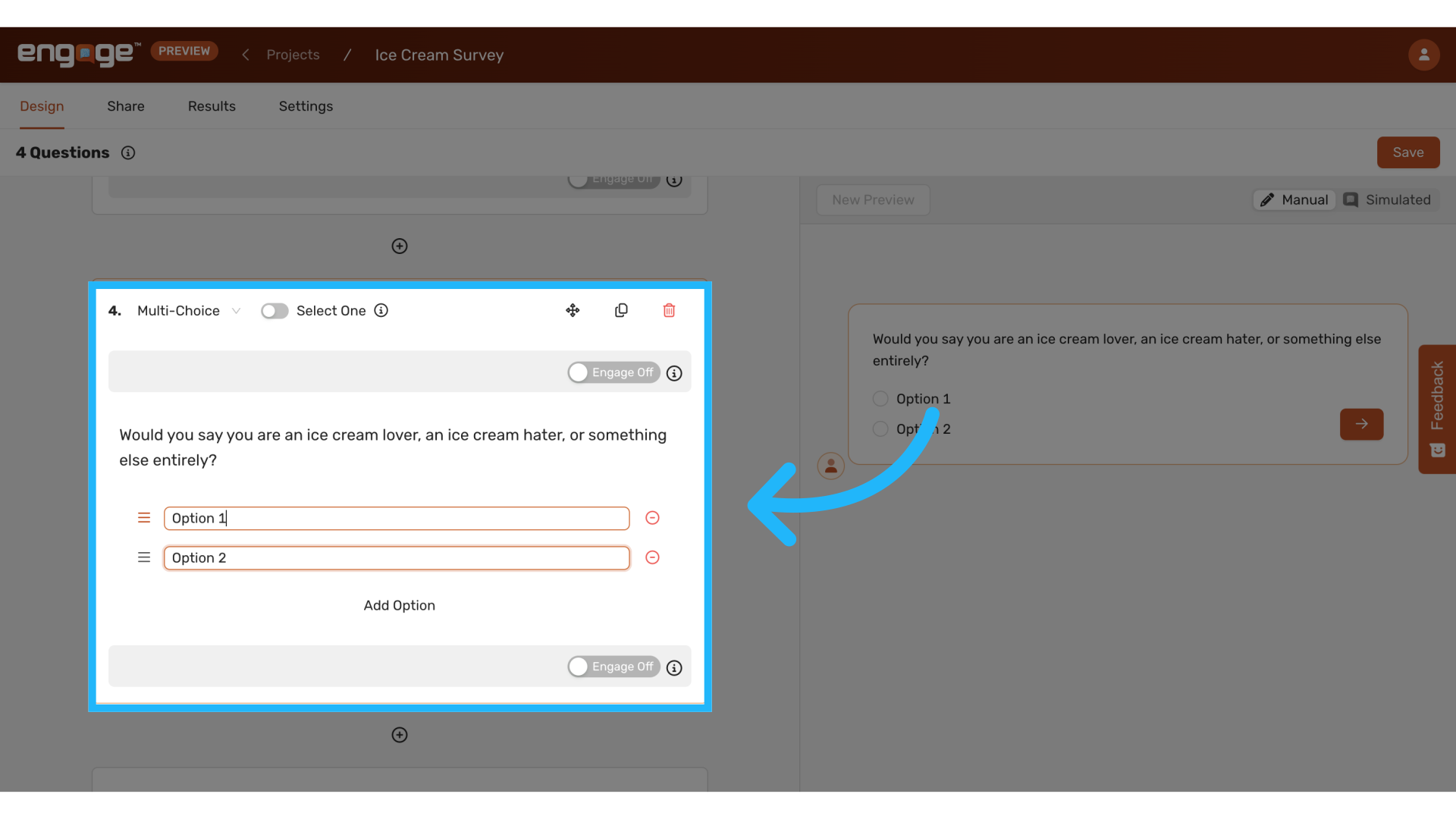
16. Multiple Choice Example
An example could be asking participants whether they consider themselves "an ice cream lover," "an ice cream hater," or "something else."
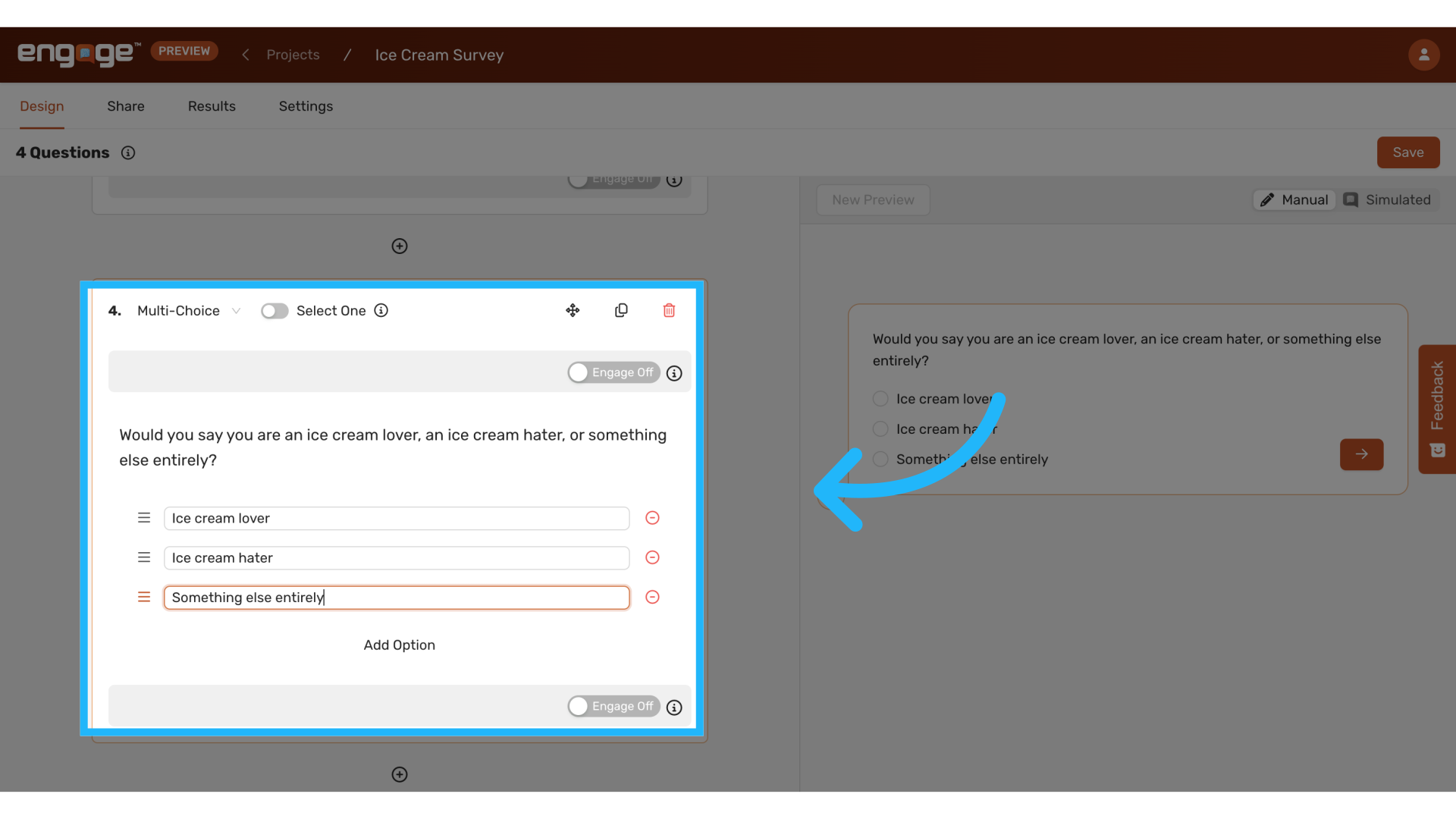
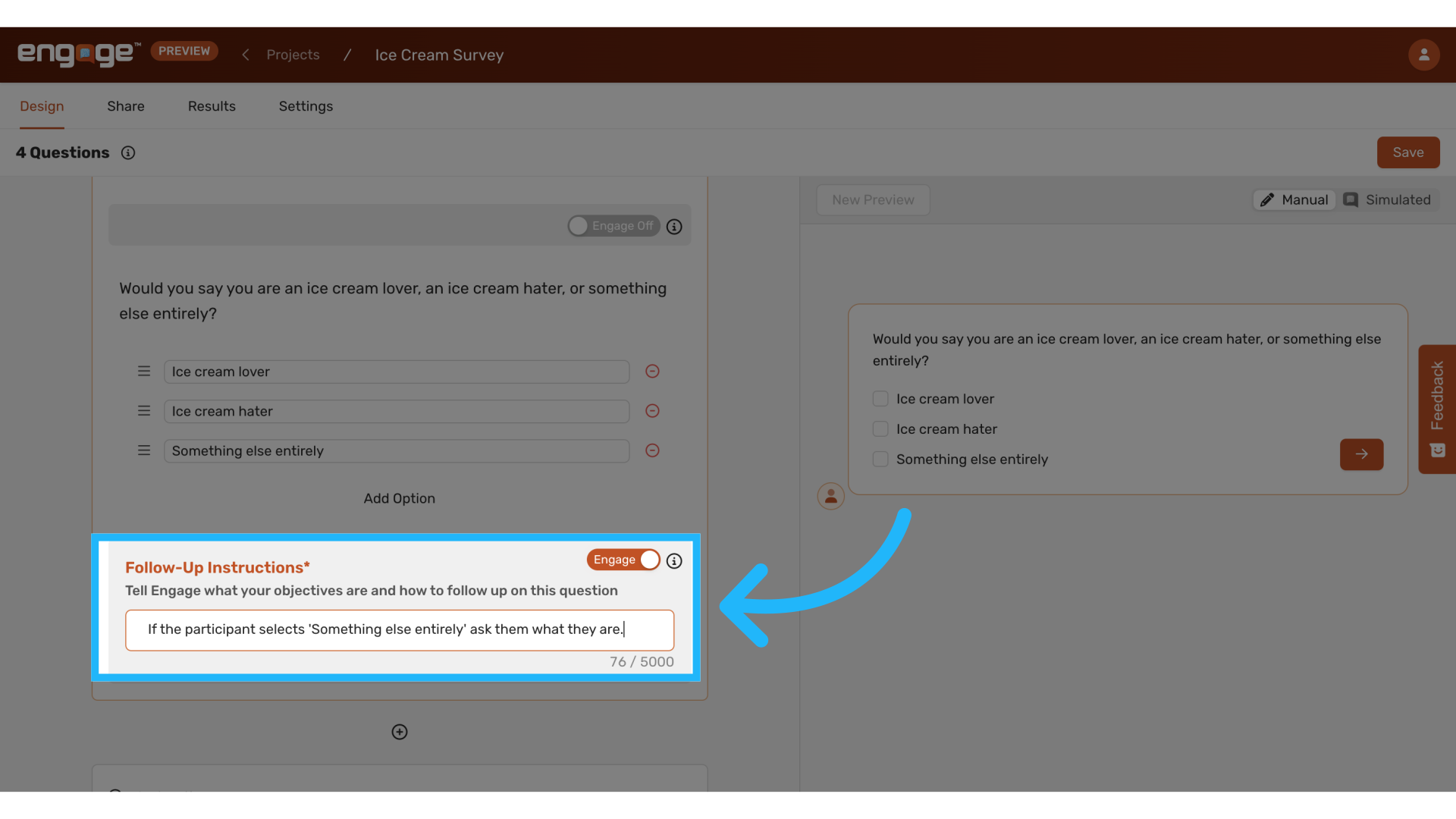
17. Follow-Up for Multiple Choice
For participants who select "something else," you could prompt them to specify their unique perspective, enhancing the depth of your data.
18. Toggle Multi-Select
Allow participants the flexibility to select multiple answers where appropriate, broadening the scope of response possibilities. 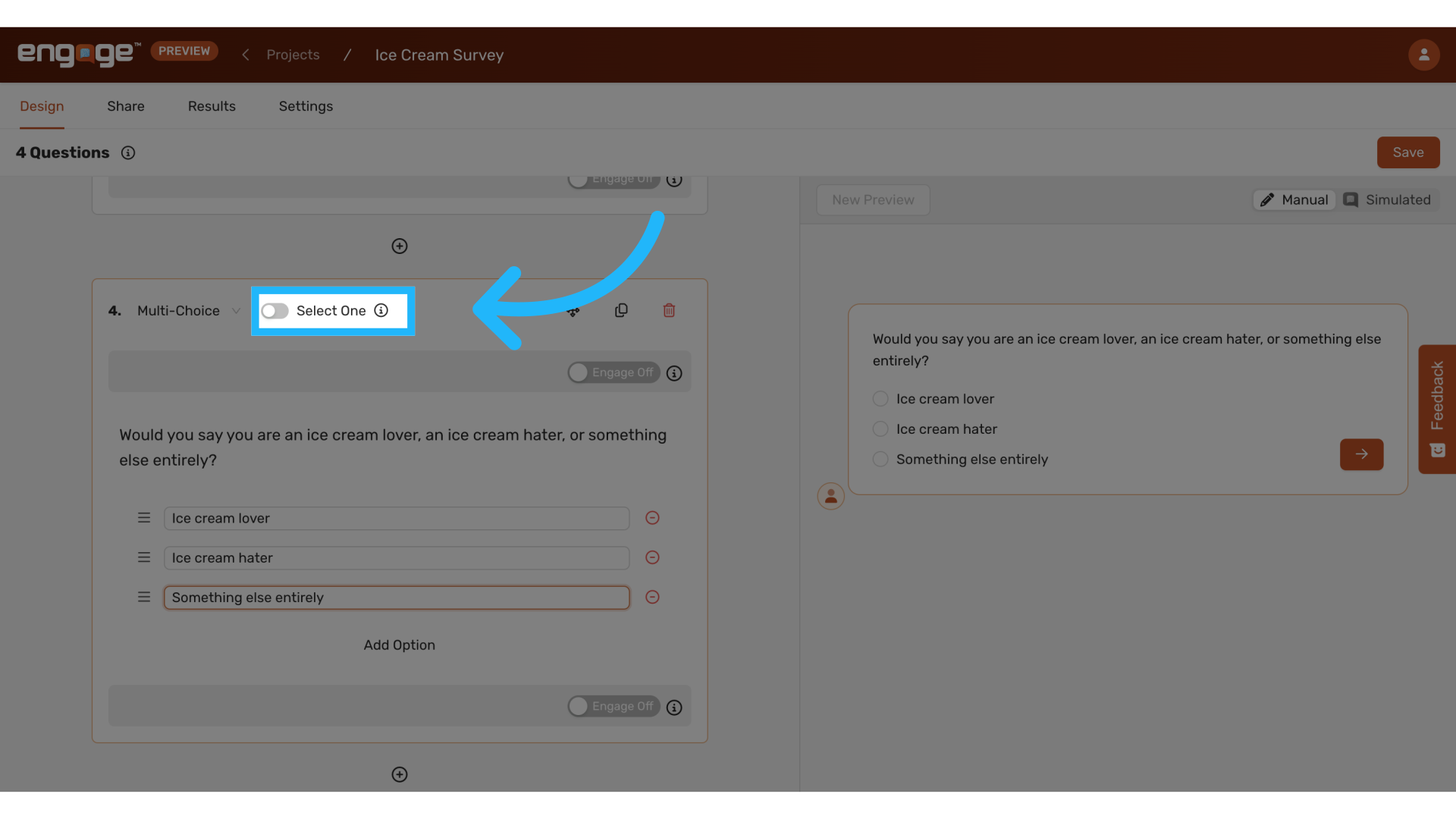
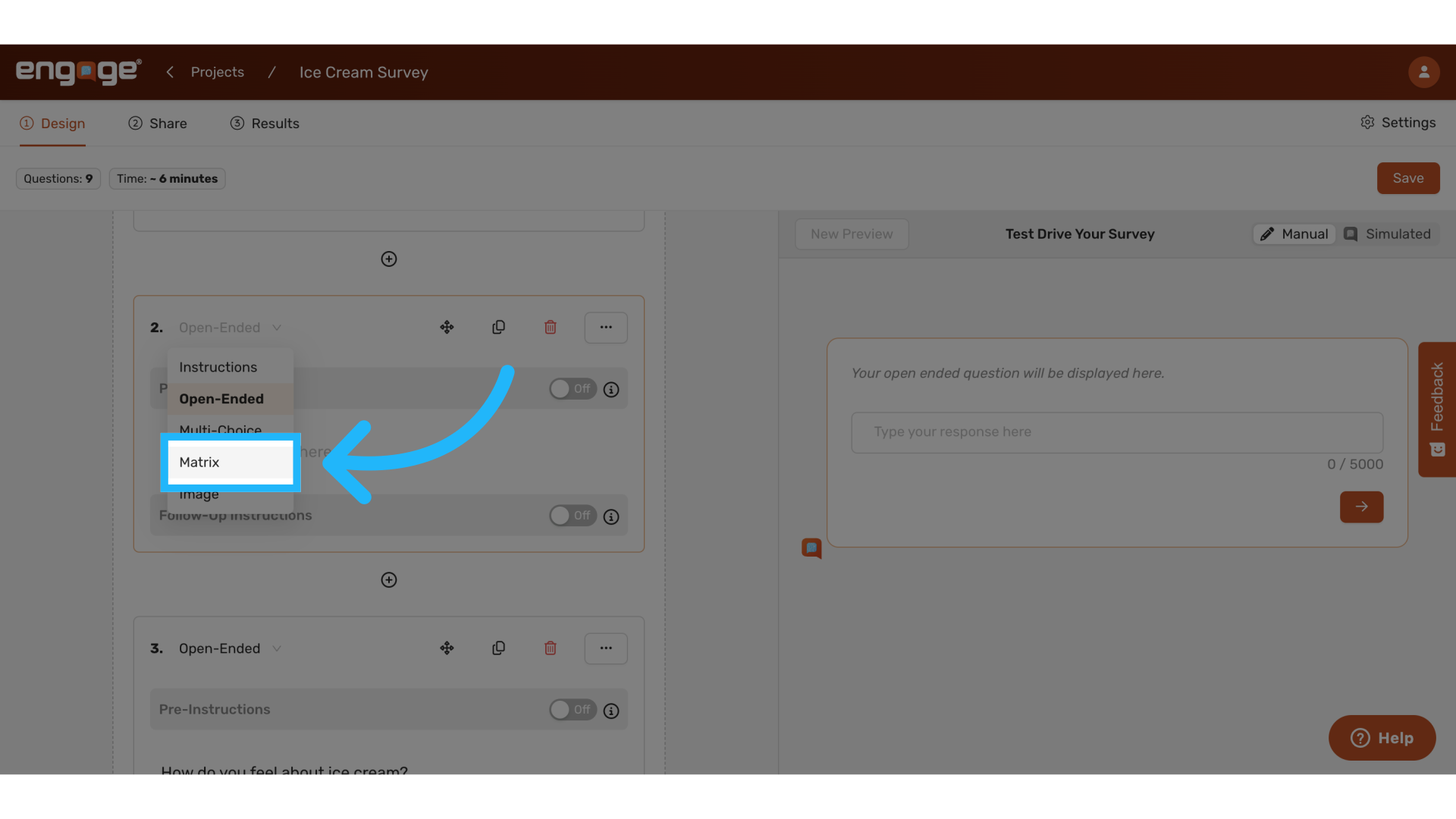
19. Matrix Question Type
20. Enter Matrix Prompt
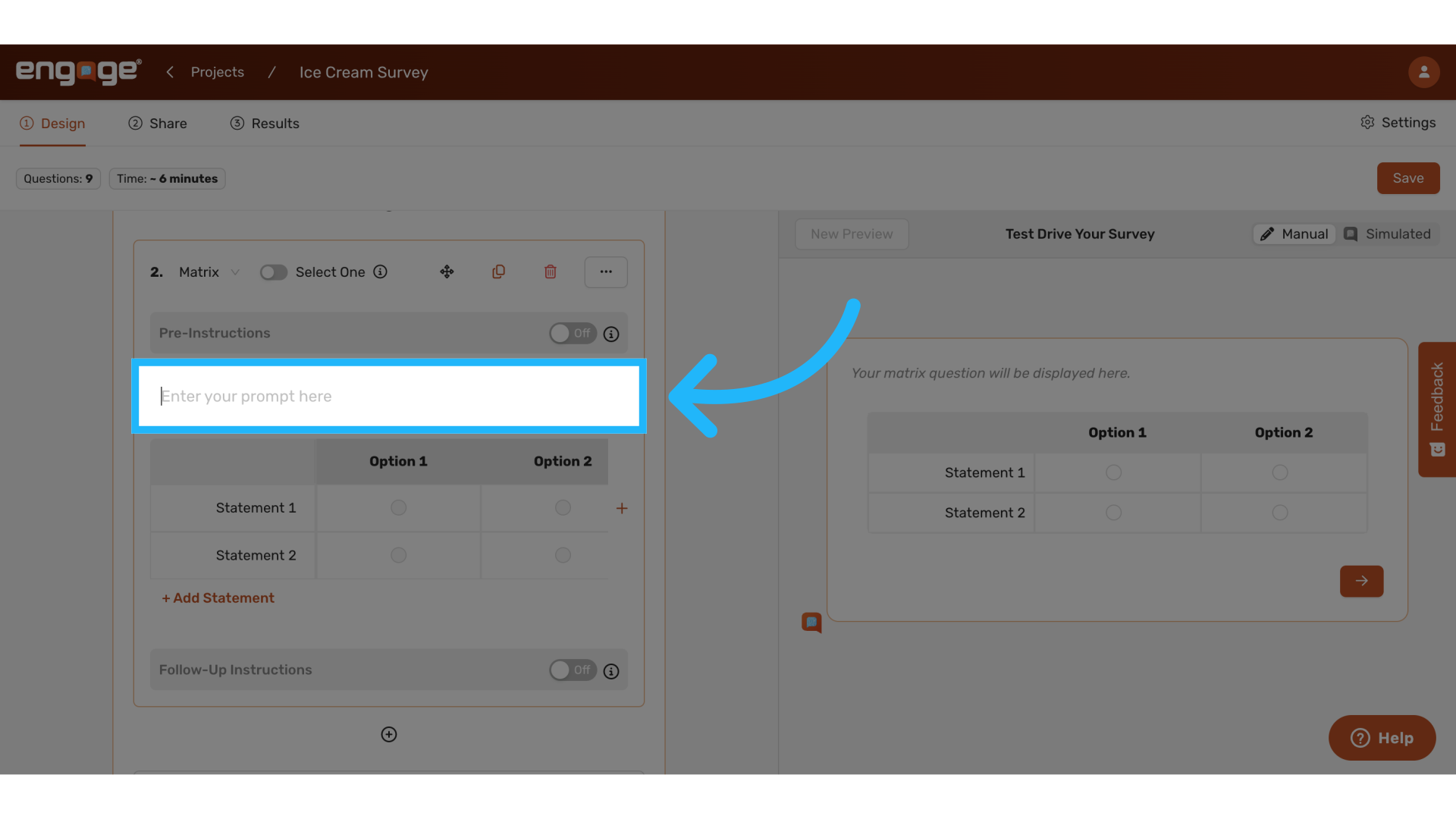
21. Example Prompt
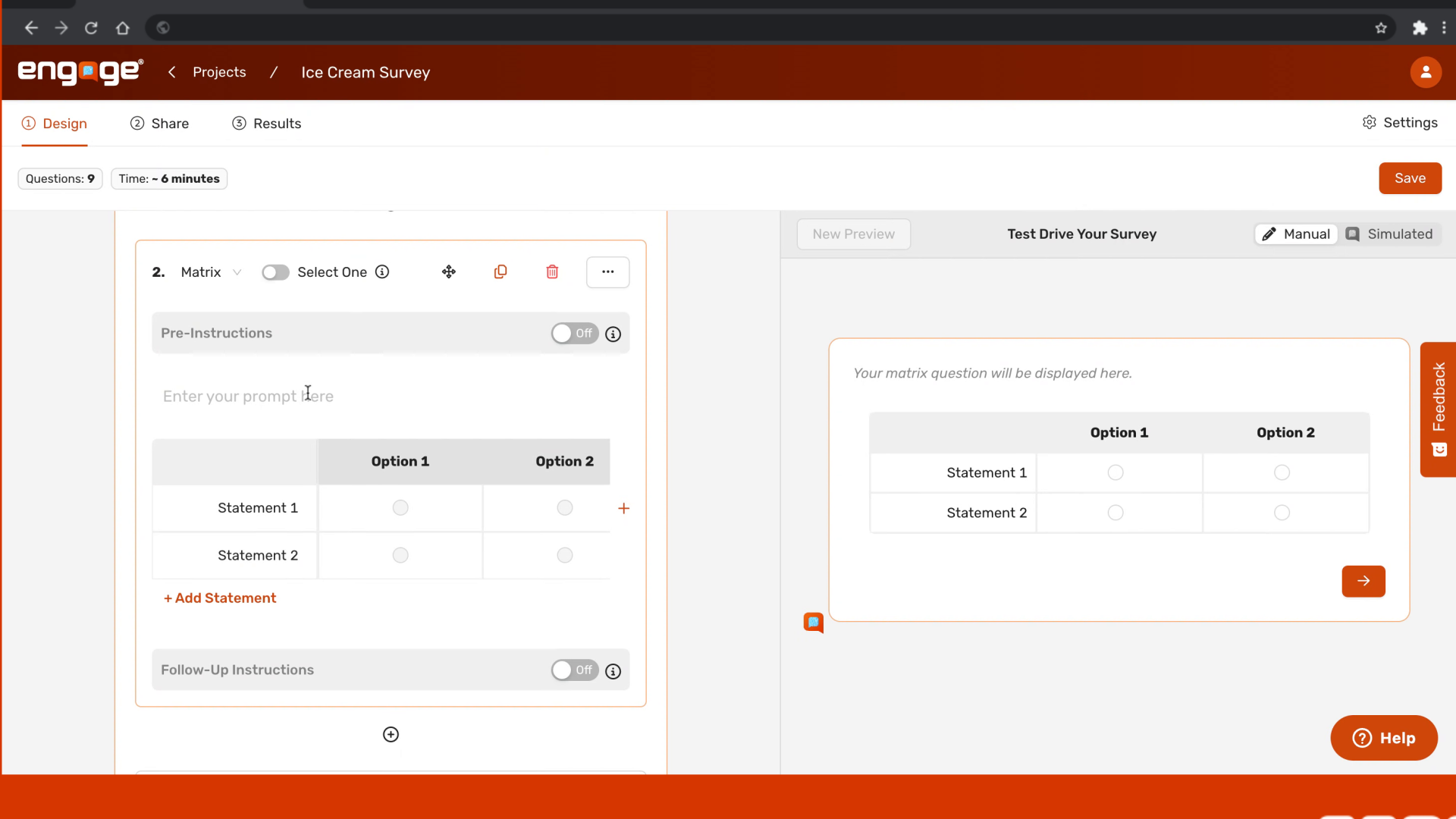
22. Add Matrix Options
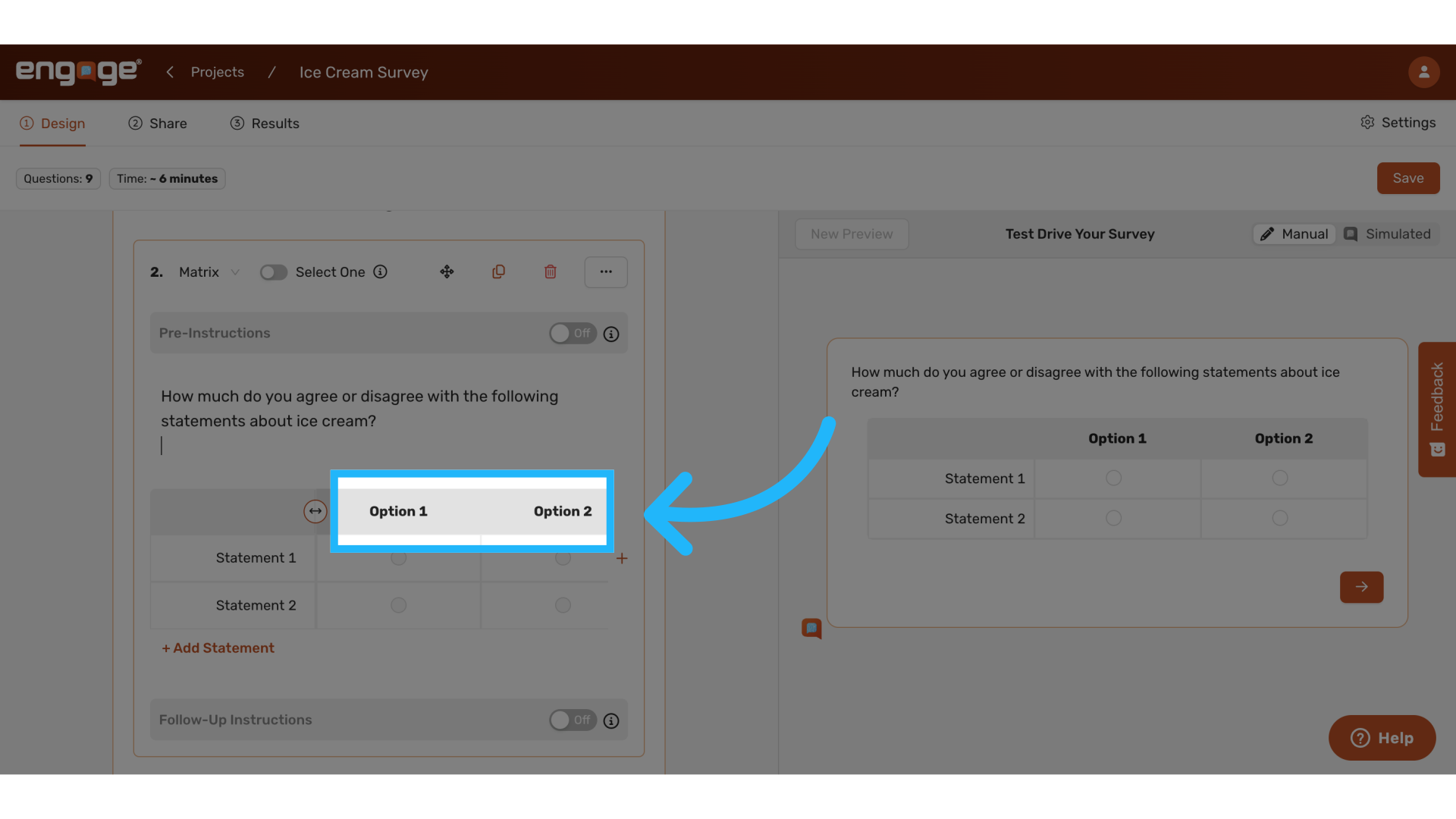
23. Example Options
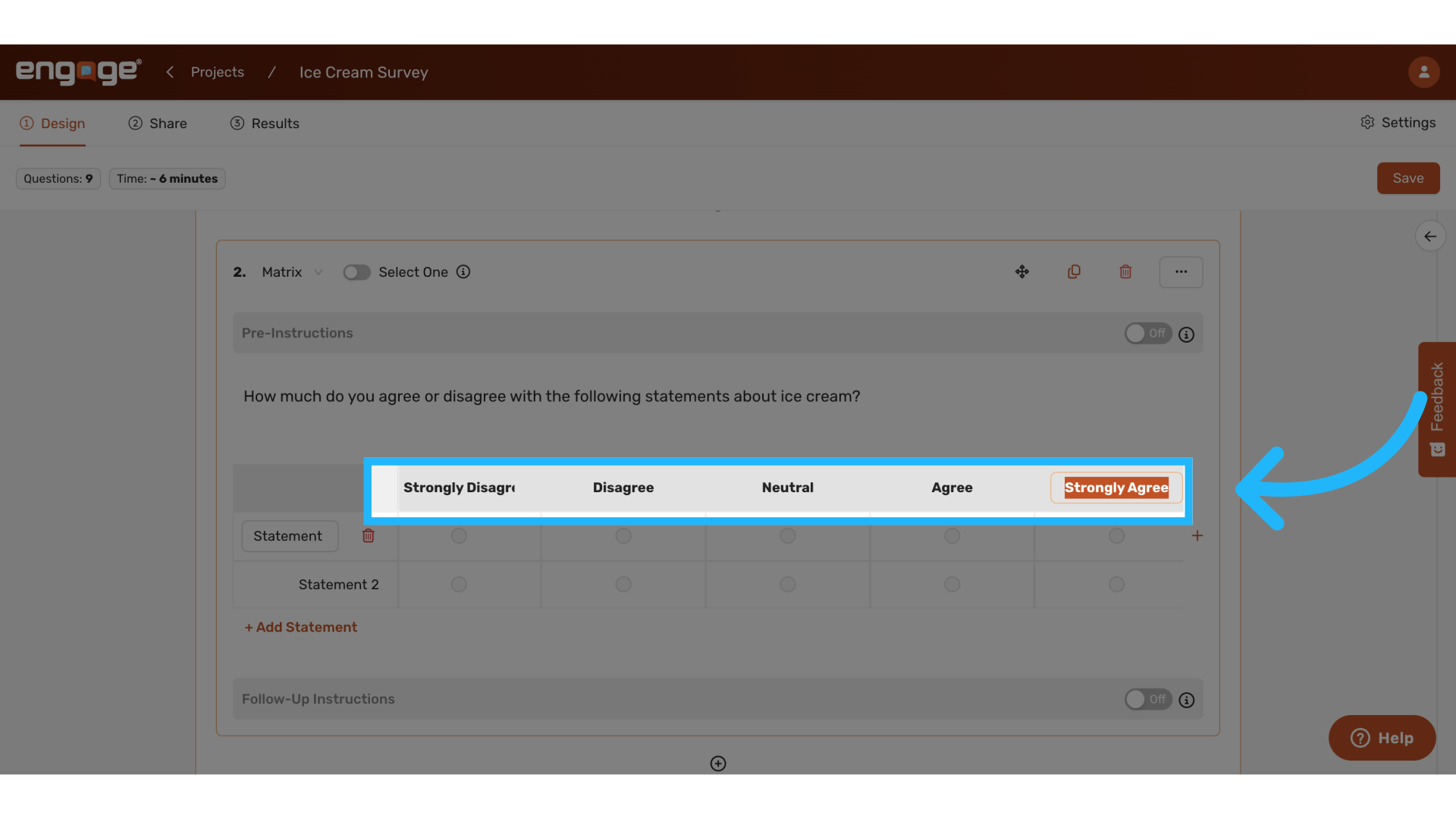
24. Add additional Options
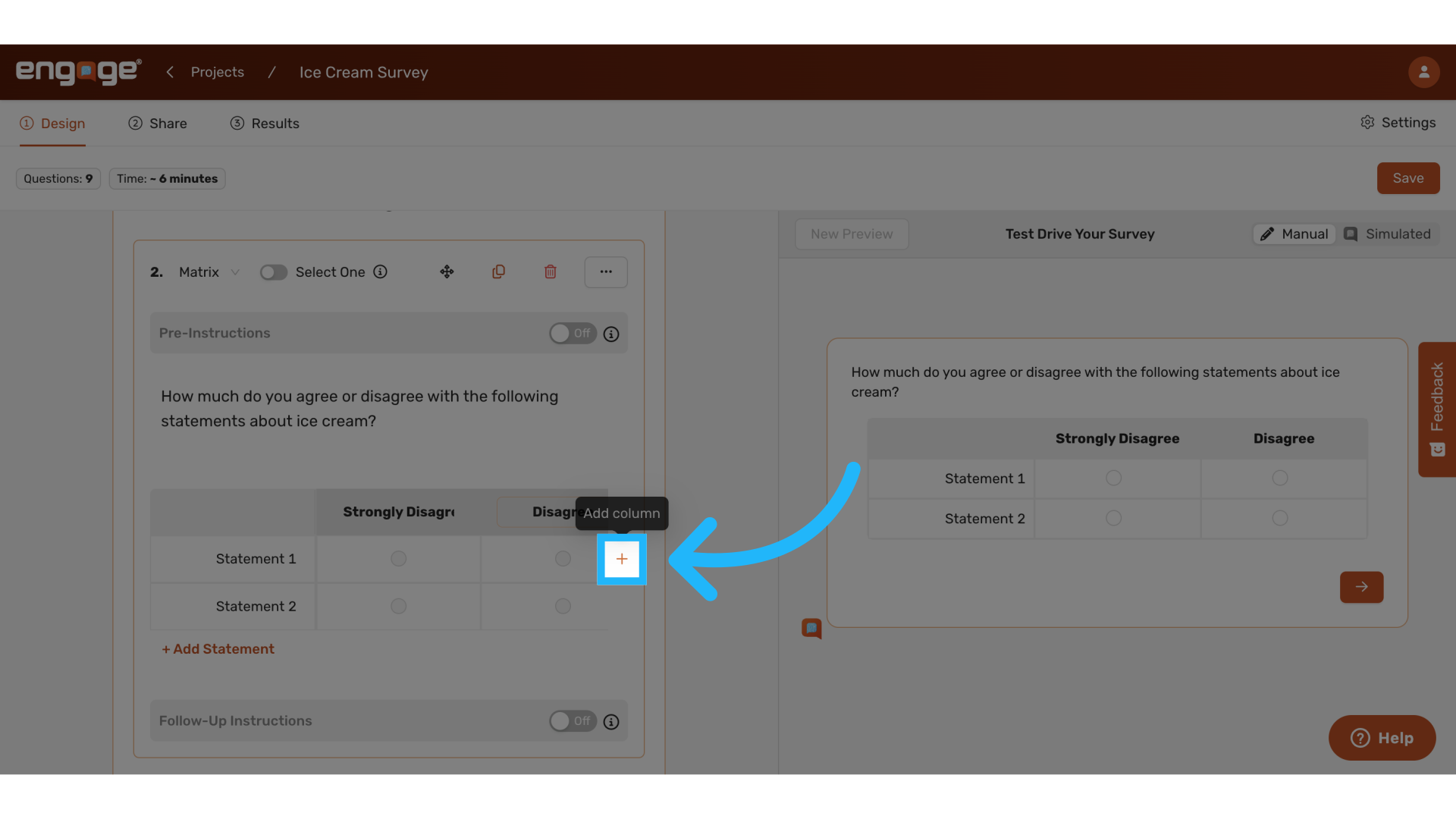
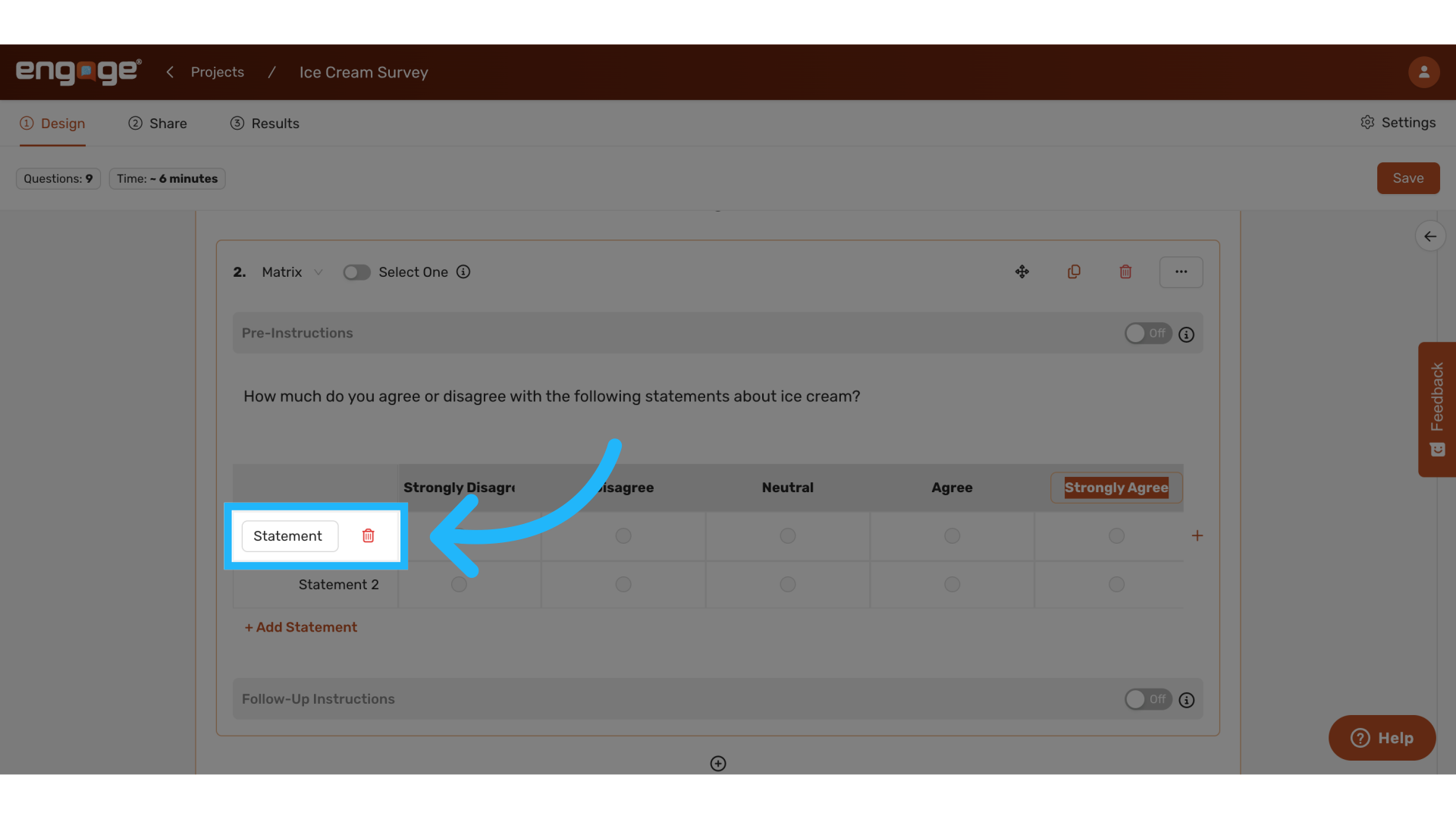
25. Add statements
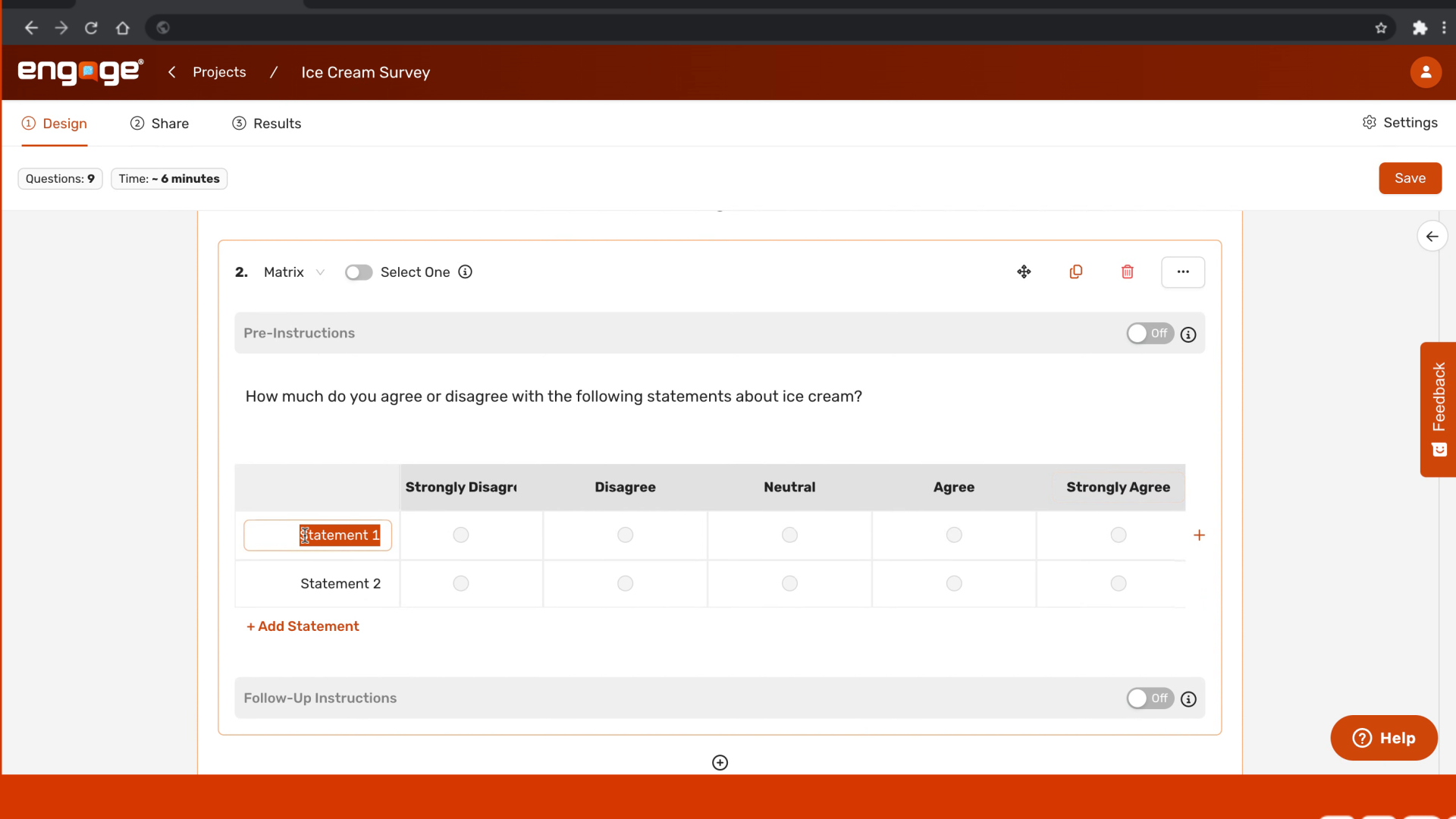
26. Statement examples
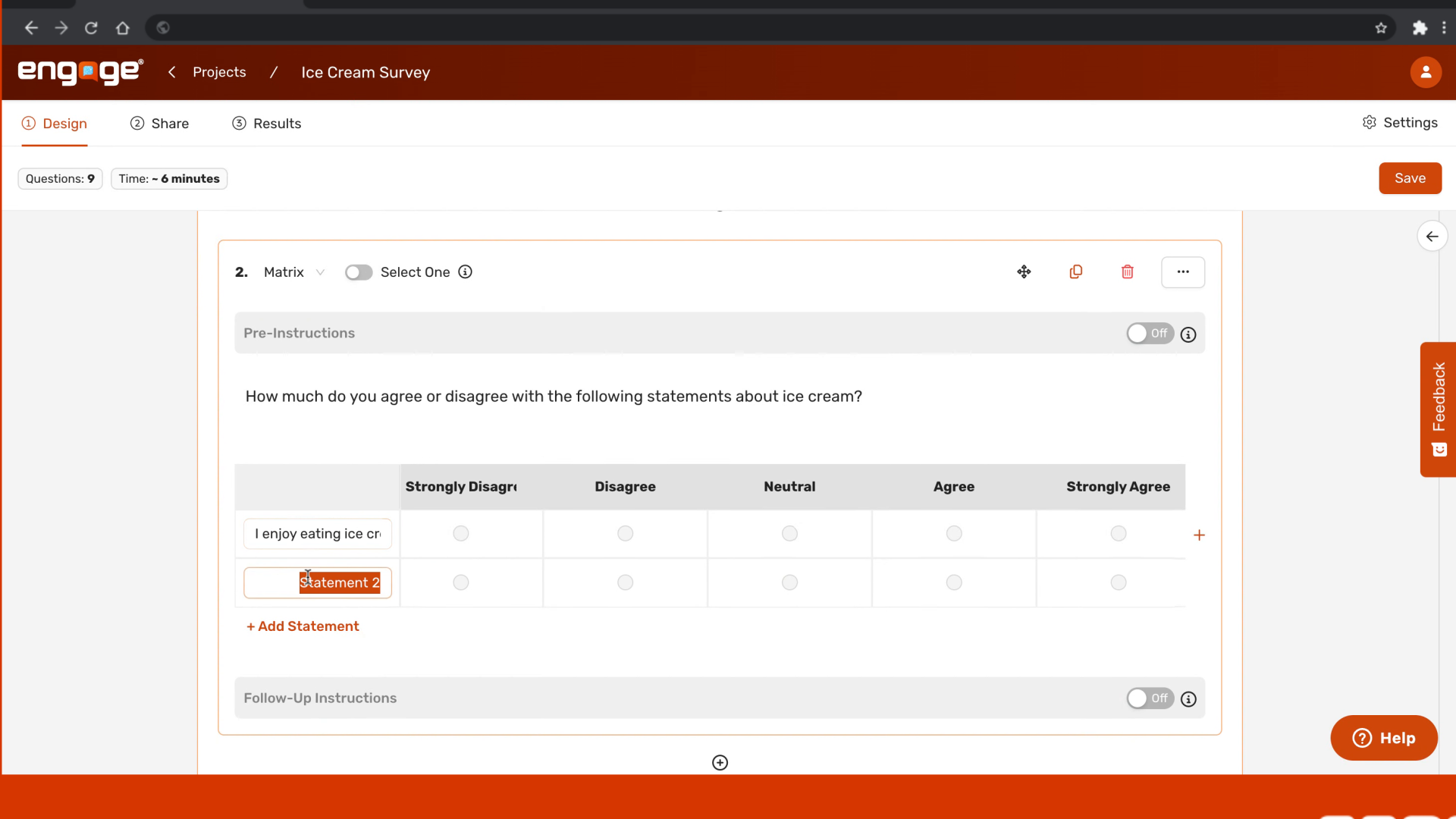
27. Statement examples
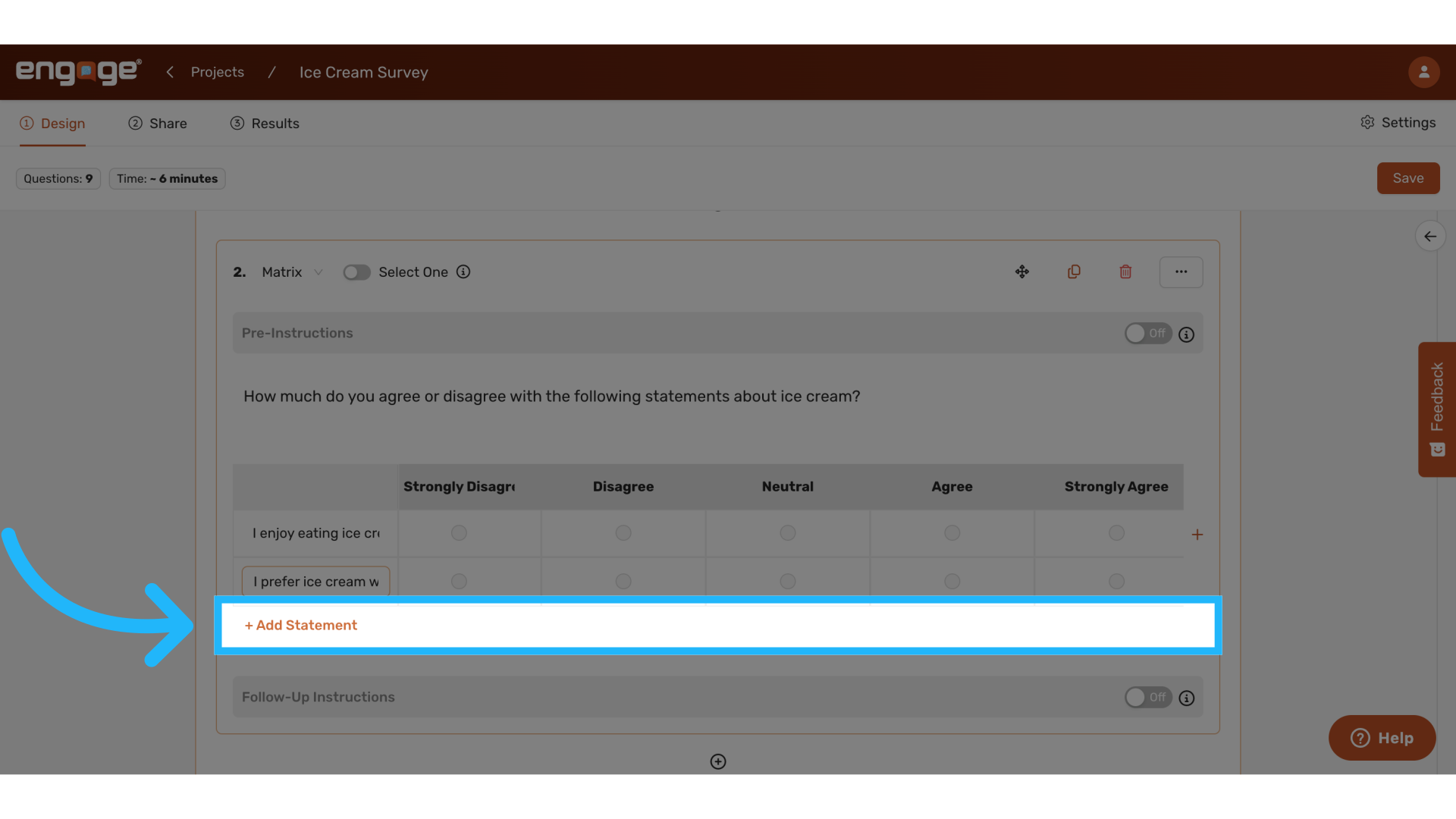
28. Add additional statements
29. Add pre-instructions 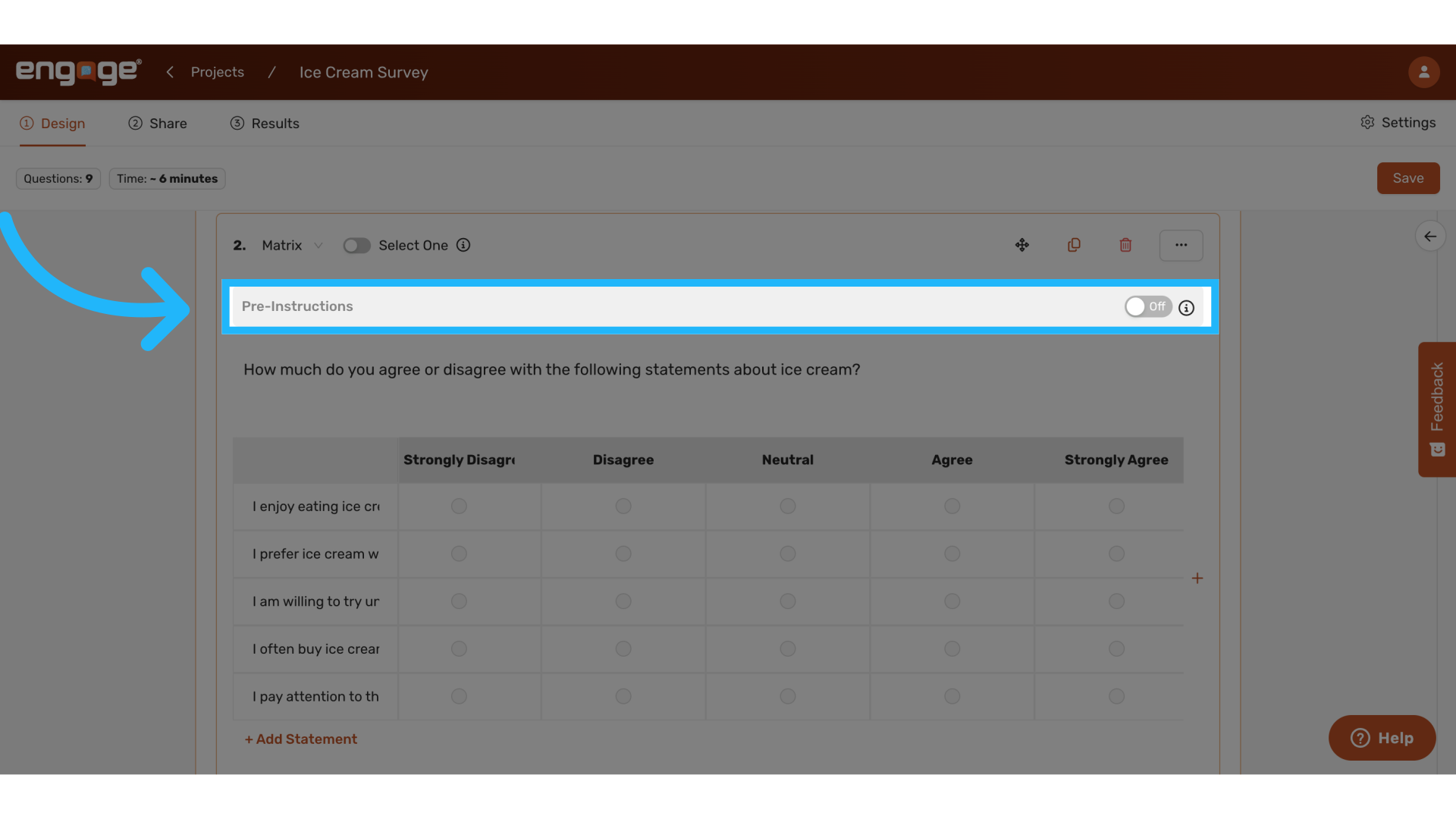
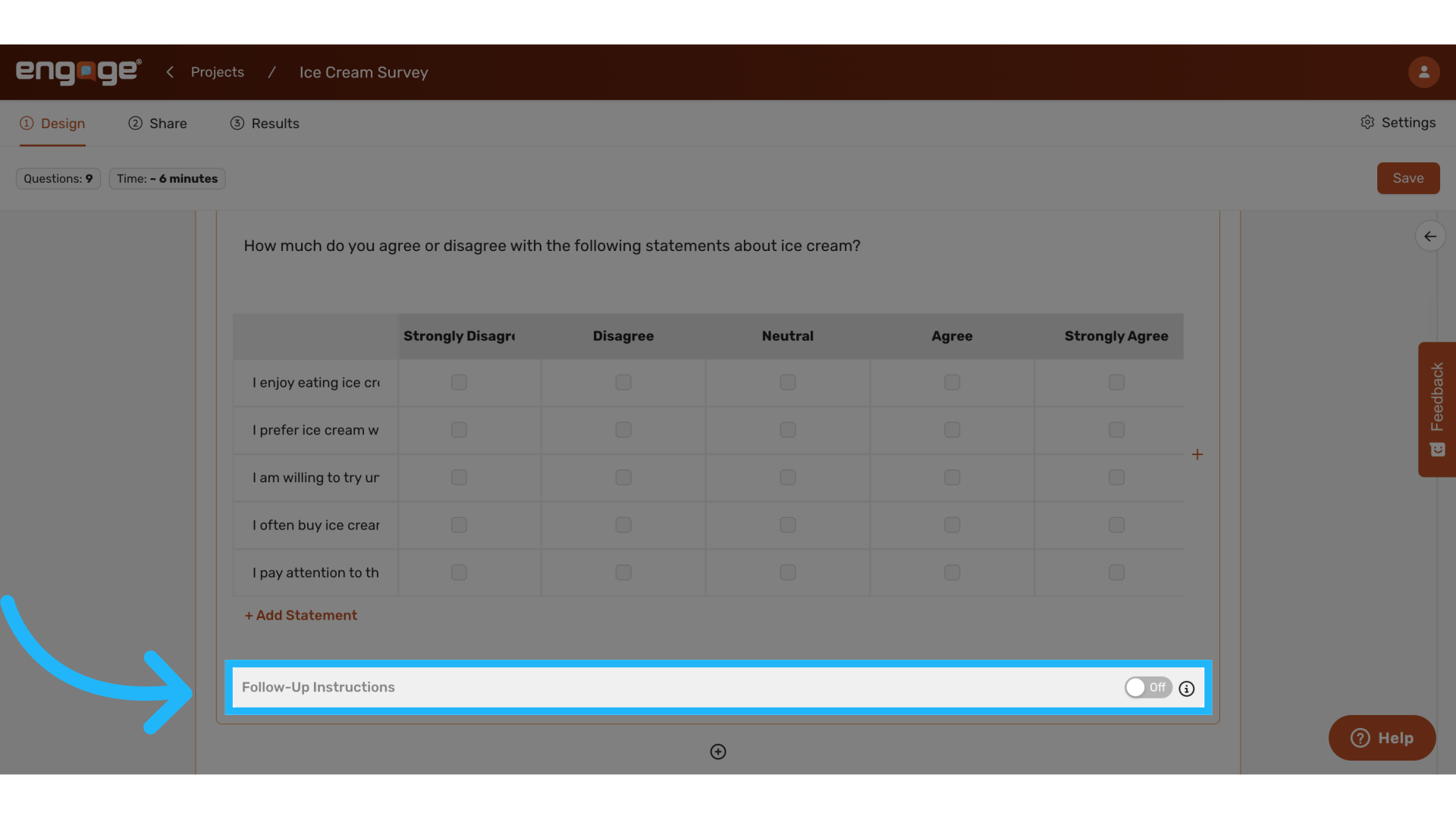
30. Add follow up instructions
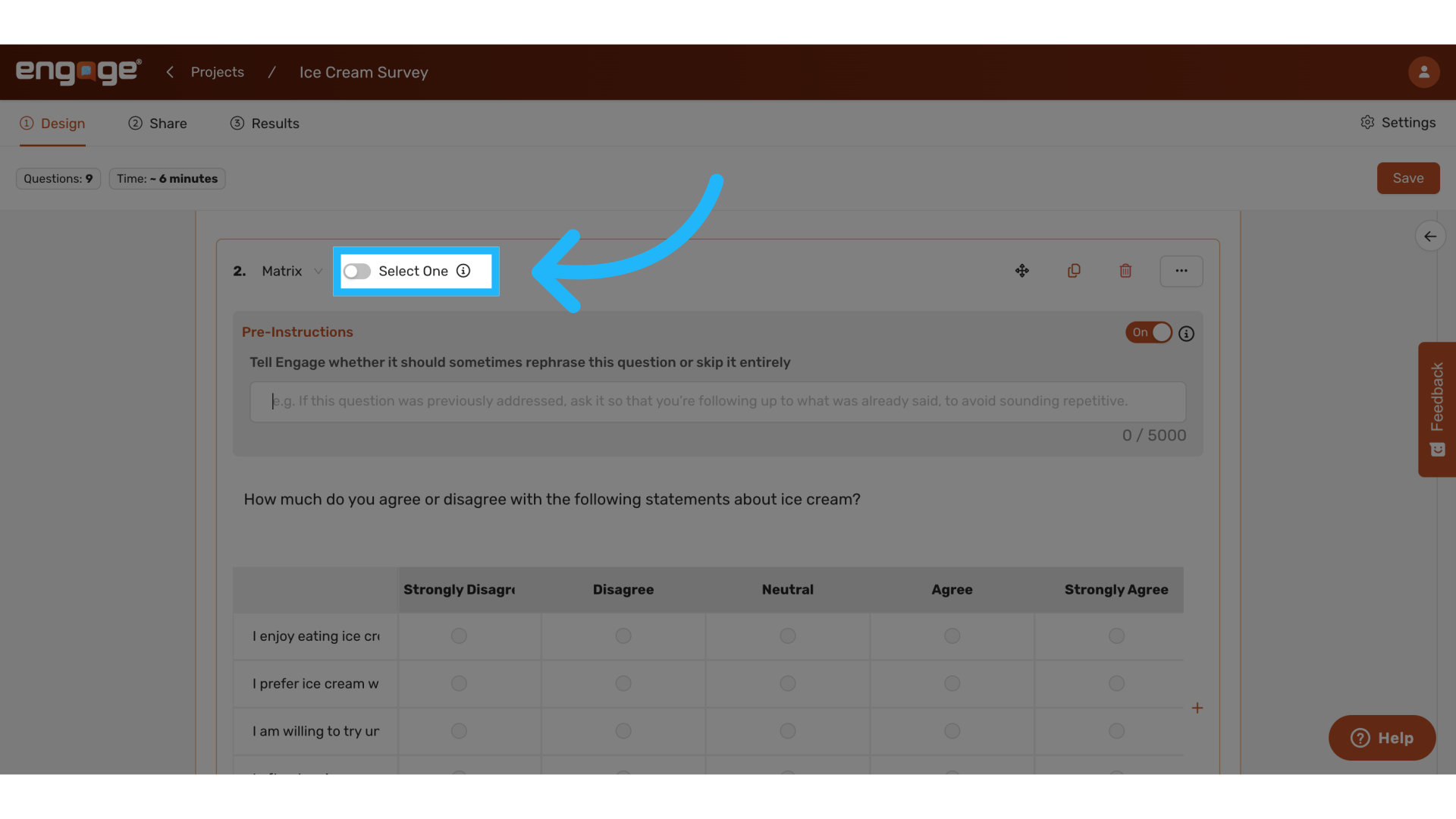
31. Toggle Select One/ Select Many
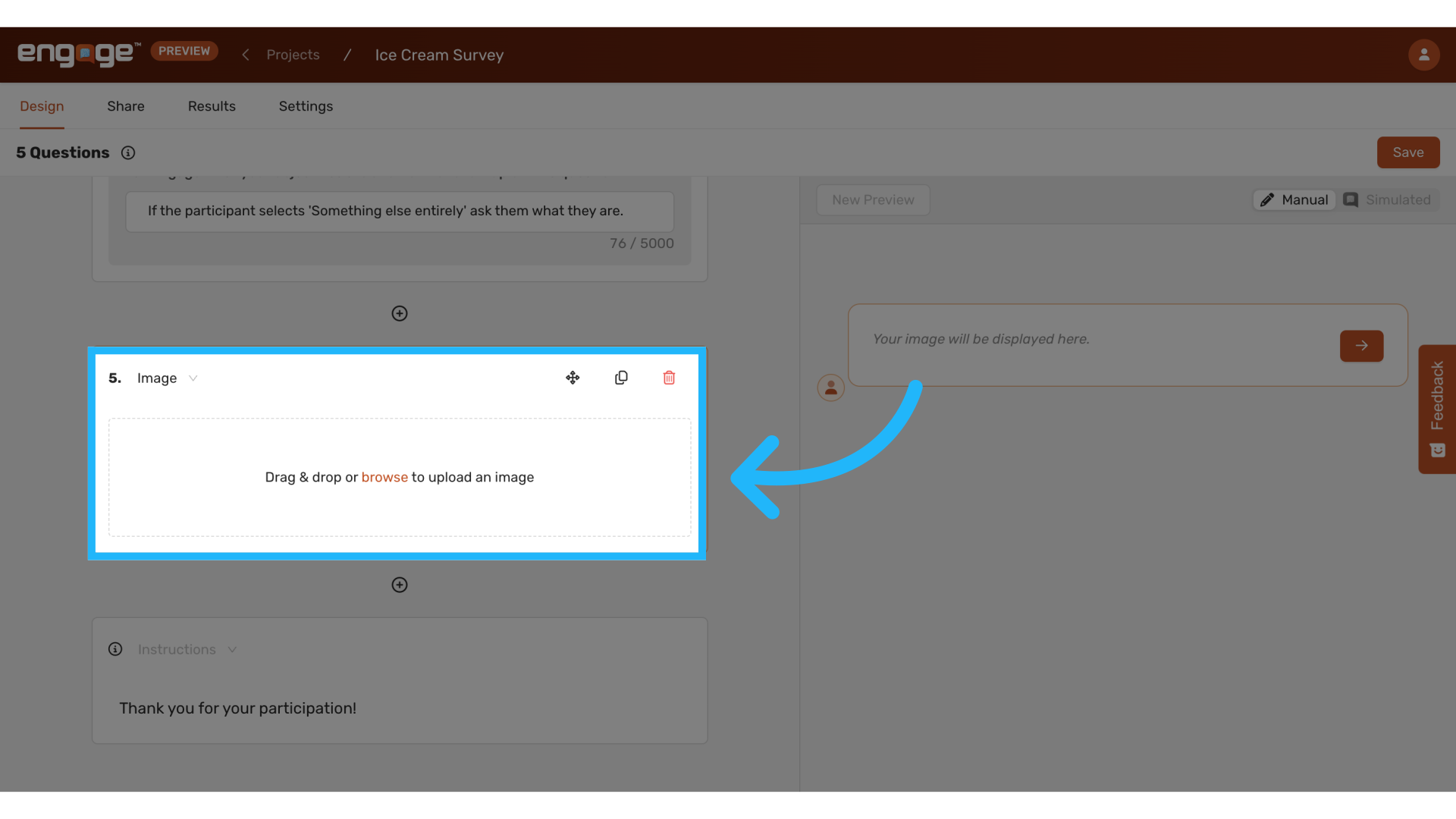
32. Add an image
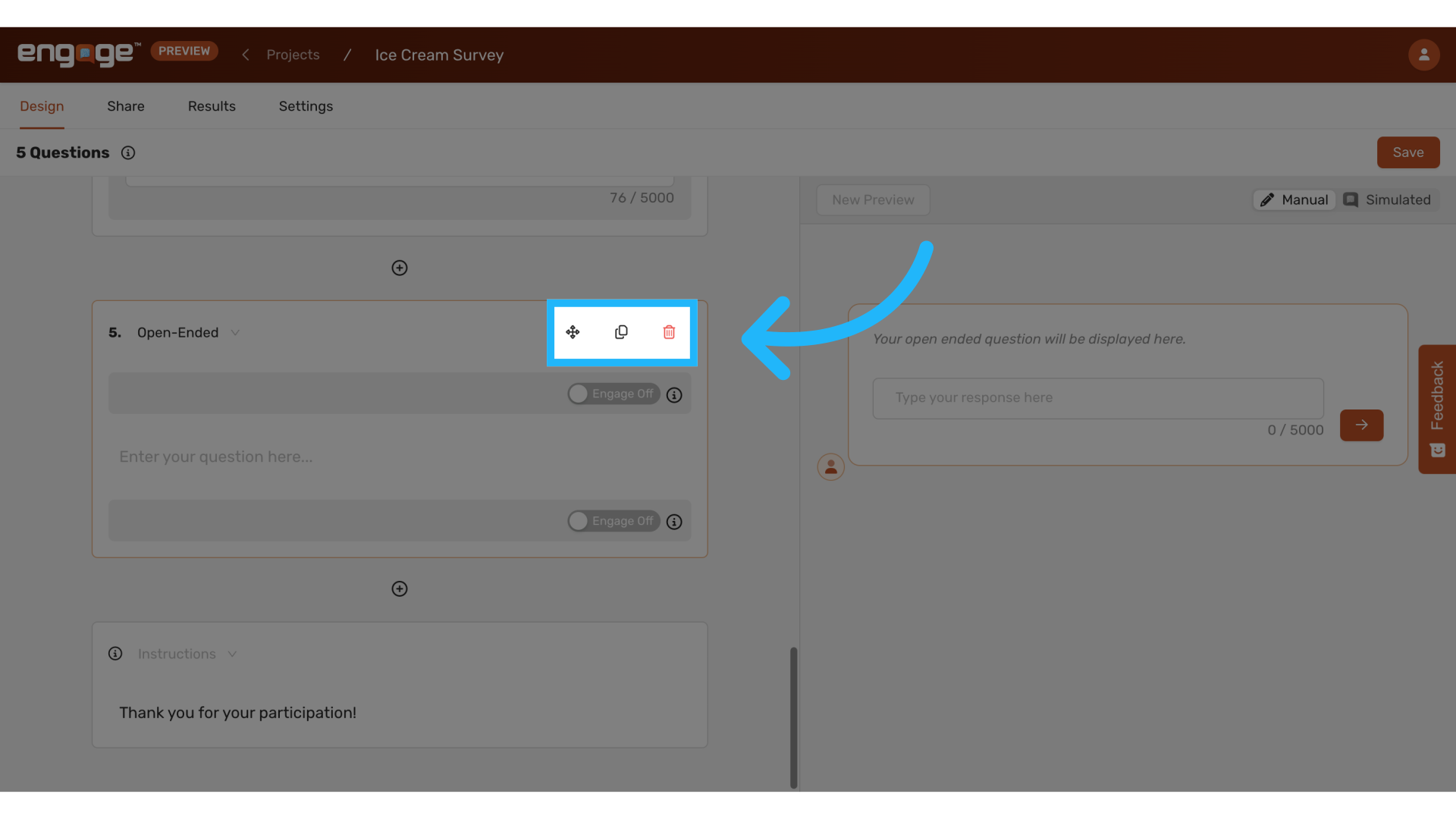
33. Move, duplicate, and delete questions
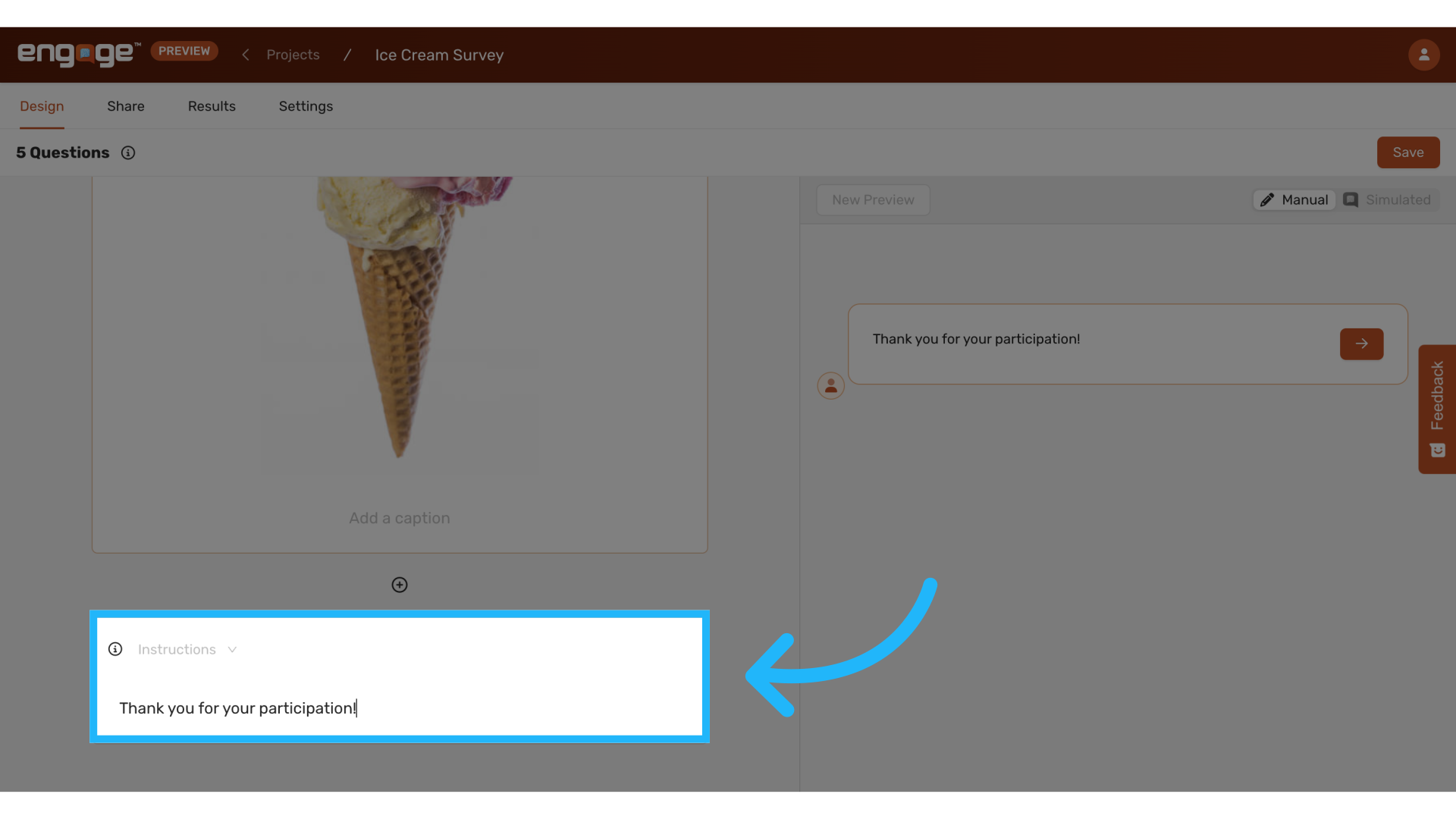
34. Edit closing instructions
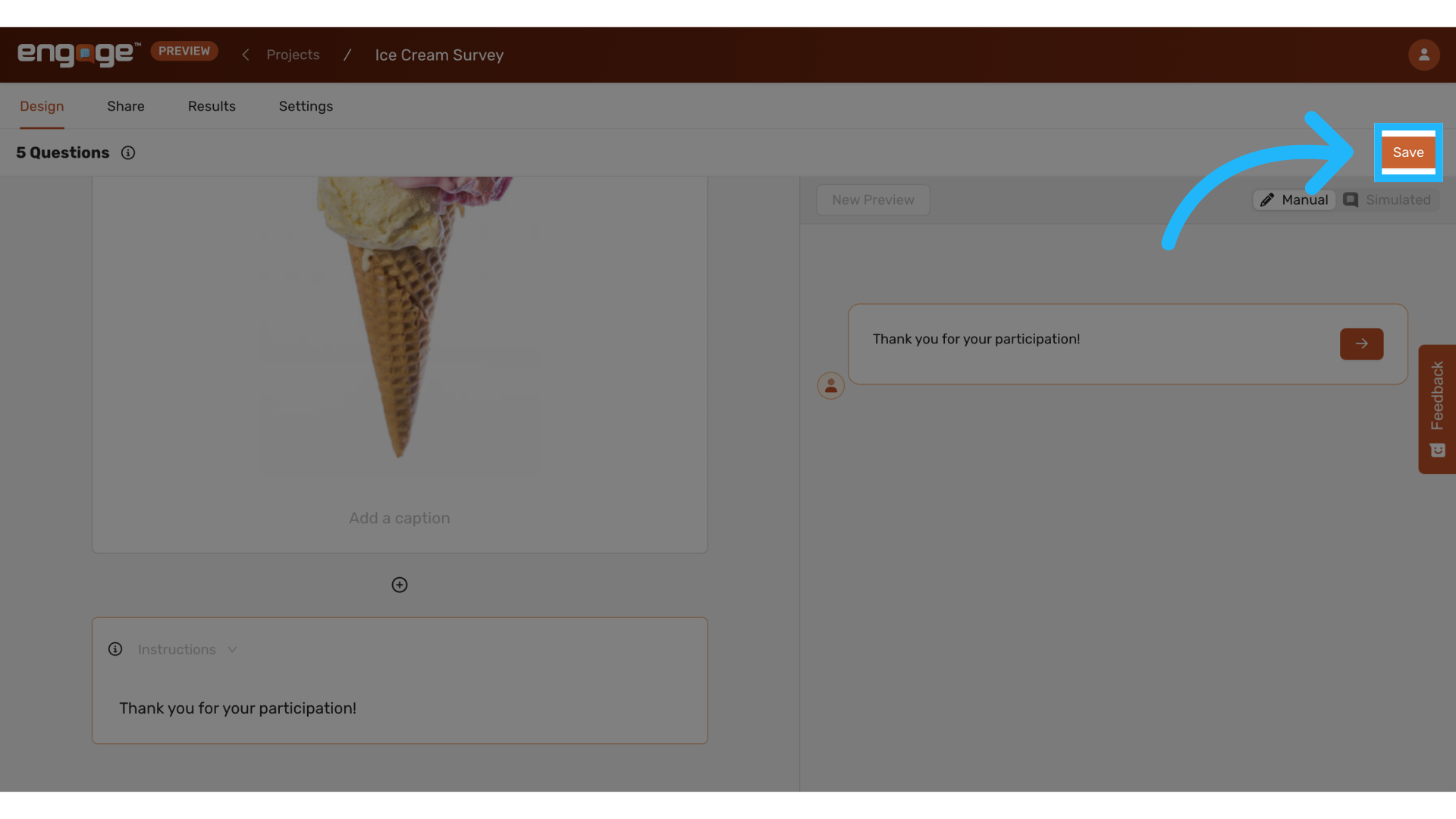
35. Click "Save"
Comments
0 comments
Please sign in to leave a comment.