
How to Preview Your Survey
This guide will walk you through the steps to preview your survey before sharing it with participants. Previewing ensures that everything looks correct and functions as expected.
Login to Engage
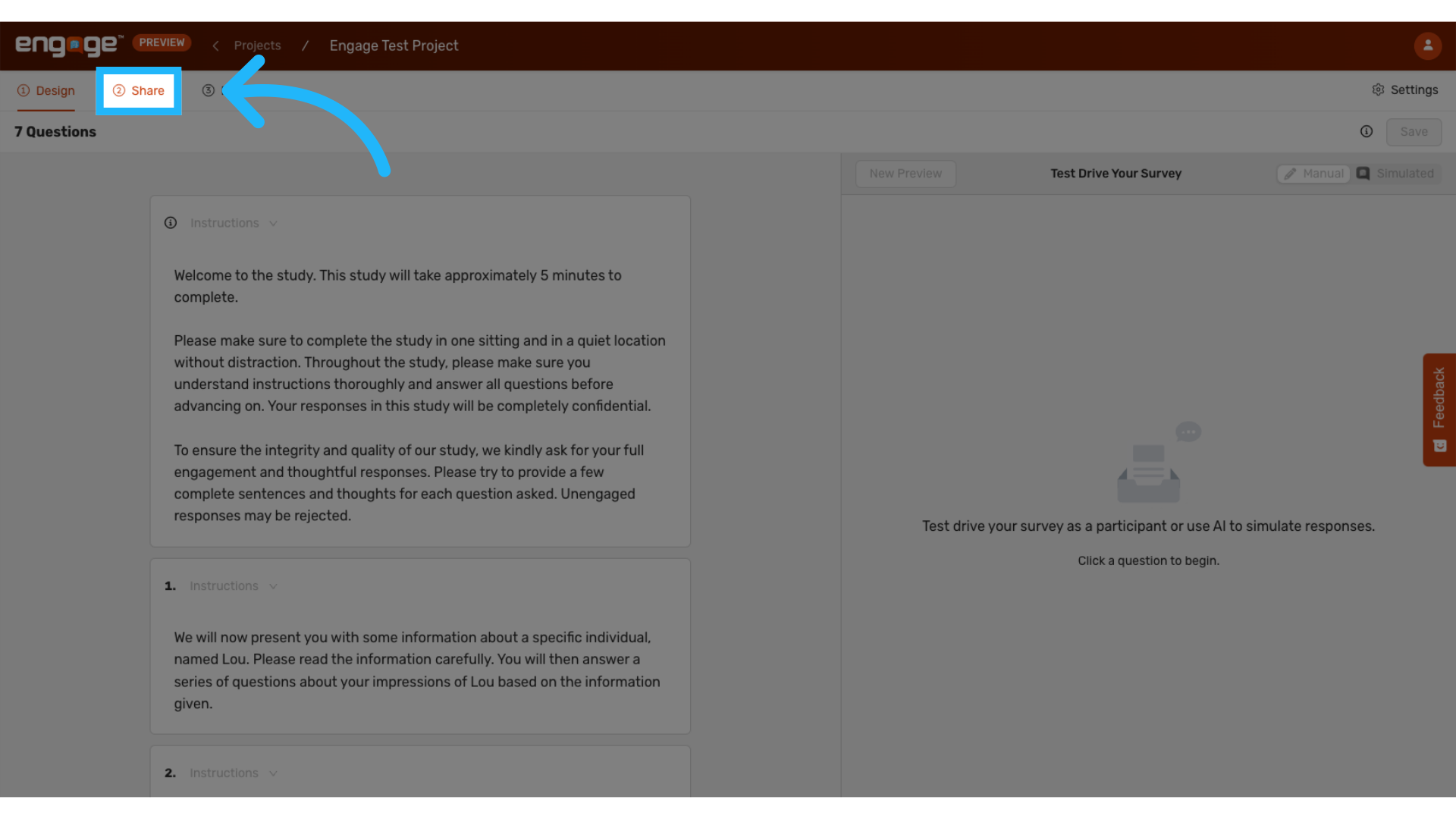
1: Click "Share"
Once you have saved your survey, access the Share tab.
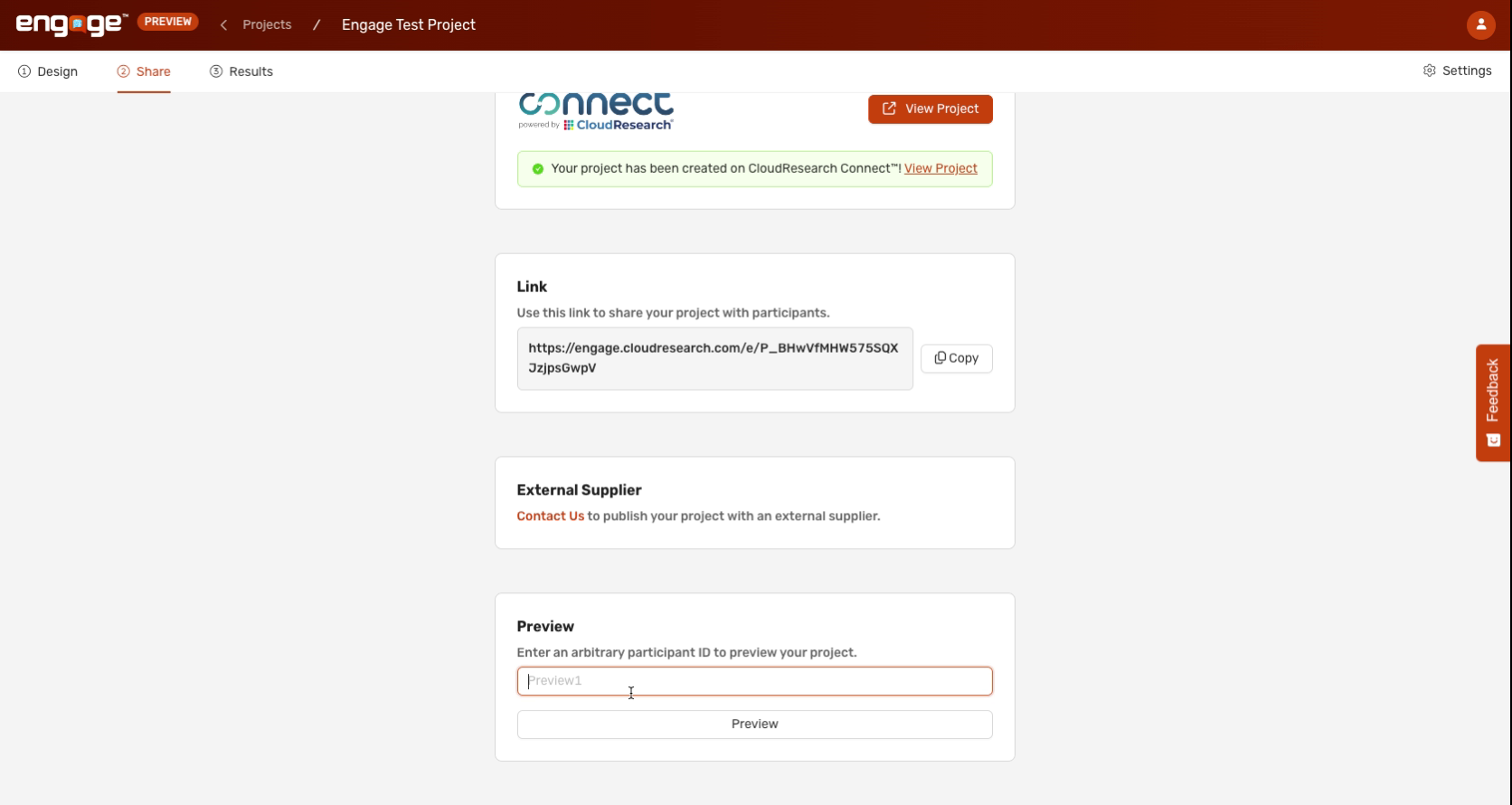
2: Enter a Name
In the preview section, enter any arbitrary Participant ID.
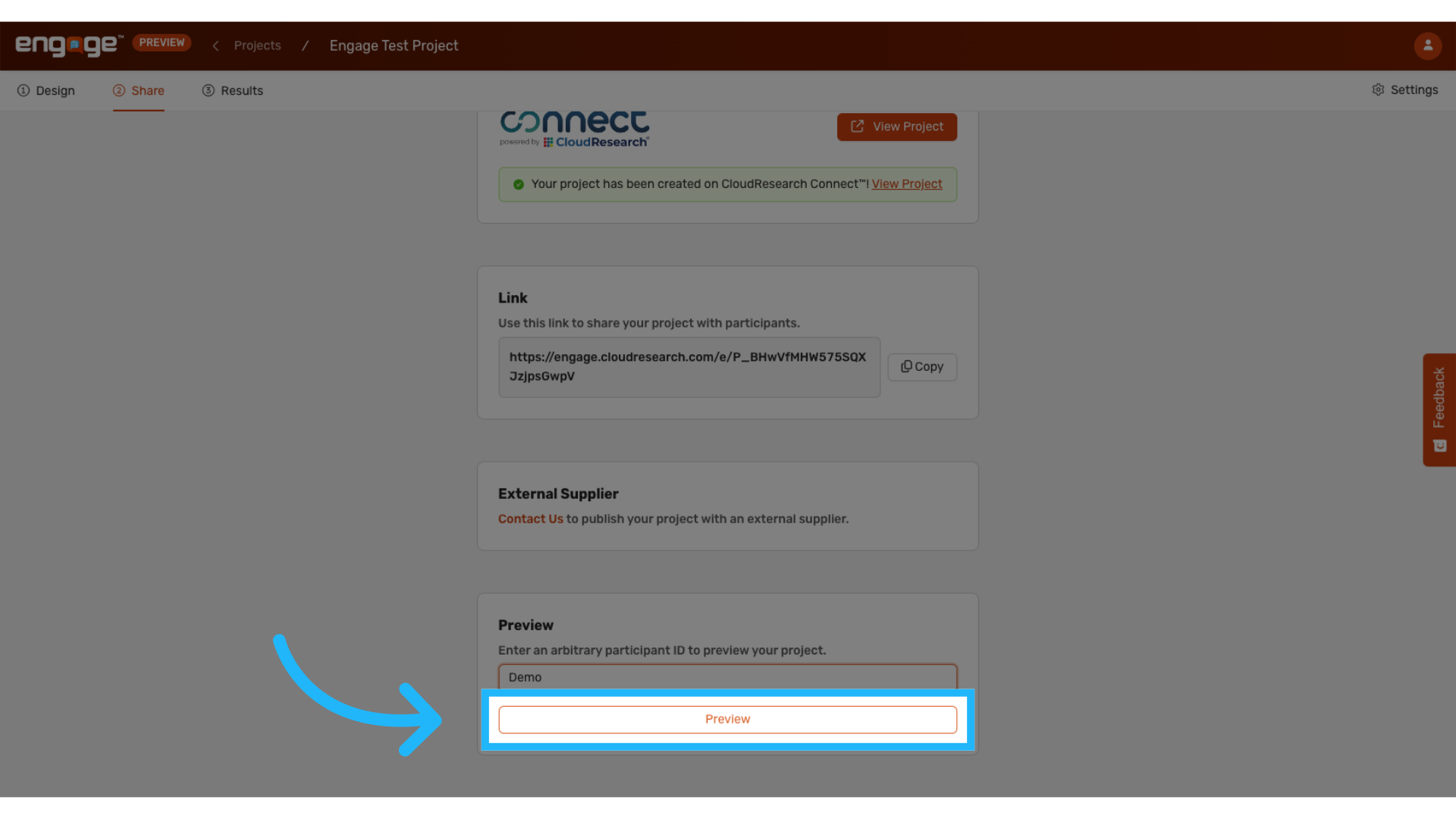
3: Click "Preview"
Once you’ve entered the Participant ID, click on the Preview button.
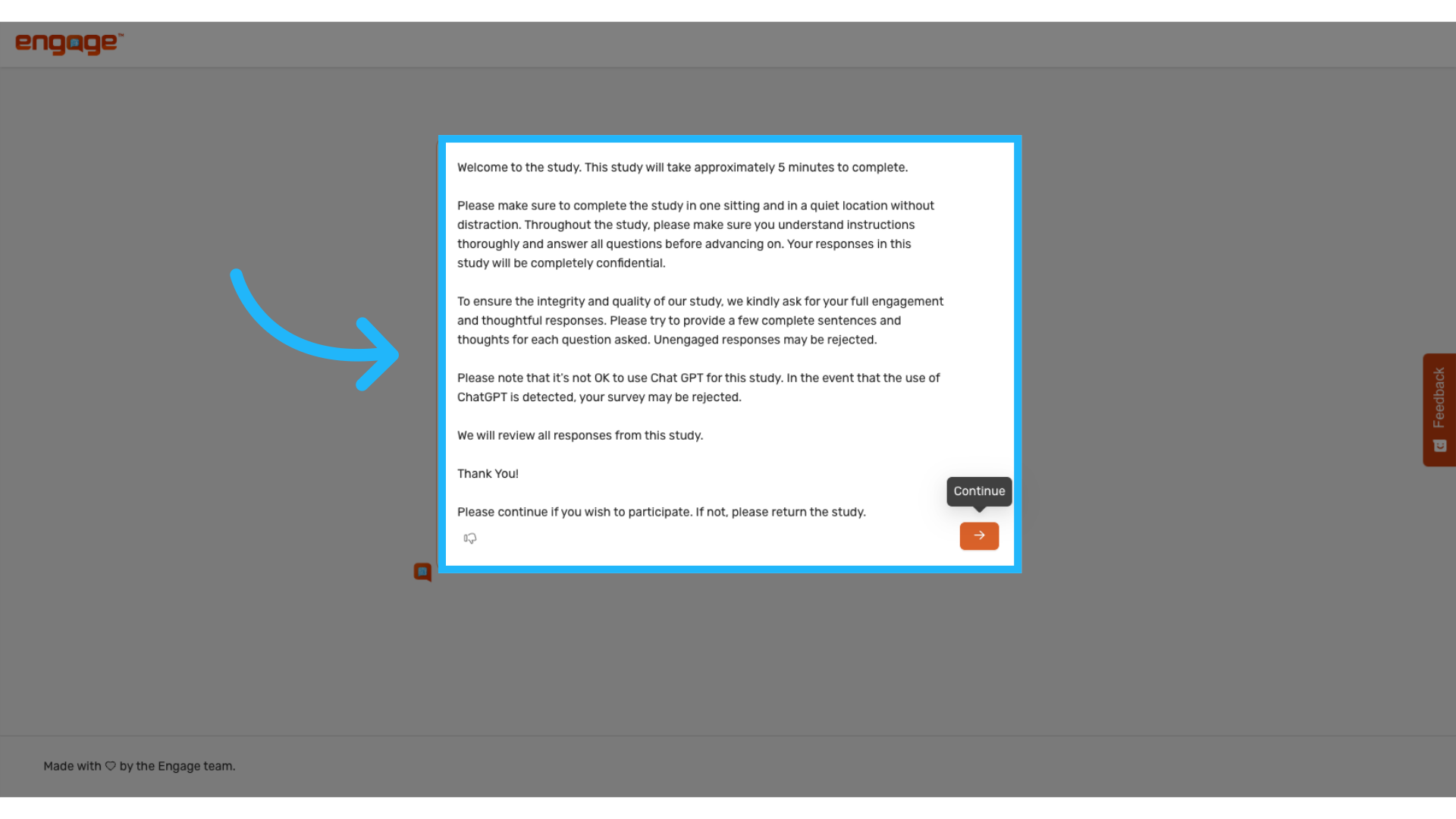
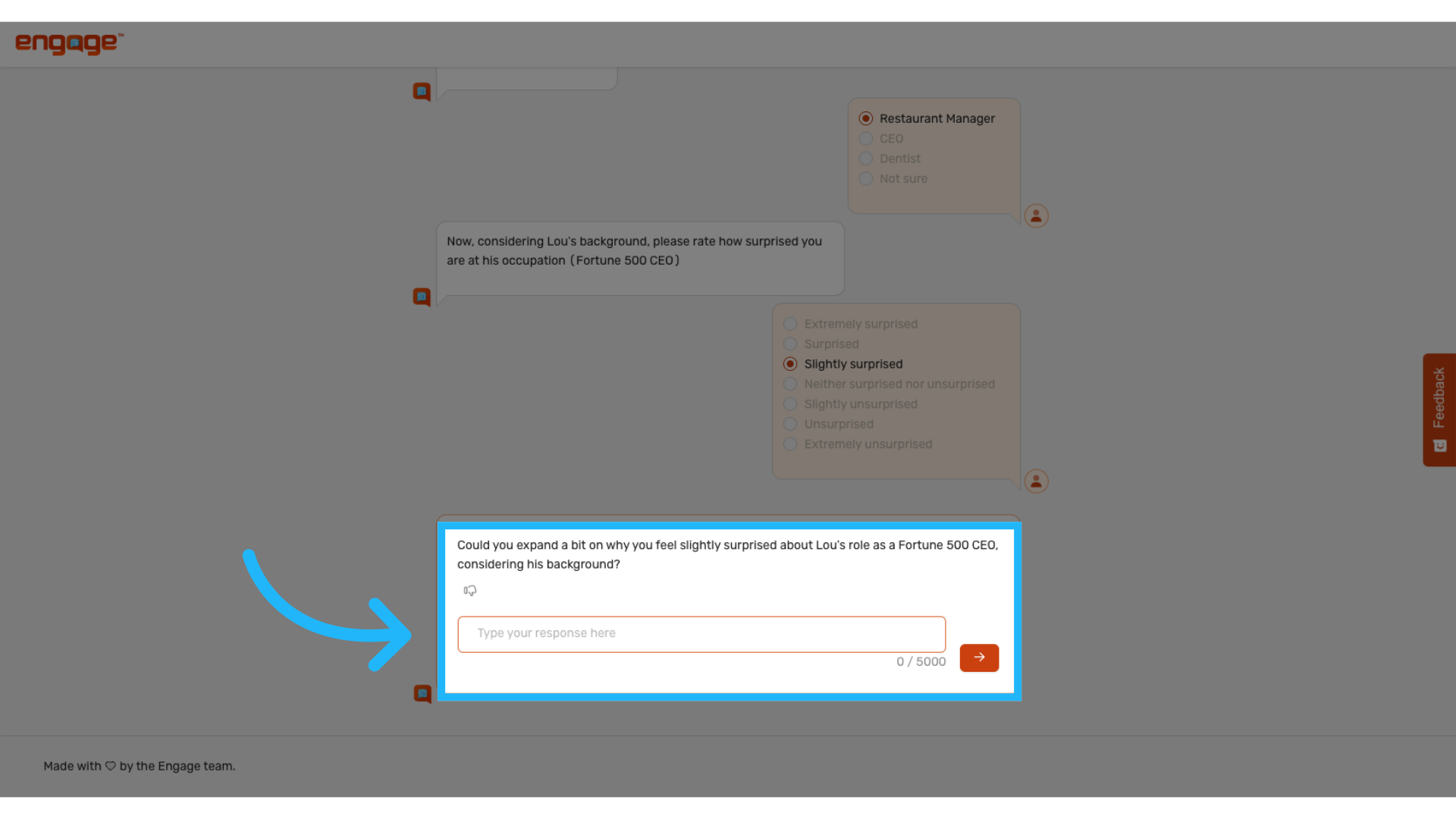
4: Take the Survey
You will be redirected to a page where you can experience the survey just like a participant would.
5: Review and Make Changes
If you notice any issues or would like to make changes to the survey, return to the Edit page and your preview details will be saved. To begin another preview session, enter a new Participant ID.
Thank you for reviewing this guide. If you have any further questions or require additional assistance, please contact our support team or explore our other resources.
Comments
0 comments
Please sign in to leave a comment.