
Welcome to our guide on exploring insights generated with Engage. In this guide, you'll learn how to navigate and interpret insights generated from your projects using Engage. For instructions on how to generate insights, Generate Insights guide.
Login to Engage
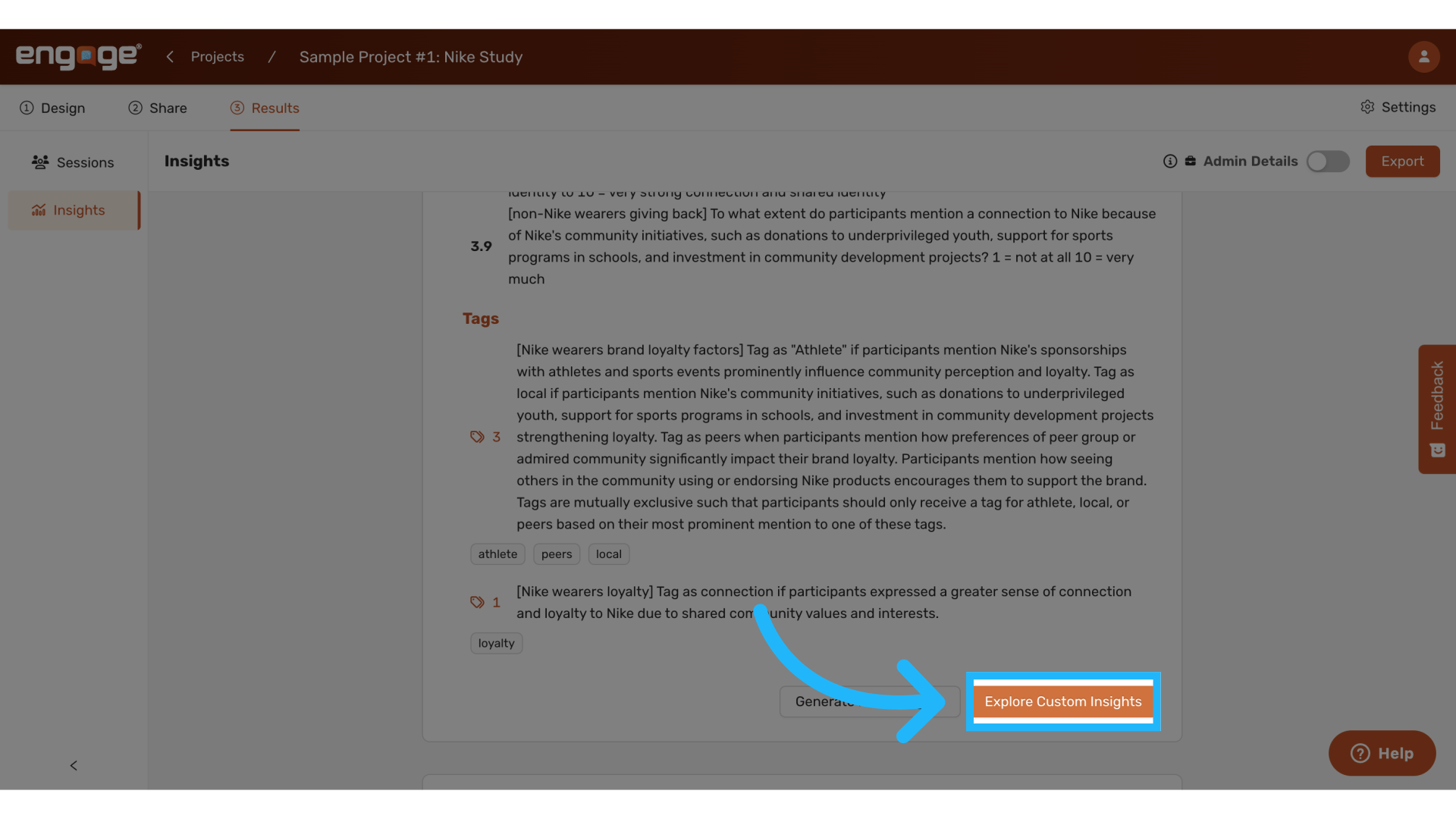
1. Select "Explore Custom Insights"
Once your insights have been generated, select explore custom insights.
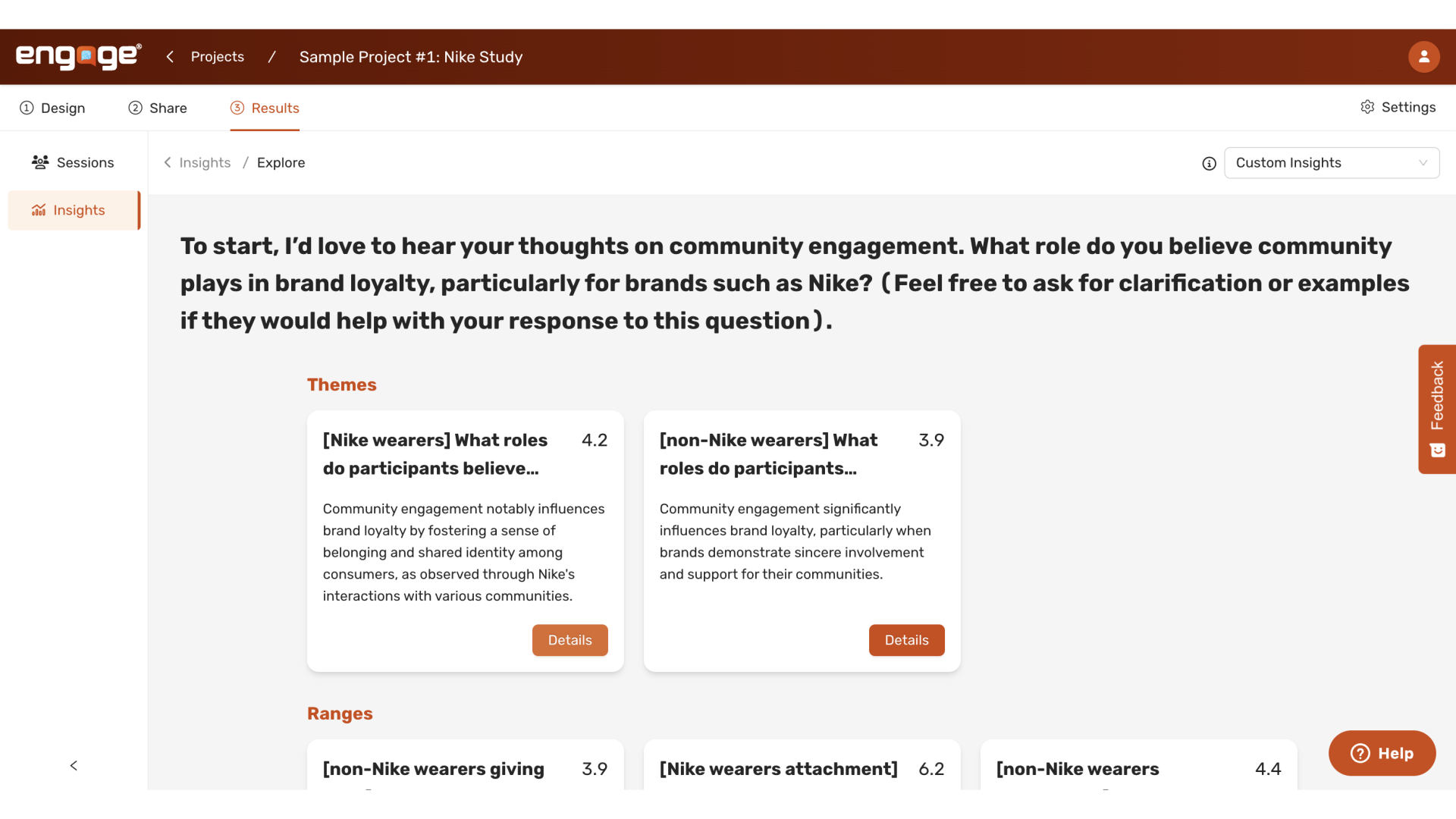
2. View Insights Page
You will be directed to a summary page that displays all the insights for which queries were run.
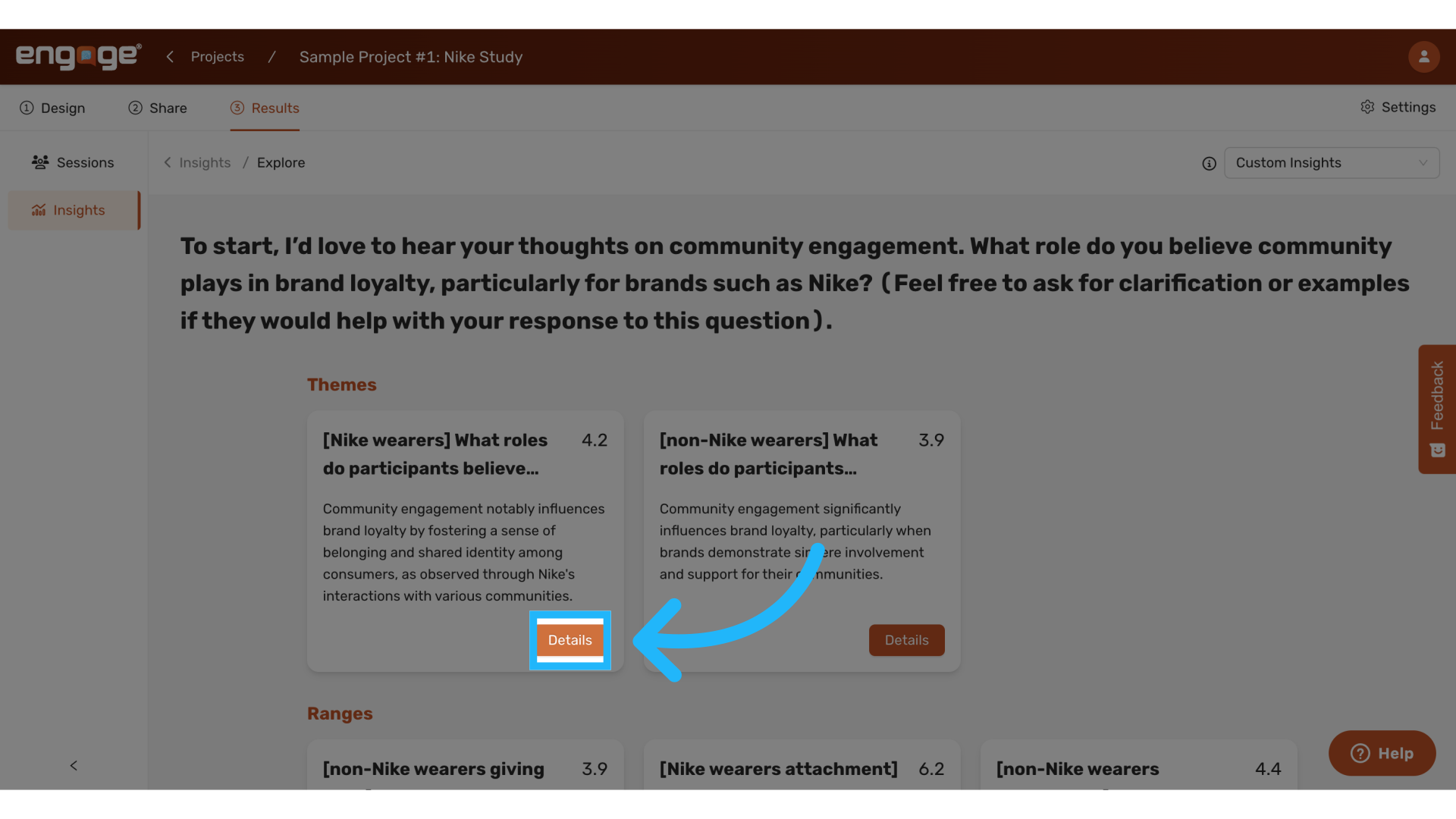
3. Select "Details"
Under the themes section, select details to view further analysis of each theme.
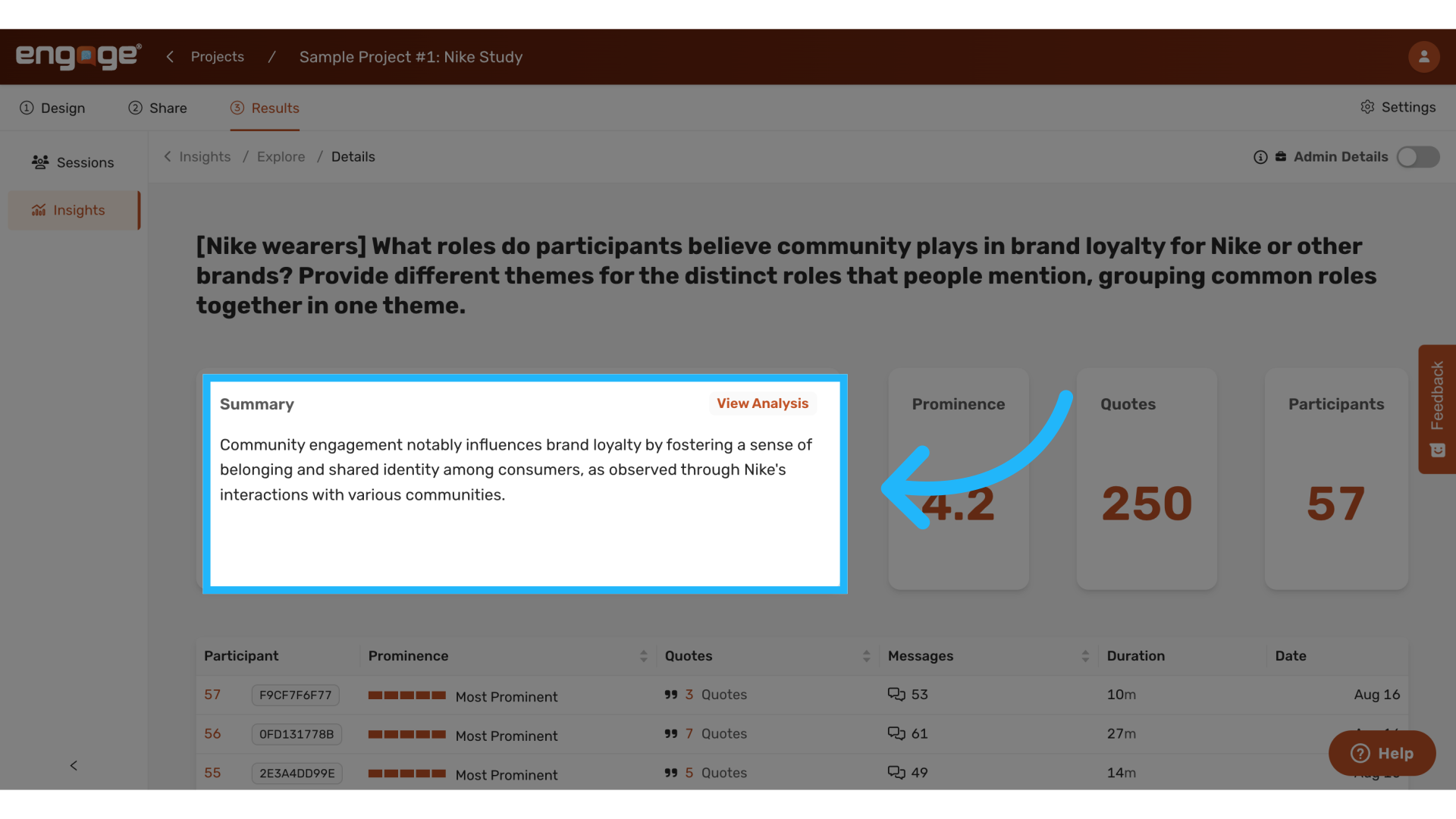
4. View Theme Summary
5. Select "View Analysis"
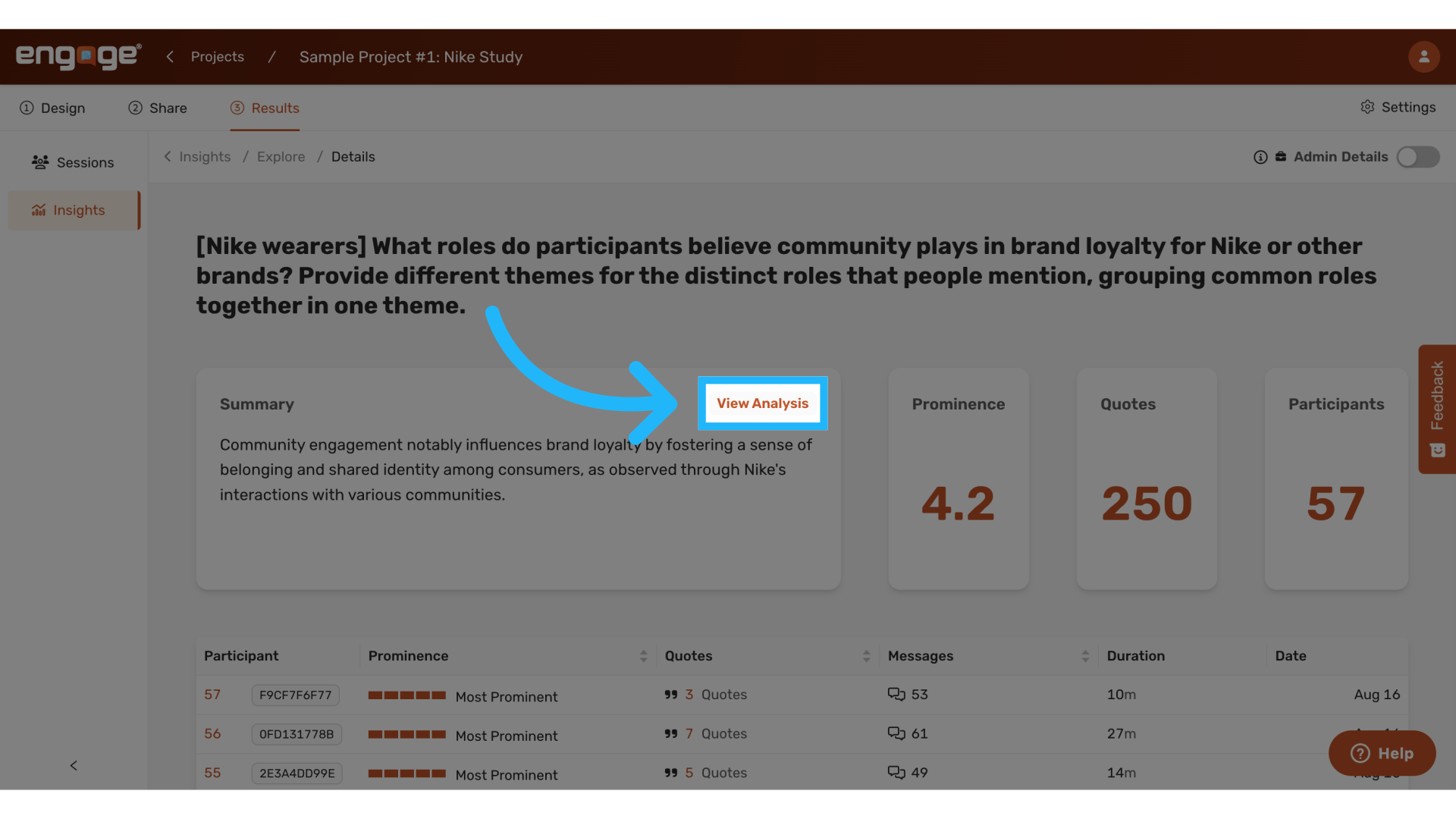
Select view analysis to see the thematic analysis report.
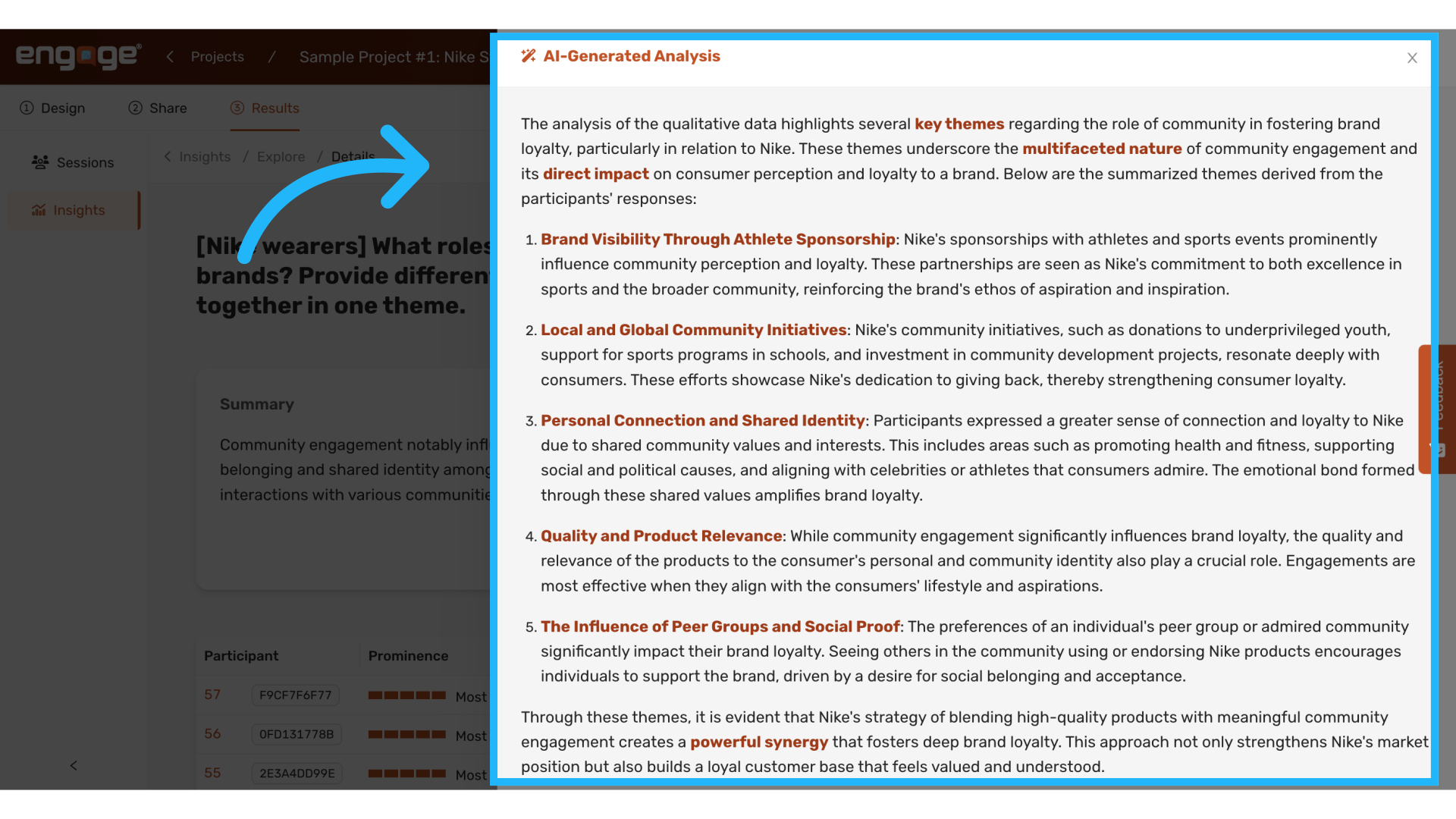
6. View detailed AI generated analysis
AI generated analysis will give the researcher the most information about the themes generated.
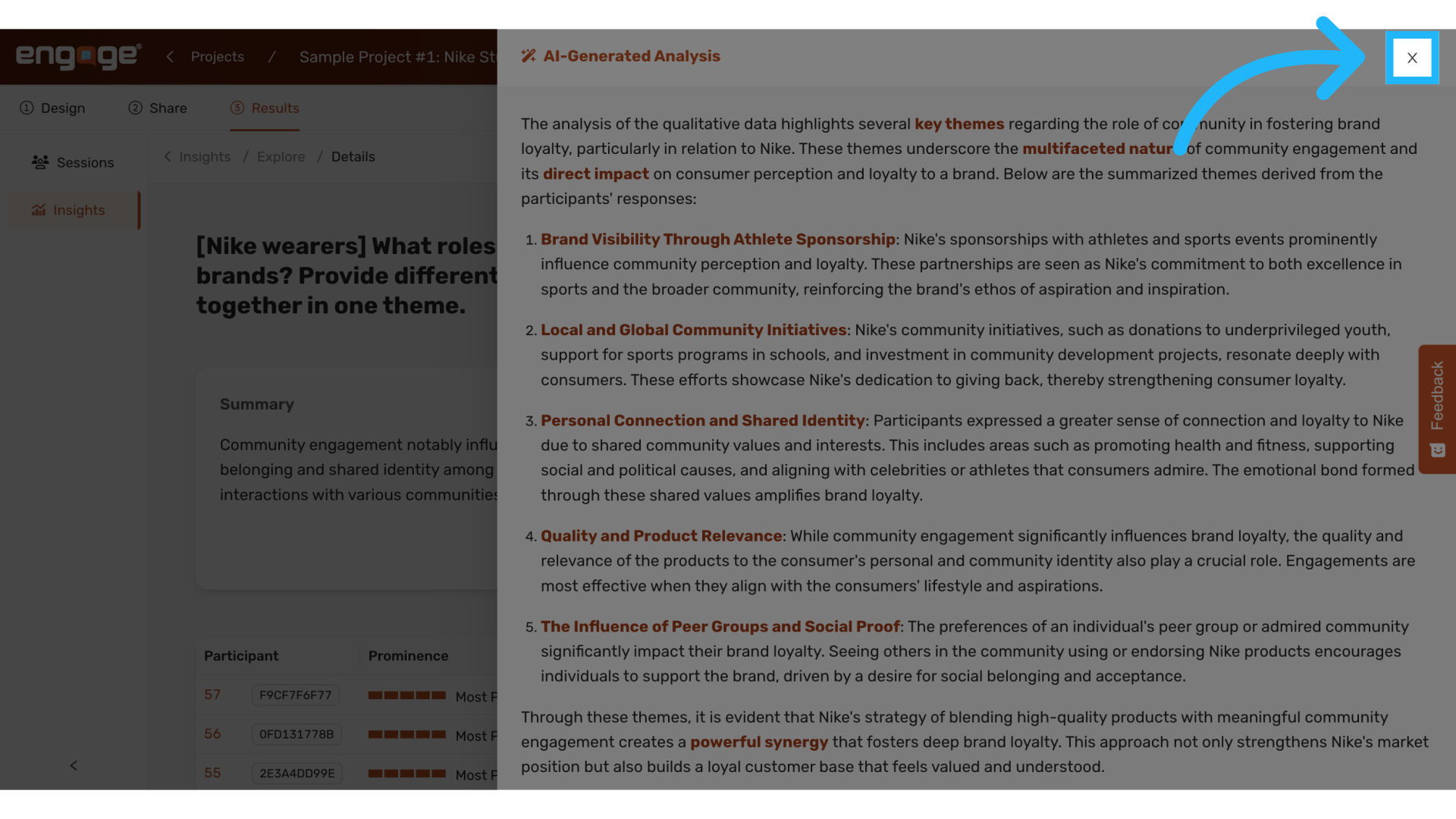
7. Return to explore insights page
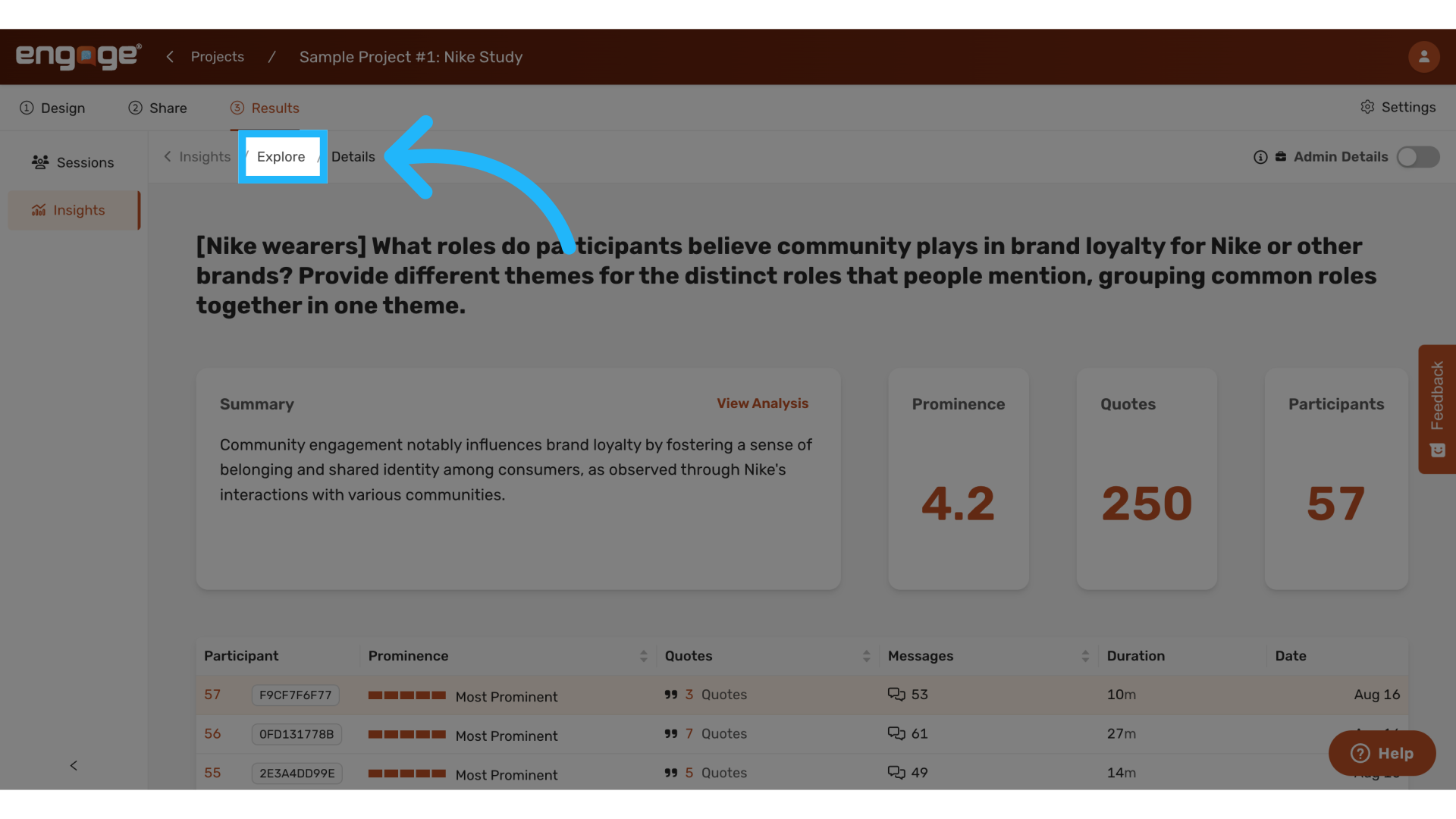
Return to the explore page to view additional details.
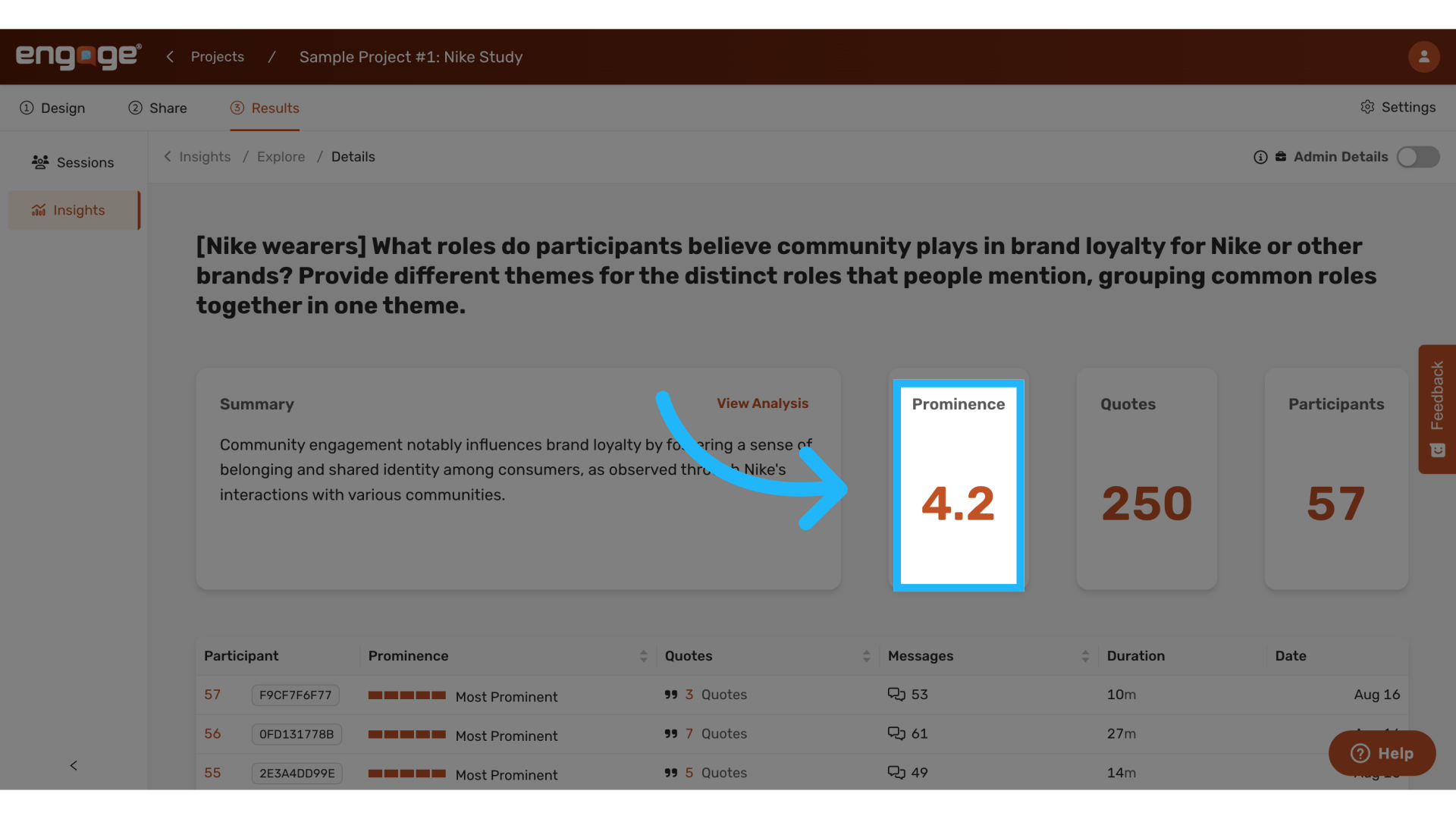
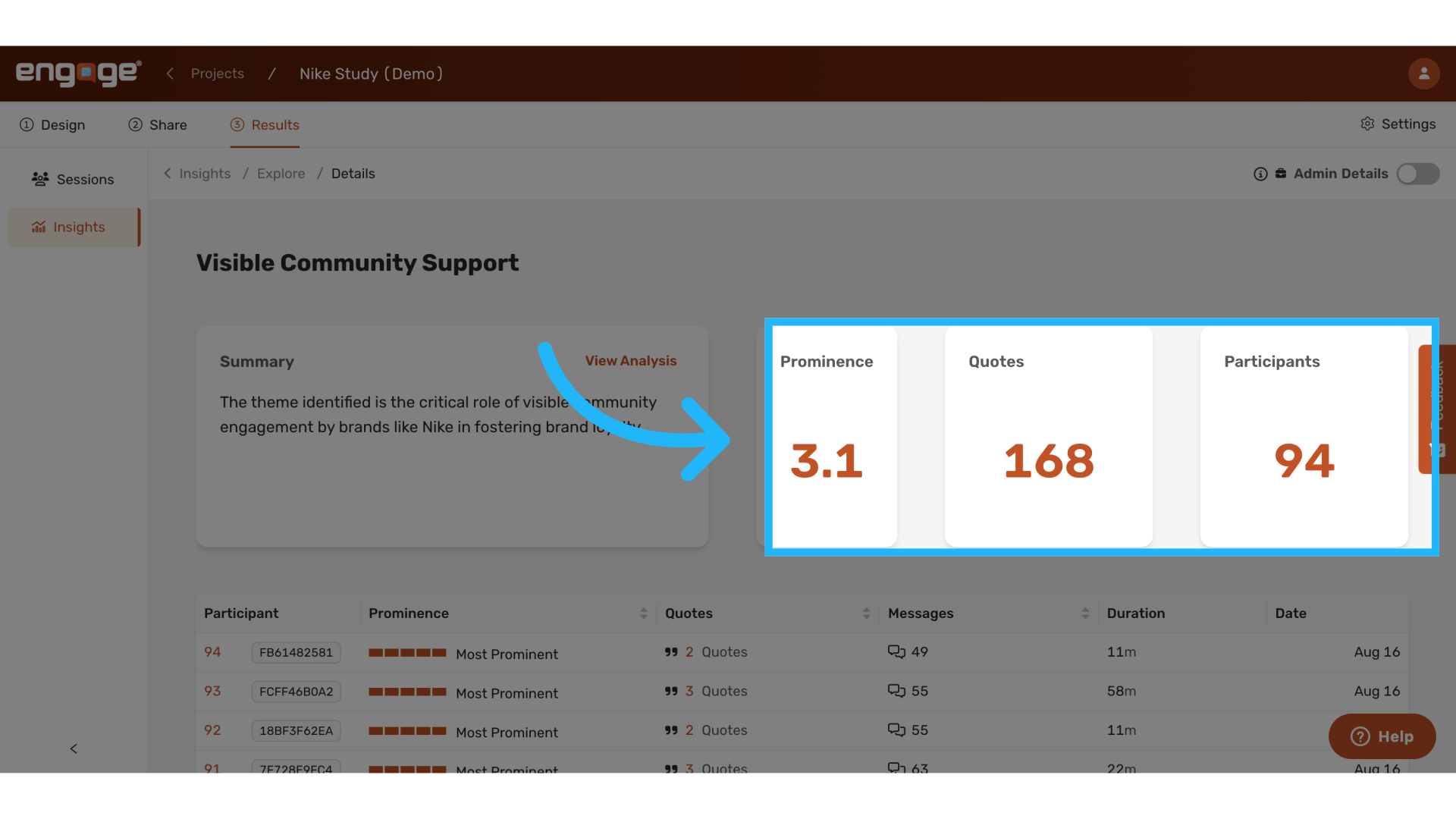
8. View theme prominence
View how prominent the theme was within the transcripts. The ‘prominence’ scale ranges from 0 to 5, with 5 being the most prominent, and 0 the least.
9. View Number of Quotes pulled
View how many quotes were relevant for the analysis.
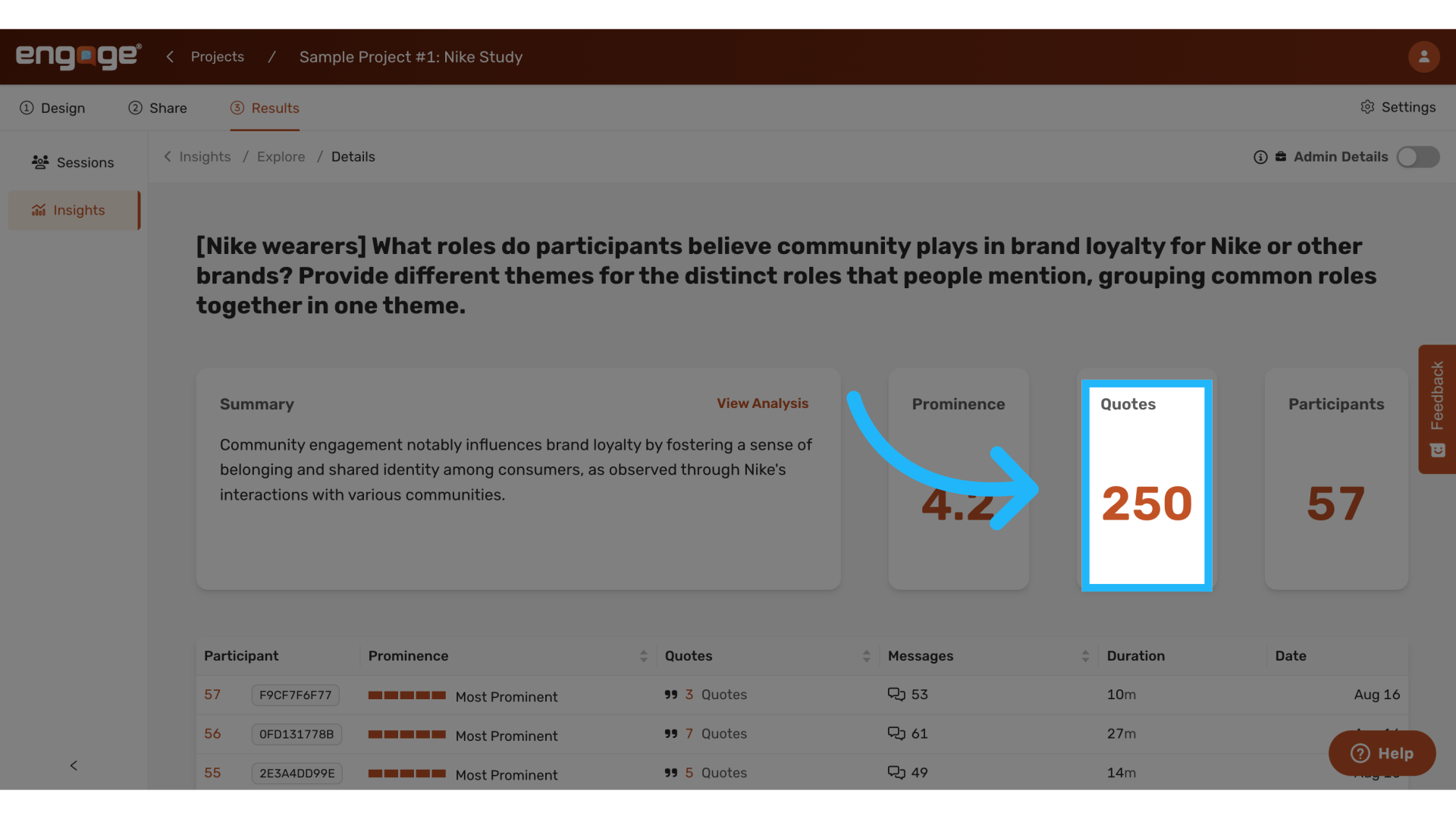
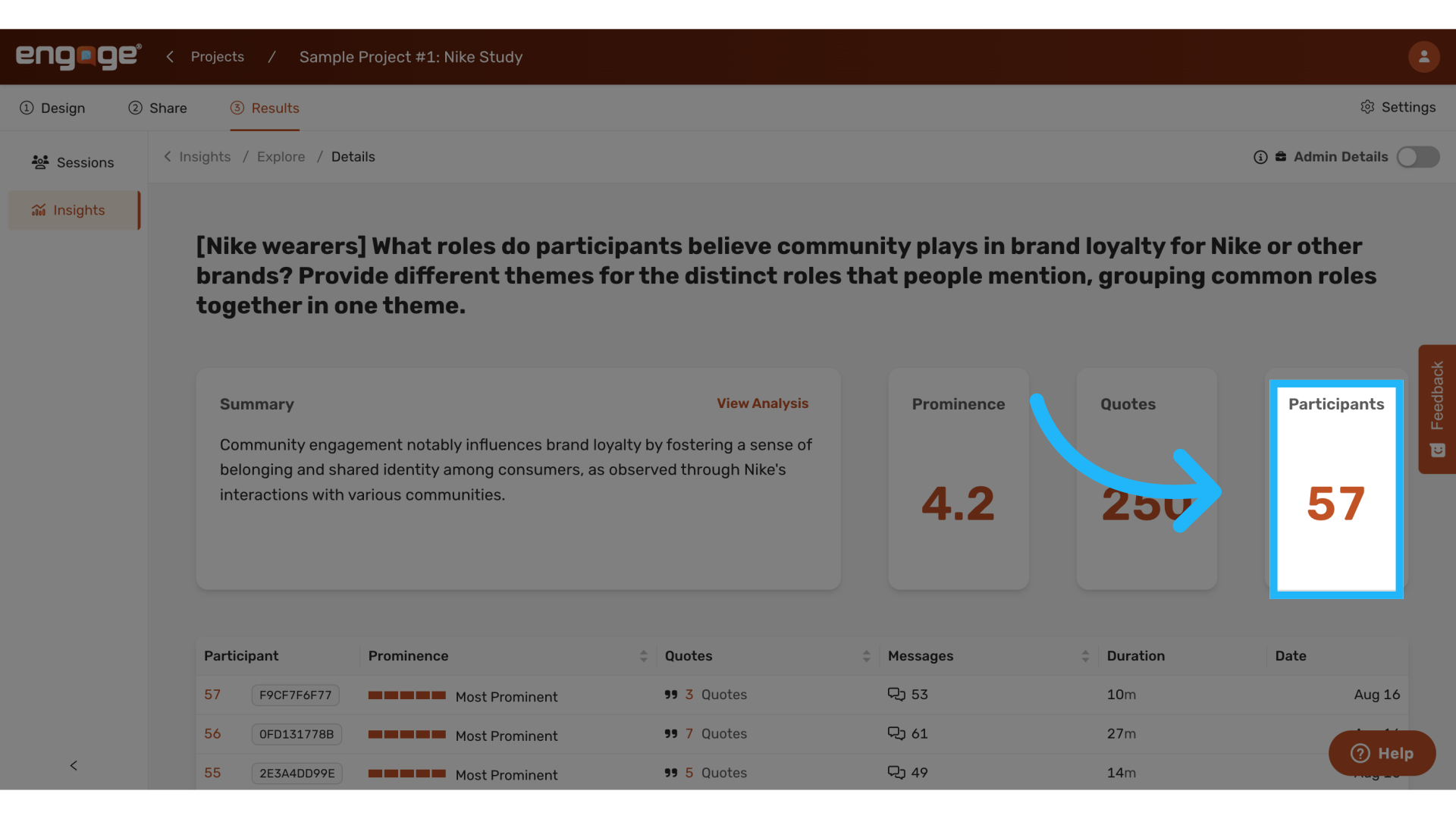
10. View Number of Participants
View how many participants were involved.
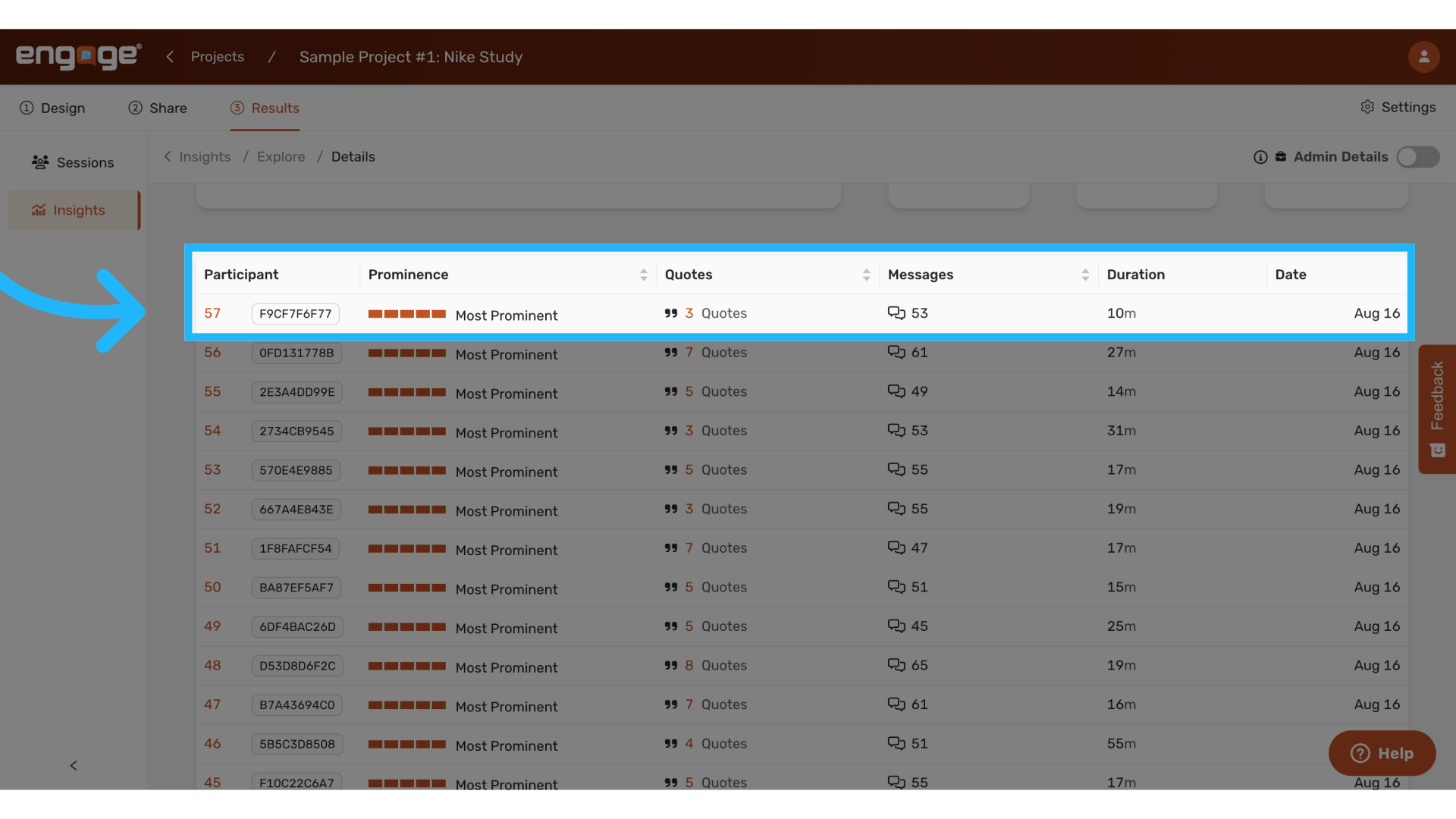
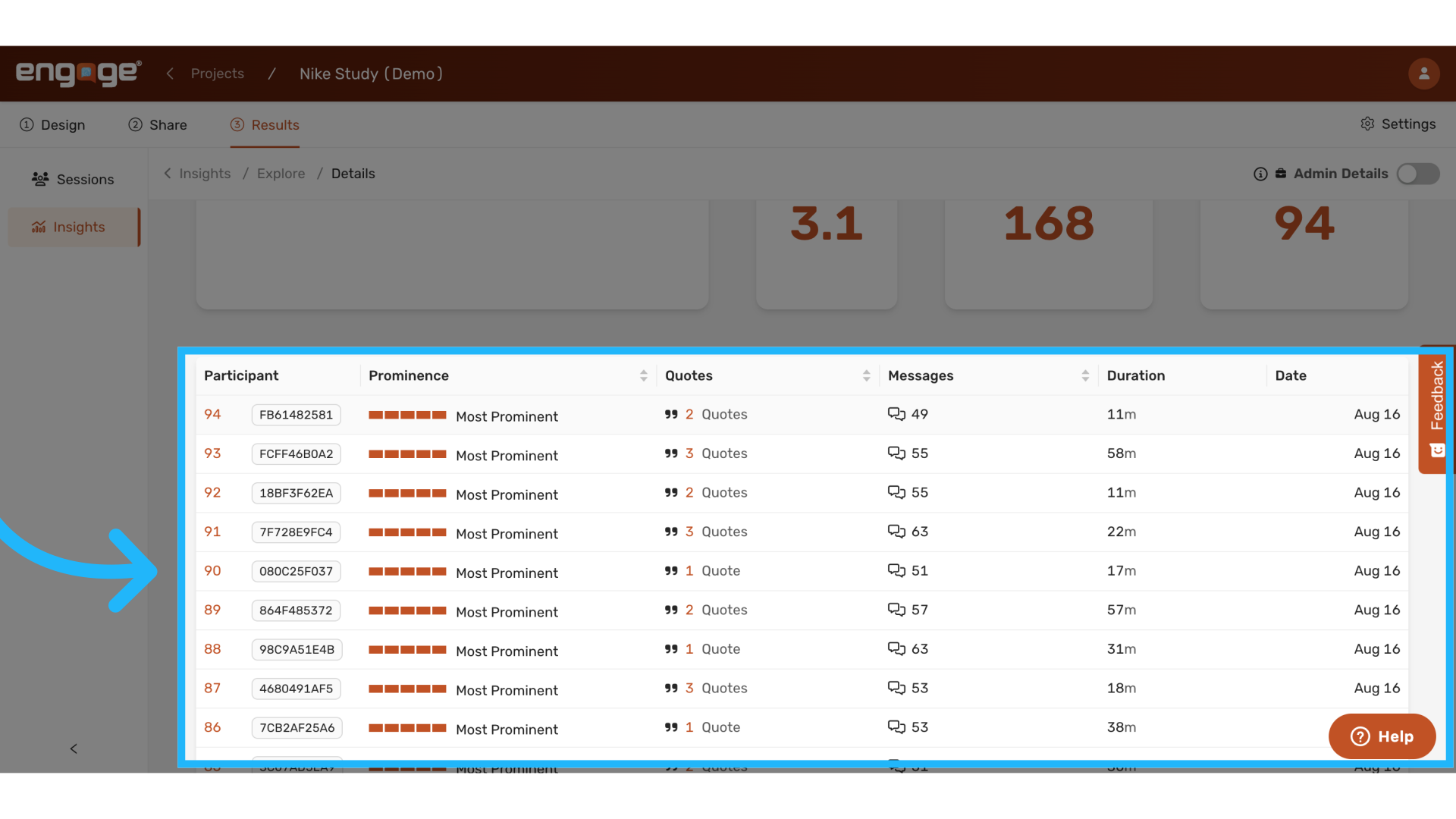
11. View Relevant Sessions
View the sessions that display these themes ordered by theme prominence. For each session, you can see the Participant ID, how prominent the theme was in their conversation, how many relevant quotes were pulled, the total messages, duration, and date of their conversation.
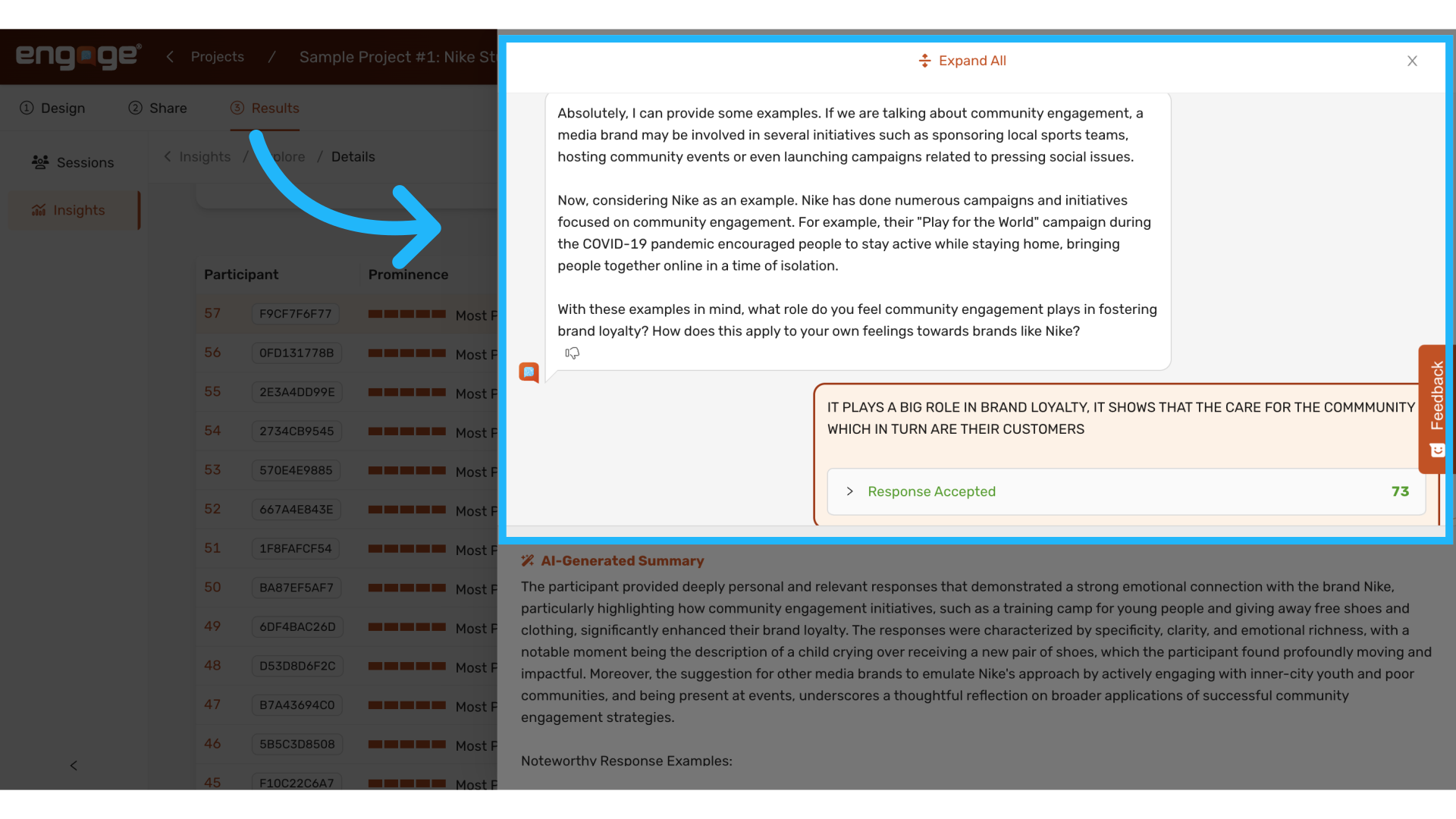
12. View Relevant Quotes
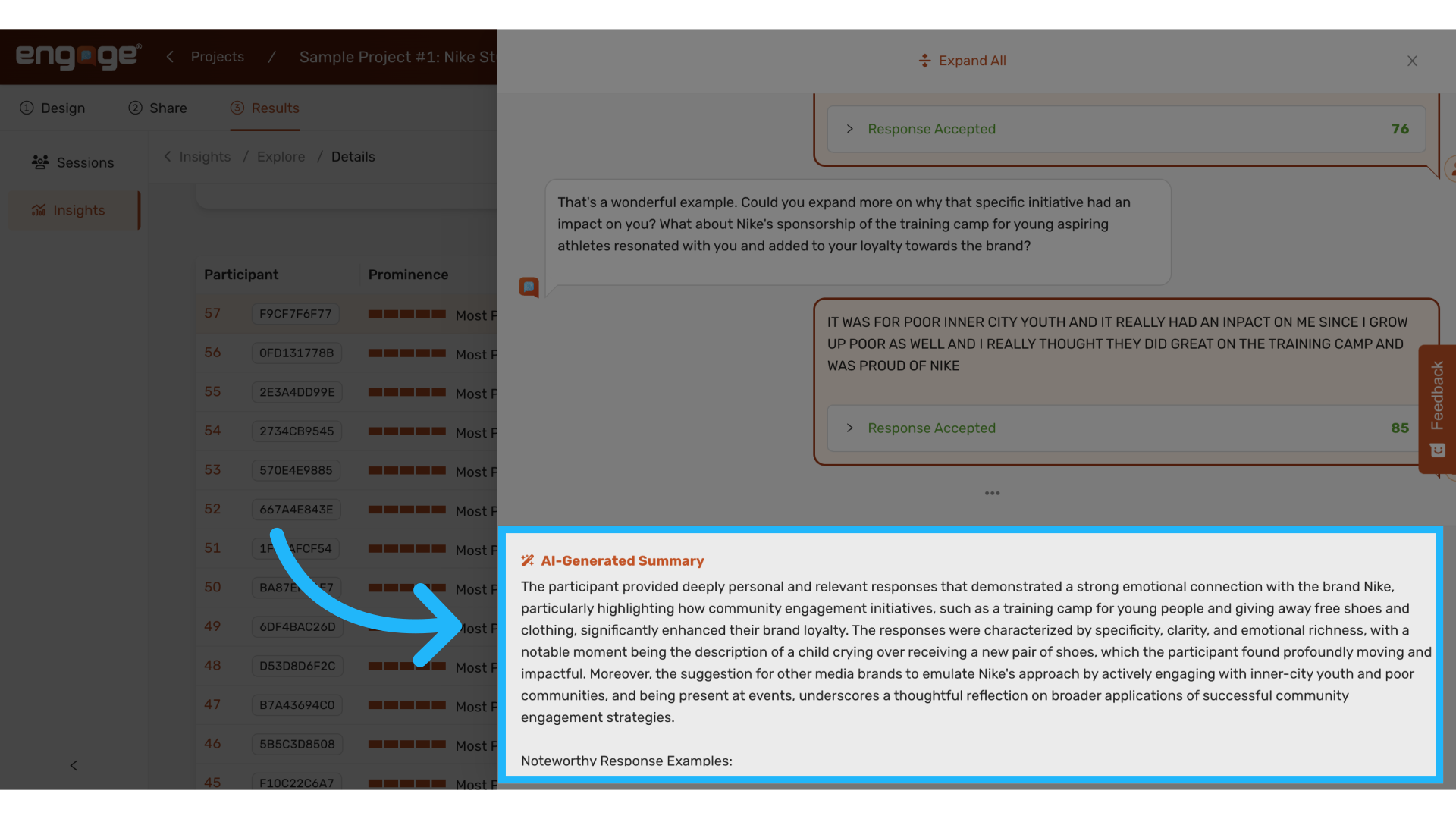
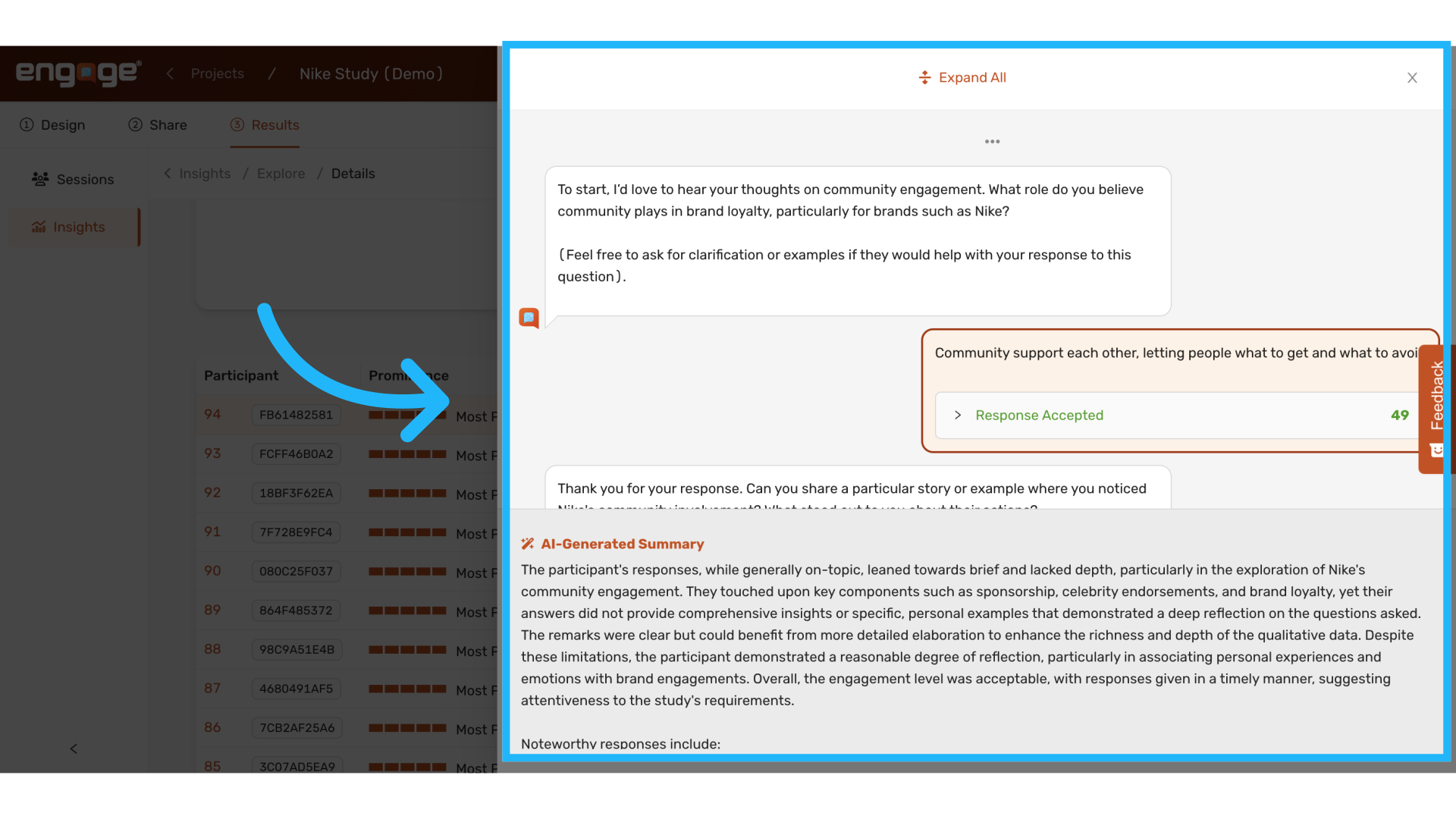
Click on any of the sessions to view the quotes from the conversation, which AI used to generate the themes.
13. View AI Generated Summary
View an AI generated summary for each session.
14. Return to Explore
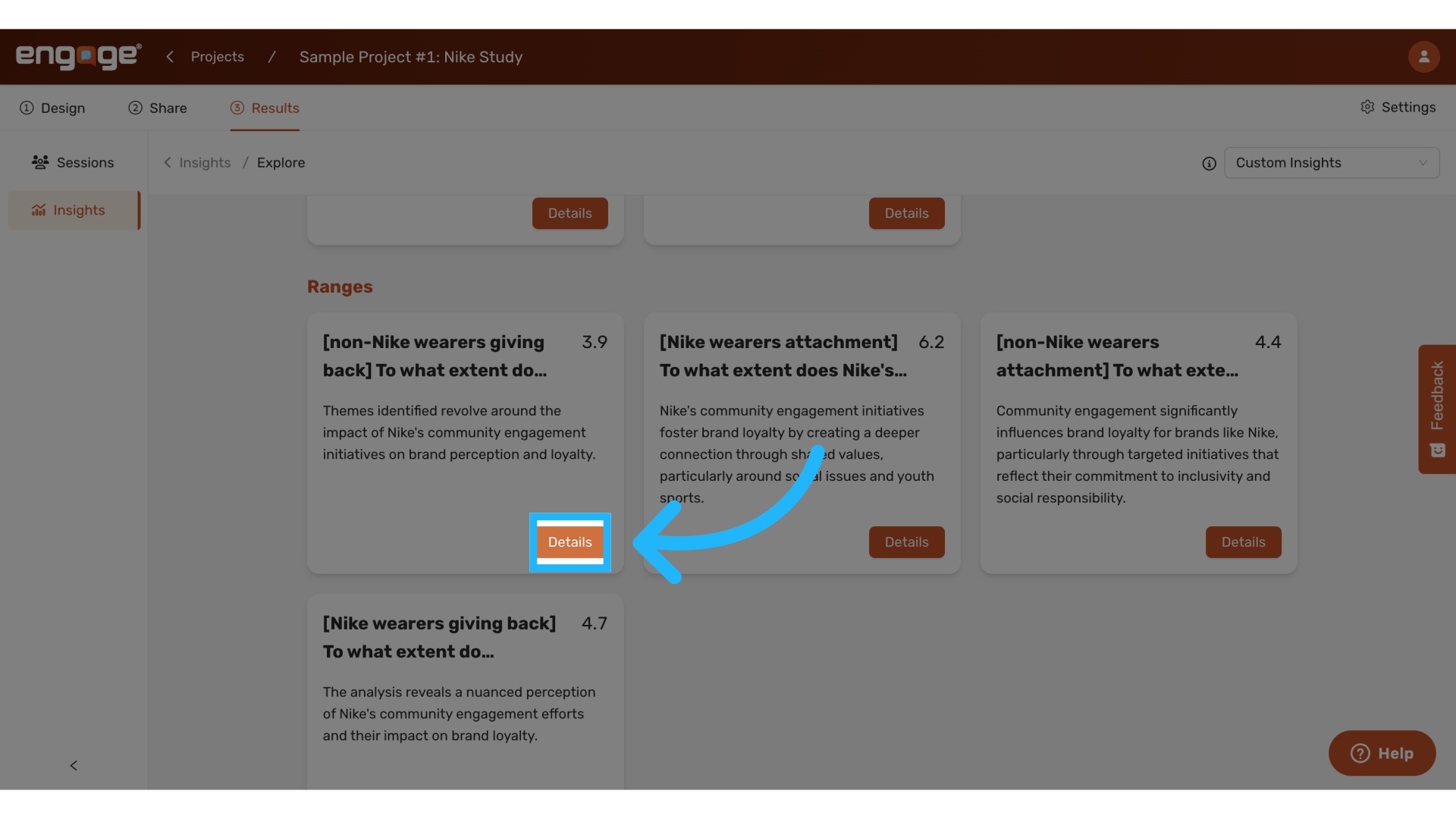
15. Explore Range Insights Details
Explore generated insights for ranges.
16. View Ranges Summary
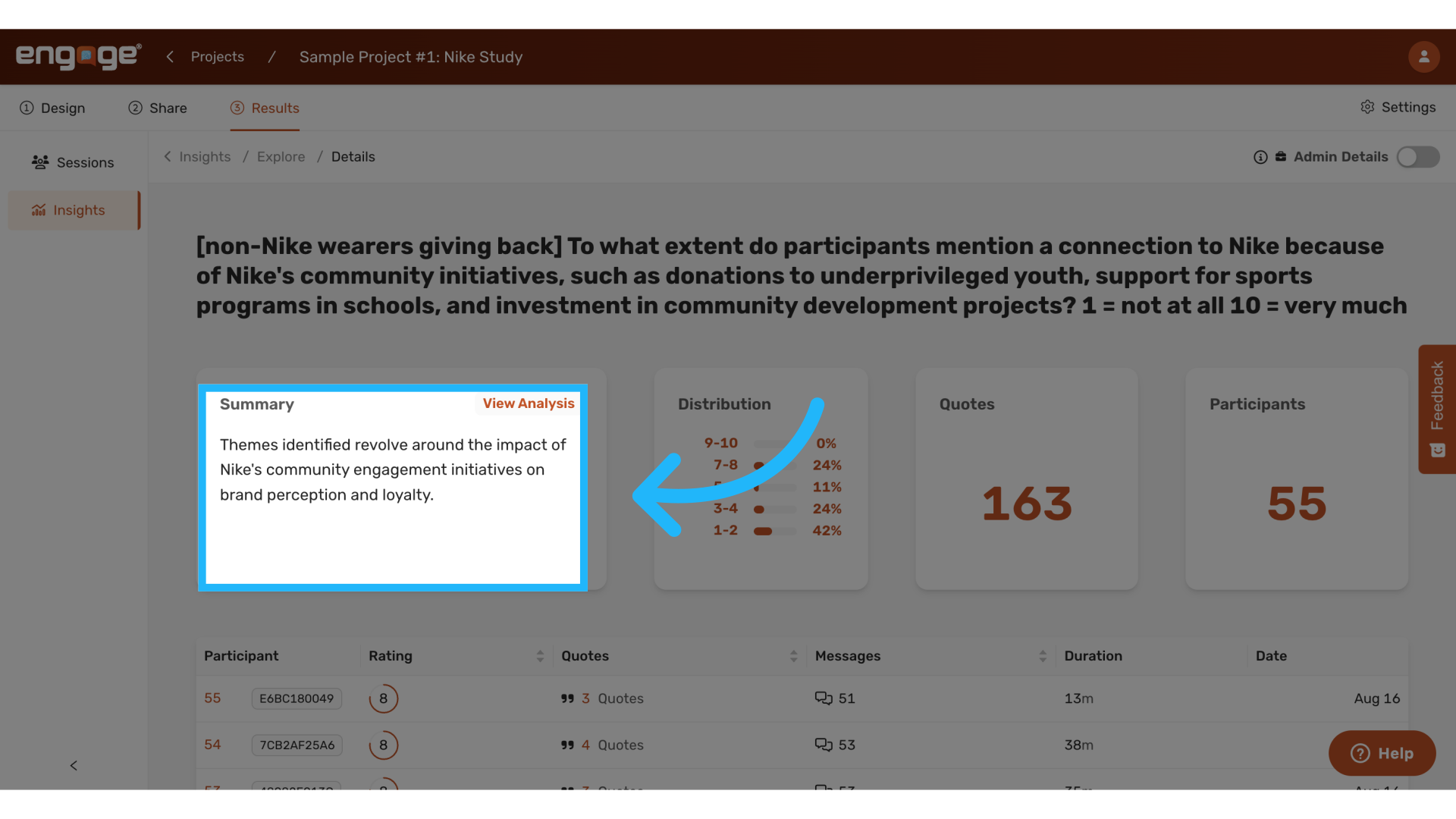
17. View Range Analysis
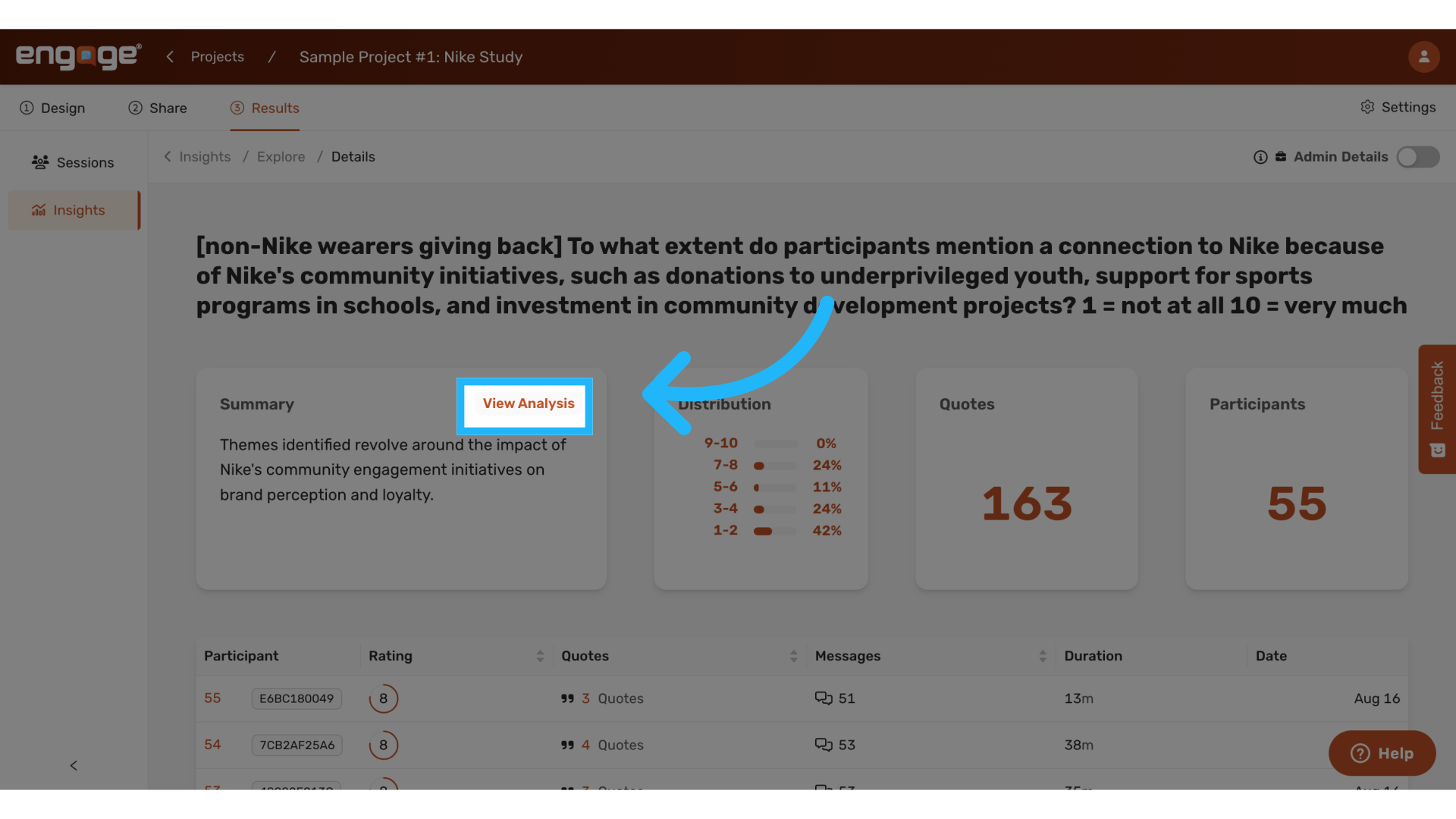
18. AI Generated Analysis
An overview and key themes are pulled from the range query.
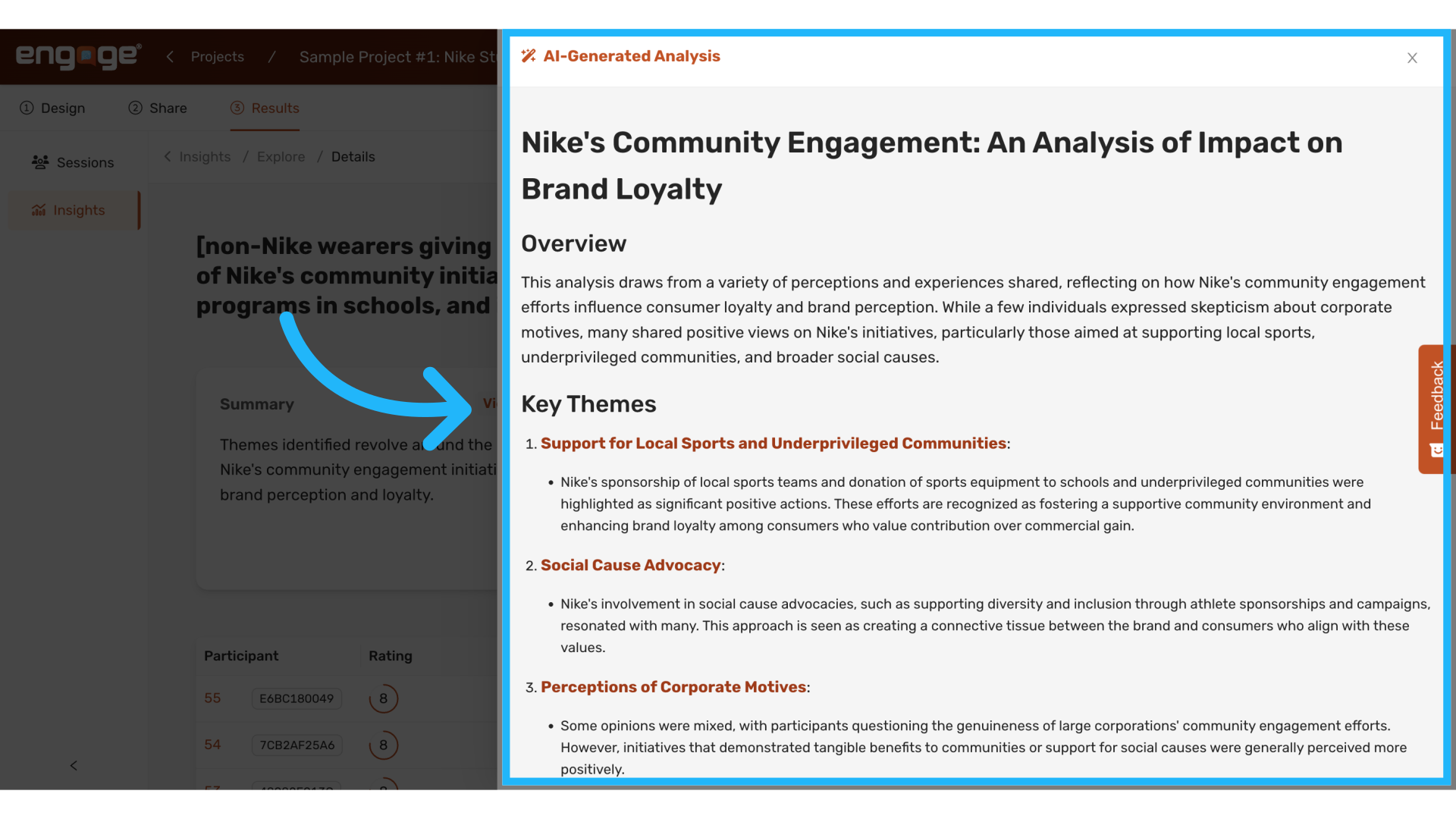
19. View Range Distribution
View the range distribution, and hover over it to view the distribution as counts instead of percentages.
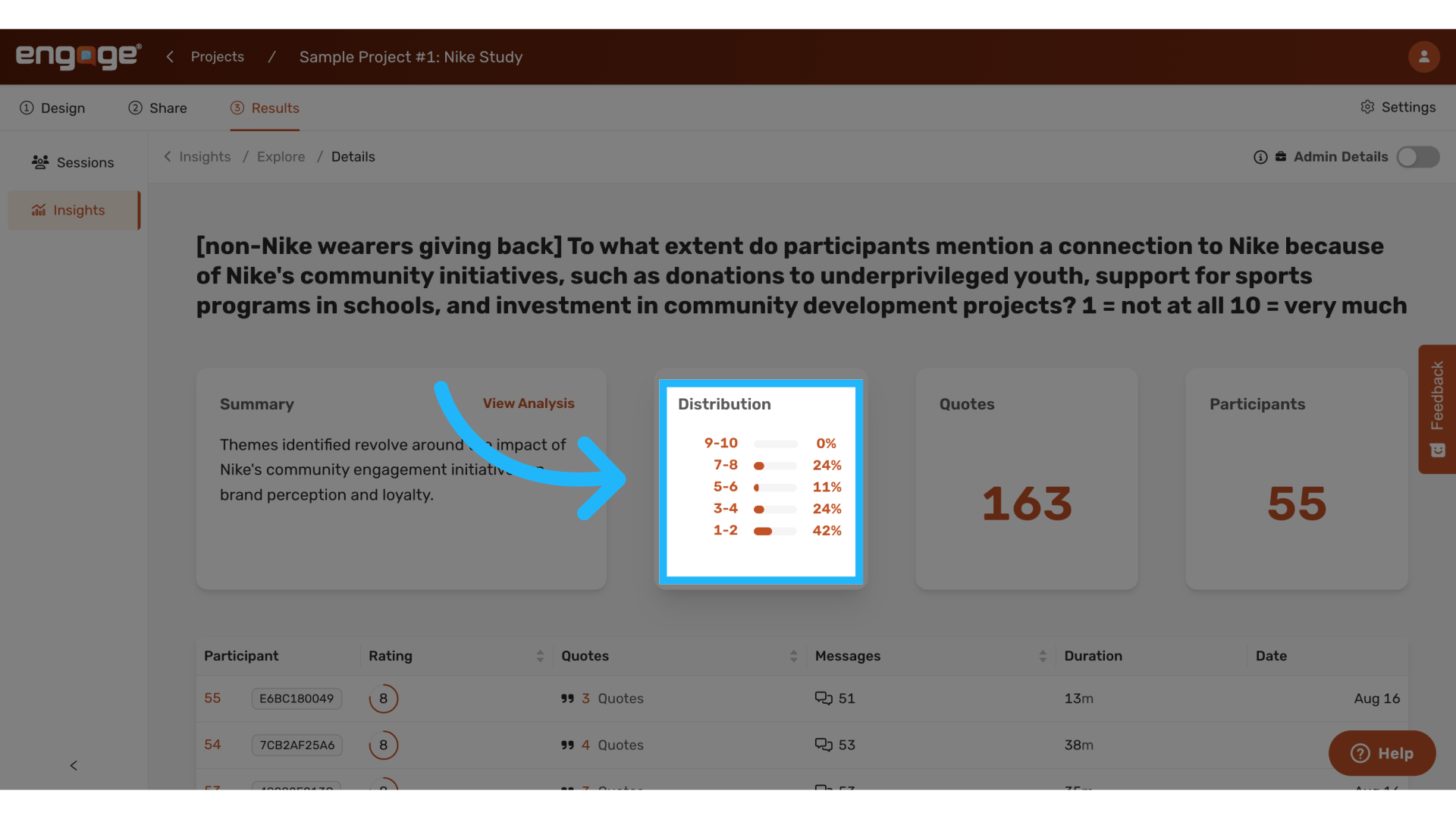
20. View Relevant Quotes
View the number of relevant quotes.
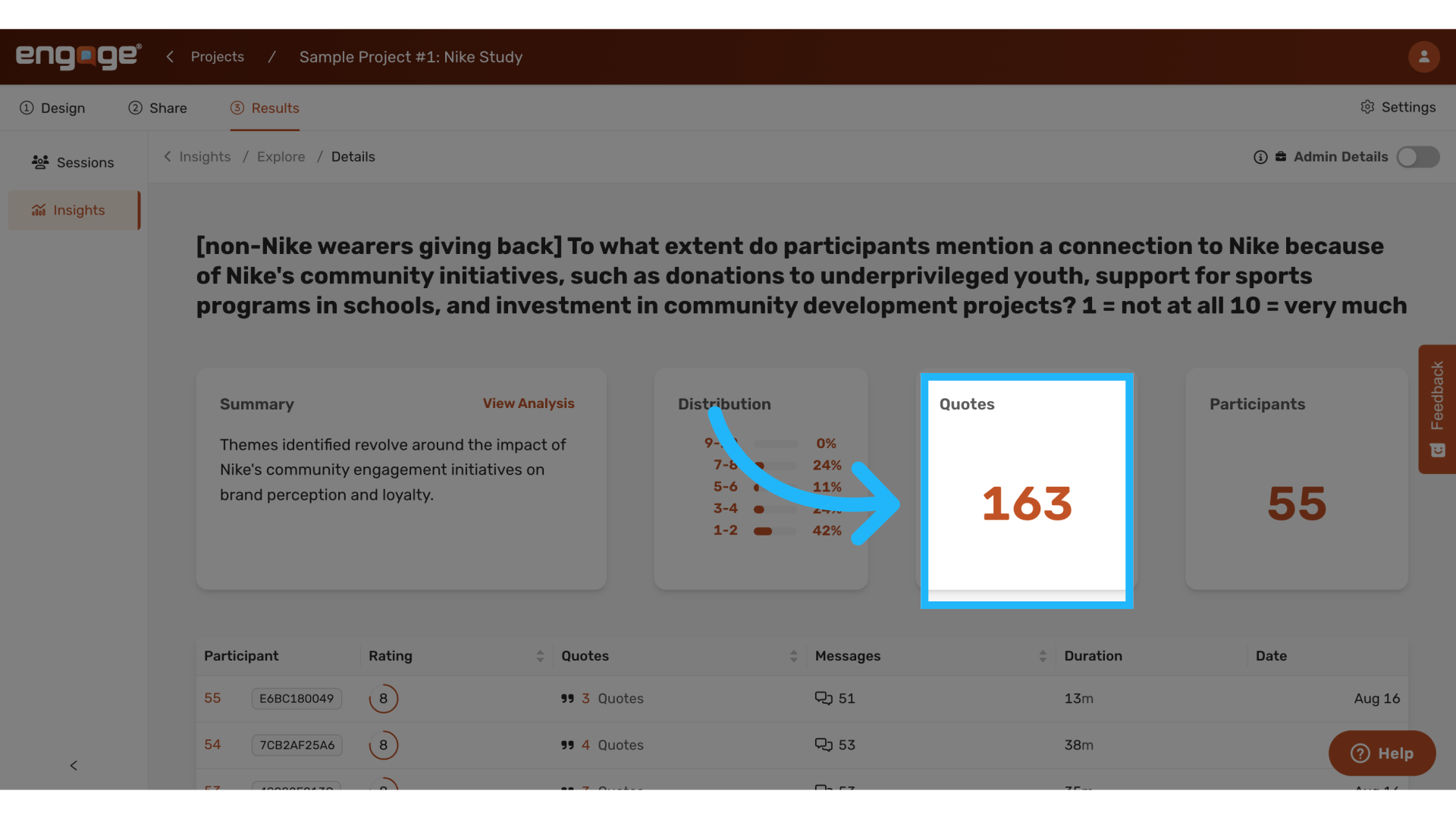
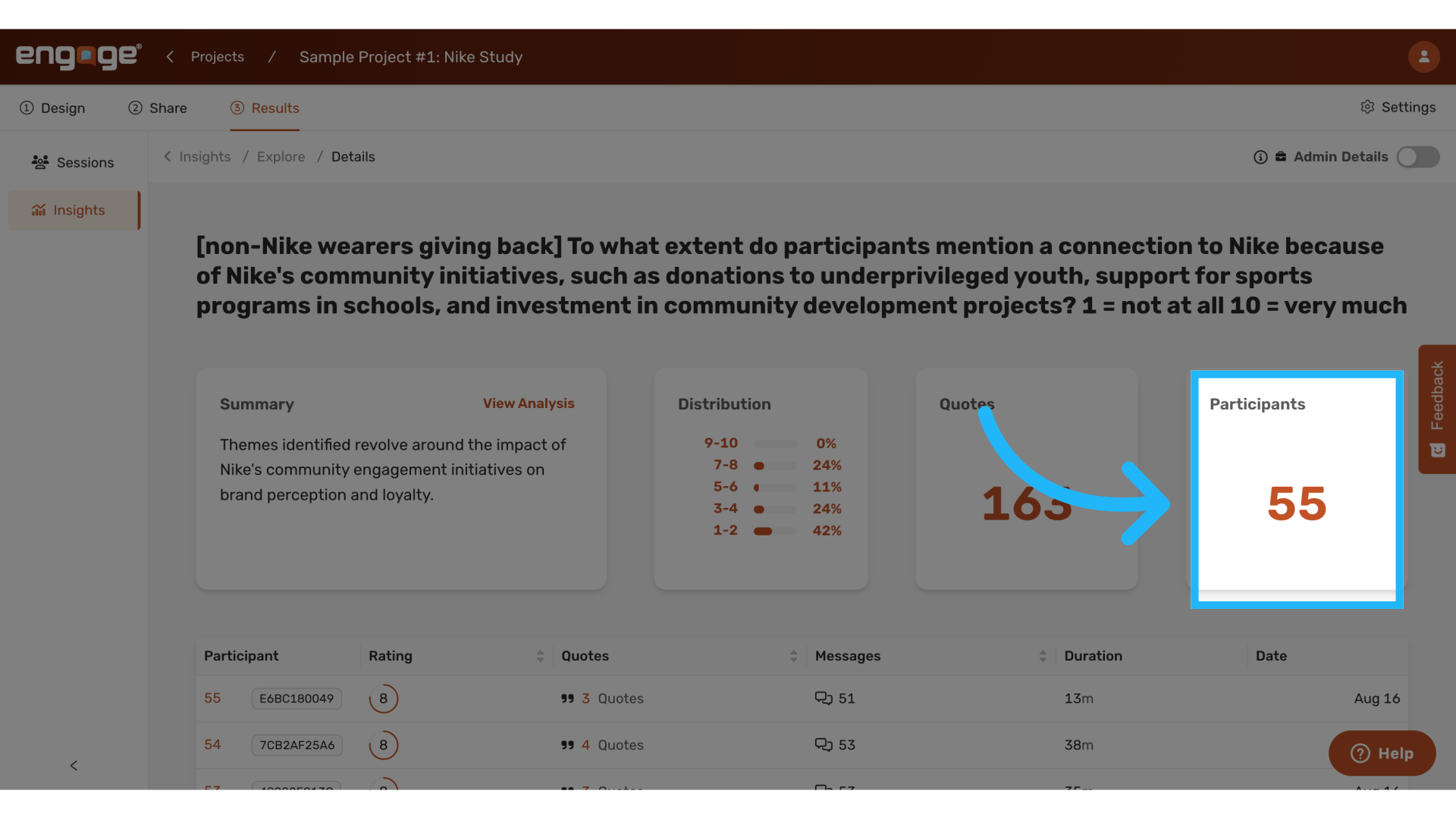
21. View Number of Participants
View how many participants were involved in the query.
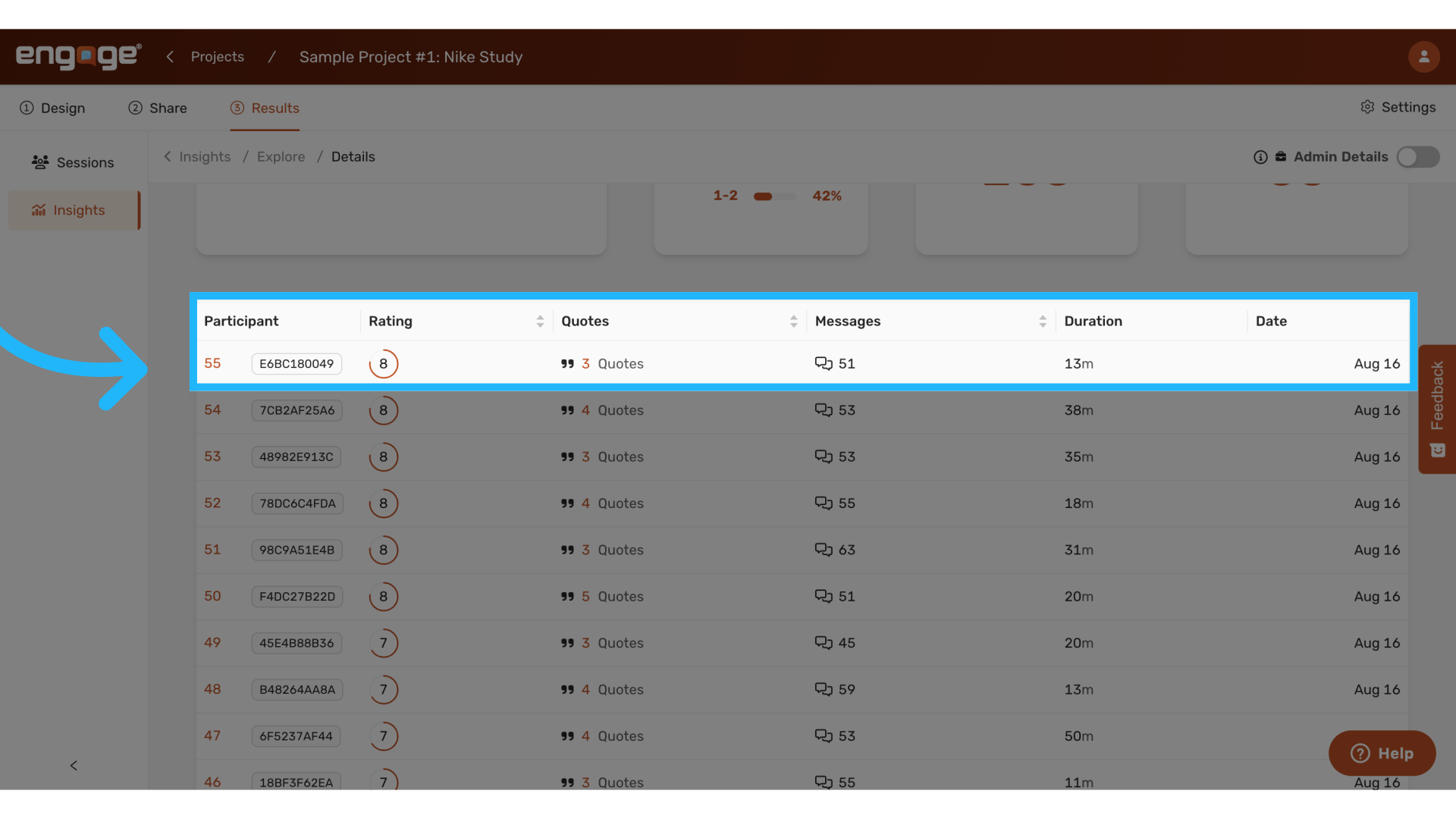
22. View Relevant Session Summary
View the breakdown by viewing each relevant session and the quotes that were pulled. You can see the rating for each session, which is the assigned range score.
23. Click "Explore"
Last, we'll look at the details for tag insights. Return to the explore page,
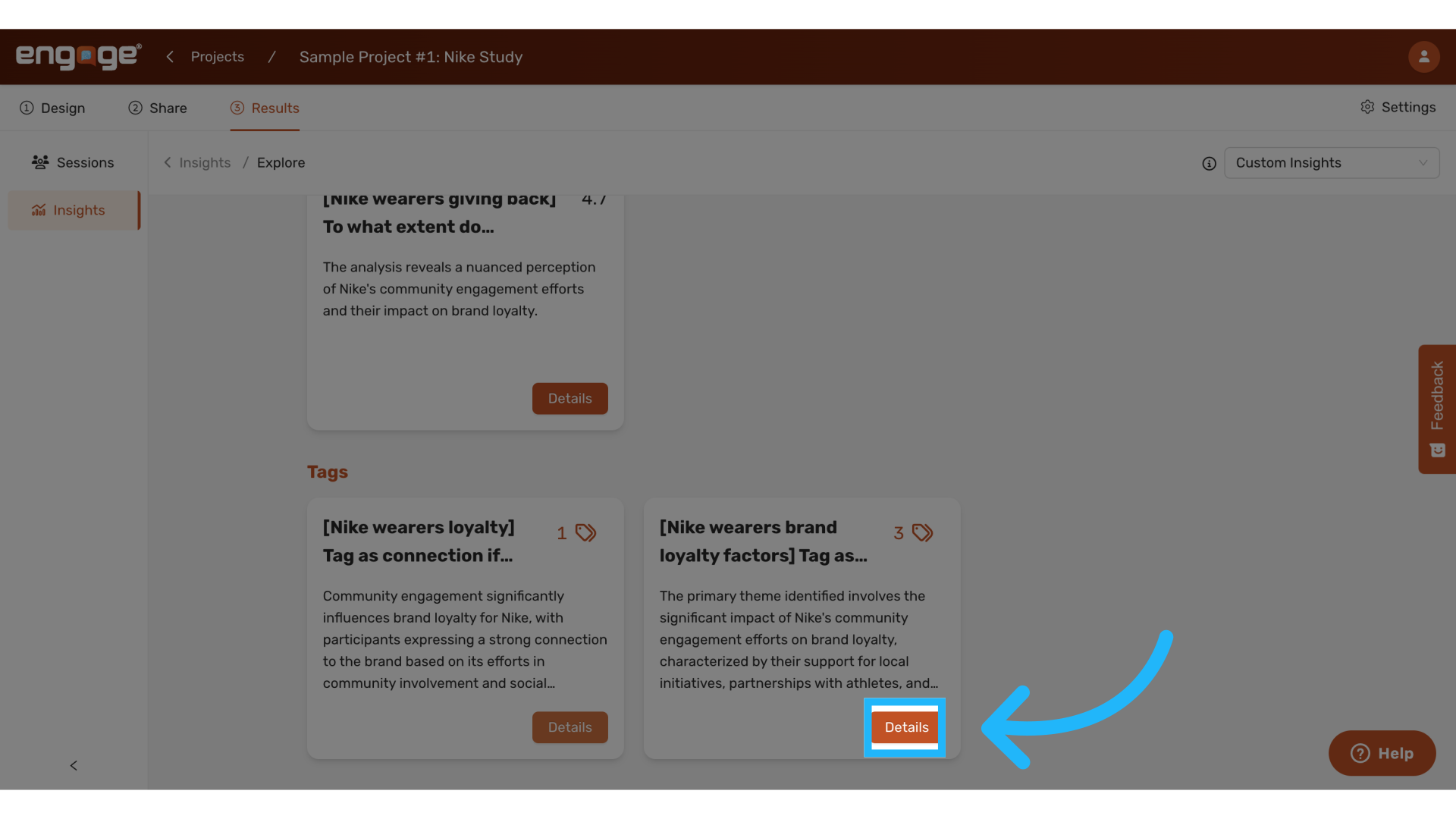
24. View Tag Details
Select details for your tag query.
25. View Tag Summary
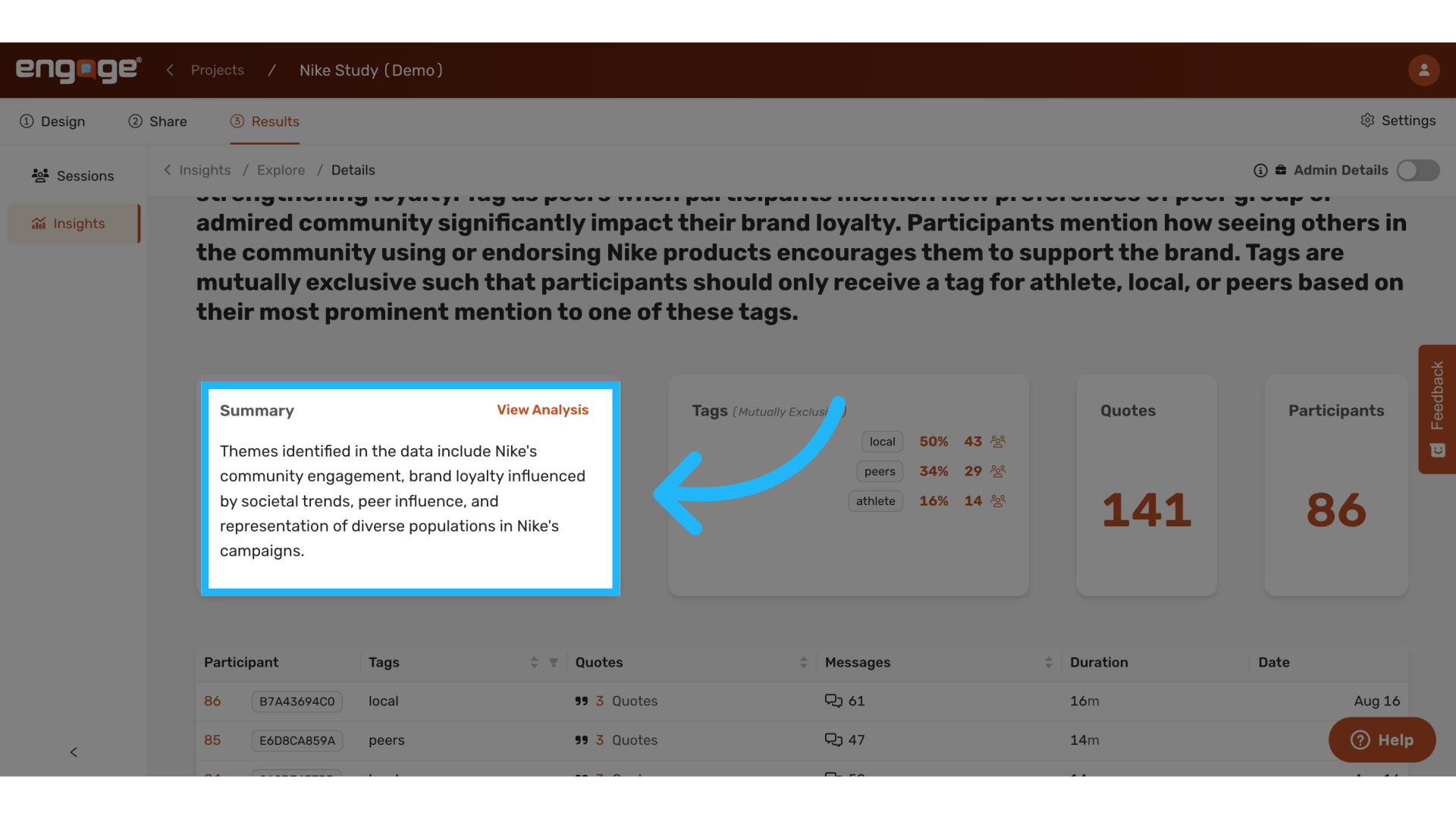
26. View Tag Analysis
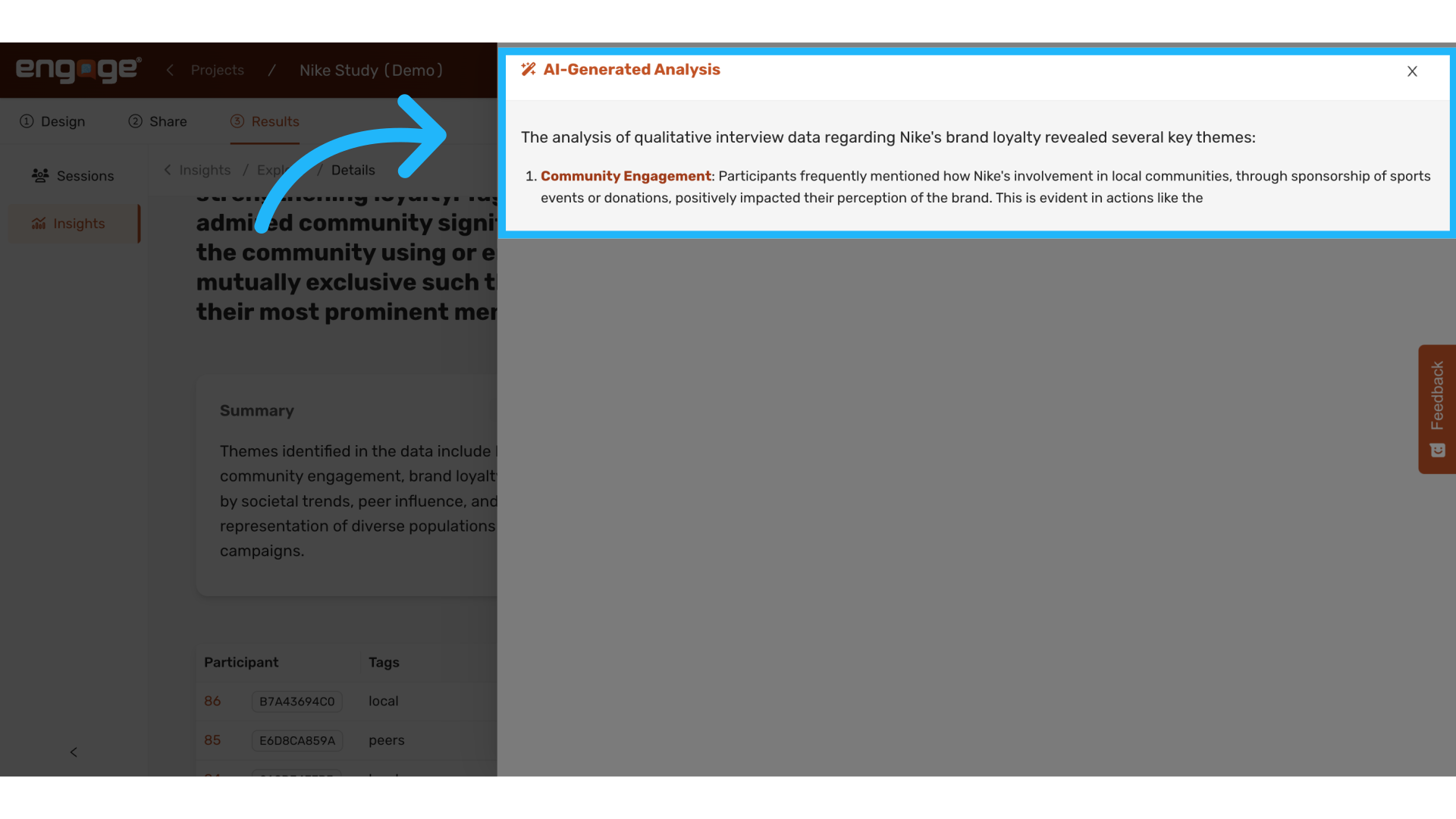
27. View Tags Generated and Statistics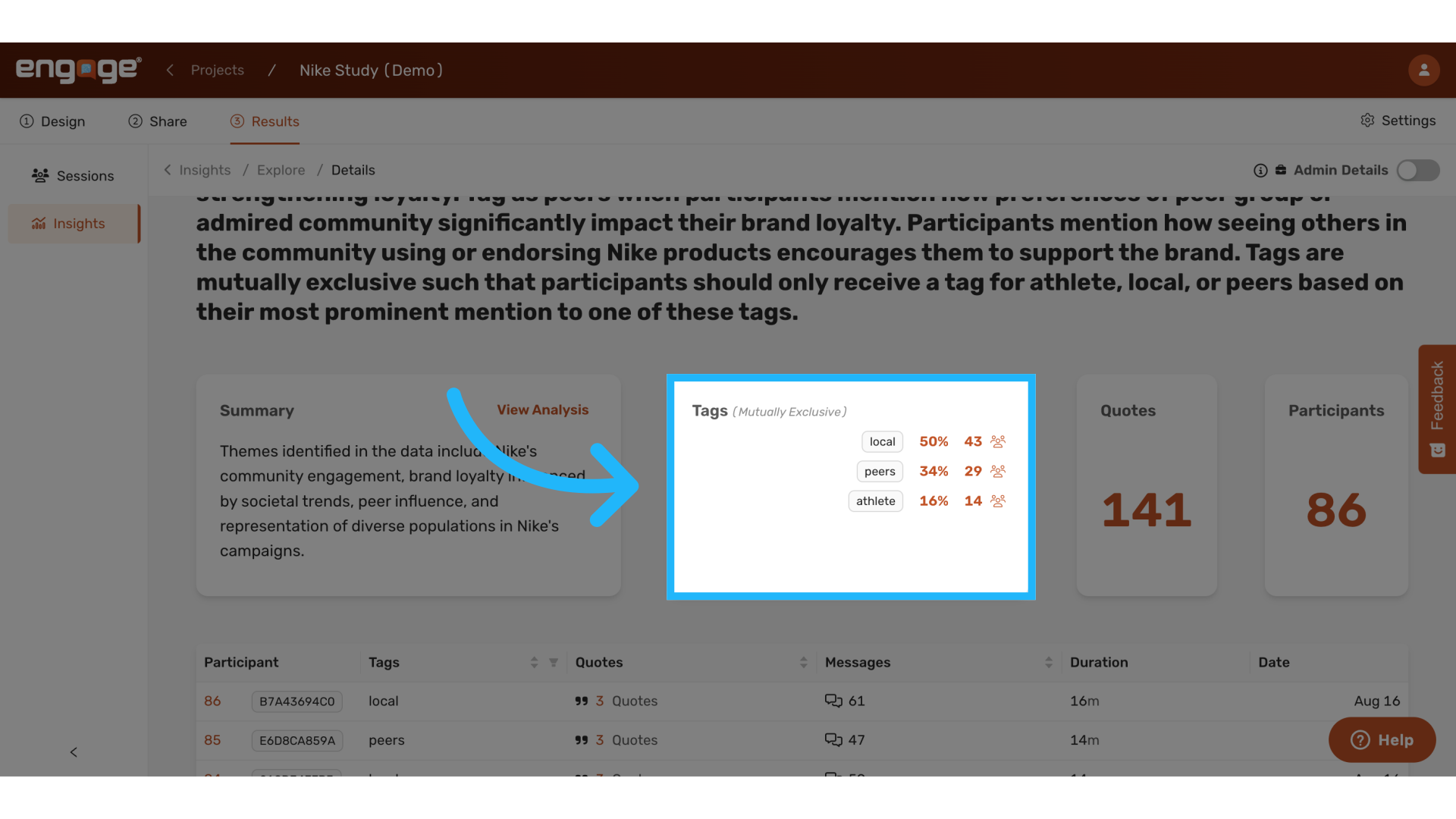
28. View Quotes Pulled
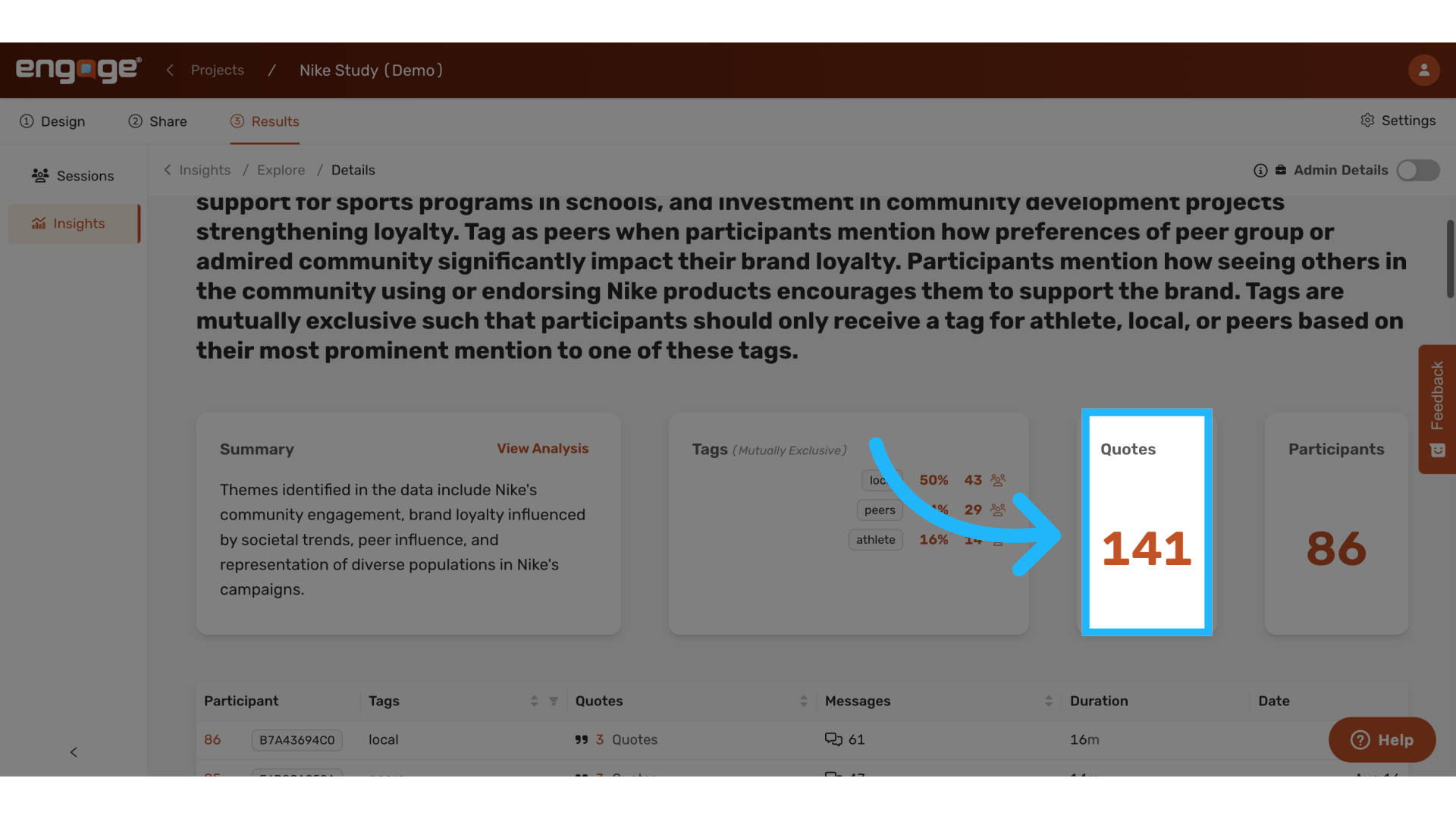
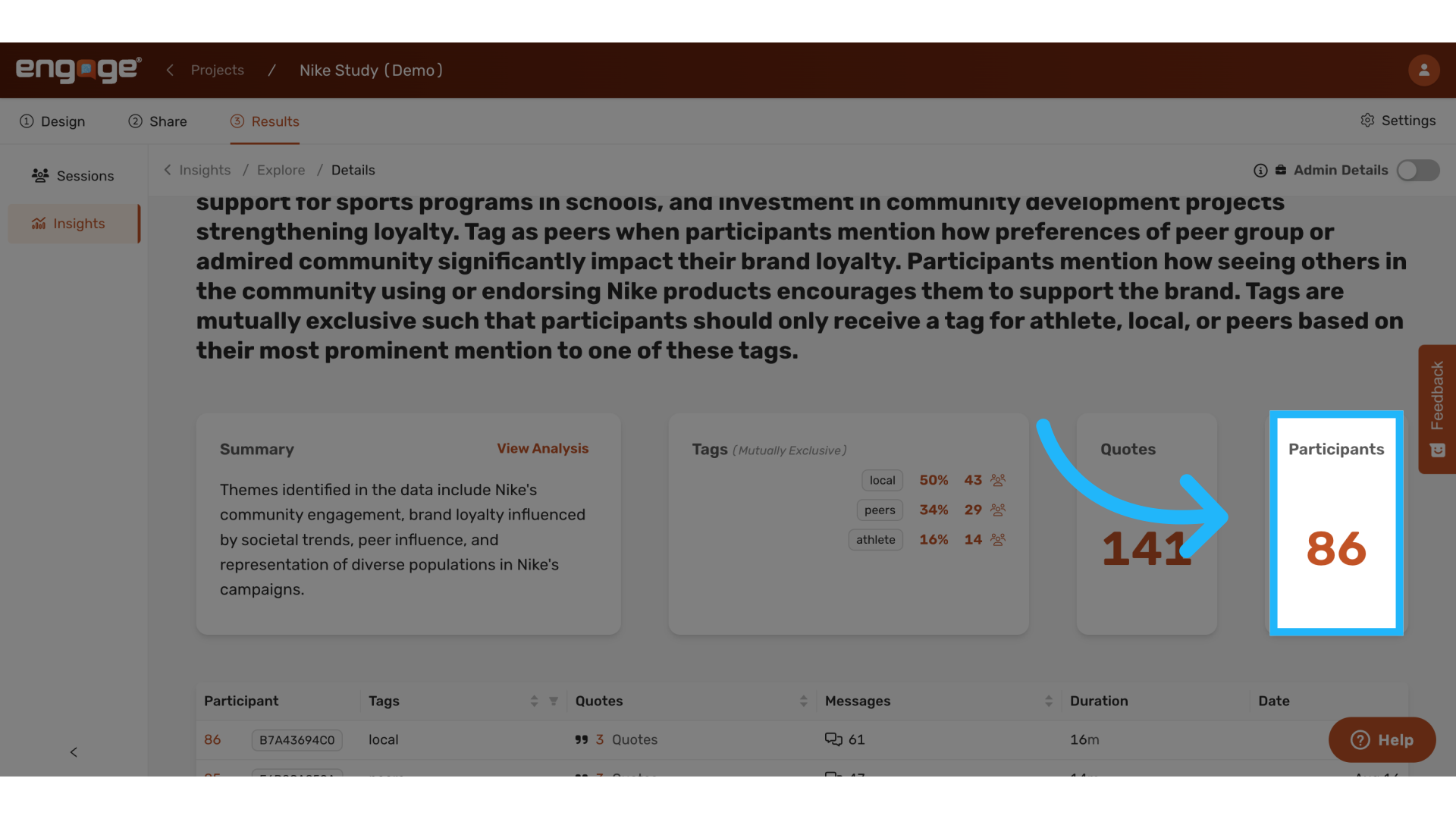
29. View Number of Participants
View how many participants were marked with the tag.
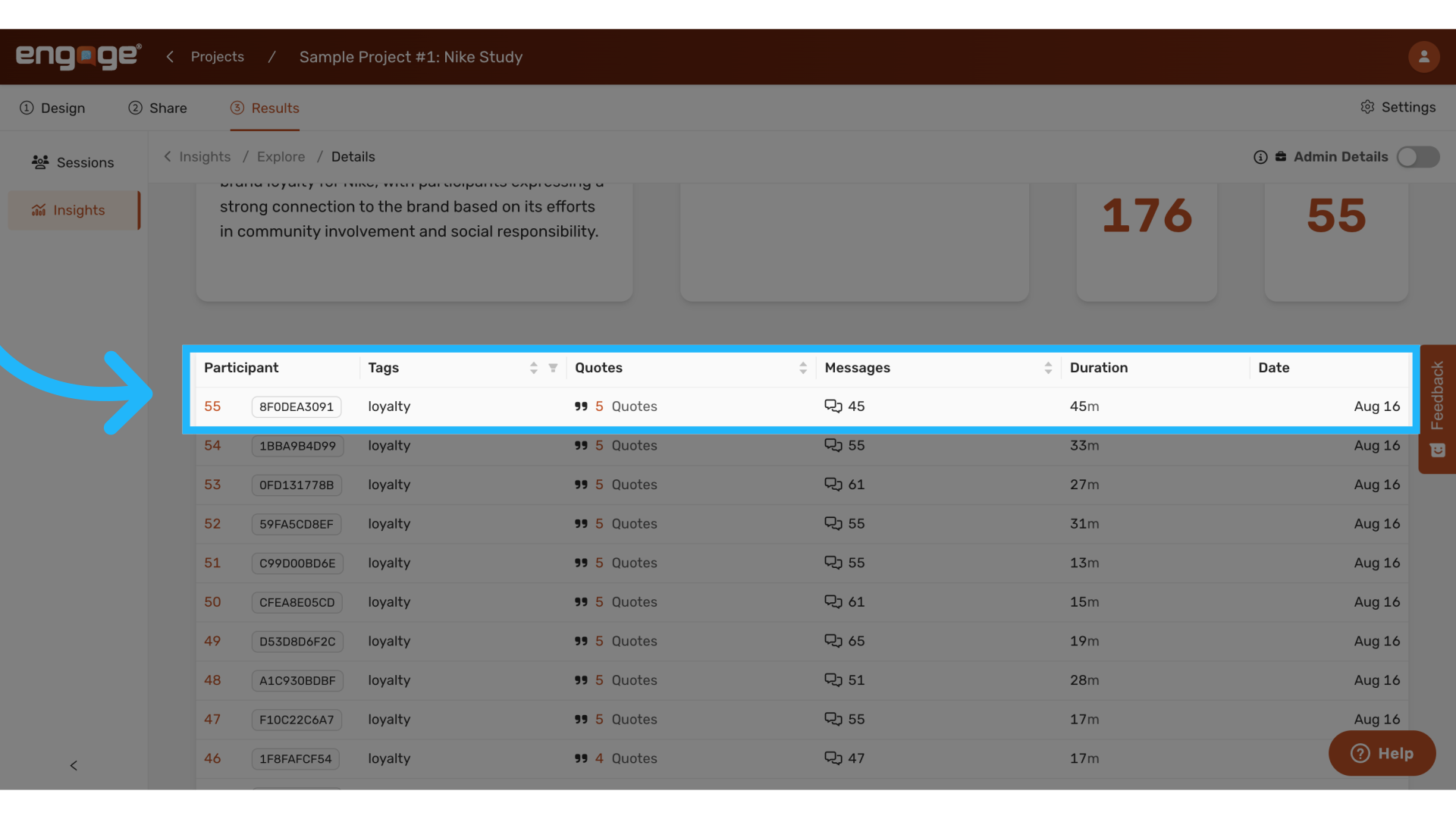
30. View Session Details
View the session data and see relevant quotes and details for each session.
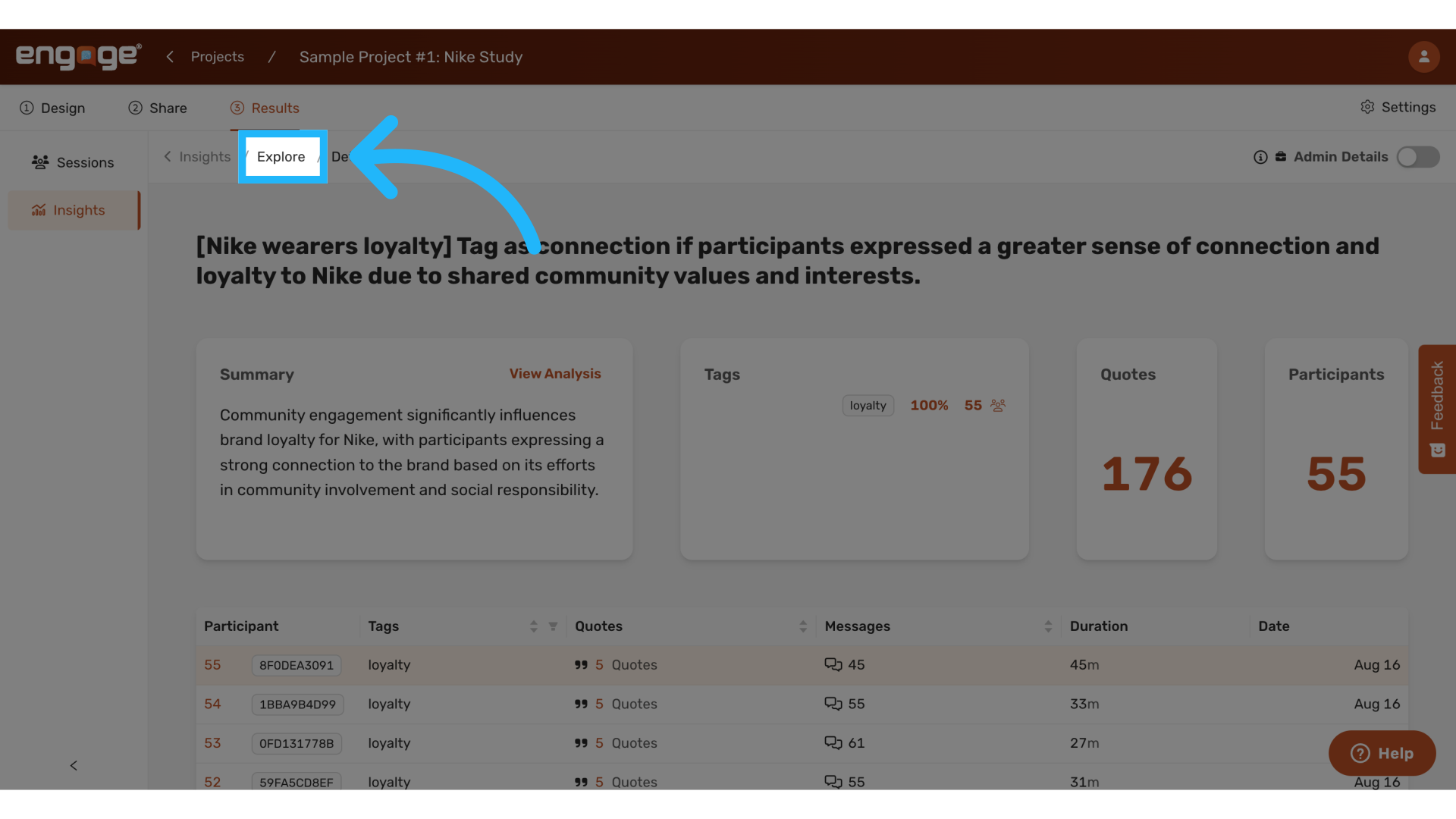
31. Click "Explore"
To view AI generated insights, return to the explore page
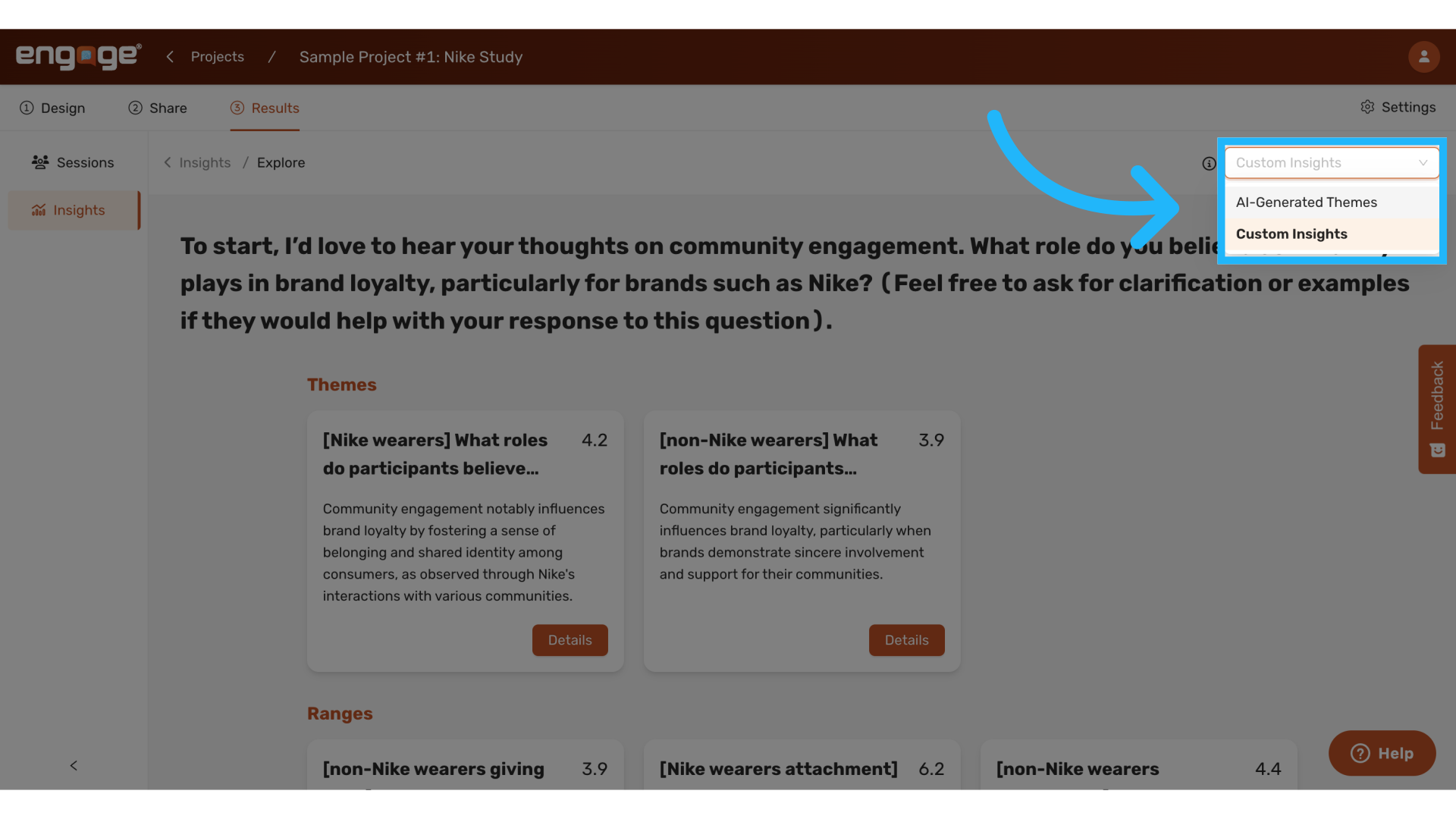
32. Choose between AI Generated Insights or Custom Insights
Select AI generated themes to explore AI generated themes.
33. View all AI generated themes
Here, you can view a list of all of the themes AI generated based on the interview conversations.
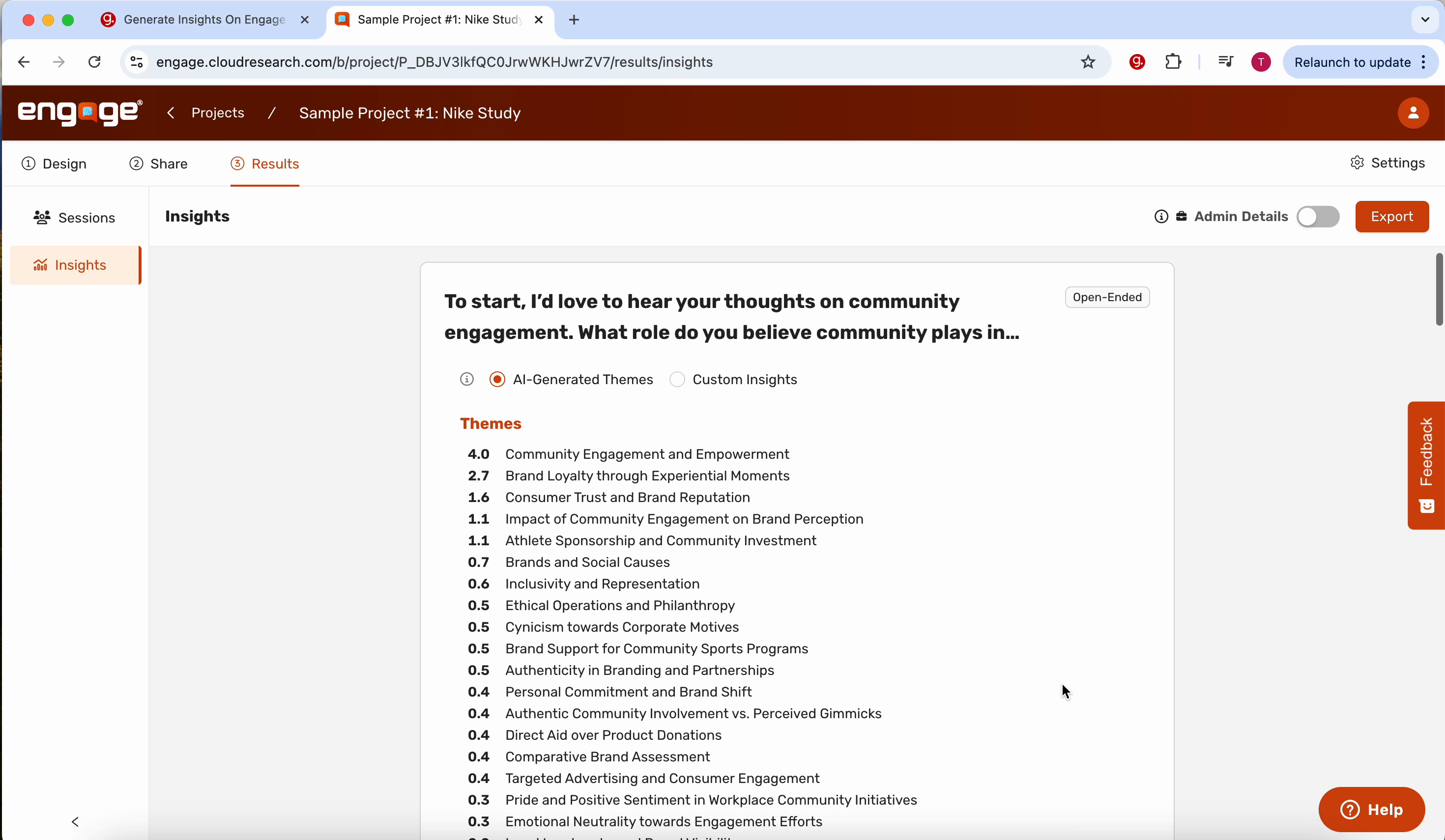
34. Select "Explore AI Generated Themes"
To explore the theme details, select explore AI generated themes.
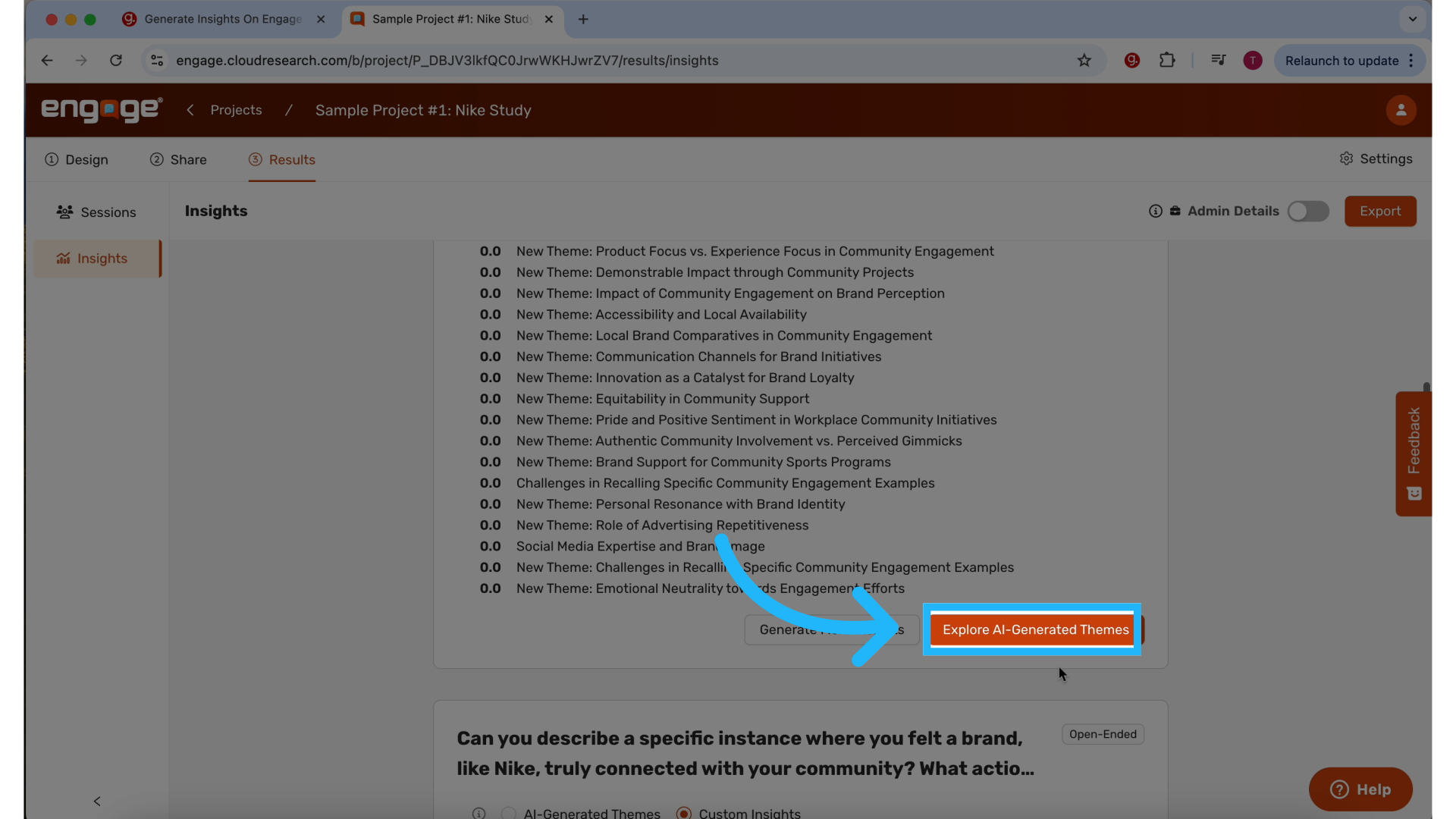
35. Select "Details"
Select details for any specific theme you want to explore.
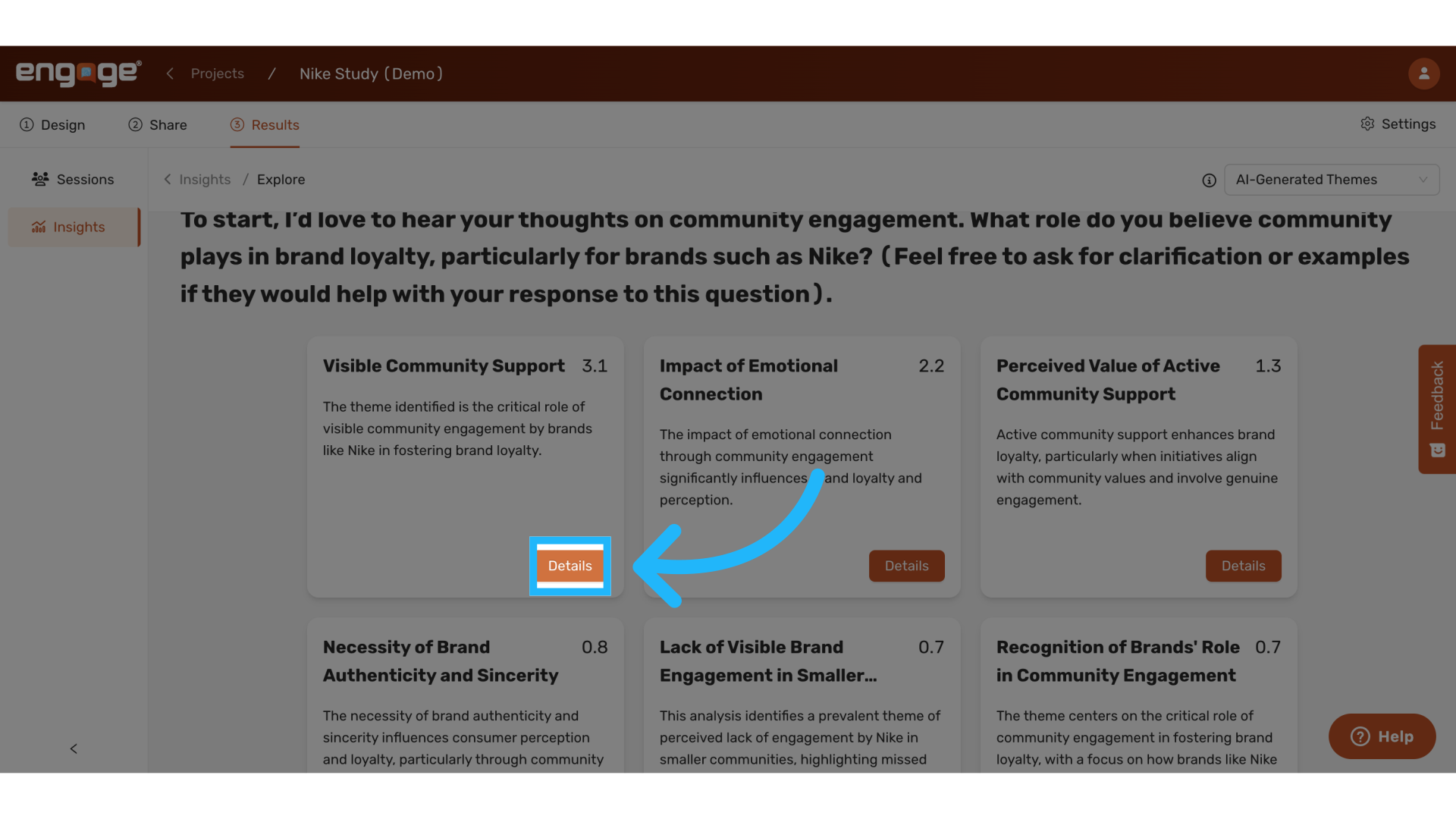
36. View Theme Summary
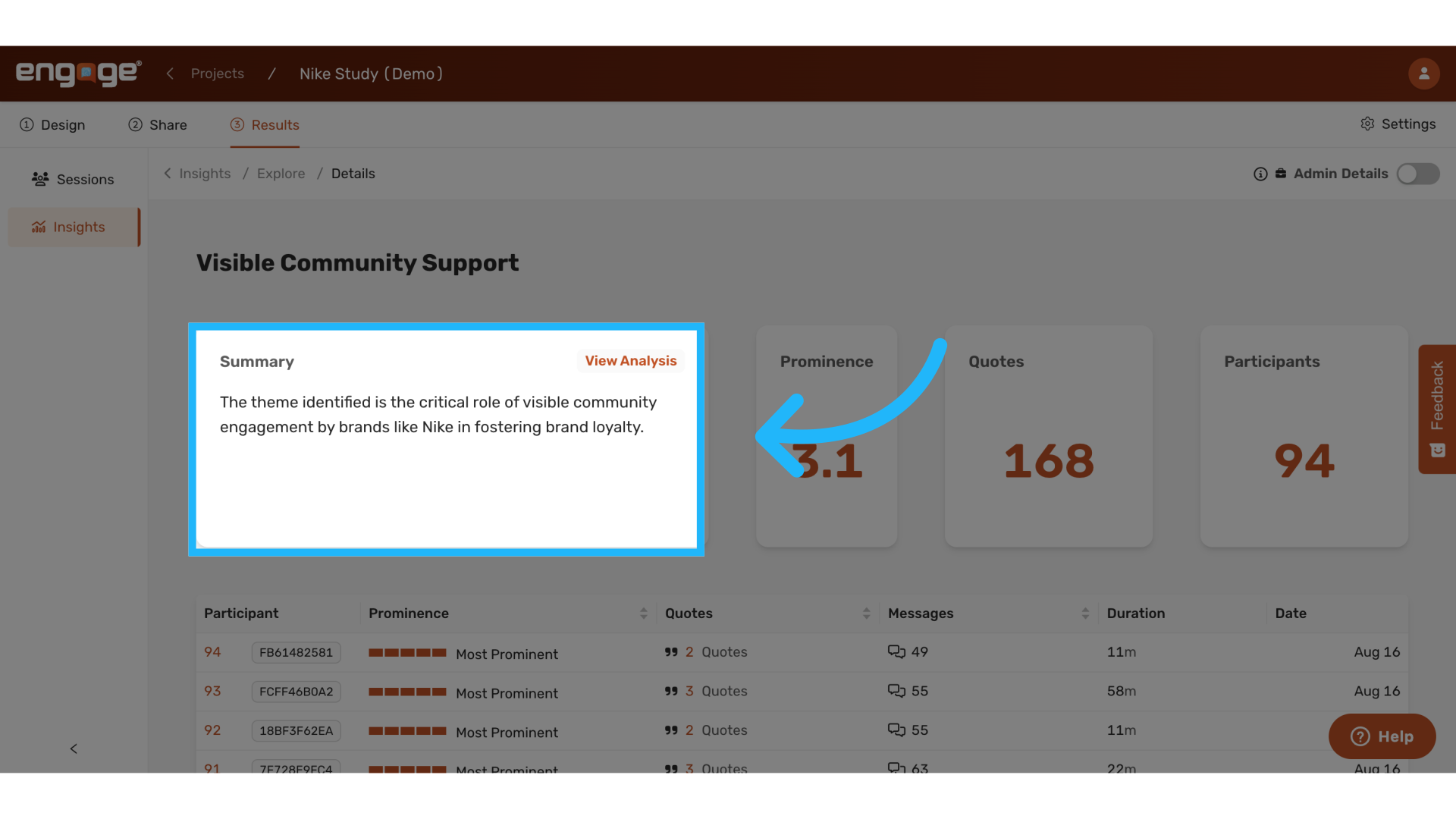
37. View Additional Details
Theme prominence, number of relevant quotes, and number of participants.
38. View Sessions
View specific session details,
39. View Quotes and AI Generated Summary
View the actual quotes pulled, along with the AI generated summary for that session.
Thank you for watching, if you have any other questions, please reach out to our support team or access our other guides.
Comments
0 comments
Please sign in to leave a comment.