
Welcome to the guide for using speech to text in your Engage project! In this guide, we'll walk you through the process of setting up and testing the speech feature.
1. Contact Us to Enable Speech to Text
Contact our team to enable speech to text in your project.
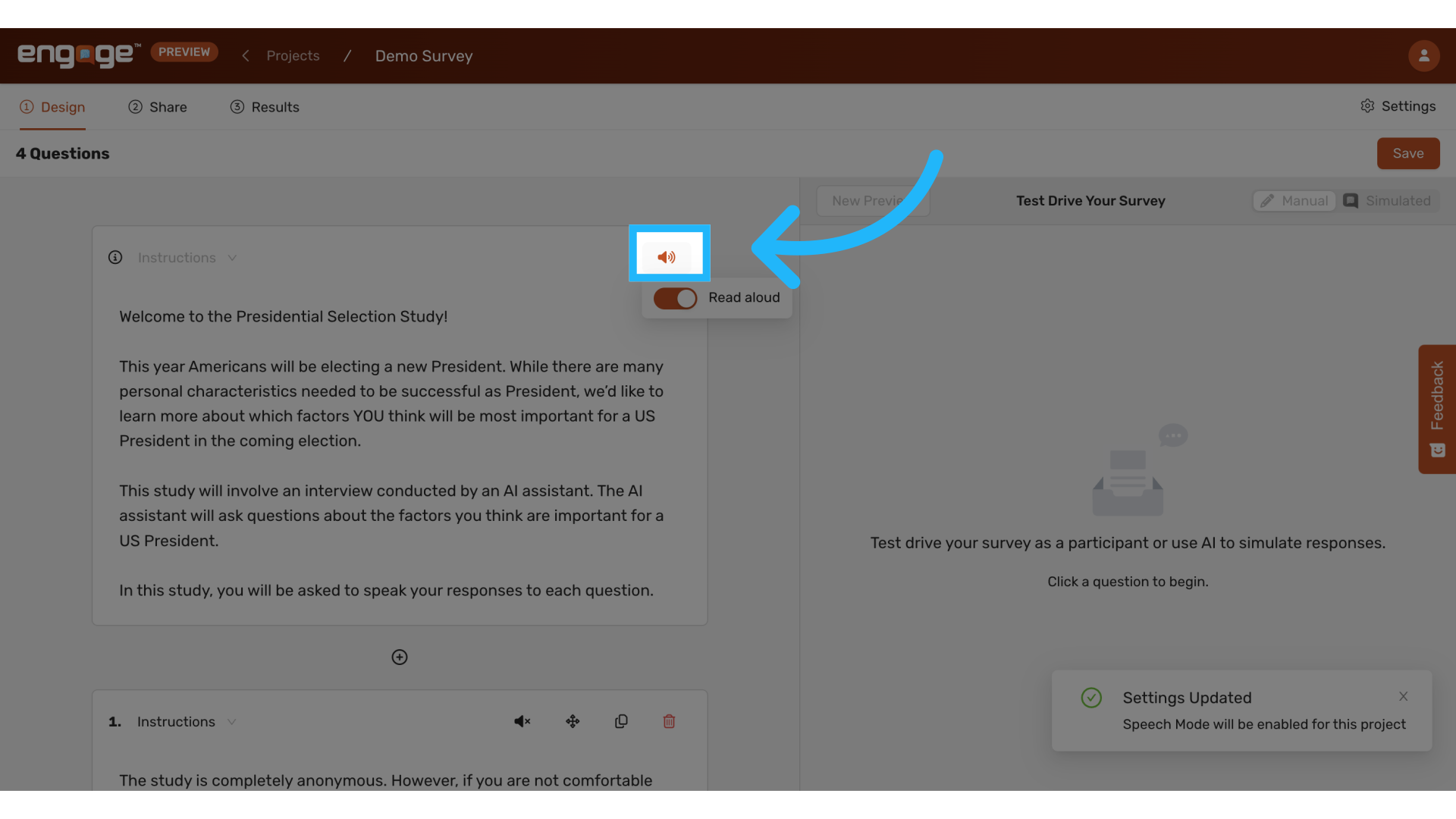
2. Select Speaker Icon
Once enabled, a Speaker Icon will appear for each question in your survey. Click on this icon to configure speech options for that question.
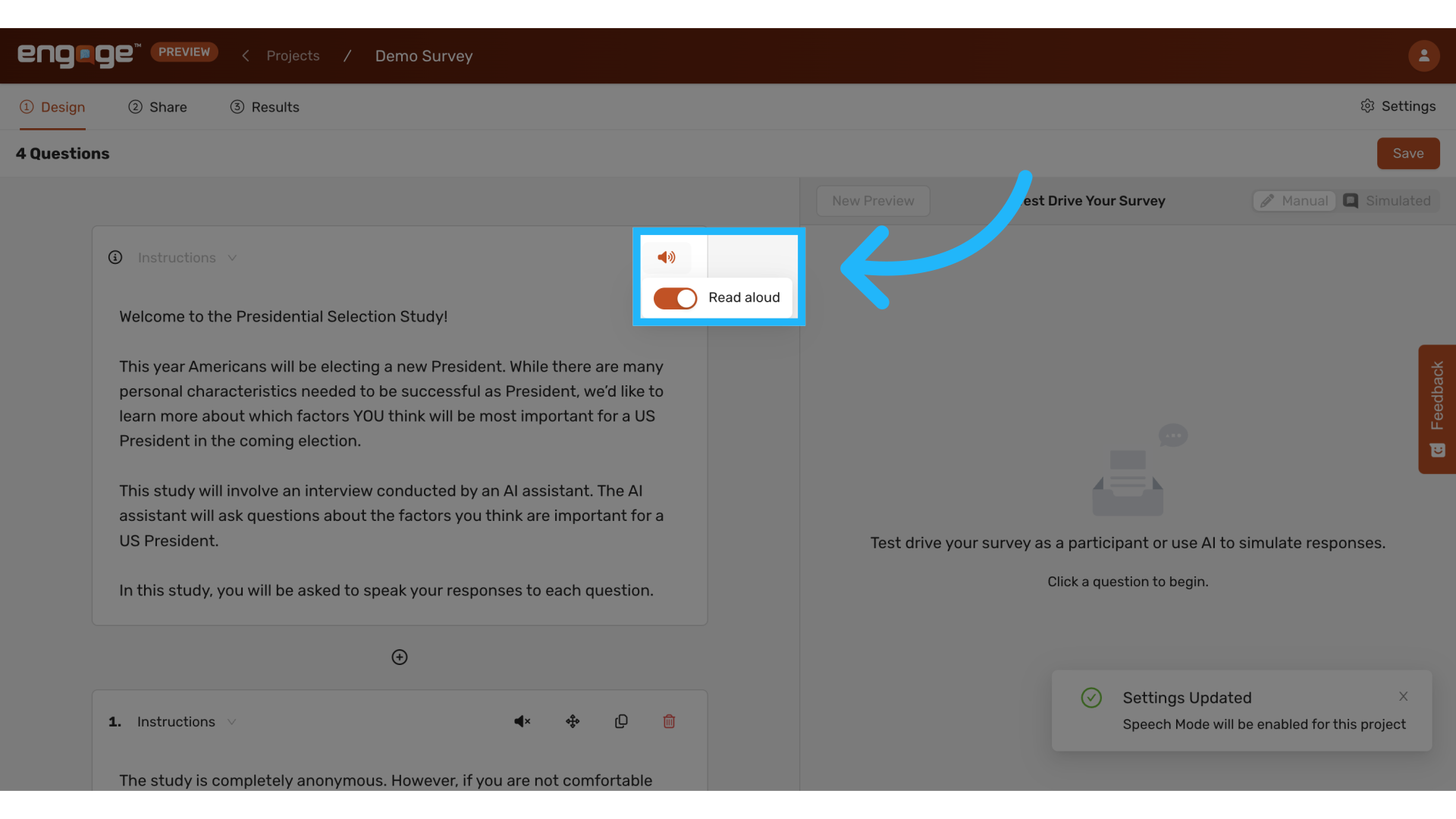
3. Enable Read Aloud
A Read Aloud toggle will appear, allowing you to choose whether to enable text-to-speech for that question. This feature reads the question aloud to participants, even if speech mode is enabled.
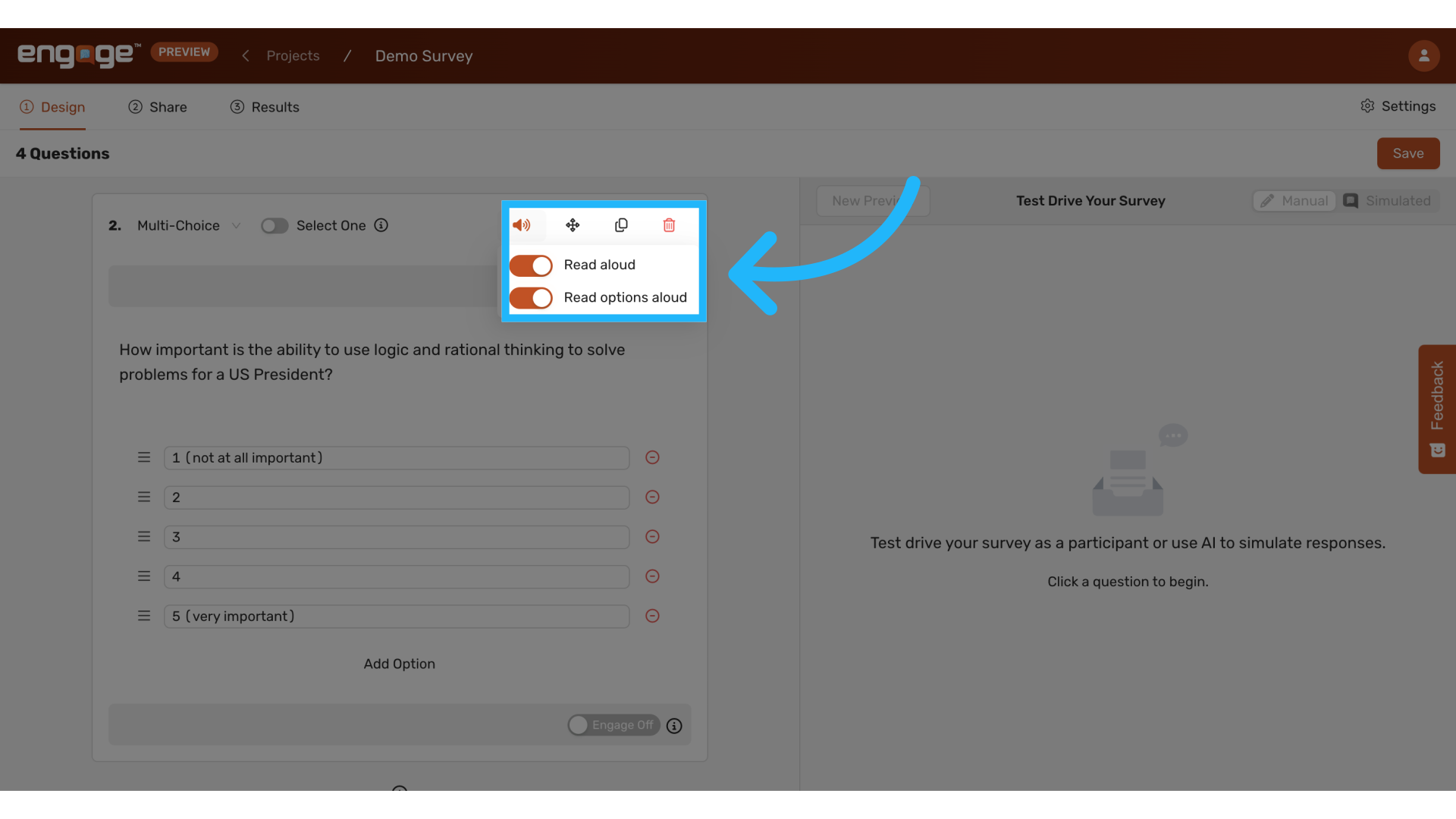
4. Configure Multi-Choice Questions
For multi-choice questions, you can enable the speech feature for both the question and each response option individually.
5. Preview the Survey
To preview how your survey will sound, go to the Share tab.
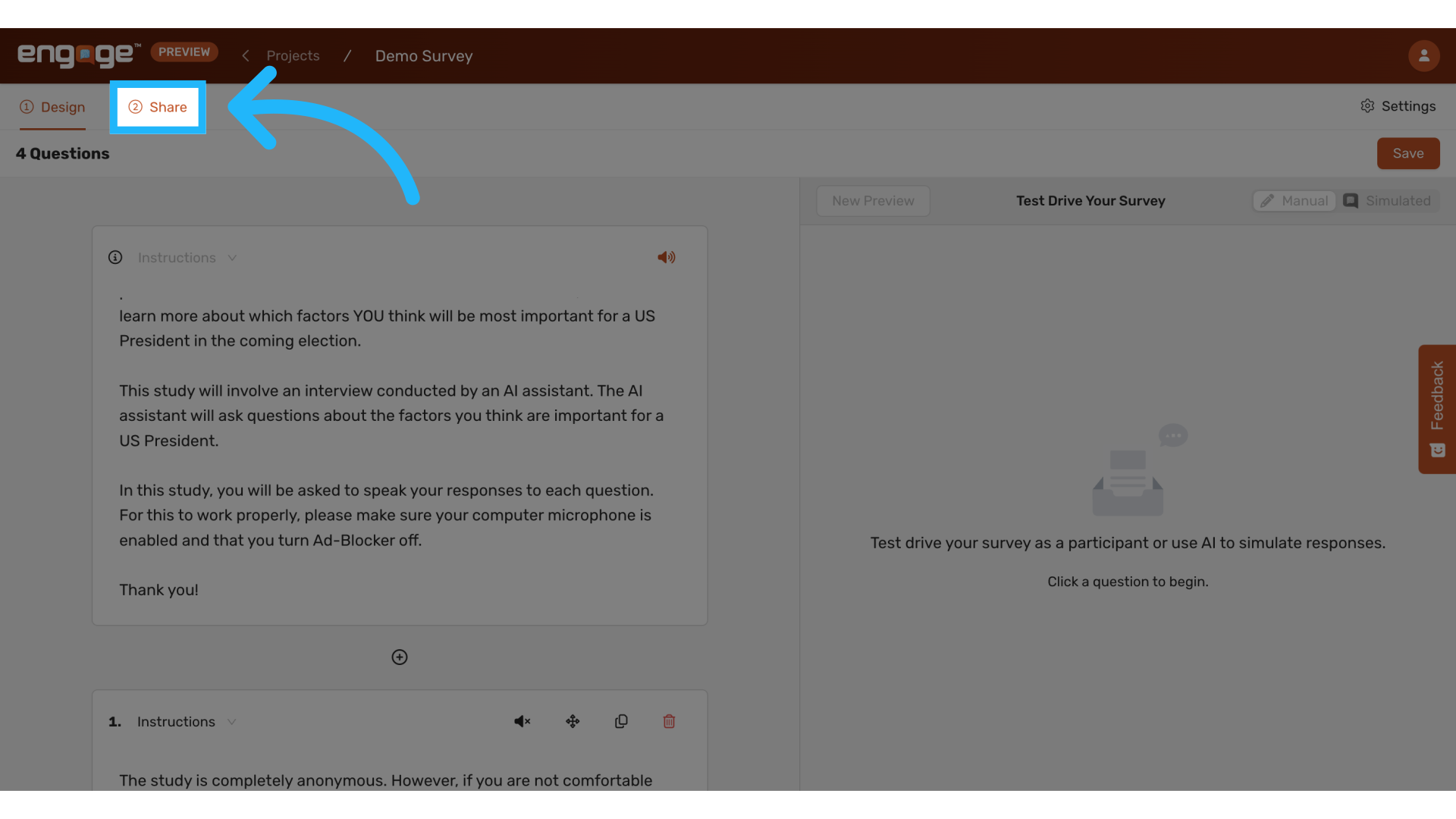
6. Start the Preview
Click Preview to simulate how participants will experience the survey.
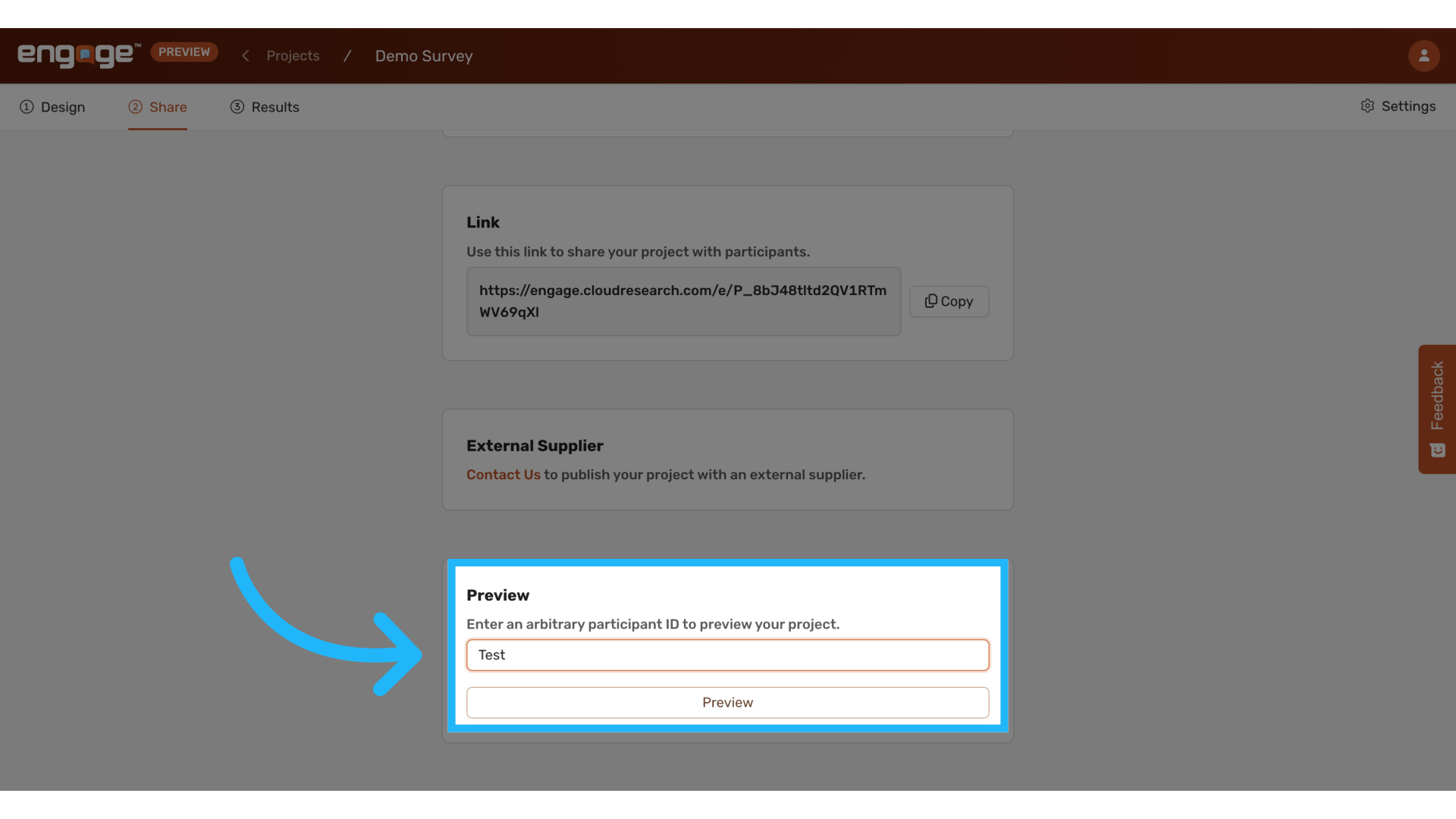
7. Enable Your Microphone
When prompted, enable your microphone to interact with the speech-to-text feature in preview mode.
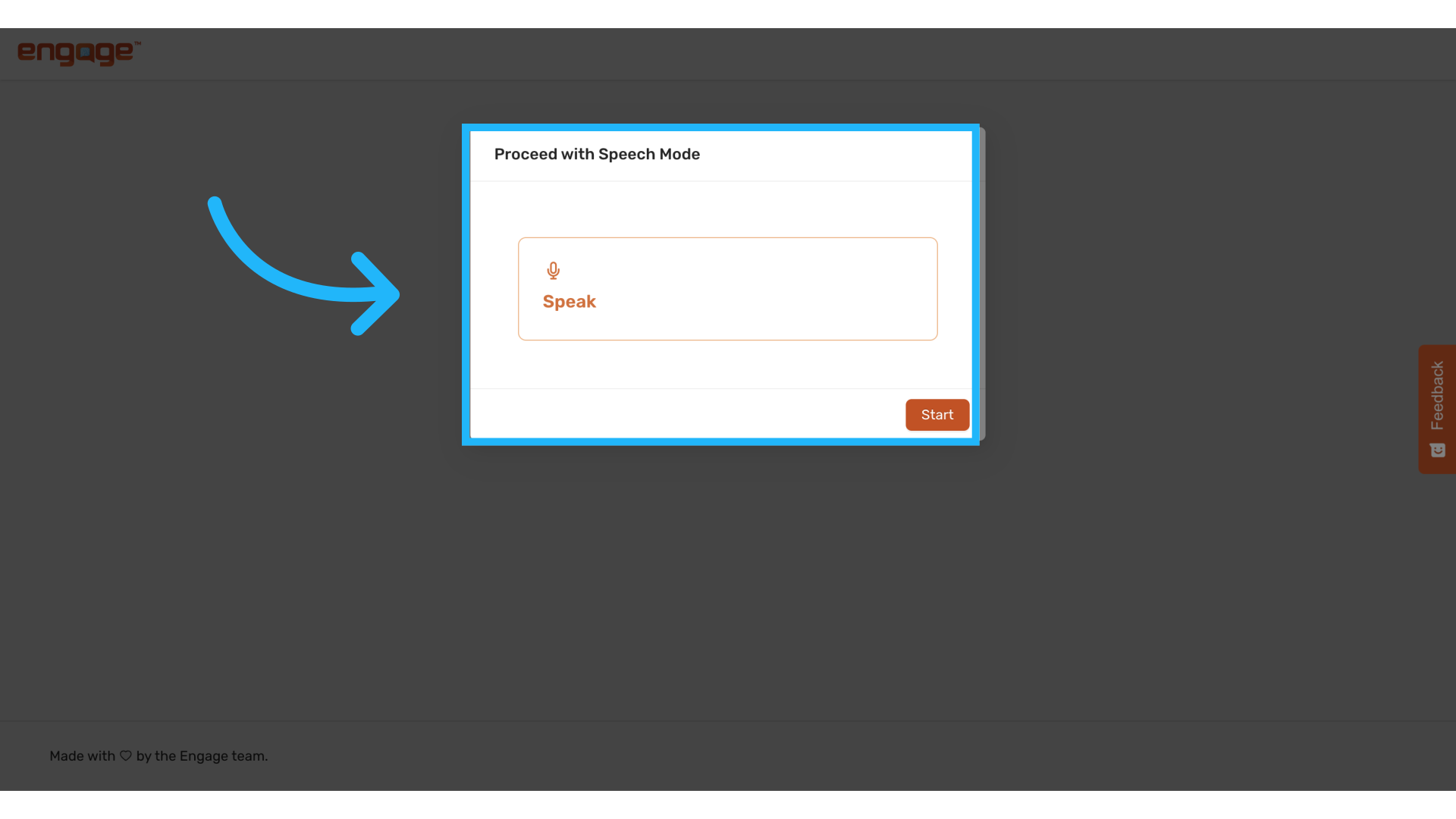
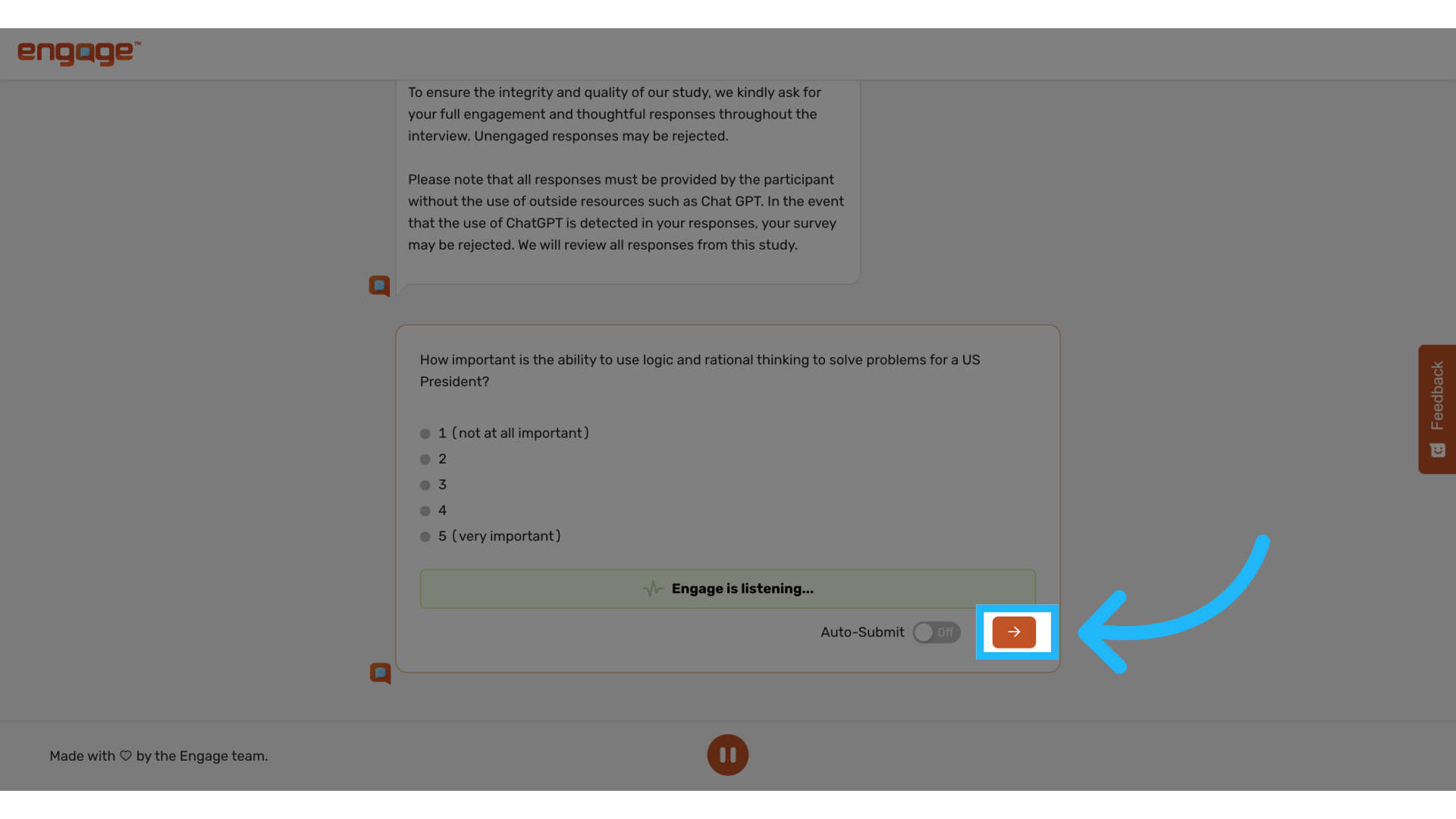
8. Auto-Submit Speech Response
During the preview, you can set responses to auto-submit once the AI detects you’ve finished speaking.
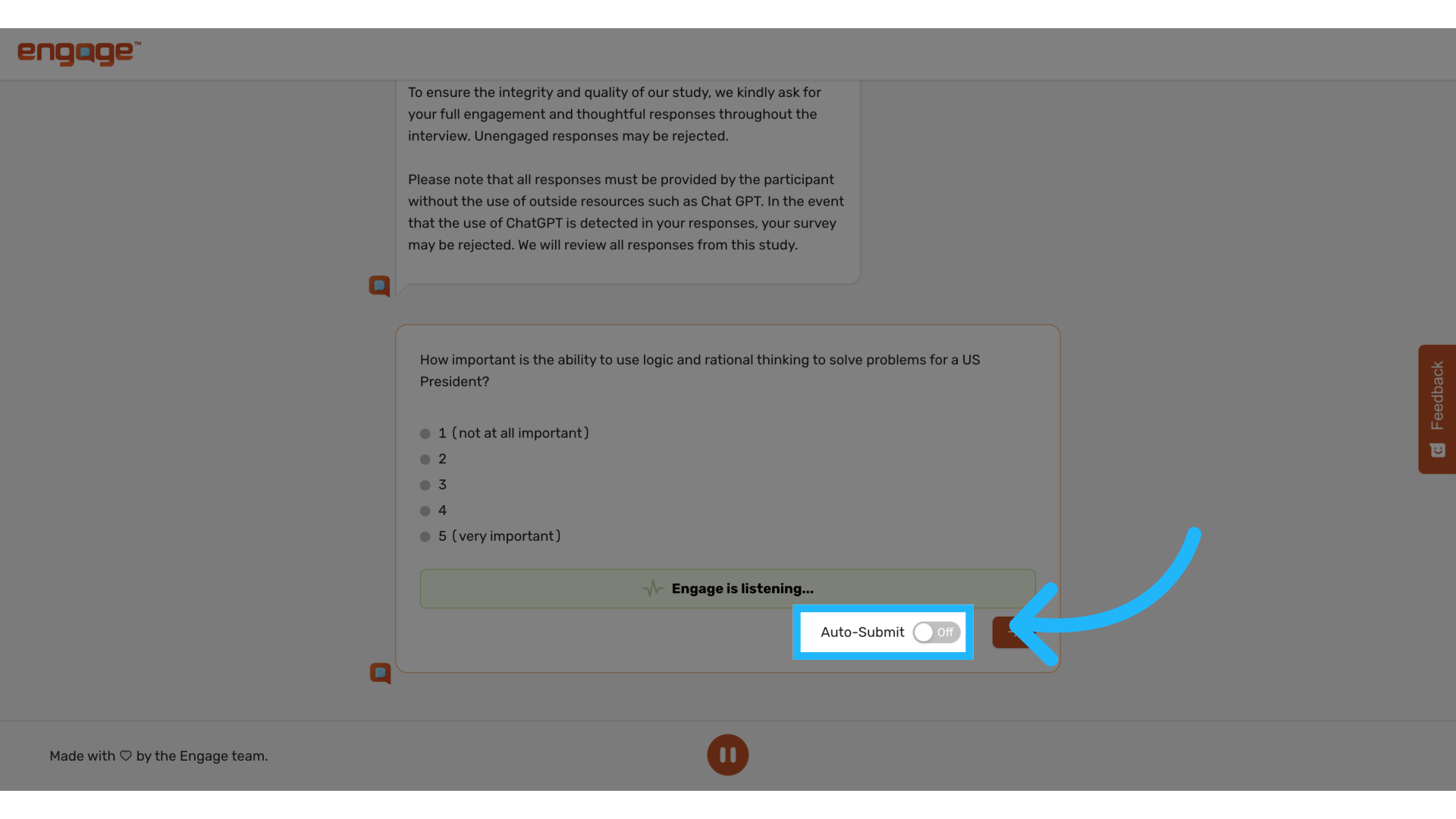
9. Manually Submit Speech Response
Alternatively, you can manually advance by selecting the Next icon after you’ve finished speaking.
Thank you for reviewing this guide. If you have any further questions or require additional assistance, please contact our support team or explore our other resources.
Comments
0 comments
Article is closed for comments.