
Welcome to this guide on sharing your Engage survey with participants. In this video, we'll cover the different methods available for distributing your survey and how to set them up properly.
Login to Engage
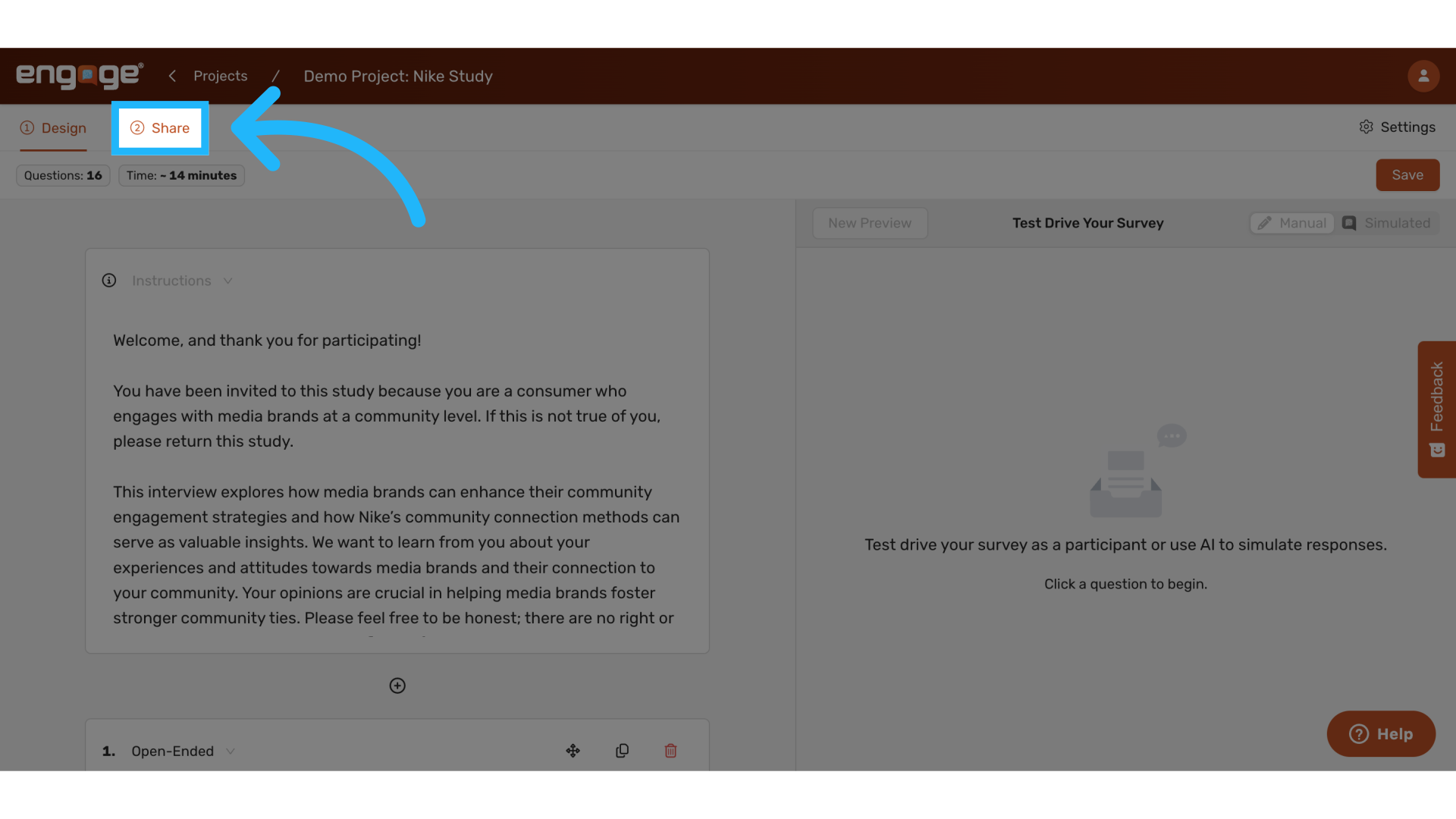
1. Locate the "Share" tab
Navigate to the "Share" tab in the top navigation menu. Here you'll find all available sharing options for your survey.
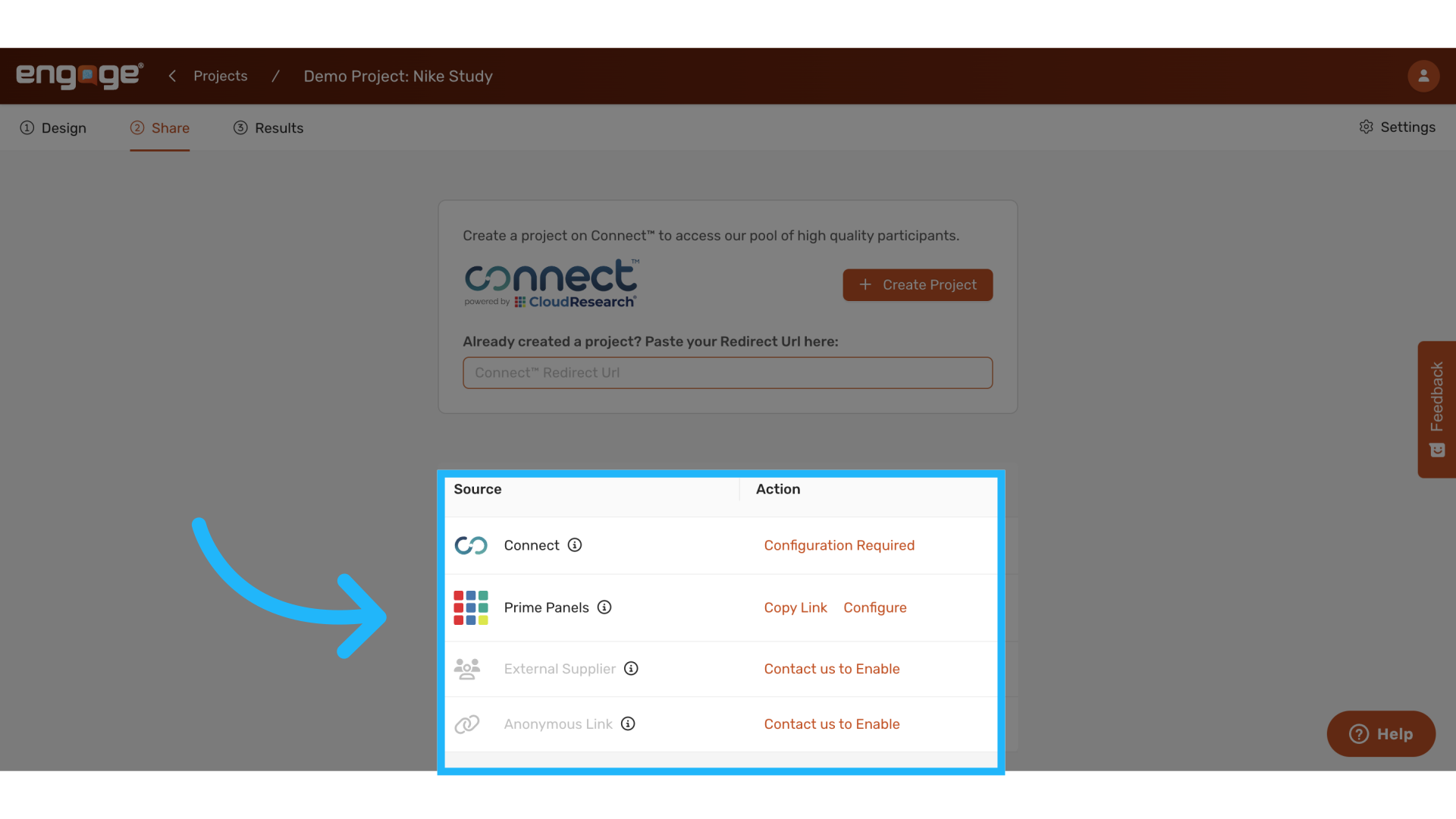
2. Four Share Methods:
1. Connect Integration
2. Prime Panels
3. External Suppliers
4. Anonymous Links
3. Connect Integration
Connect is CloudResearch’s recommended direct participant pool. When using Engage through Connect, you have access to a reliable participant pool of high quality participants that is particularly well-suited for Engage studies. Click "Create Project" to set up a new Connect project. Click "Create Project" to set up a new Connect project. 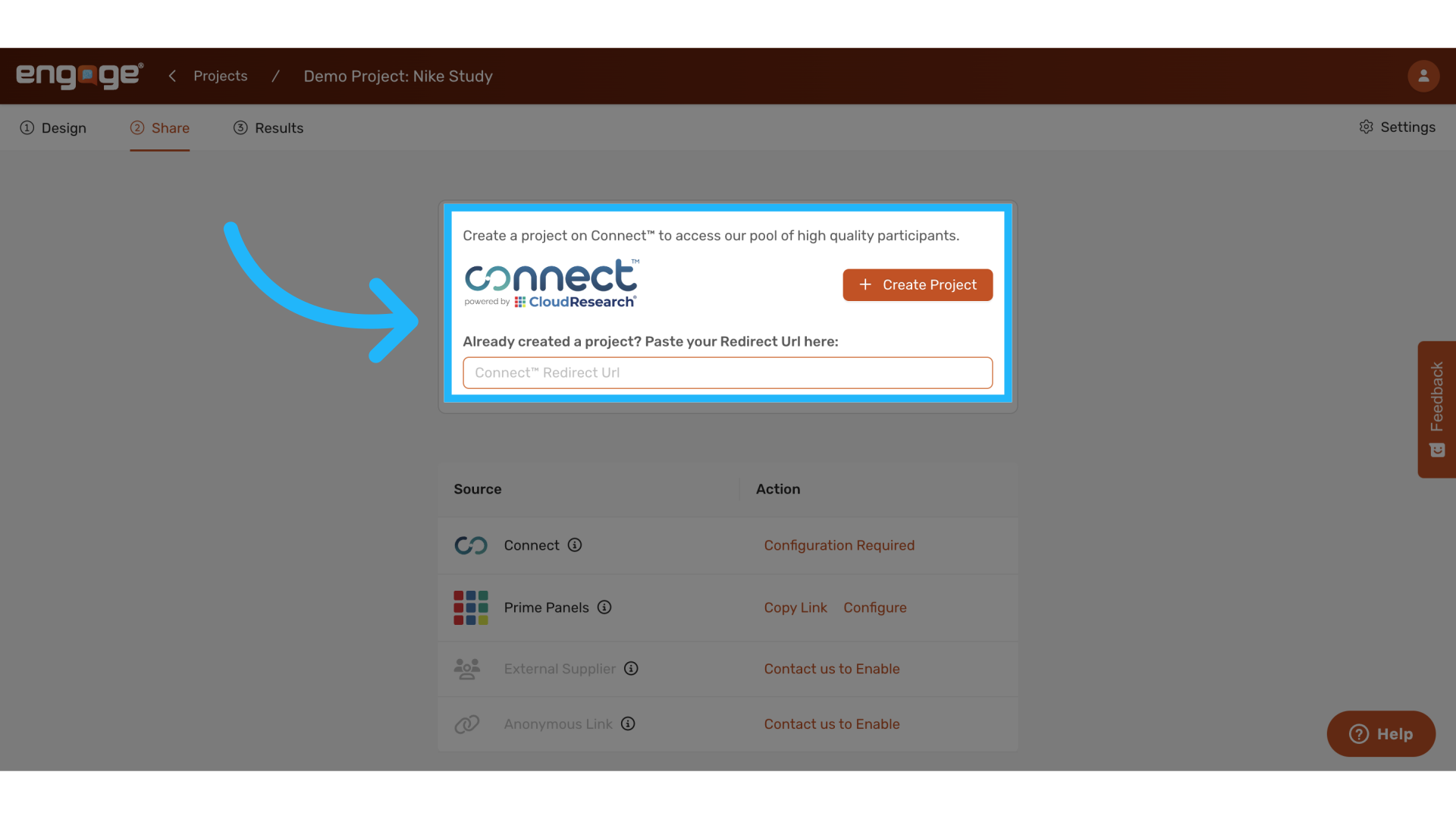
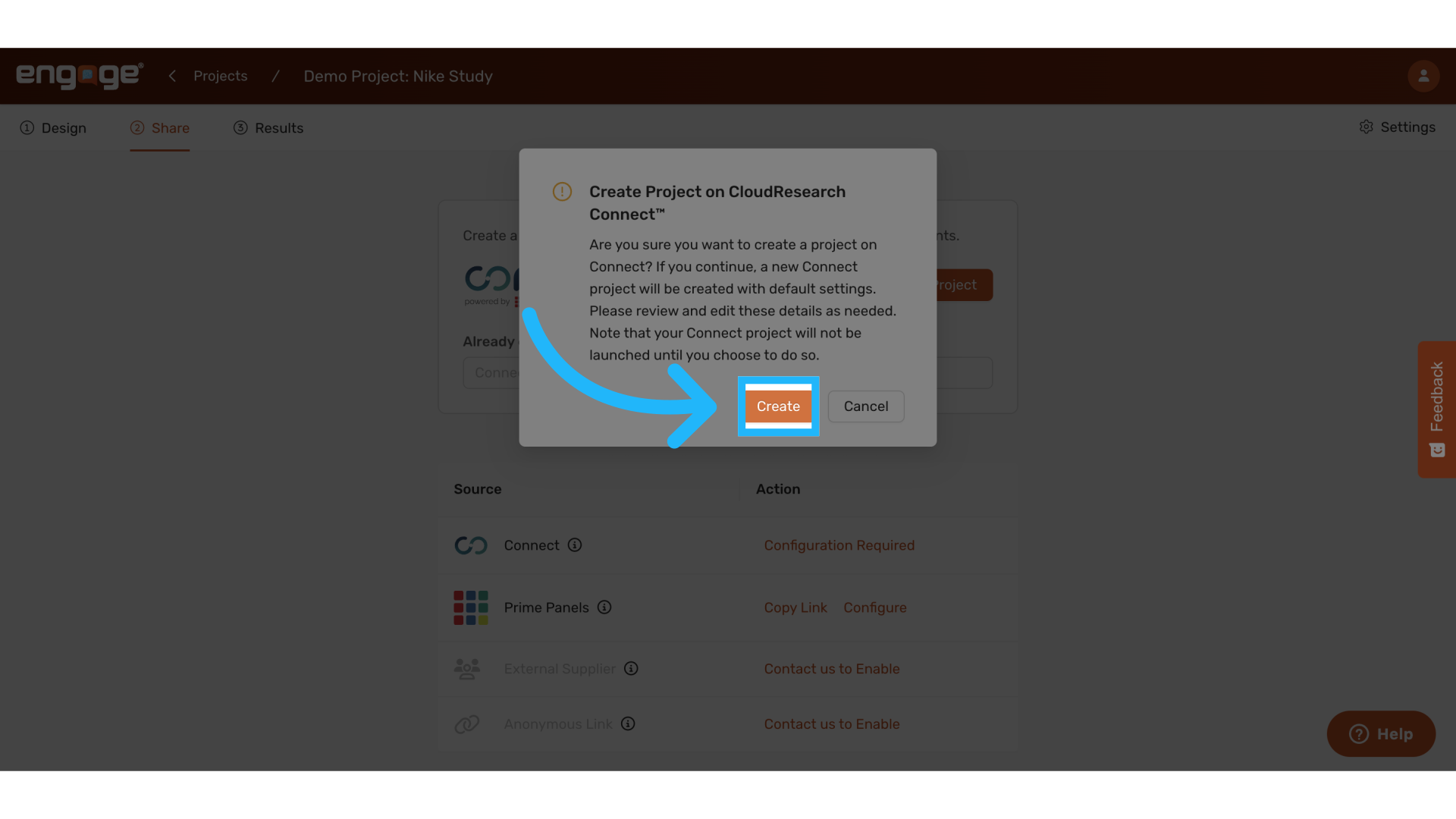
4. Select "Create"
A confirmation message will appear. Click "Create" to confirm. Once created, your project is automatically configured.
5. "View Project" on Connect
Click "View Project" to access your Connect project settings and launch the survey when ready. The project is already configured, and no additional URL setup is required. Go to Connect to launch the project when ready.
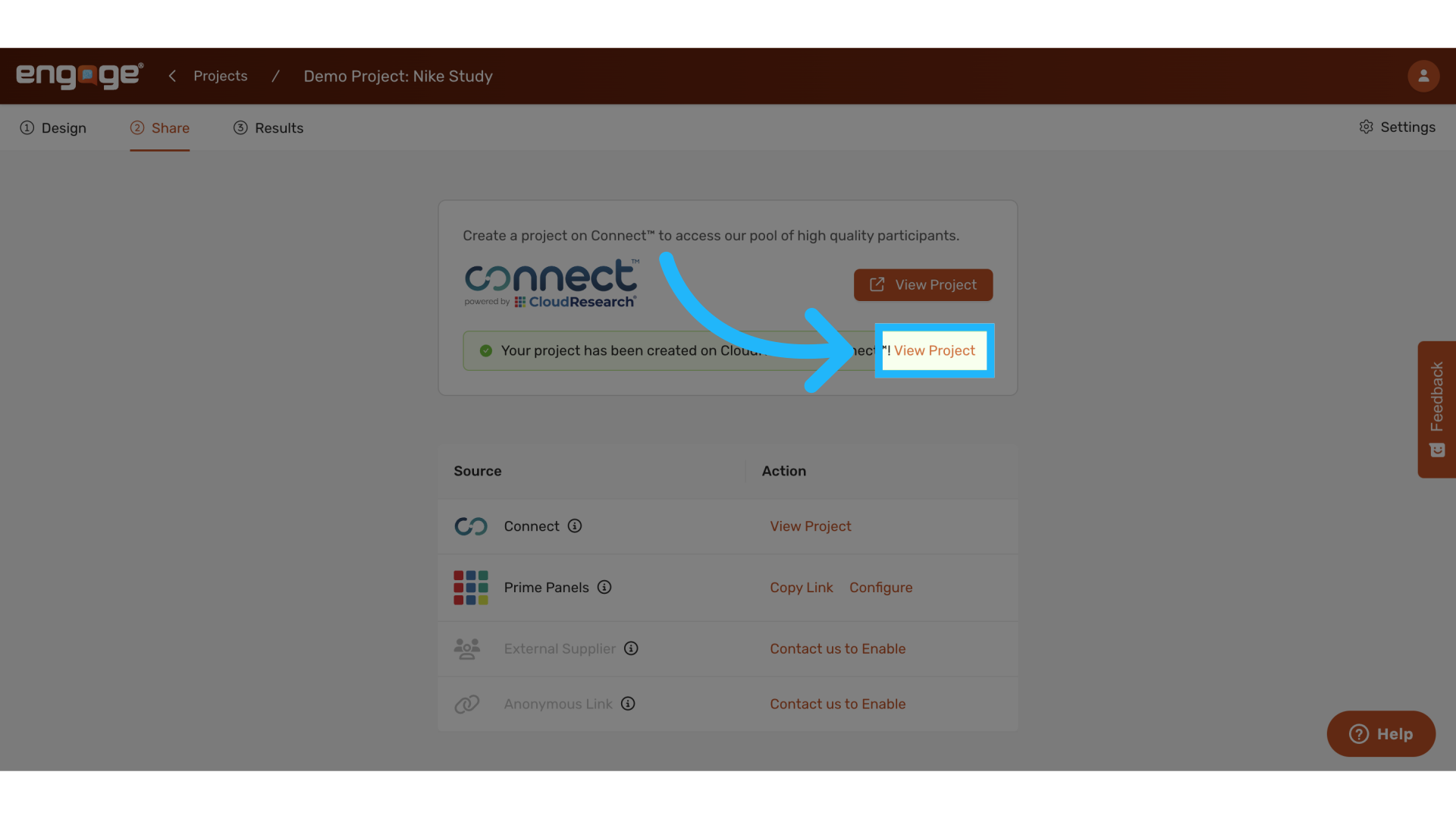
6. "View Project" on Connect
You can also view your Connect project here once configured. For more information, see our guide on sharing your Engage Survey with Connect Participants.
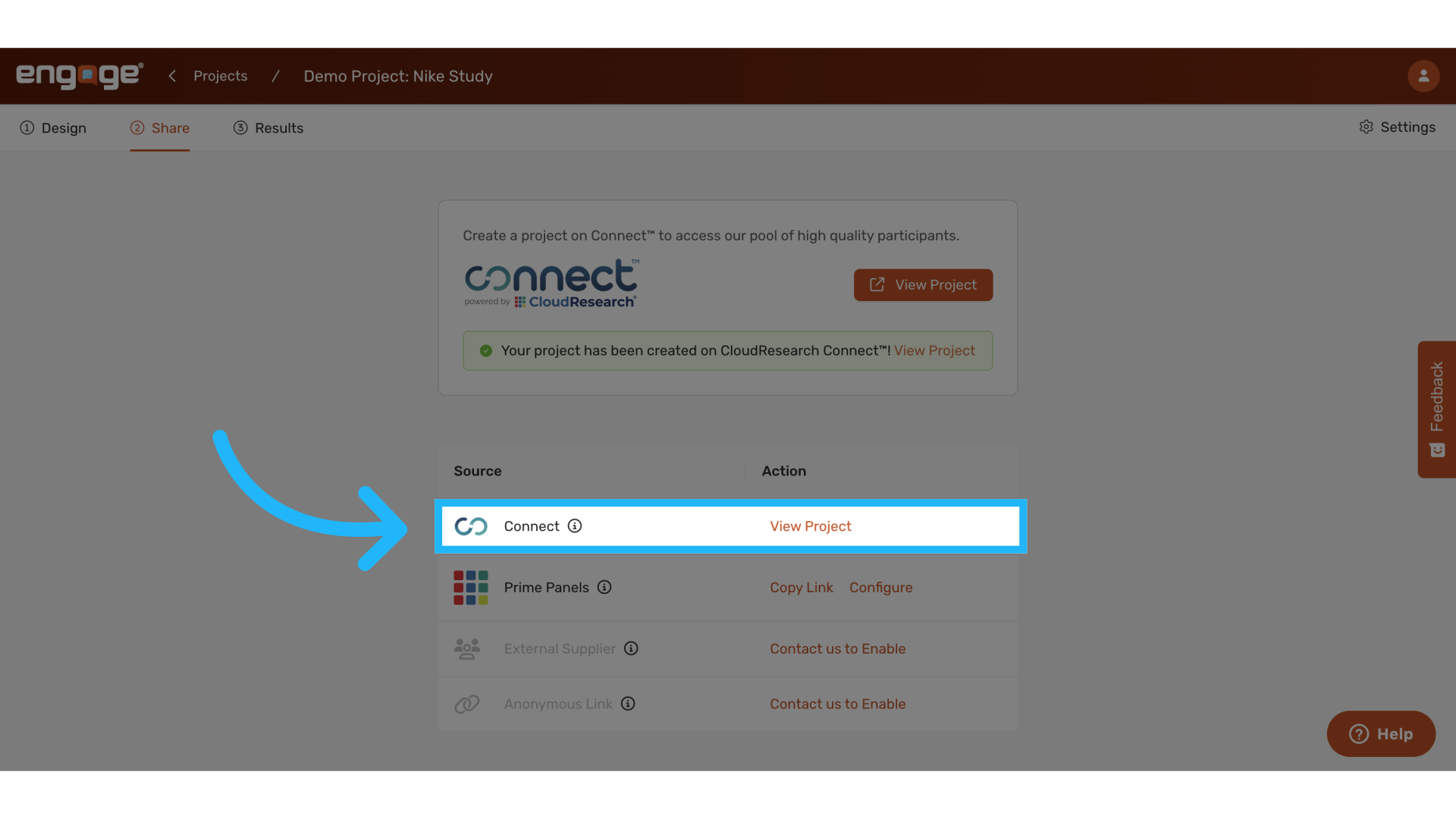
7. Prime Panels Integration
A second share method is Prime Panels. When using Engage through Prime Panels, you can access millions of online participants globally, making it ideal for harder to reach audiences.
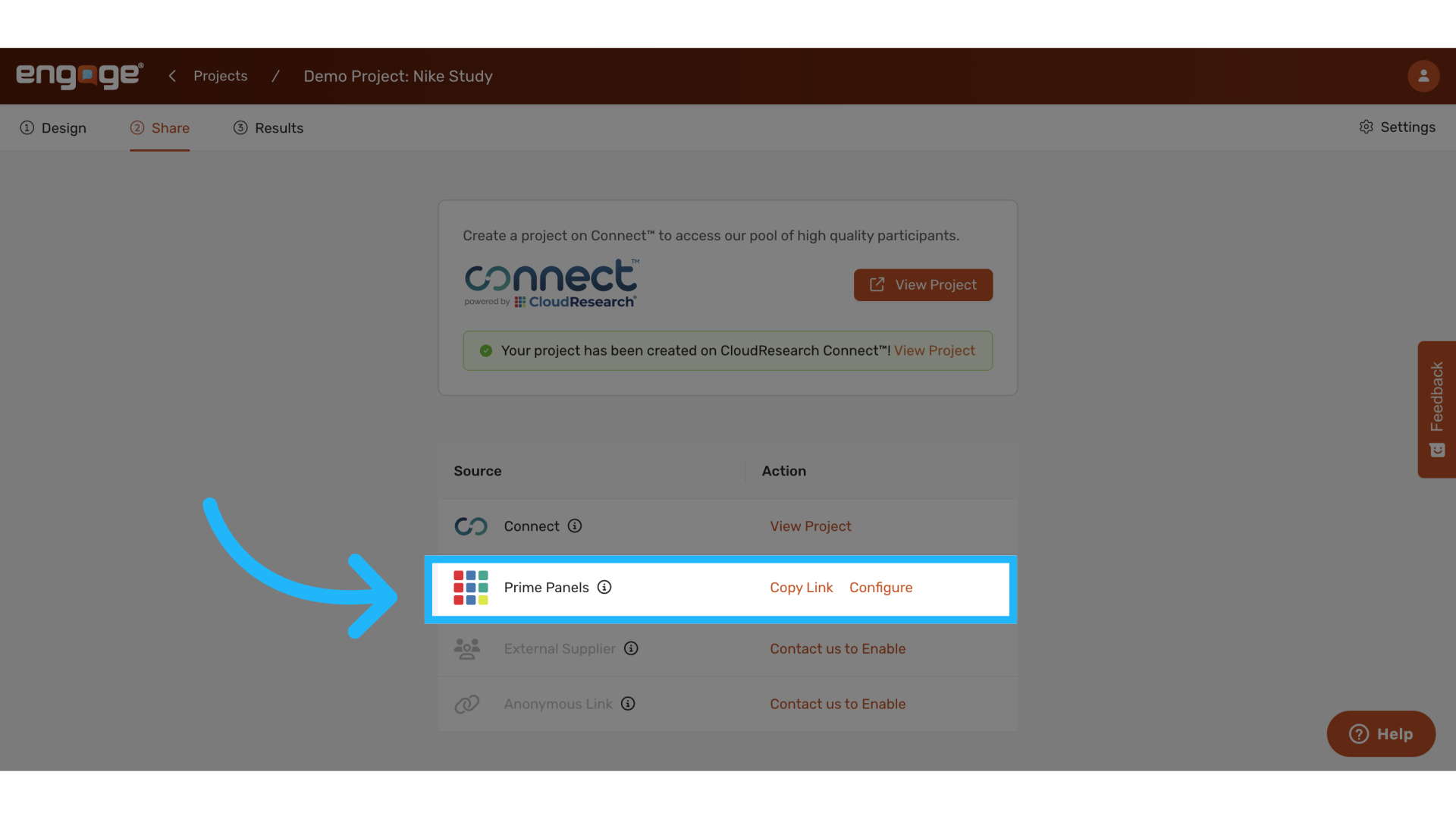
8. Configure for Prime Panels
To configure in prime panels, add this source link to the project URL field in your Prime Panels project.
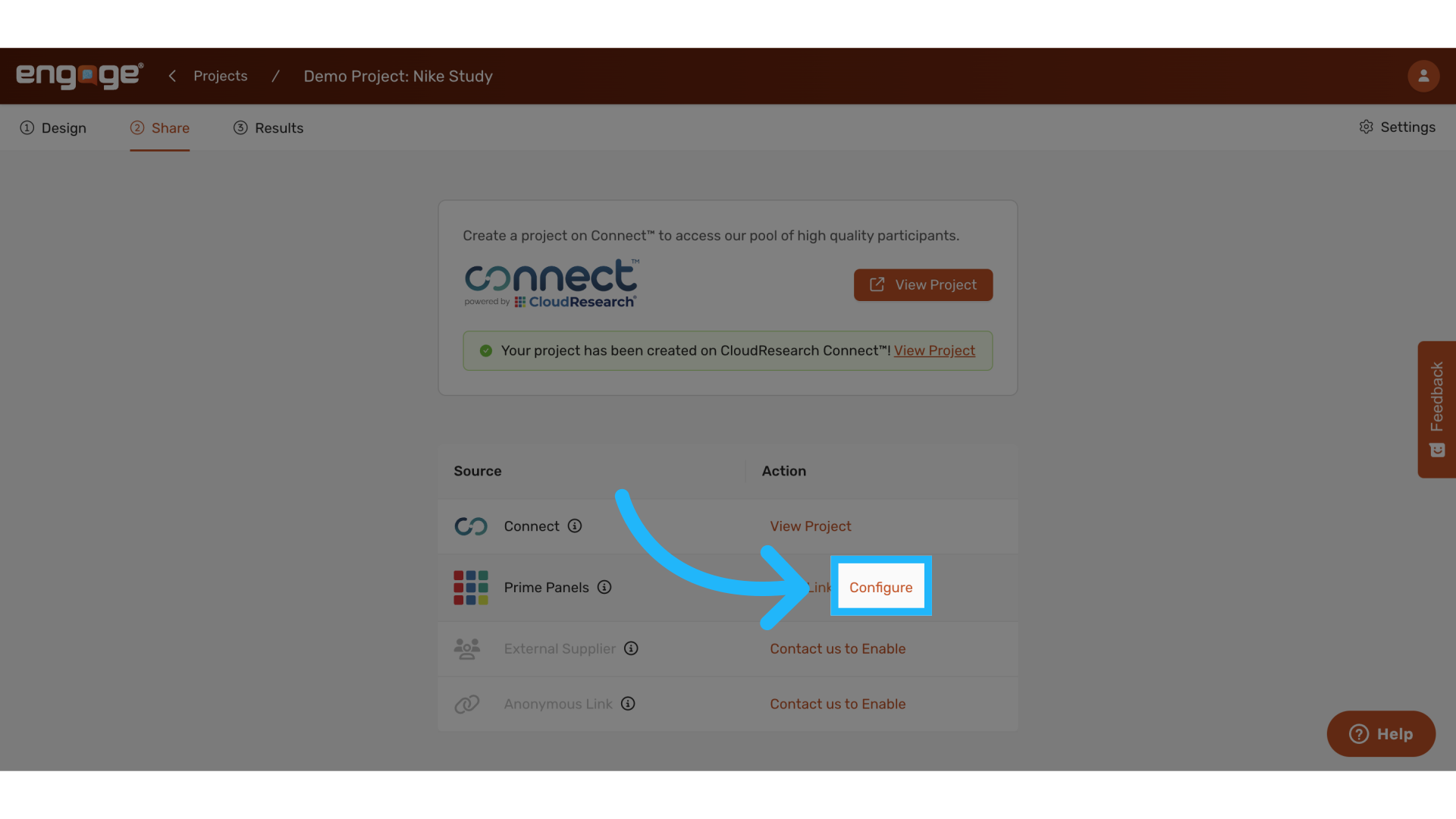
9. Copy the link for Prime Panels project
Copy the survey link.
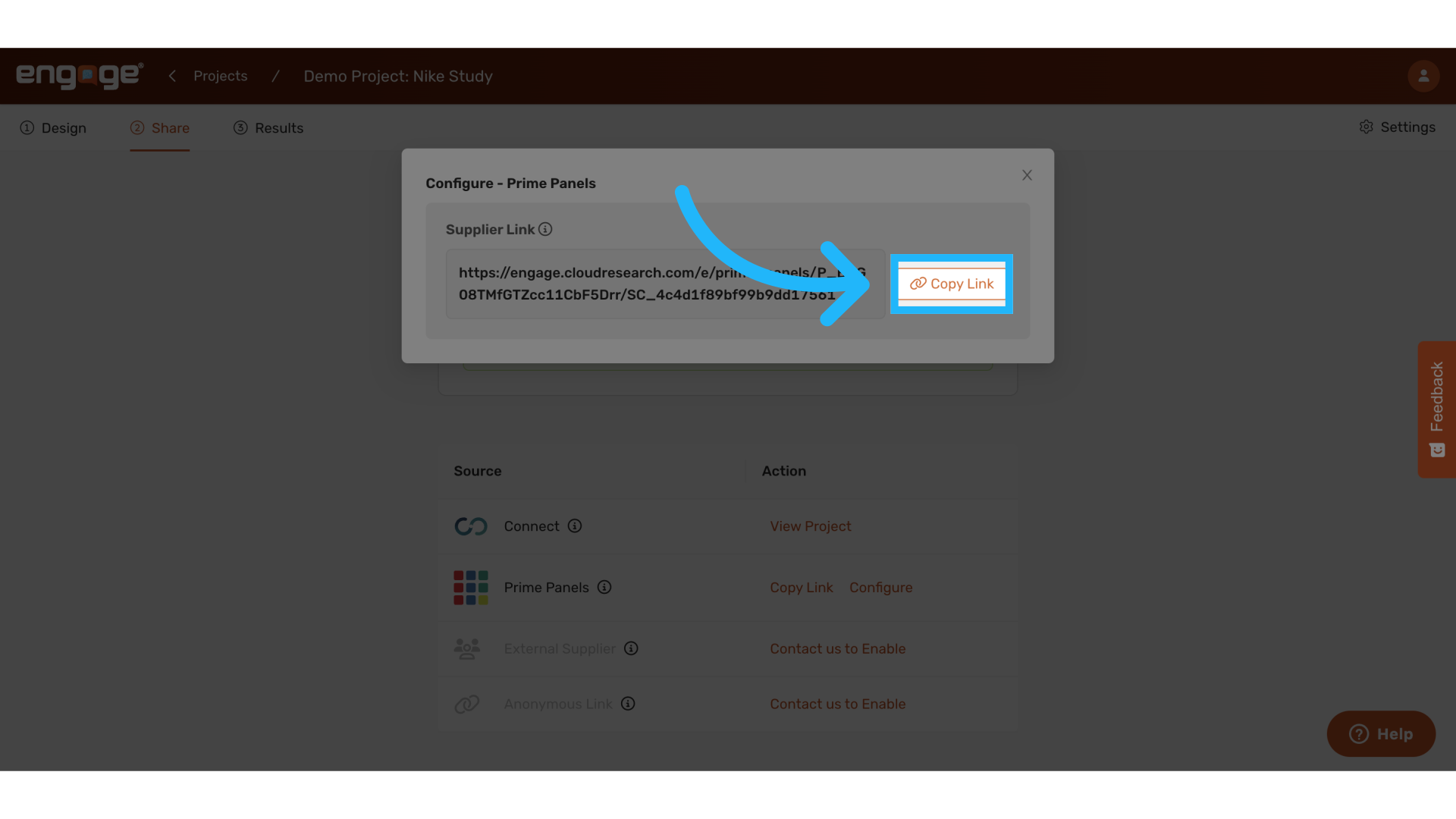
10. Or select "Copy Link"
Or you can simply select the copy link option instead. For more information, see our guide on Sharing your Engage survey with Prime Panels participants.
Note: when integrating with prime panels, participants will be automatically redirected to a standard prime panels URL upon completion. Unlike Connect, a redirect URL cannot be customized when using Prime panels.
(Note: Sentry must be enabled on your Prime Panels project.)
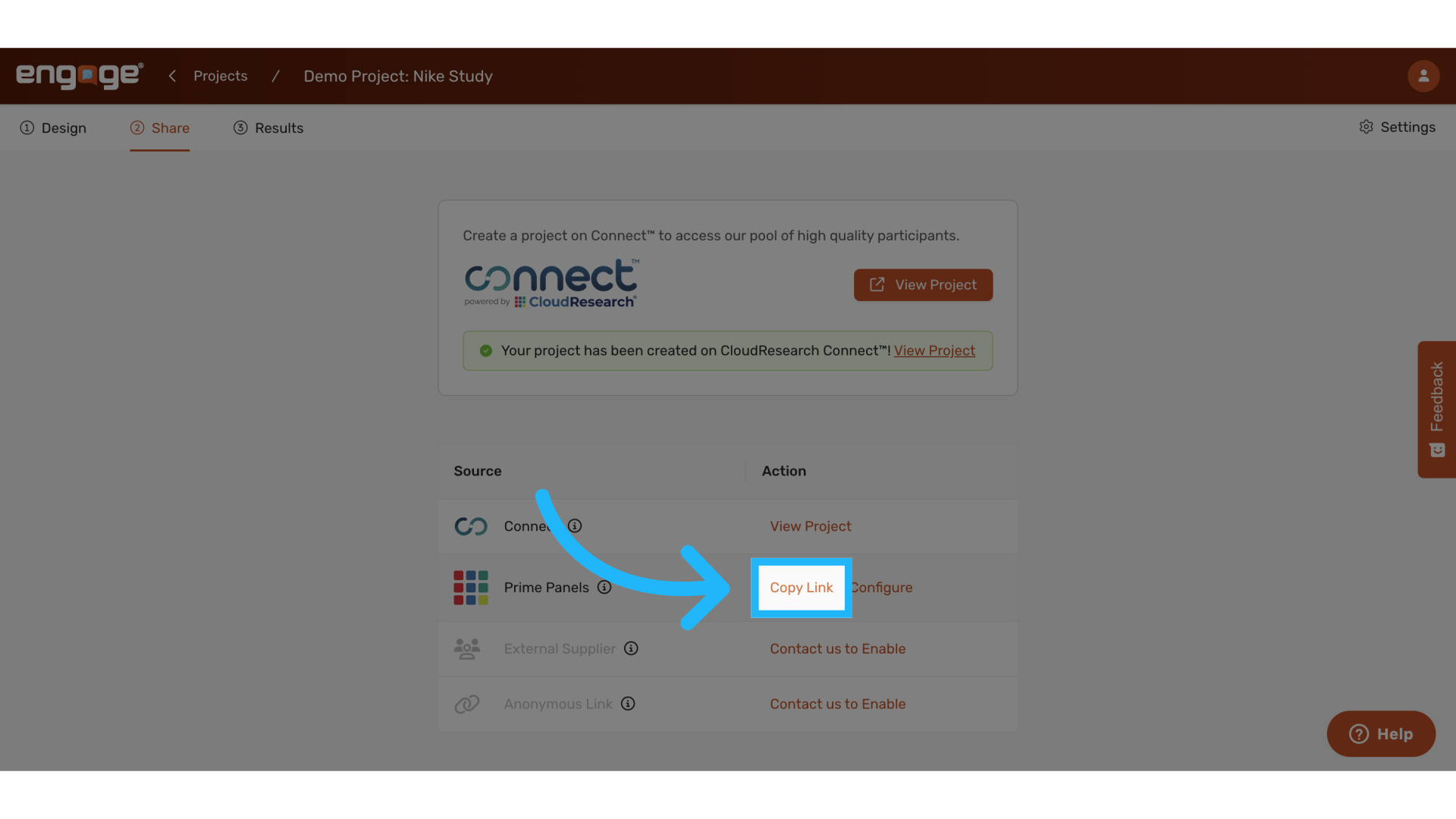
11. Contact us to enable external suppliers
A third share method is through external suppliers. External suppliers allow you to use your own participant database or system. Contact us to enable external suppliers.
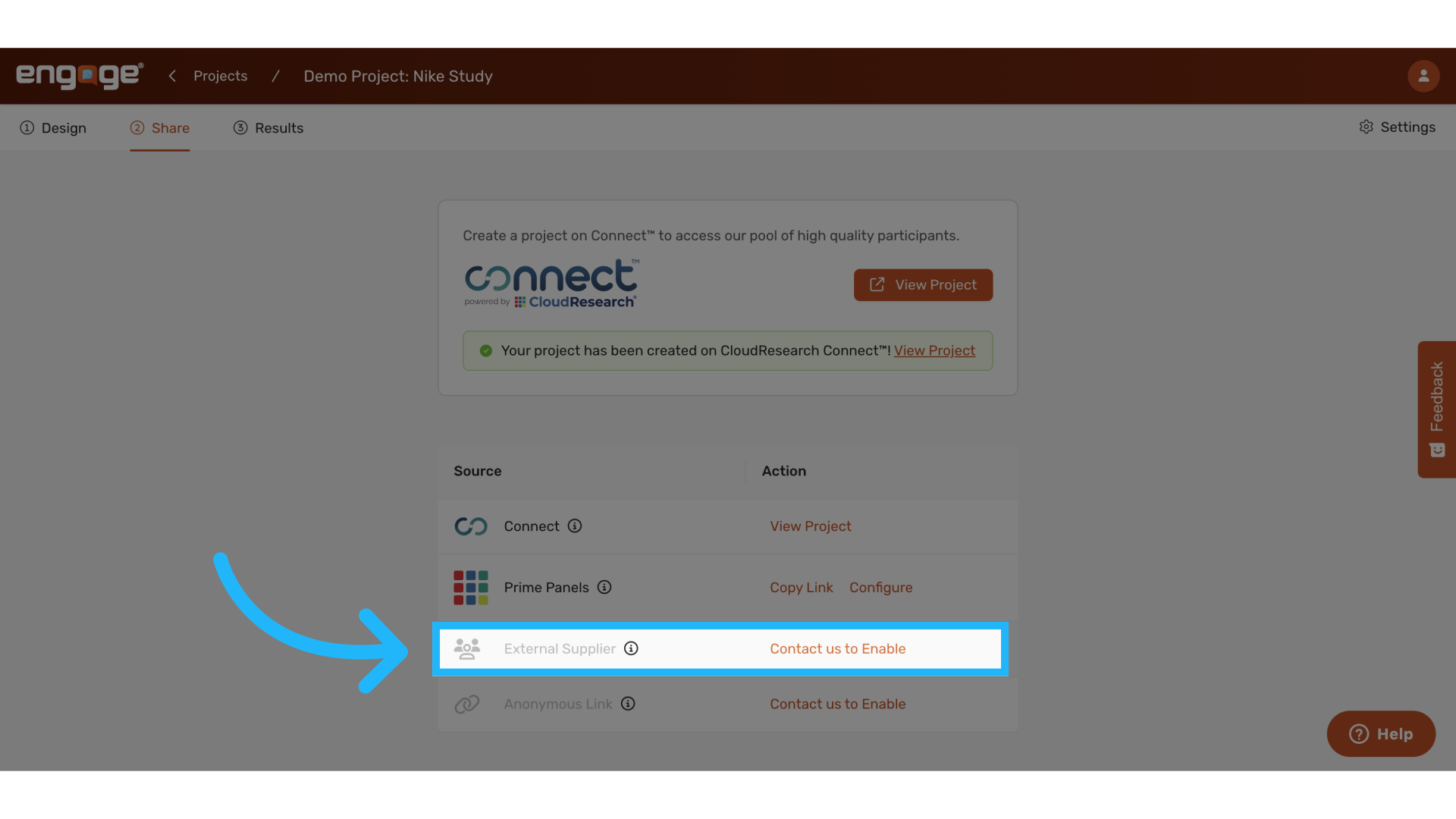
12. Configure for external suppliers
Once external suppliers is enabled, you can begin configuration. Select "Configuration required".
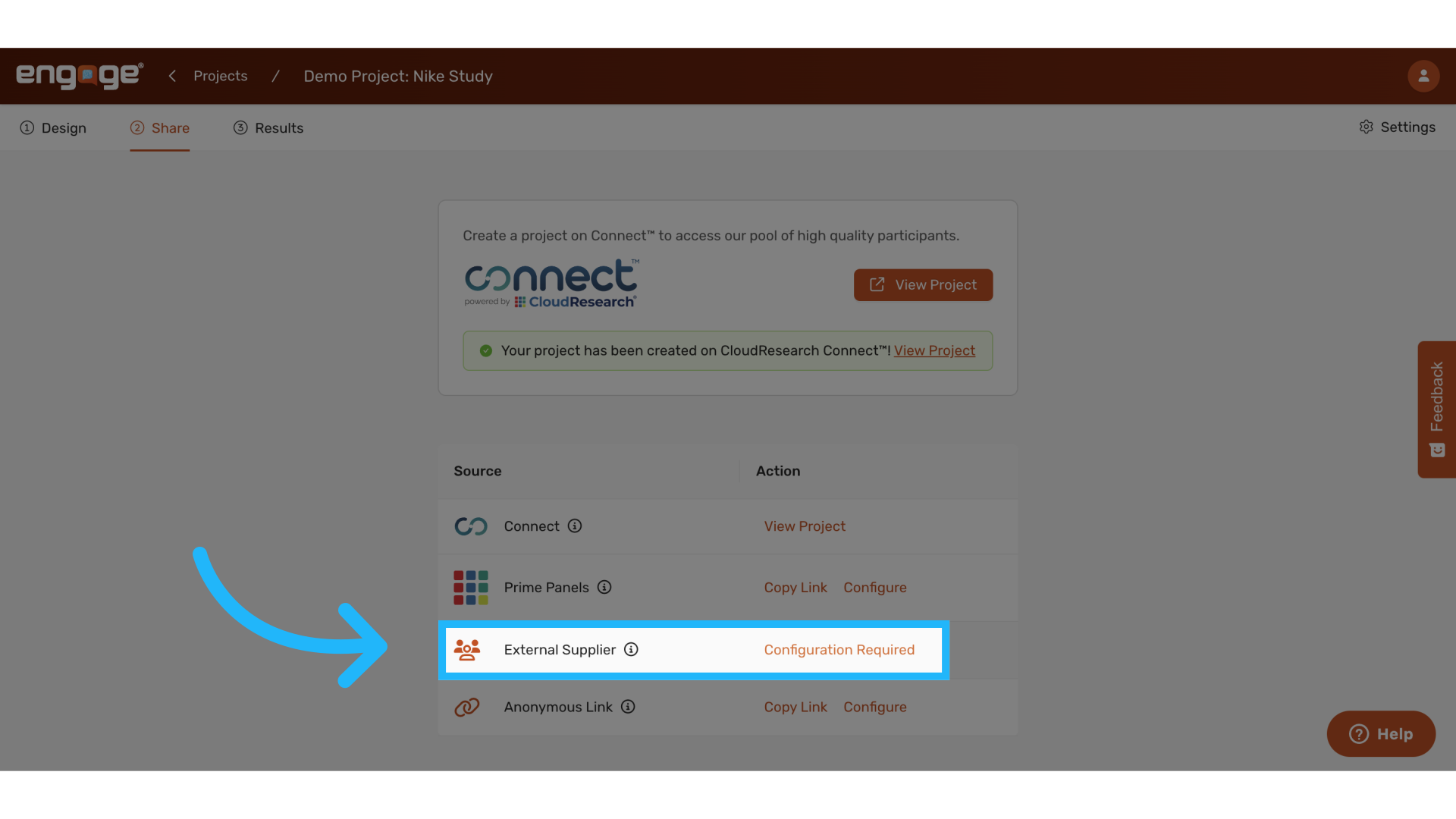
13. View Configuration Settings
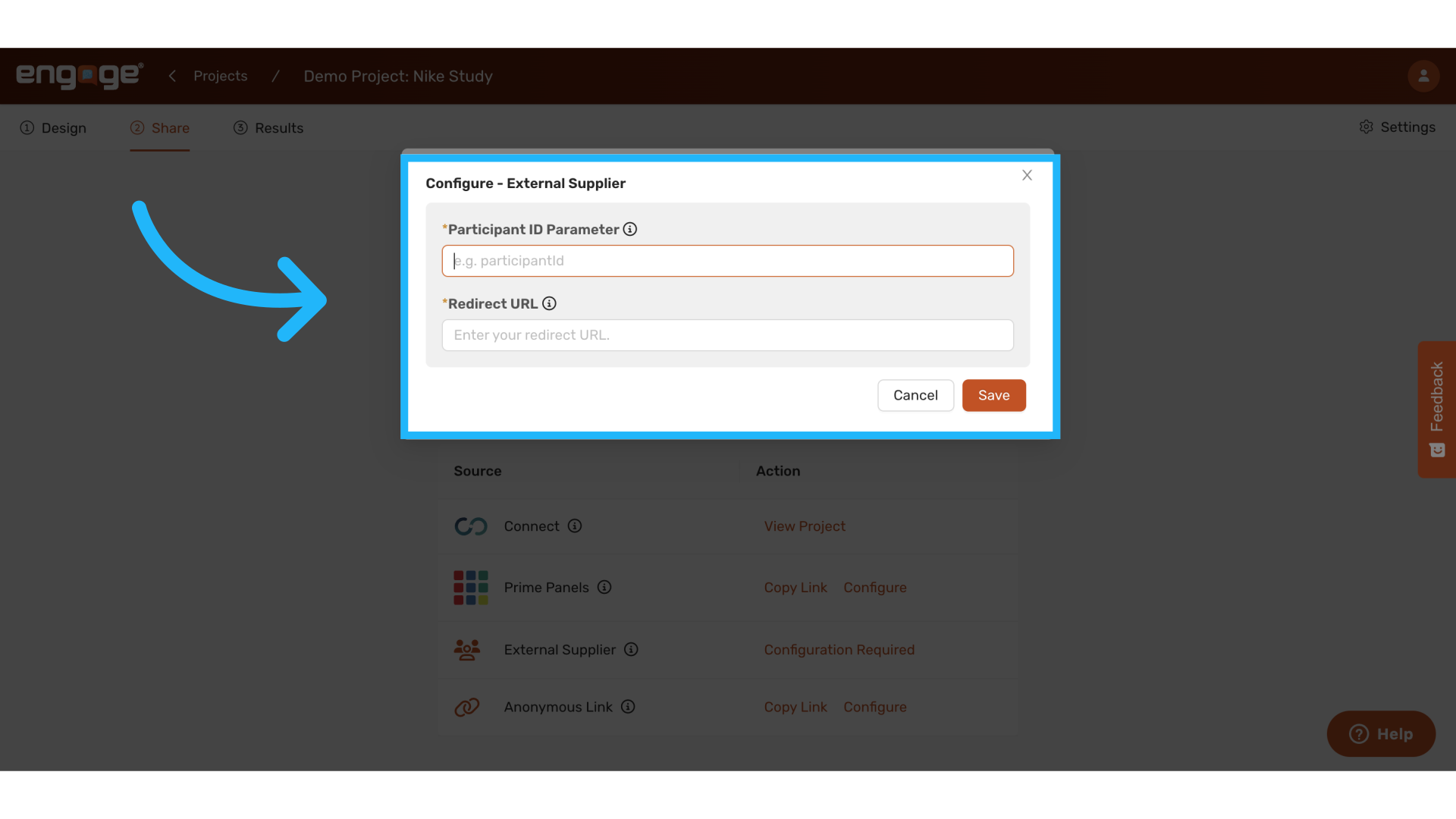
A configuration box will appear with the participant ID parameter and redirect URL.
14. Enter Participant ID Parameter
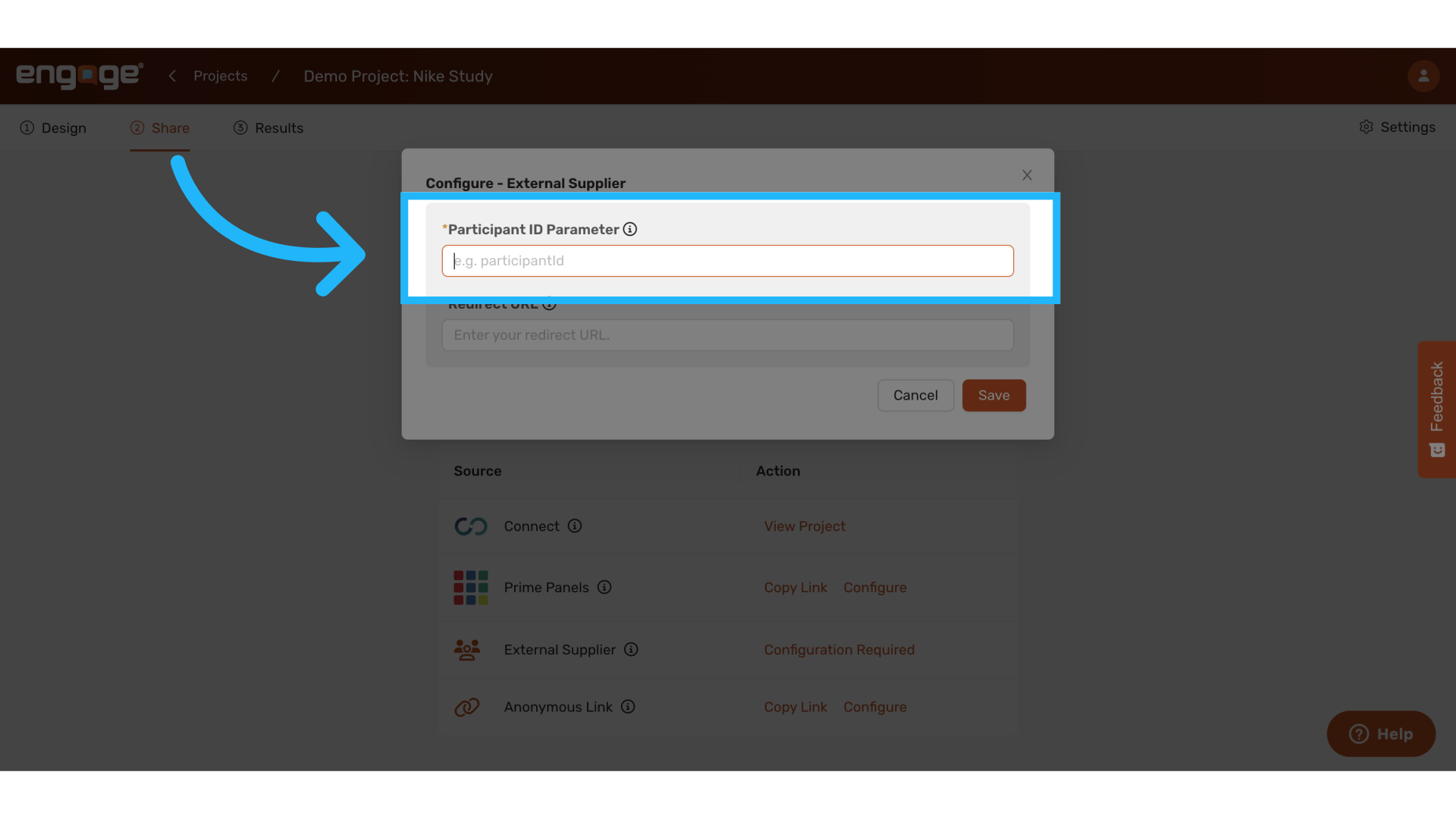
For the participant ID parameter, specify the unique participant identifier used to connect Engage with an external supplier. This parameter will label sessions in Engage and must match the supplier's identifier requirements.
15. Enter Redirect URL
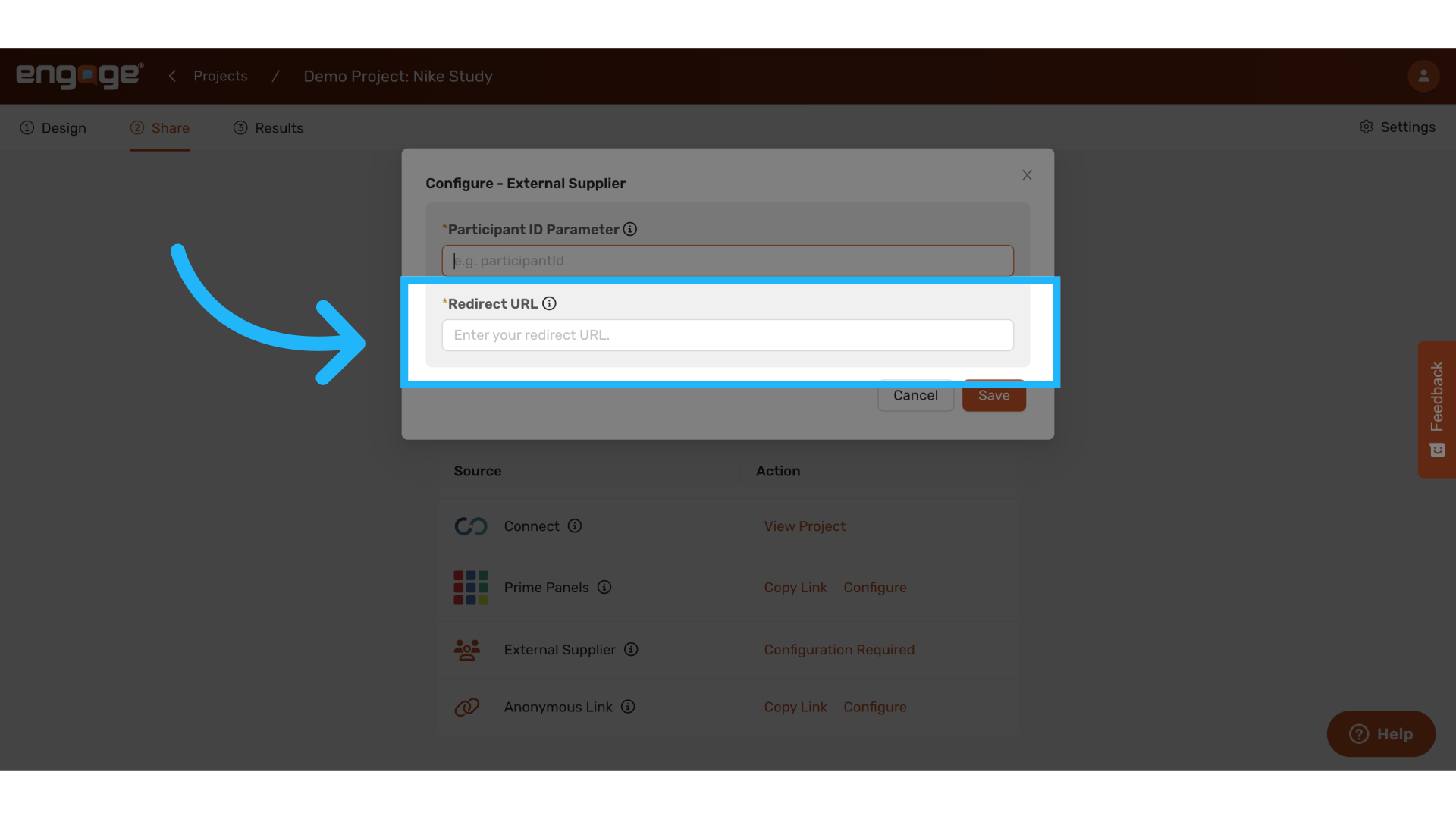
Next, Specify the URL where participants will be redirected upon survey completion. The participant ID will automatically be appended to this URL as a query parameter.
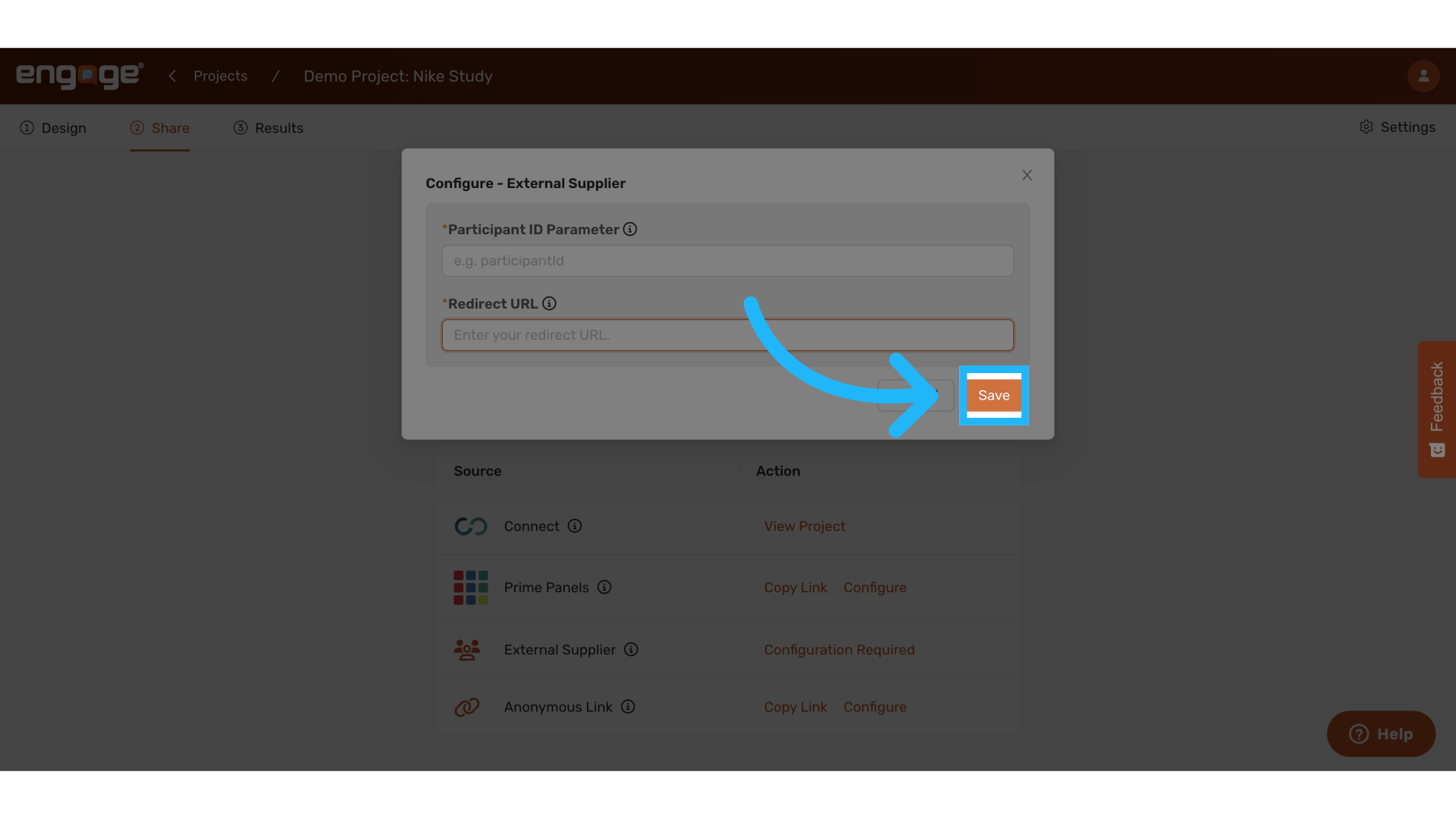
16. Click "Save"
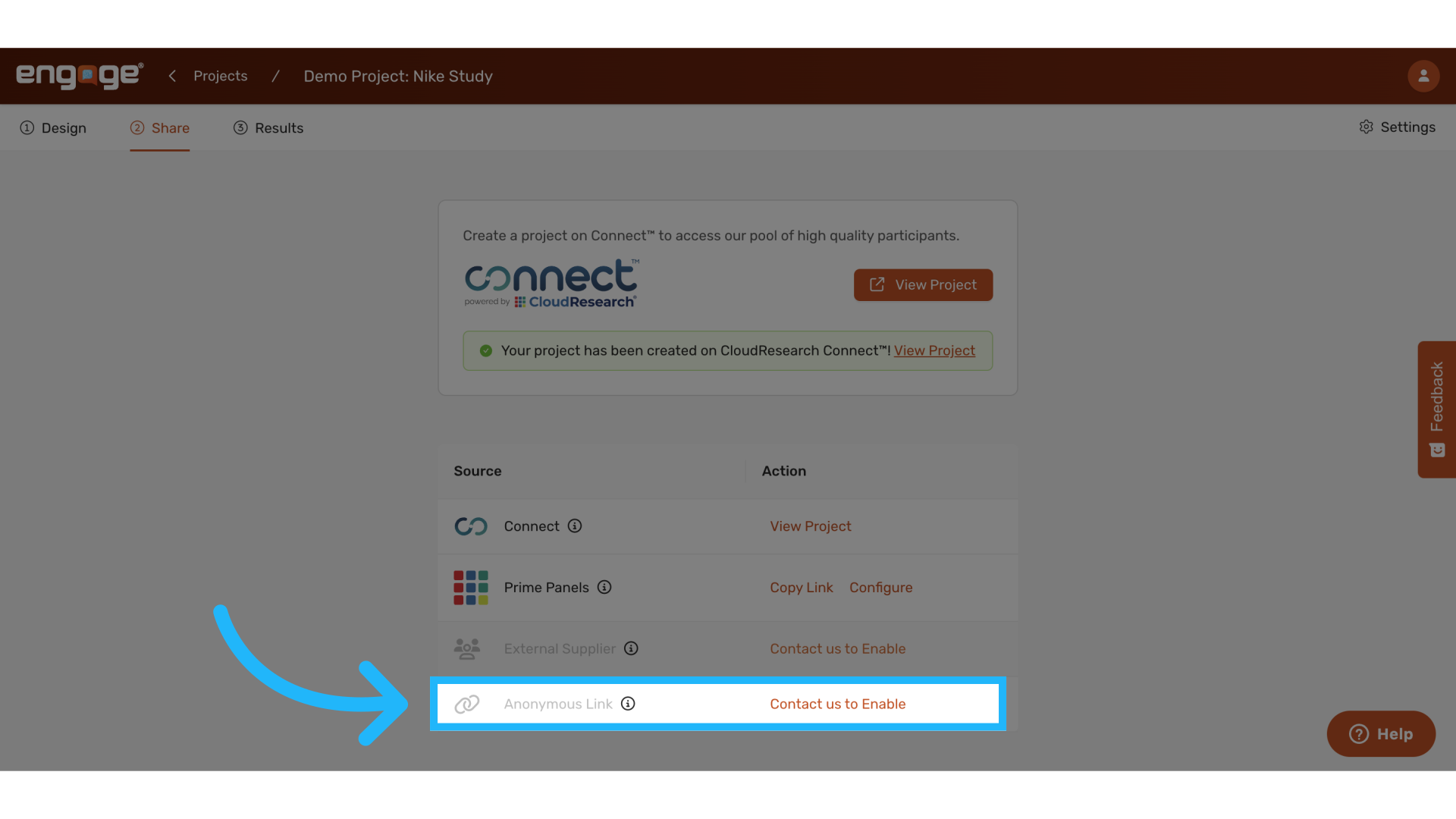
17. Contact us to enable Anonymous Links
Last, For scenarios where participant tracking isn't needed, you can use anonymous links to collect anonymous responses by simply sharing the link through your preferred channels.
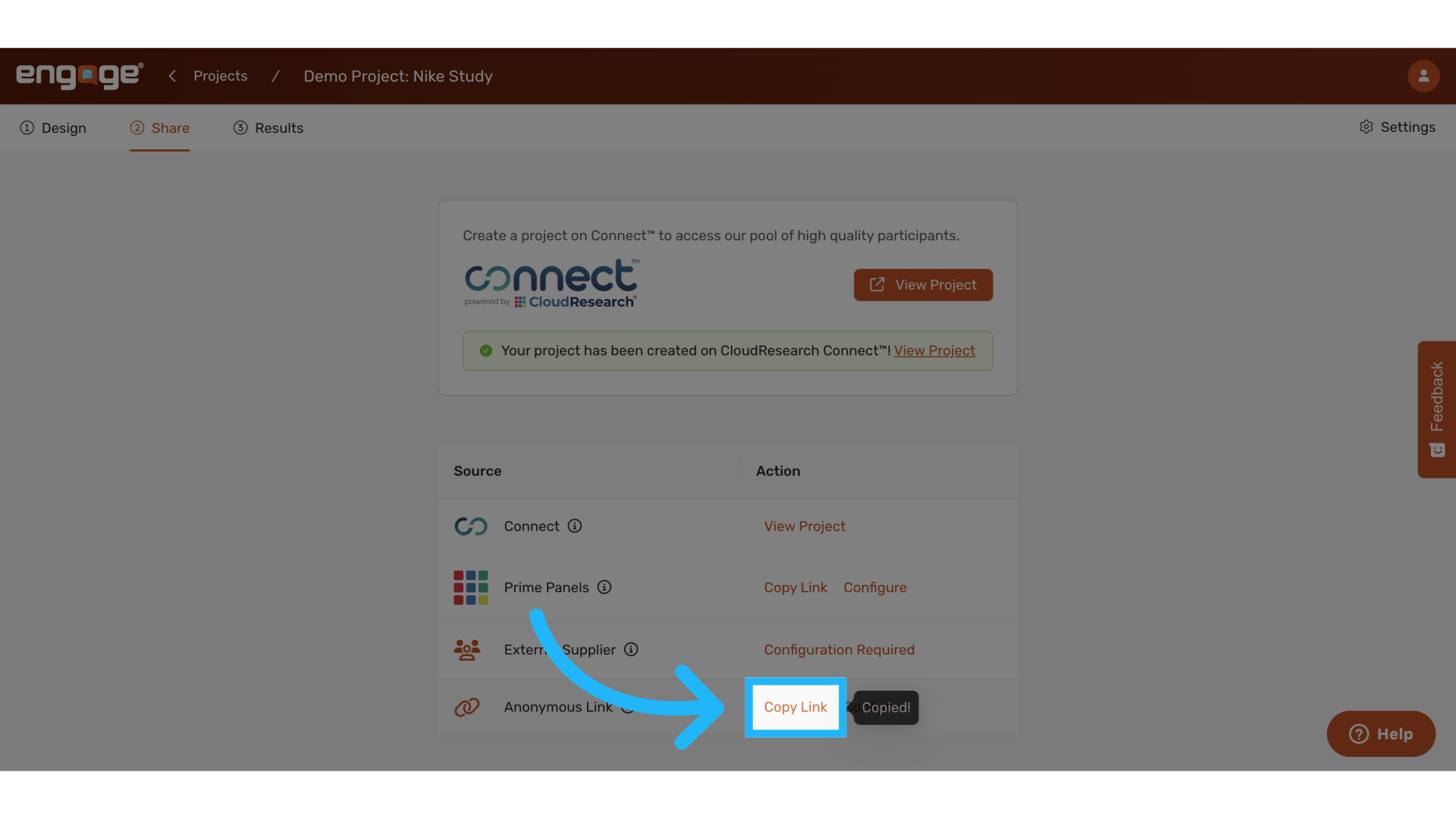
19. Click "Copy Link"
Copy the link directly by selecting "Copy Link".
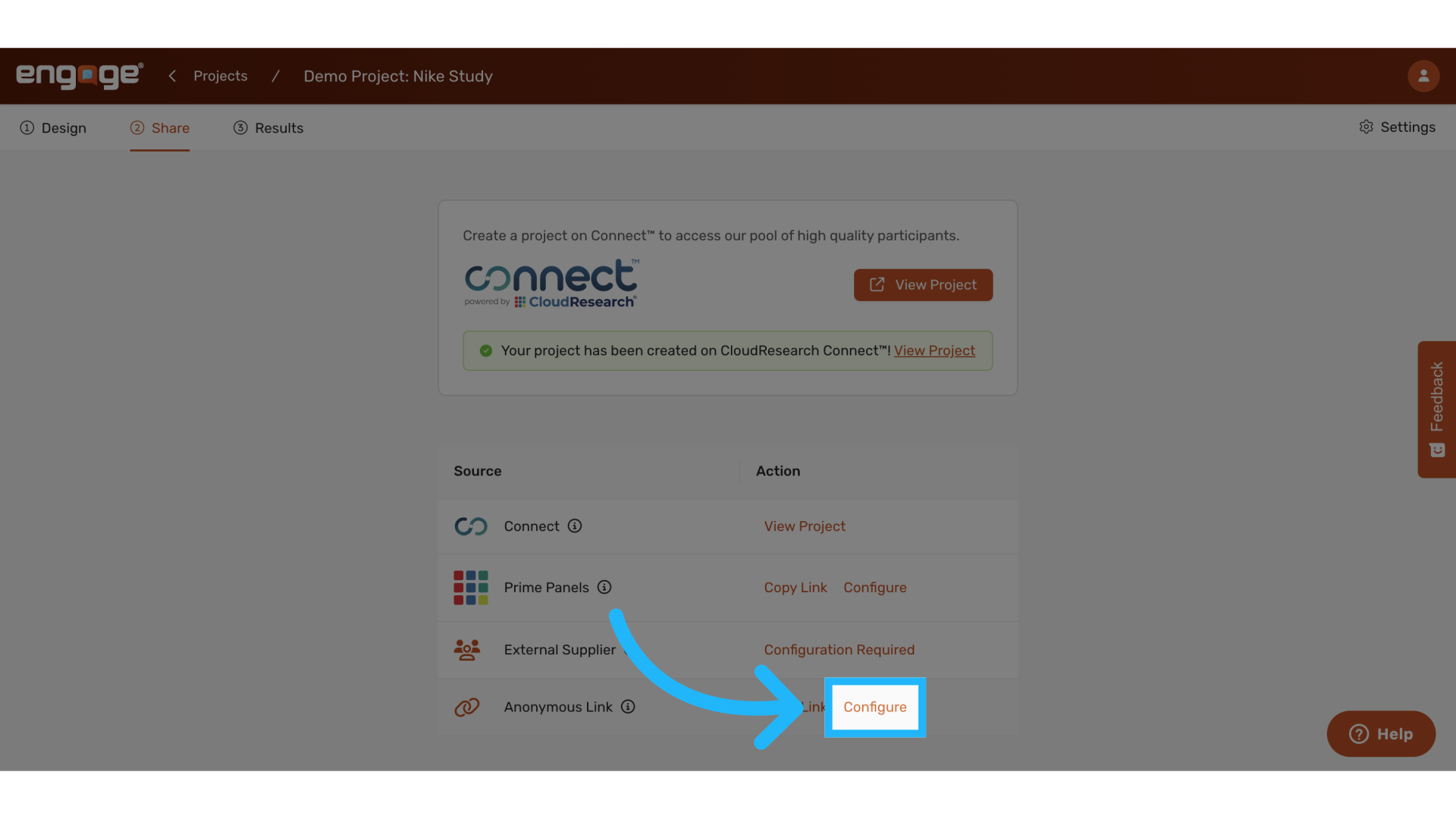
20. Select "Configure"
Alternatively, select configure for the configuration menu.
21. Configuration Menu
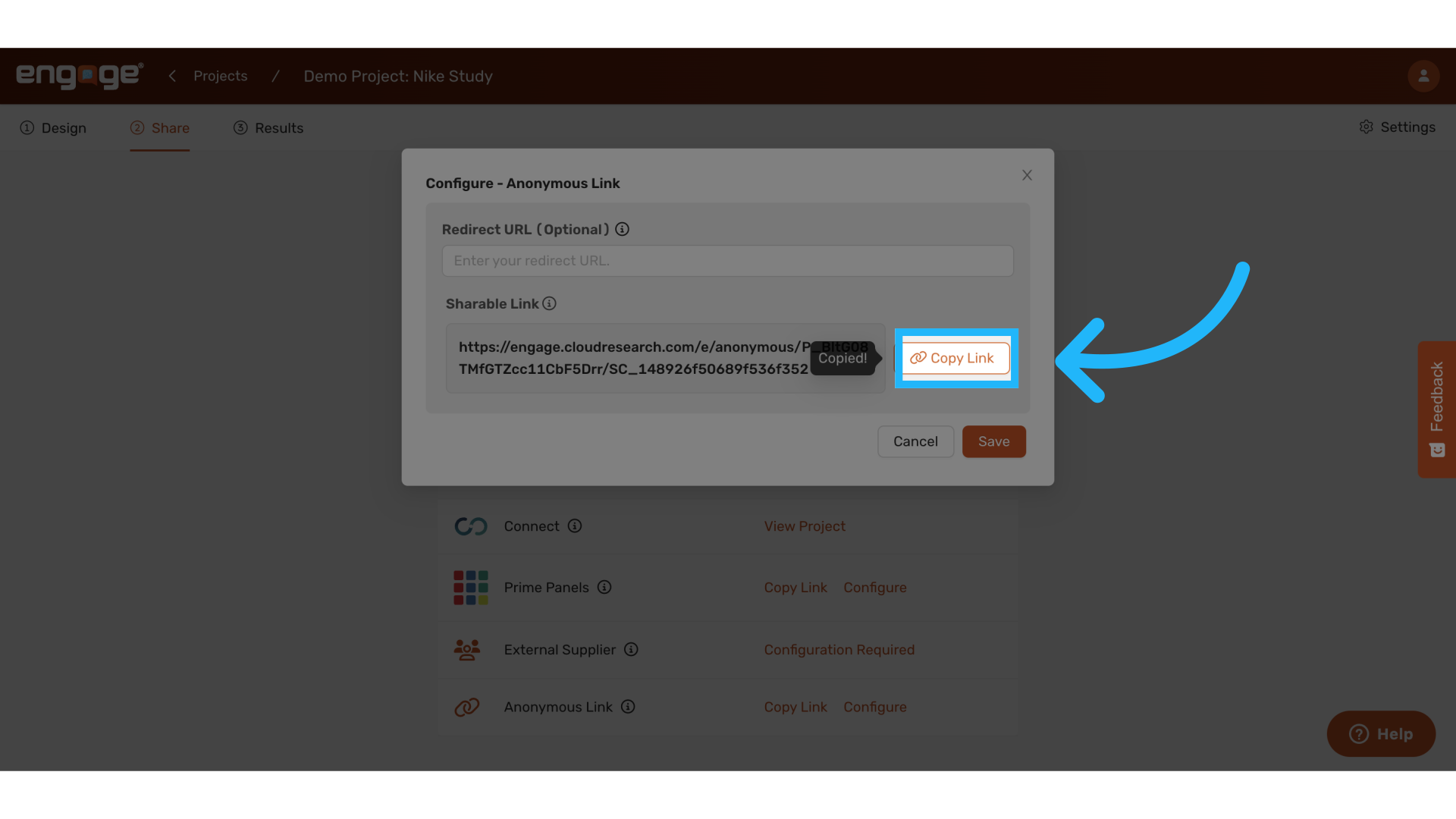
Optionally add a redirect URL. This is the URL where participants will be redirected upon survey completion.
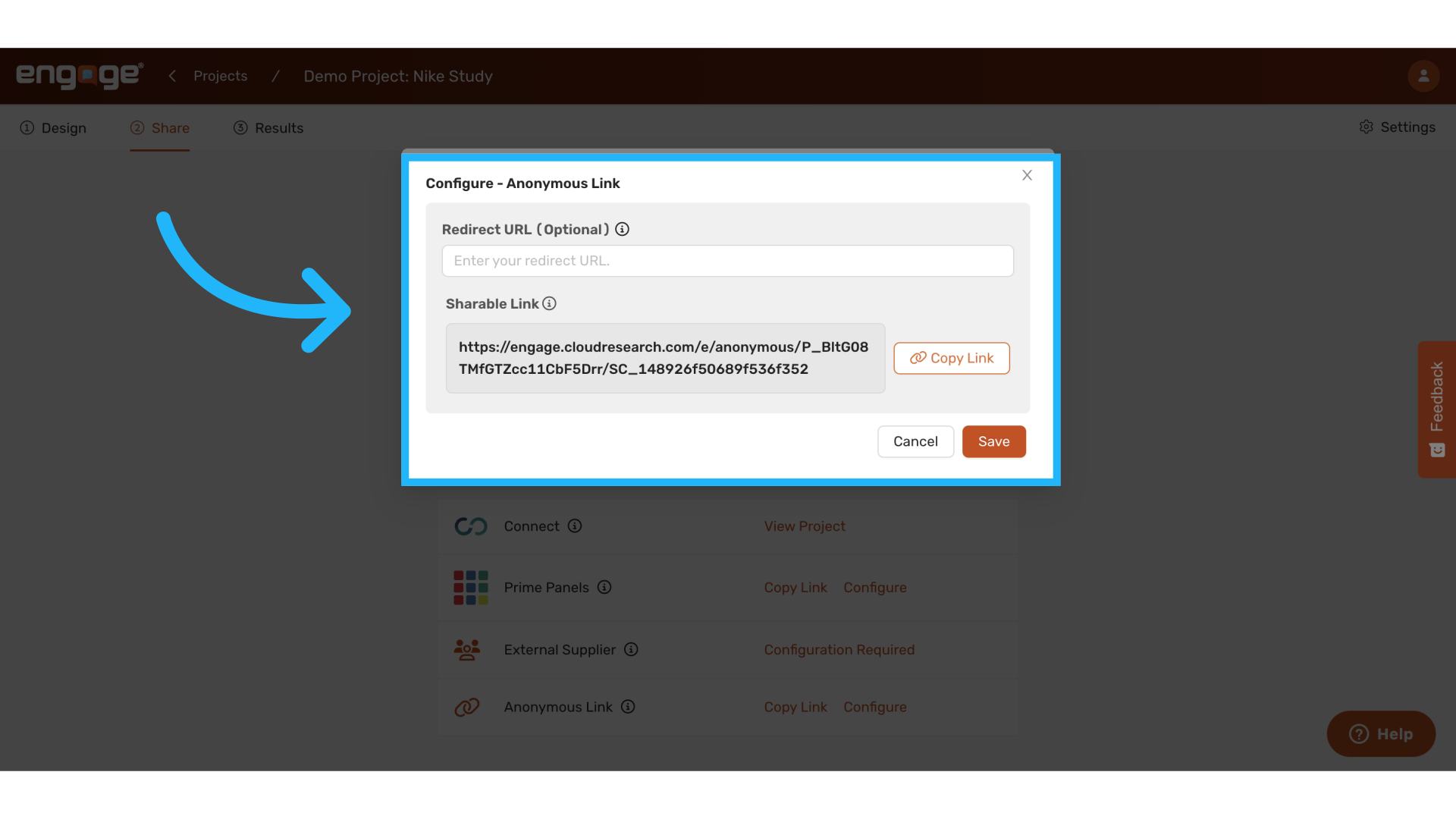
22. Copy survey link
You can also copy the survey link here. This link does not require configuration. It’s anonymous and ready to use. Share it directly with your audience via email, social media, or other platforms to collect responses without additional configuration.
Thank you for watching, if you have any other questions, please reach out to our support team or access our other guides.
Comments
0 comments
Please sign in to leave a comment.