1. What is Prime Panels?
Before we dive into the integration process, let's briefly cover what Prime Panels is:
- Prime Panels is a platform that aggregates hundreds of traditional online research panels
- It provides access to millions of participants globally
- Prime Panels is ideal for:
- Harder to reach audiences
- One time surveys
- Surveys under 25 minutes
2. Create Study
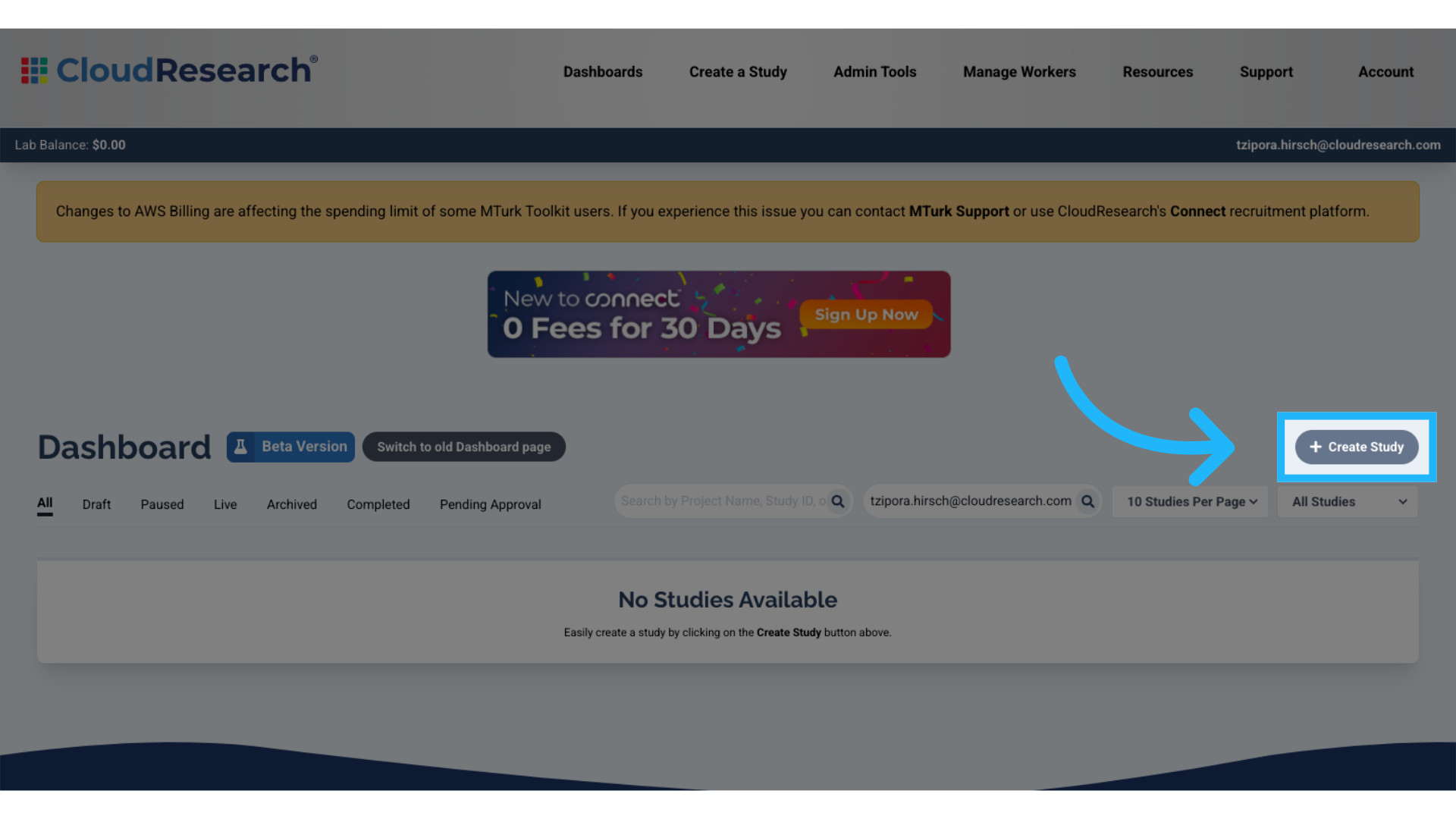
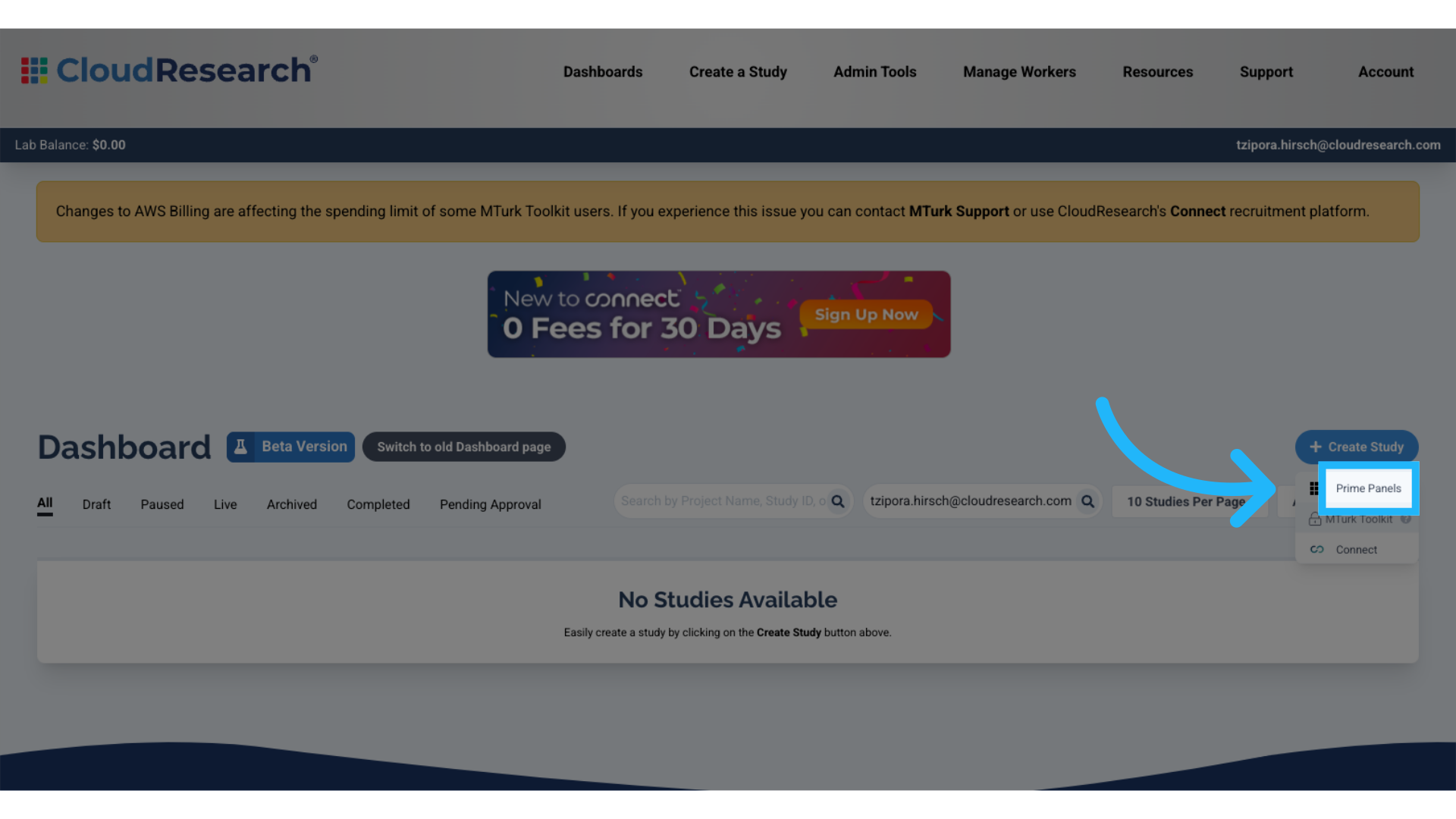
3. Select Prime Panels
Select the prime panels option from the dropdown.
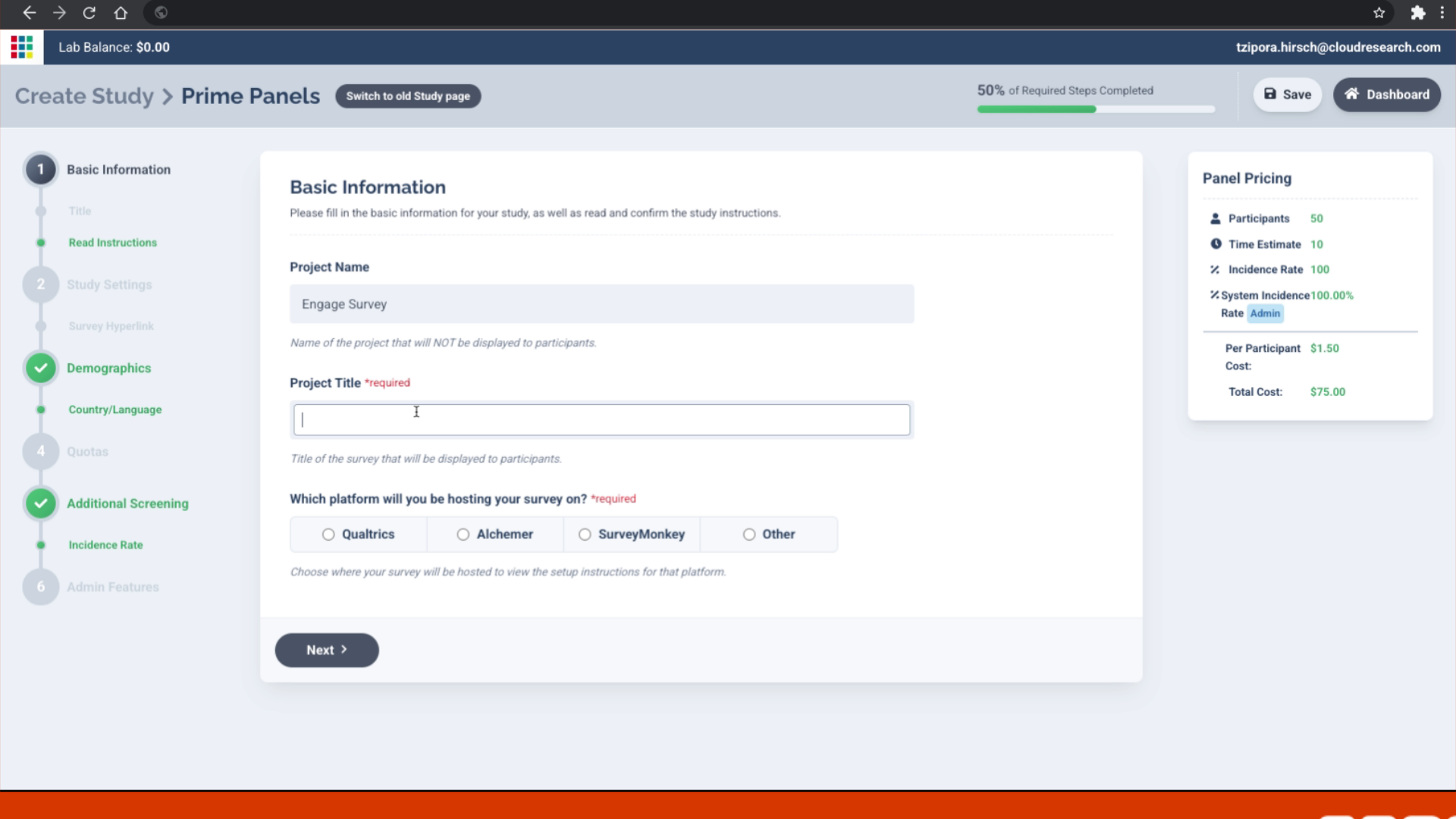
4. Enter the project details
Enter the project details, such as project name and project title.
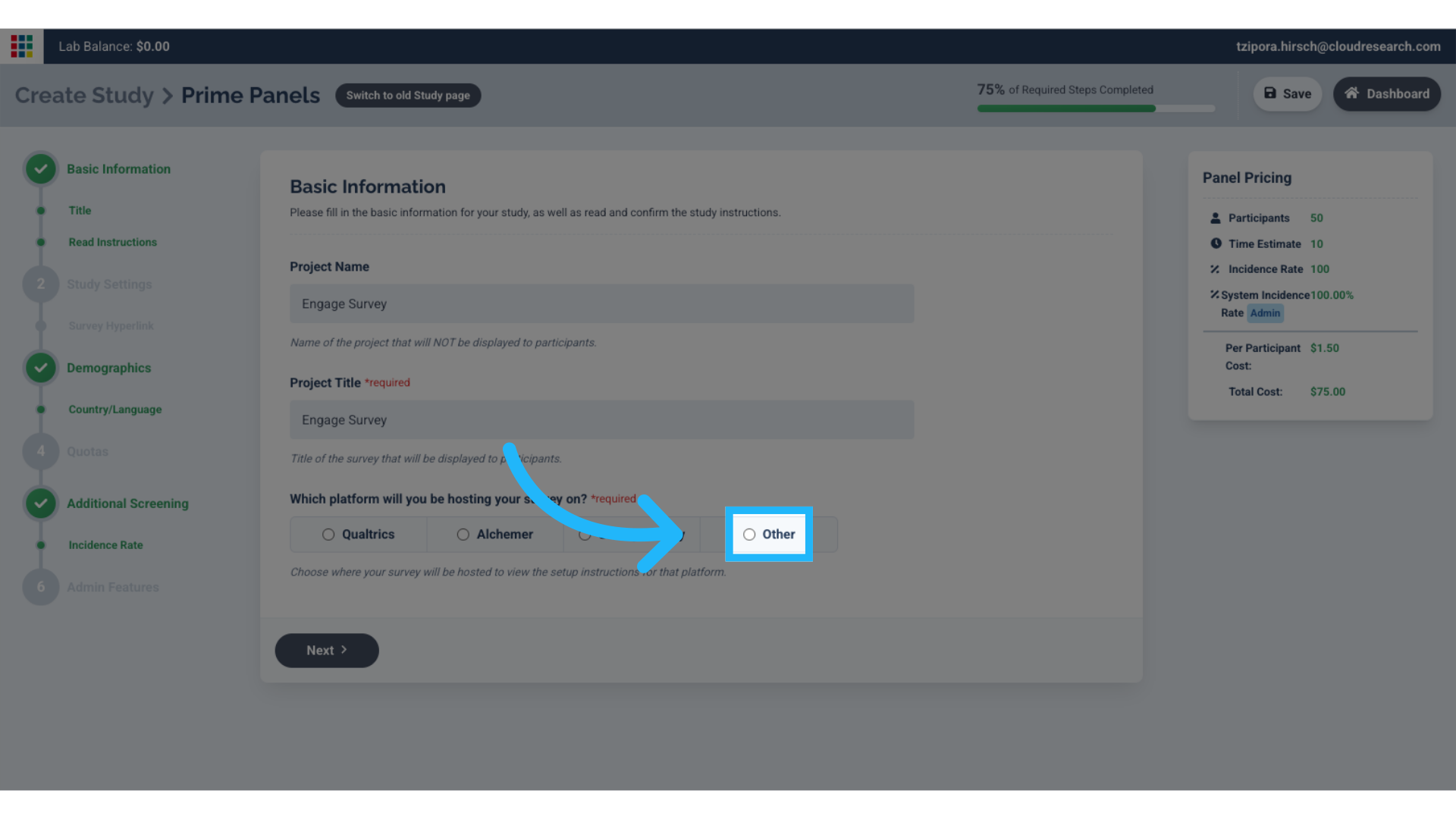
6. Select "Other" for platform
For the platform selection, choose other, as this survey will be hosted on engage.
7. Proceed to Study Settings
Proceed to the study settings section of the setup.
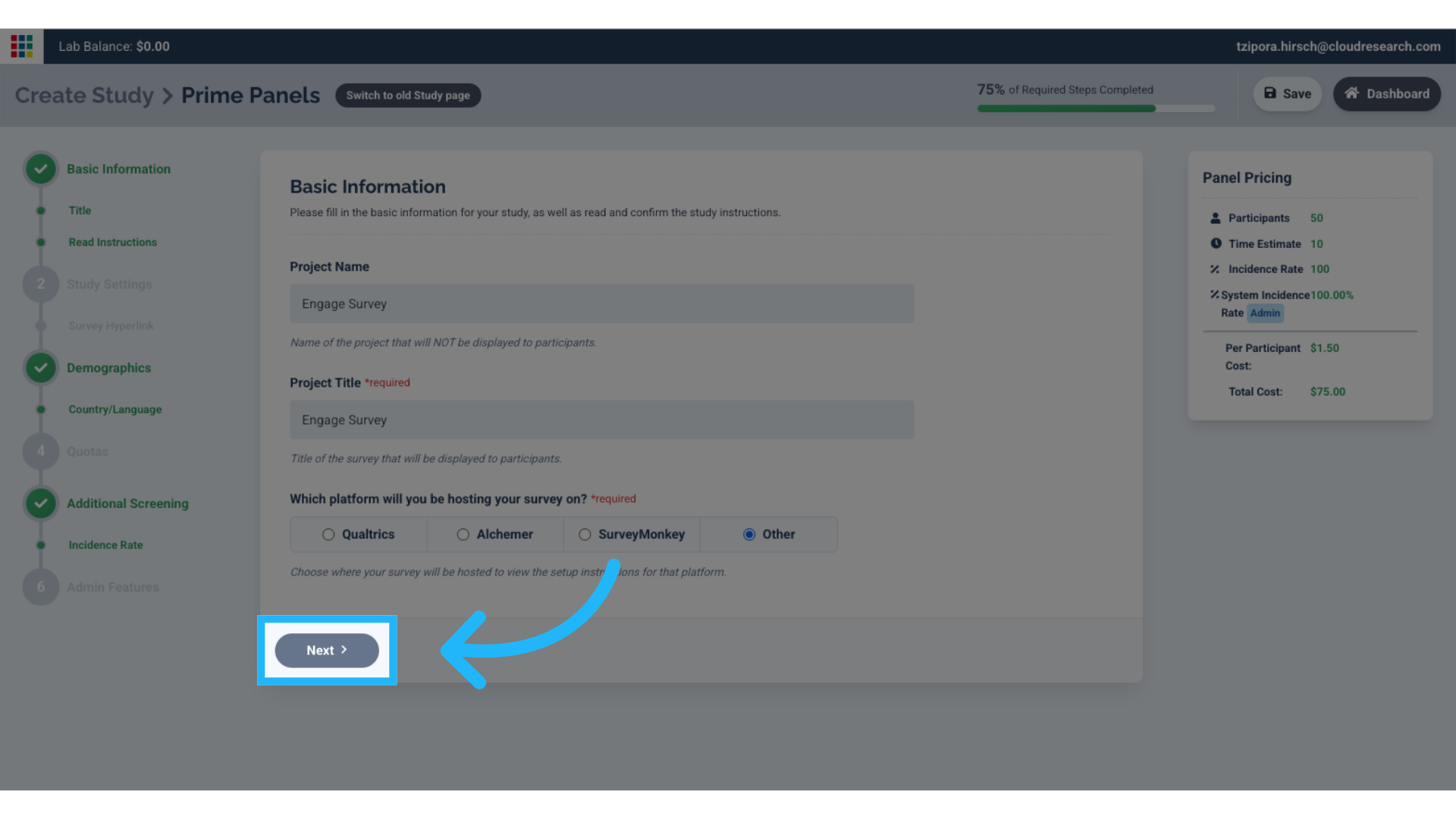
8. Enter number of participants and expected survey time
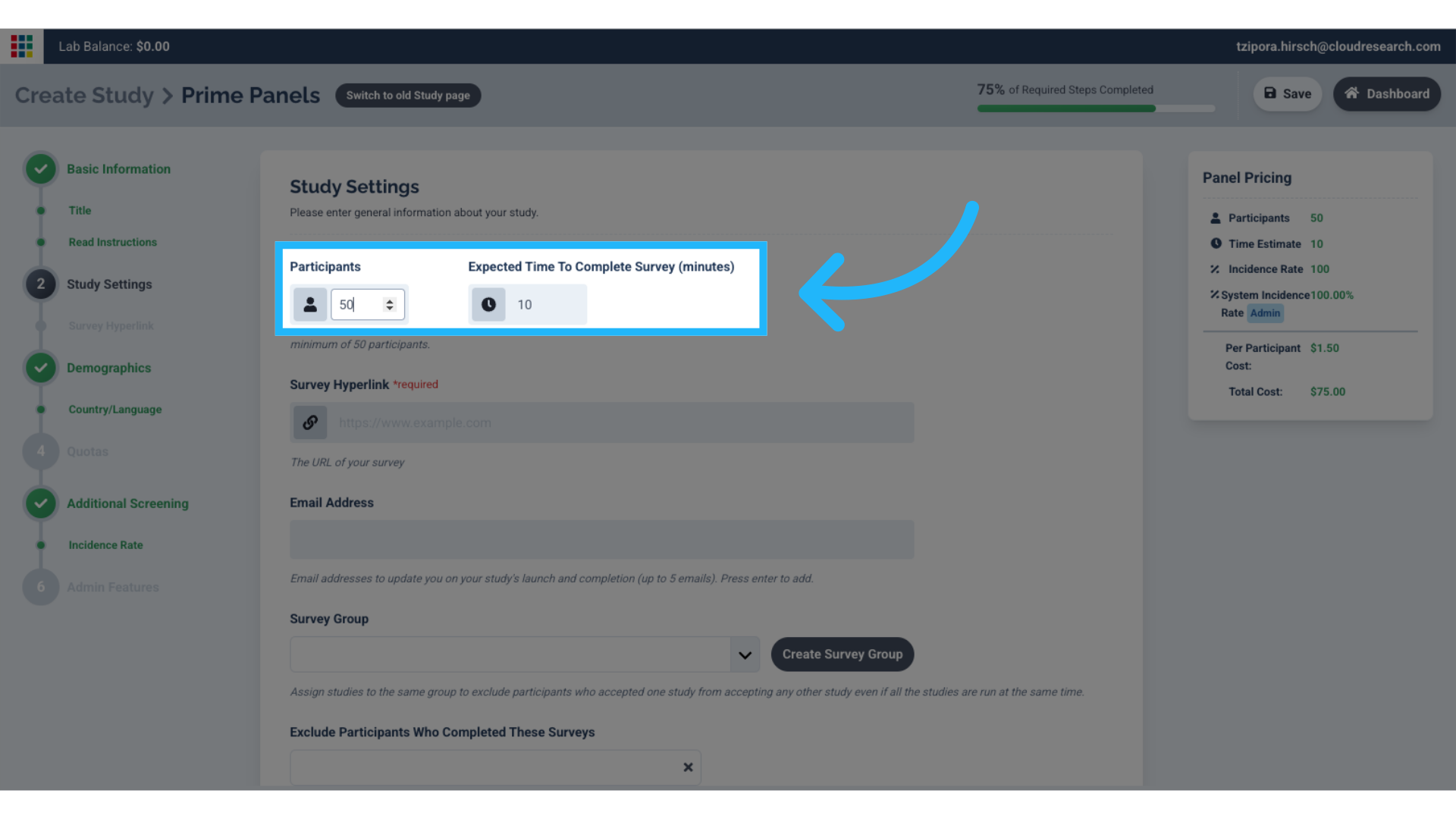
9. Enter Engage survey URL
This can be obtained from your engage project.
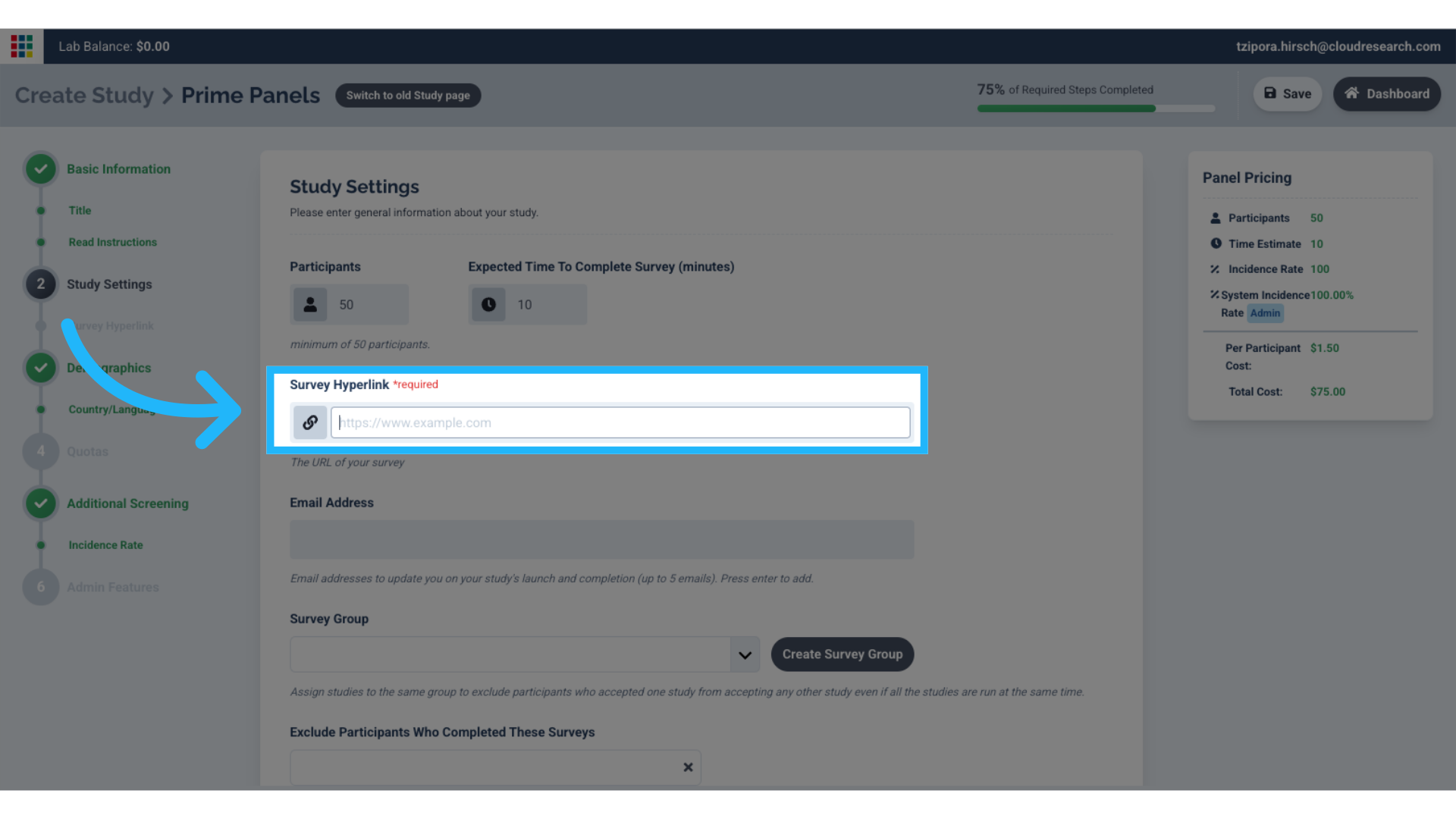
10. Navigate to the Engage Dashboard
Navigate to the engage platform
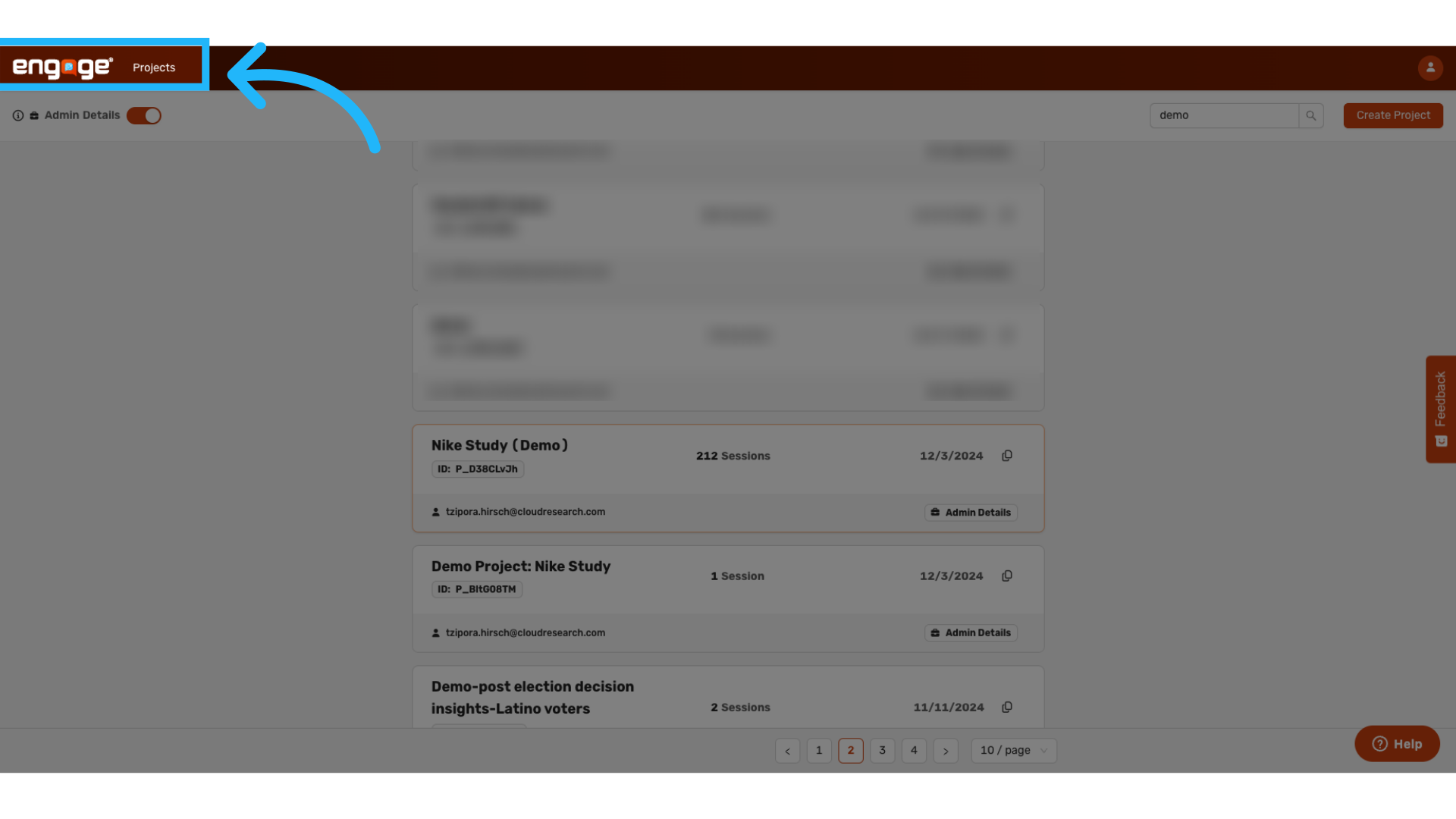
11. Locate Project
Locate the project you would like to use for Prime panels.
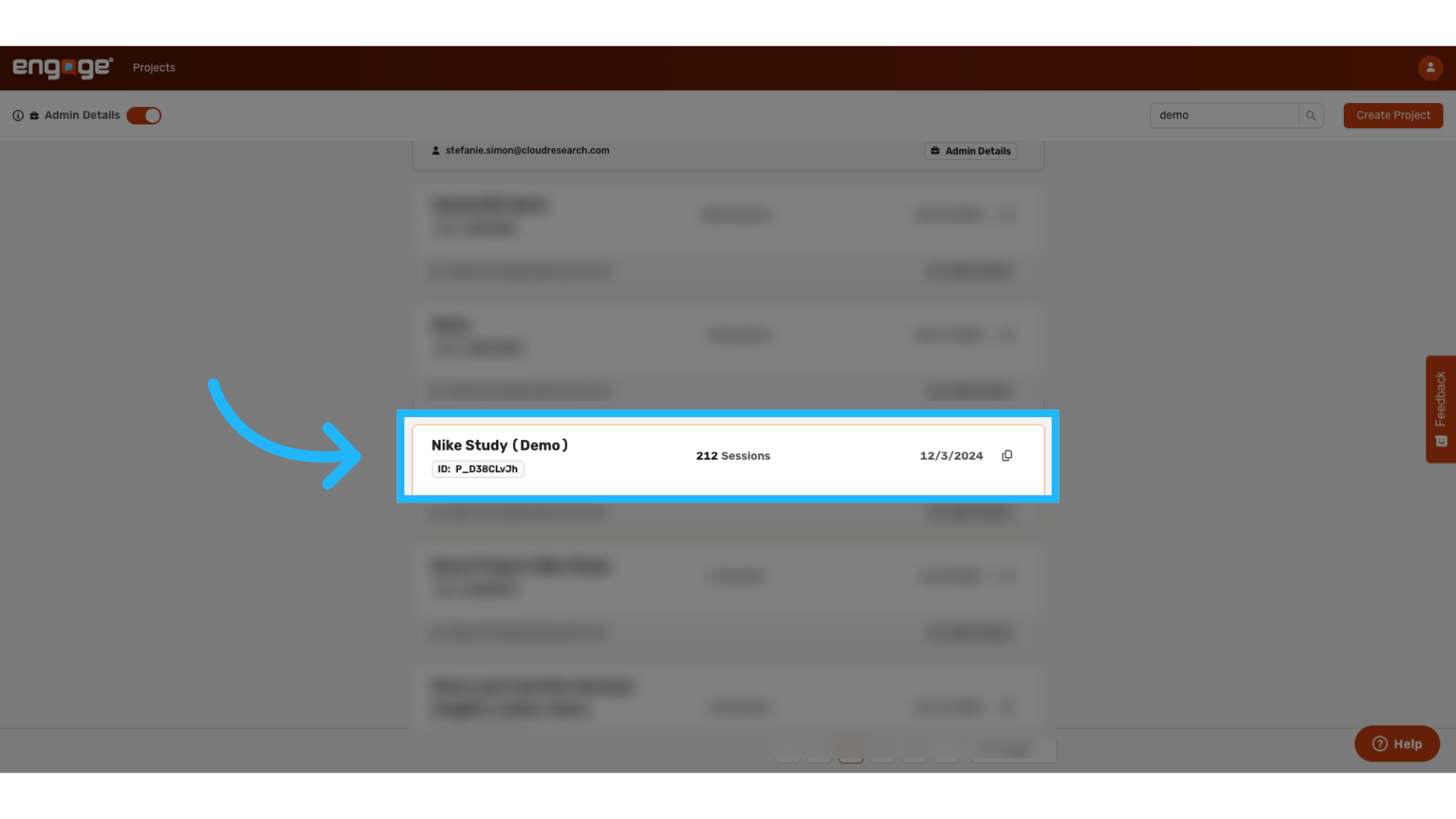
12. Go to Share tab
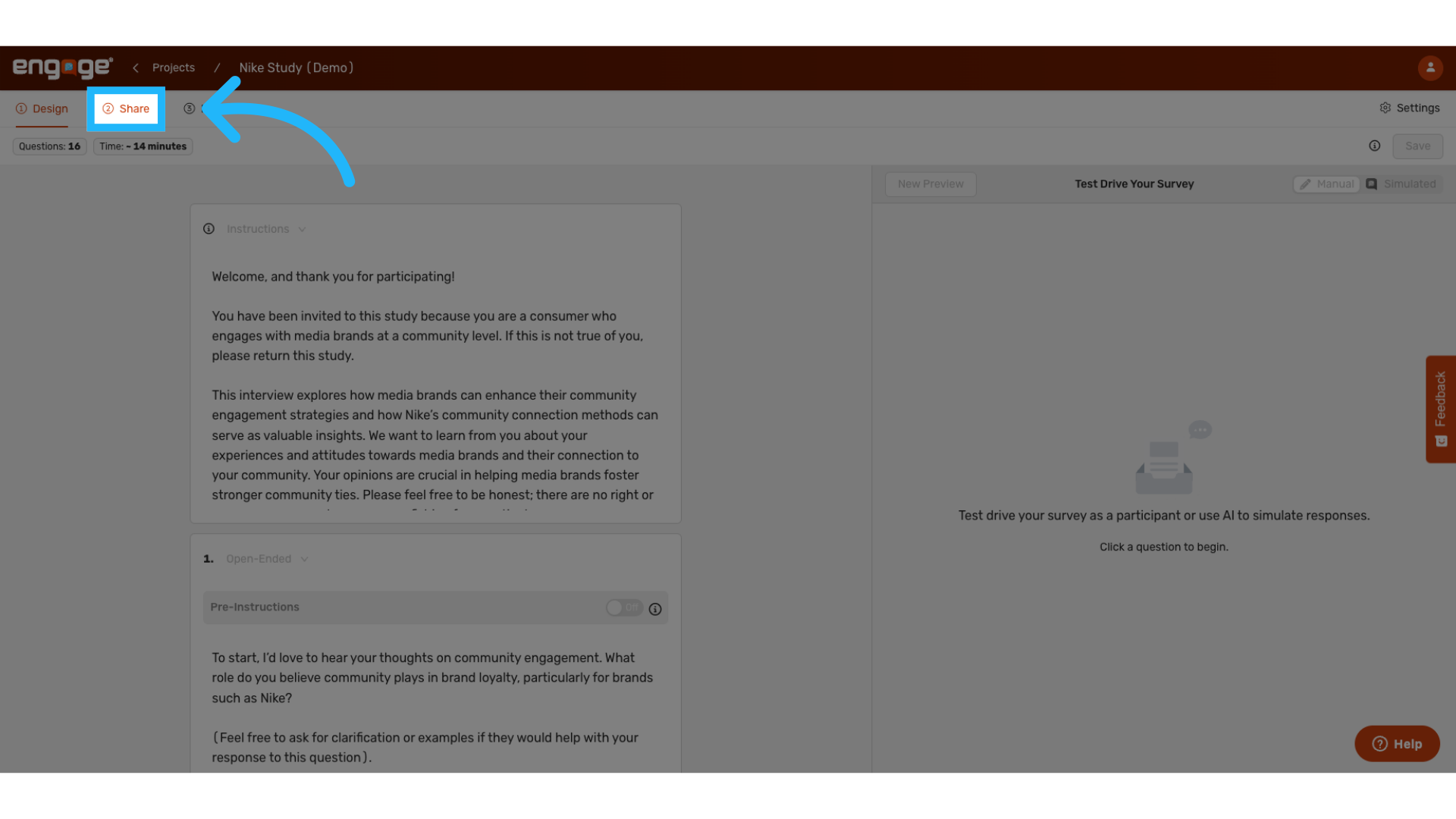
13. Copy Engage survey link
Can copy the survey link for prime panels.
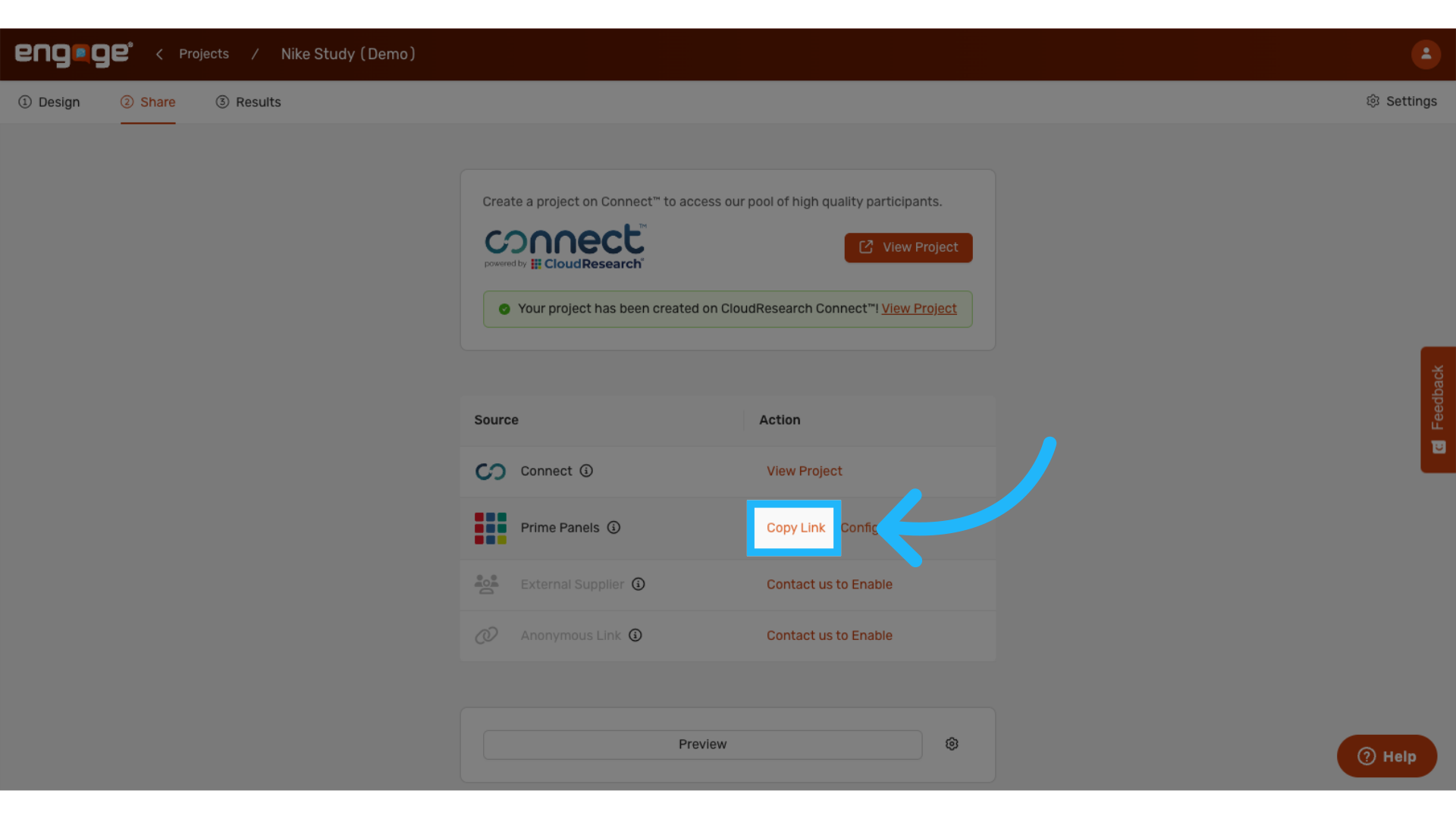
14. Paste Engage survey Link
Return to the Prime Panels platform, and paste the copied engage survey link.
Note: the preview feature on this page will not work for Engage surveys, but the project can be previewed from the launch options on the dashboard page.
Preview/ Launch Survey
15. Fill out Study Settings
Complete the remainder study settings.
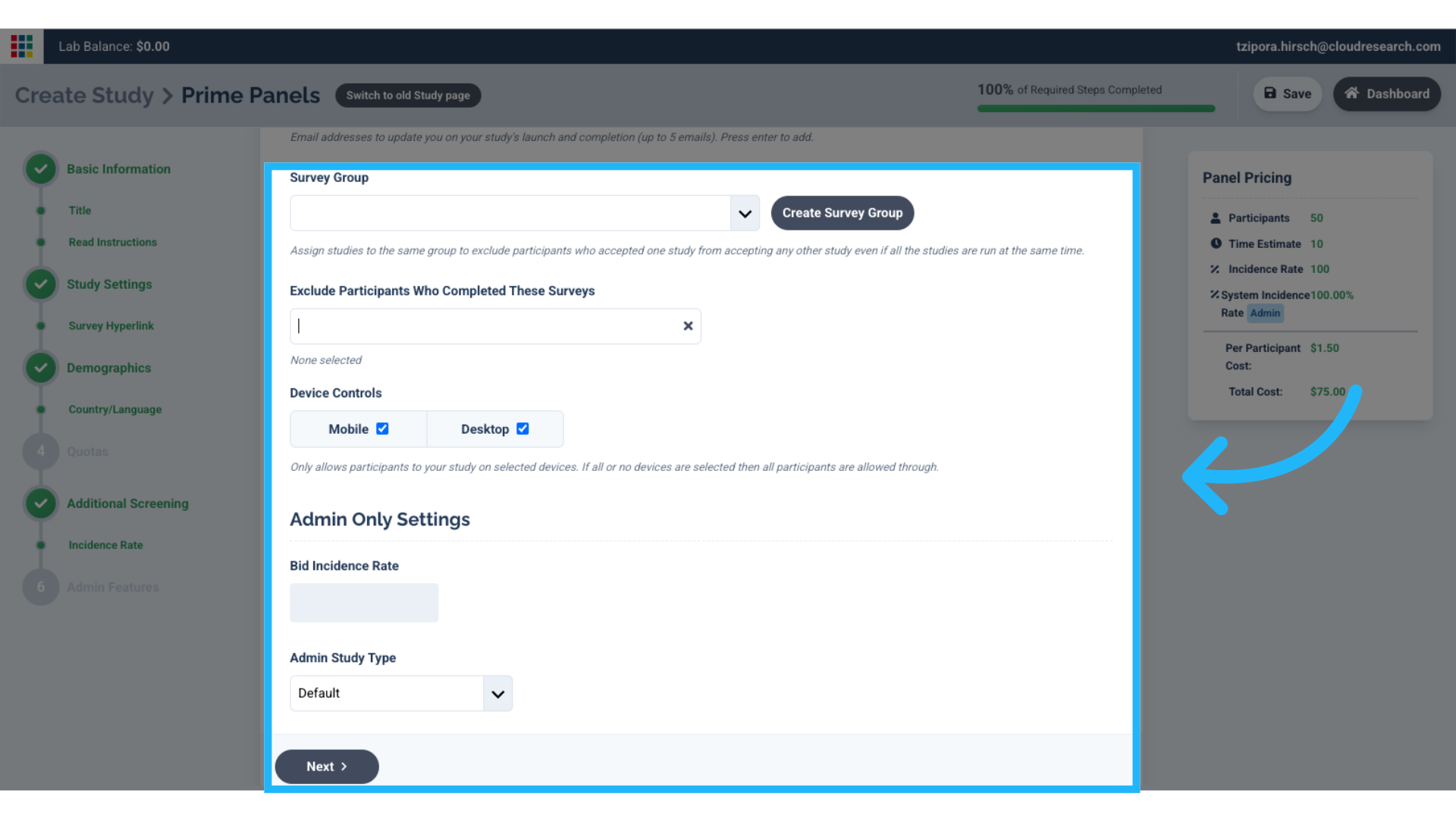
16. Enter study demographics information
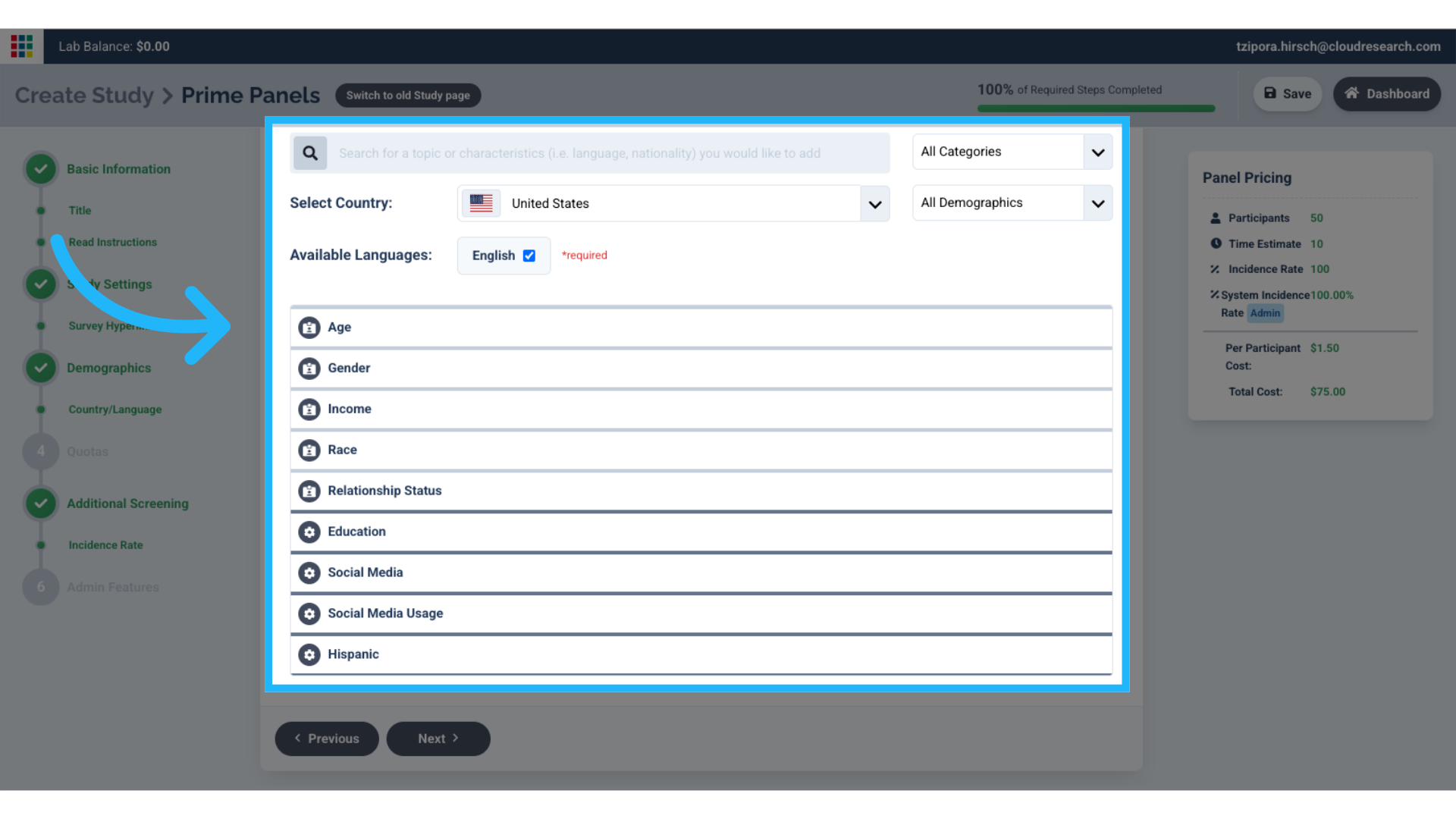
17. Enter study quotas information
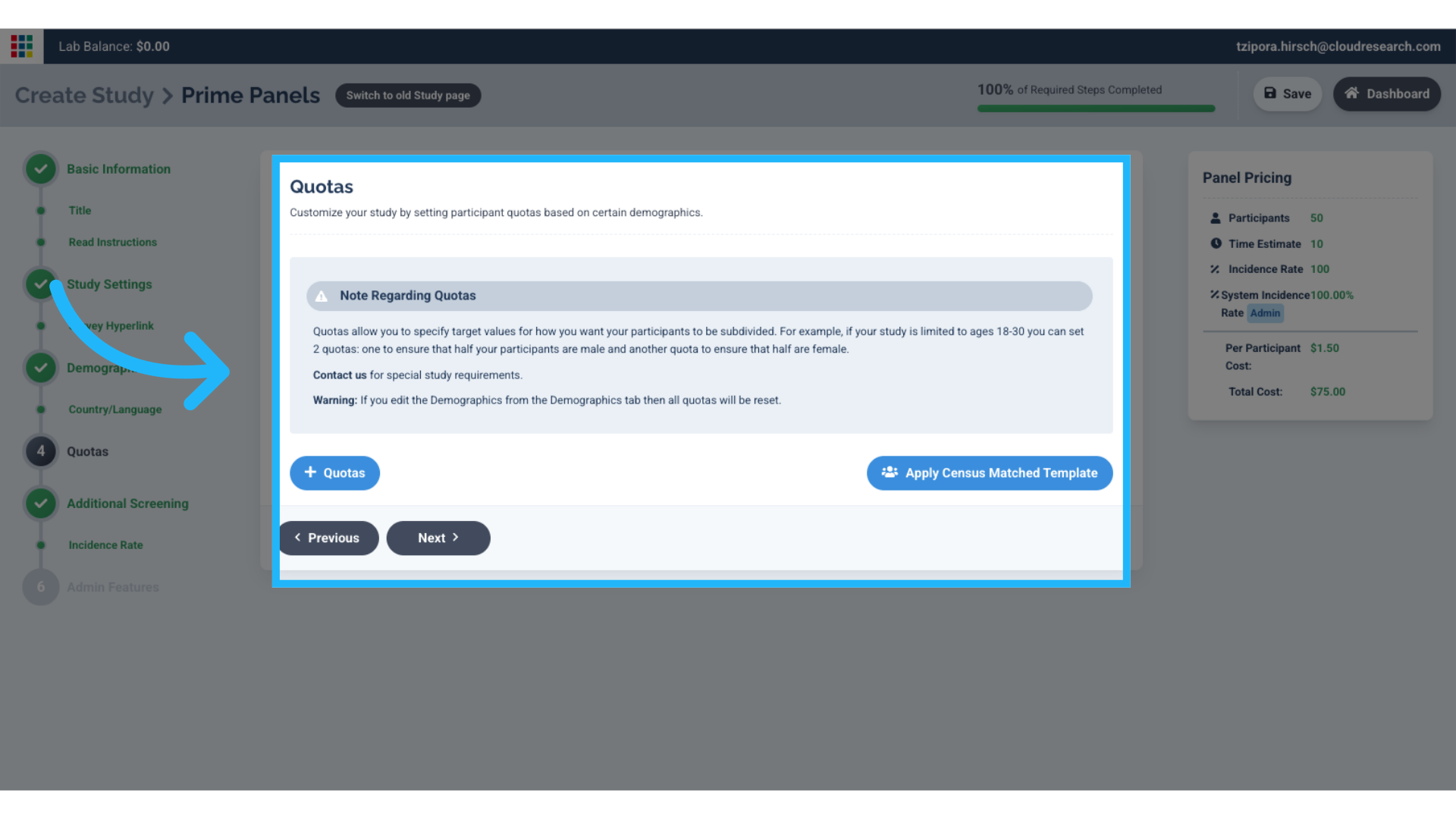
18. Enter Additional Screening Information
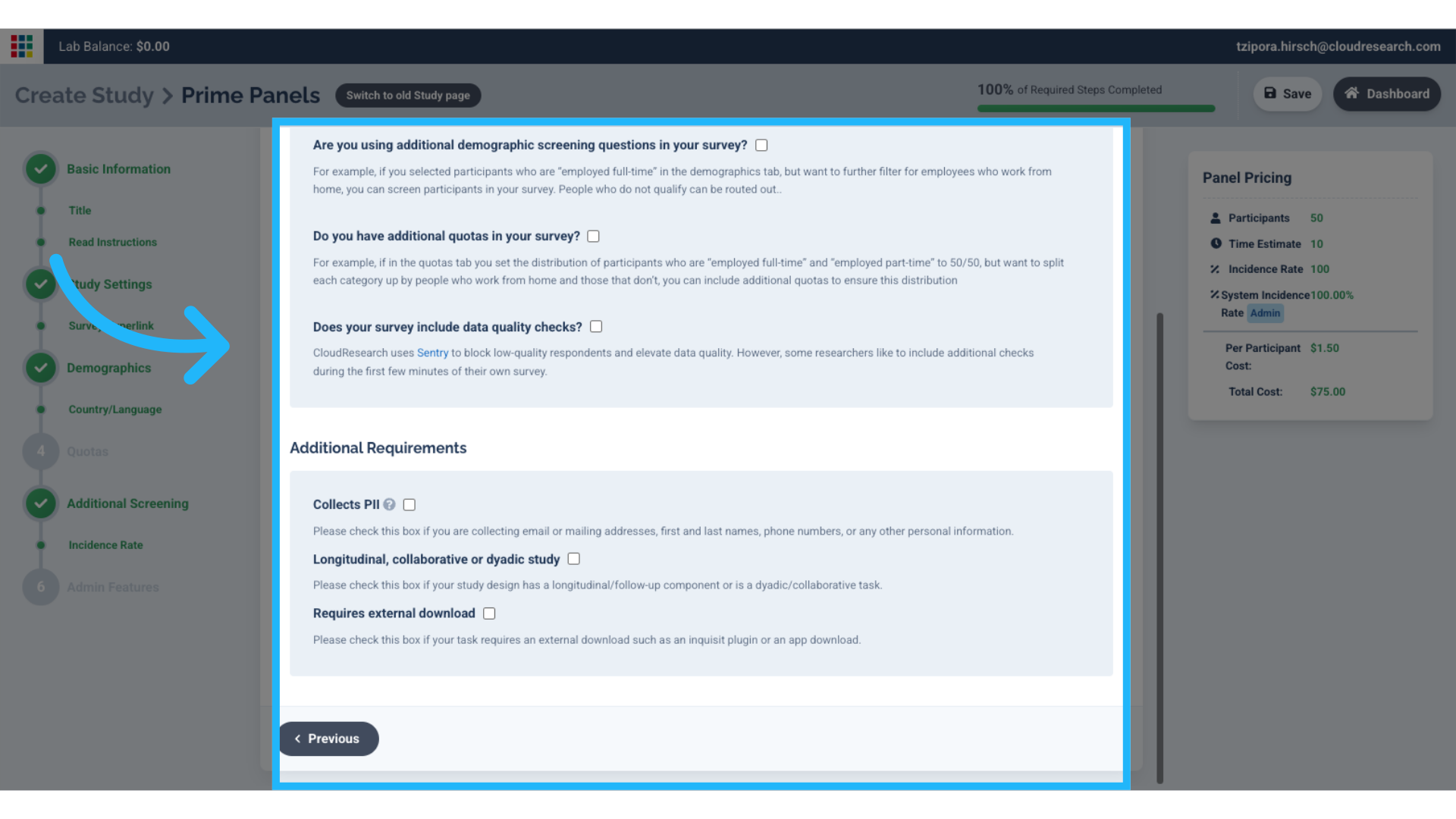
19. Save study
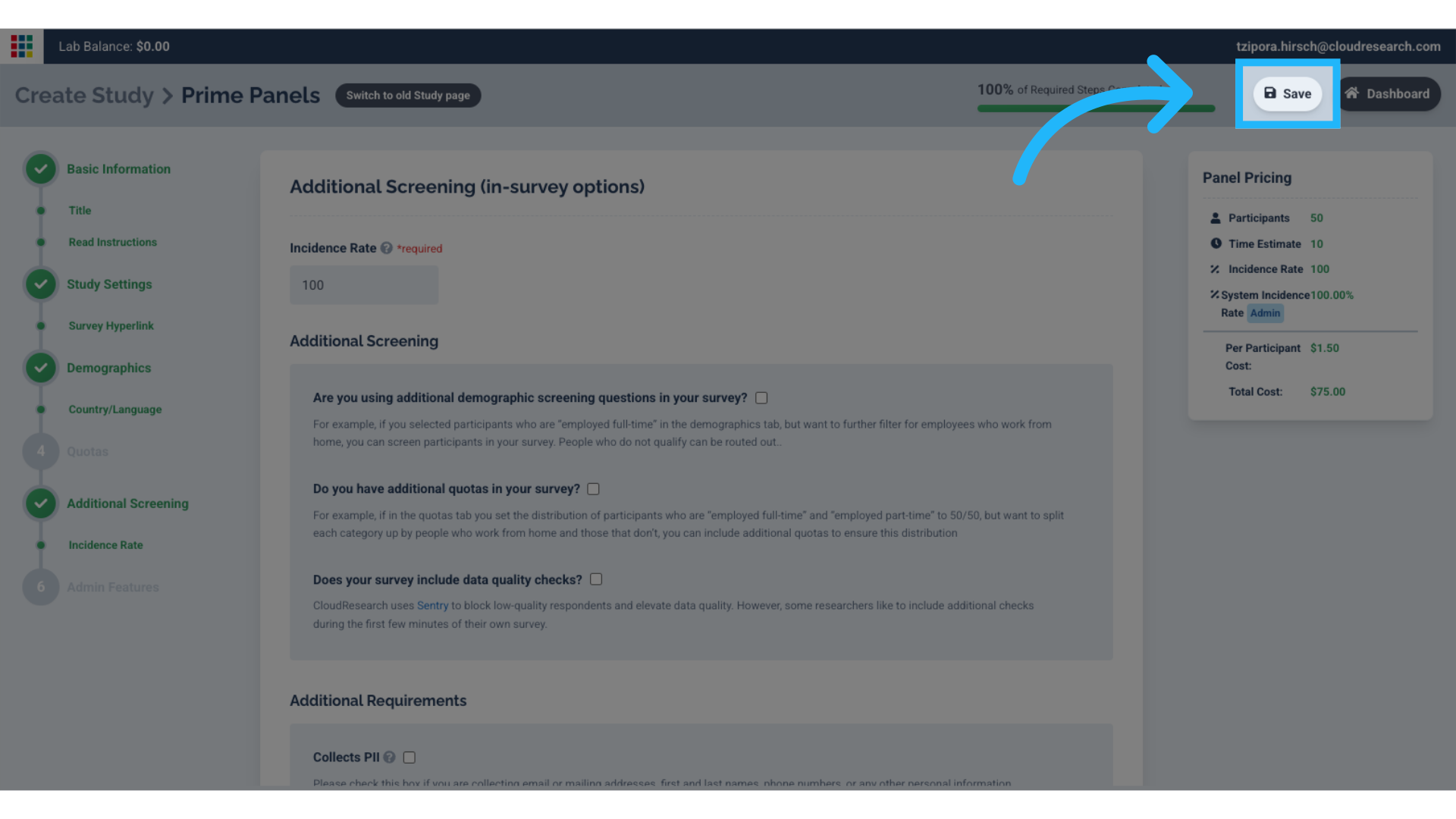
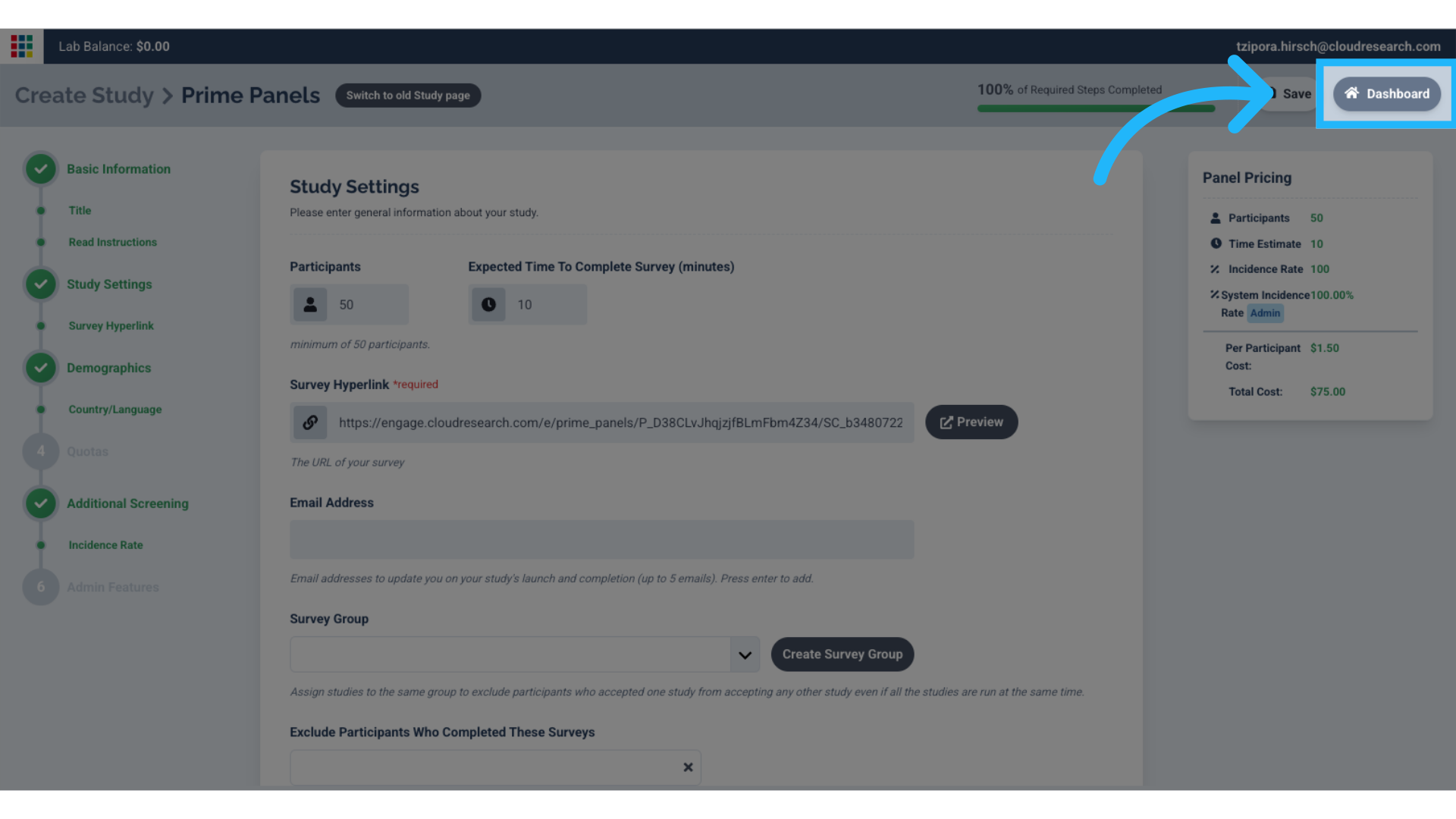
20. Go to the Dashboard
To preview or launch the survey, access the dashboard.
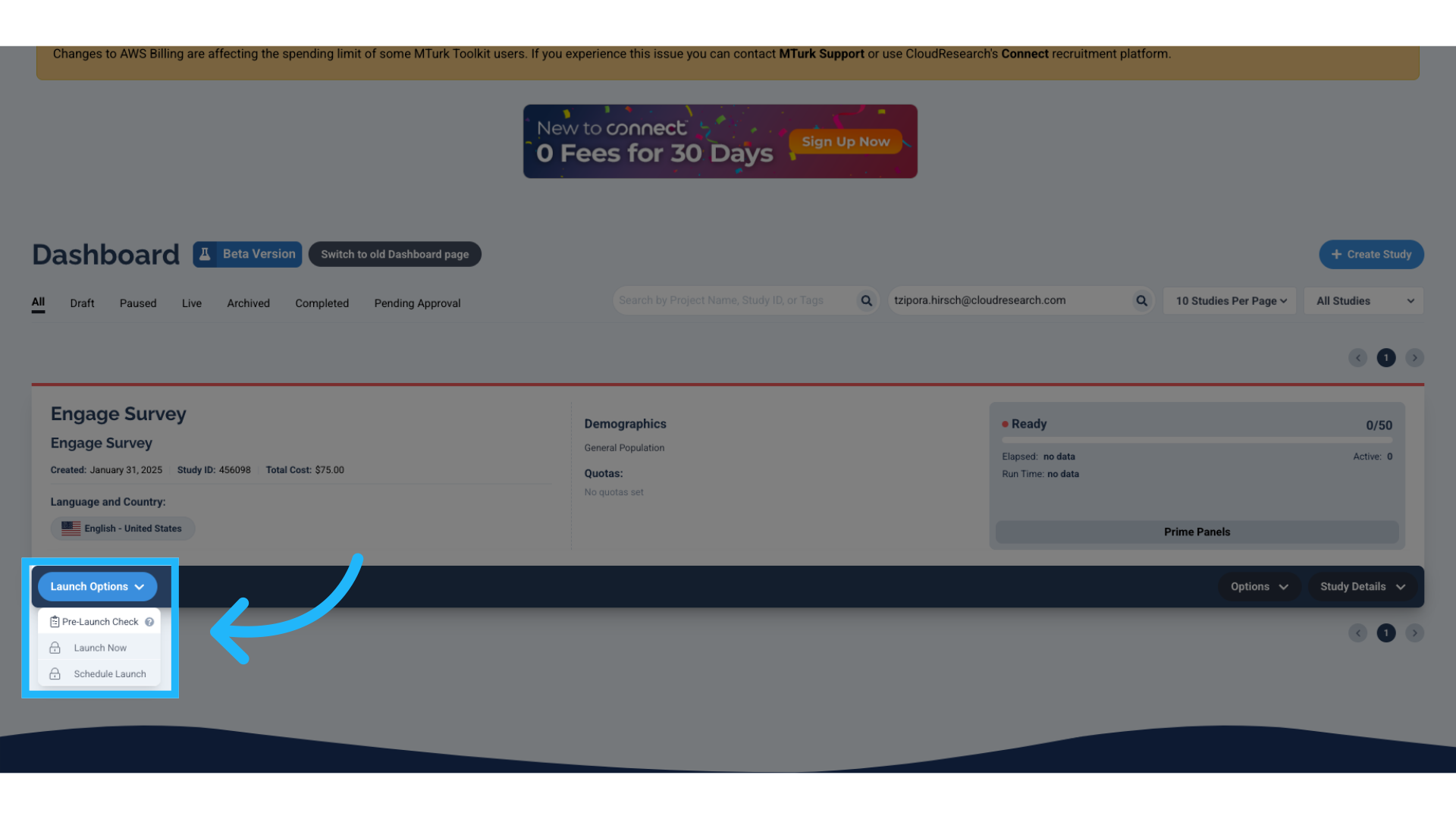
21. Launch survey
Select the Launch options where you can select:
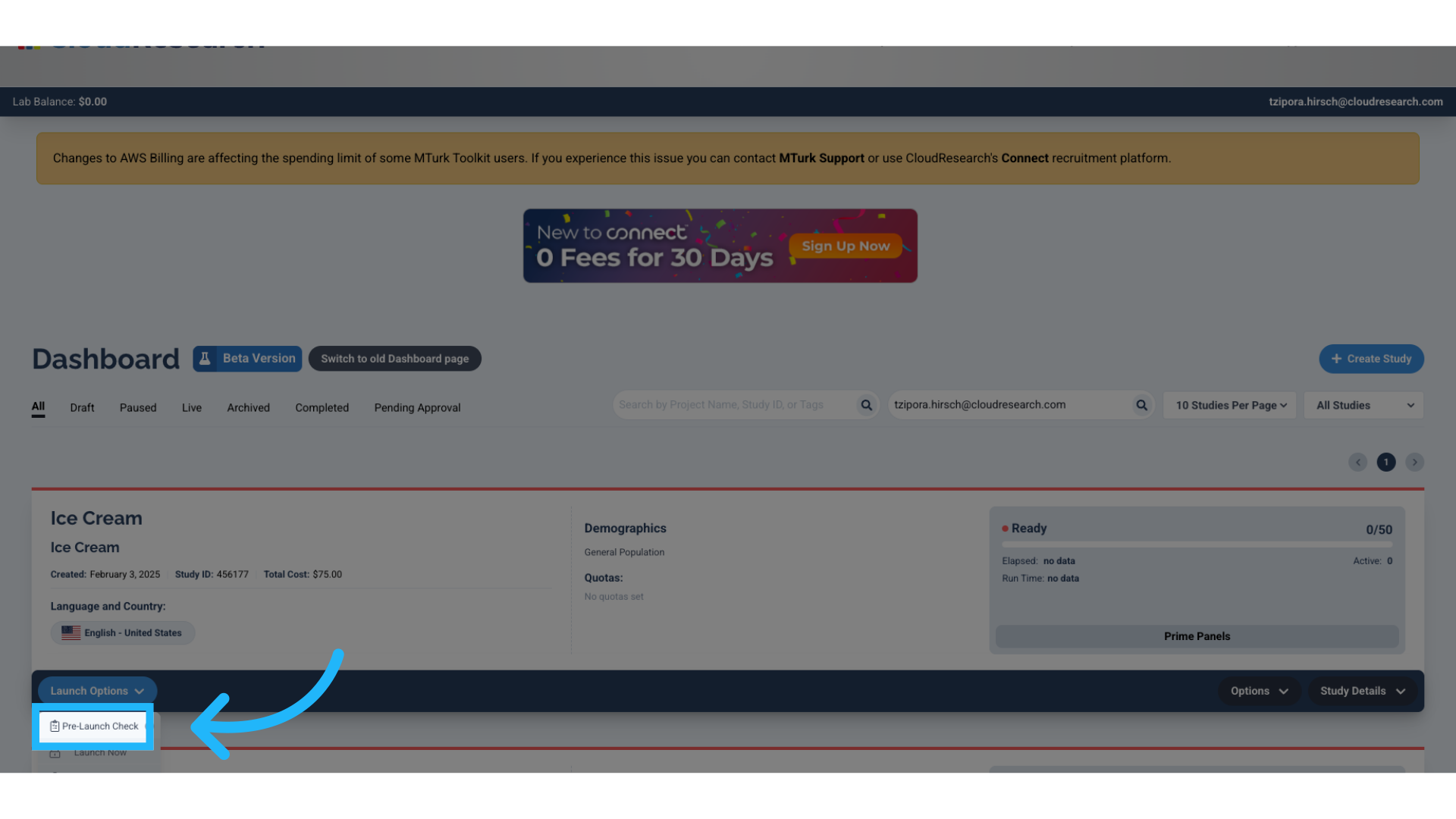
- Pre-launch check to preview your survey
- Launch now to immediately launch your survey
- Scheduled launch.
22. Example
This is how an Engage survey may look using Prime Panels.
23. Preview of Engage Survey
To proceed, select test study.
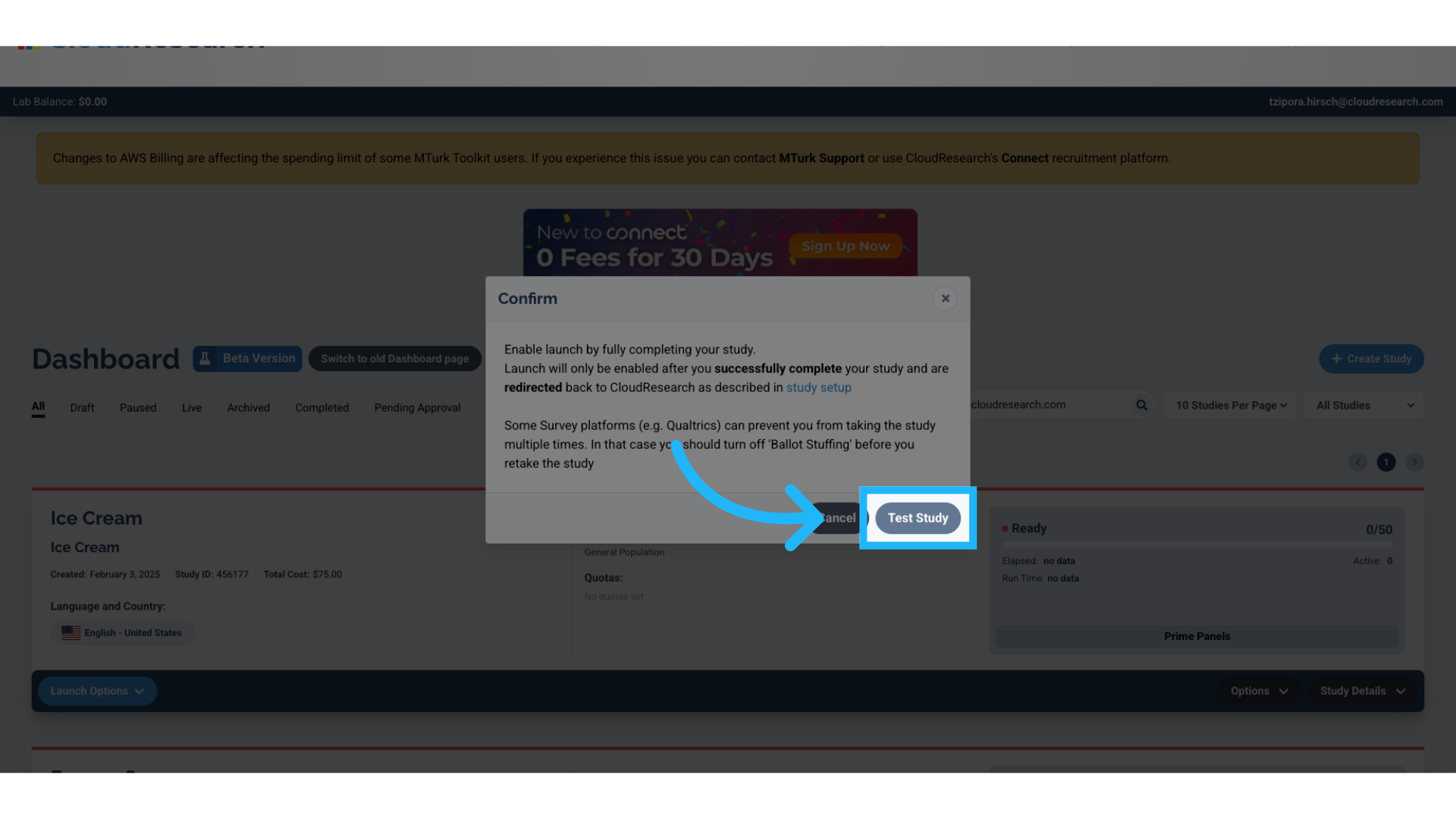
24. Click "Continue to Study"
You will be redirected to a blank page where you can select continue to study.

25. Take Survey
You can now take your Engage survey.
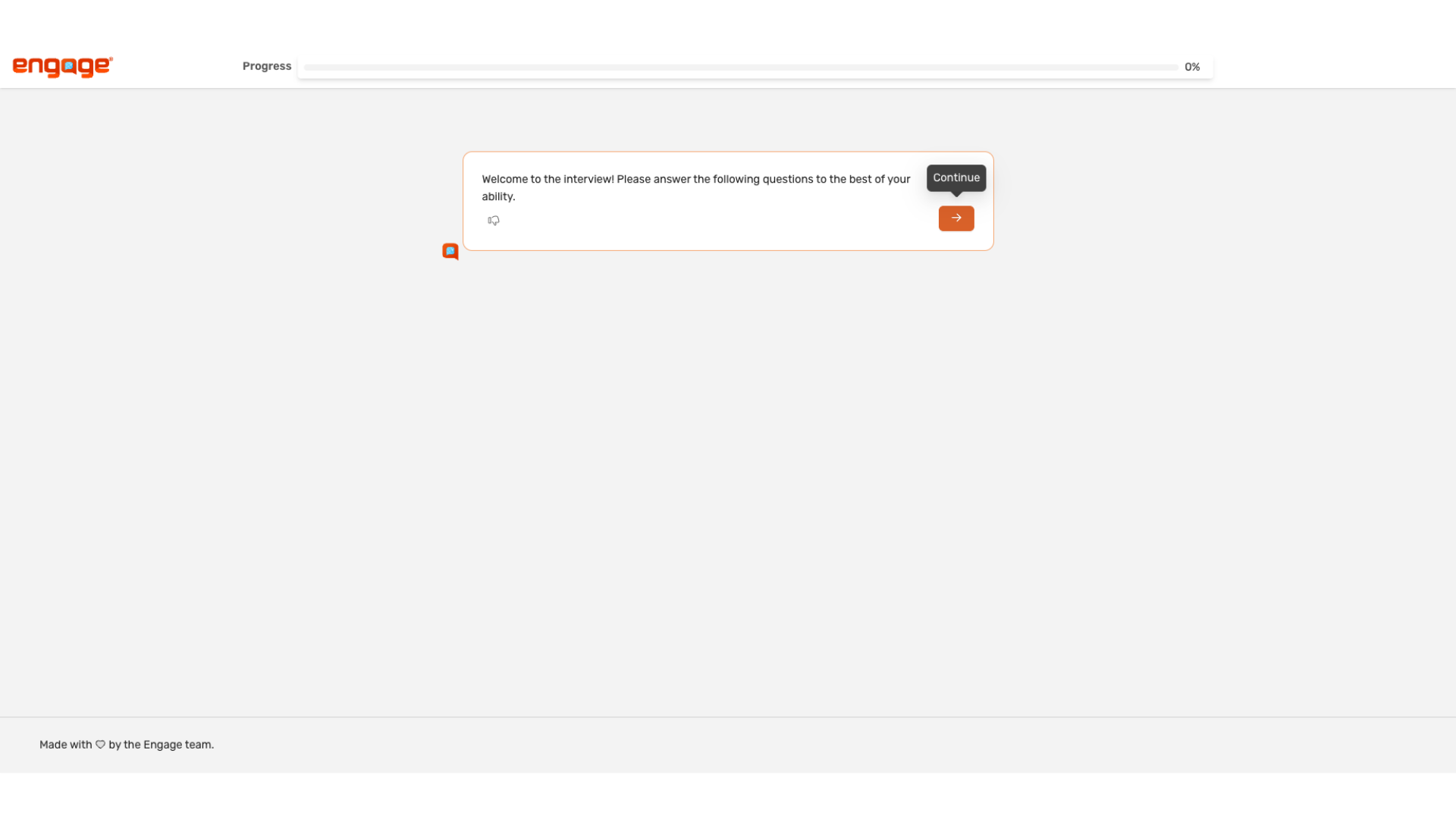
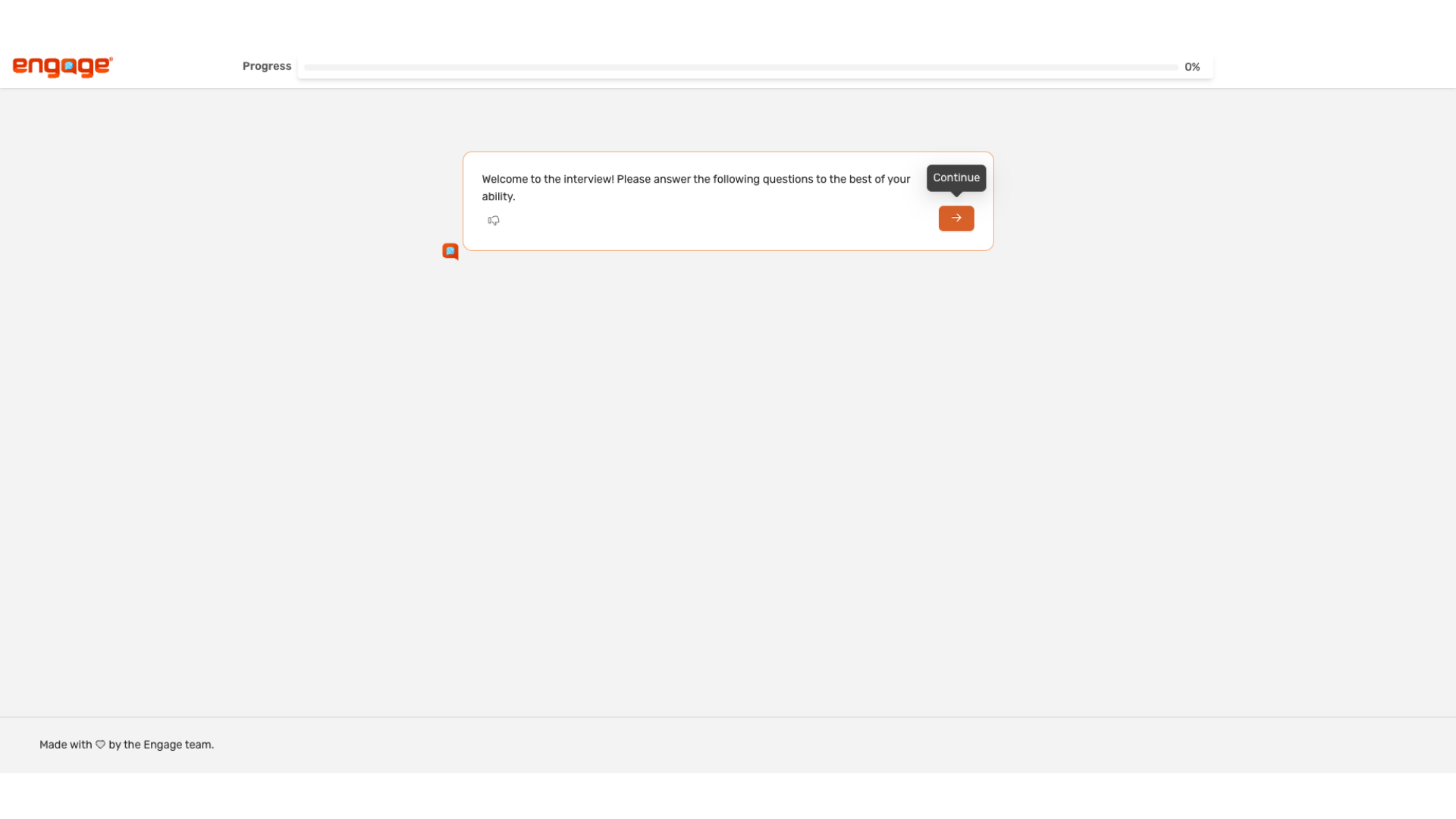
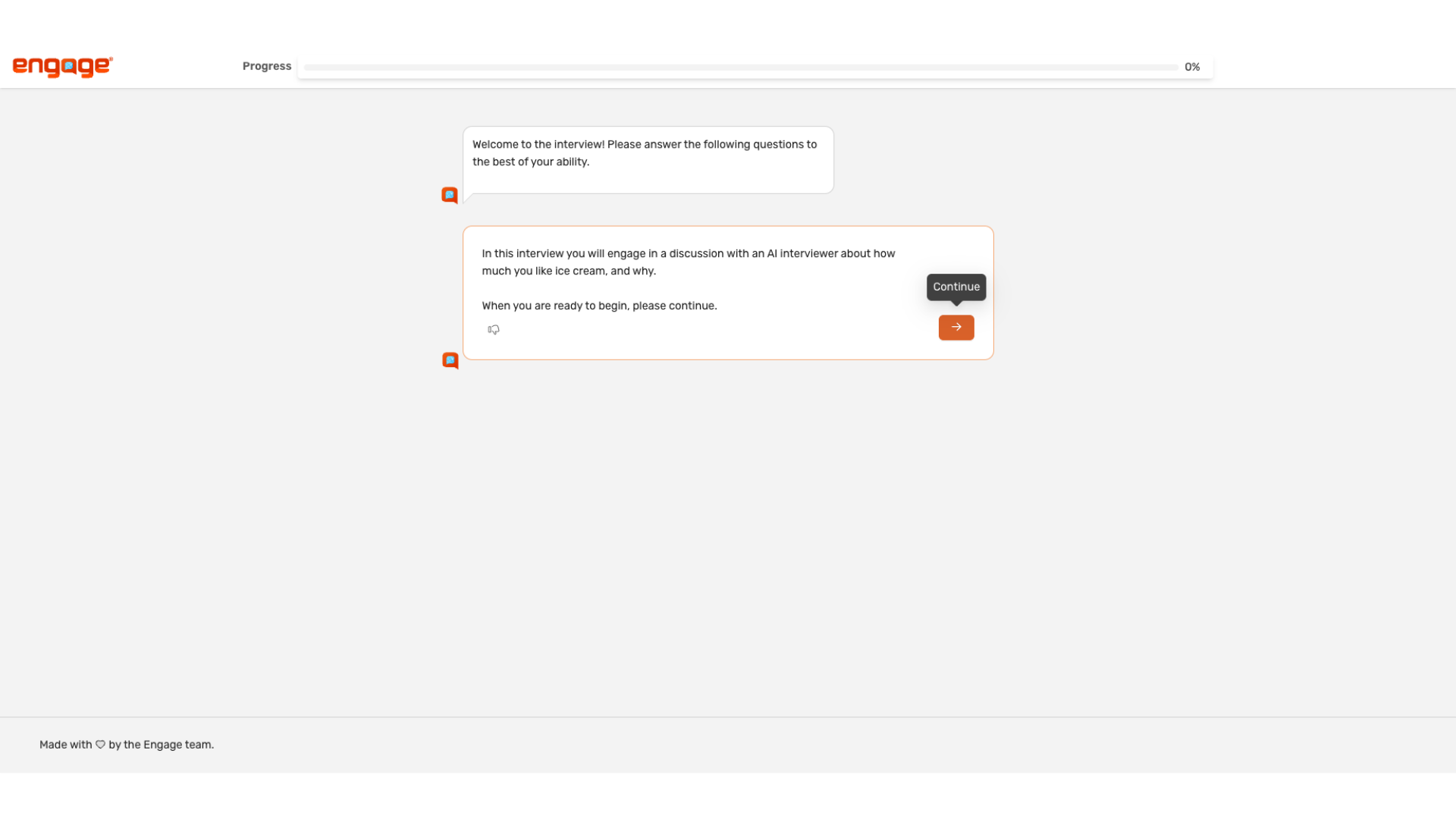
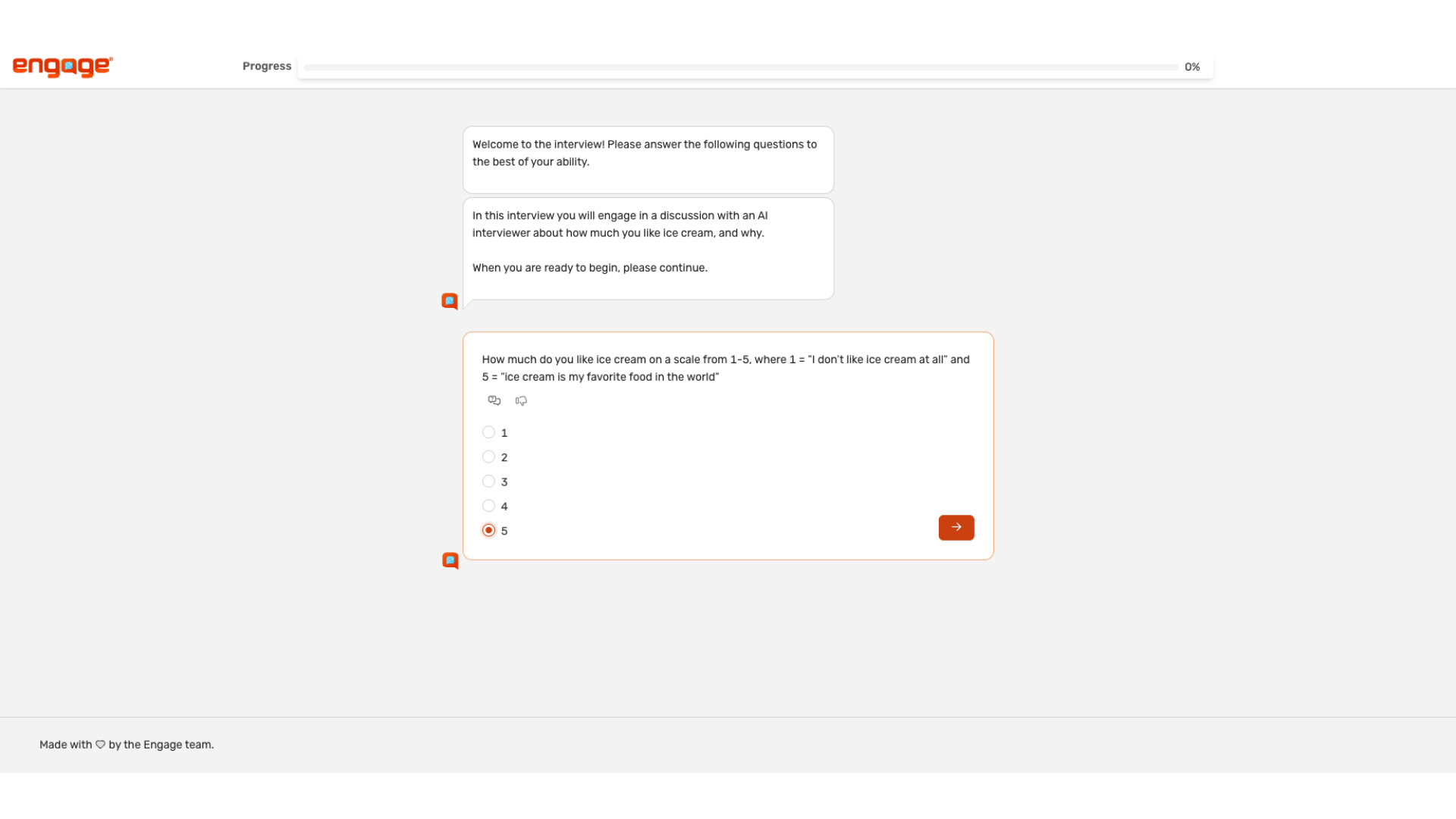
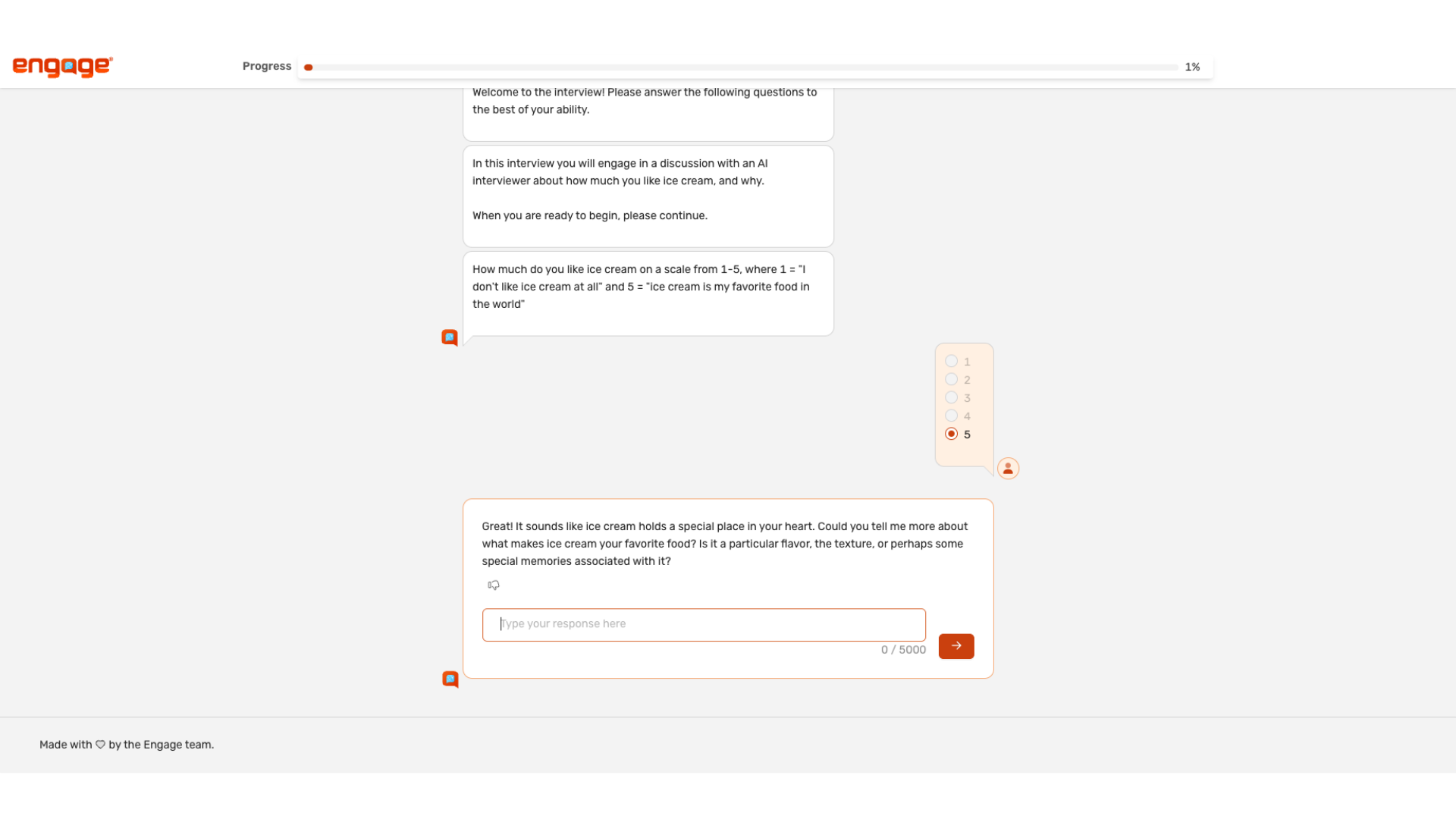
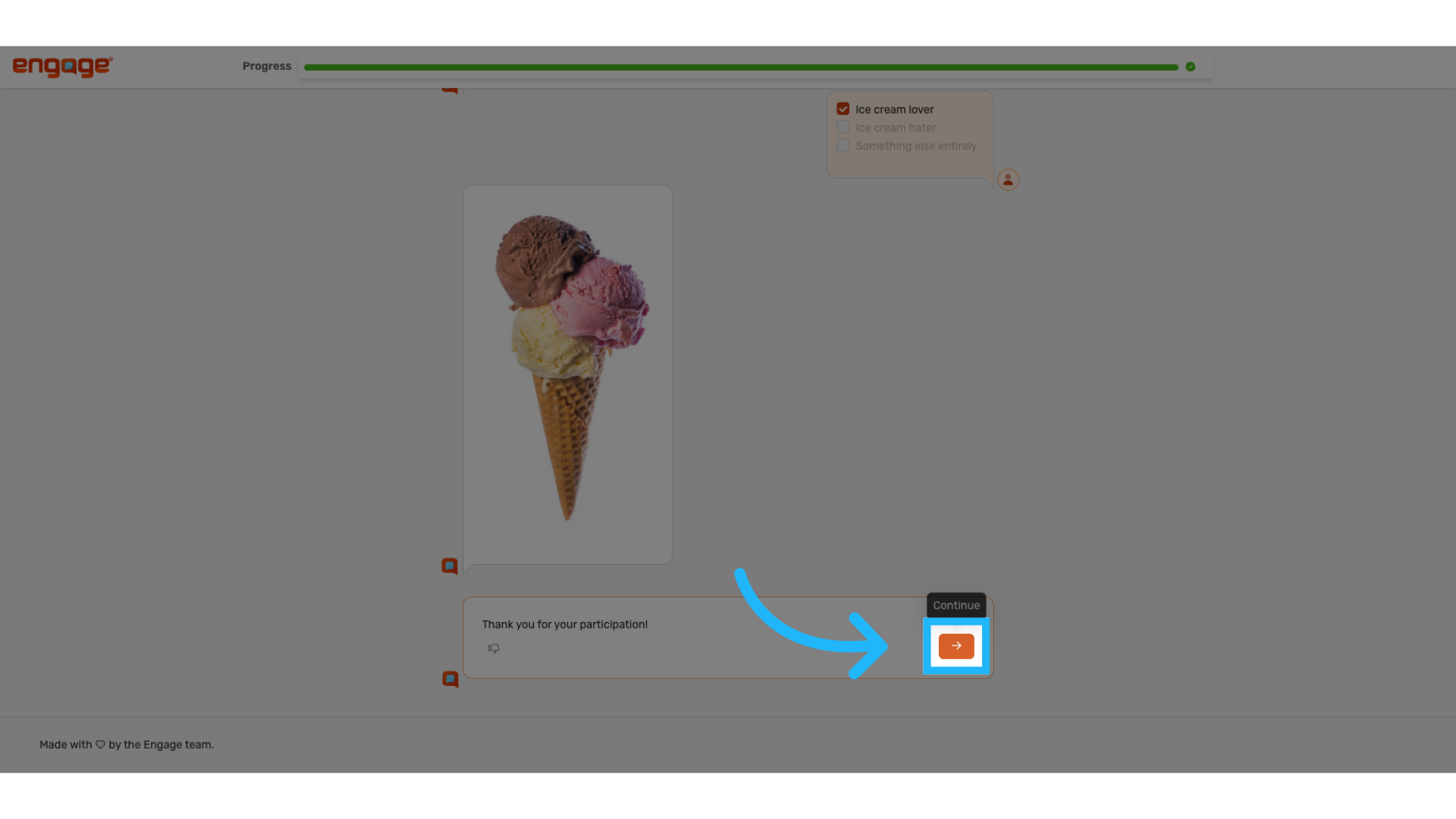
30. Complete Engage Survey
At the end of the survey, you can hit the next icon after the ending instructions.
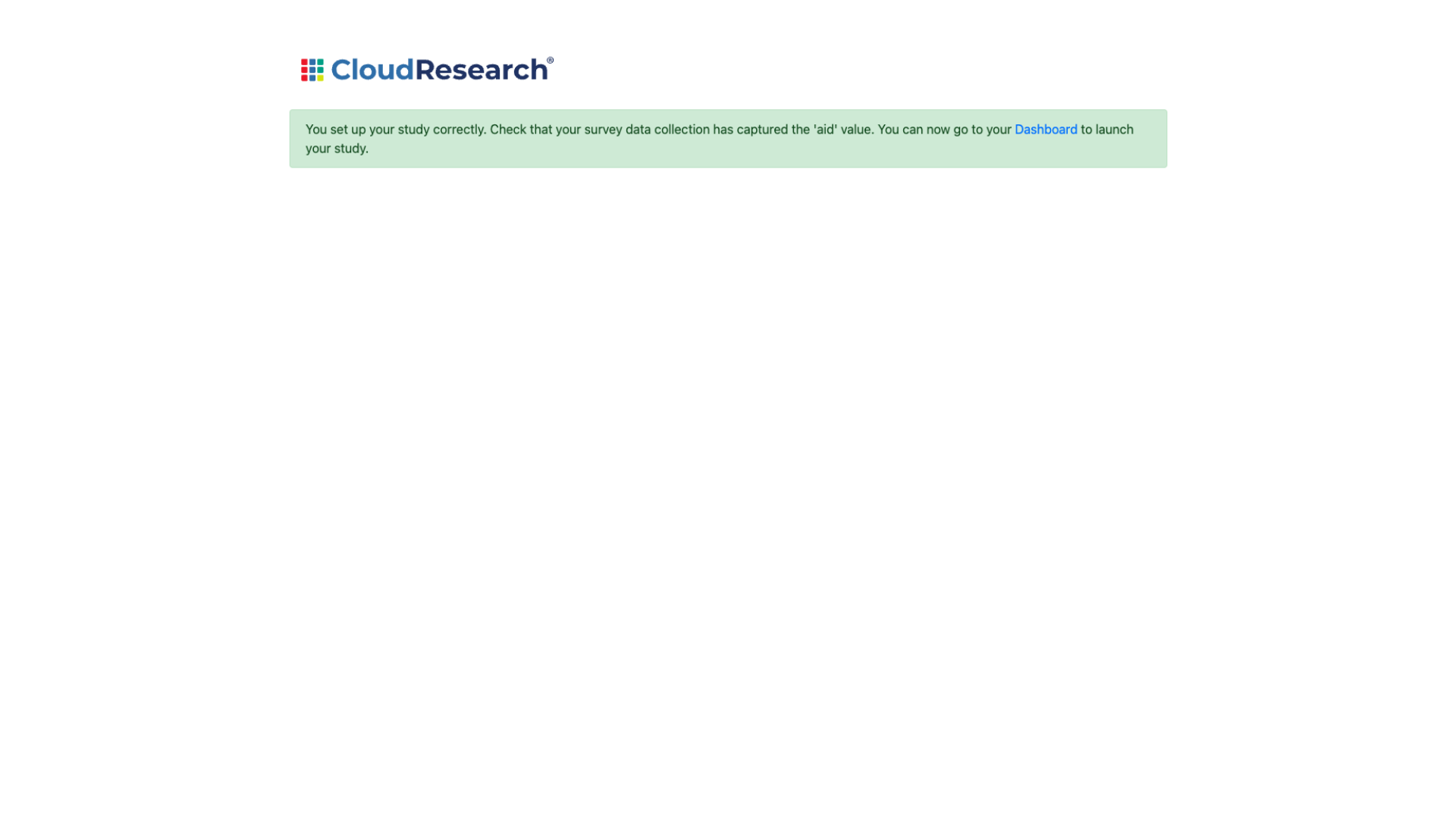
31. Pre-Launch Redirect
You will then be redirected to a standard Prime Panels redirect page. For study pre-launch, the redirect page will inform you that you set up your survey correctly and you can launch your study from the dashboard.
32. Completed Participant Redirect
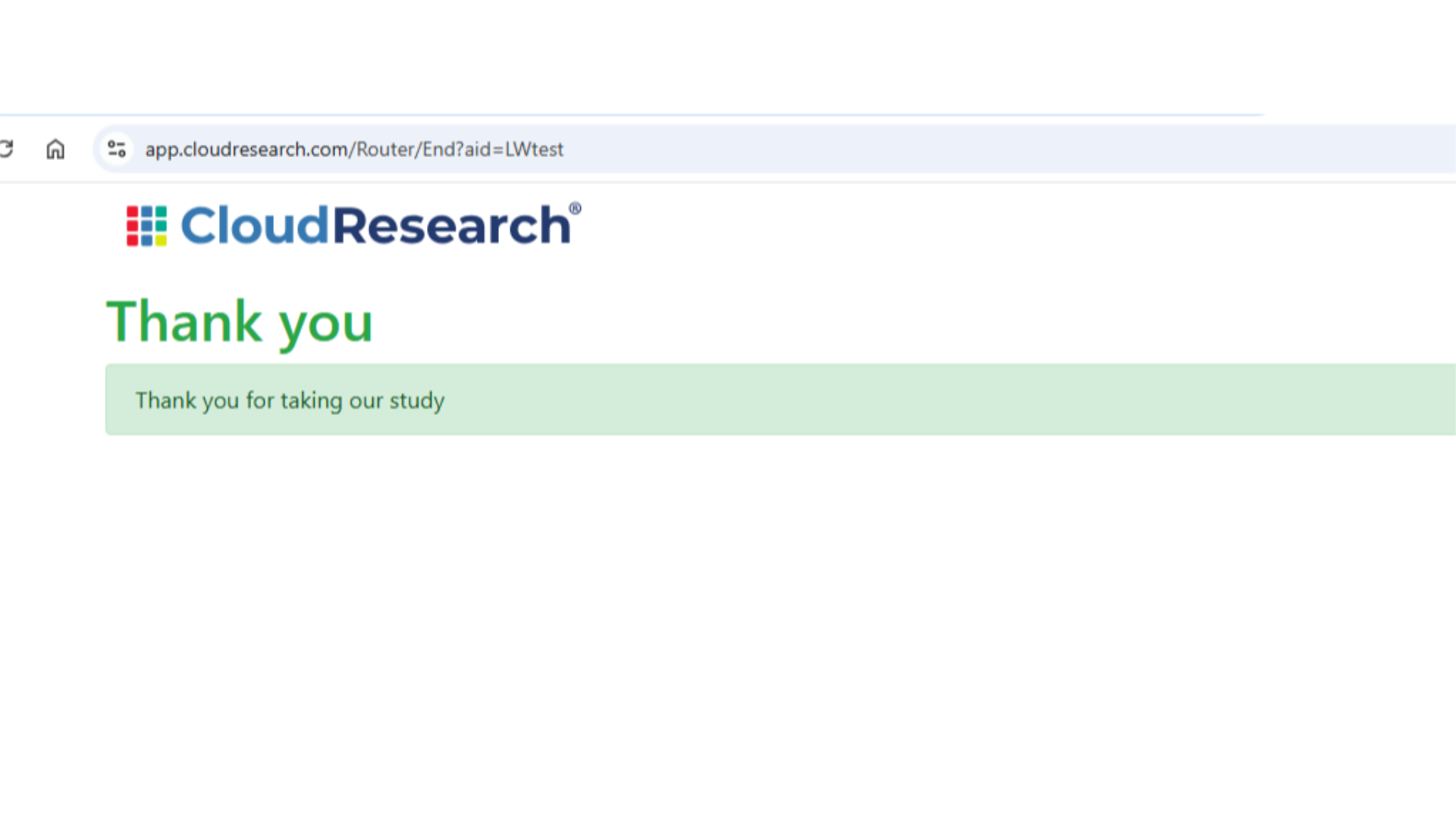
When participants complete your engage survey, the participants who completed the survey will be redirected to a page that thanks them for taking the study.
33. Terminated Participant Redirect
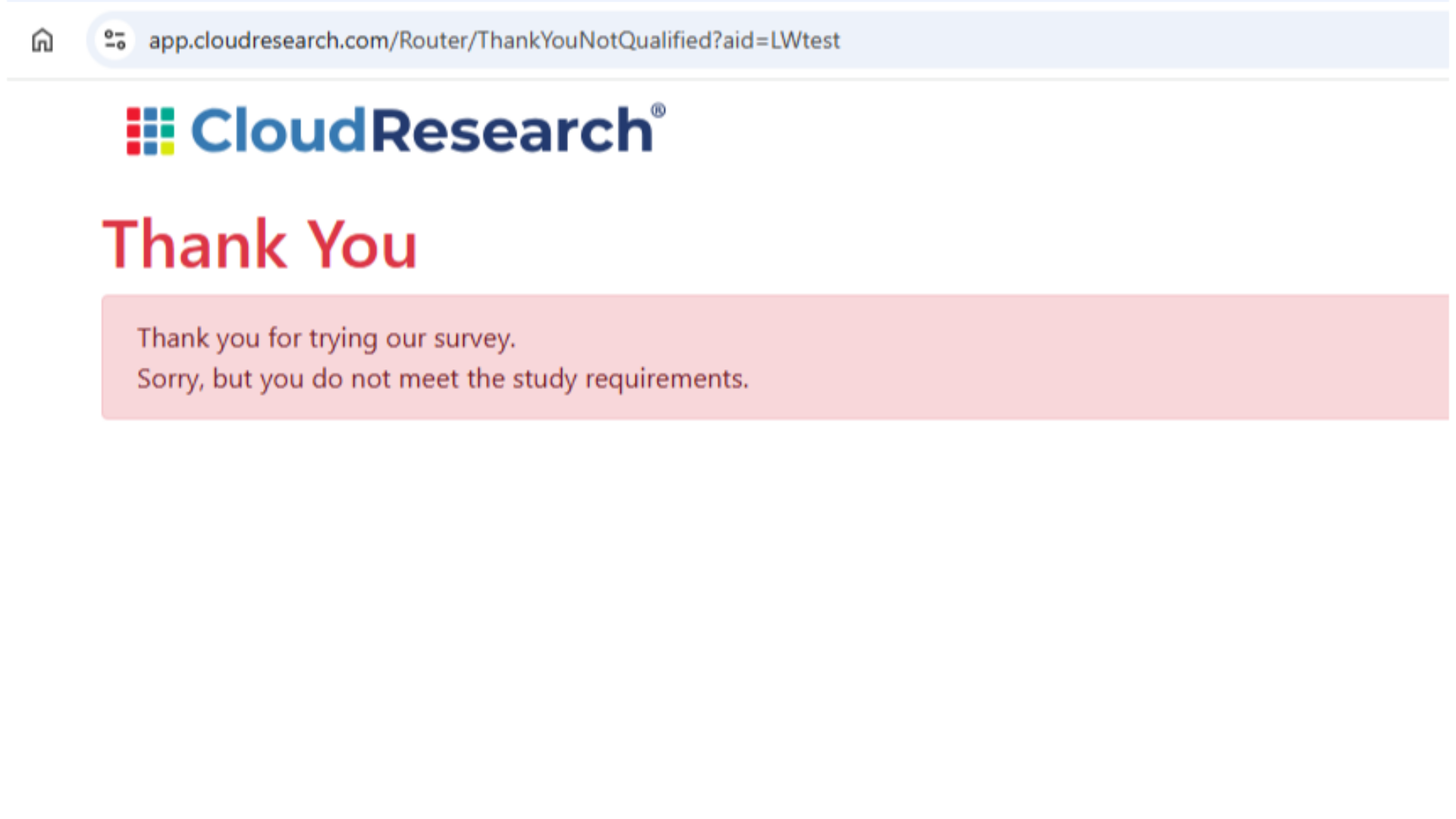
Those who were terminated from the study will be redirected to a page that thanks them and informs them they do not meet the study requirements.

Comments
0 comments
Please sign in to leave a comment.