
Blocks are powerful organizational tools in Engage that help you structure surveys and manage questions efficiently. When creating a new study, you automatically receive a default block where all questions are initially placed. You can create multiple blocks to organize different sections of your survey—for example, grouping related questions like demographics together.
Login to Engage
1. Collapse and Expand Blocks
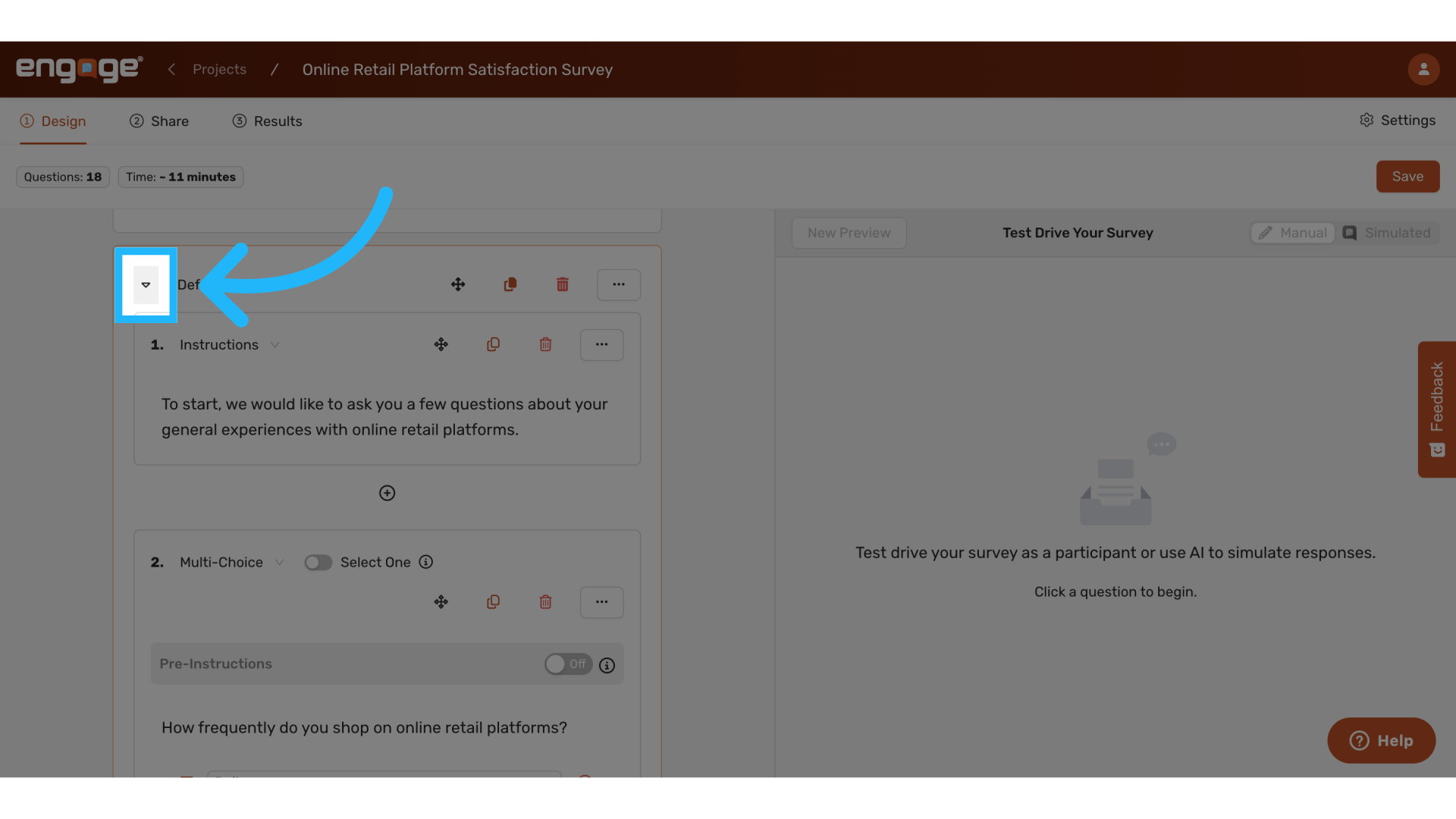
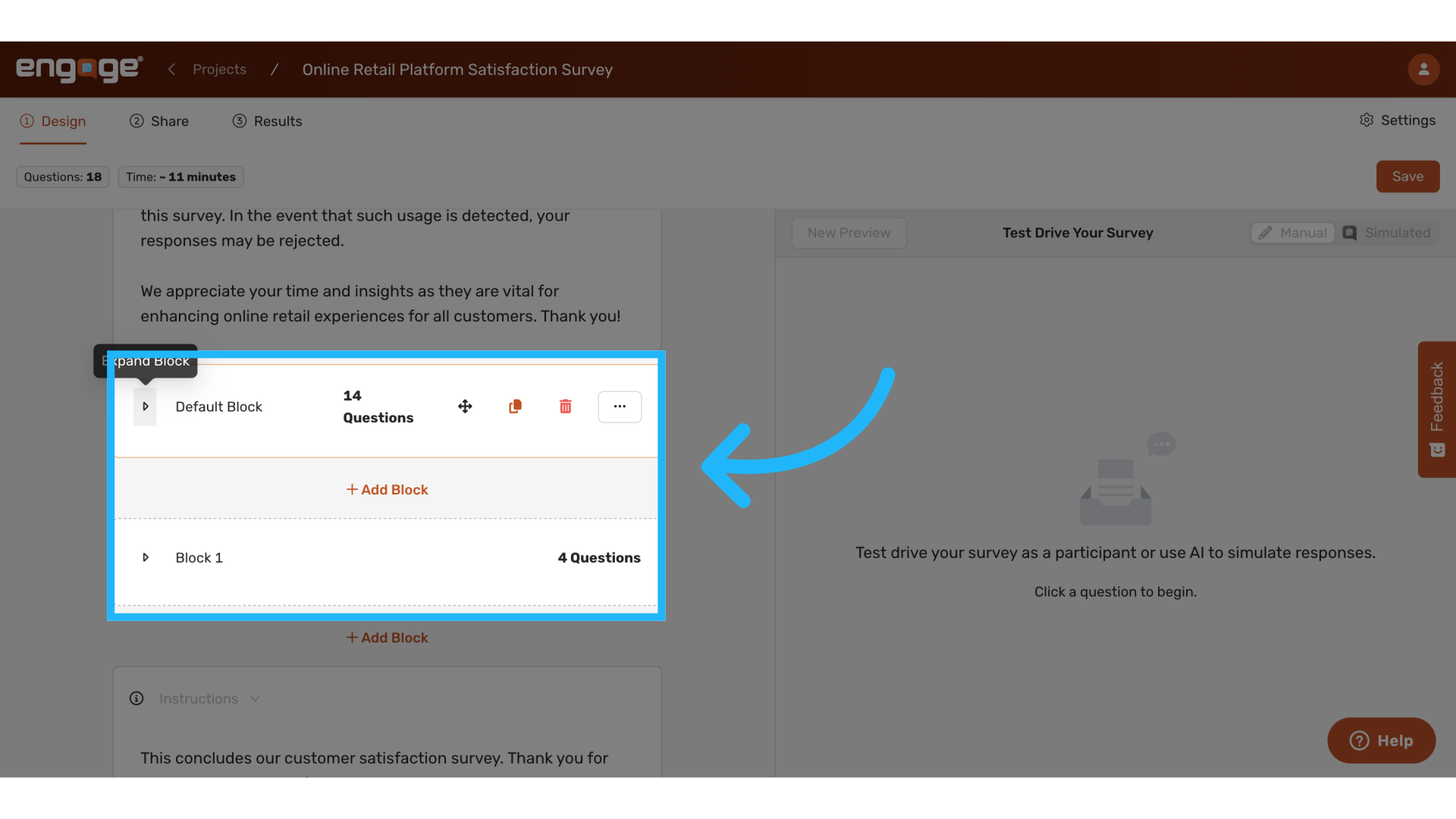
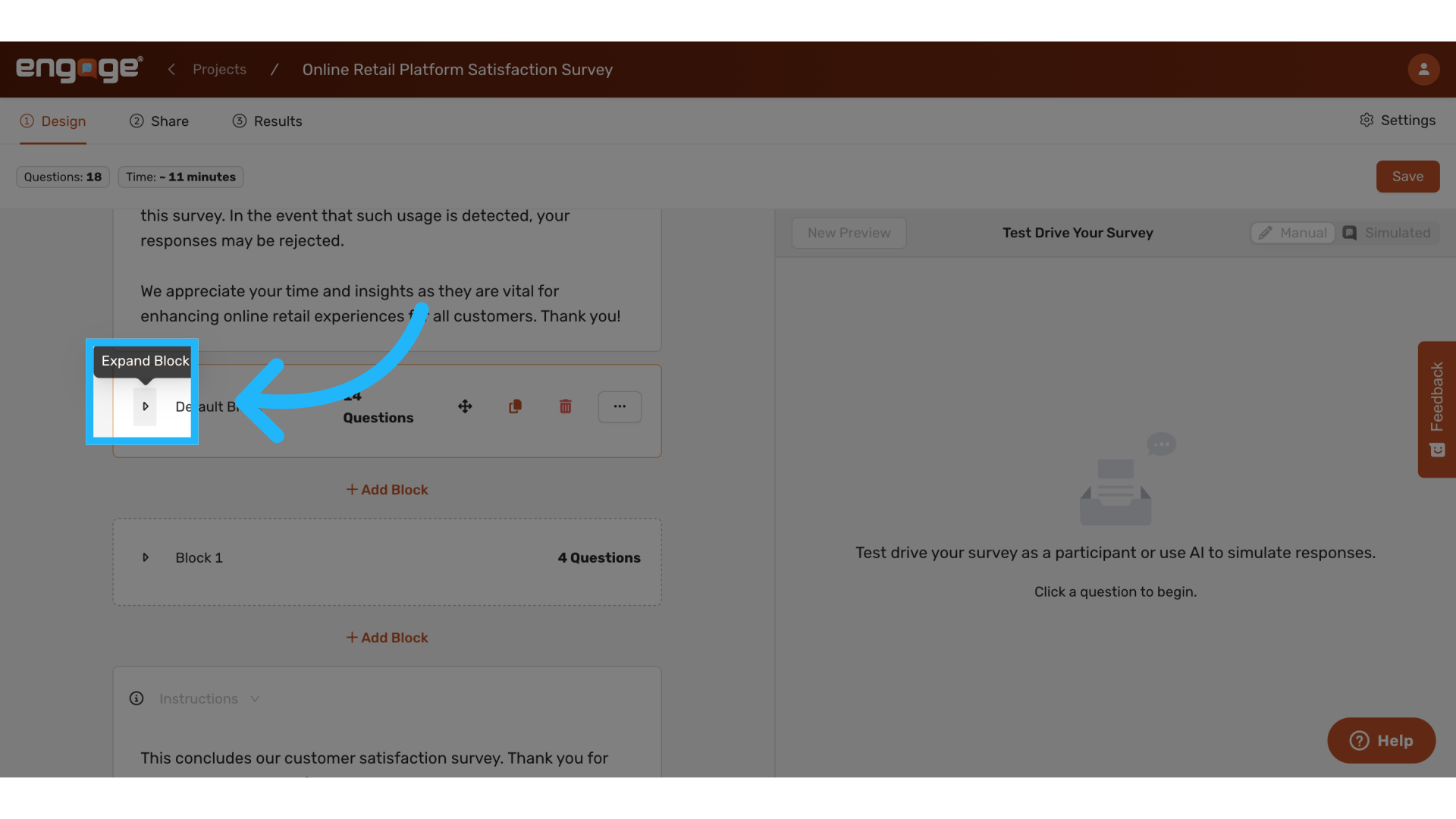
For easier management of large surveys, you can temporarily hide block contents, click the collapse icon to minimize a block and click again to expand the block. Collapsing provides a cleaner view of your overall survey structure.
2. Rename Blocks
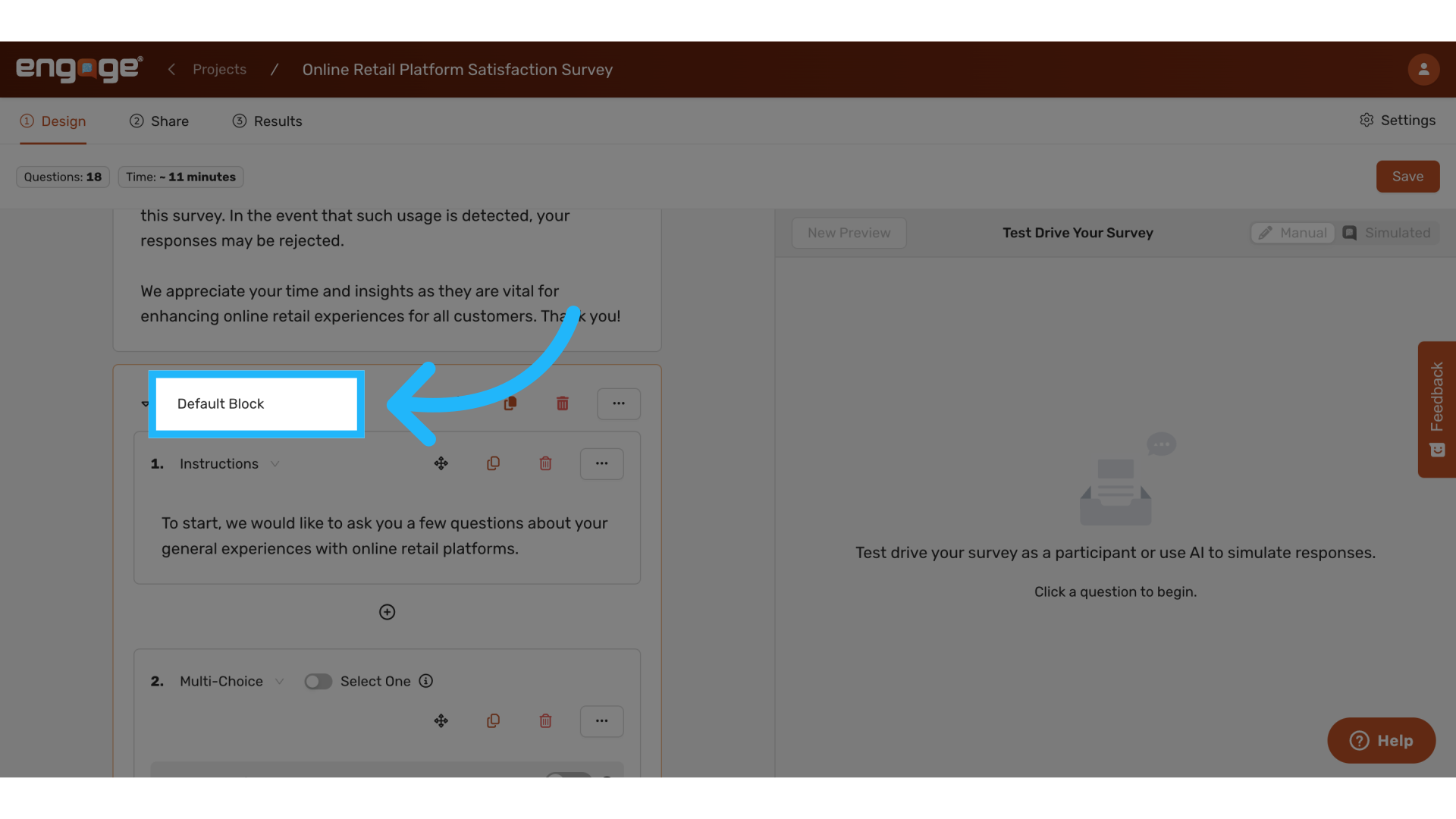
To rename a block, double-click on the current block name, type the new name, and press Enter to save.
3. Move Blocks Using Drag and Drop
You can easily move questions between blocks using drag and drop. Click and hold a question, then drag it to the desired location in any block. If a block is collapsed, it will automatically expand when you drag a question to it.
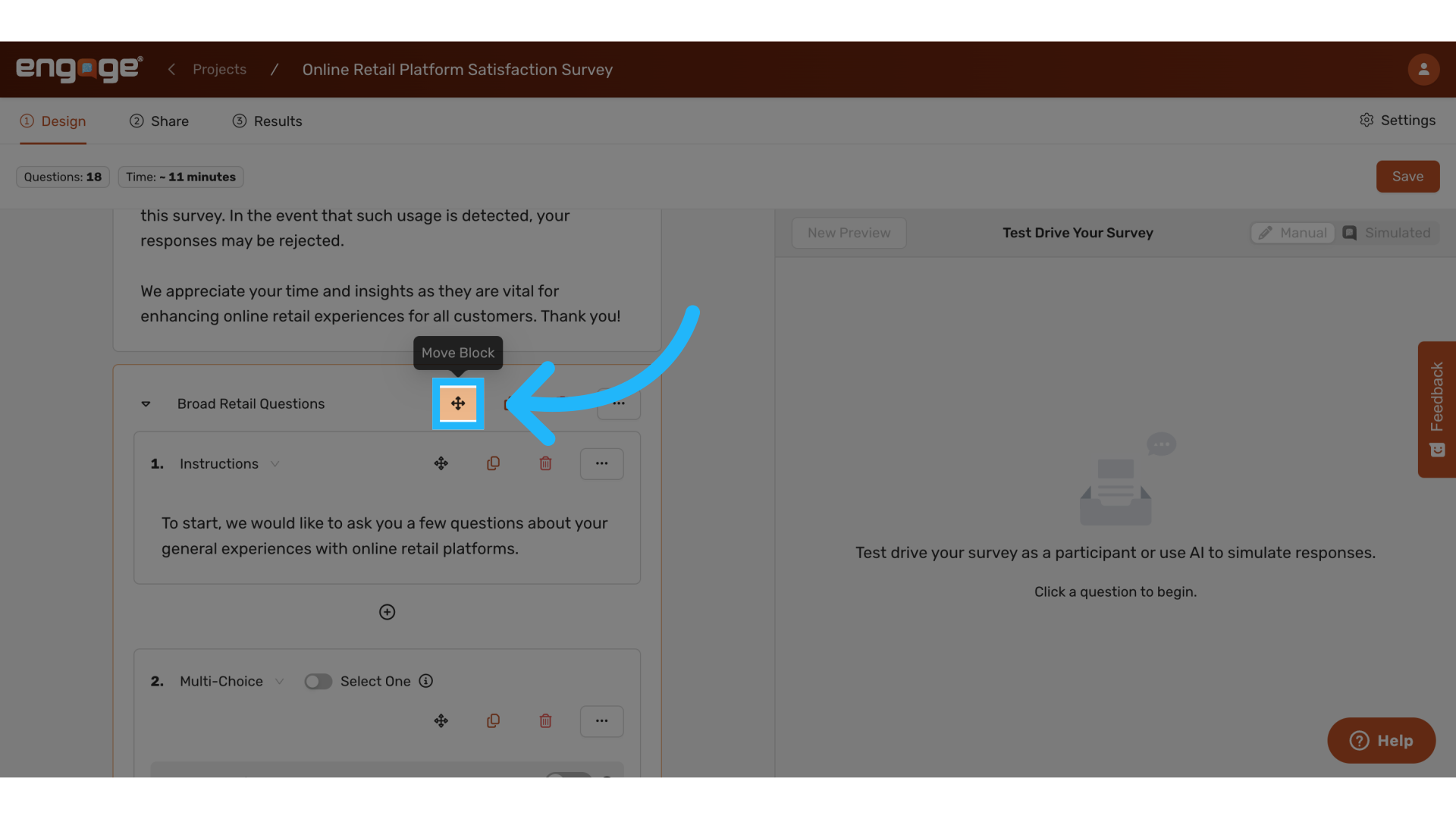
4. Menu Based Movement
In addition to drag and drop, you can use menu options to move questions or blocks, which is especially helpful for mobile users or when working with very long surveys.
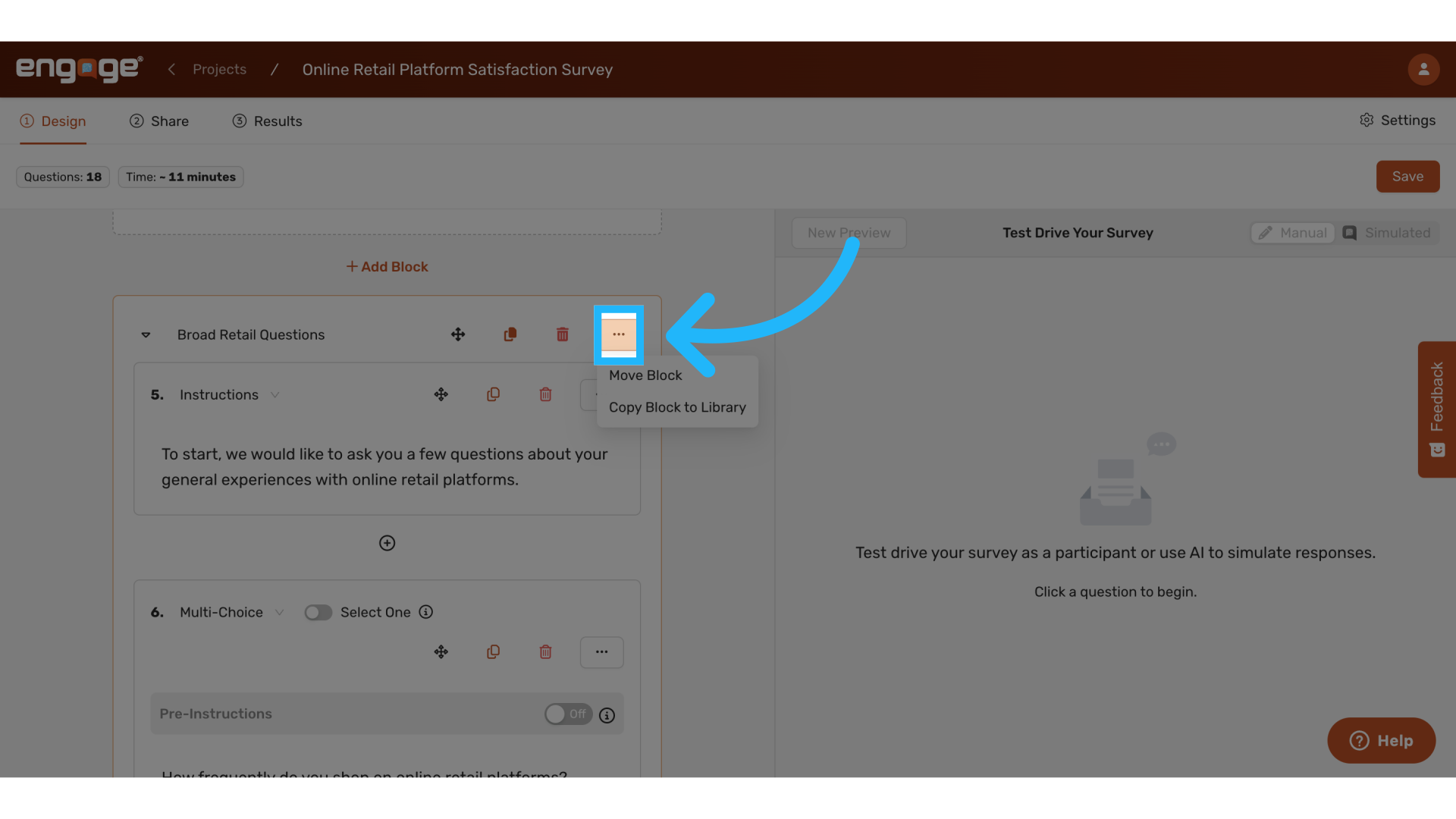
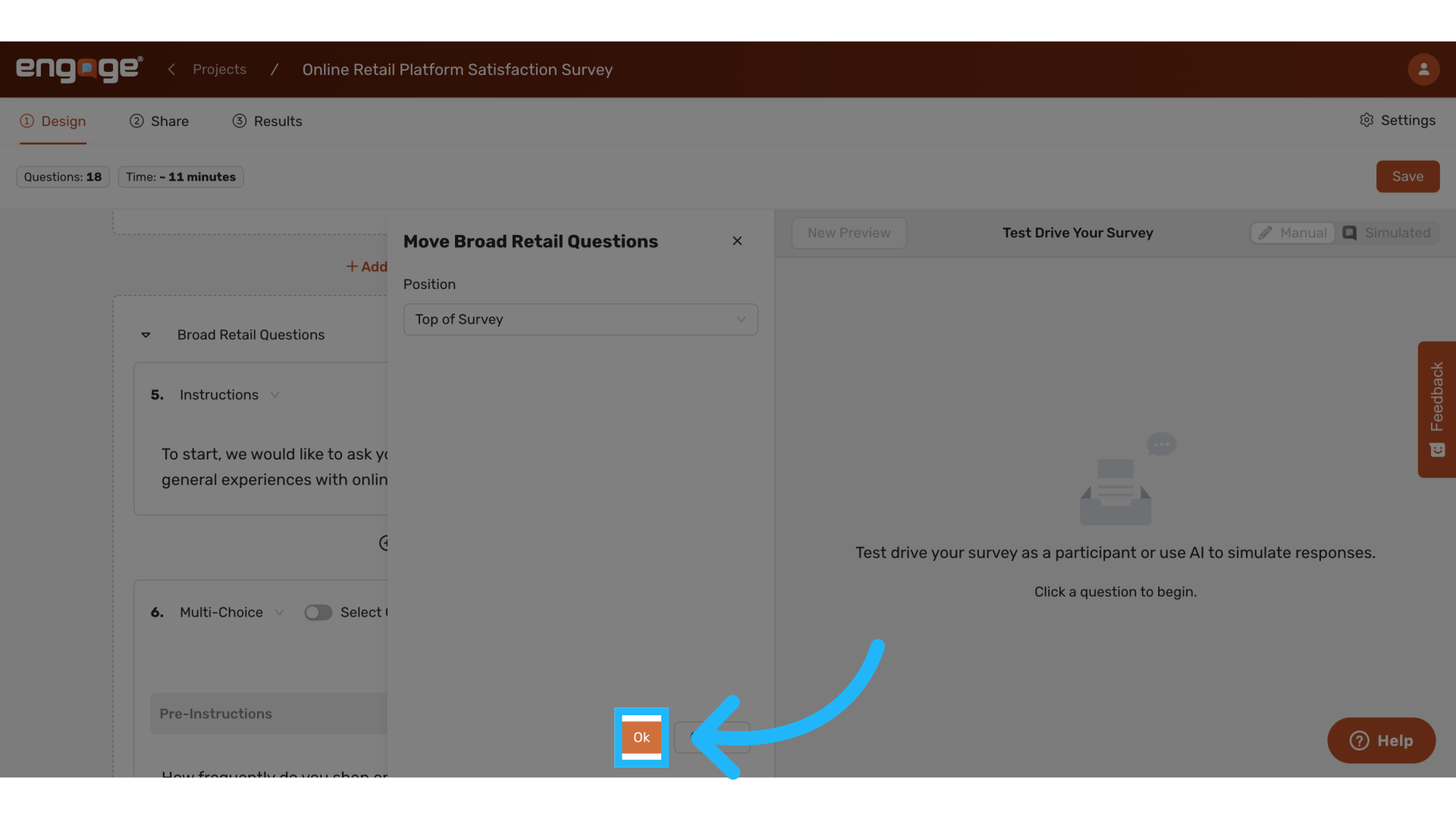
Use the "Move Block" option to reposition entire blocks within your survey.
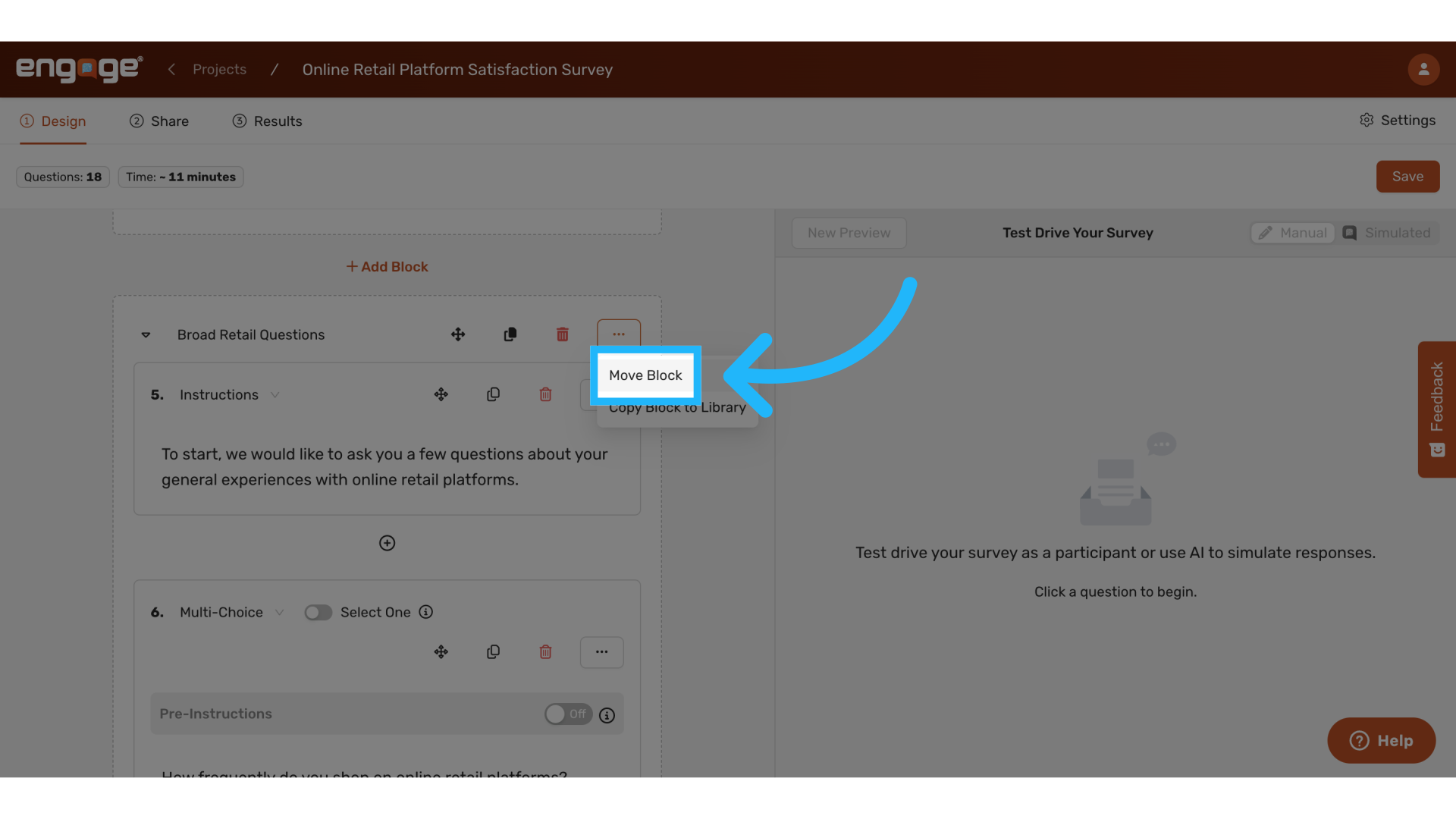
Select where you want to move the block to.
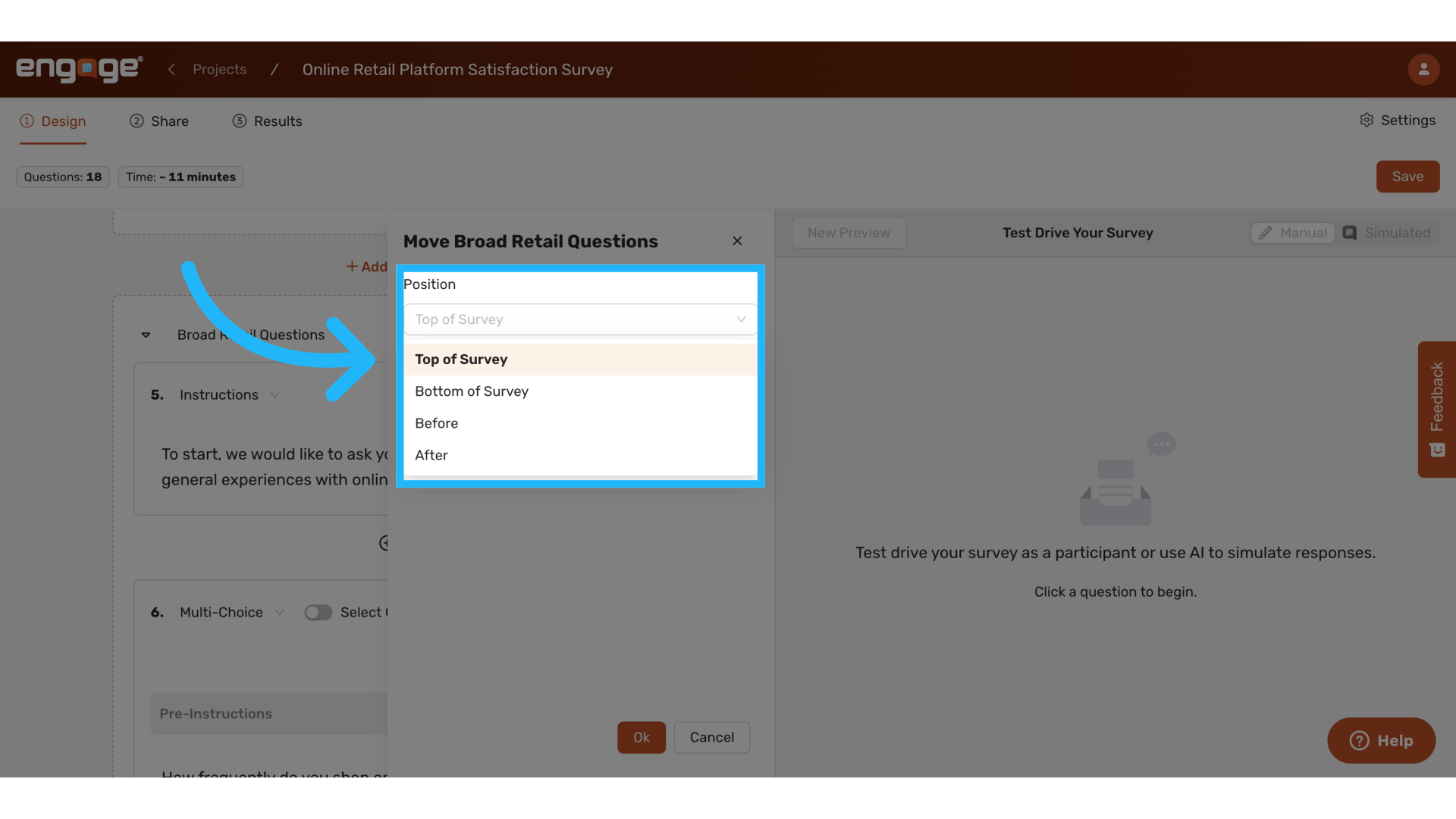
Save the changes by pressing okay.
5. Cloning and Deleting Blocks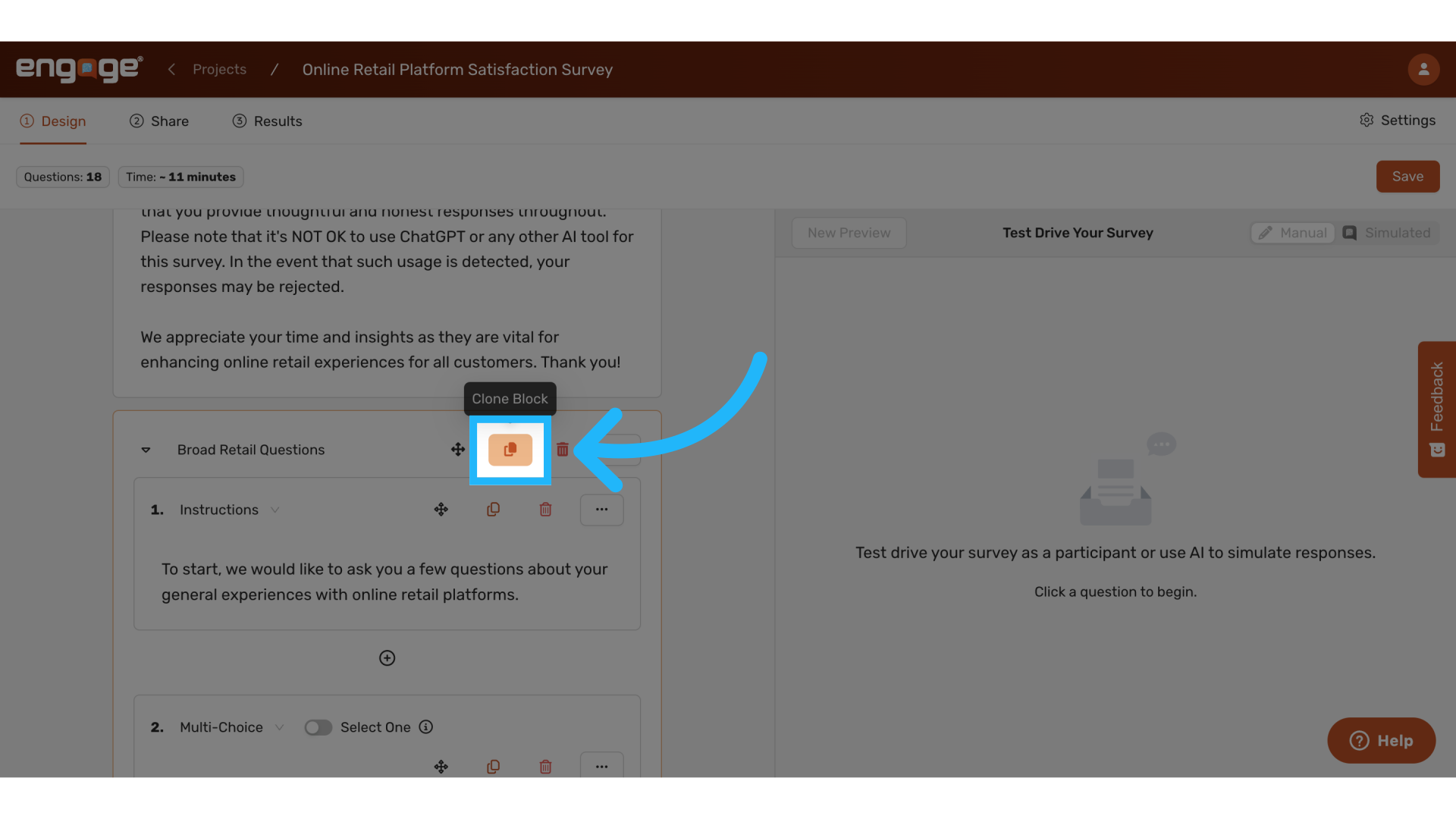
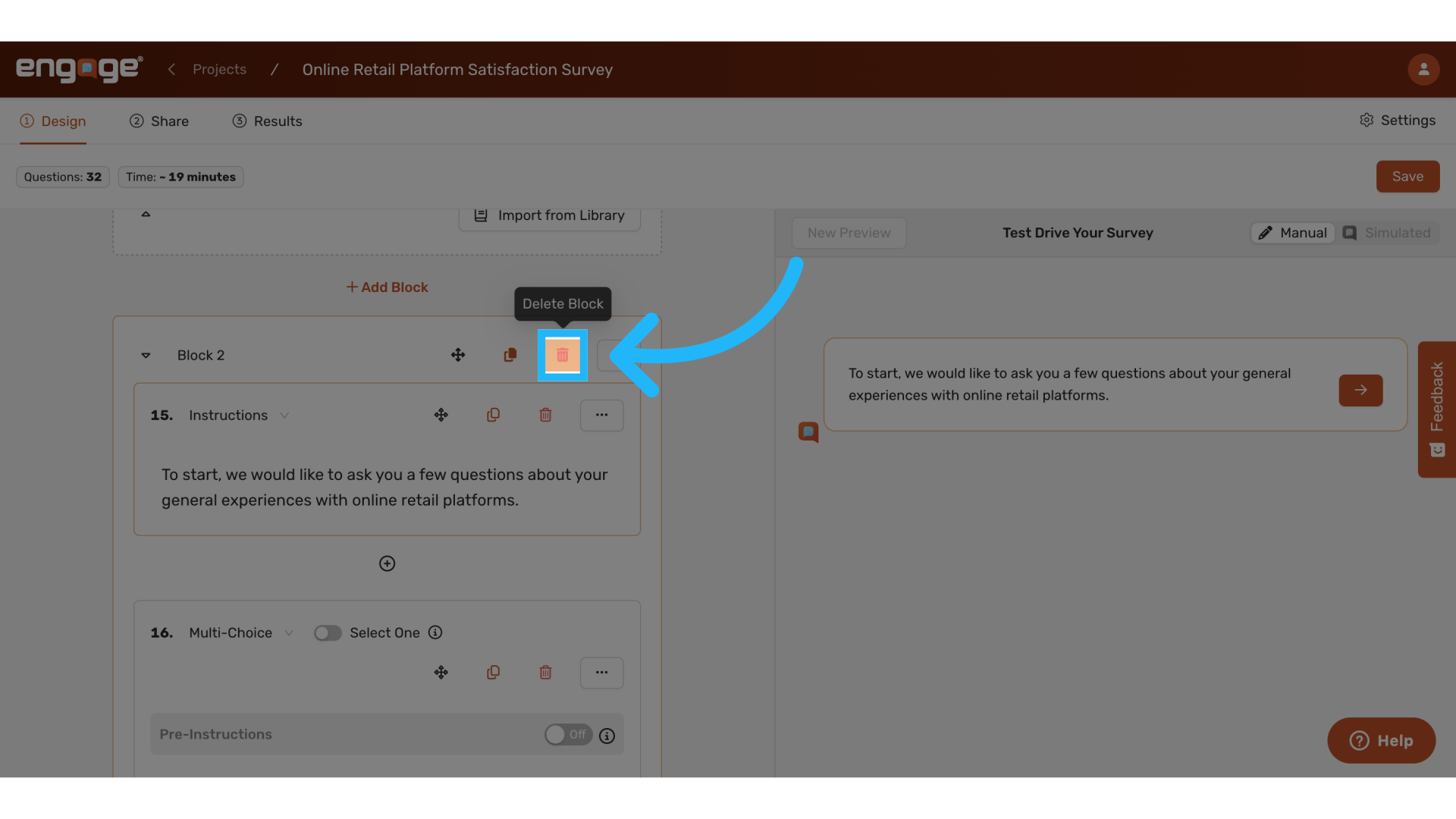
6. Moving Questions Within Blocks
Similarly, questions within blocks can be moved using drag and drop.
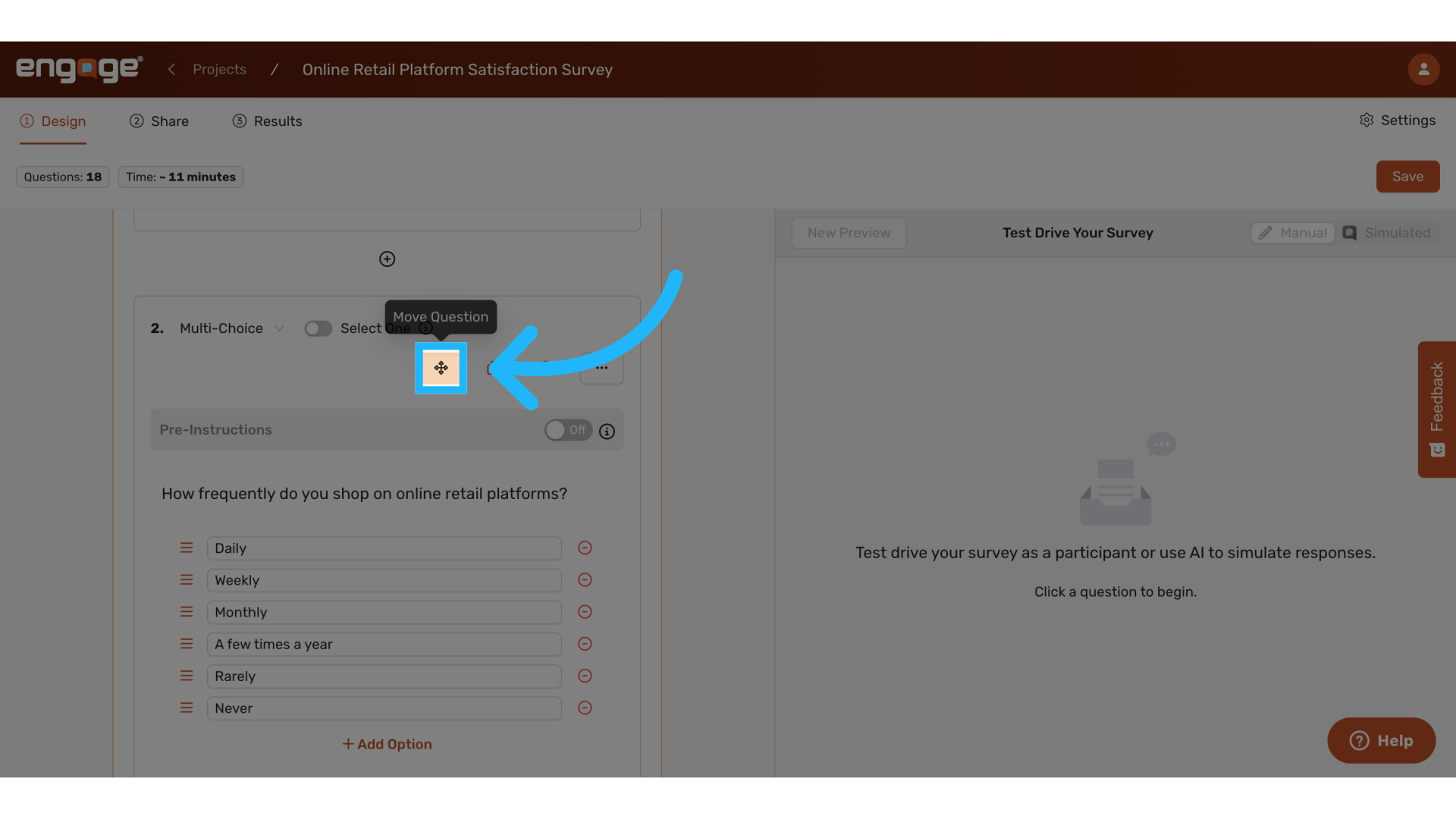
7. Menu Based Movement for Questions Within Blocks
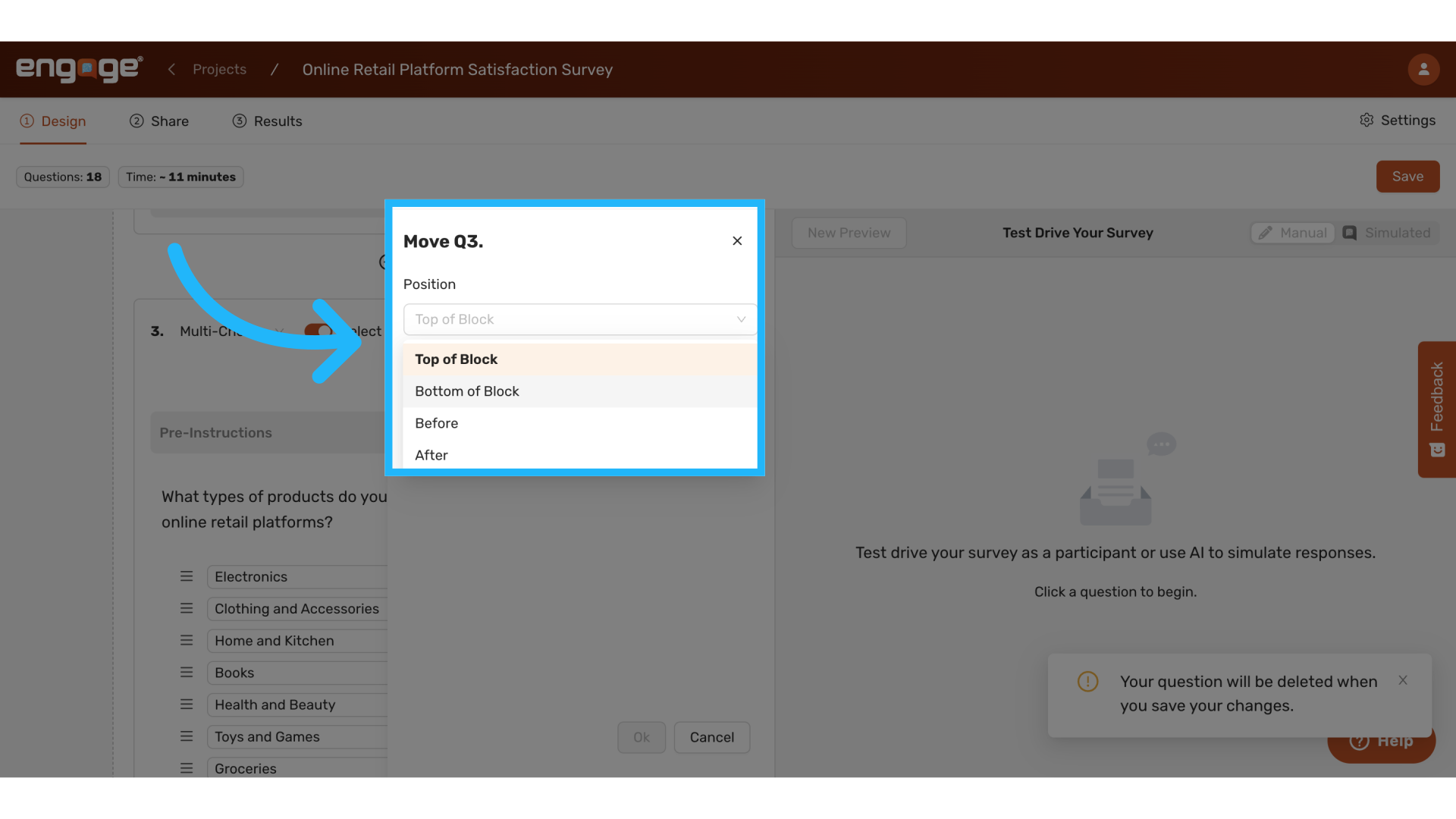
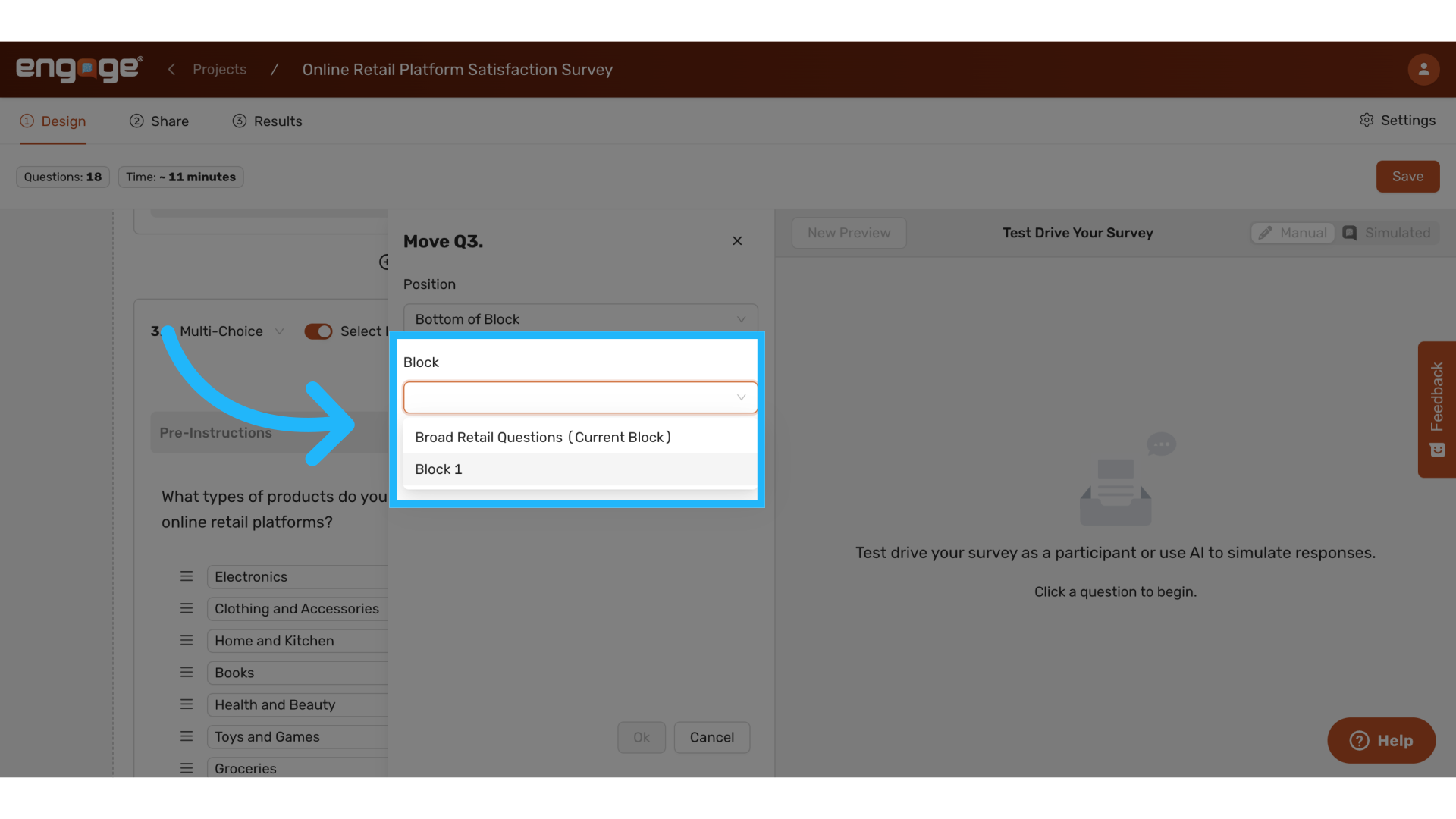
They can also be moved using the menu options,
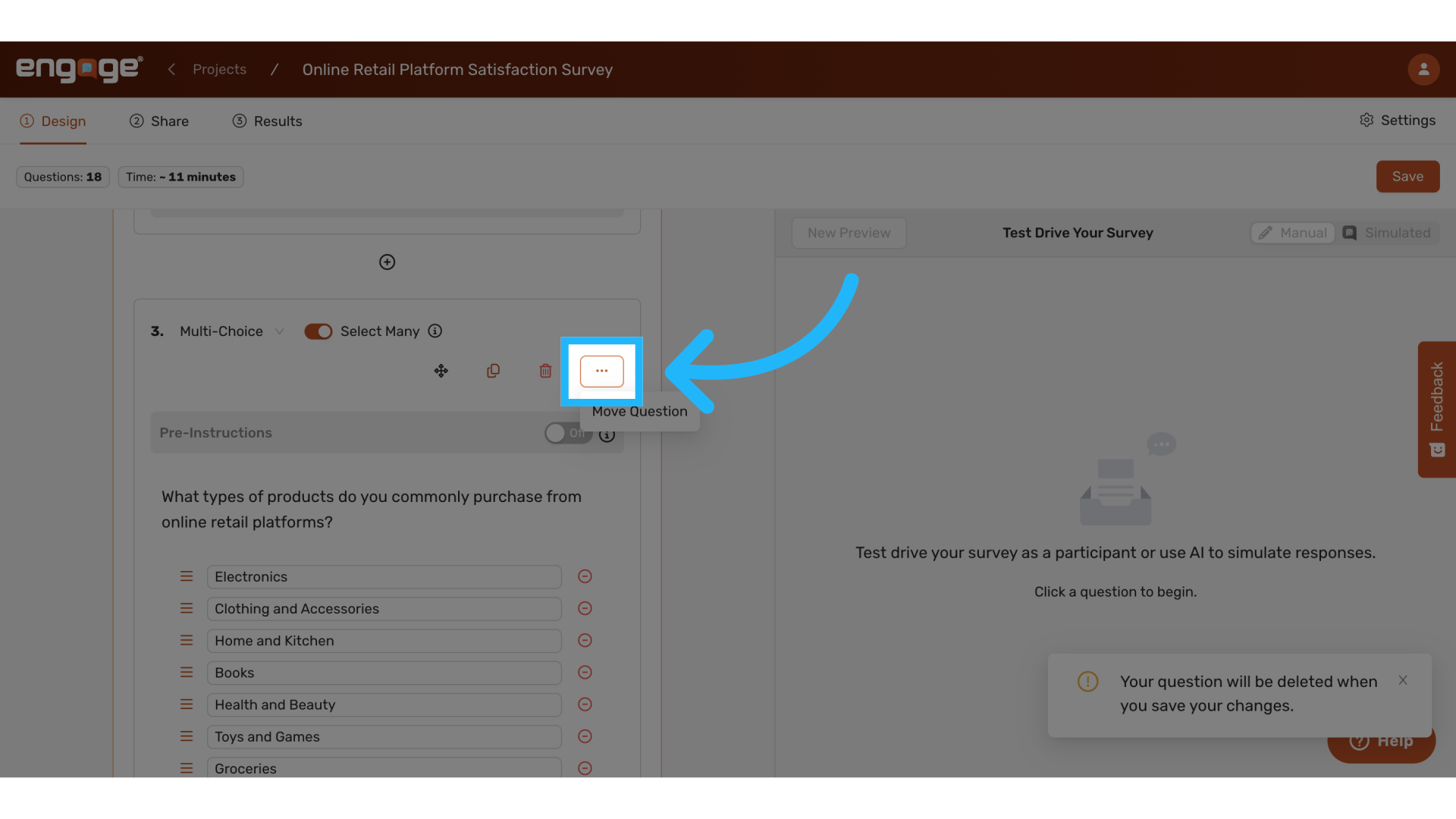
Select move question.
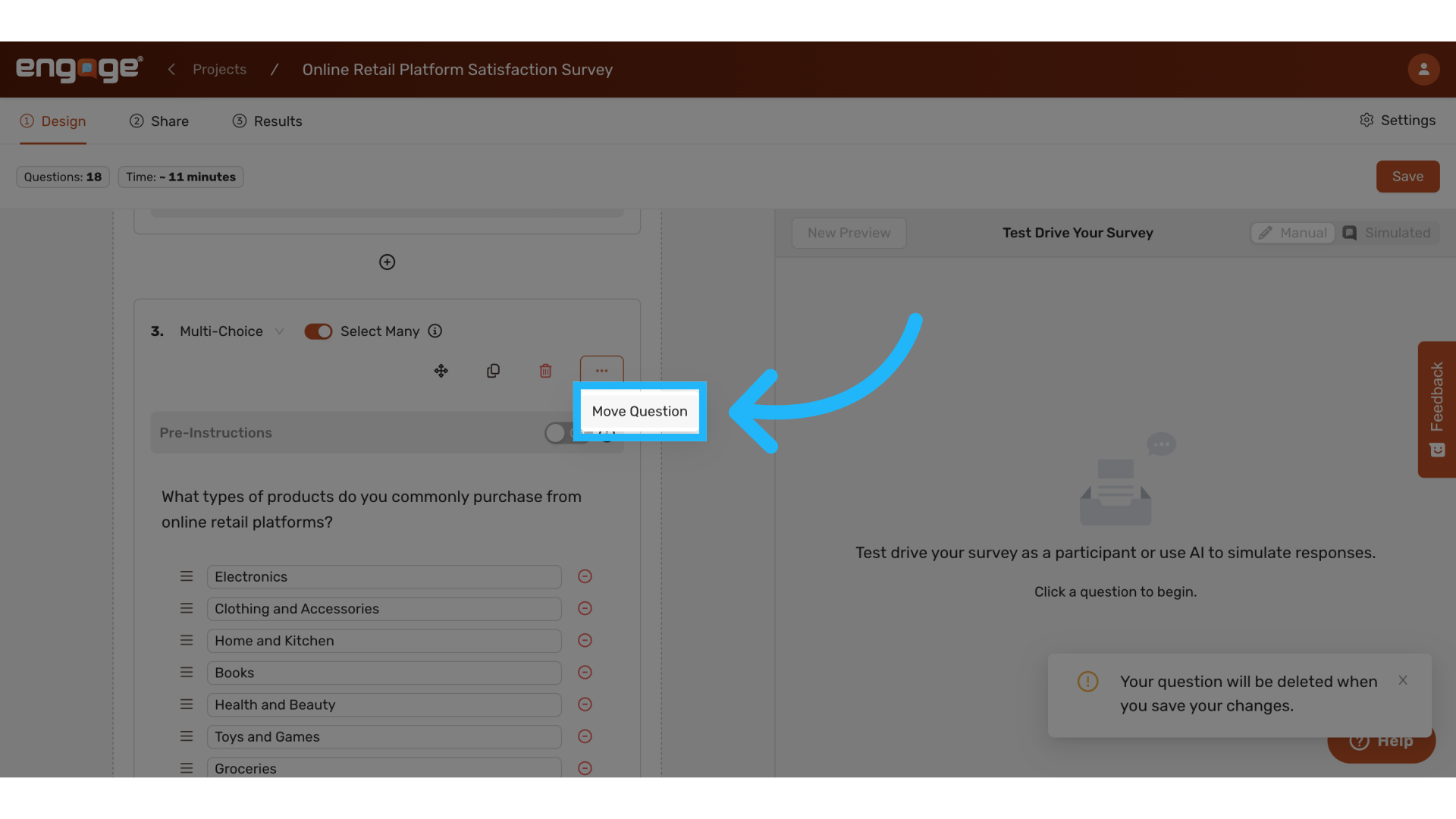
Choose the position within the block
Select which block you'd like to move the question to, if any.
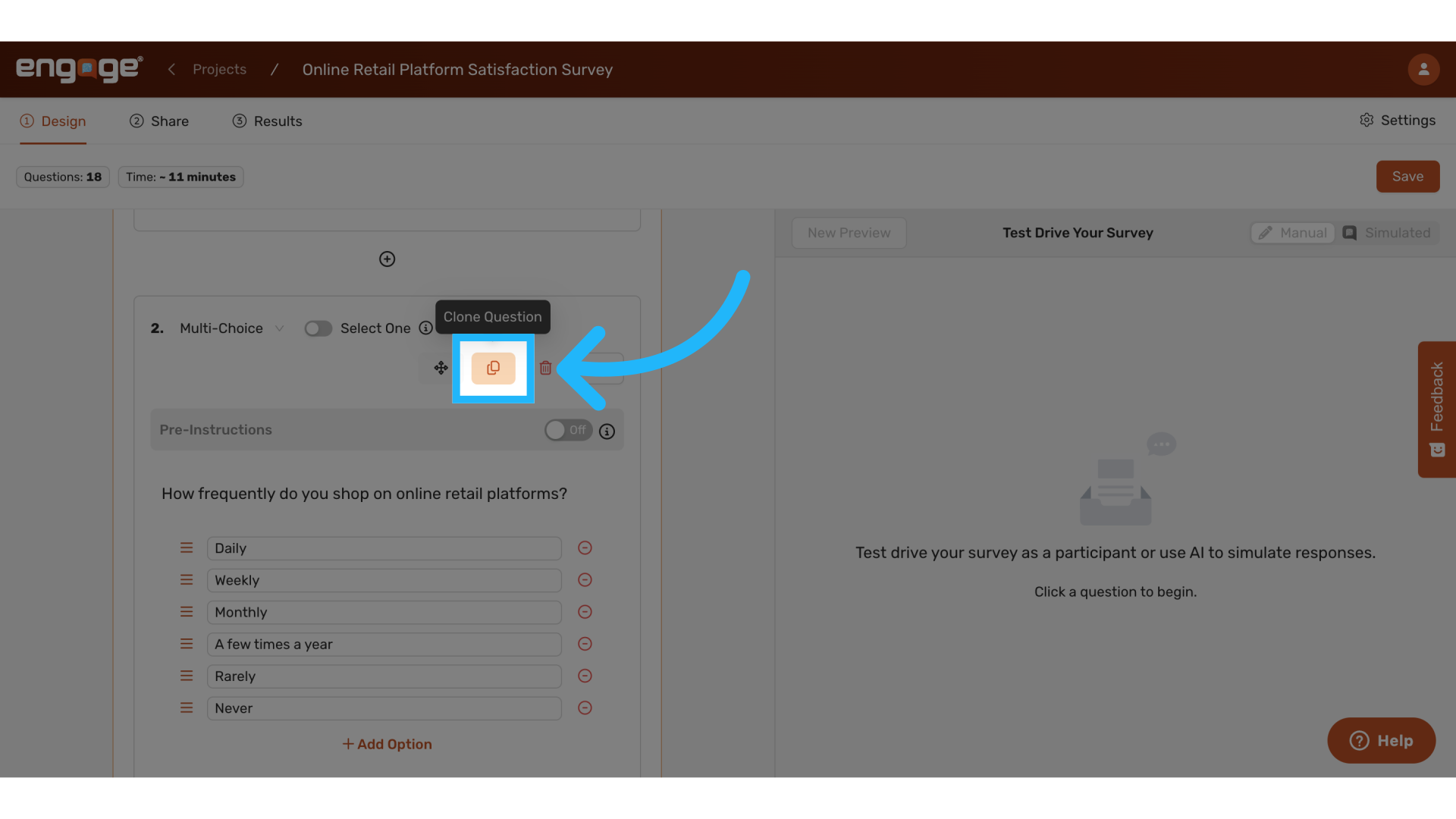
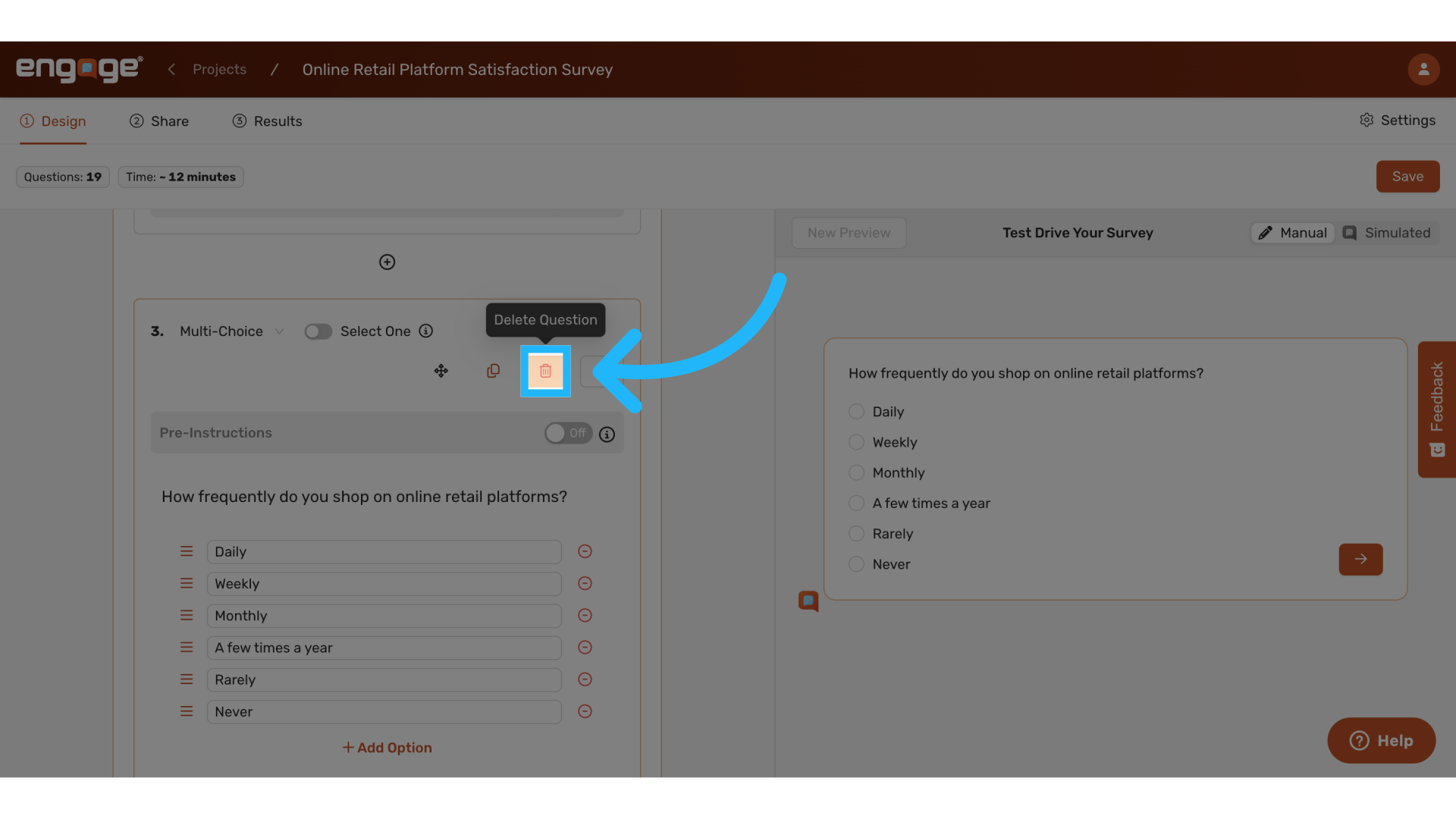
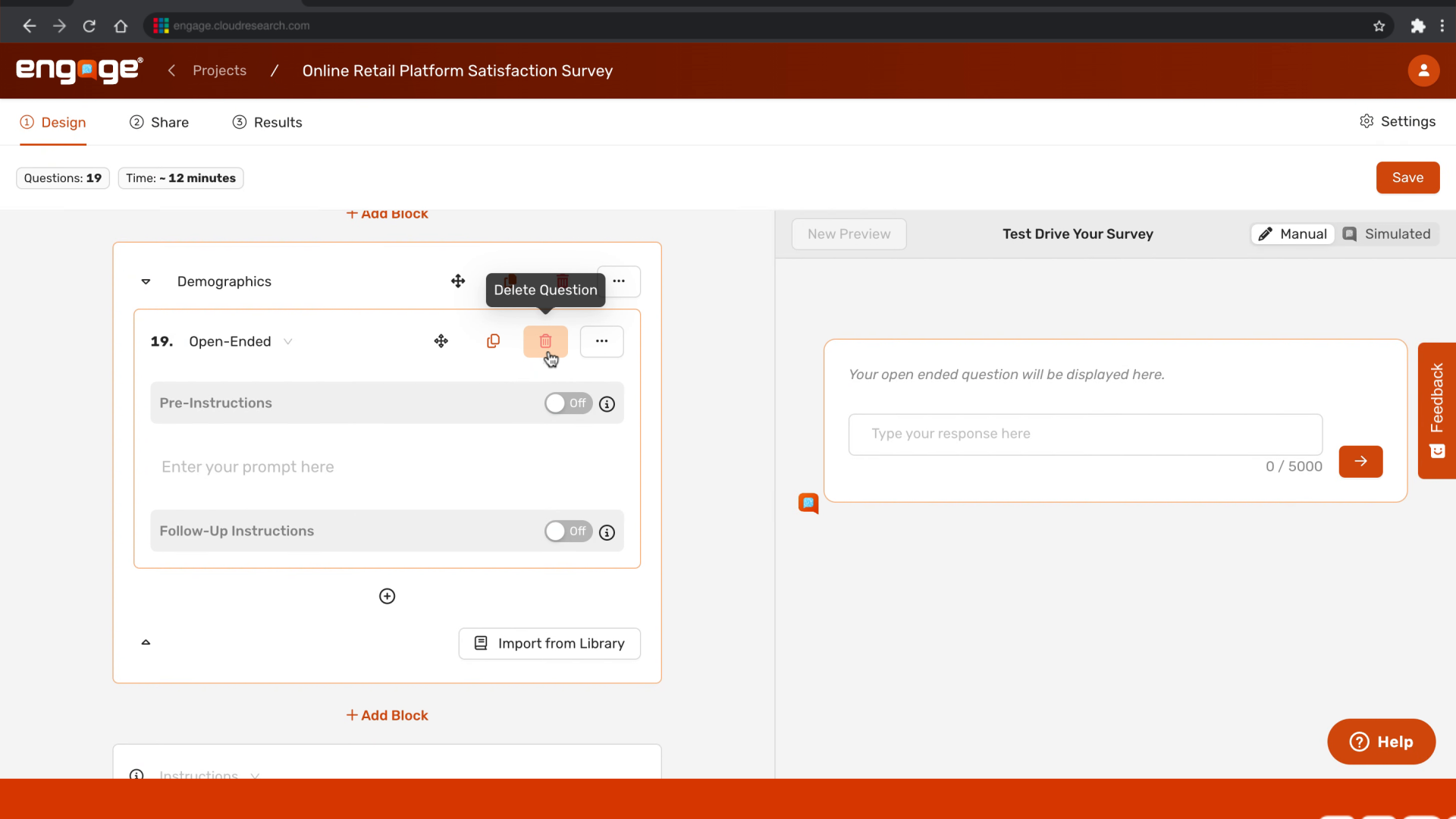
8. Cloning and Deleting Questions Within Blocks
Questions can also be cloned or deleted within the block.
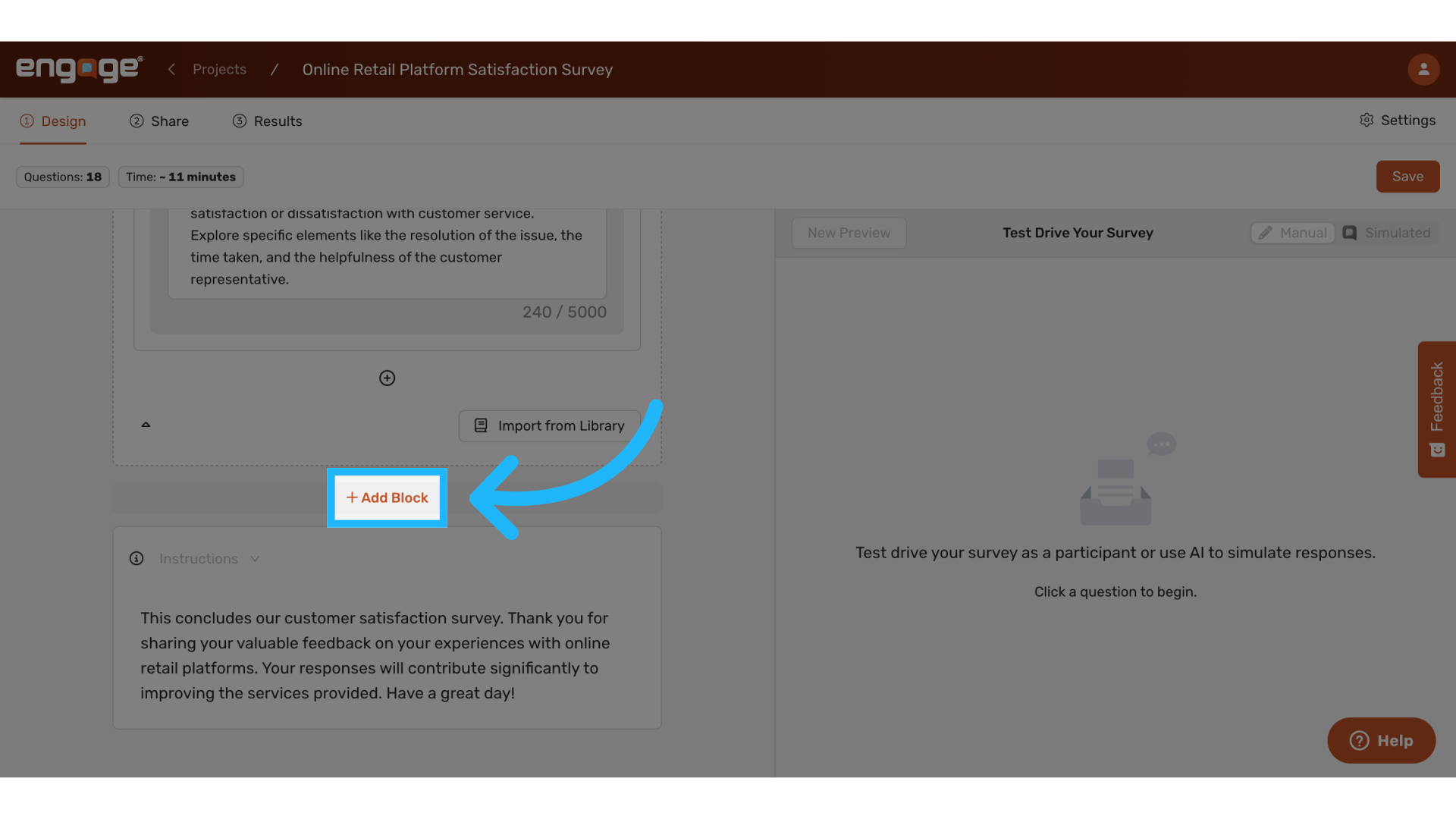
9. Adding Blocks
To add a new block, click the "Add Block" button.
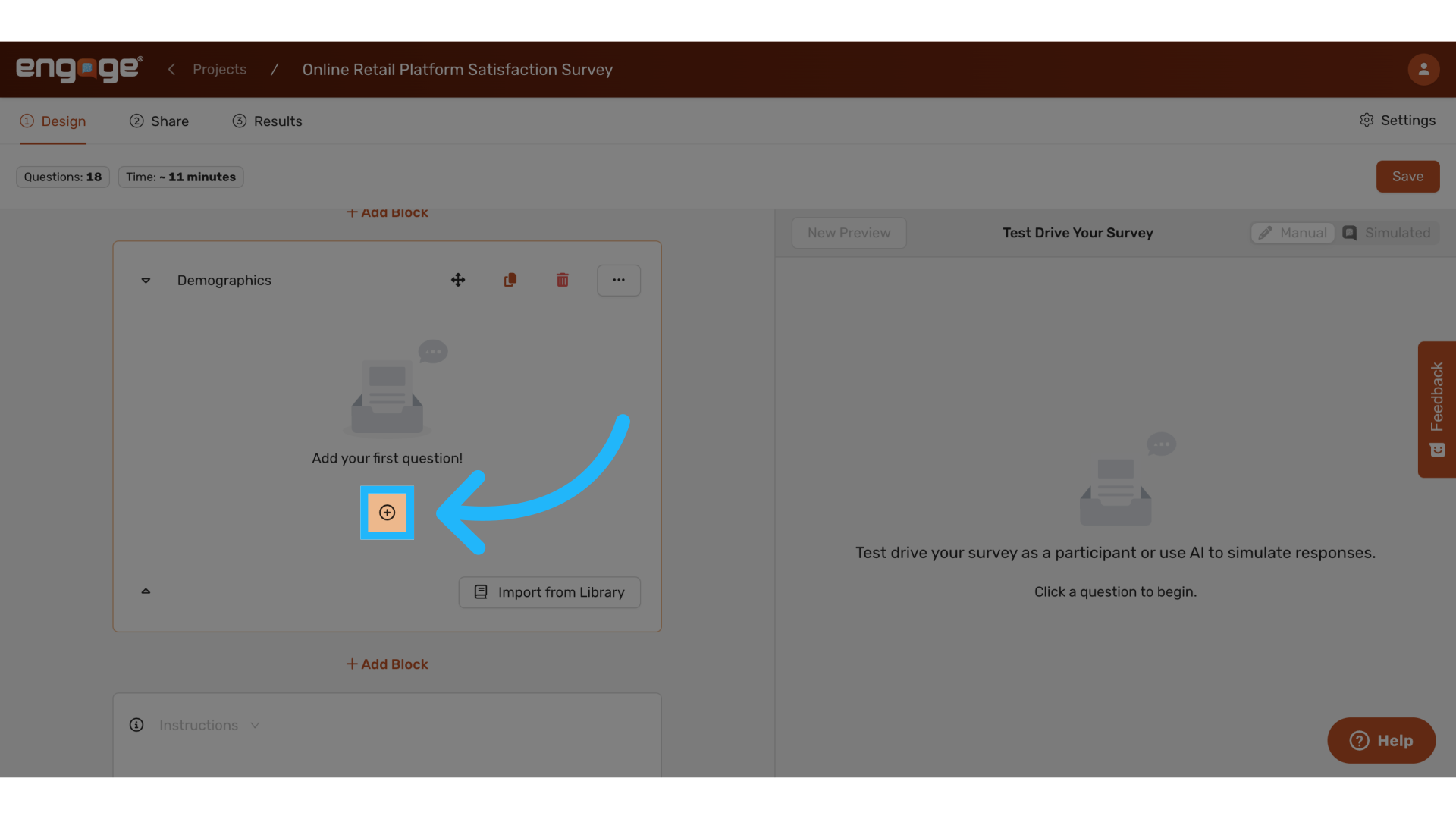
10. Add Questions Within Blocks
You can add questions within blocks by selecting the add icon.
11. Select Questions Type and Add Question
You can then select the question type, add the question, pre-instructions, and follow up instructions like you normally would.
12. Copy Block to Library
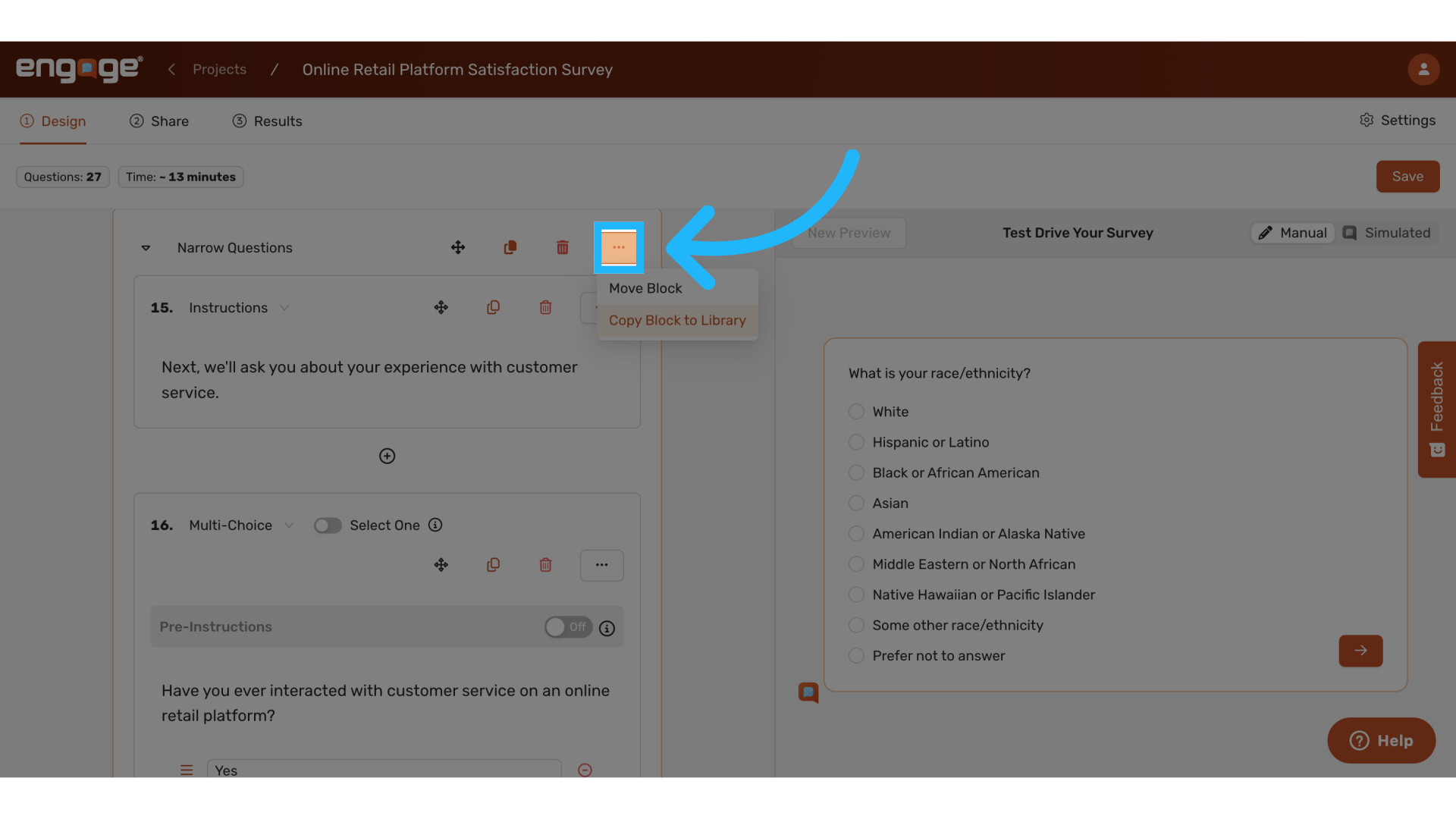
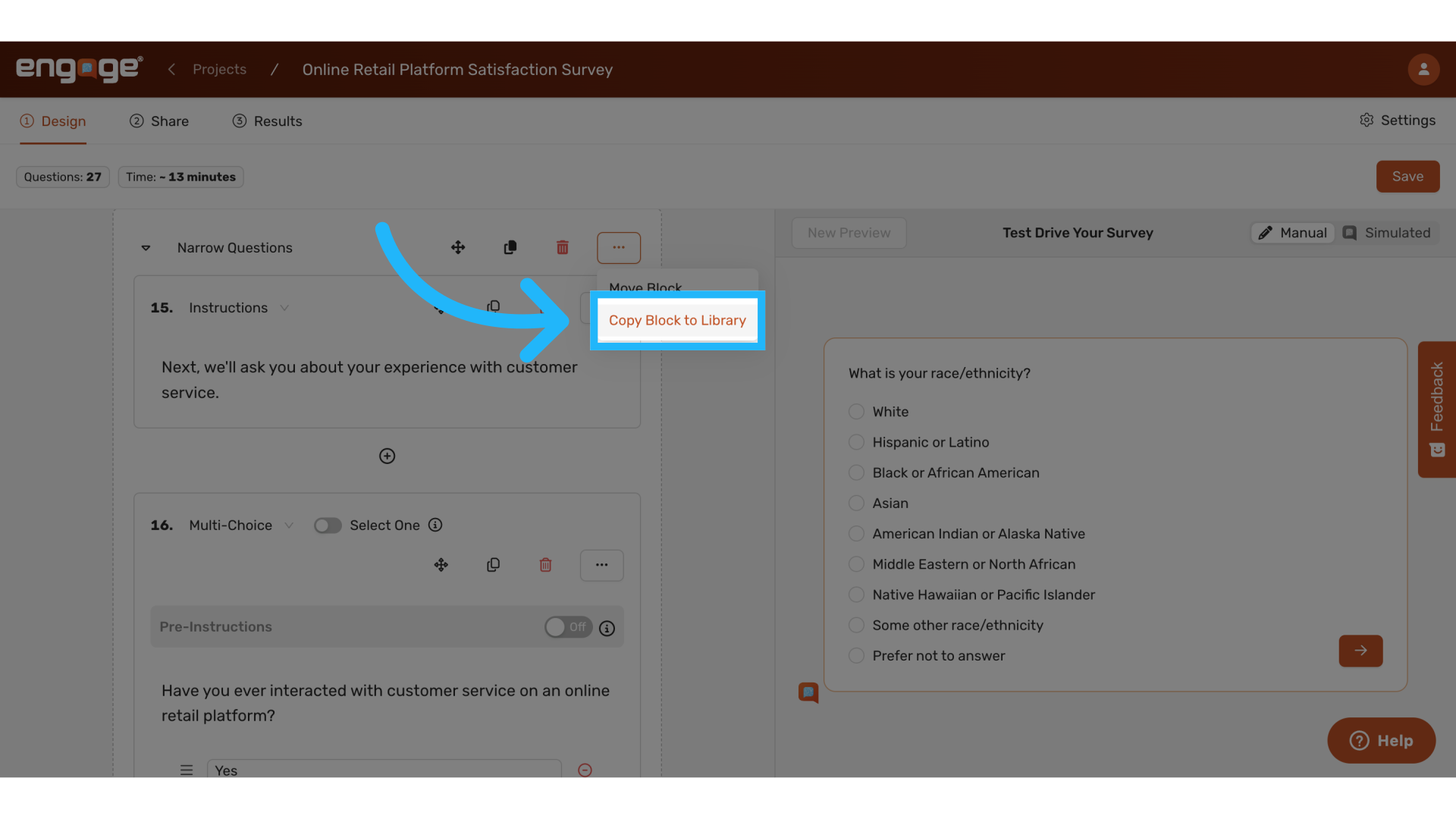
One of the most powerful features of blocks is the ability to save them to your library for reuse. Select the menu and then the "Copy Block To Library" option.
13. Name the Block for the Library
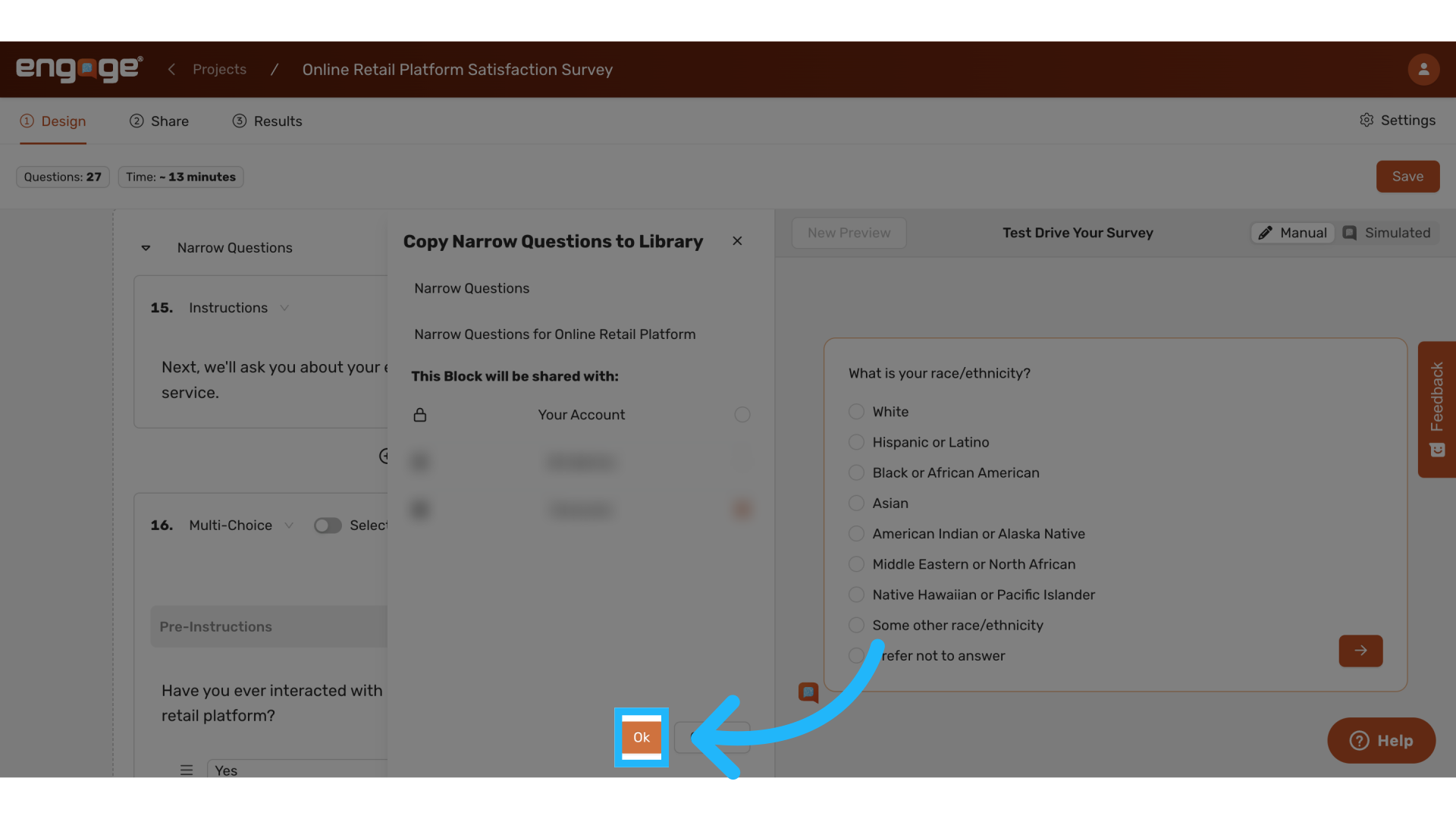
Give your saved block a clear name and optional description
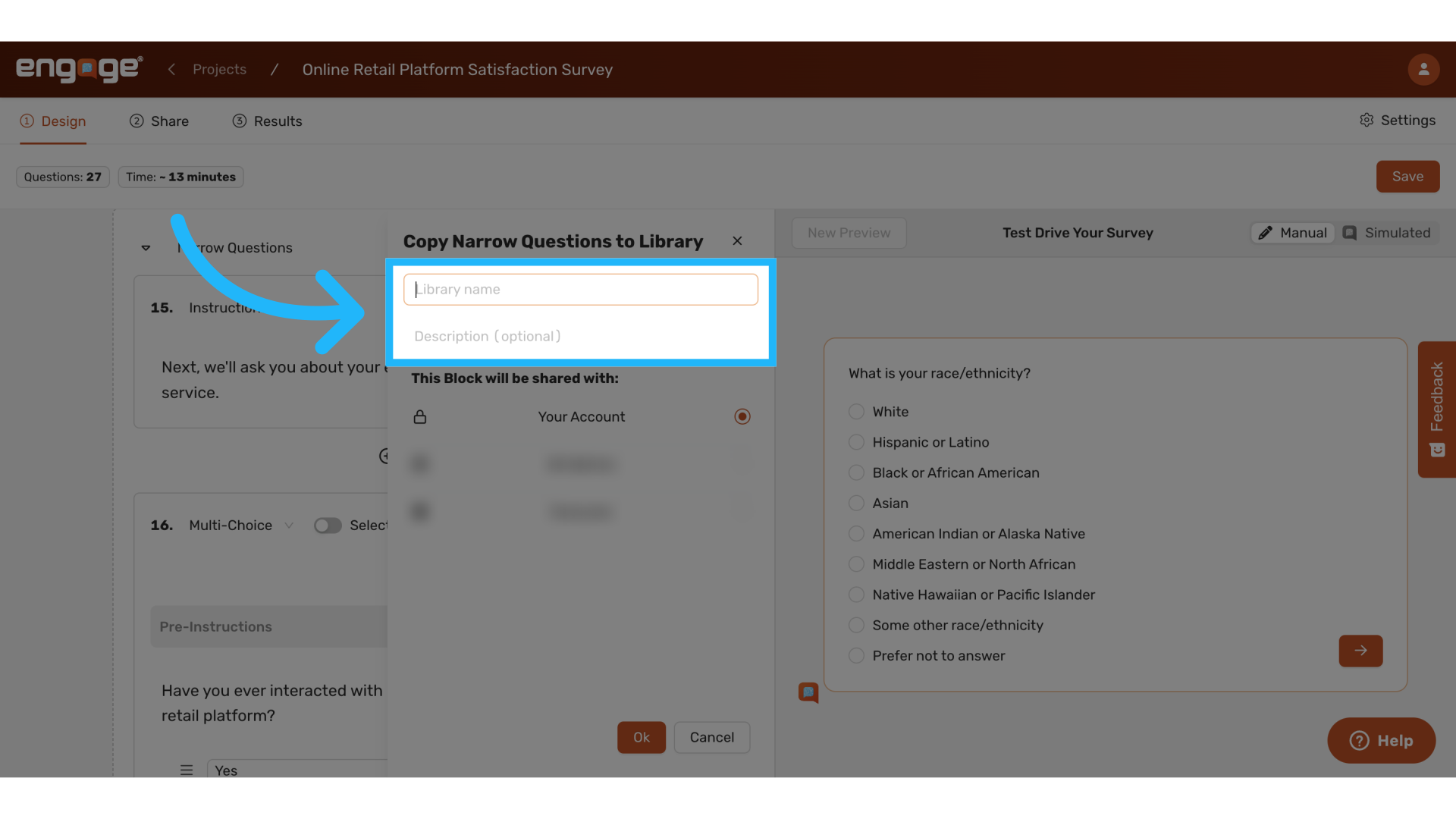
Select okay to proceed.
14. Import Blocks from Library
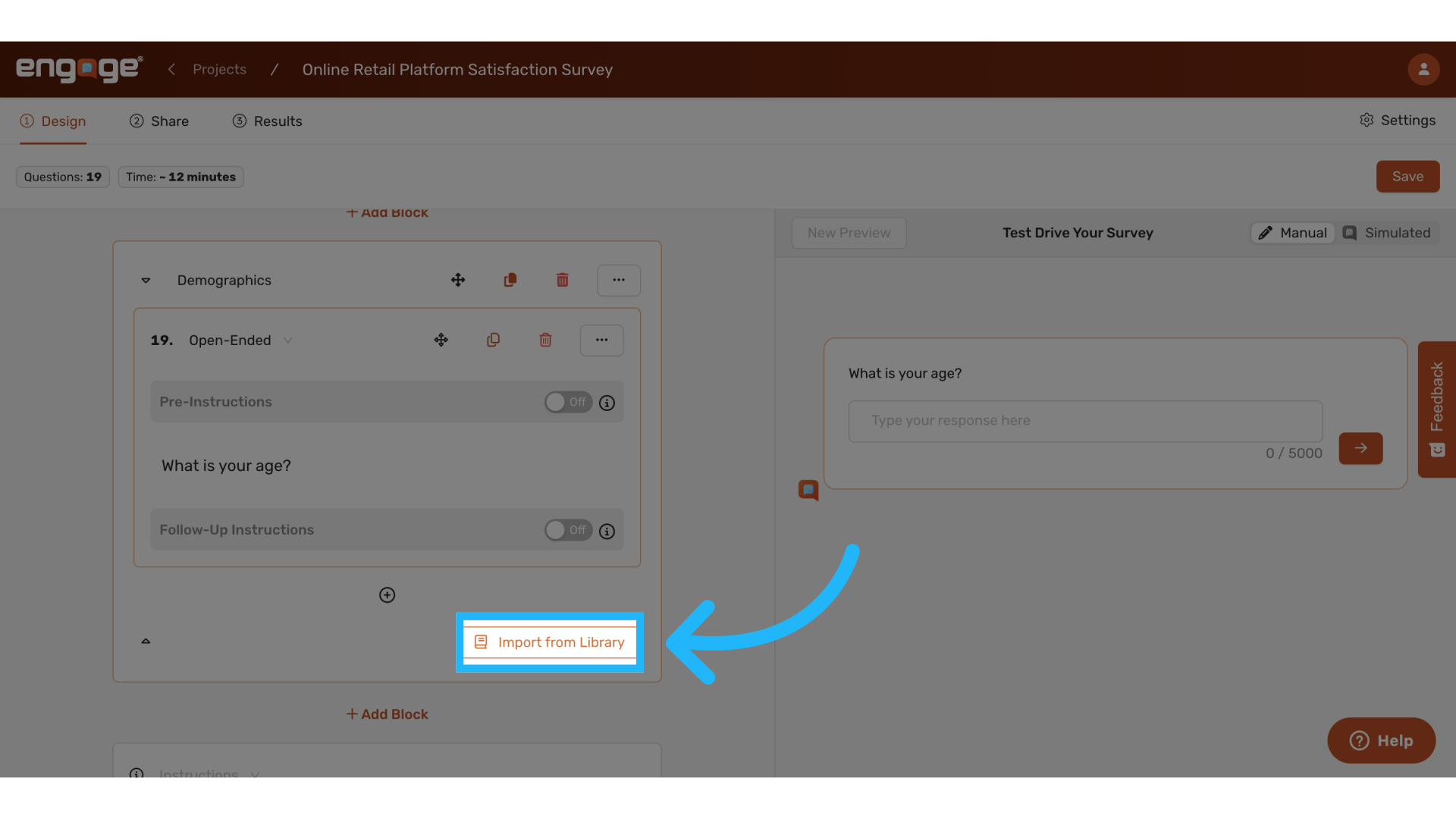
To use a previously saved block or an admin provided block, Click "Import from Library".
15. Locate Block
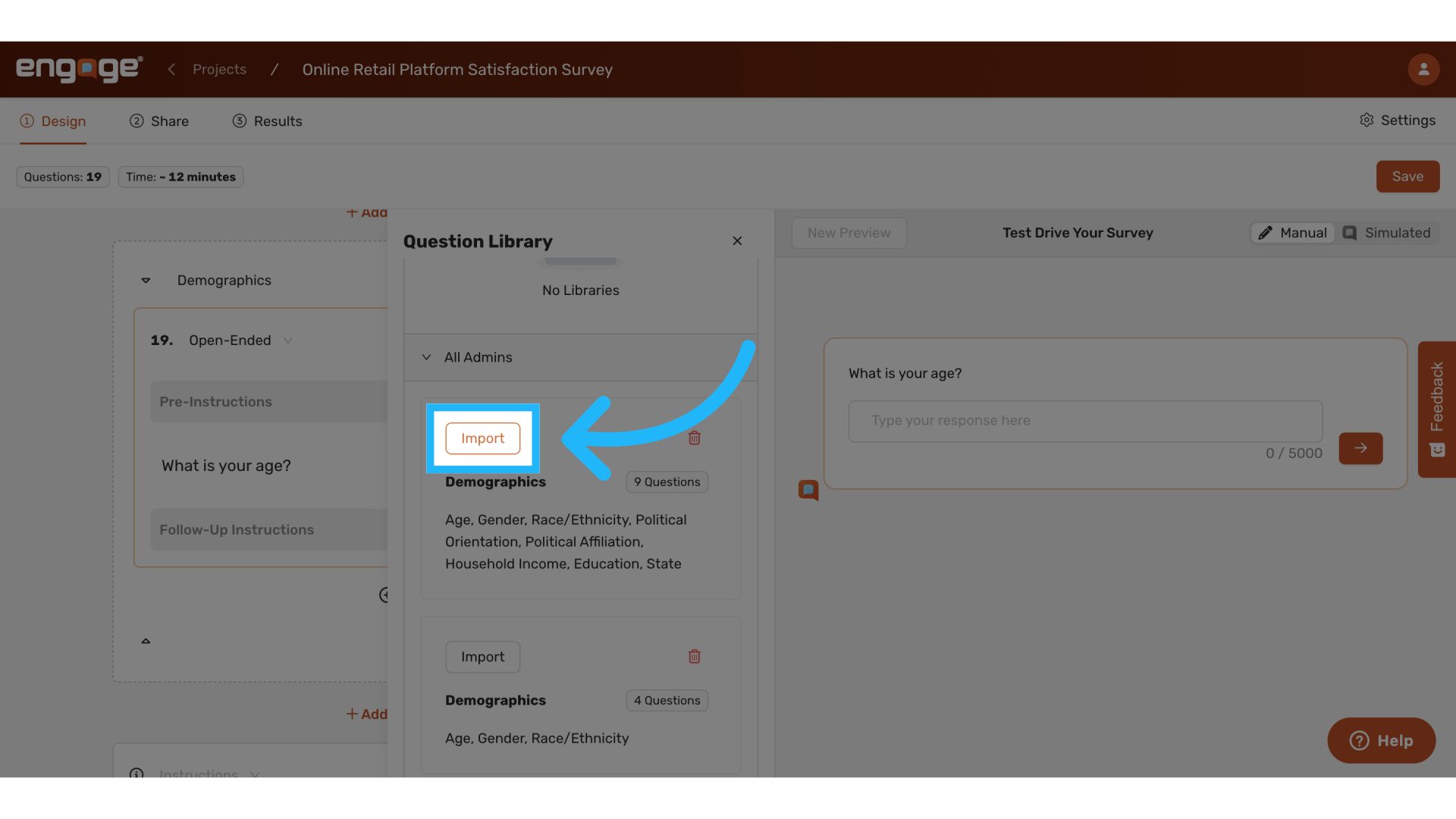
Locate the block you wish to import and select import.
Thank you for watching. If you have any other questions, please reach out to our support team or access our other guides.
Comments
0 comments
Please sign in to leave a comment.