
Welcome to our guide on utilizing demographic data from Connect in your Engage survey. This feature, known as Piping Demographics, allows you to personalize your research without requiring participants to re-enter demographic details.
1. Standard Connect Demographics:
Connect provides a range of standard demographic information, including:
- Age
- Education level
- Sex
- Gender
- Occupation
- Relationship status
- Political party
- Hispanic/Non Hispanic status
- Country of residence
- Household income
- Race
- Employment status
Additionally, you can access any qualifying questions that were specific to your study, such as parental status if you recruited participants who have children.
2. How to Use Piping Demographics:
When creating survey instructions, include the phrase "from demographics" after the demographic variable you wish to reference.
3. Example Use Case:
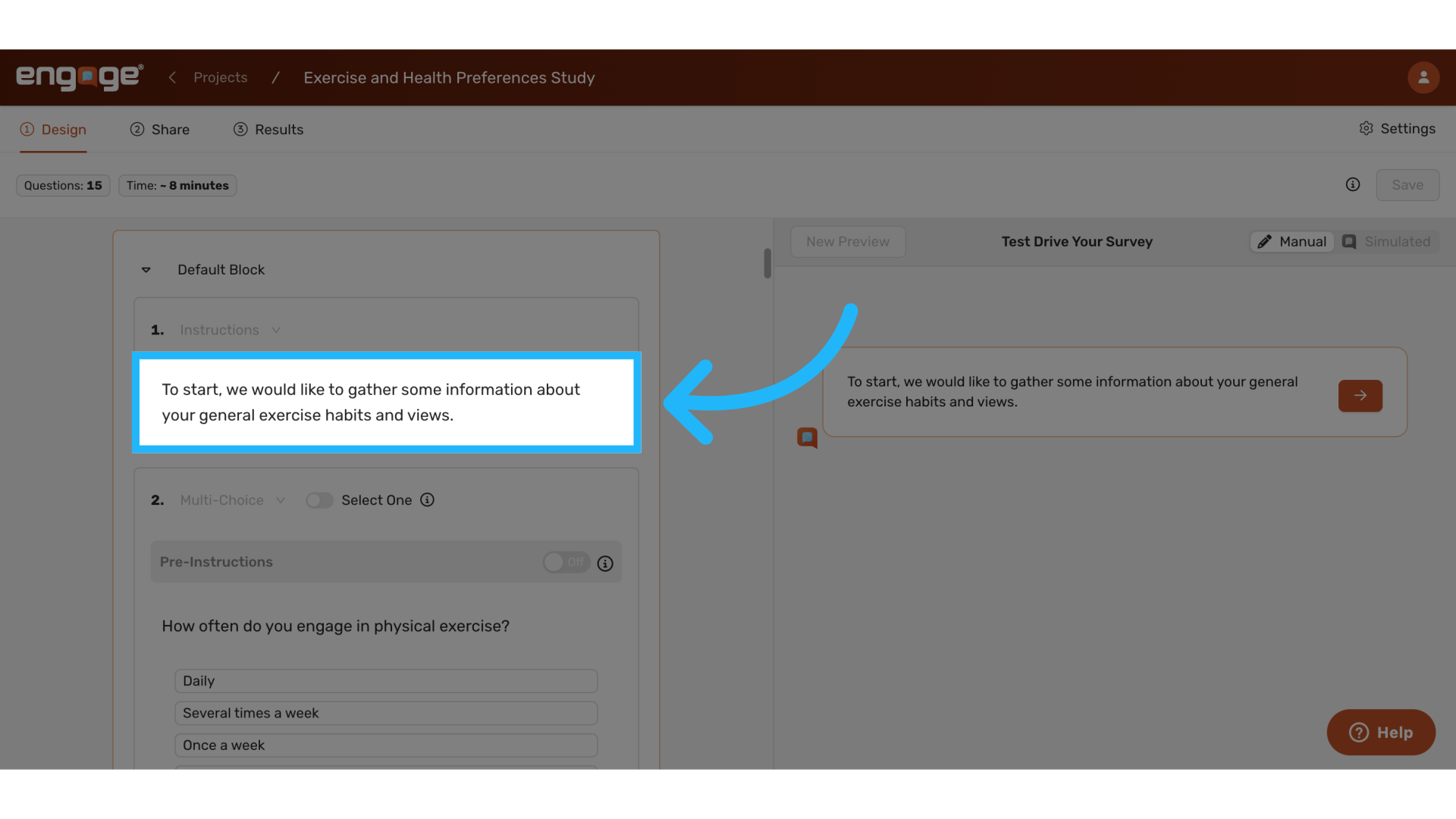
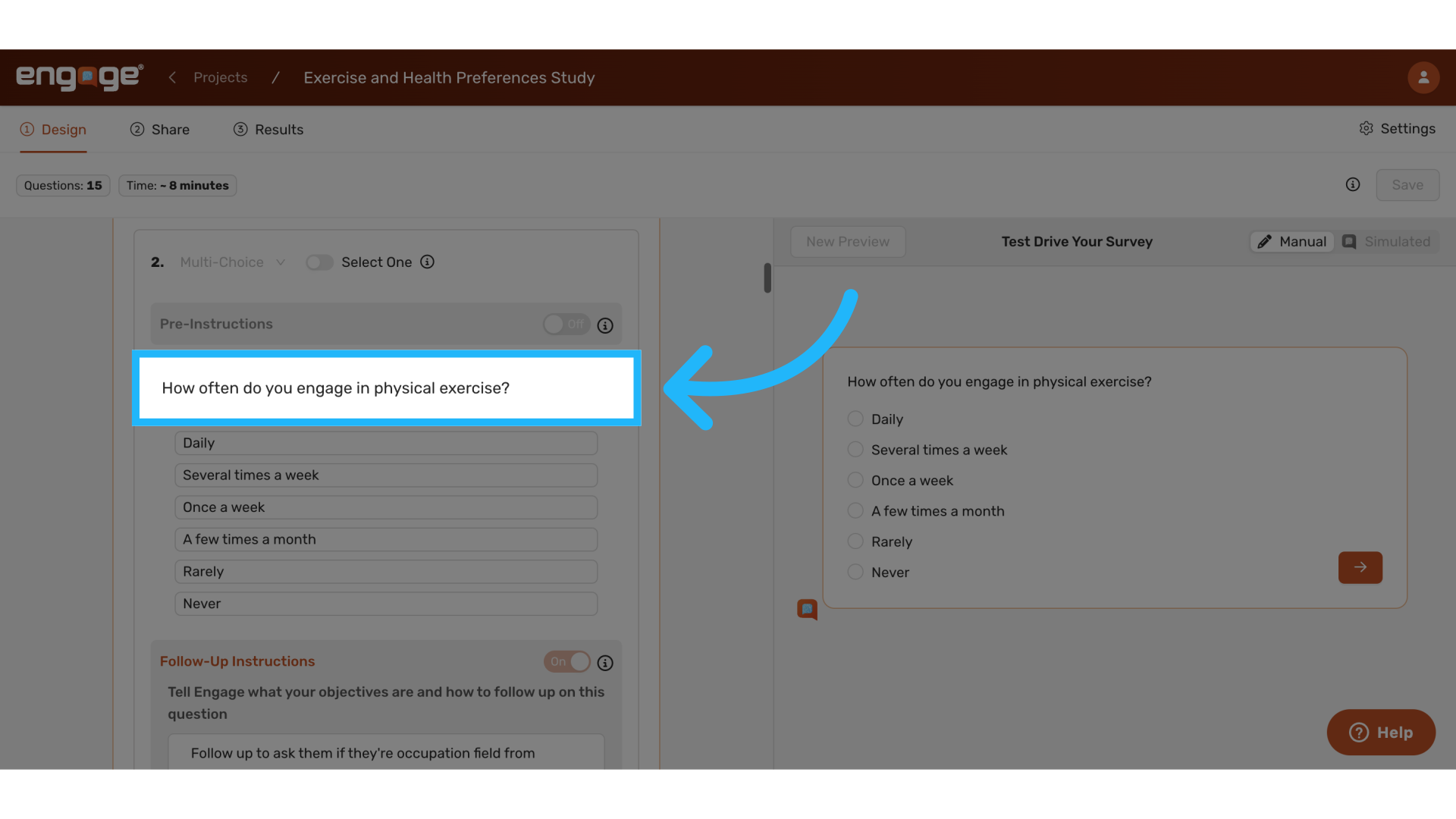
For an exercise habits survey, you may want to analyze how demographics influence physical activity. To assess the impact of a participant’s occupation on their exercise routine, you can use the occupation demographic gathered in Connect for a question like:
"How often do you engage in physical exercise?"
4. Follow Up Instructions Example
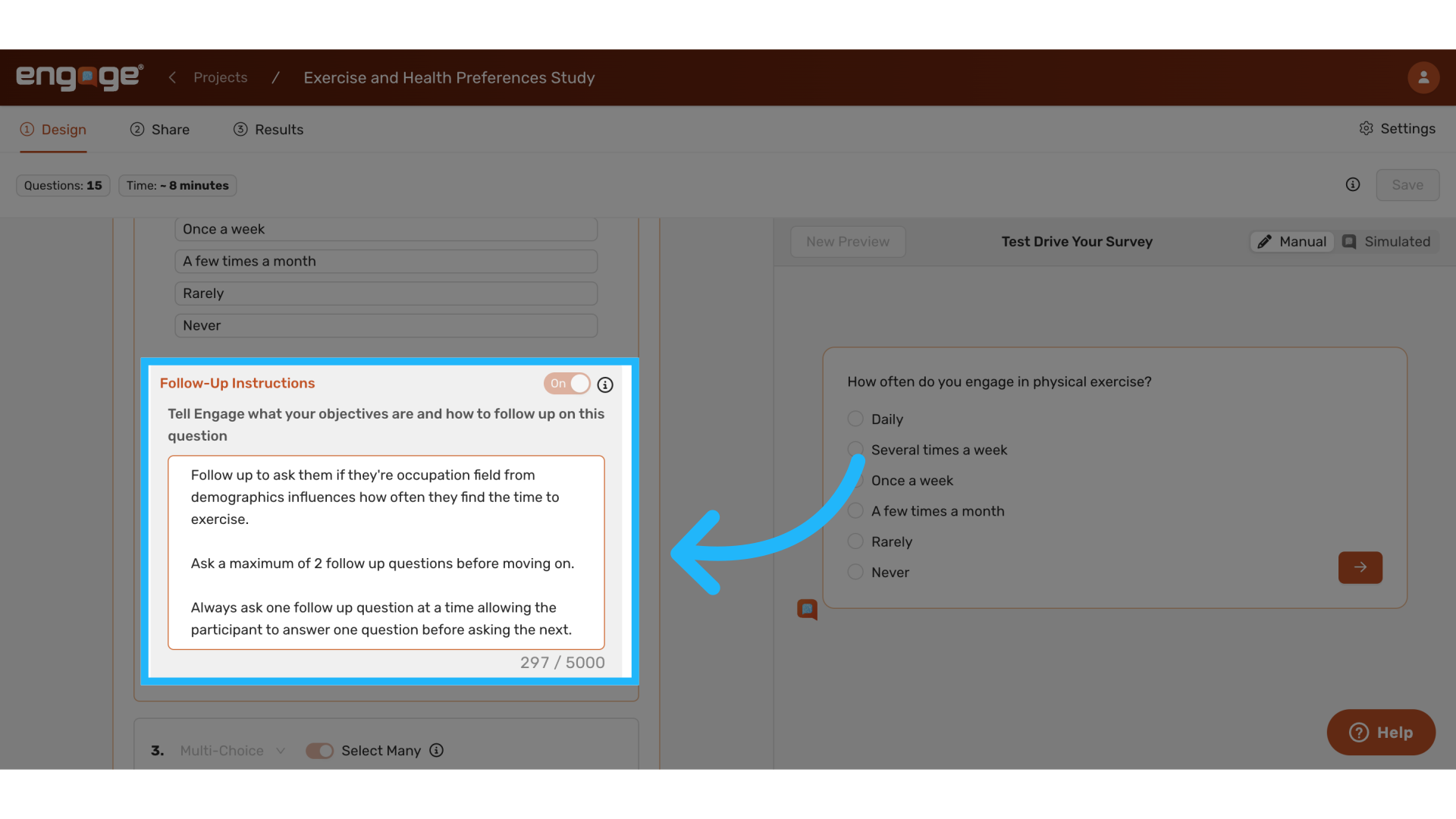
You can add follow-up instructions such as:
"Follow up by asking if their occupation field from demographics influences how often they find time to exercise."
5. Pre-instructions Example:
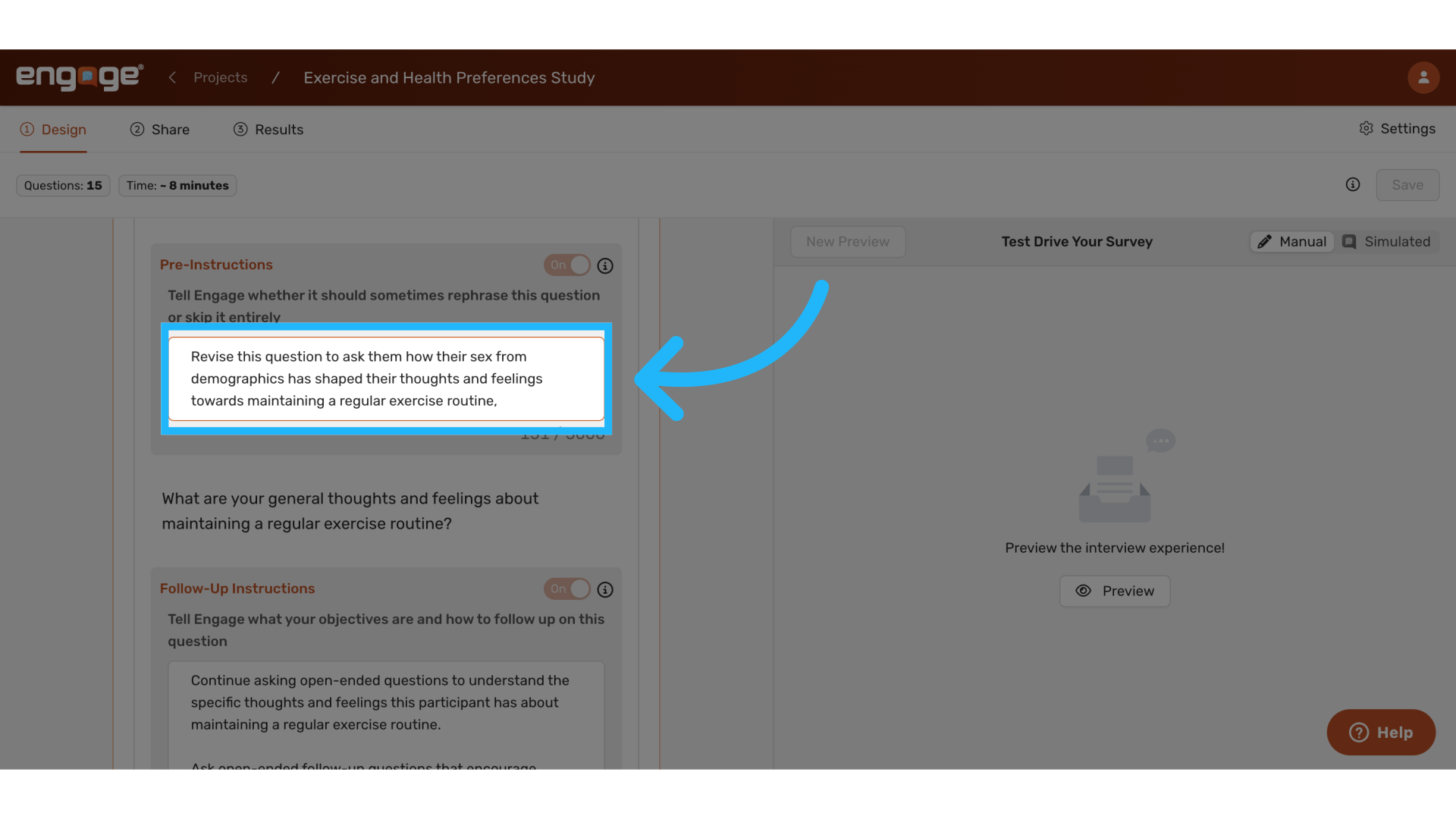
Using pre-instructions, you can tailor questions based on demographic data. For instance:
"Revise the question to ask how their sex from demographics has shaped their thoughts and feelings toward maintaining a regular exercise routine."
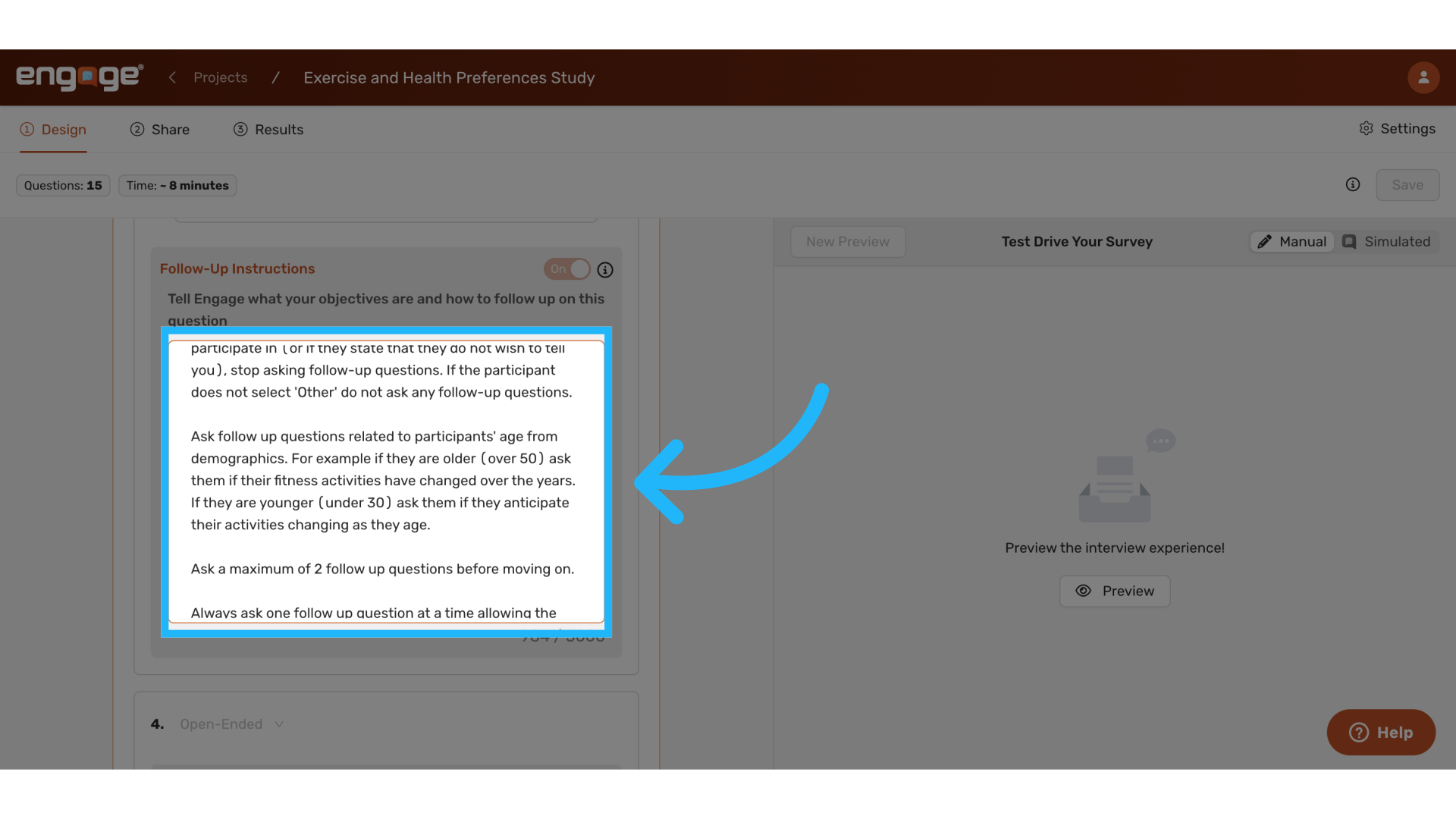
6. Pre-Instructions Example 2:
Another way to customize questions is by using age-based segmentation:
-
For participants older than 50: "Have your fitness activities changed as you've aged?"
-
For participants younger than 30: "Do you anticipate your fitness routine changing as you age?"
7. Skip Logic use case:
- Skip irrelevant questions
- Show specialized questions to specific demographic groups
- Create more efficient survey paths
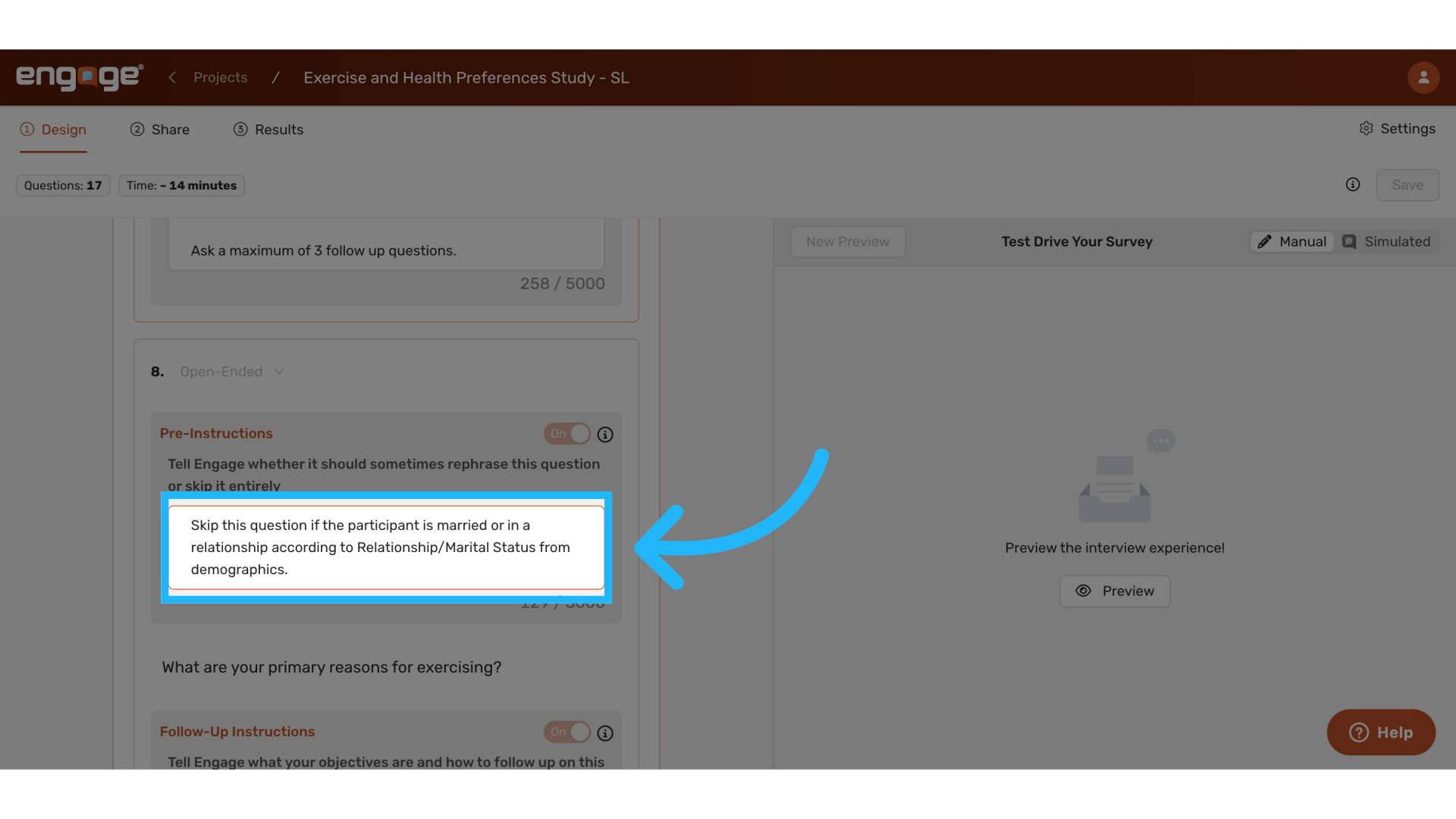
8. Skip Logic Example
For example, you can skip a question if the participant is married or in a relationship based on demographic data.
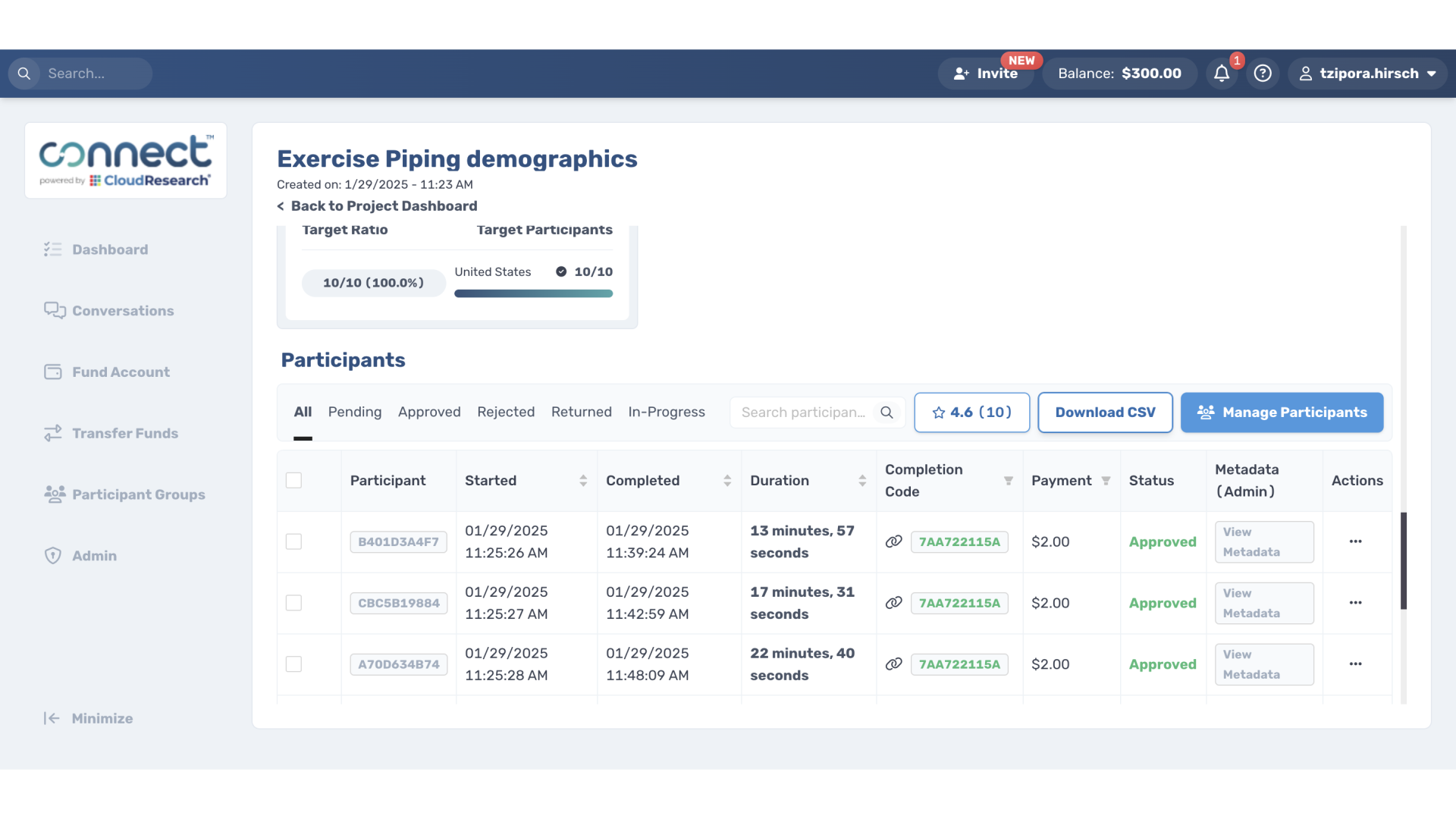
9. Access demographic information on Connect
To access demographic data on Connect:
-
Navigate to the Connect platform
-
Locate the demographic dataset relevant to your research
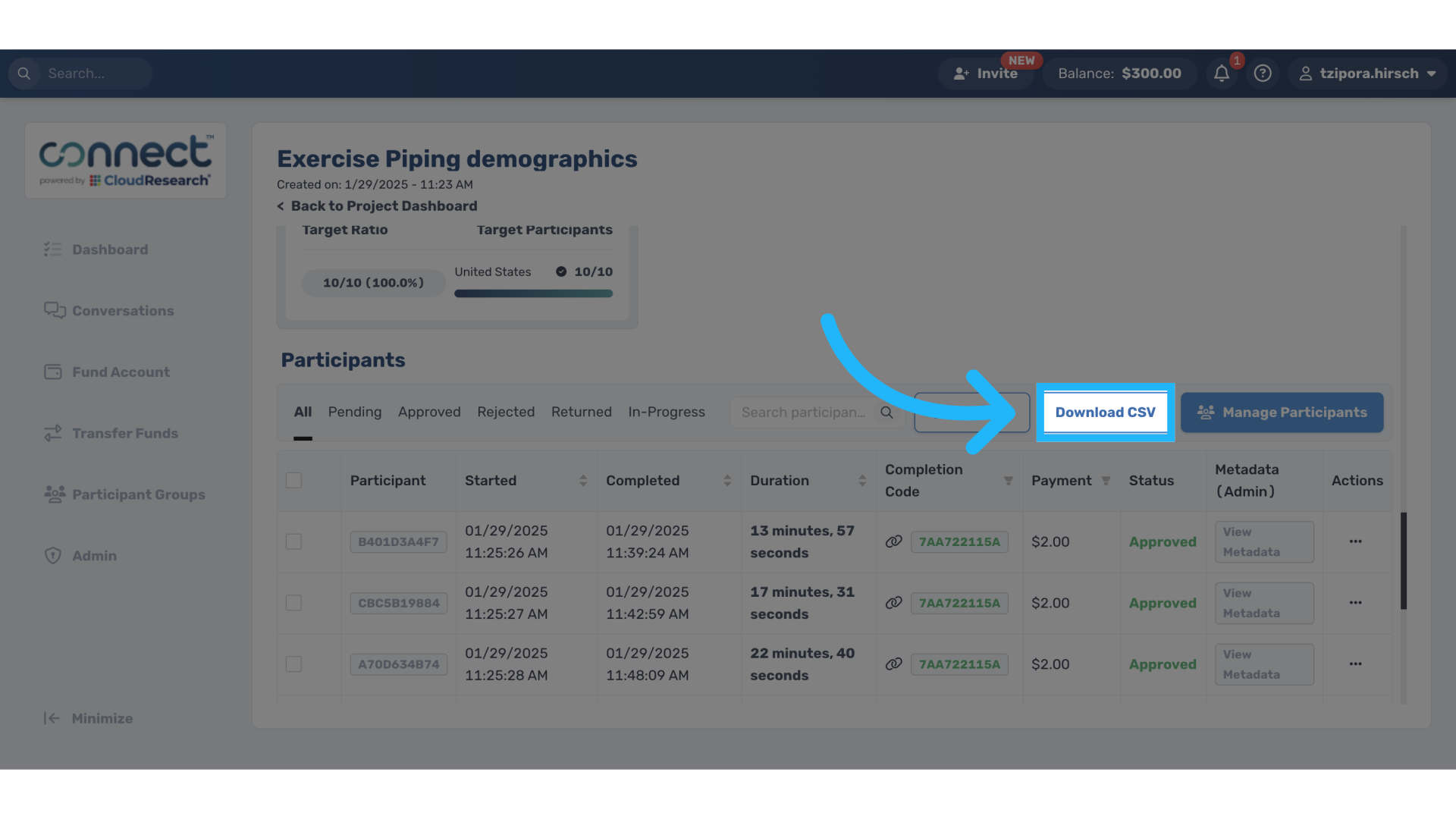
10. Download the CSV
Comments
0 comments
Please sign in to leave a comment.