
Welcome to our guide on importing a survey from Qualtrics into Engage. This feature allows you to import a survey you've built in Qualtrics into CloudResearch Engage using a .qsf file. Follow the steps below to seamlessly transition your survey from Qualtrics into your Engage project.
Login to Engage
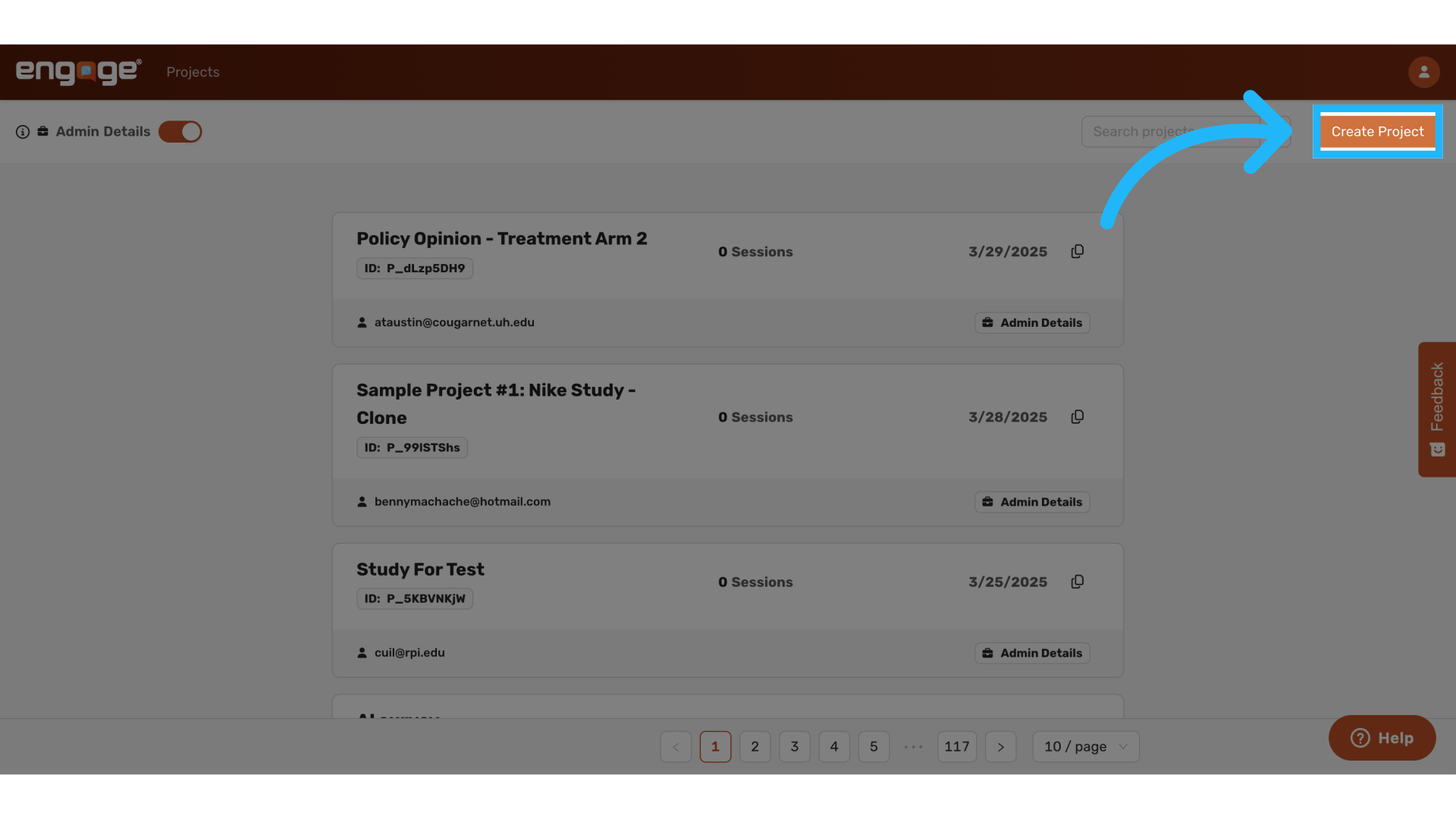
1. Create a New Project
Click the “Create Project” button to begin setting up a new study.
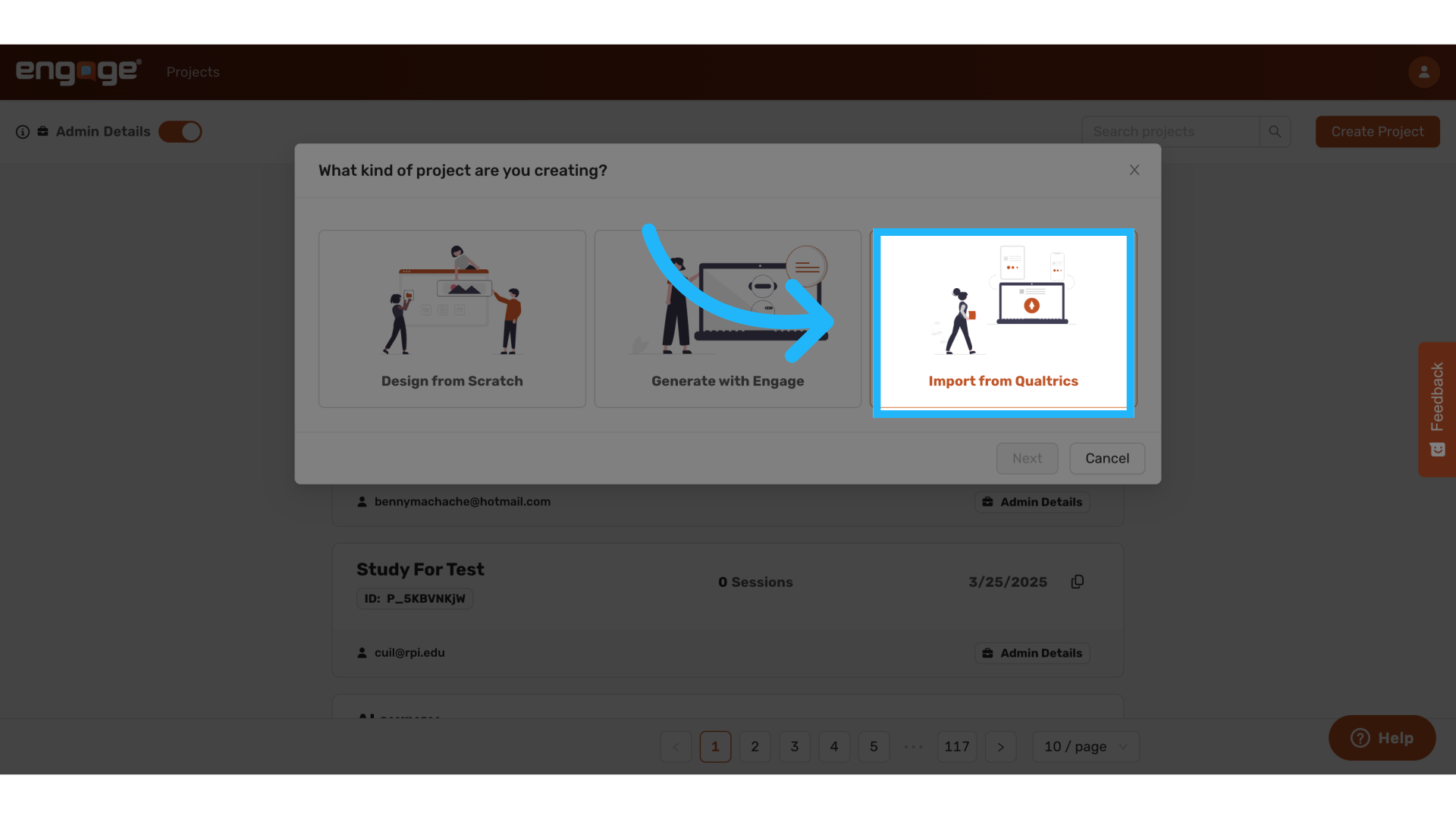
2. Select "Import from Qualtrics"
In the project setup menu, choose the “Import from Qualtrics” option.
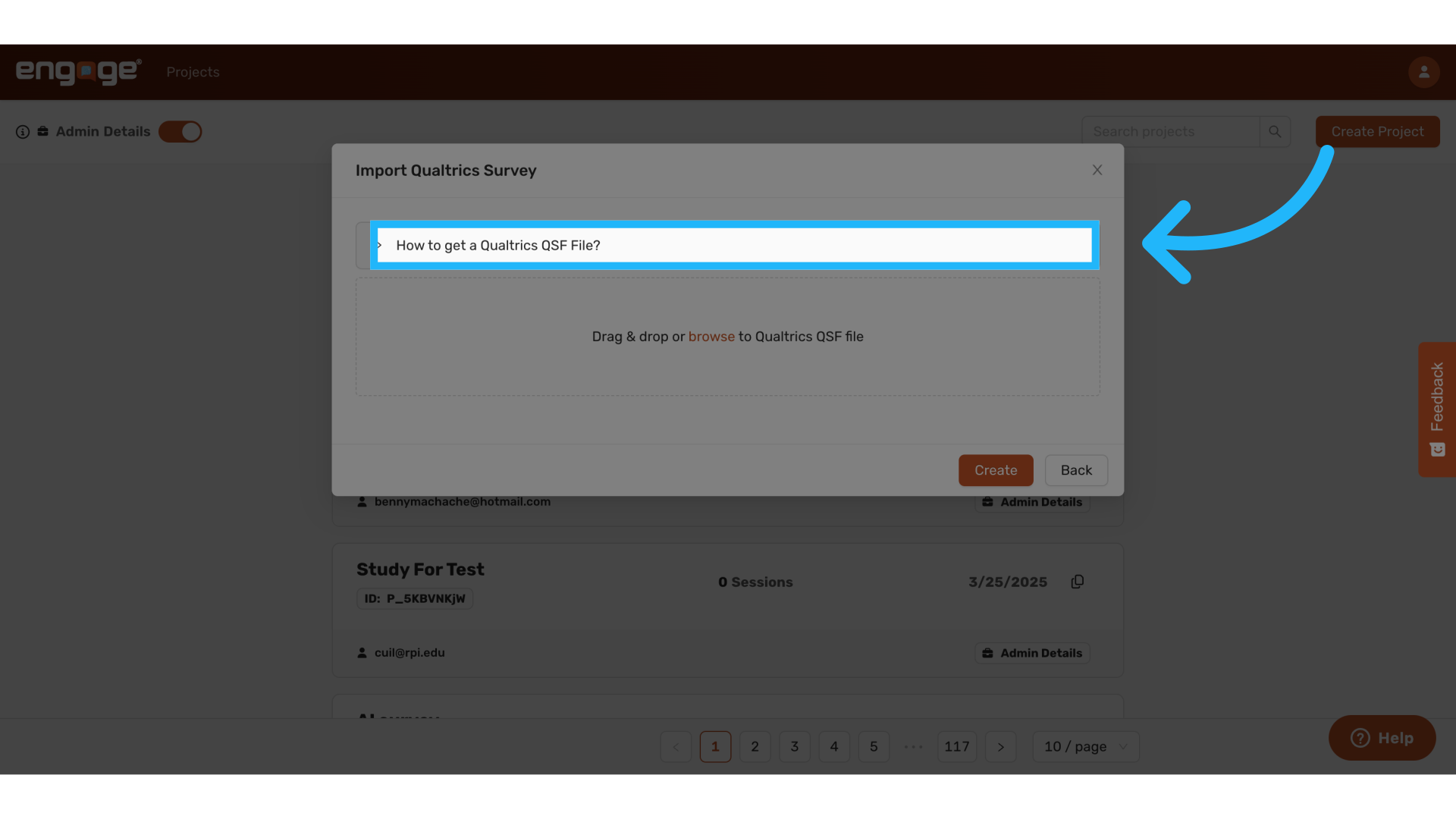
3. View Export Instructions
A popup will appear with a dropdown.
Click the dropdown to view step-by-step instructions for exporting your survey from Qualtrics.
Click the dropdown to view step-by-step instructions for exporting your survey from Qualtrics.
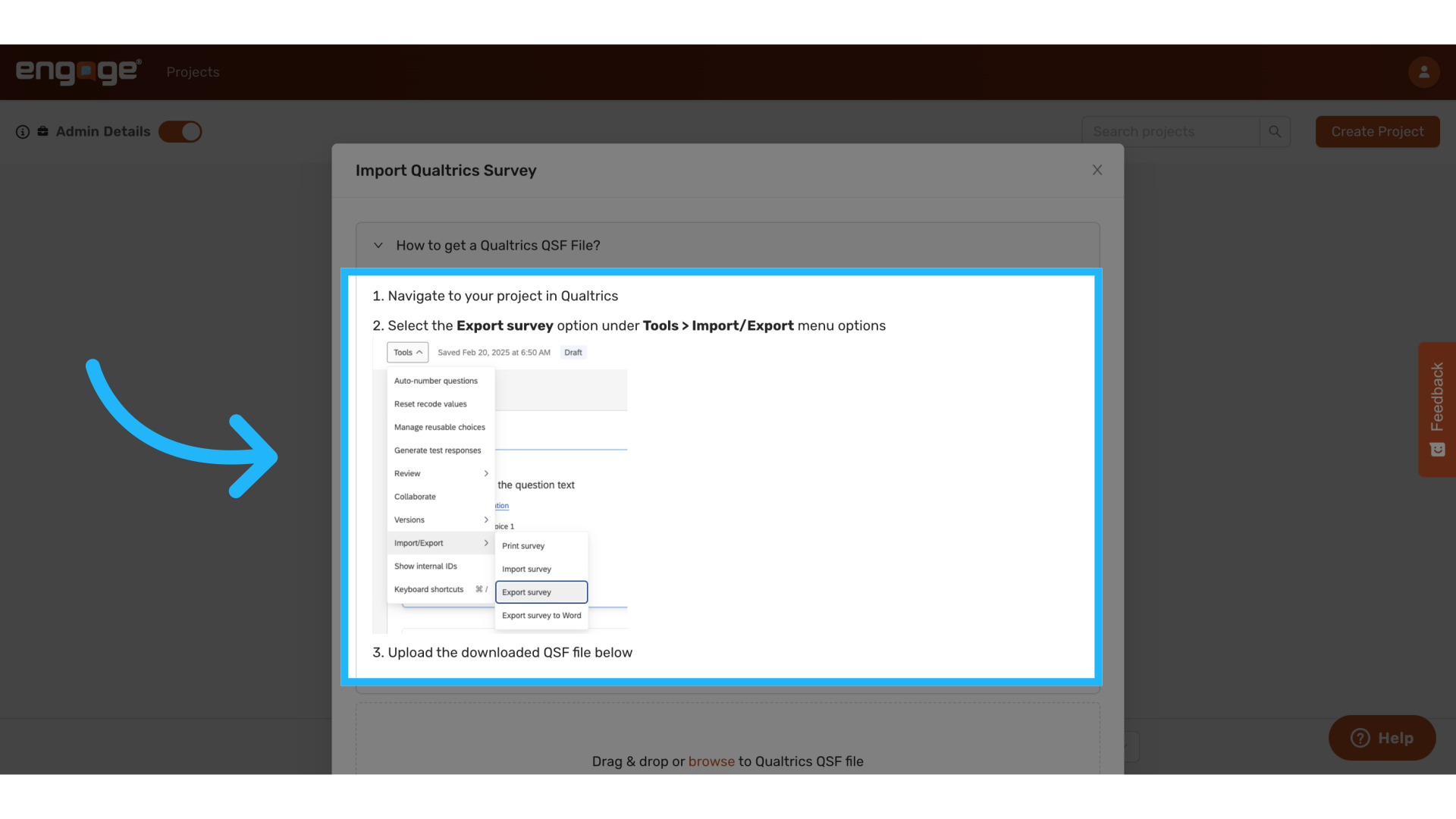
4. Export from Qualtrics as a .qsf File
Follow the displayed instructions:
- Go to your Qualtrics project.
- Navigate to Tools > Import/Export.
- Select Export Survey to download the .qsf file.
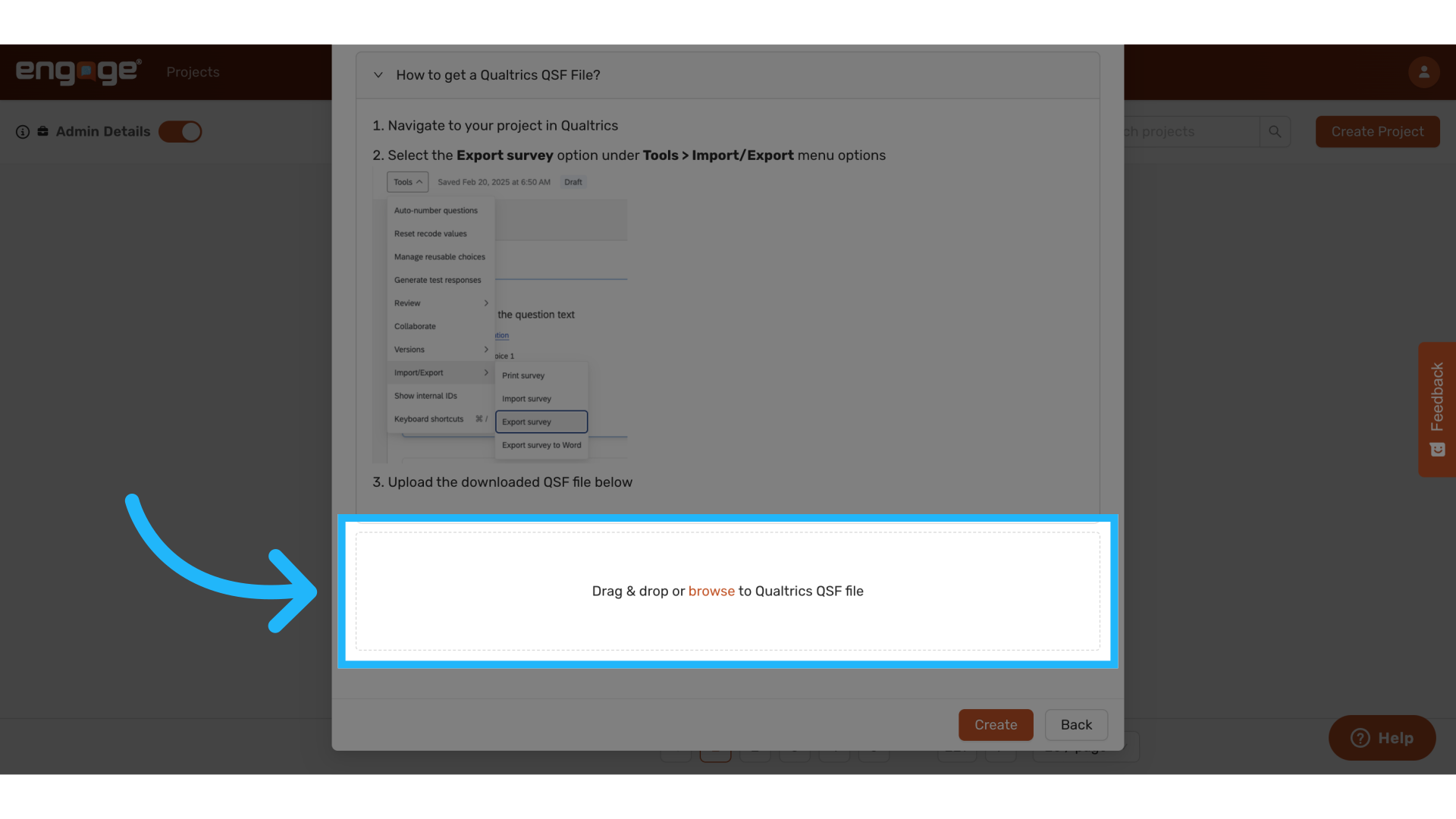
5. Upload the .qsf File
You can now Drag and drop of upload your qualtrics survey as a qsf file.
6. Create and Review Your Survey
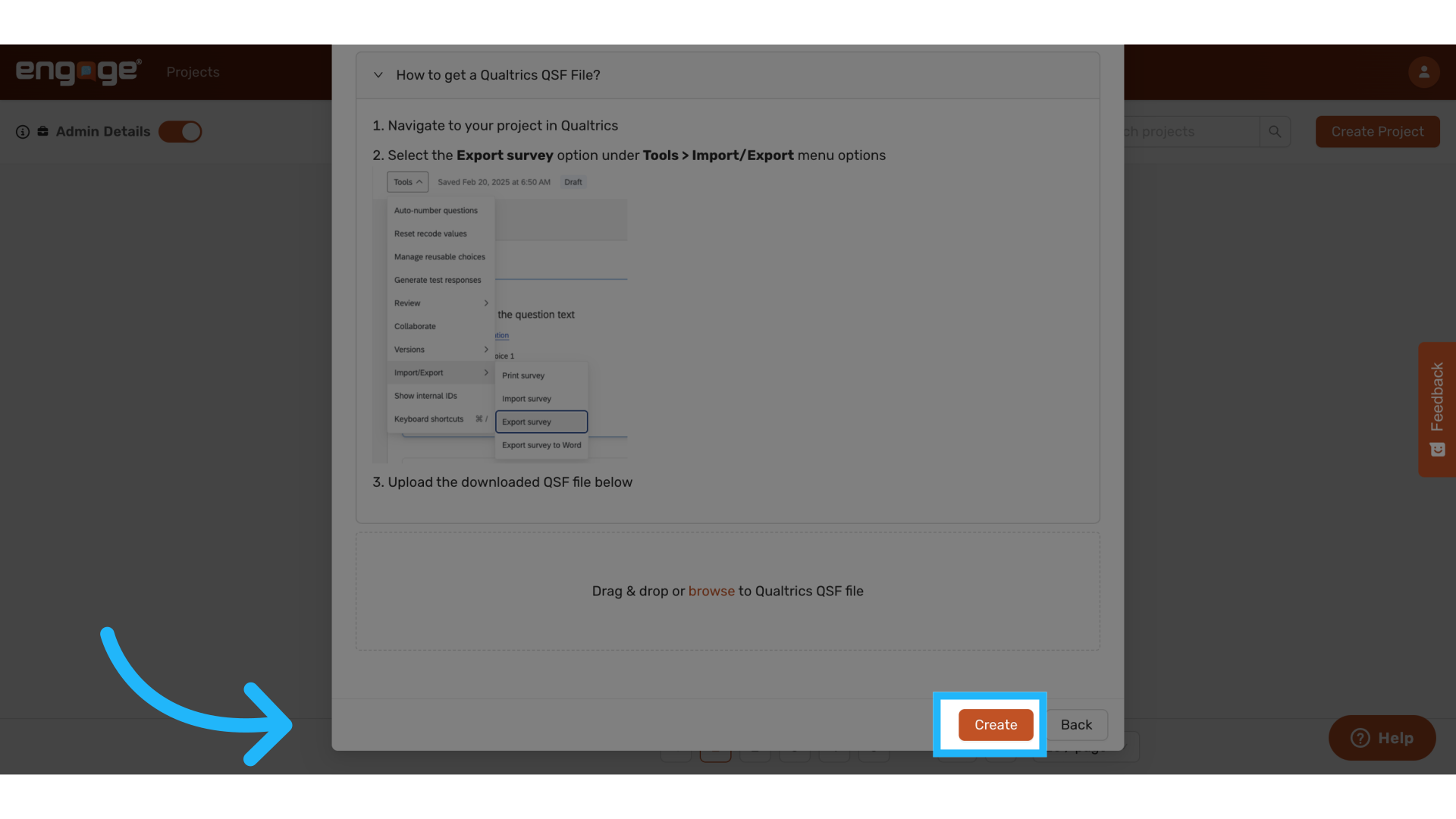
After uploading, click “Create” to finalize the import.
Your Qualtrics survey will now be available in Engage for further customization or deployment.
Your Qualtrics survey will now be available in Engage for further customization or deployment.
Thank you for watching. If you have any other questions, please reach out to our support team or access our other guides.
Comments
0 comments
Please sign in to leave a comment.