
Randomization in Engage allows you to present content (like stimuli or questions) in a random order to participants. This helps reduce order bias and is essential for experimental study design.
Login to engage.cloudresearch.com
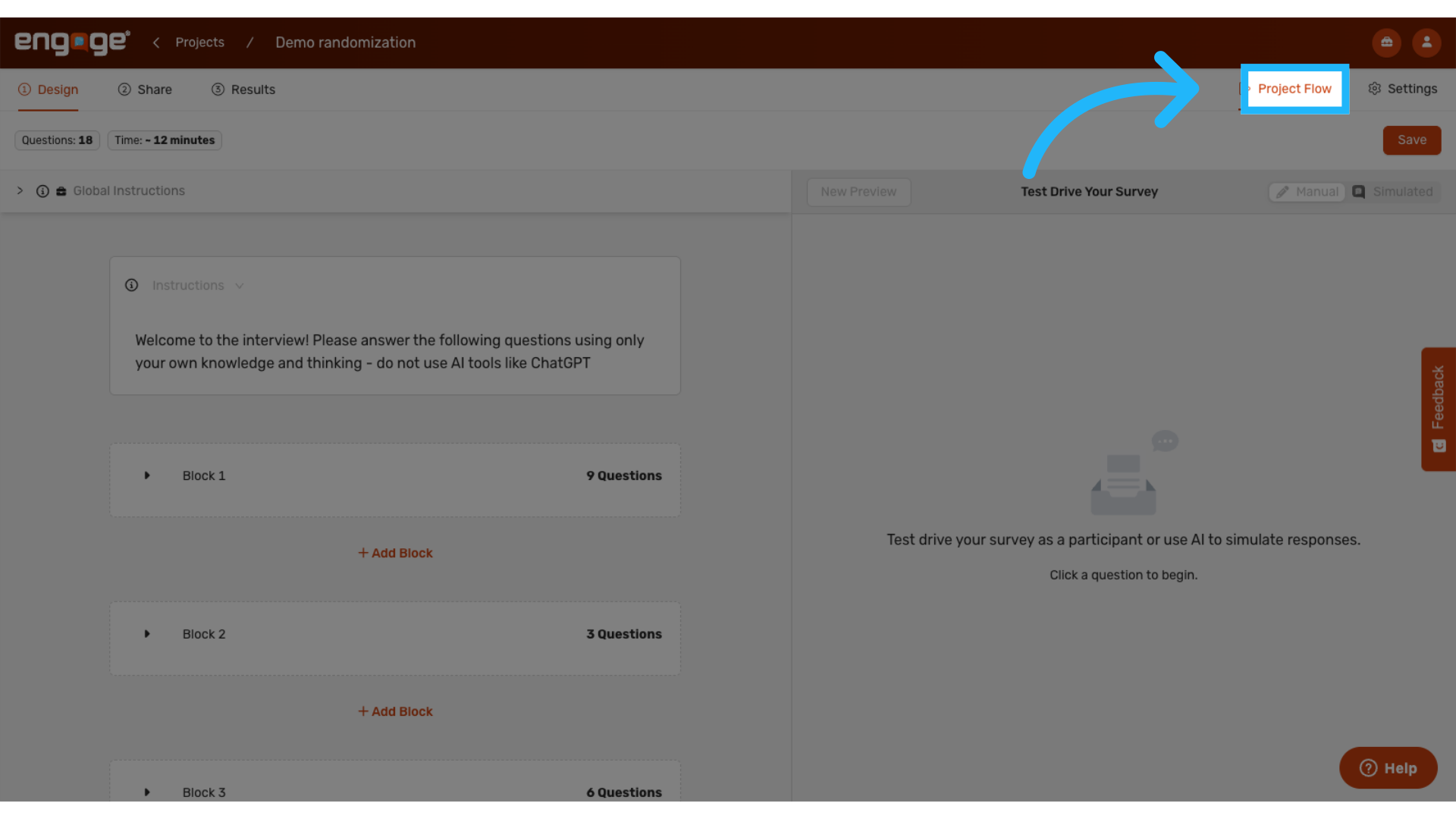
1. Locate Project Flow
Navigate to the Design tab and open the Project Flow settings. Here, you can add, organize, and randomize blocks of content.
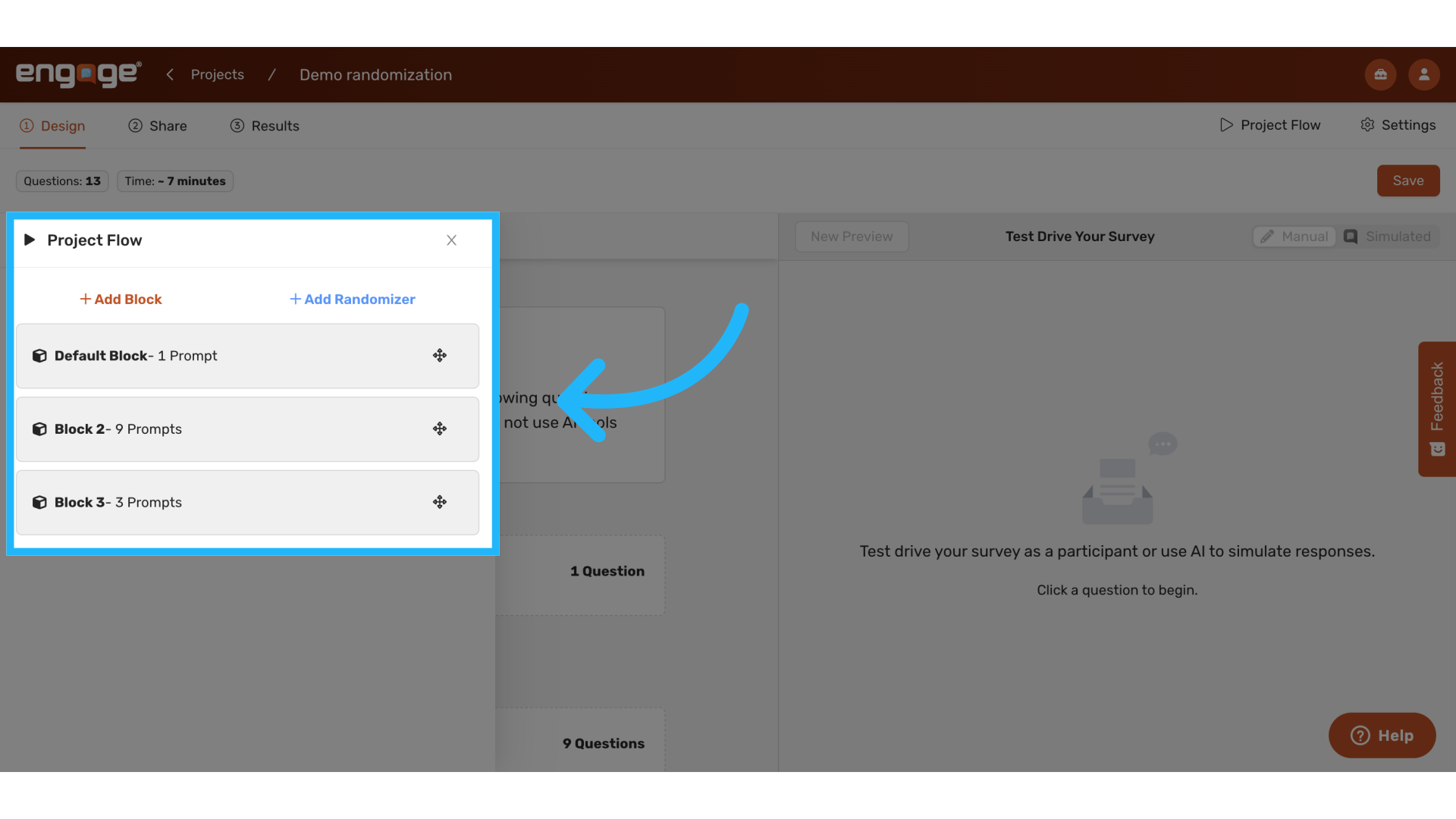
2. View Default Project Flow
The default project flow displays the blocks in the same order as they appear on the design page.
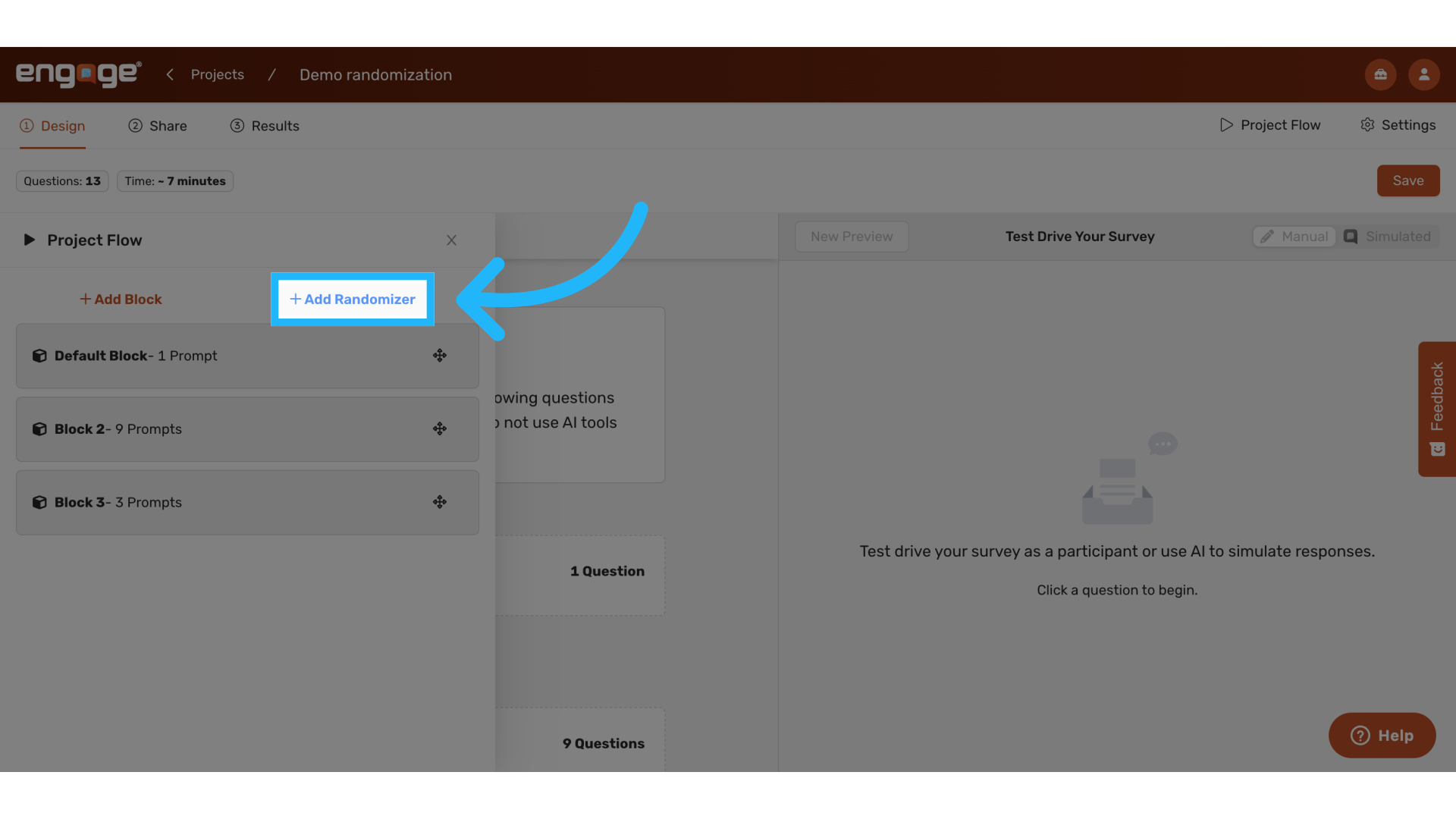
3. Add Randomizer
Click Add Randomizer to insert a randomization section into your project flow.
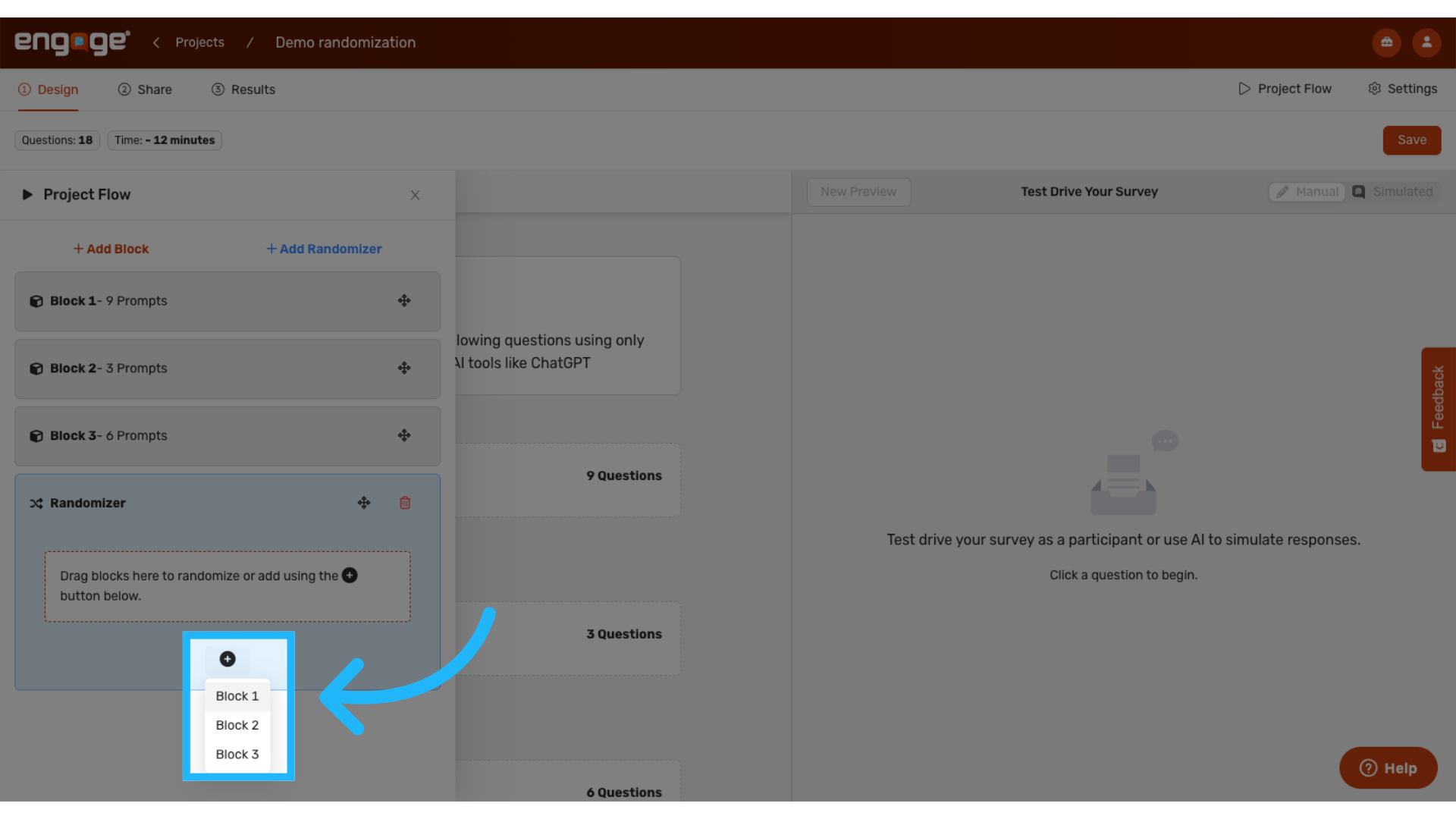
4. Add Blocks to the Randomizer
To include blocks in the randomizer, click the Add button and select the blocks you want to randomize.
5. Drag and Drop
Alternatively, drag and drop blocks directly into the randomizer.
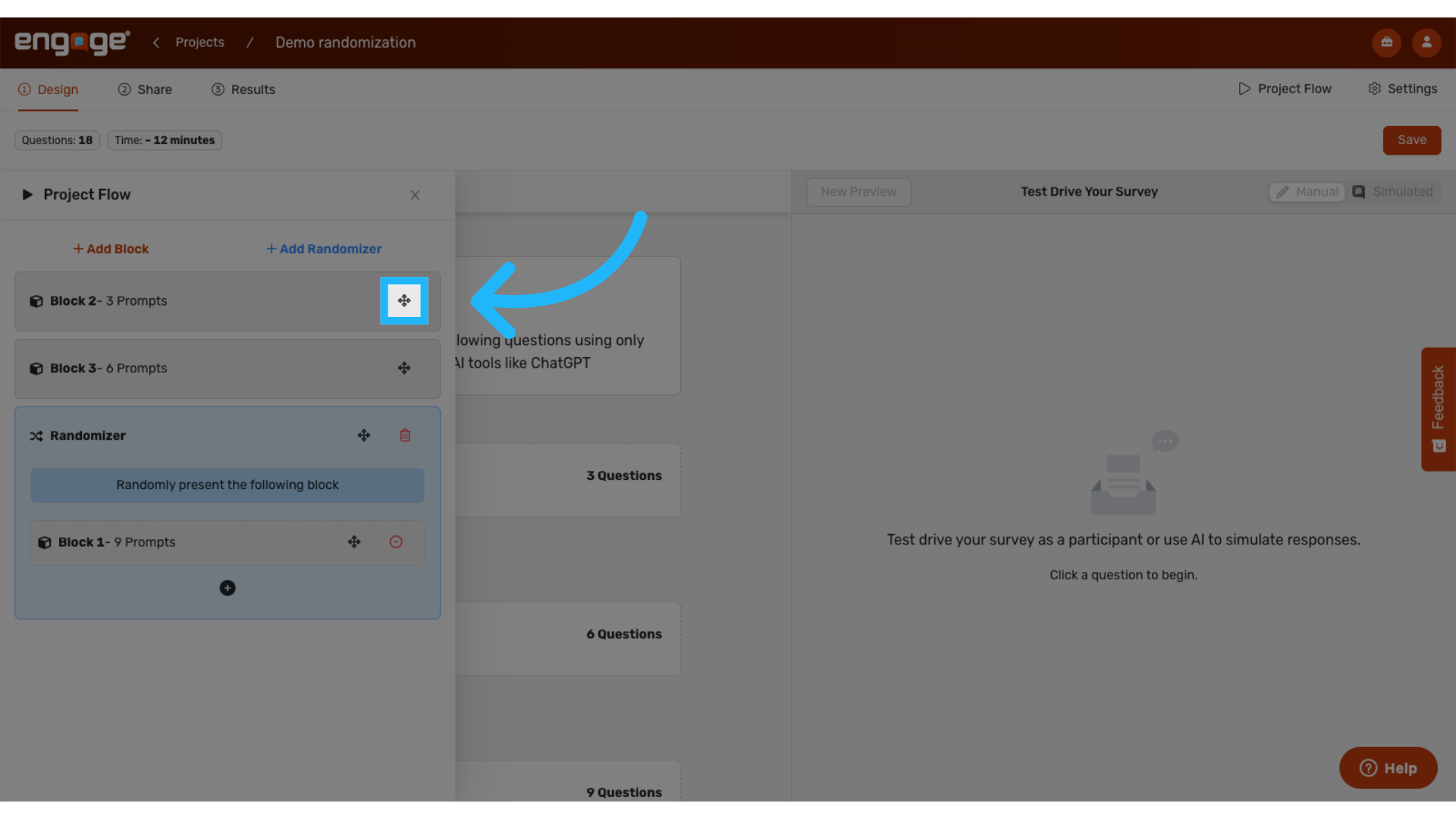
6. Remove Blocks from the Randomizer
To remove a block, simply drag it out of the randomizer. It will return to the general project flow above.
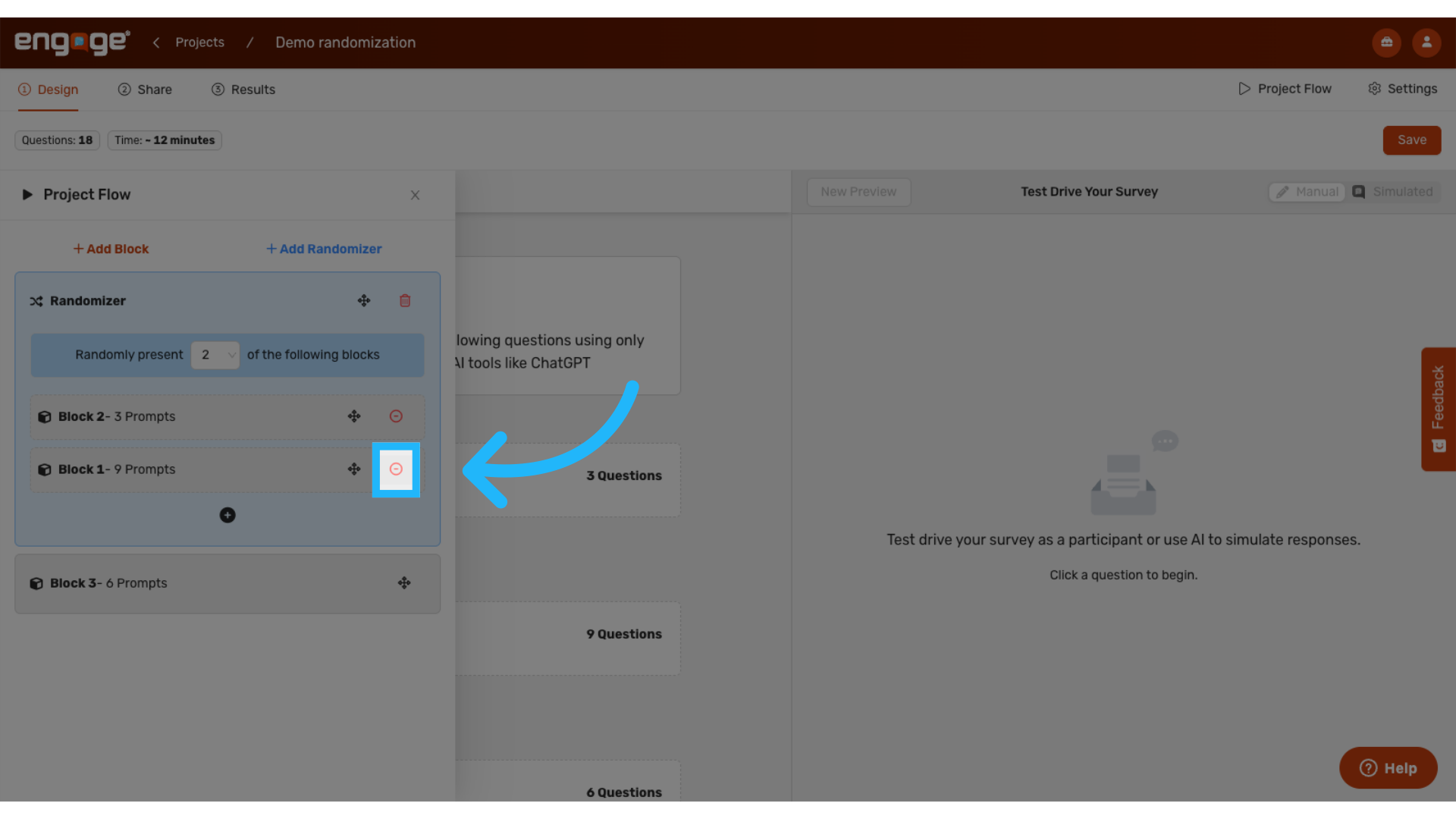
7. Configure Number of Blocks to Present
You can control how many blocks each participant sees by setting the number in the randomizer settings.
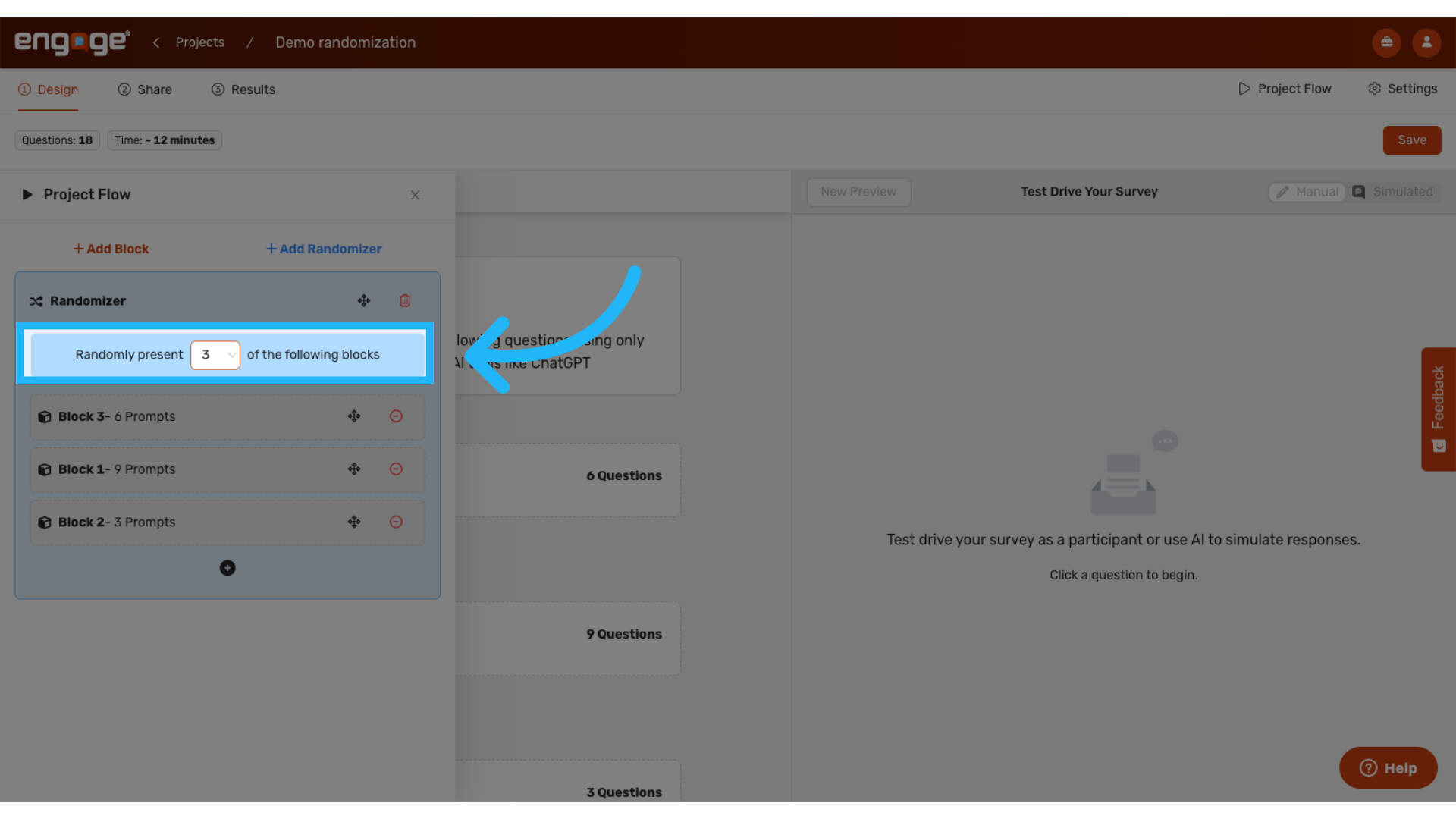
8. Add Multiple Randomizers
You can include more than one randomizer in a single survey to customize different sections.
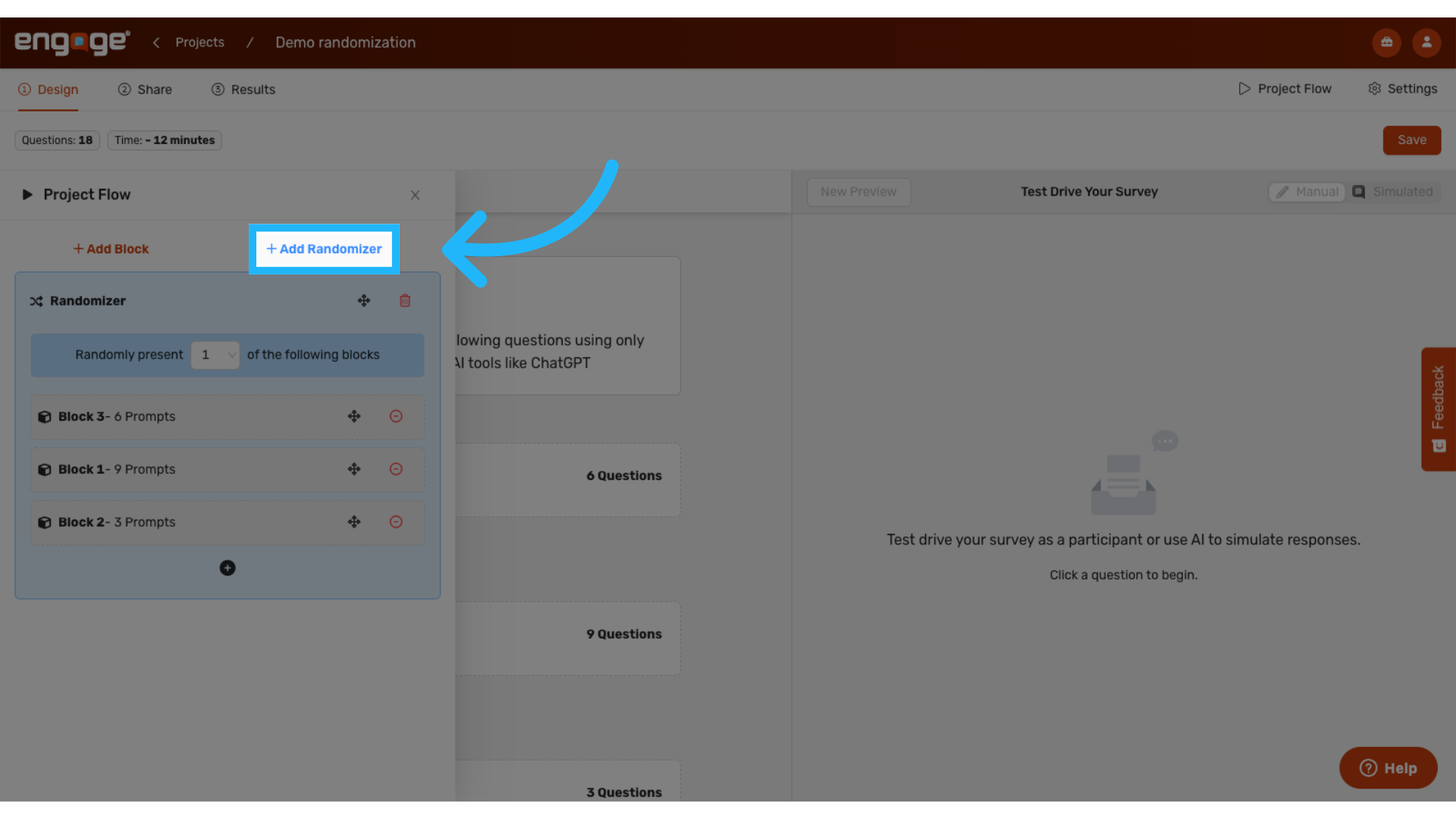
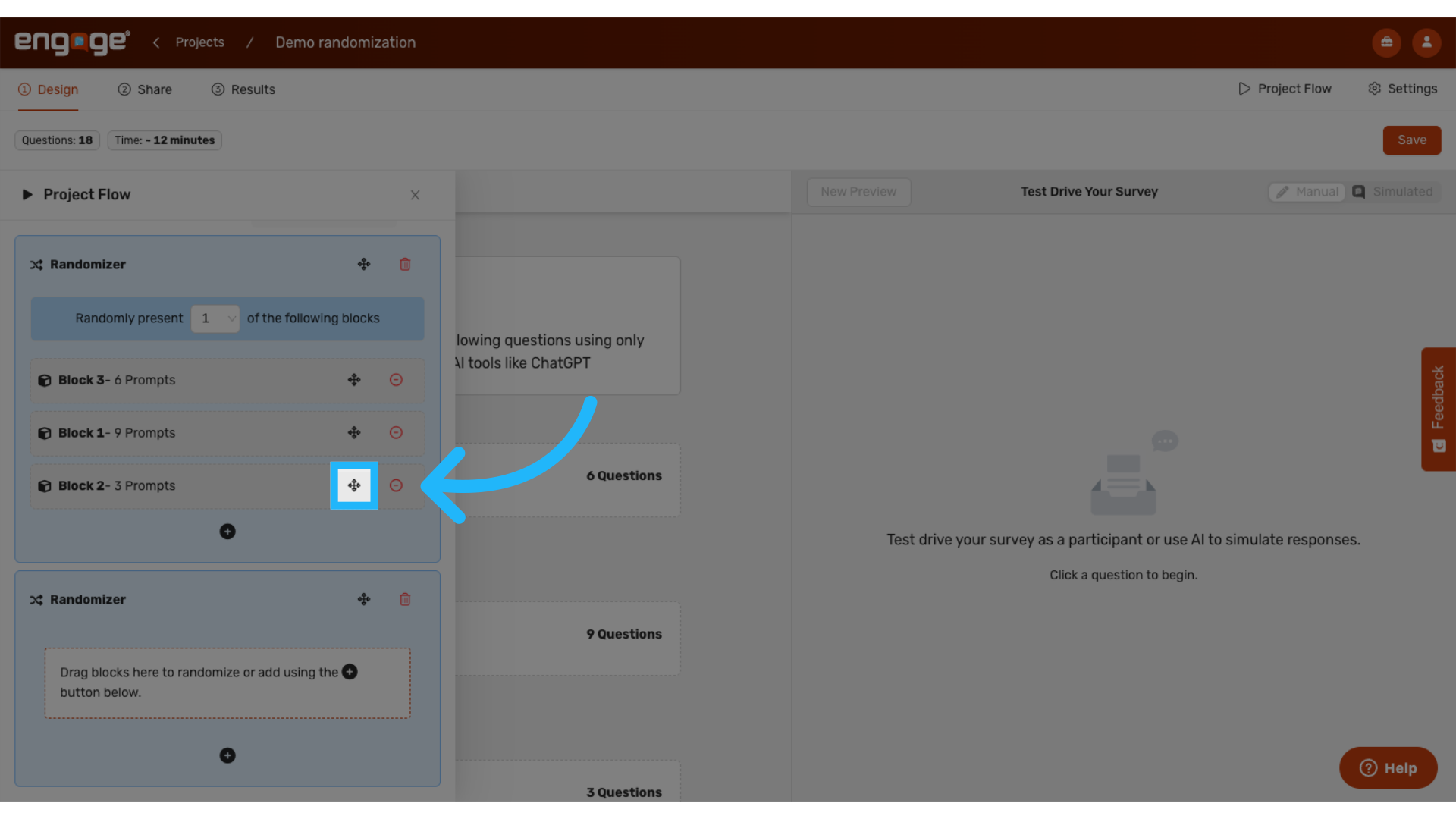
9. Move Blocks Between Randomizers
You can move blocks between different randomizers as needed by dragging and dropping.
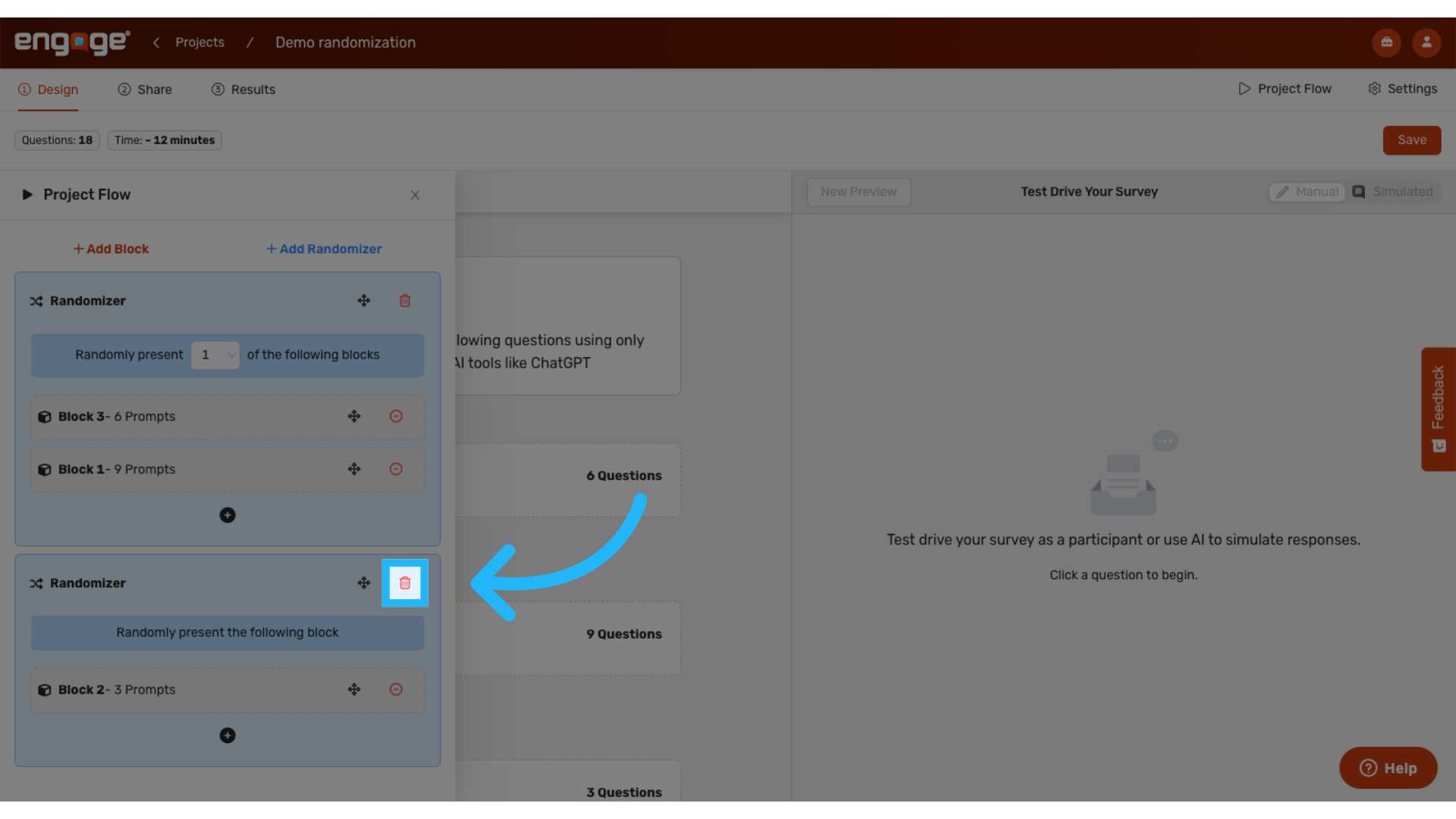
10. Delete Randomizer
To remove a randomizer, delete it from the flow. The blocks inside will automatically return to the general project flow.
Thank you for watching. If you have any additional questions, feel free to watch our other guides or reach out to our support team!
Comments
0 comments
Please sign in to leave a comment.