Welcome to our guide on using Skip and Display Logic on Engage.
Display Logic allows you to control whether a question or block
is visible to
participants based on specific conditions, such as previous answers.
Skip Logic
directs participants
to different sections of your survey based on their answers, essentially skipping
over irrelevant questions.
Login to
Engage
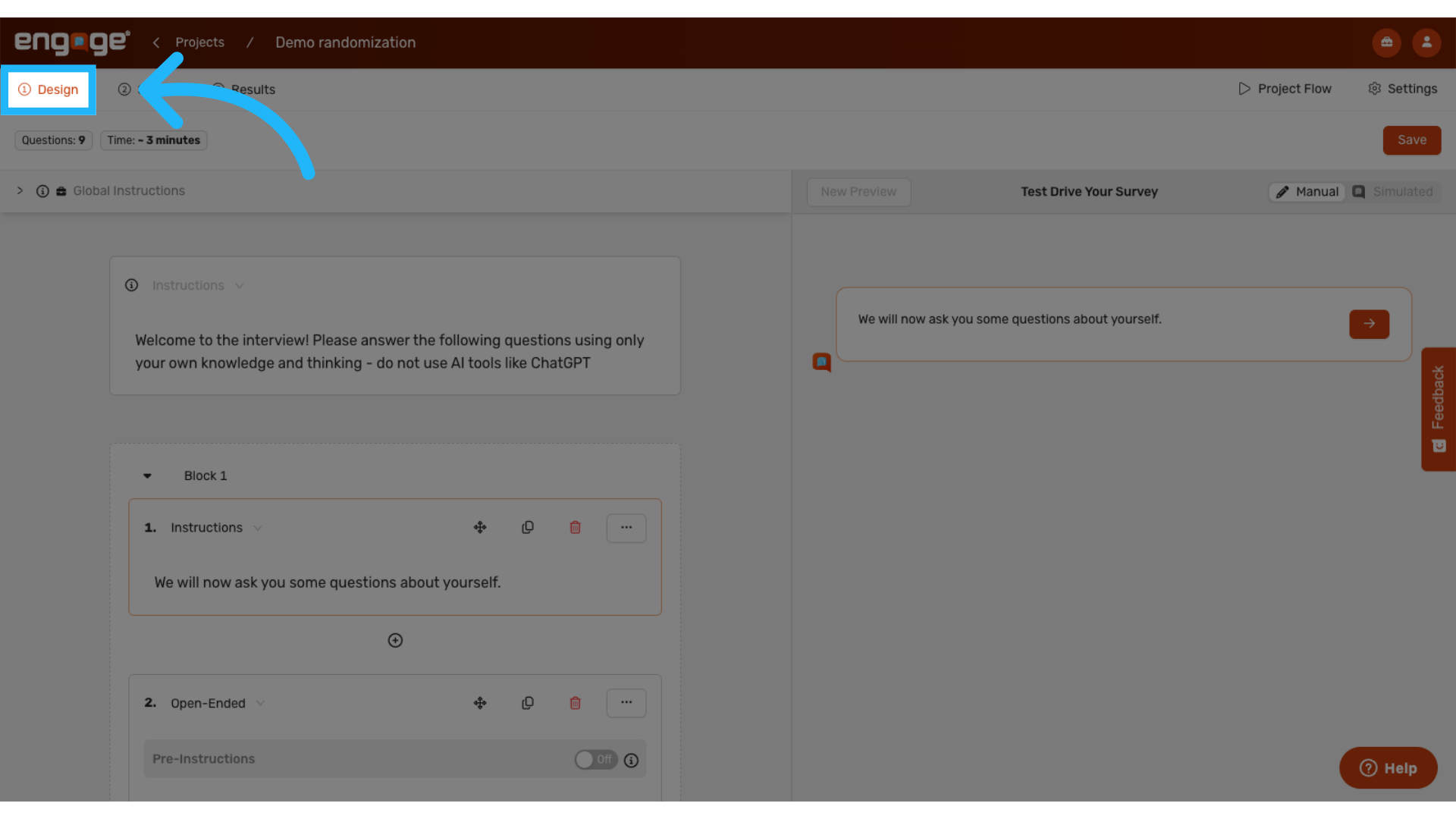
1. Locate Design Page
Navigate to the design page on your Engage project.
2. Add Skip Logic or Display Logic to questions or blocks
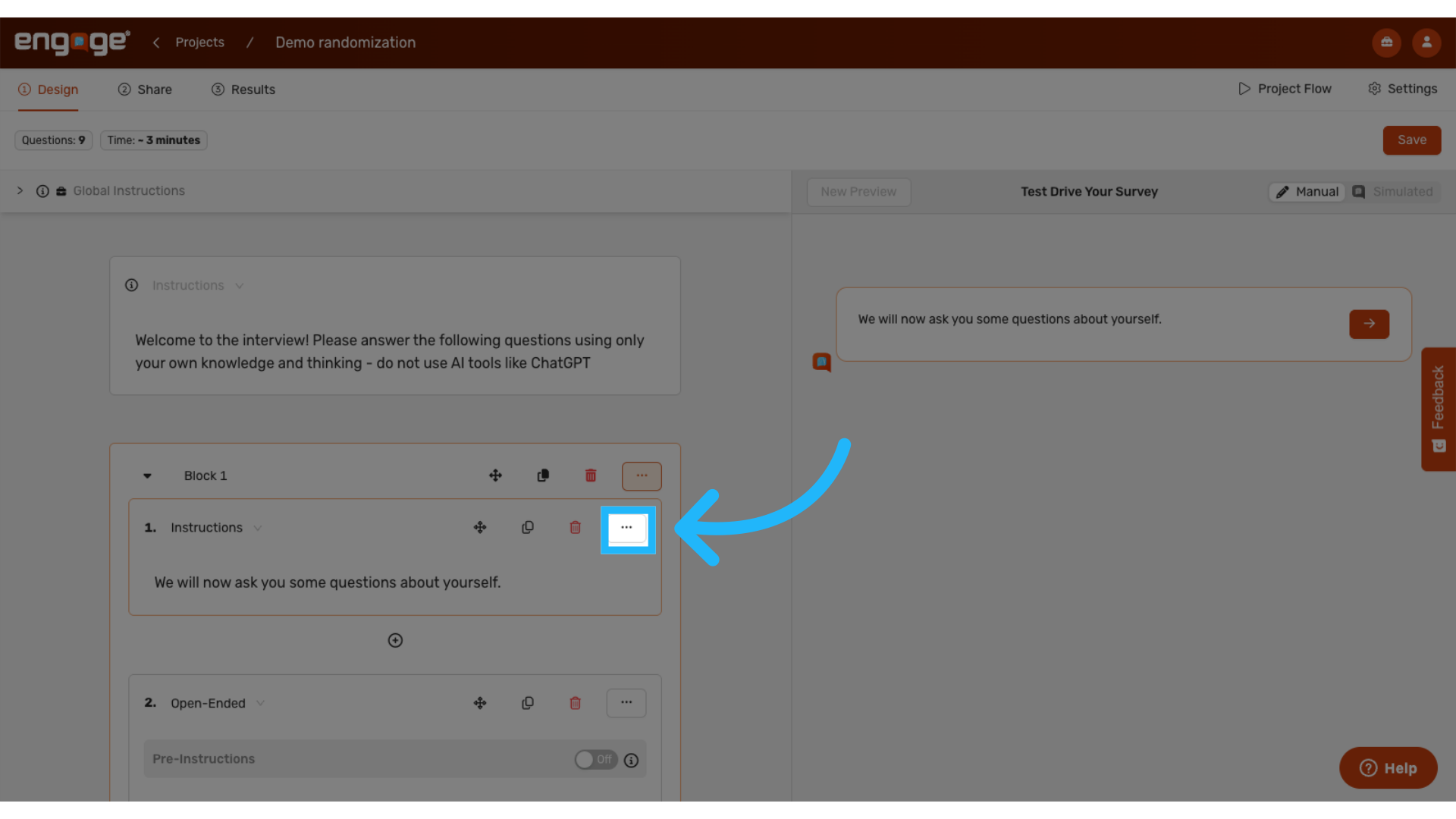
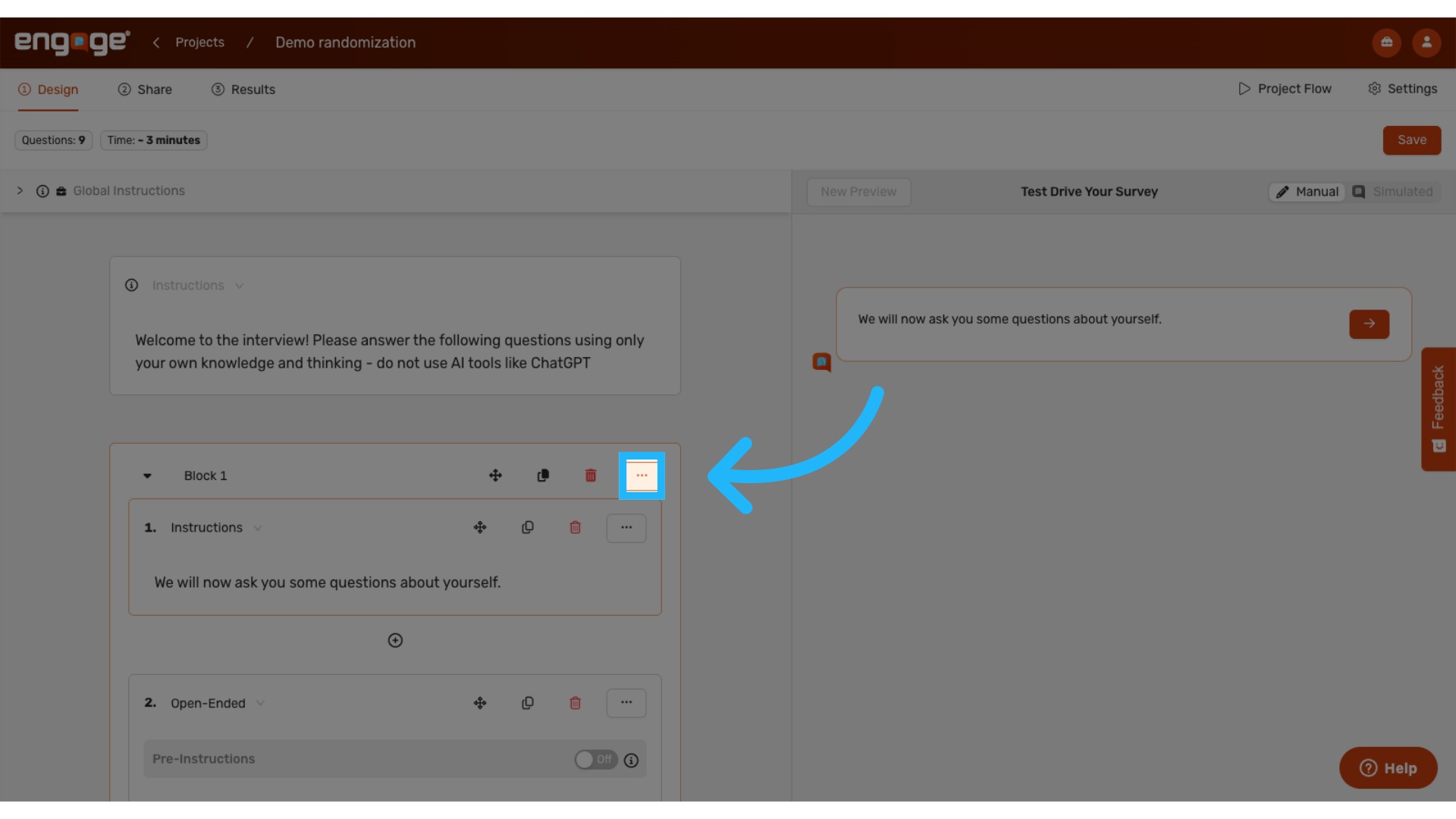
Add skip logic or display logic on the question level or the block level. To
configure either option, select the target block or question where you want to
implement the logic. Then, click on the "More Options" menu (three dots icon).
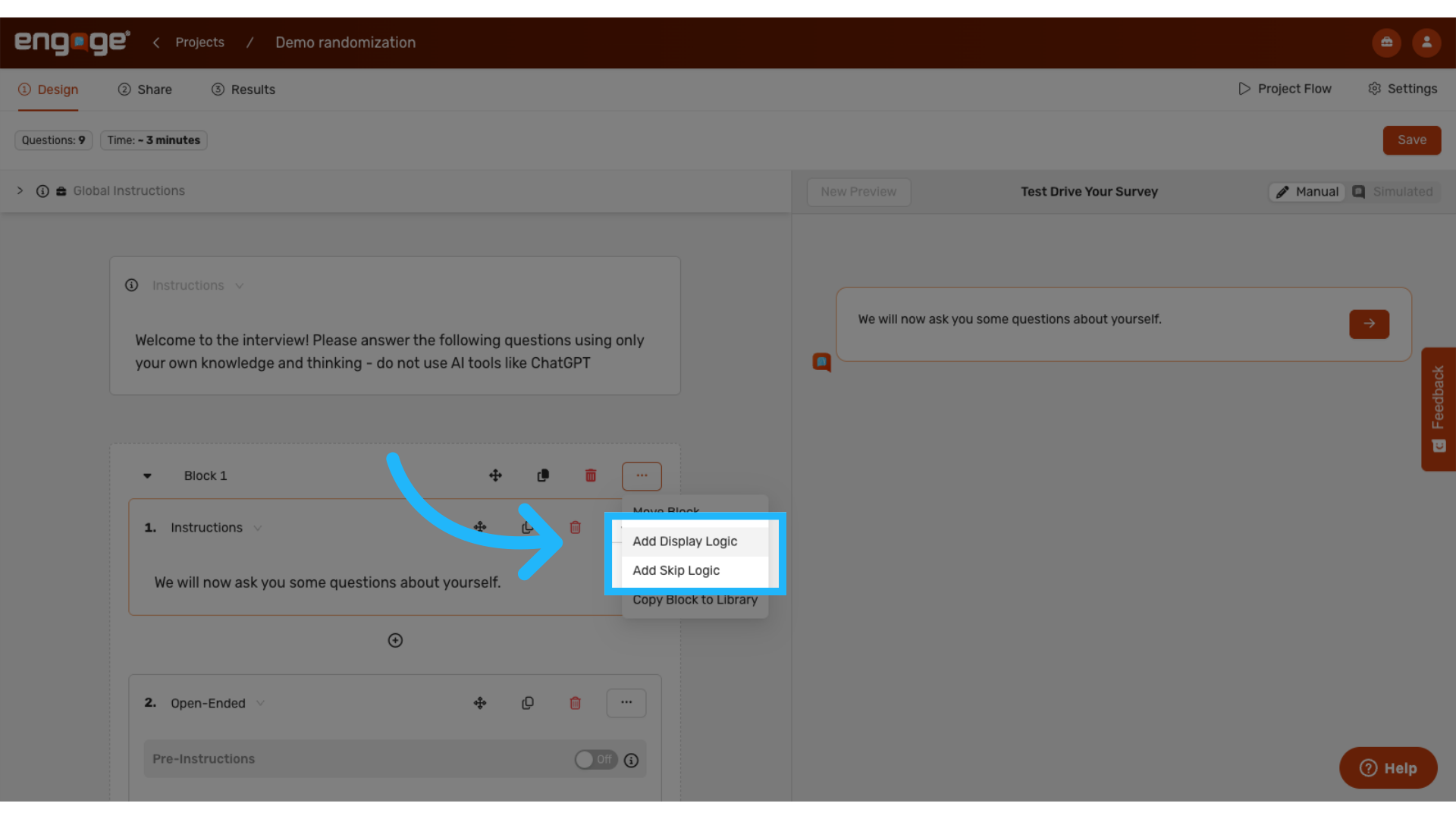
4. Choose your logic type
From the options menu, select either "Skip Logic" or "Display Logic" based on your requirements.
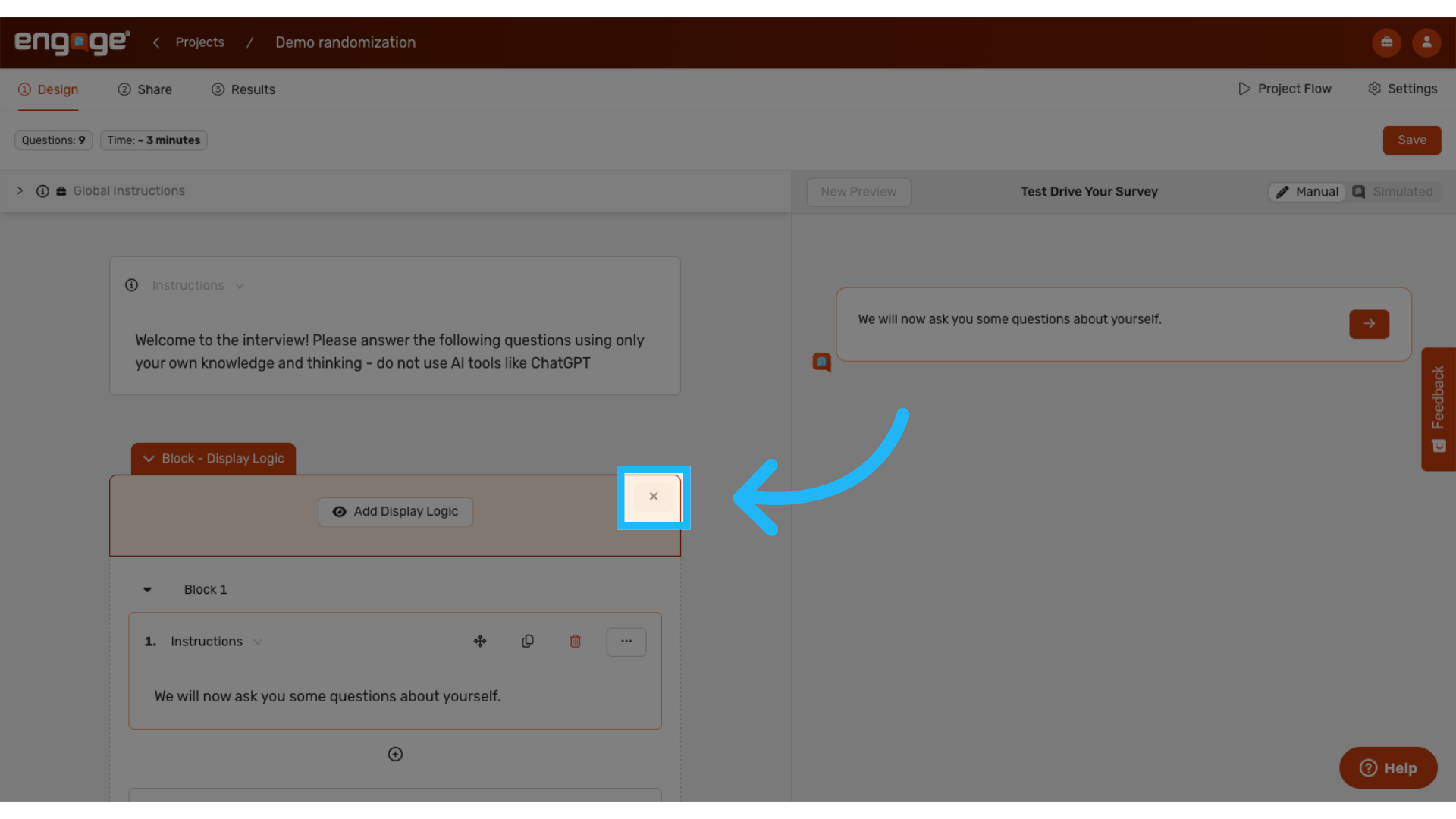
5. Remove Logic Configuration
To remove previously configured logic, click the "X" button next to the logic type indicator.
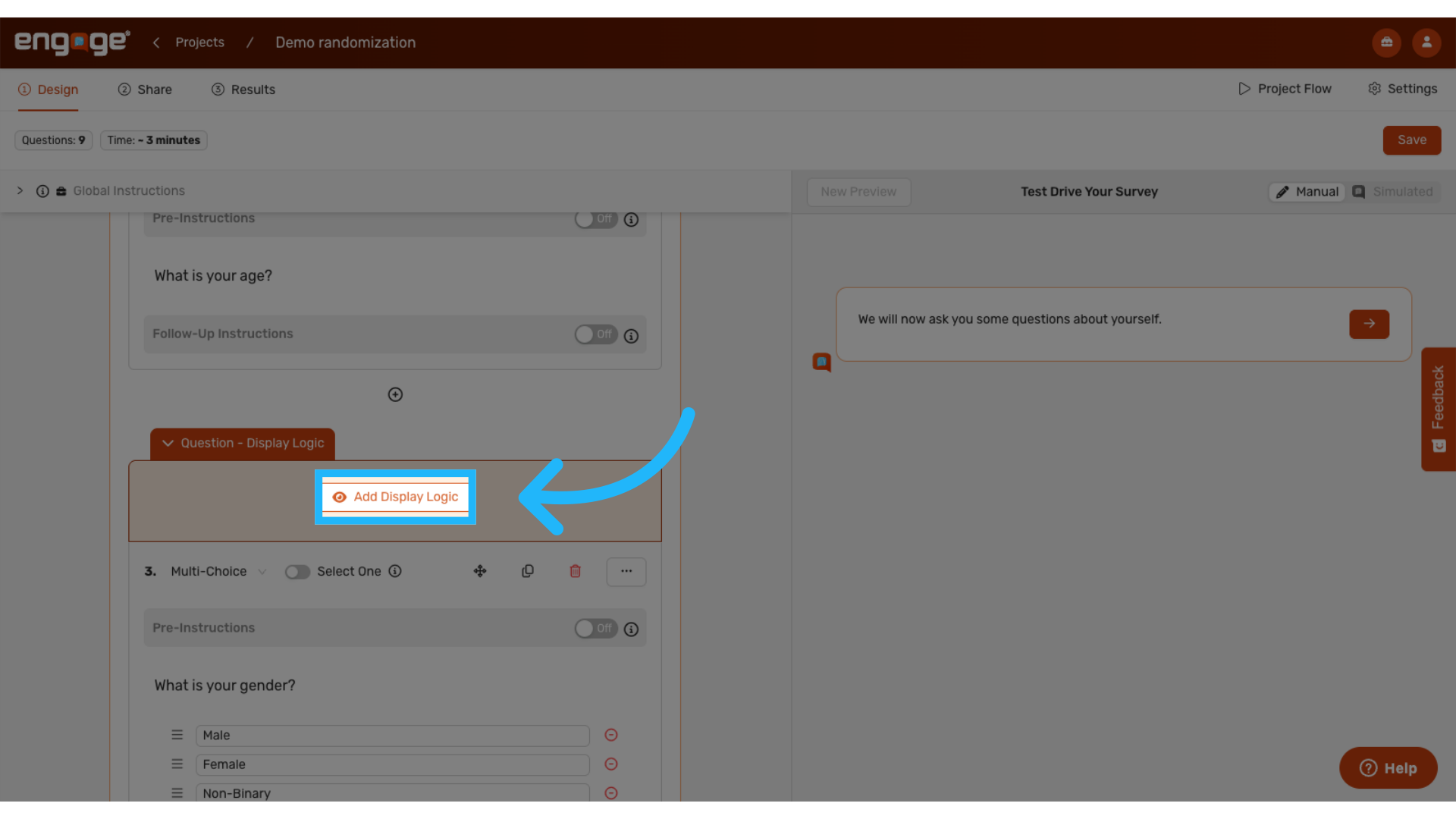
6. Configure Display Logic
Display Logic appears above questions in the design interface and controls element visibility based on participant responses. Click "Add Display Logic" to begin configuration.
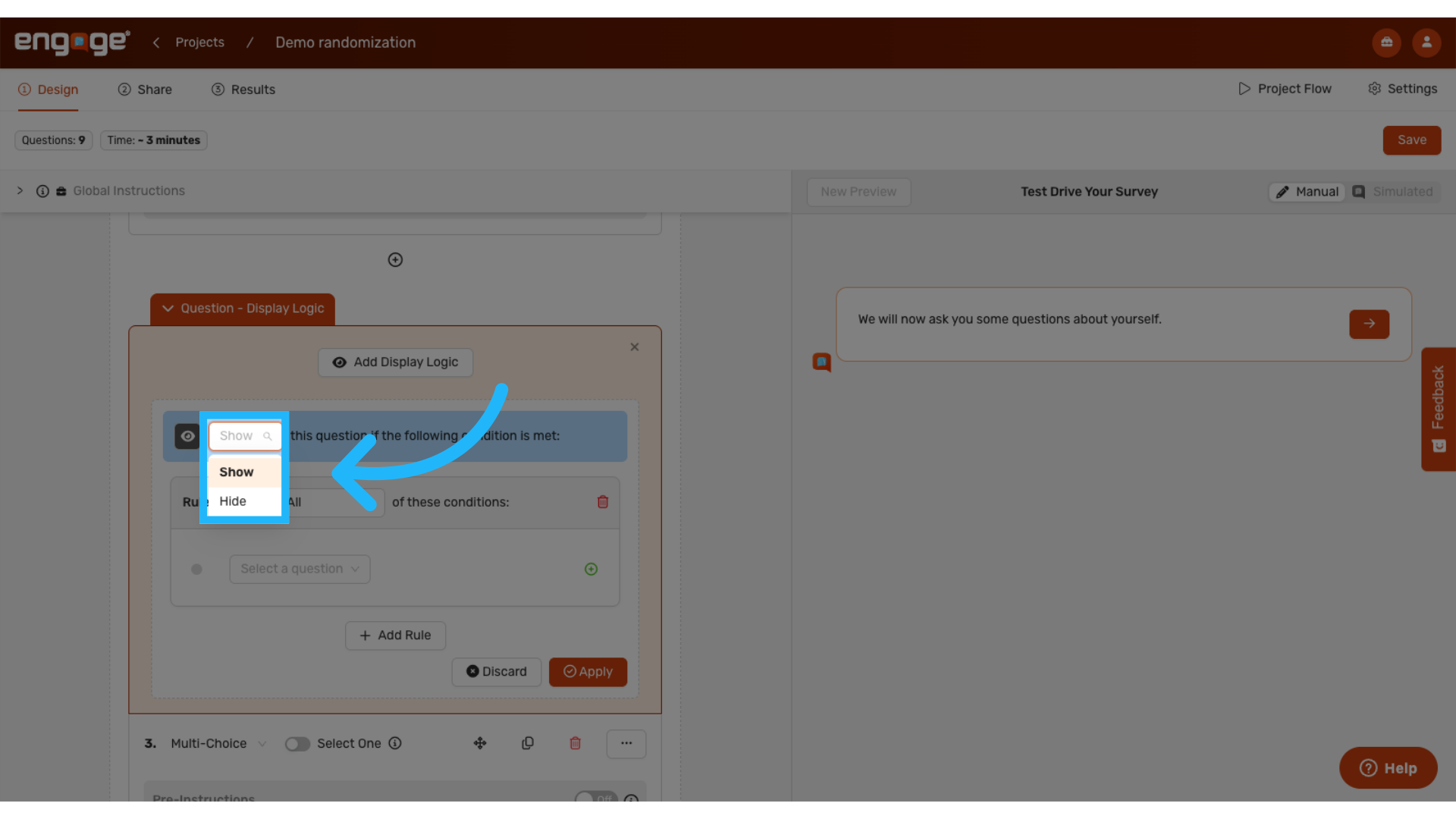
7. Select "Show" or "Hide"
Specify whether the question or block should "Show" or "Hide" when the defined criteria are satisfied.
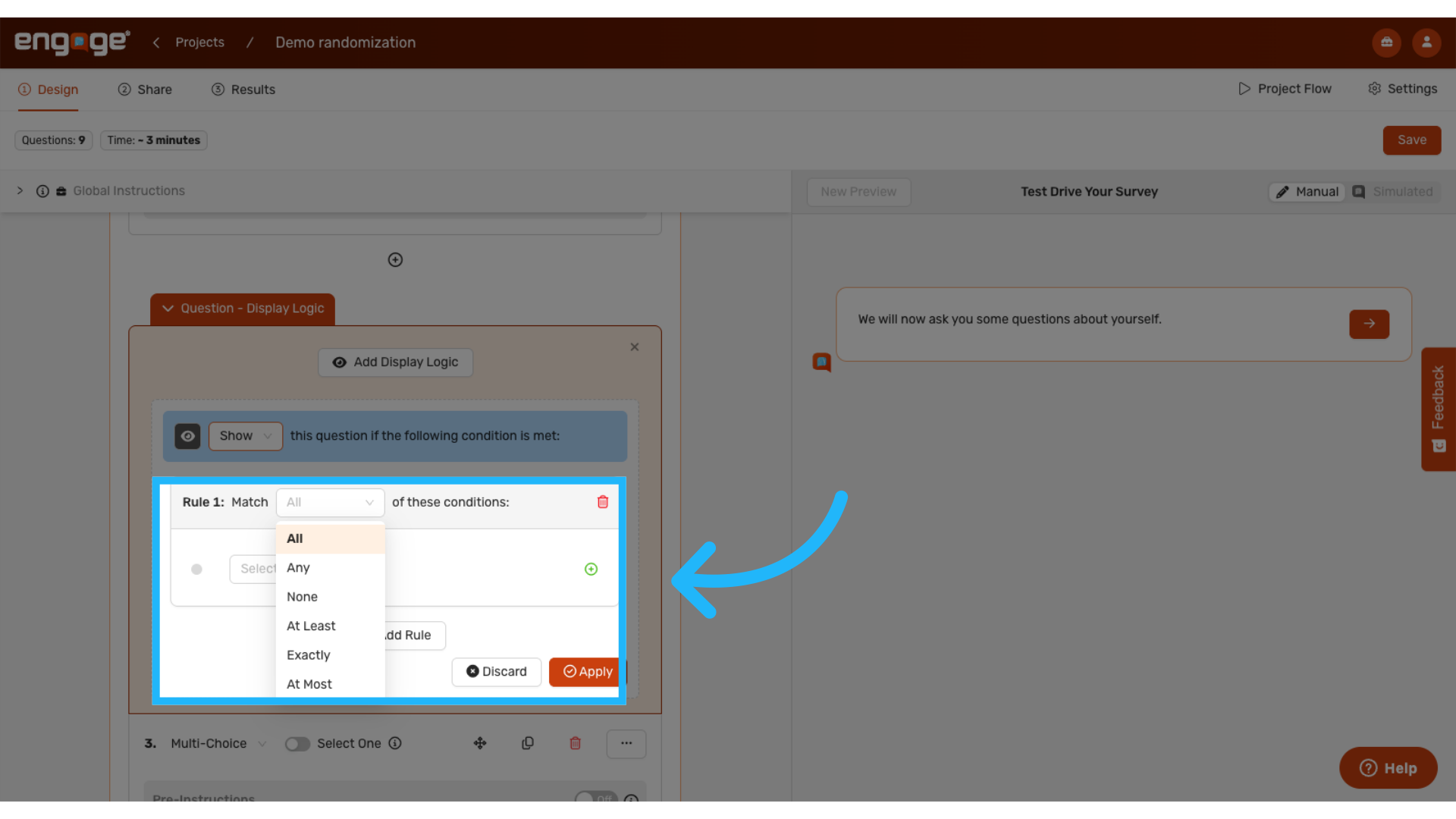
8. Set condition matching parameters
Define how the conditions should be evaluated by selecting from: "All," "Any," "None," "At least," "Exactly," or "At most" of the defined rules.
9. Establish the primary criteria rule
Configure the first criteria rule that will determine when the display logic should be activated.
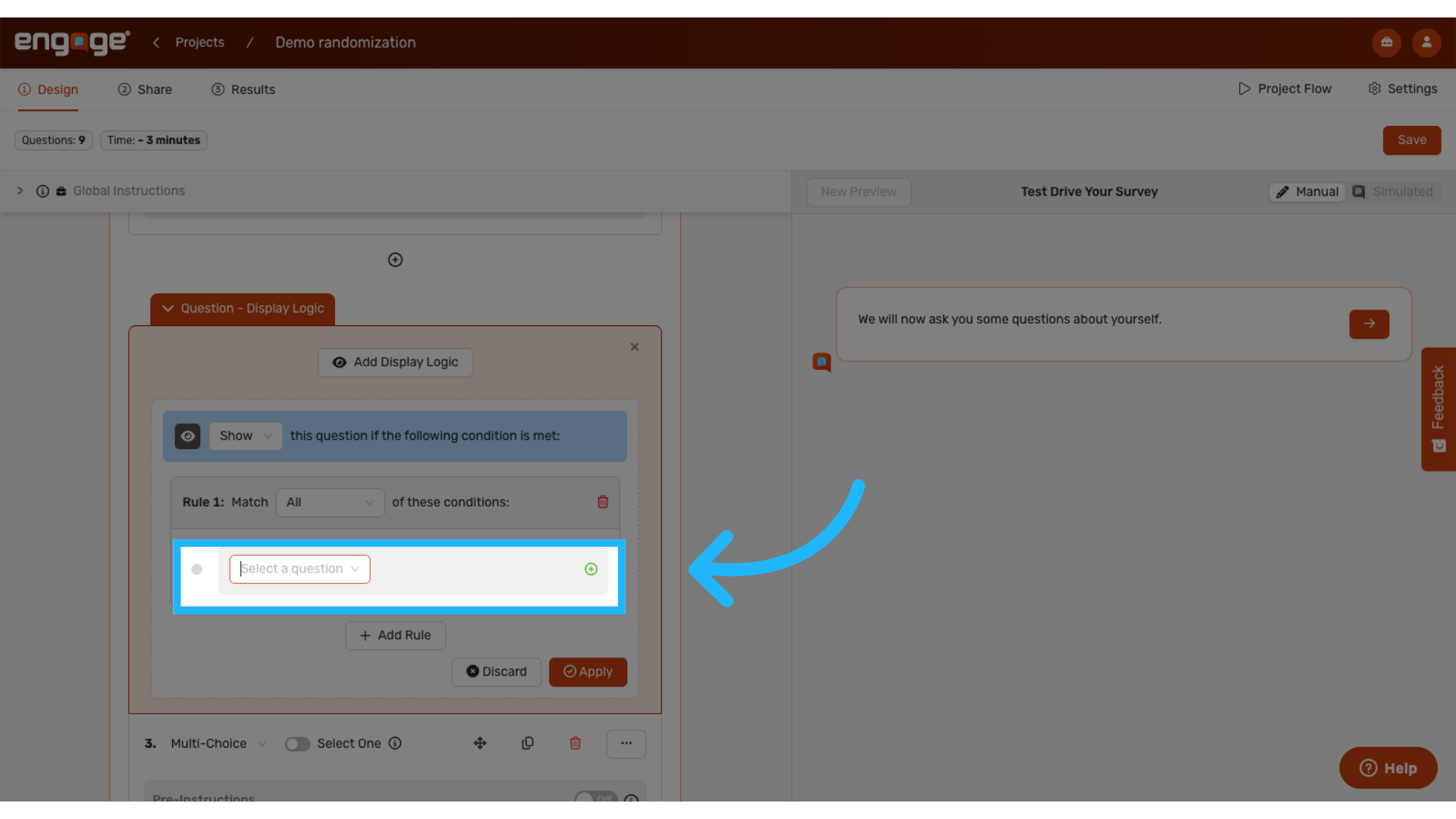
10. Select the reference question
Choose a previous question from your survey that will serve as the basis for
the logic evaluation.
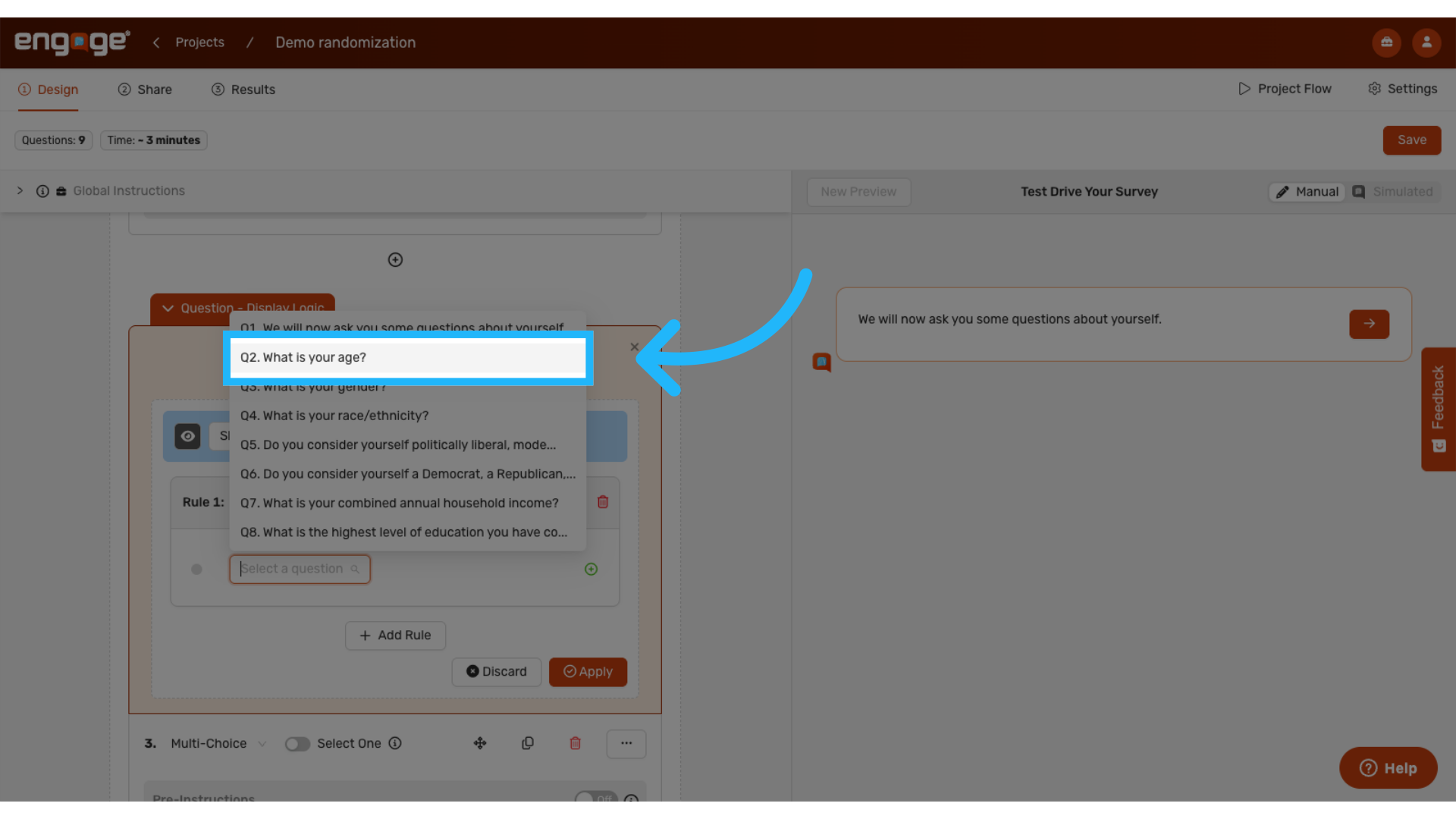
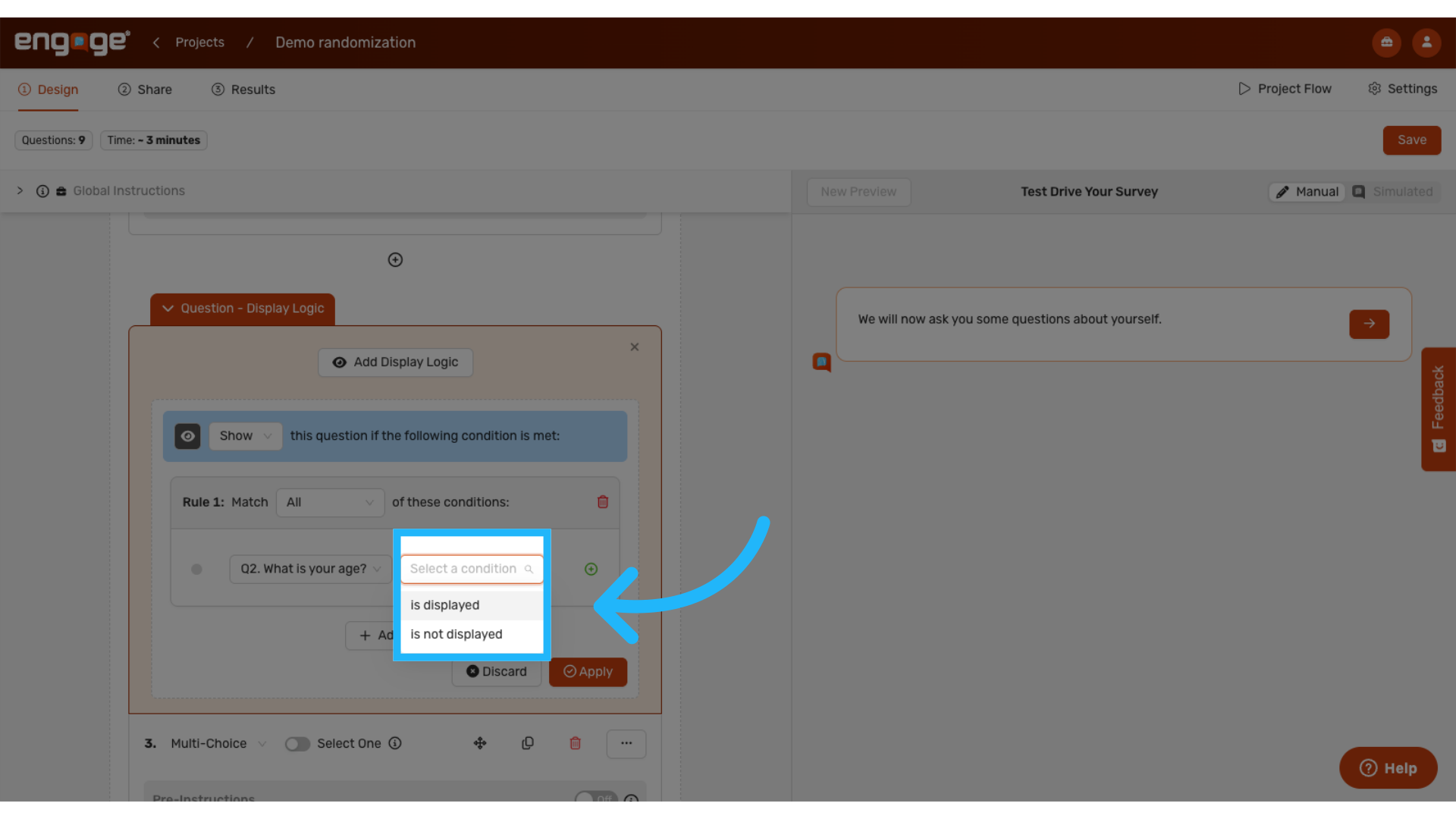
11. Define the matching condition
Specify the condition that must be met for the logic to activate. For open-ended questions, the available conditions typically relate to whether the question was displayed or answered.
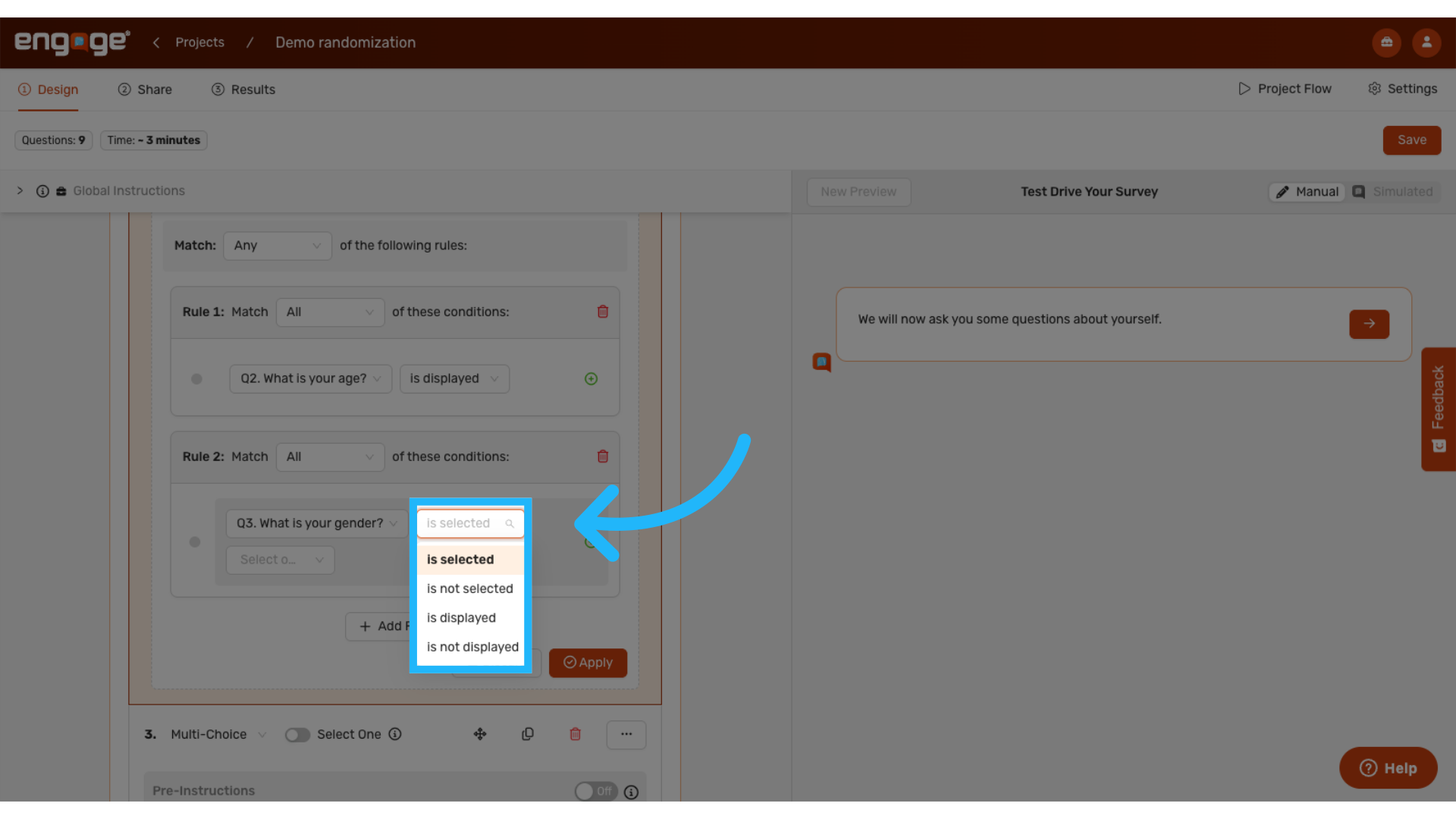
12. Configure response-based conditions
For multiple-choice questions, you can create conditions based on specific participant
responses using the "is selected" parameter.
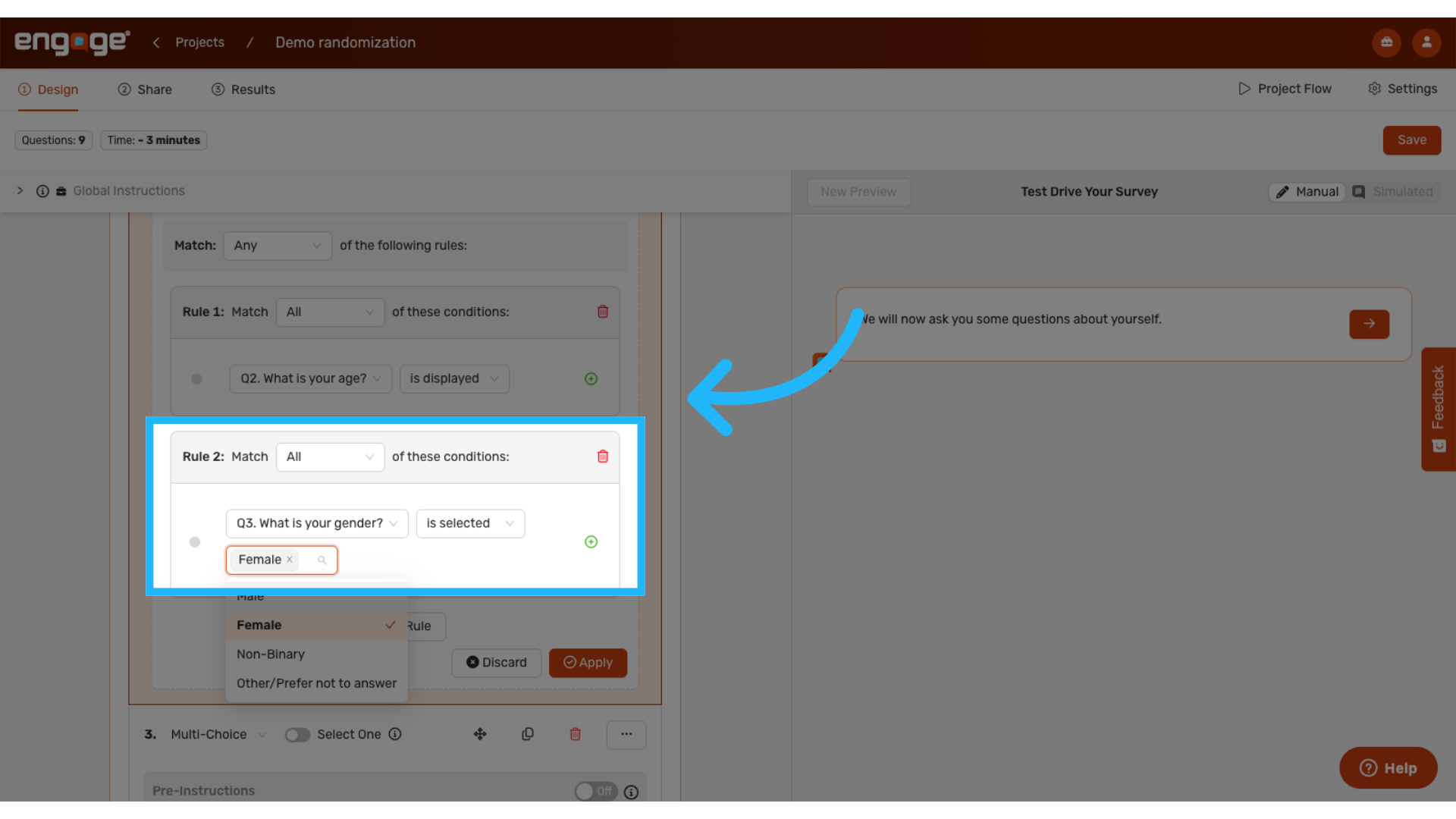
13. Implementation example
For example, to display a question only to female participants, select the "What is your gender?" question and choose the "Female" response option. This configuration ensures that the conditional question will appear only when "Female" was selected in the gender question.
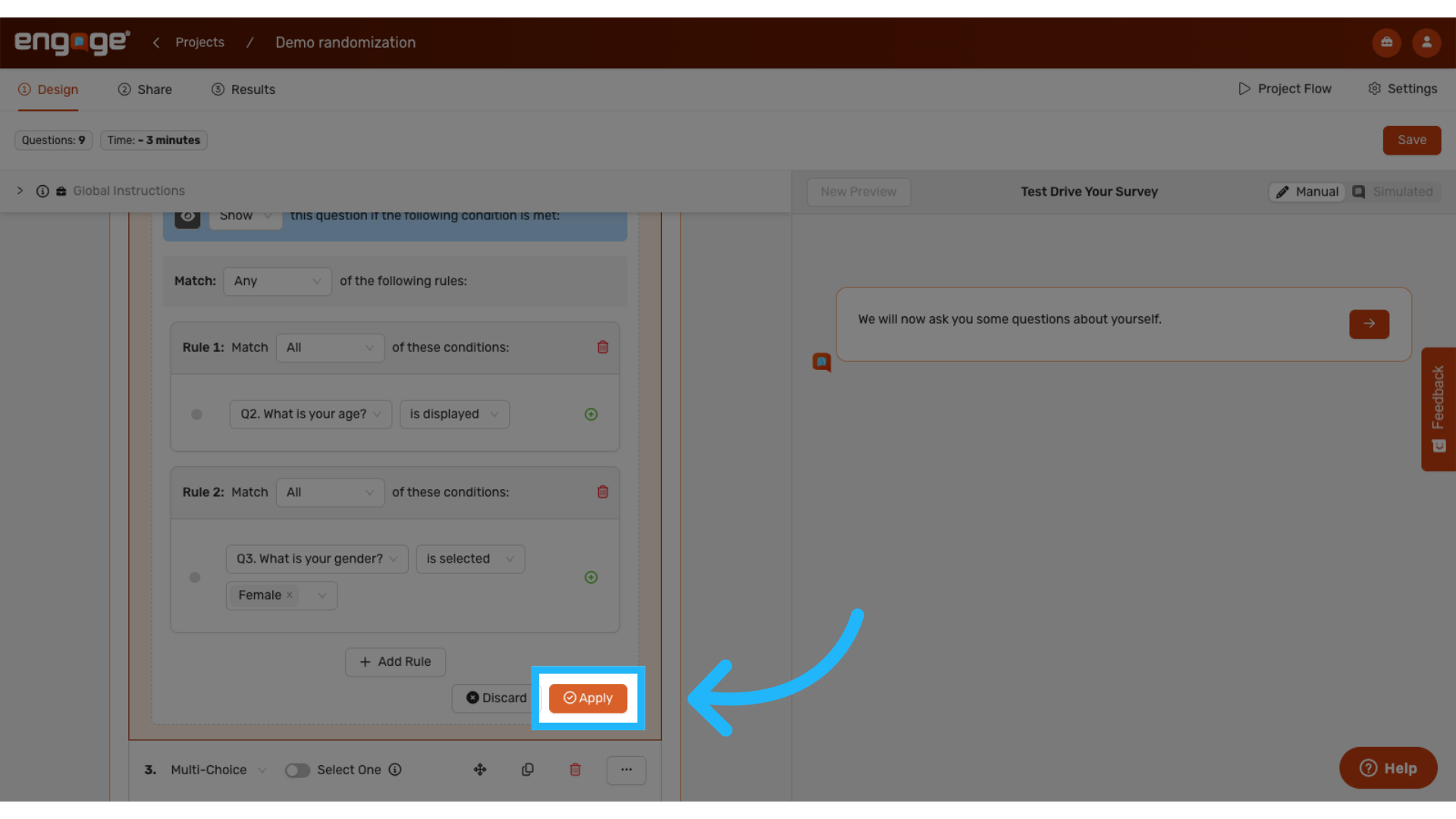
14. Save your configuration
Click "Apply" to save and activate your display logic configuration.
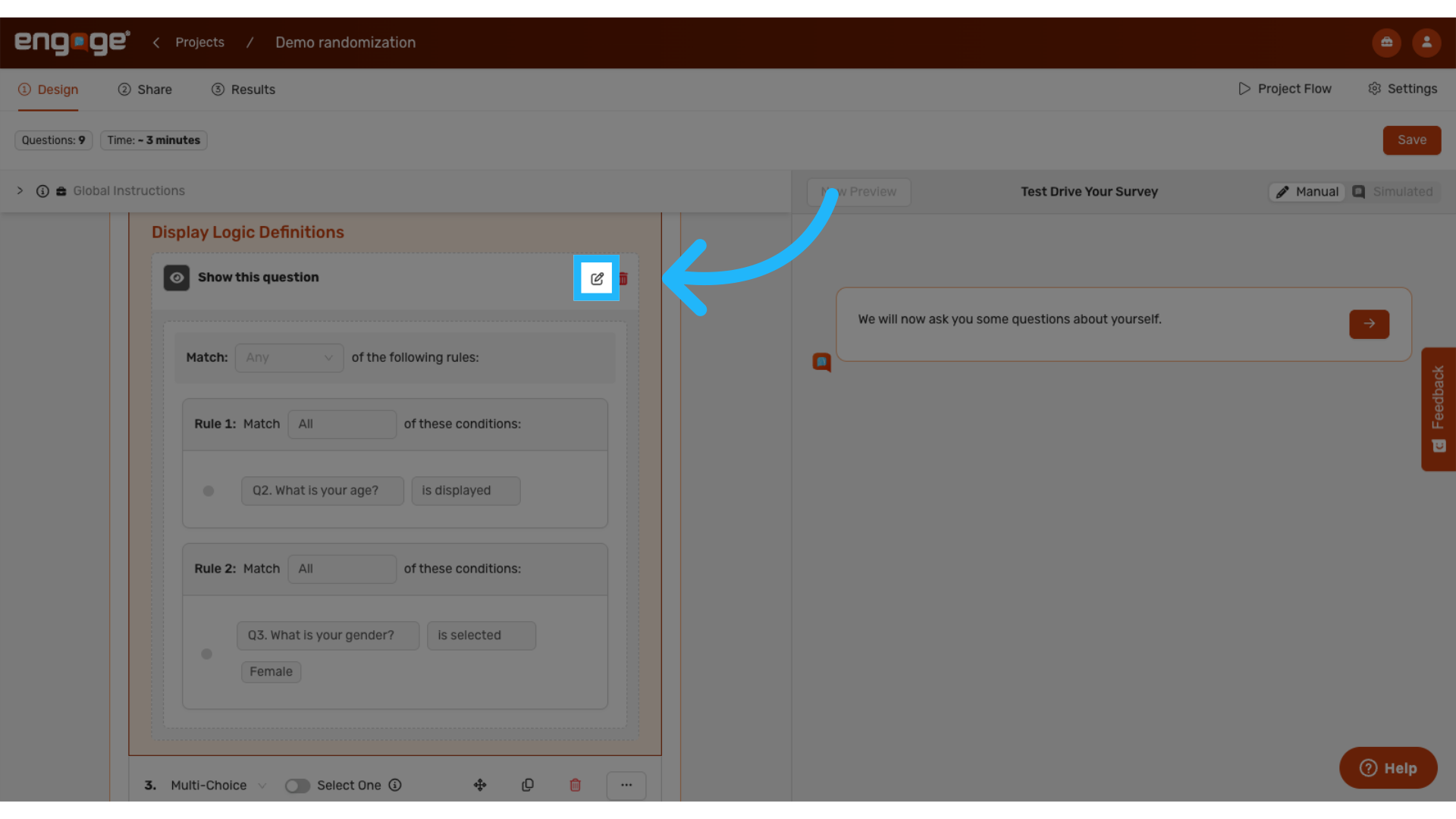
15. Modify Display Logic
You can return to edit or modify previously configured display logic rules at any time.
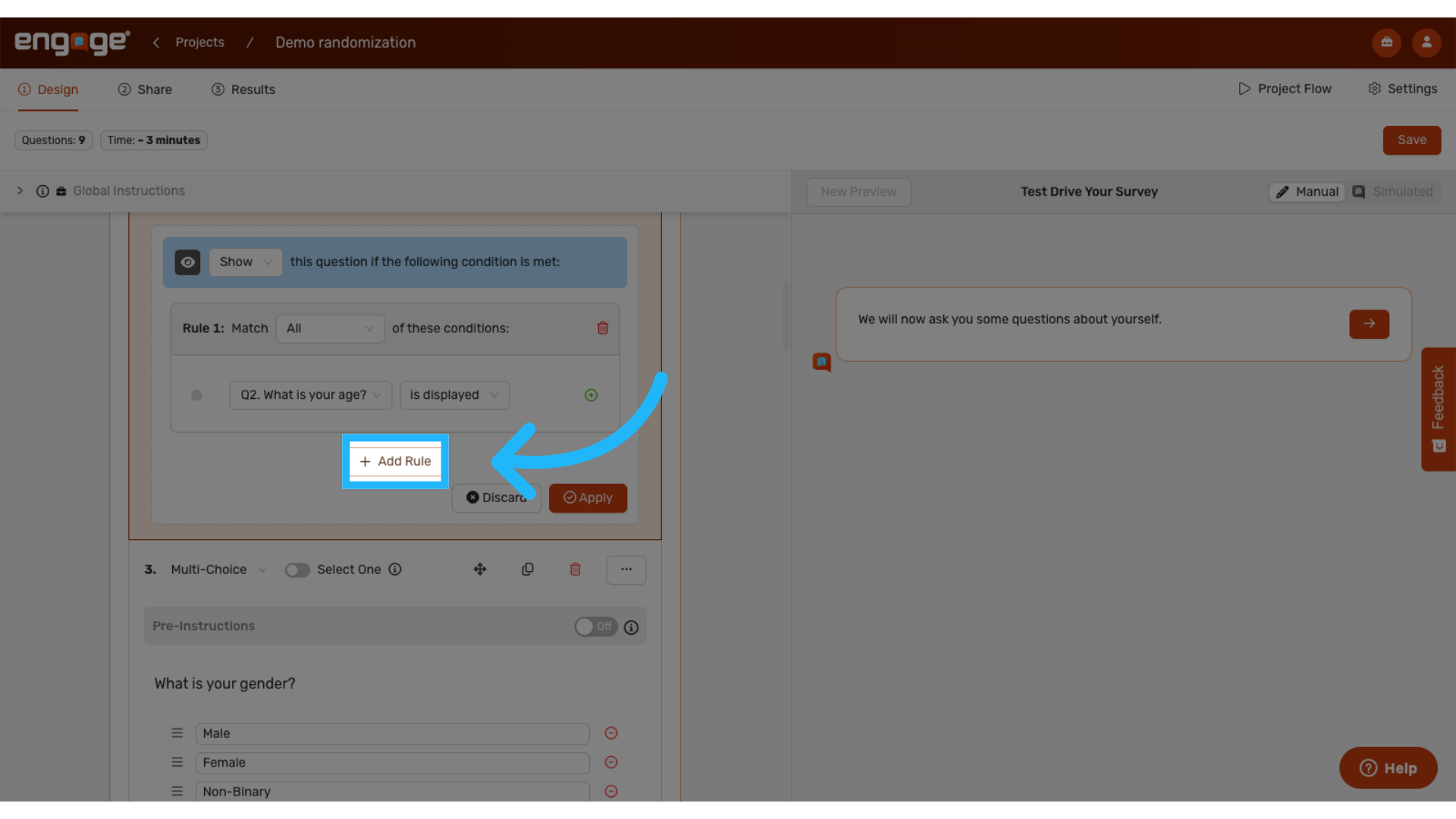
16. Add additional rules
Click "Add Rule" to create additional conditions within the same display logic block, enabling more complex logic scenarios.
17. Introduction to Skip Logic
Now, let us demonstrate how Skip Logic functions within your survey design.
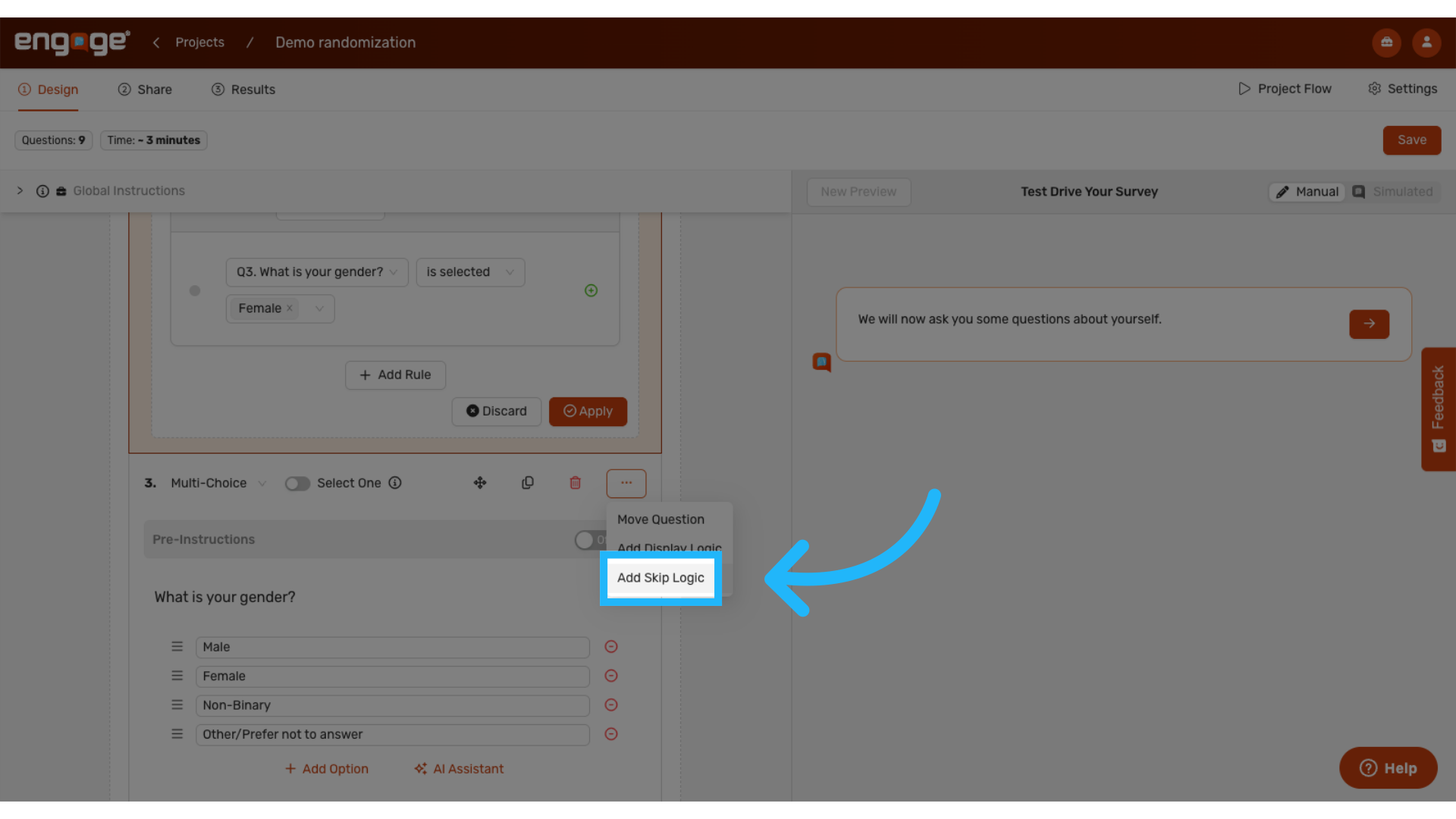
18. Initialize Skip Logic configuration
Begin by clicking "Add Skip Logic" from the options menu.
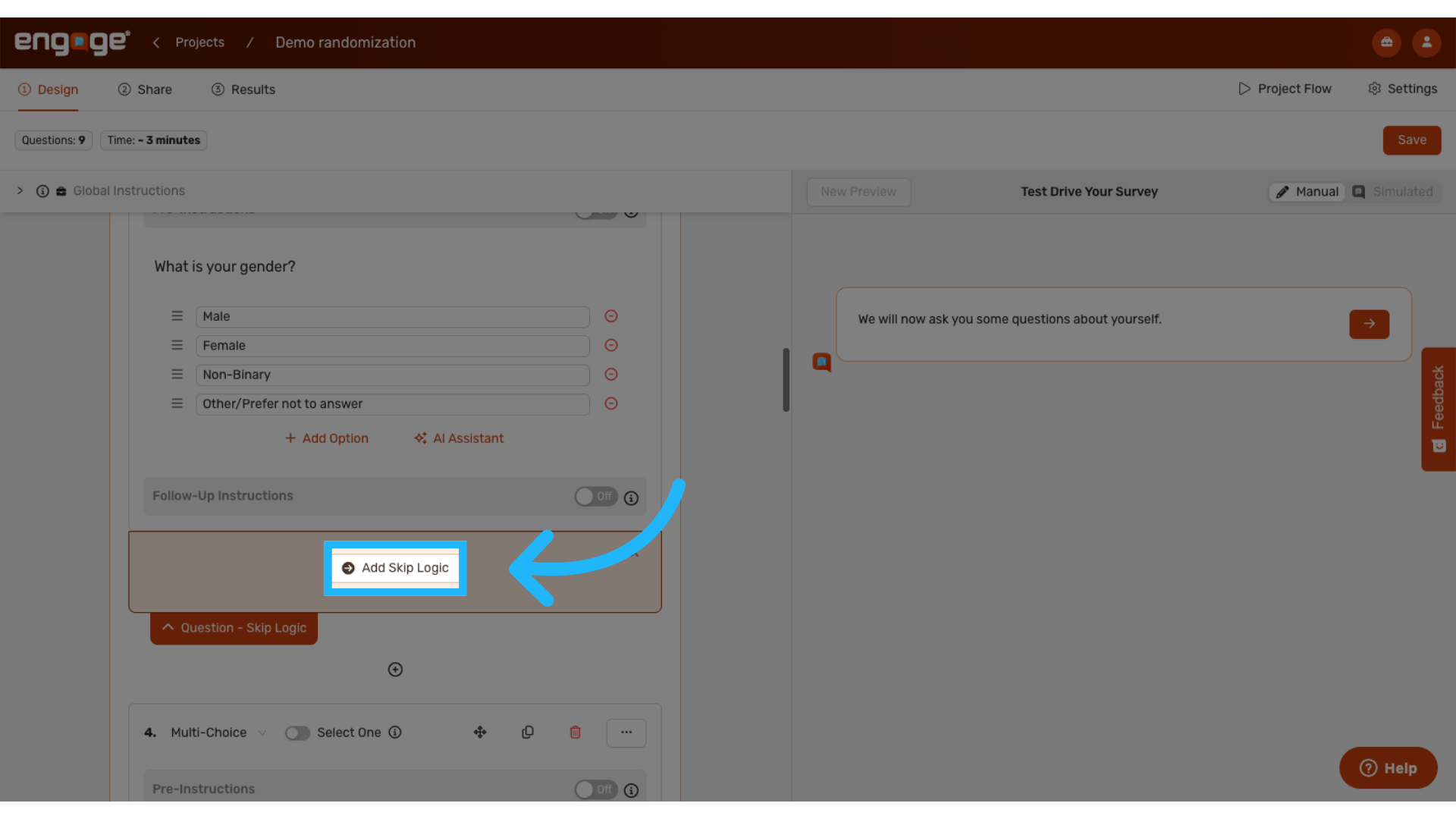
19. Define the Skip Destination
Specify the destination where participants should be redirected when the skip logic conditions are satisfied.
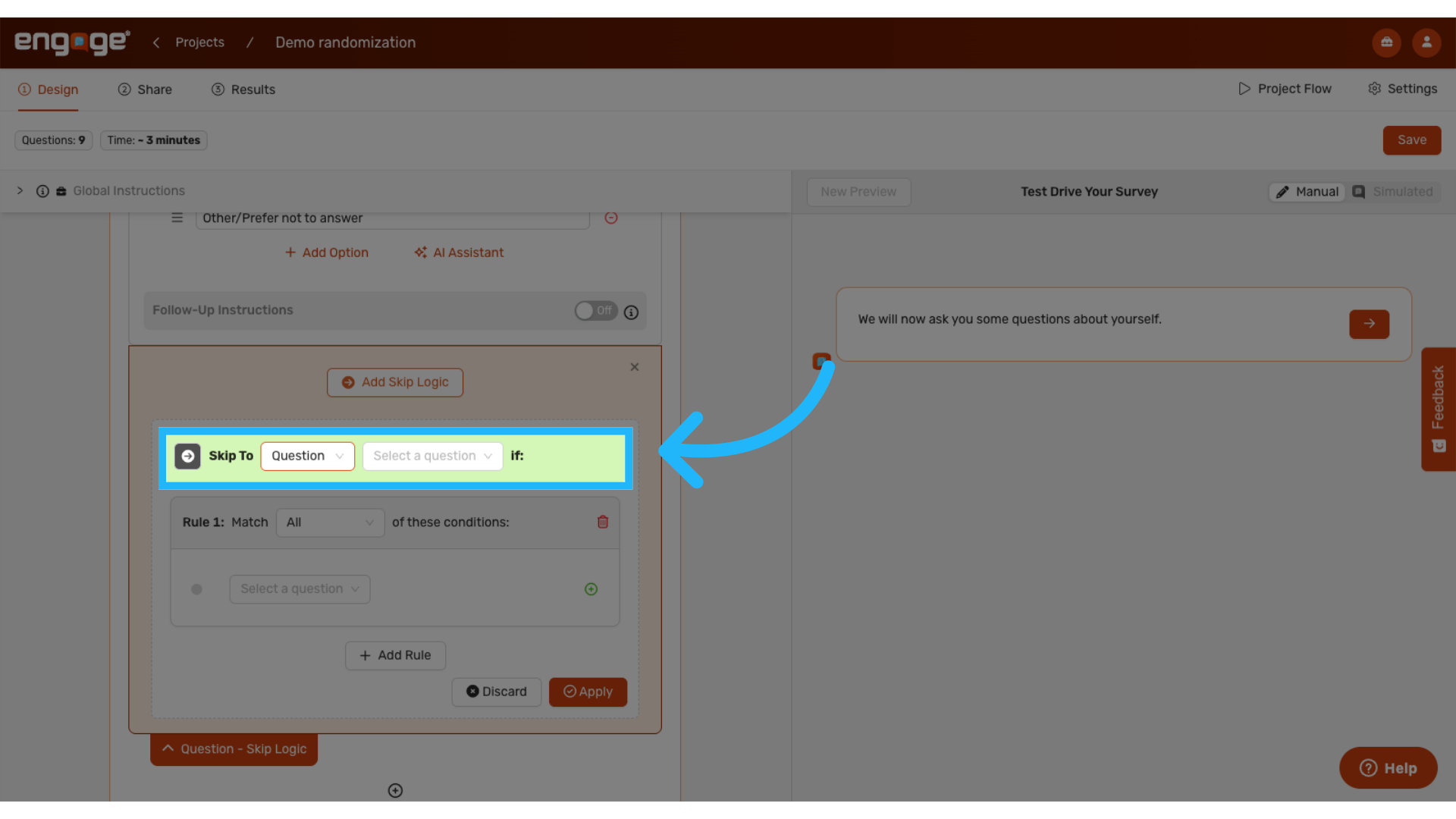
20. Select skip target options
Choose from various skip destinations: a specific question, a particular block, the end of the current block, or the end of the entire survey.
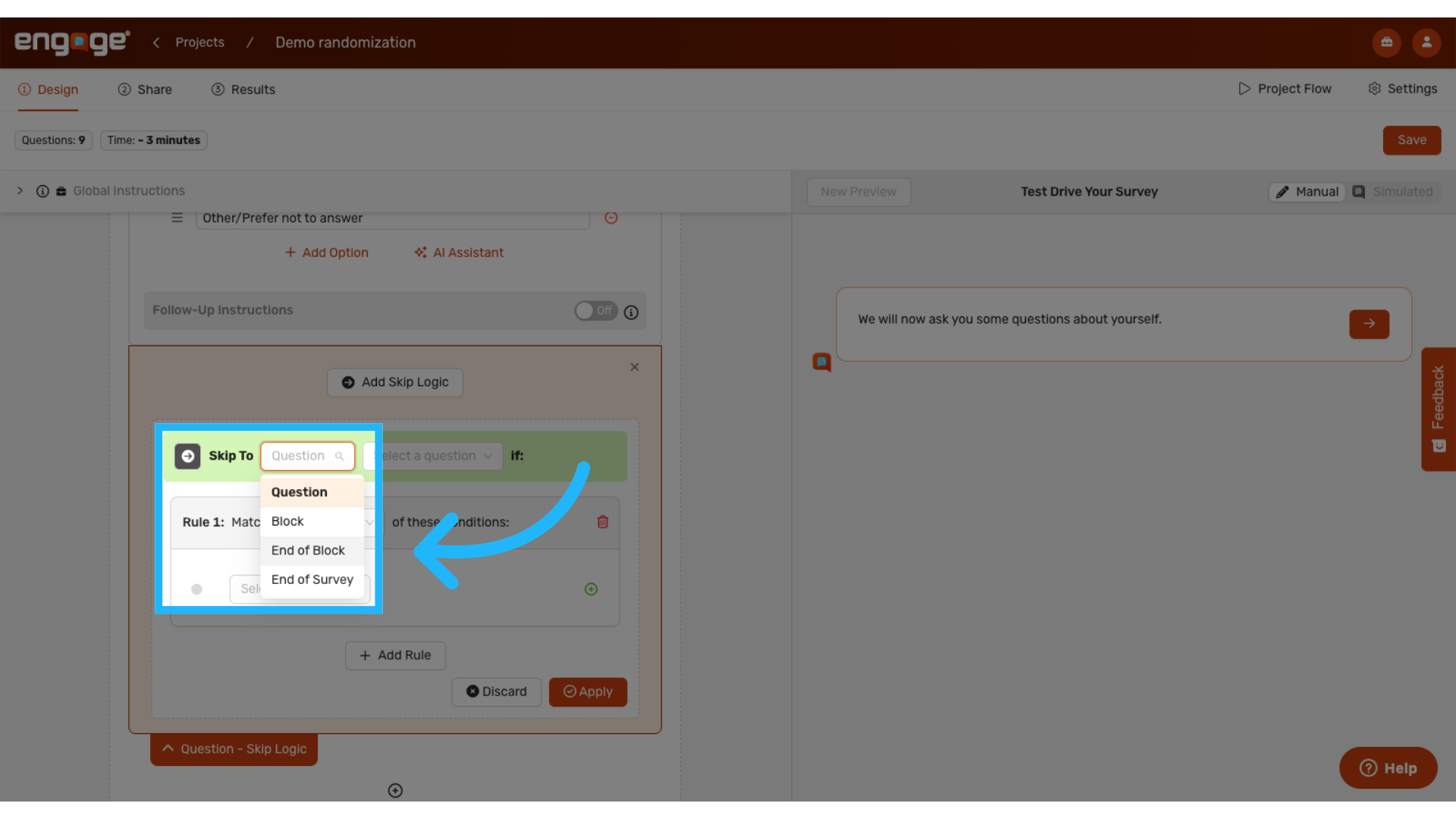
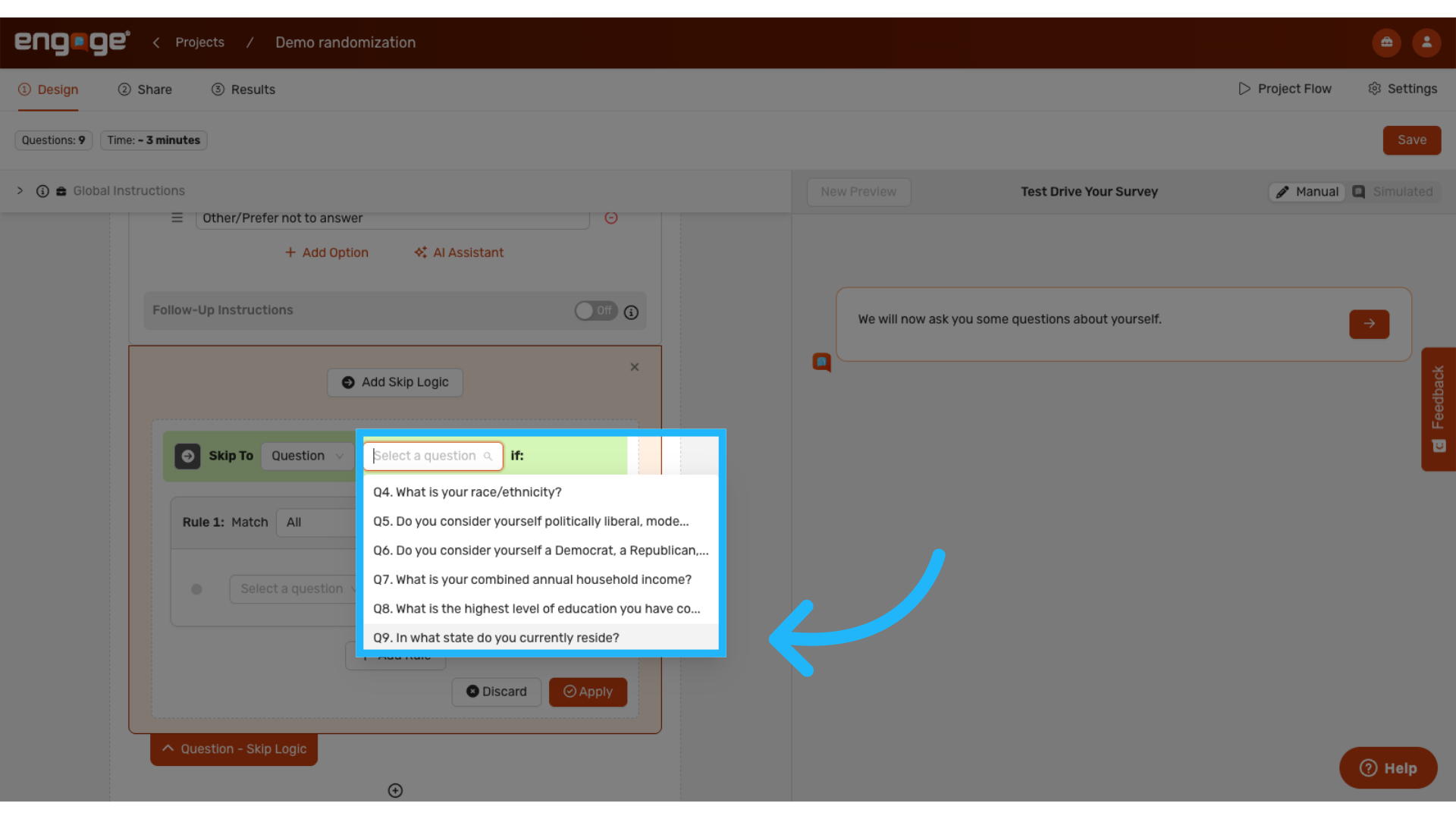
21. Specify the target question
When skipping to a specific question, select the exact question where participants should be redirected from the available options.
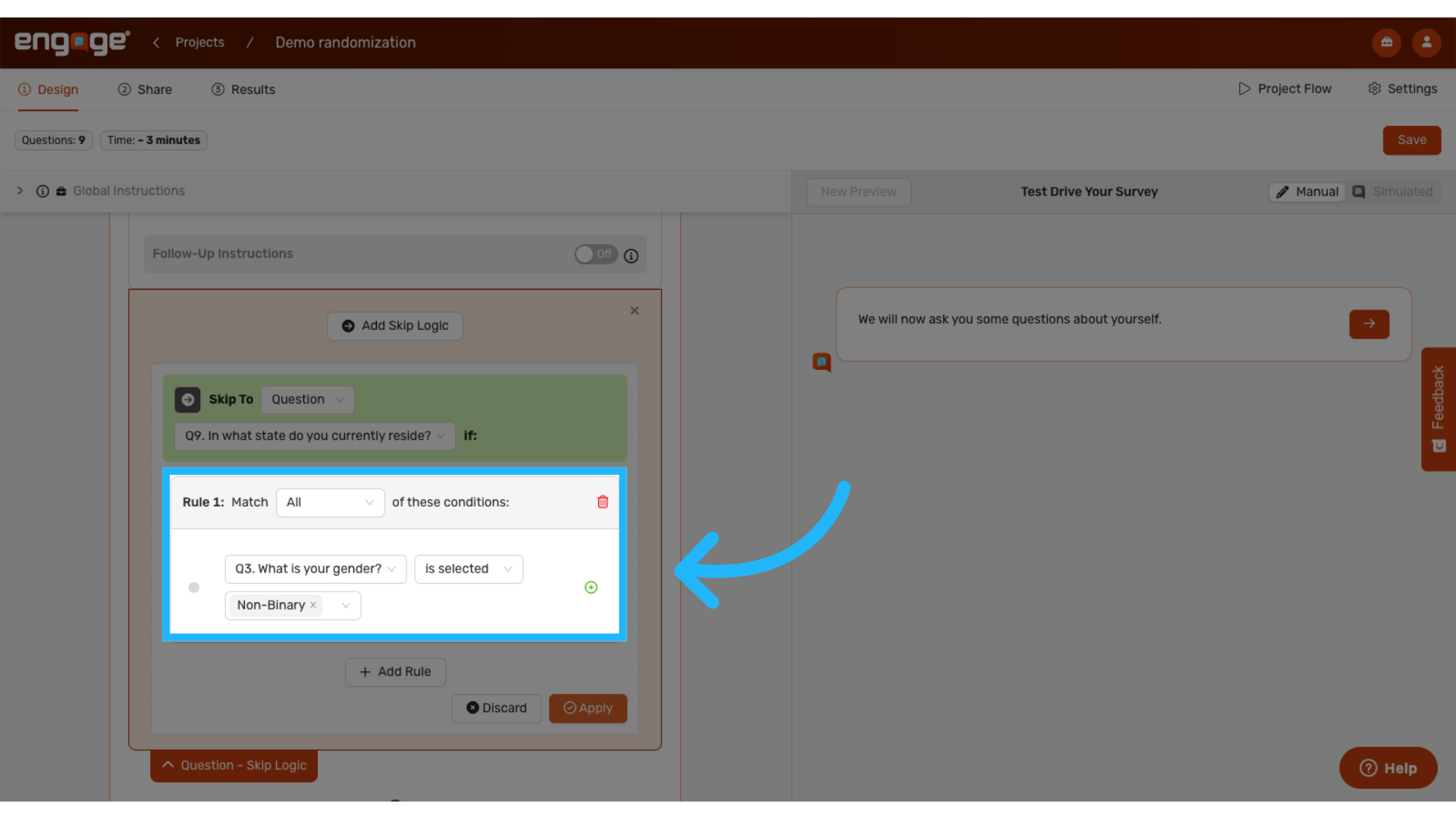
22. Configure Skip Criteria
Establish the conditions that will activate the skip logic. For example, configure a rule where all specified conditions must be met, then select a reference question such as "What is your gender?" and specify the triggering response such as "Non-Binary." This configuration would redirect participants who selected "Non-Binary" to the designated skip destination.
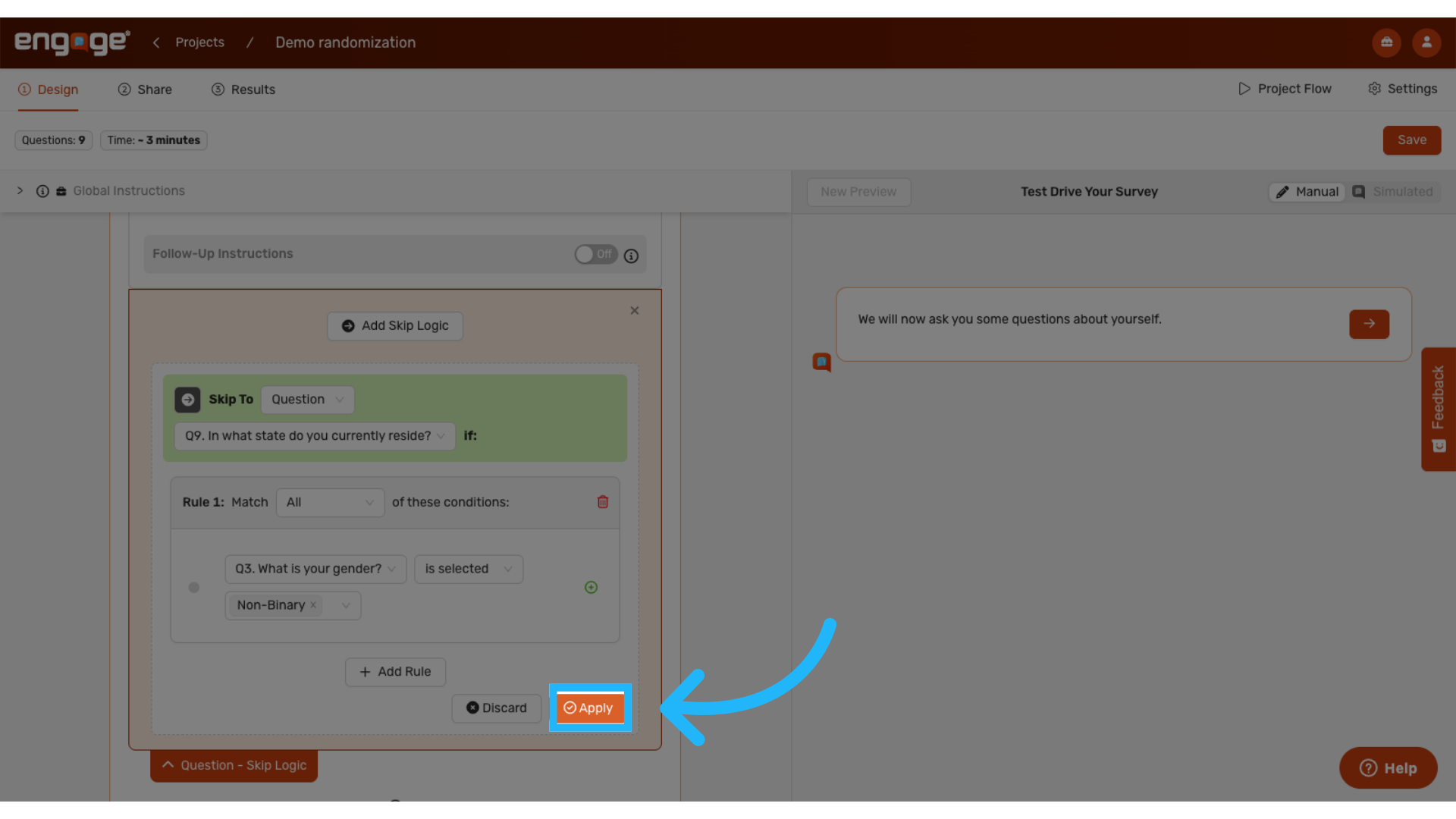
23. Apply the logic configuration
Click "Apply" to save and activate your skip logic configuration.
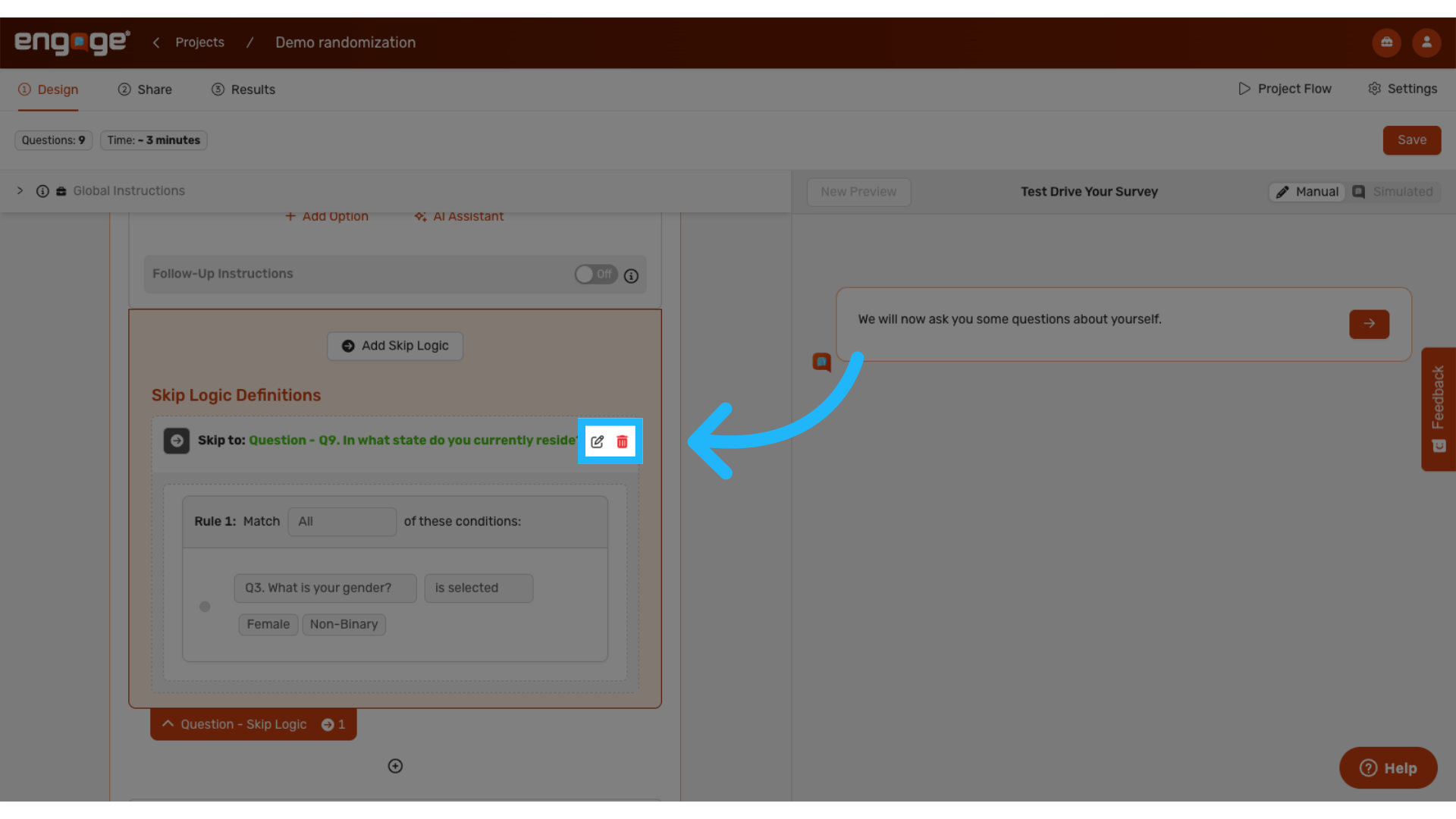
24. Edit or Delete Logic Rules
Edit or delete any logic configurations previously made.
Thank you for watching! If you have any additional questions, feel free to watch out other guides or reach out to our support team.

Comments
0 comments
Please sign in to leave a comment.