
Welcome to our guide on sharing projects with teams and guests on Engage. In this video, we'll walk through how to share a project, manage project permissions, and confirm shared projects on your dashboard.
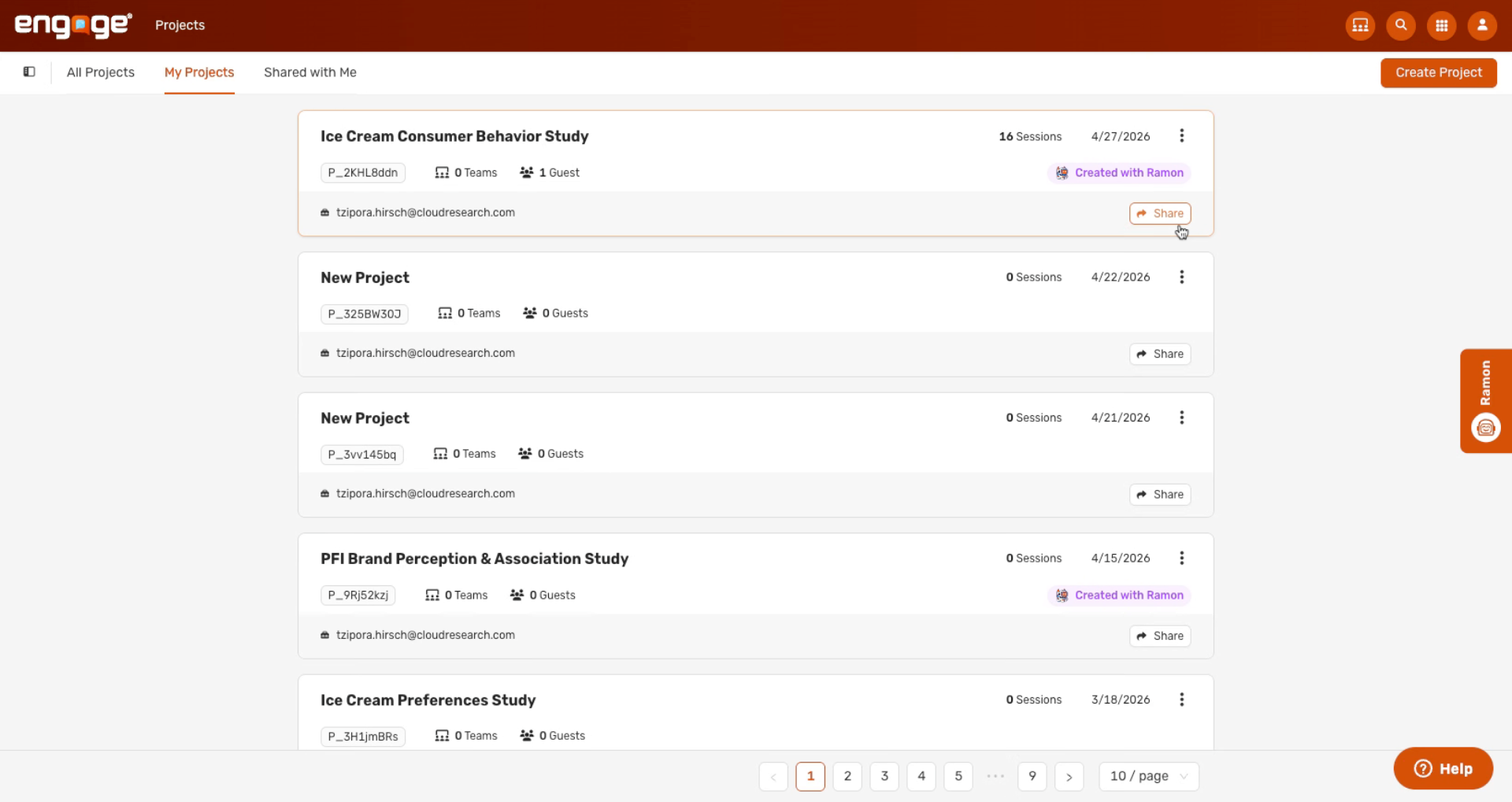
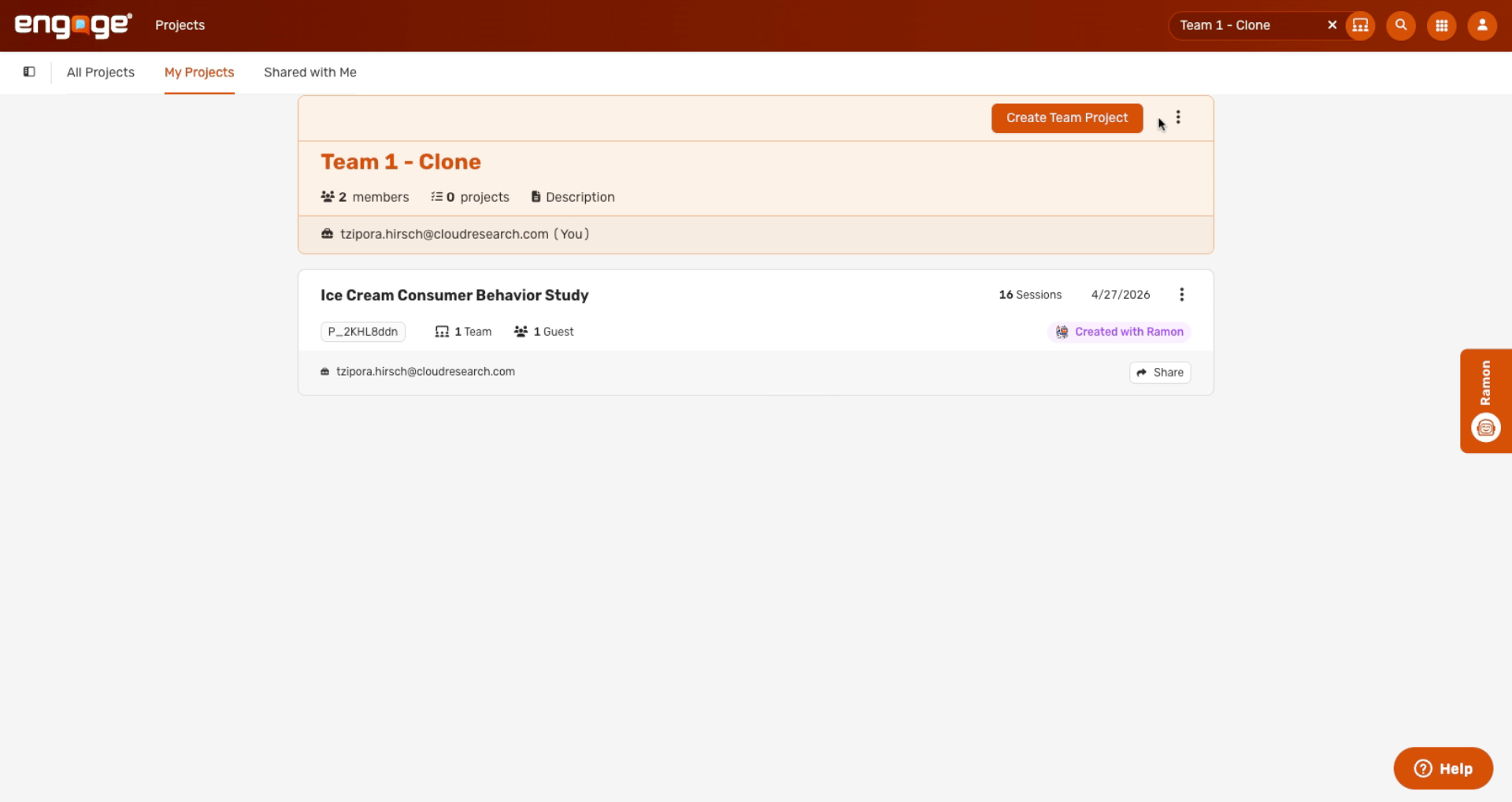
1. Click Share Button
To invite a team or guest to the project, click the Share button at the bottom of the project card.
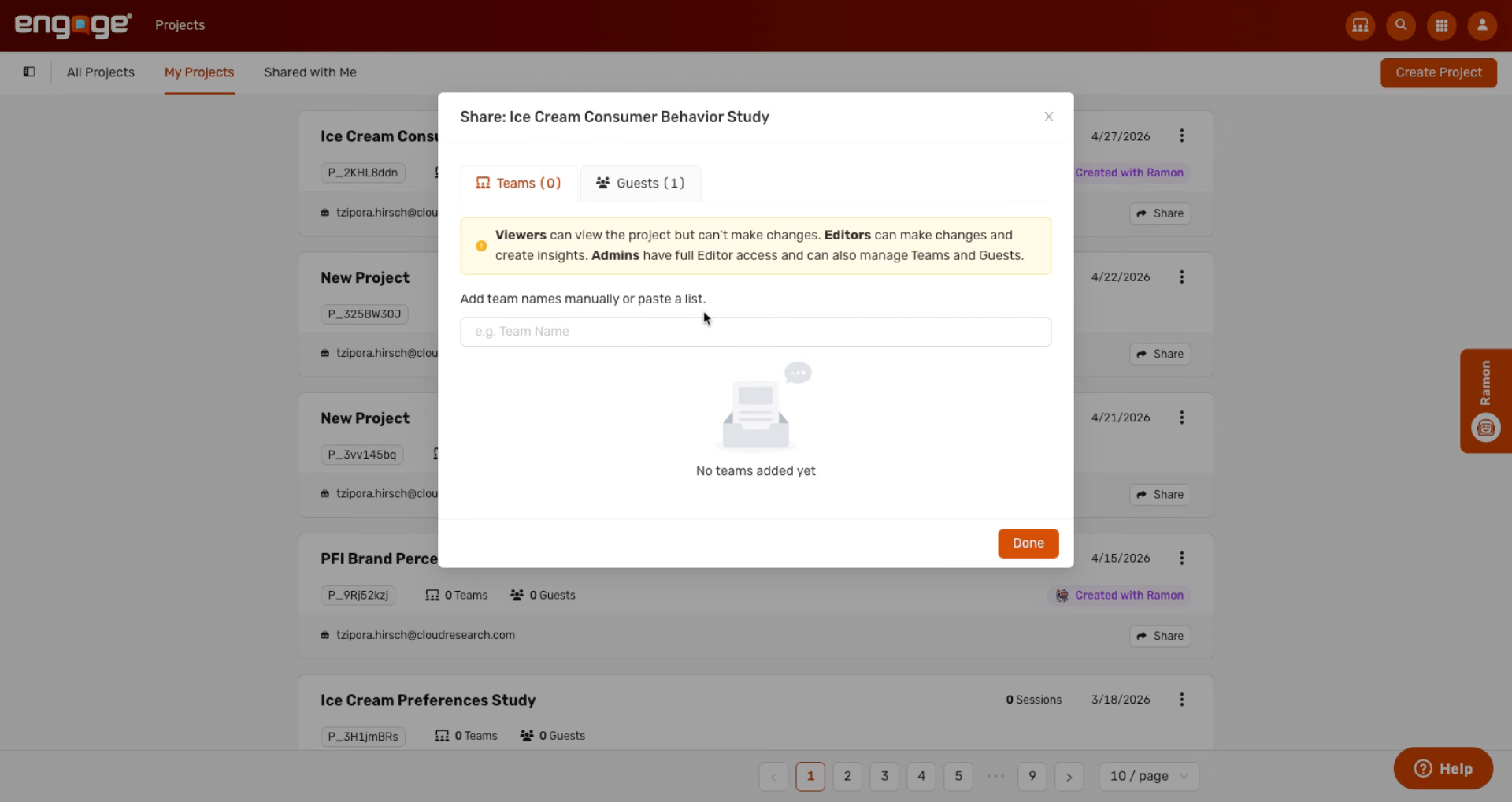
2. View Sharing Modal
This will open a modal that will allow you to share the project.
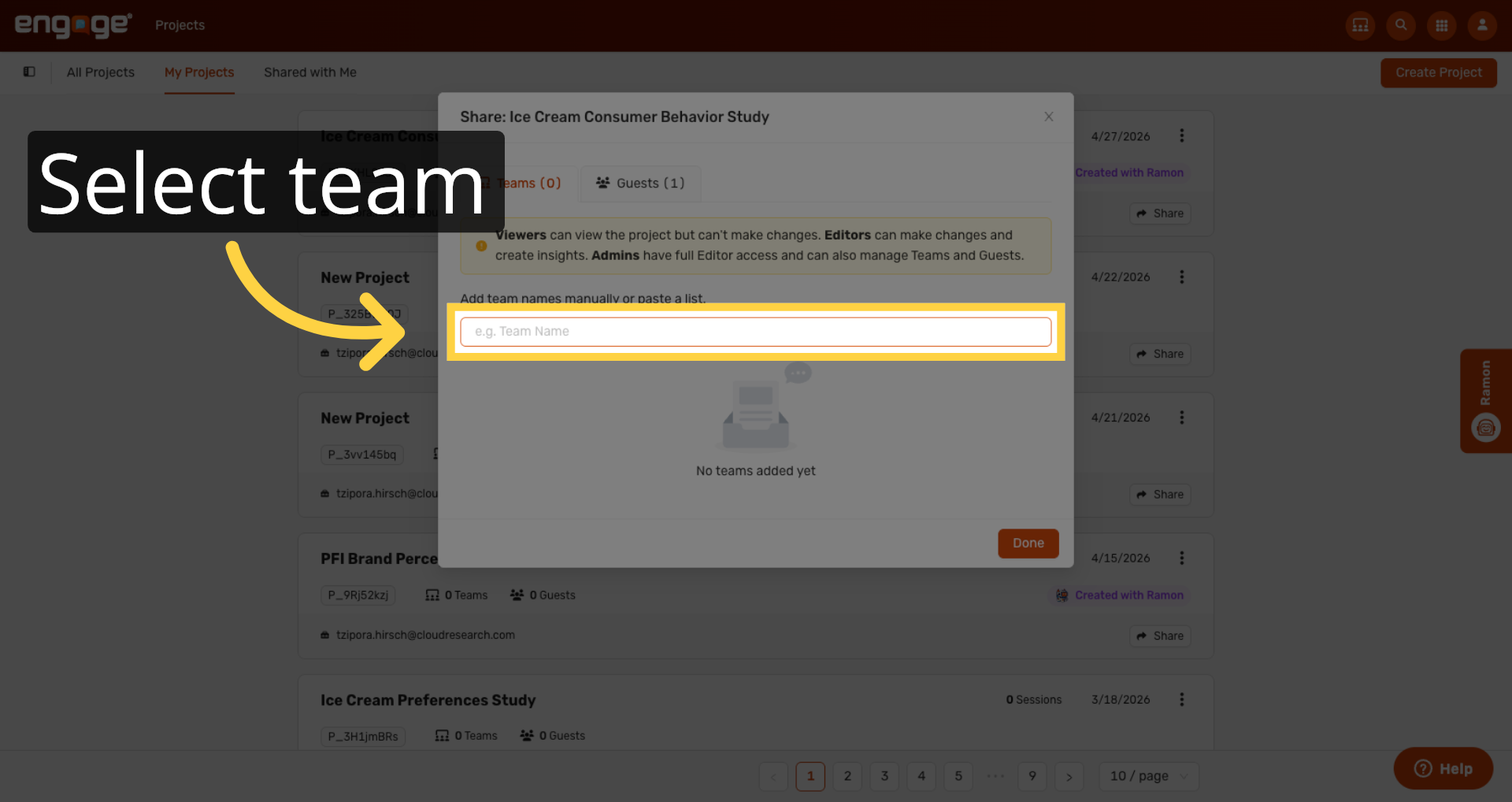
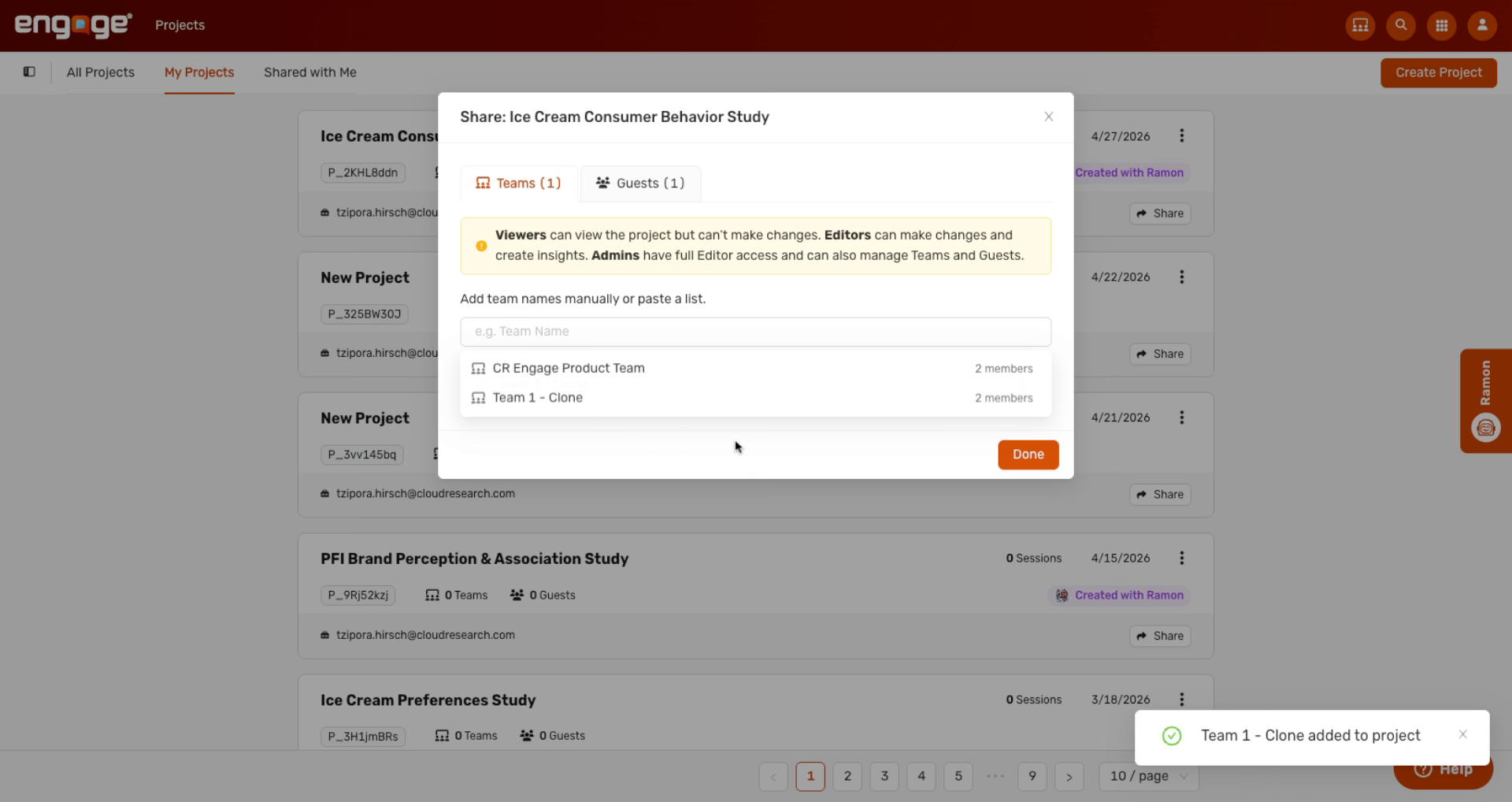
3. Select Team From List
Select a team to share the project with.
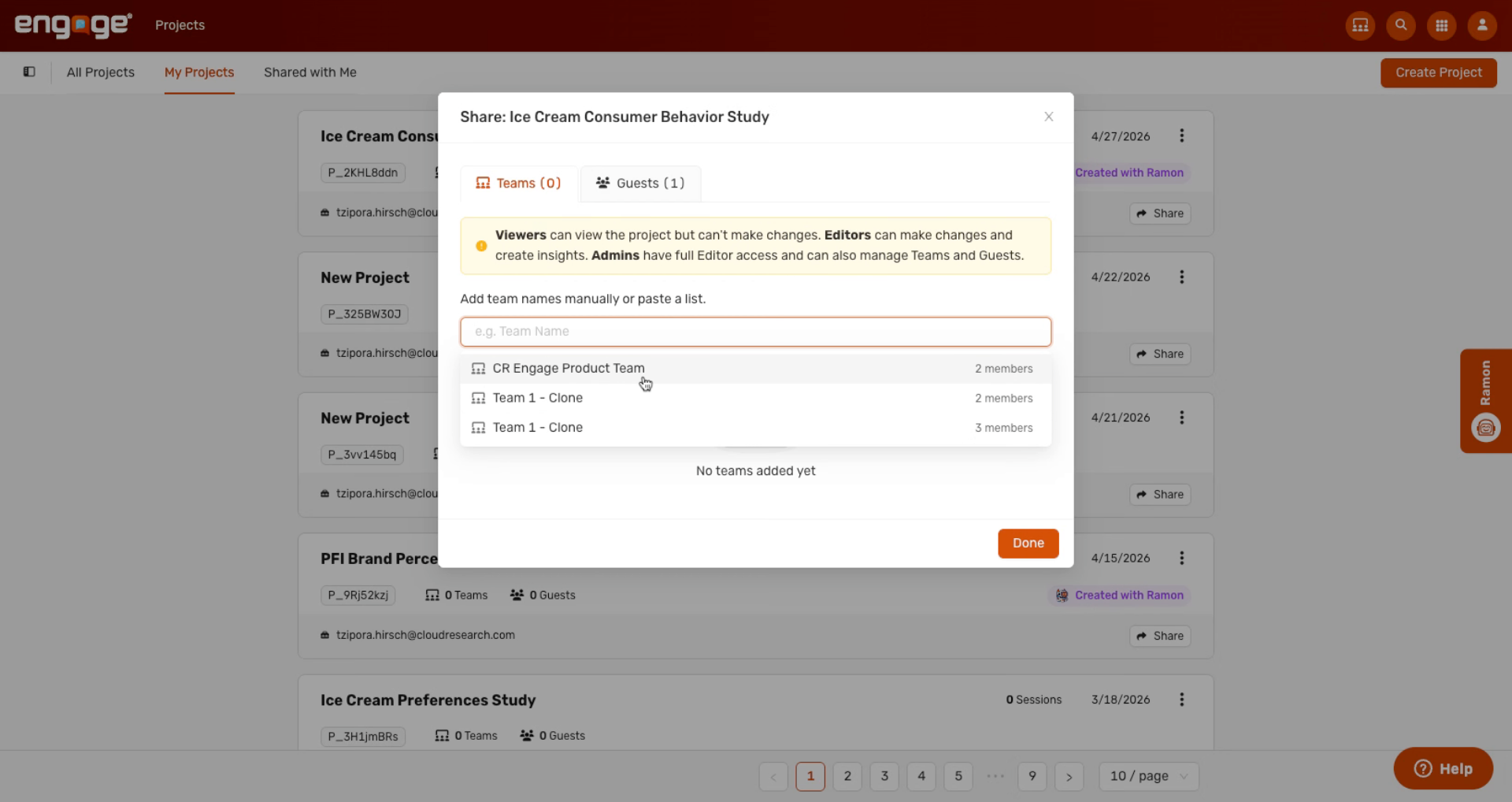
4. View Available Teams
Any team that you are a part of will appear in this dropdown.
5. Manage Team Permissions
Once a team is selected, you can expand it to manage permissions for each team member.
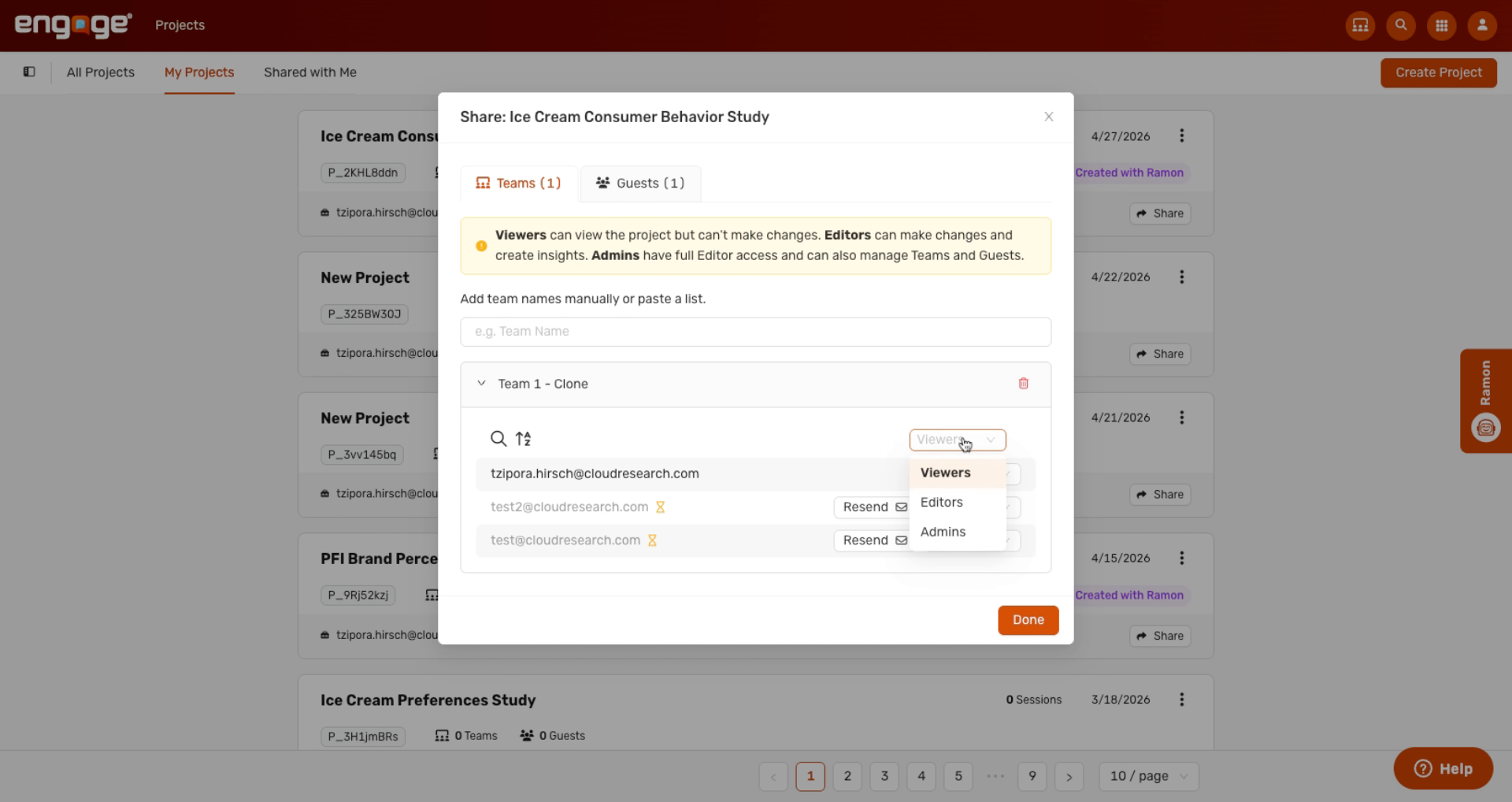
6. Understand Permission Roles
You can choose from admins, editors, and viewers.
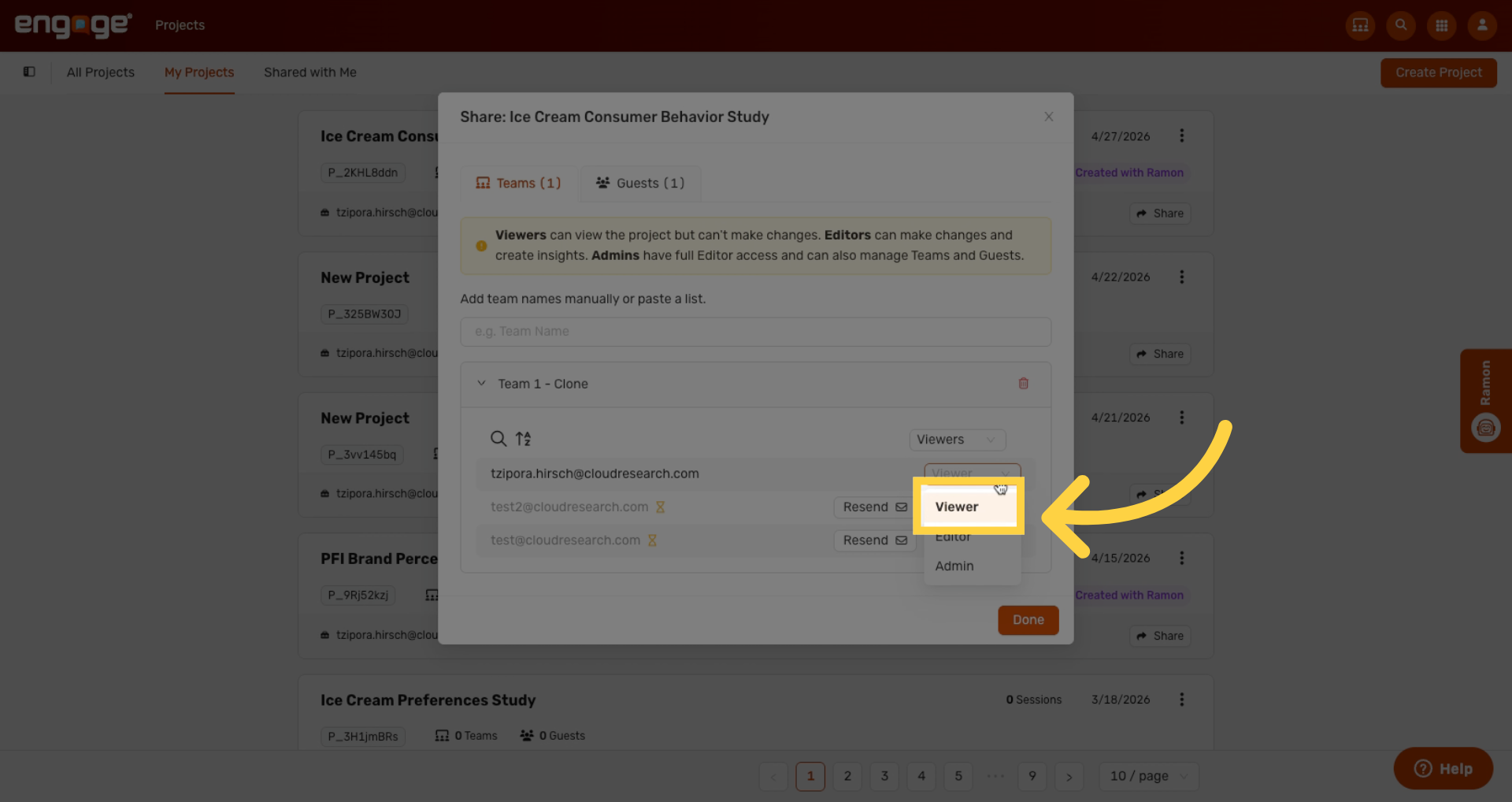
7. Viewer Role Limitations
A viewer can view the project but can't make any changes.
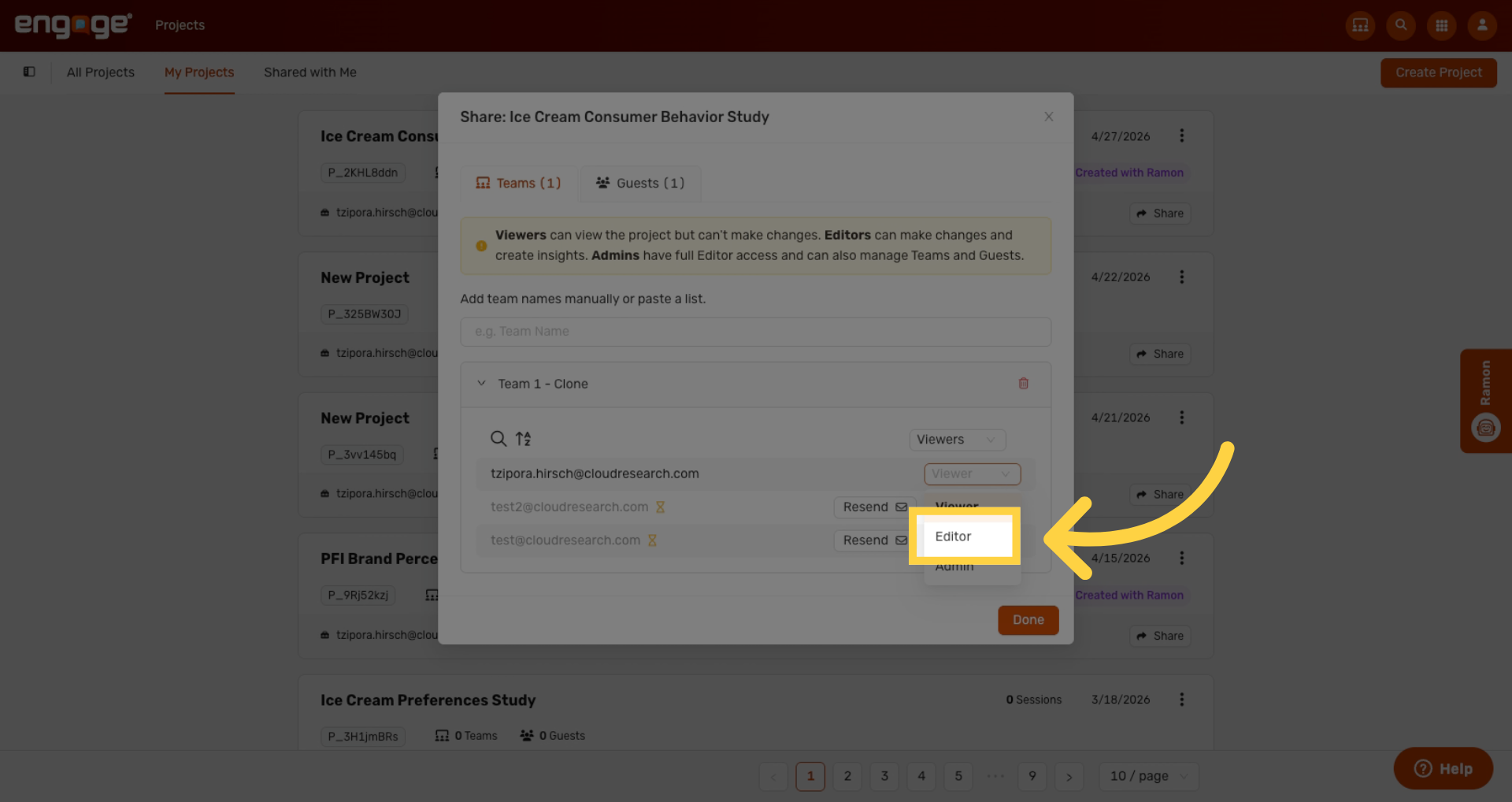
8. Editor Role Capabilities
An editor has full project editing capabilities. They can edit project design, create insights, create segments, create quotas, and distribute the project.
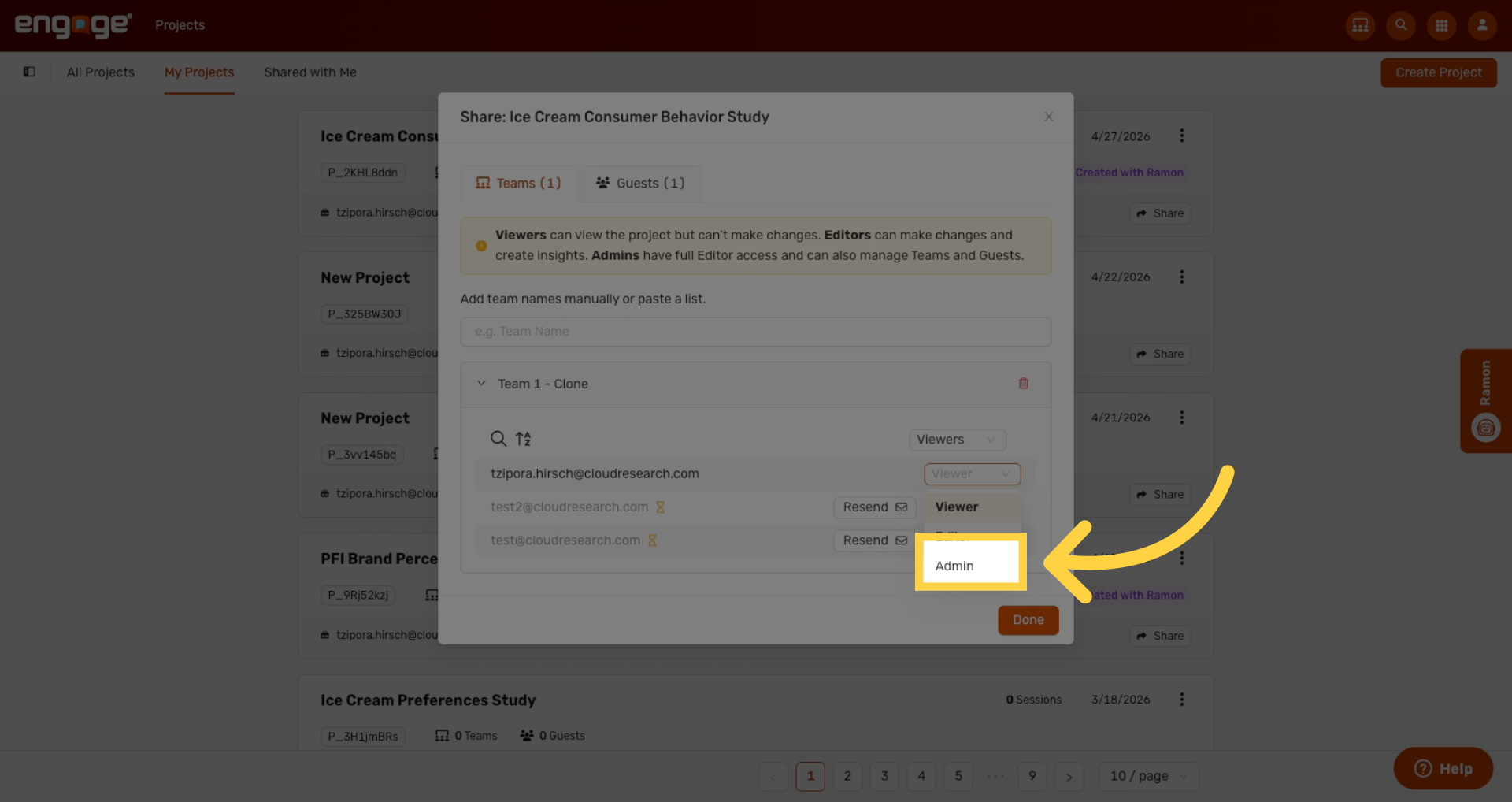
9. Admin Role Permissions
Admins have full editor access and can also manage who the project is shared with. They can share with additional teams, remove teams, manage permissions, and add or remove guests.
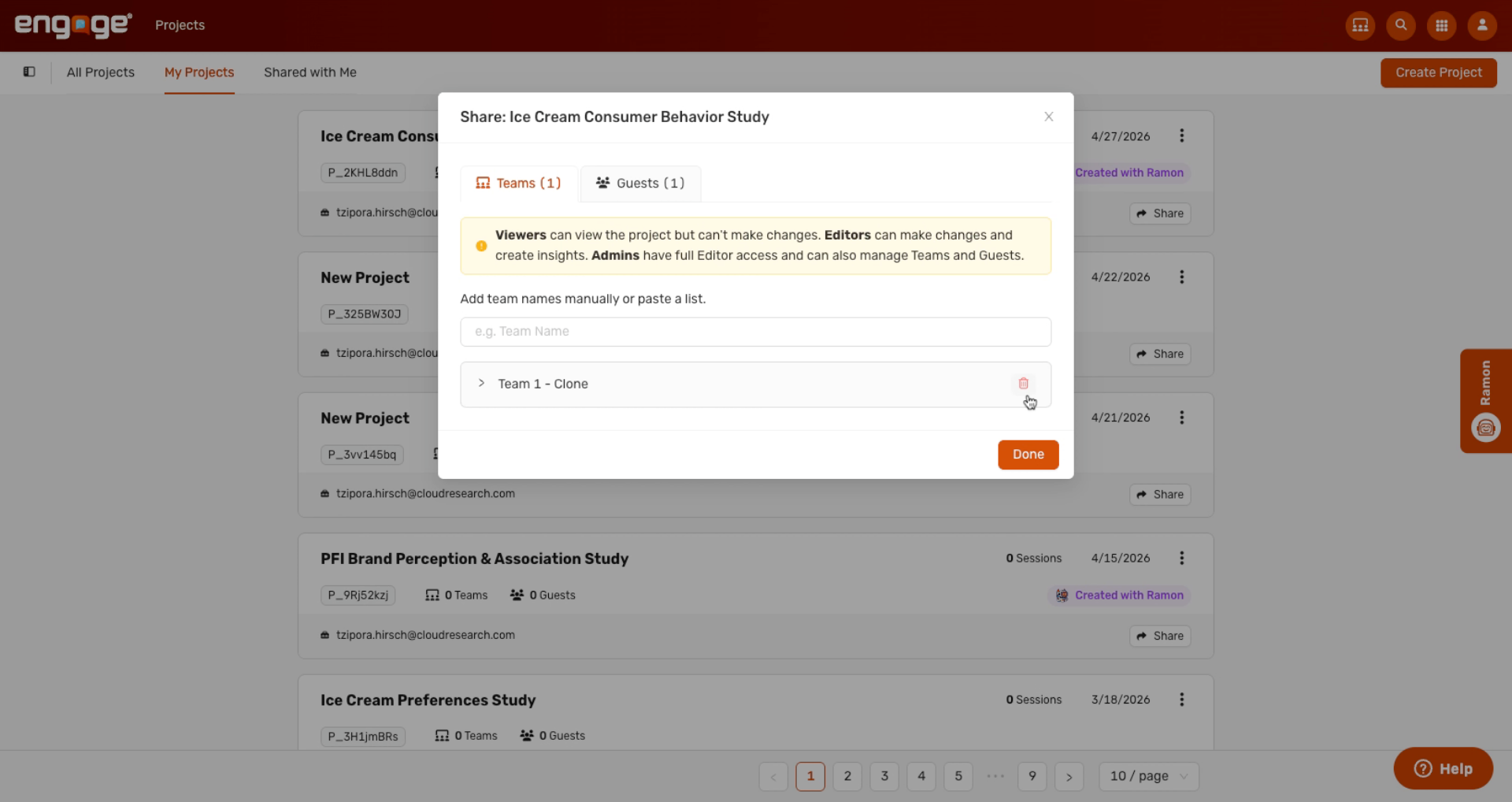
10. Remove Team From Project
You can also delete a team from a project.
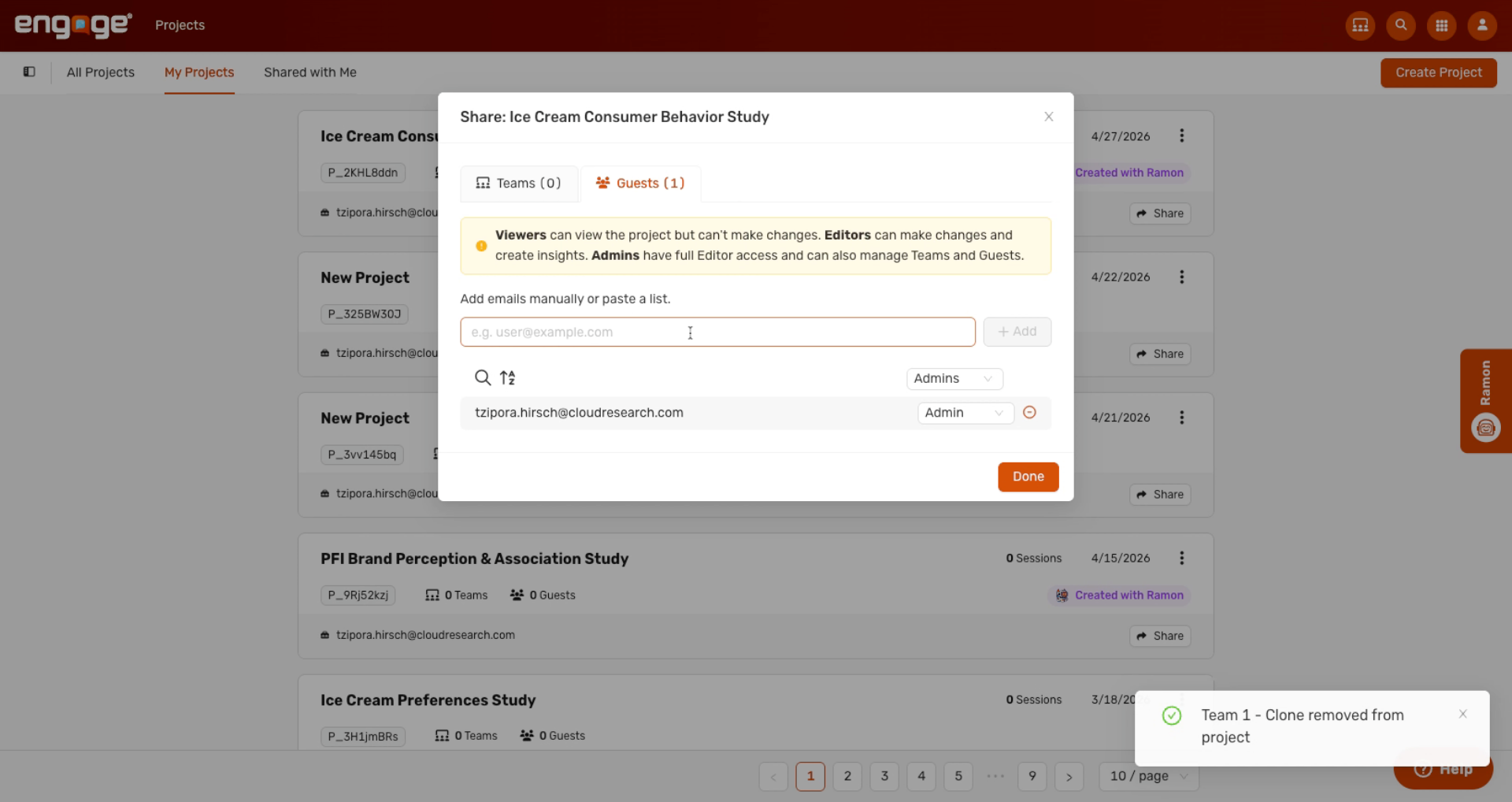
11. Add Guest Manually
If you would like to share the project with an individual who is not part of a team, you can add them manually as a guest.
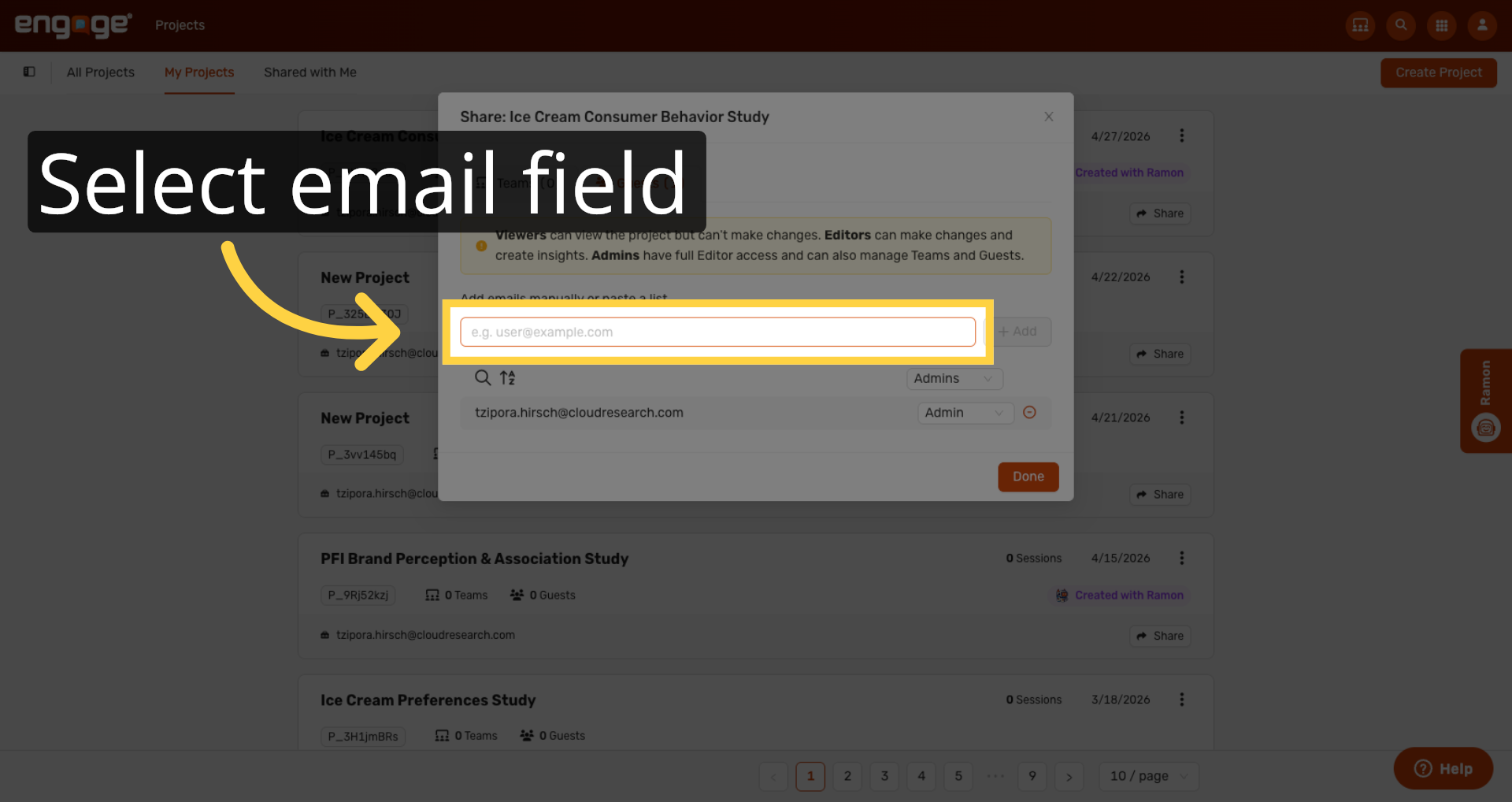
12. Select Guest Email Field
Select the field to enter the guest's email address.
13. Enter Guest Email
Enter the guest's email address to add them to the project.
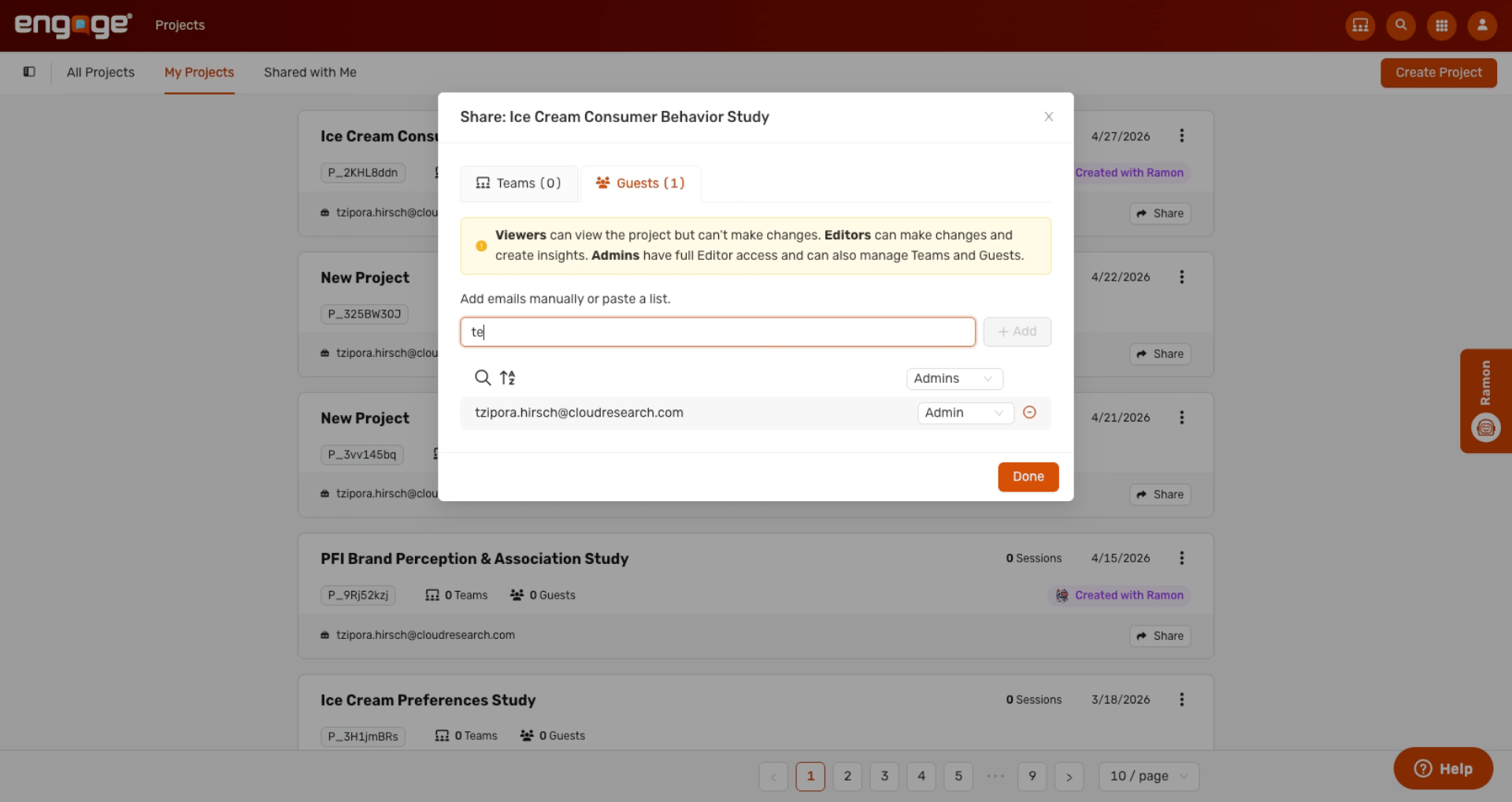
14. Manage Guest Permissions
Once they're added, you can manage their permissions. You can also remove them, which removes their access to the project.
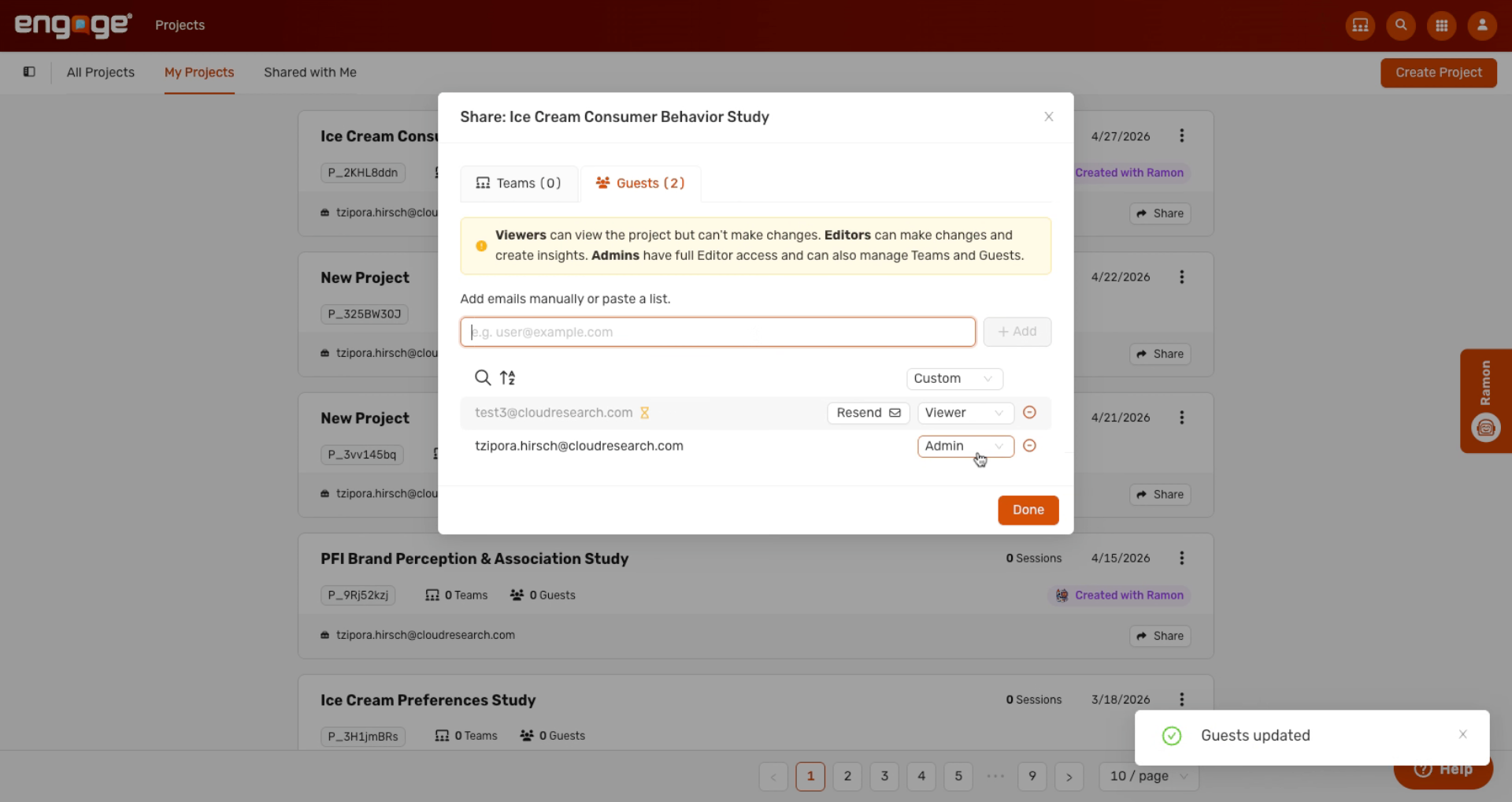
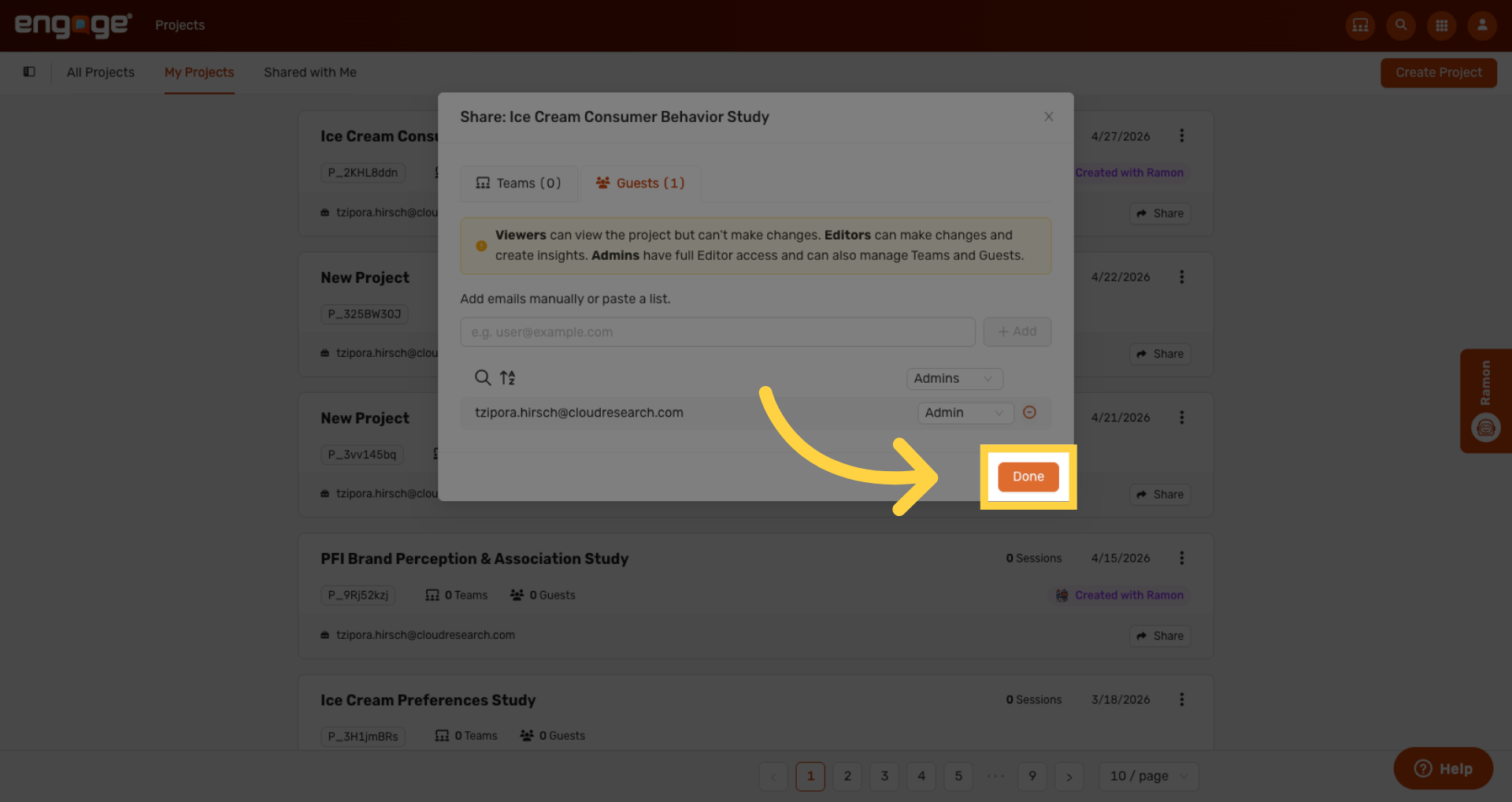
15. Confirm Sharing Changes
Click Save to apply your sharing changes.
16. Share Via Dropdown Menu
You can also share projects using the dropdown menu.
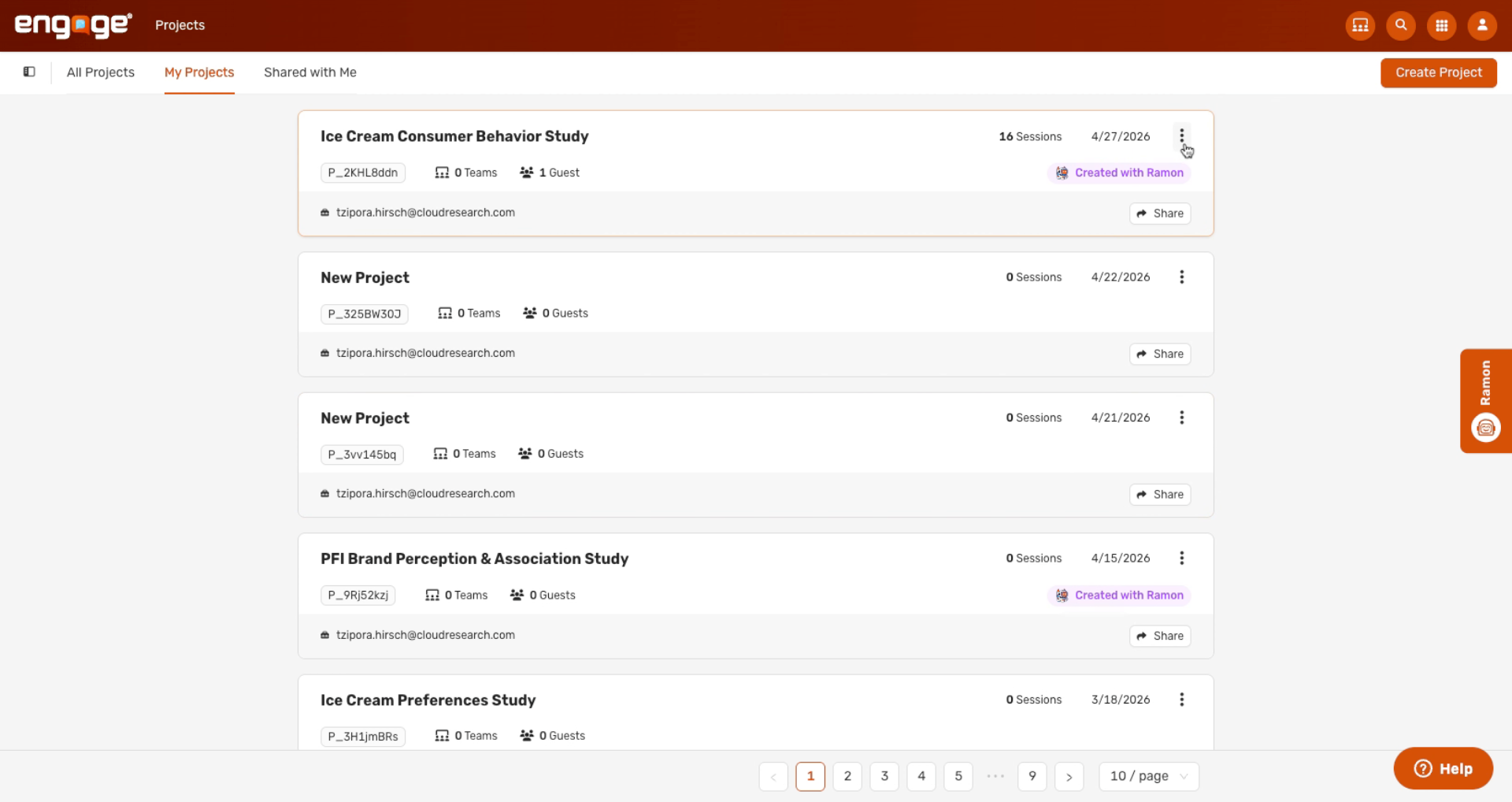
17. View Shared Project Dashboard
Once a project is shared, it will appear on the team's dashboard.
Thank you for watching! If you have additional questions, feel free to reach out to our support team or access our other guides.
Comments
0 comments
Please sign in to leave a comment.