
Welcome to the guide for using AI assistants in Engage to write your question options. Engage's AI can draft answer options for any question type — and for Matrix questions, it can write both the rating scale and the row statements respondents will rate.
Go to engage.cloudresearch.com
1. Introduction
Engage has an AI Assistant on every question type to help you write the answer options for you. Let's walk through how it works — starting with a Multi-Choice question.
2. Start with a Multi-Choice Question
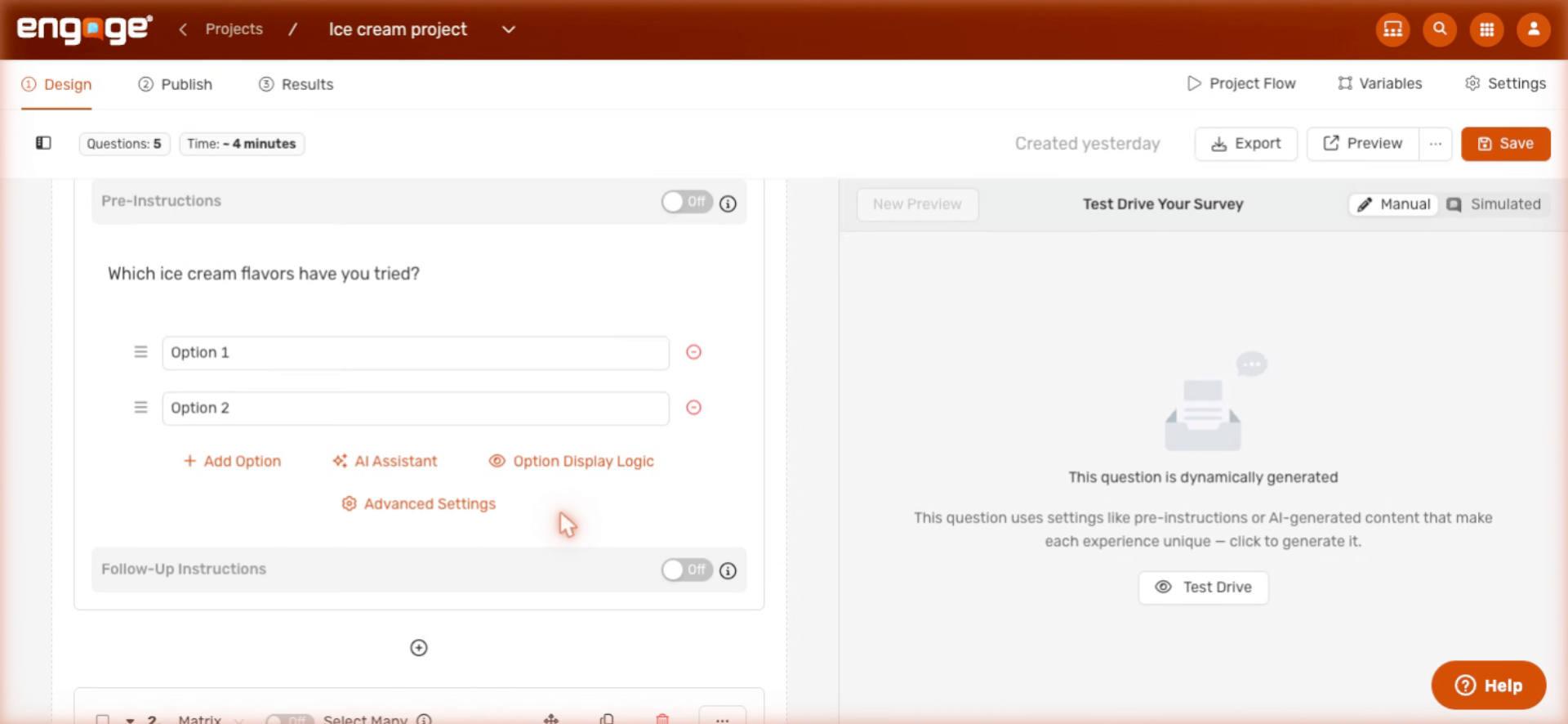
We'll start with a Multi-Choice question. The question here is 'Which ice cream flavors have you tried?' - with no answer options yet.
3. Open AI Assistant Panel
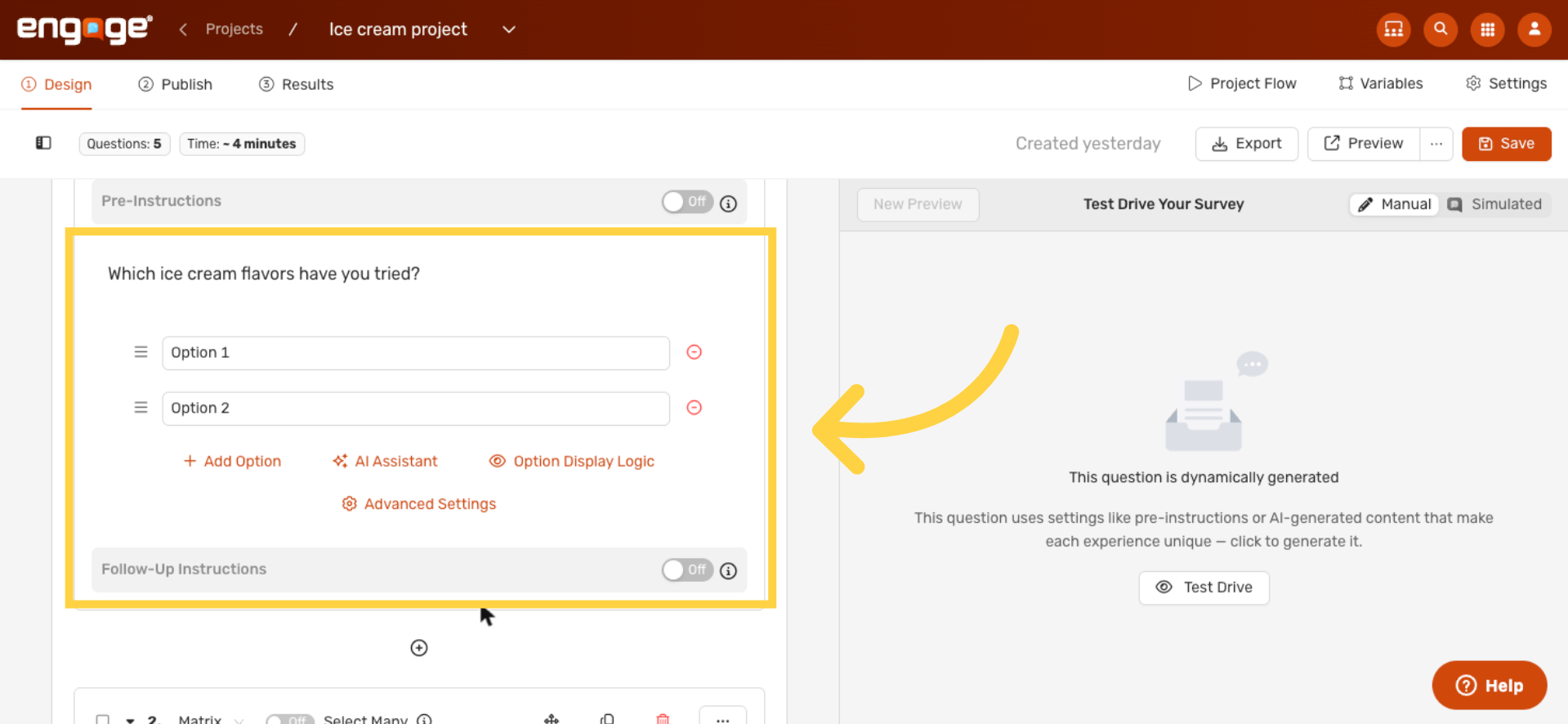
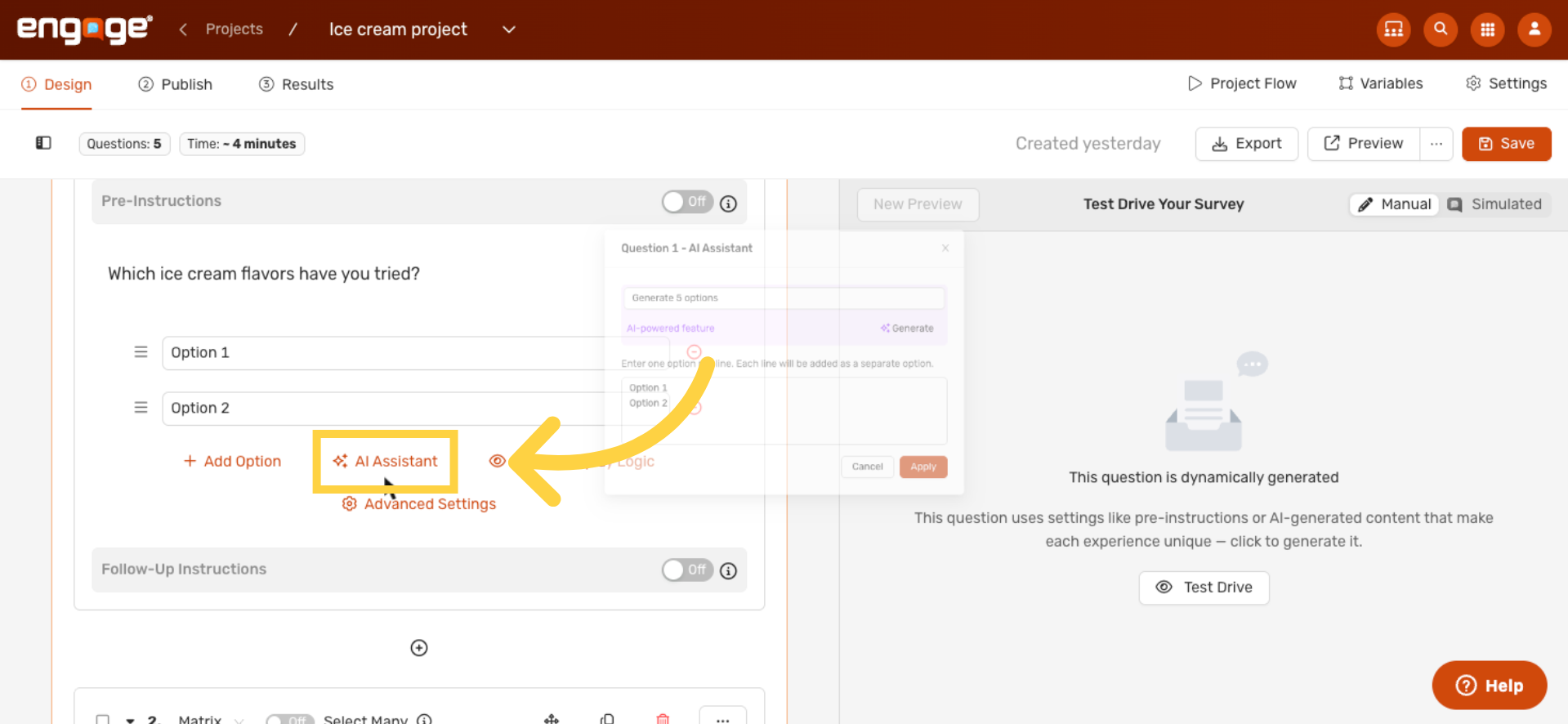
Right next to your options list, you'll see an AI Assistant button. Click it to open the panel where Engage will write your options for you.
4. Describe What You Want
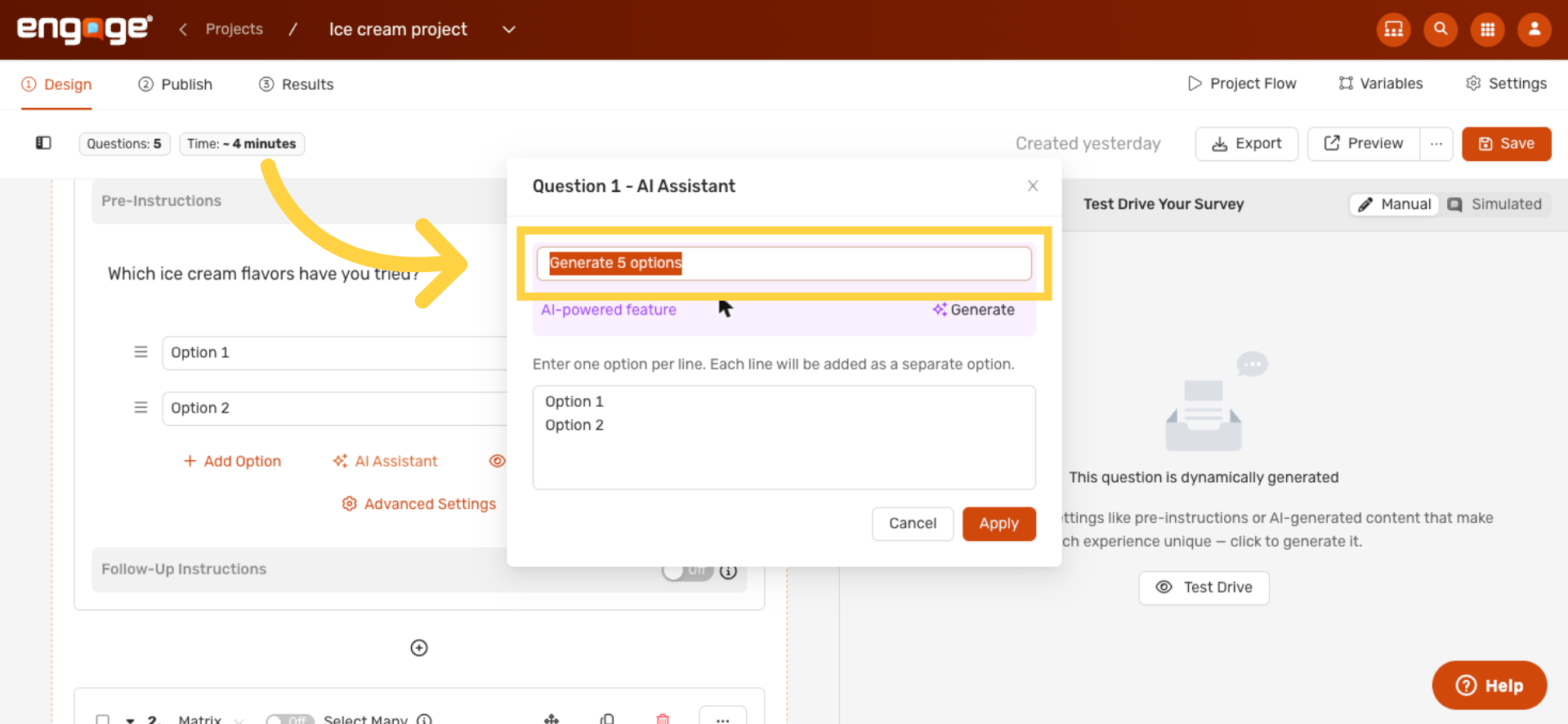
In the panel, you can tell Engage what you want. The clearer your prompt, the better the options it returns.
5. Write Your Prompt
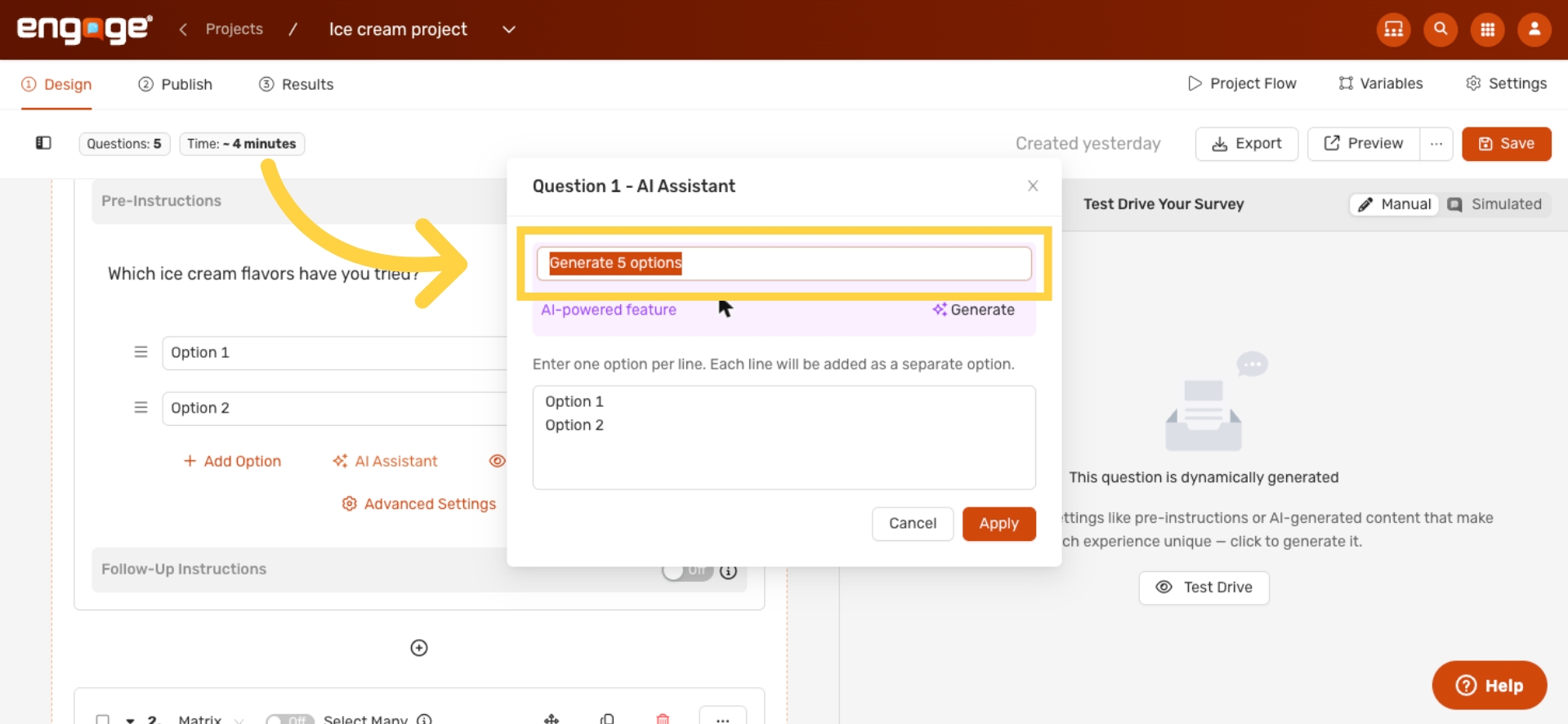
For this Multi-Choice question, we'll ask for 'eight common ice cream flavors people would recognize.' Engage also uses the question prompt itself as context, so even a short request gets relevant results.
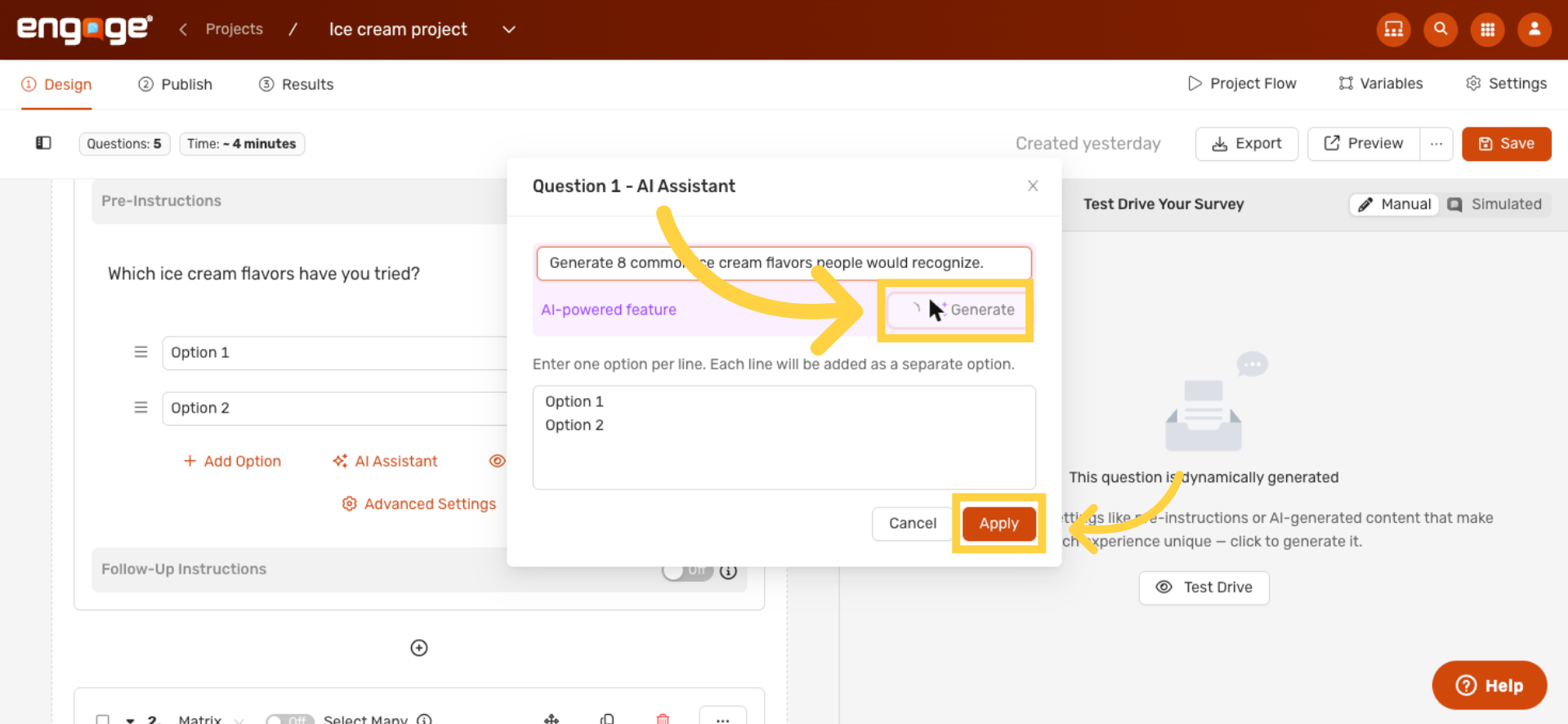
6. Generate and Apply
Click Generate. Engage drafts the options in just a few seconds. Review the list. When it looks good, click Apply and Engage fills those options into your question.
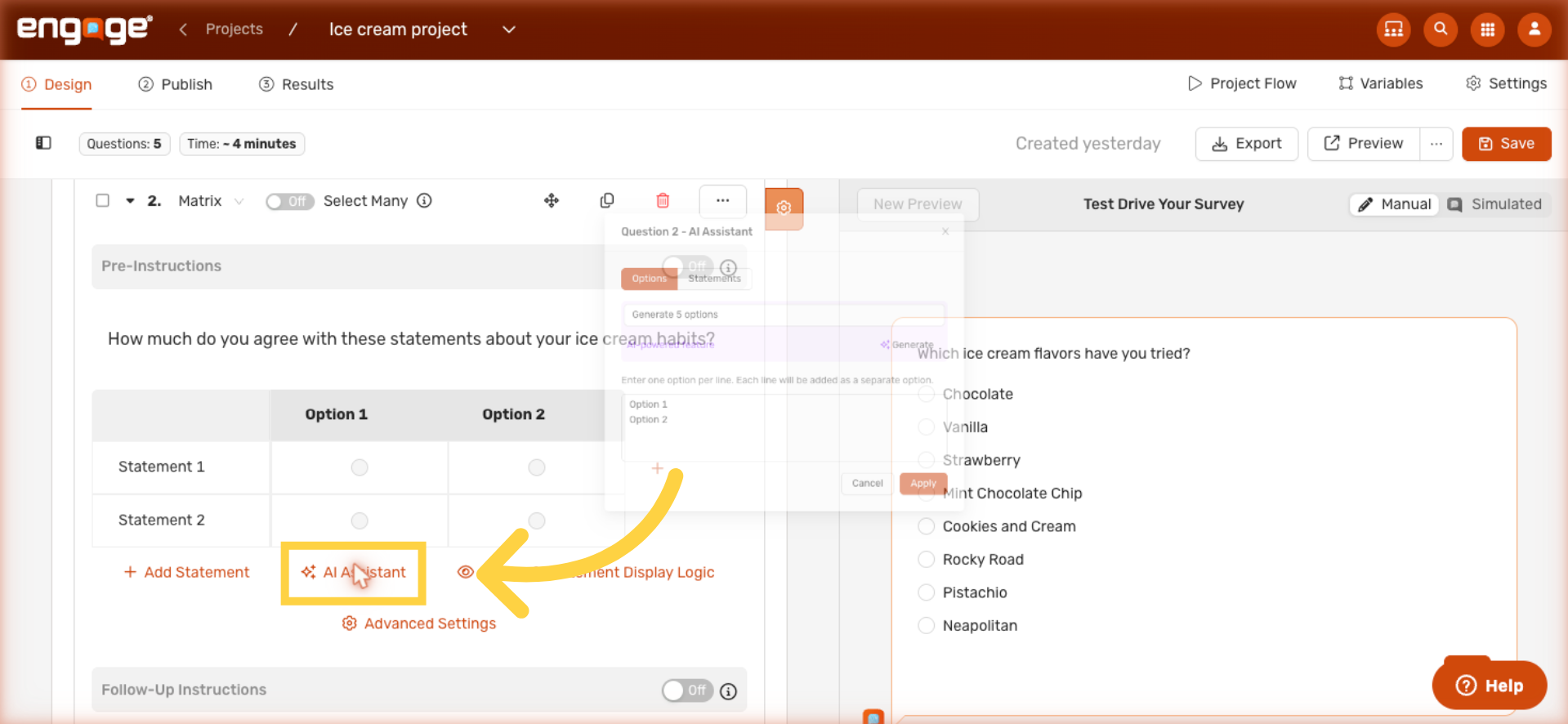
7. Try It on a Matrix Question
Matrix questions have the same AI Assistant — with one extra thing.
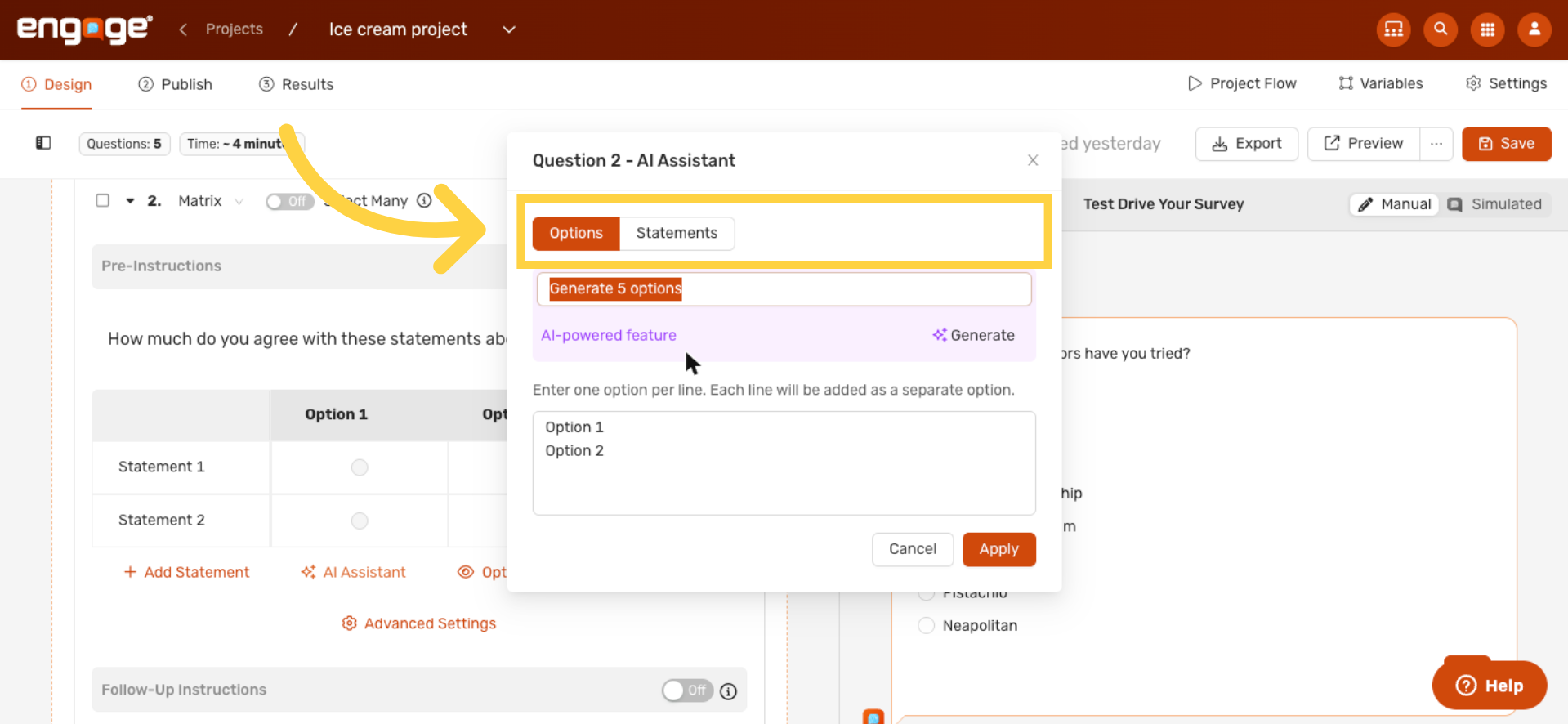
8. Generate Options and Statements
With a Matrix question, you can use the AI to write both the scale options AND the row statements respondents will rate. Just open the panel from either tab and Engage handles it the same way.
9. Use It on Other Question Types
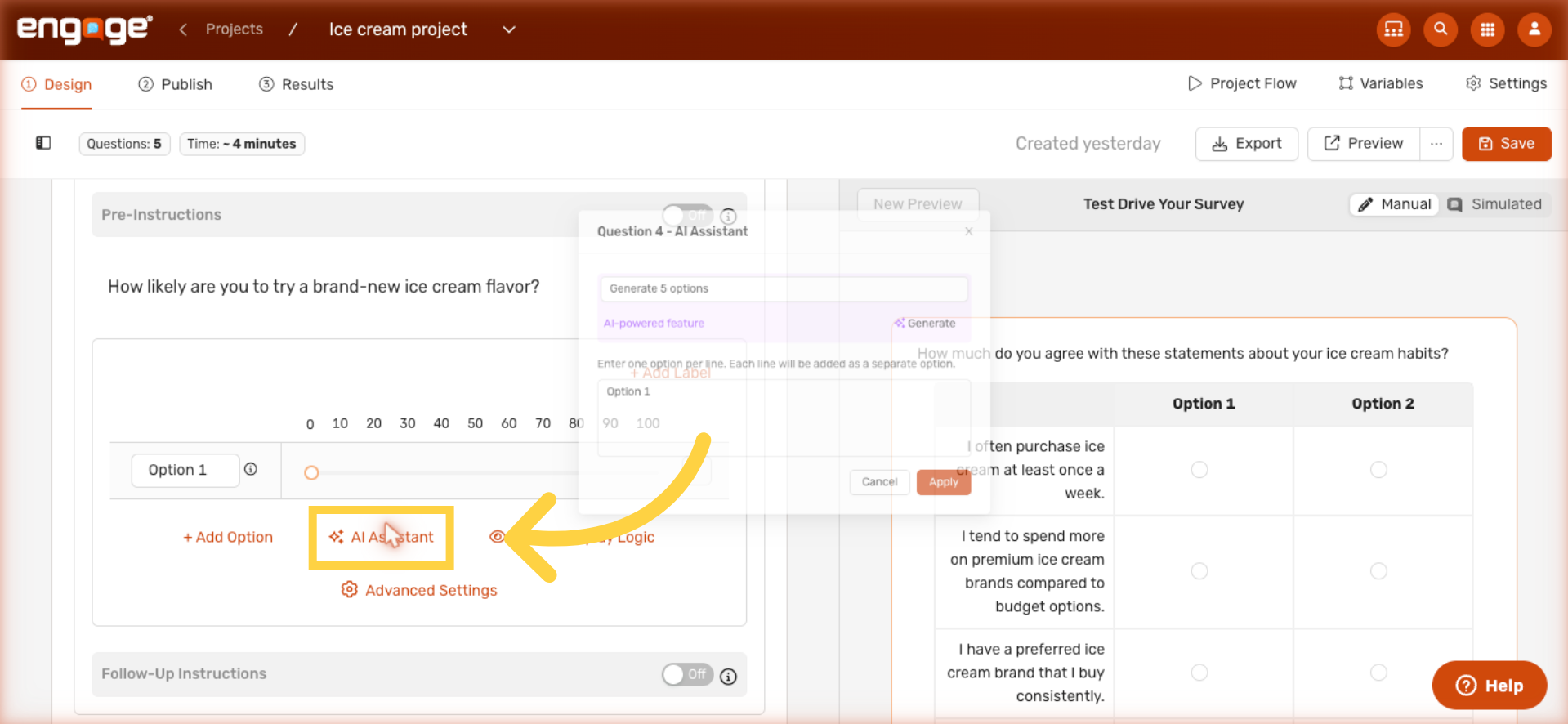
And you can do the same on Rank-Order, Slider, and MaxDiff questions too. Engage offers the AI Assistant on every question type with options or statements — so you never have to write them from scratch.
That's it for using AI to write your question options in Engage. The AI Assistant works the same way across every question type, so you can fill in entire surveys in a fraction of the time. If you have any questions, please reach out to our support team or check out our other guides.
Comments
0 comments
Please sign in to leave a comment.